Tag: AI workflow

  • Claude Code Hooks: Enforce Workflow Rules Automatically

    Claude Code Hooks: Enforce Workflow Rules Automatically

    Last refreshed: October 20, 2026

    You’ve been there. You add a rule to CLAUDE.md — “always run prettier after editing files” — and Claude follows it, most of the time. Then it doesn’t. The formatter doesn’t run, the lint check gets skipped, and you’re back to reviewing diffs manually.

    Hooks fix this. Claude Code hooks are shell commands, HTTP endpoints, or LLM prompts that fire deterministically at specific points in Claude’s agentic loop. Unlike CLAUDE.md instructions, which are advisory, hooks are enforced at the execution layer — Claude cannot skip them.

    As of early 2026, Claude Code ships with 21 lifecycle events across four hook types. This article covers the two that matter most for daily workflow: PreToolUse and PostToolUse.

    How Hooks Work Architecturally
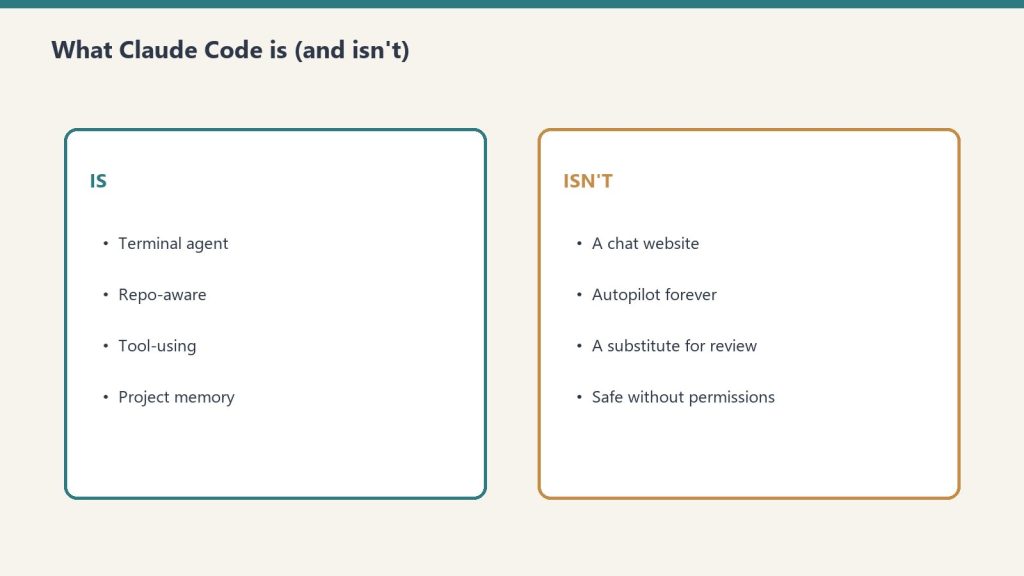
    Side-by-side cards defining what Claude Code is and is not
    How Claude Code hooks work architecturally.

    Claude Code’s agent loop is a continuous cycle: receive input → plan → execute tools → observe results → repeat. Hooks intercept this loop at named checkpoints.

    Every hook is defined in .claude/settings.json under a hooks key. A hook entry has three parts: the lifecycle event name, an optional matcher (a regex against tool names), and the handler definition — either a shell command, an HTTP endpoint, or an LLM prompt.

    {
      "hooks": {
        "PostToolUse": [
          {
            "matcher": "Write|Edit",
            "hooks": [
              {
                "type": "command",
                "command": "npx prettier --write "$CLAUDE_TOOL_INPUT_FILE_PATH""
              }
            ]
          }
        ]
      }
    }

    That’s it. Every file Claude writes or edits now auto-formats. No CLAUDE.md reminders, no hoping Claude remembers — the formatter runs on every single Write or Edit tool call, period.

    PreToolUse: Enforce Before Claude Acts
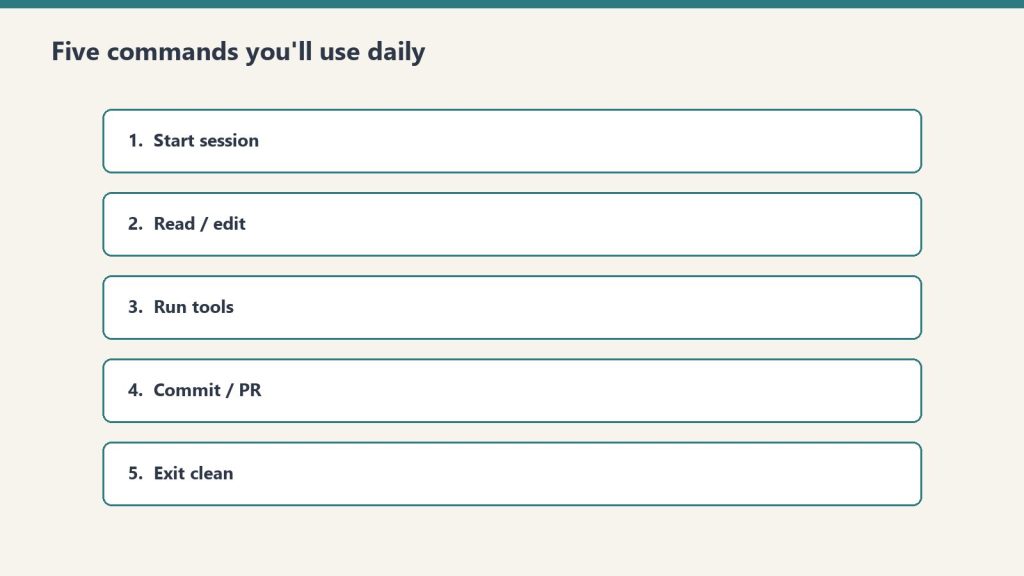
    Five stacked panels of daily Claude Code command habits
    PreToolUse — enforce before Claude acts.

    PreToolUse fires before Claude executes any tool. Your hook receives the full tool call — name, inputs, arguments — and can return one of three signals:

    • Exit 0 → allow the tool call to proceed
    • Exit 2 → block the tool call; Claude receives your error message and adjusts
    • Exit 1 → hook error; Claude proceeds but logs the failure

    This makes PreToolUse the right place for guardrails. Here’s a real example: blocking npm in a bun project.

    #!/bin/bash
    # .claude/hooks/check-package-manager.sh
    # Blocks npm commands in projects that use bun
    
    if echo "$CLAUDE_TOOL_INPUT_COMMAND" | grep -qE "^npm "; then
      echo "Error: This project uses bun, not npm. Use: bun install / bun run / bun add" >&2
      exit 2
    fi
    exit 0

    Wire it in settings.json:

    {
      "hooks": {
        "PreToolUse": [
          {
            "matcher": "Bash",
            "hooks": [
              {
                "type": "command",
                "command": ".claude/hooks/check-package-manager.sh"
              }
            ]
          }
        ]
      }
    }

    Now when Claude tries npm install, the hook exits 2, Claude sees the error message, and it switches to bun install without you intervening. The correction happens in the same turn.

    Another production pattern: blocking writes to protected paths.

    #!/bin/bash
    # Prevent Claude from modifying migration files already run in production
    if echo "$CLAUDE_TOOL_INPUT_FILE_PATH" | grep -qE "db/migrations/"; then
      echo "Error: Migration files are immutable after deployment. Create a new migration instead." >&2
      exit 2
    fi
    exit 0

    PostToolUse: React After Claude Acts

    PostToolUse fires after a tool completes successfully. It can’t block execution, but it can provide feedback — and it can run any side-effect you need automatically.

    Auto-format every edit:

    {
      "hooks": {
        "PostToolUse": [
          {
            "matcher": "Write|Edit",
            "hooks": [
              {
                "type": "command",
                "command": "npx prettier --write "$CLAUDE_TOOL_INPUT_FILE_PATH" 2>/dev/null || true"
              }
            ]
          }
        ]
      }
    }

    Run tests after code changes:

    #!/bin/bash
    # Run affected tests after any source file edit
    FILE="$CLAUDE_TOOL_INPUT_FILE_PATH"
    if echo "$FILE" | grep -qE "\.(ts|js|py)$"; then
      if [ -f "package.json" ]; then
        npx jest --testPathPattern="$(basename ${FILE%.*})" --passWithNoTests 2>&1 | tail -5
      fi
    fi

    Desktop notification on task completion:

    {
      "hooks": {
        "Stop": [
          {
            "hooks": [
              {
                "type": "command",
                "command": "osascript -e 'display notification "Claude finished" with title "Claude Code"'"
              }
            ]
          }
        ]
      }
    }

    Environment Variables Available to Hooks

    Claude Code exposes context about the triggering tool call through environment variables. The ones you’ll use most:

    Variable Value
    $CLAUDE_TOOL_NAME Name of the tool being called (e.g., Edit, Bash, Write)
    $CLAUDE_TOOL_INPUT_FILE_PATH File path for Edit, Write, Read calls
    $CLAUDE_TOOL_INPUT_COMMAND Shell command for Bash calls
    $CLAUDE_SESSION_ID Current session ID — useful for audit logging
    $CLAUDE_TOOL_RESULT_OUTPUT Output of the tool (PostToolUse only)

    These are injected by Claude Code before your hook runs. You don’t configure them — they’re always there.

    The Model Question: Which Claude Runs Agentic Tasks?

    One practical consideration for hook-heavy workflows: the default model affects how well Claude responds to hook feedback. As of May 2026:

    • claude-opus-4-7 ($5/MTok input, $25/MTok output) — highest agentic coding capability; best at interpreting hook rejection messages and self-correcting without re-asking
    • claude-sonnet-4-6 ($3/MTok input, $15/MTok output) — strong balance of speed and reasoning; handles most hook-corrected flows well
    • claude-haiku-4-5-20251001 ($1/MTok input, $5/MTok output) — fastest; may require more explicit hook messages to course-correct reliably

    For workflows with complex PreToolUse guardrails — especially ones that provide long error messages with corrective instructions — Opus 4.7 handles the feedback loop most reliably. For simpler PostToolUse automation (formatters, notifications), model choice doesn’t matter; the hook runs regardless.

    To configure the model: export ANTHROPIC_MODEL=claude-opus-4-7 before launching Claude Code, or set it in your team’s .env.

    Hooks vs. CLAUDE.md: When to Use Each
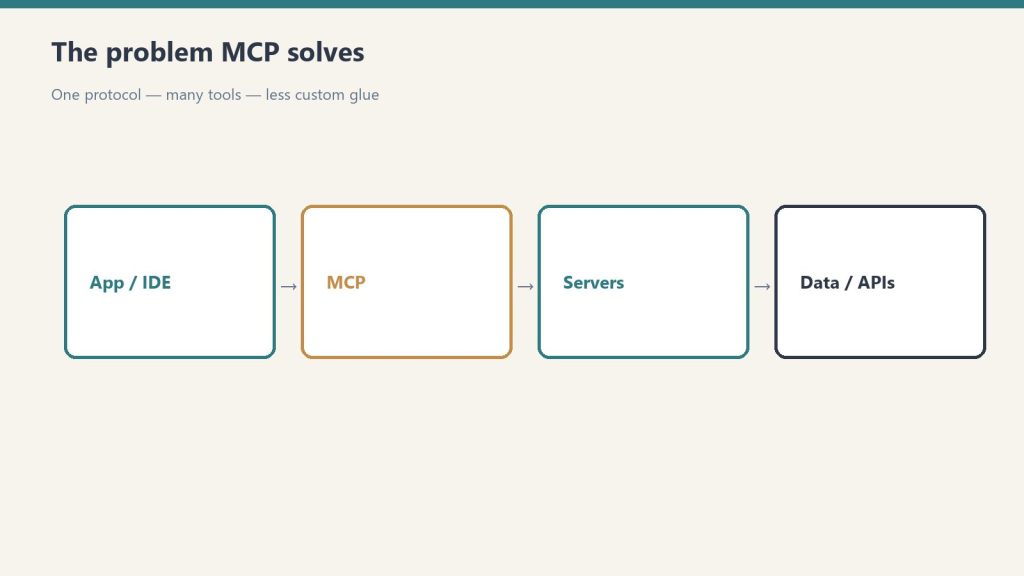
    Flow from app/IDE through MCP to servers and data APIs
    Hooks vs CLAUDE.md — when to use each.

    CLAUDE.md is the right place for context, preferences, and guidance — things you want Claude to know about your project. Hooks are the right place for behavior that must happen every time without exception.

    The practical test: if failing to follow the instruction costs you five minutes of manual cleanup, put it in a hook. If it’s a style preference or a reminder about architecture decisions, put it in CLAUDE.md. The two are complementary — you’ll likely end up with both in any mature project setup.

    A team that gets this right builds CLAUDE.md as documentation for Claude and hooks as the CI/CD equivalent for the agentic loop.

    Getting Started

    The fastest path to a working hook setup:

    1. Create .claude/settings.json in your project root if it doesn’t exist
    2. Add a PostToolUse hook wired to your formatter — this is low-risk and immediately valuable
    3. Test it by asking Claude to edit a file; the formatter should run automatically
    4. Add PreToolUse guardrails for any tool calls that have caused problems in the past

    The official hooks reference is at code.claude.com/docs/en/hooks — it covers all 21 lifecycle events, HTTP handler format, and the full JSON output schema for hook responses.

    Hooks are the difference between Claude Code as a powerful suggestion engine and Claude Code as a reliable automation layer. Once you have a PostToolUse formatter running on every edit, going back feels like working without version control.

    Related on Tygart Media: how to use Claude · Anthropic API key.

    October 2026 update — the hook rules moved under existing setups

    Three Claude Code releases on October 14 and 15, 2026 (2.1.299 through 2.1.301) changed how hooks you already have behave. Nobody edited your settings file to make this happen — the changes apply as soon as you are on the new version. If you run hooks like the ones in this article, recheck these:

    • Prompt hooks fire earlier. A UserPromptSubmit hook now runs before a skill or custom slash command expands, so a hook that blocks the prompt also stops the shell commands embedded in the skill. The flip side: a prompt hook no longer sees the skill’s expanded text. Matching the expansion itself is a separate event, UserPromptExpansion. A skill’s own frontmatter UserPromptSubmit hook now first runs on the prompt after the one that invoked the skill.
    • updatedInput is validated. When a PreToolUse or PermissionRequest hook returns updatedInput, it is now checked the way Claude’s own input is: unknown keys are dropped, and input the tool rejects denies the call. Return the complete input object with your change applied — not just the field you changed.
    • Plugin hooks fail closed. If a plugin hook cannot receive an action or cannot return its answer, the action is now refused instead of going through, and a tool that already ran has its result withheld.
    • Agent tool lists narrowed. An agent’s tools list now grants only the named MCP server’s tools; a shared name prefix no longer pulls in a second server’s tools by accident.
    • Two smaller ones: a PermissionRequest hook’s setMode update is ignored in Cowork cloud sessions, and a mod hook’s .catch handler no longer runs for re-entry events raised inside the hook’s own calls.

    Check claude --version first — everything above arrived in 2.1.299 or later. The enforcement patterns in this article still stand; the ground underneath three of them shifted.

  • Claude Code for Teams: Configuration & Gitignore Guide

    Claude Code for Teams: Configuration & Gitignore Guide

    Last refreshed: October 20, 2026

    Most teams I see roll out Claude Code by handing every engineer the install command and walking away. Three weeks later, half the repo has personal preferences committed to .claude/settings.json, the other half has a CLAUDE.md that contradicts the actual review process, and someone’s customized subagent is silently making code changes nobody else on the team understands.

    There is a better way, and it lives in the split between three files: CLAUDE.md, .claude/settings.json, and .claude/settings.local.json. Get this split right, and Claude Code becomes a force multiplier for the team. Get it wrong, and you are shipping AI-generated code that nobody owns.

    The Three-File Split

    Side-by-side cards defining what Claude Code is and is not
    The three-file split for team Claude Code.

    Here is the rule, no exceptions:

    CLAUDE.md — committed. Project root. Every engineer’s session reads this at startup. Put your architectural decisions, preferred libraries, naming conventions, and a review checklist here. If you would not write it on a whiteboard for a new hire, it does not belong here.

    .claude/settings.json — committed. Team-wide tool permissions, default models, and hooks. This is the file that keeps personal flagship-model enthusiasts from blowing through your team’s budget when claude-sonnet-4-6 would have done the job. If you let everyone default to claude-opus-4-7 for routine refactors, your monthly invoice will tell you about it.

    .claude/settings.local.json — gitignored. Personal preferences, individual MCP server configs, anything that varies by engineer. Add this line to your .gitignore on day one:

    .claude/settings.local.json

    If you do not, someone will commit credentials by Friday. Audit your existing repo right now: git log --all --full-history -- .claude/settings.local.json will surface any history that needs scrubbing.

    The mistake I see most often is teams committing settings.local.json because someone copied a tutorial that did not make the distinction clear. That copy-paste error is the single most common Claude Code rollout failure I have seen this year.

    Shared Subagents Are the Real Win

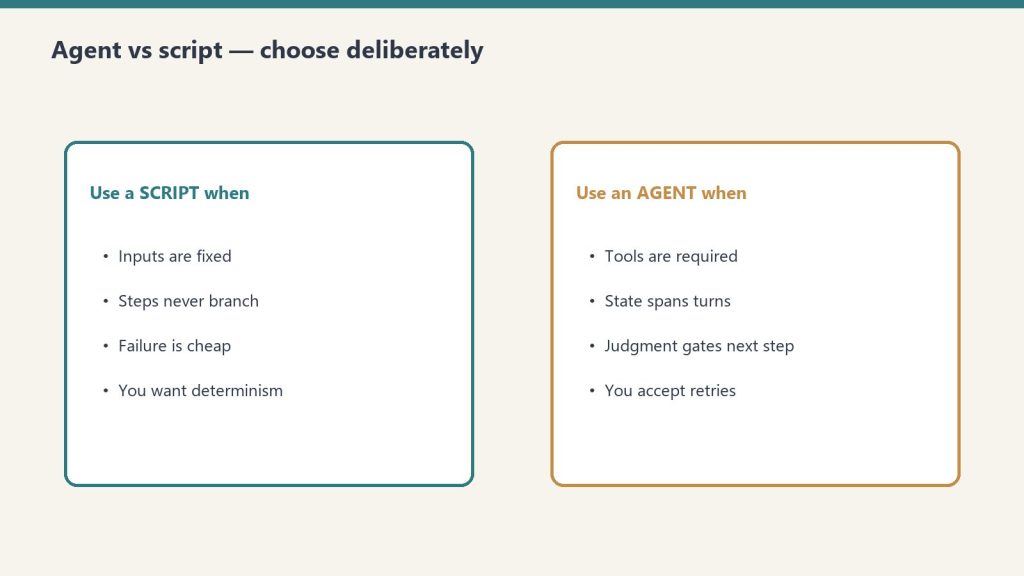
    Side-by-side when to use a script versus an agent
    Shared subagents are the real win.

    Project subagents live in .claude/agents/ and they ship with the repo. This is where teams compound value. A subagent for security review, one for accessibility audits, one for SQL migration safety — defined once, used by every engineer, every PR.

    A subagent definition is a markdown file with YAML frontmatter and a system prompt. When you commit it, every teammate’s claude invocation can call it. The subagent inherits your CLAUDE.md context automatically, so you do not have to redefine the project’s coding standards inside each agent.

    Here is the trap: do not put twelve subagents in there on day one. Start with one. The team’s most painful repeated review task is the right candidate. Whatever takes a long time and pulls in multiple engineers per PR — that is your first subagent. After two weeks of using it, you will know whether the second one is worth defining.

    CLAUDE.md Is a Living Document, Not a Manifesto

    The longest CLAUDE.md files I see are the worst-performing. Engineers do not read 4,000-word context files, and neither does Claude in any useful way — at some point you are paying for tokens that just dilute the signal.

    The CLAUDE.md files that actually shape behavior are usually compact, structured around three things:

    1. What this codebase is and what it is not.
    2. The handful of rules that get a PR rejected — test coverage, naming, error handling, dependency policy.
    3. A pointer to where deeper documentation lives.

    If your CLAUDE.md has a “philosophy” section, delete it. If it has a “history of the project” section, delete it. The file is read every session — make every line earn its tokens.

    CI/CD: Run Claude Code on PRs, Not in Place of Reviewers

    The pattern that works in CI is automated triage, not automated approval. A GitHub Actions workflow that runs Claude Code on every PR to check for things humans miss — missing tests, secrets in logs, public APIs without docstrings — adds value. A workflow that approves and merges PRs adds liability.

    Anthropic’s official GitHub Actions integration handles the auth and runs Claude Code headlessly. The realistic use cases:

    • Comment on PRs with a structured review (not a merge gate).
    • Auto-label PRs based on the diff.
    • Flag suspected regressions before a human reviewer opens the PR.

    Avoid: anything that auto-merges, anything that posts directly to production-facing systems, anything that calls a paid API on every commit to a feature branch. The bill compounds quickly when CI fires Claude on every push to every developer branch. Gate the workflow on PR-target branches only, or on labels.

    Where Claude Code for Teams Loses Today

    The honest list:

    • No native role-based permissions inside a single repo. If you want a junior engineer’s Claude Code to be more restricted than a senior’s, you have to enforce it through settings.json and trust everyone to not edit it. The Enterprise plan adds SSO, SCIM, and audit logs at the workspace level, but inside the repo, Claude Code itself does not differentiate by role.
    • No first-class secret scanning before commits. Hooks can plug this gap, but you have to wire pre-commit yourself.
    • Shared MCP servers are still per-developer auth. A team-shared Linear or Jira MCP, for example, still requires each engineer to authenticate individually.

    The Team plan addresses workspace-level governance through Premium seats, which is the tier that actually unlocks Claude Code for teammates. The Enterprise plan layers on SSO, SCIM, and audit logs. Neither makes the in-repo configuration questions go away — those are still your team’s problem to solve.

    Model Selection Is a Team Decision

    This one matters more than people realize. Default everyone in .claude/settings.json to claude-sonnet-4-6 for day-to-day work, with claude-opus-4-7 available for explicitly hard tasks. The current Anthropic lineup as of this writing — flagship claude-opus-4-7, workhorse claude-sonnet-4-6, fast claude-haiku-4-5-20251001 — is documented at docs.anthropic.com/en/docs/about-claude/models, and the model strings change frequently enough that hard-coding them in scripts has bitten me twice this year. Read that page, do not memorize it.

    A team that defaults to flagship for everything and a team that defaults to workhorse with selective escalation will see meaningfully different invoices for substantially the same productivity. Make the choice consciously.

    The 20-Minute Setup

    Desk with laptop, checklist notebook, and billing card ready before creating an Anthropic API key
    The 20-minute team setup.

    If you are rolling Claude Code out to a team next week:

    1. Add .claude/settings.local.json to .gitignore. First commit, today.
    2. Write a focused CLAUDE.md covering review-blocking rules. Ship it short.
    3. Create one subagent in .claude/agents/ for the team’s most painful review task.
    4. Add a single GitHub Actions workflow that runs Claude Code on PRs in comment-only mode.
    5. Schedule a 30-minute team review of the CLAUDE.md every two weeks. Delete more than you add.

    That is it. Everything else is iteration. The teams that succeed with Claude Code treat the configuration as code — versioned, reviewed, and pruned. The teams that fail treat it as a personal productivity tool that happens to be in a shared repo.

    Decide which kind of team you want to be before the third engineer commits.

    Related on Tygart Media: how to use Claude · Anthropic API key.

  • Cowork Routines: Scheduled Tasks & Windows Computer Use

    Cowork Routines: Scheduled Tasks & Windows Computer Use

    Last refreshed: October 20, 2026

    Two Cowork capabilities that haven’t been written about here yet, despite being live since late April: Cowork Routines (always-on scheduled tasks that run when your laptop is closed) and Windows computer use (Claude operating your Windows desktop directly from within Cowork). Both shipped in the April 28–30 window alongside the Claude GA release. Both materially change what Cowork is.

    Cowork Routines: The Laptop Can Be Closed

    Three stacked layers: chat UI, tools, agent runtime
    Cowork Routines — the laptop can be closed.

    The original Cowork model required your laptop to be open and the Cowork desktop app to be running. Useful — but bounded by your hardware being available and powered on. Cowork Routines changes that.

    Routines are cloud-hosted scheduled tasks that execute on Anthropic’s infrastructure regardless of your local hardware state. They run on a schedule you define. They execute when your laptop is off, sleeping, or in your bag on a plane. The task runs, the output lands where you configured it to land, and when you open the laptop you find the work done.

    The practical scope of what runs well as a Routine:

    • Daily briefings: Pull sources, synthesize, write to Notion or email — delivered before you open your laptop each morning
    • Monitoring tasks: Check a source on a schedule, flag anomalies, log findings
    • Content pipeline steps: Recurring publication tasks, social scheduling prep, site audit runs
    • Report generation: Weekly status documents assembled from live data sources
    • Notification triggers: Watch a condition, fire an action when it’s met

    We run our own Claude Newspaper Desk — a daily briefing that checks Anthropic’s news, release notes, GitHub releases, and external coverage, then writes a structured briefing to Notion before we start the day. That’s a Routine. The briefing that generated this article was produced by a Routine running on a schedule, not by someone manually triggering a task.

    The architectural decision that makes Routines significant: the task reads its instructions from a Notion desk spec page at runtime, not from a baked-in prompt. Change the Notion spec, change what the Routine does — without touching the scheduled task itself. The shim file that triggers the Routine is thin by design; the intelligence lives in Notion.

    Windows Computer Use: Claude Operates Your Desktop

    Four cards for content, ops, build, and knowledge work with Claude
    Windows computer use — Claude operates your desktop.

    Computer use in Claude — the ability for Claude to navigate desktop interfaces, click through UI, fill forms, and verify results — was previously available primarily in research preview and on macOS. The April 2026 Cowork release brought computer use to Windows as a generally available capability within the Cowork desktop app.

    What this means in practice: Claude can open a native Windows application, navigate its interface, perform a sequence of actions, and hand the result back — without you needing to automate it through code or build an API integration. If there’s a tool that only has a Windows UI and no API, Claude can use the Windows UI directly.

    The current state of computer use is honest about its scope. It’s good at:

    • Navigating well-structured desktop applications with clear UI hierarchies
    • Form completion across multiple-step workflows
    • Data extraction from desktop tools that don’t export well
    • Verification steps that require visual confirmation

    It’s slower than direct API integrations when those exist. For tools with APIs, use the API. Computer use is the path when no API exists or when the integration cost exceeds the value of doing it properly.

    The combination of Routines + Windows computer use means a scheduled task can now include a step that operates a Windows desktop application — unattended, while your laptop is running in the background. That’s a meaningfully different capability than what Cowork shipped with originally.

    How We’re Using Both

    Three panels showing one problem, three options, one recommendation
    How we’re using both.

    Our Cowork architecture as of May 2026:

    • Cowork as execution layer — always-on laptop running scheduled tasks
    • Notion as control plane — desk specs, task queues, logs, and credential storage
    • GCP Cloud Run as action layer — WordPress publishing, API calls, content pipeline steps
    • Claude Code Routines as cloud fallback — tasks that need to run independent of local hardware

    Routines handle the tasks where continuous availability matters more than local context: briefings, monitoring, scheduled publishing. Cowork handles the tasks where rich local context matters: multi-step sessions with file access, browser navigation, and tools that live on the local machine.

    The practical division: if the task needs to run at 3am when the laptop is sleeping, it’s a Routine. If the task needs to interact with local files, a browser session, or a Windows app, it’s Cowork.

    The Non-Developer Angle

    Neither of these capabilities requires you to be a developer to use. Routines are configured through the Cowork interface with natural language task descriptions and a schedule. Computer use activates through the same conversational interface you’re already using.

    The architecture underneath is sophisticated. The interface isn’t. You describe what you want done and when, and the system figures out the implementation. This is the progression that makes these capabilities meaningful for operations teams, executive assistants, knowledge workers, and small business owners — not just engineers building agent pipelines.

    Singapore’s Foreign Minister Balakrishnan built his own version of this on a Raspberry Pi. The point isn’t to build your own — it’s that the underlying architecture (persistent memory, scheduled tasks, multi-channel input) is now accessible at multiple layers of sophistication, from DIY open source to fully managed product.

    Related on Tygart Media: Claude Routines · Claude Cowork · Cowork task scheduling.

    Frequently Asked Questions

    What are Cowork Routines?

    Cowork Routines are cloud-hosted scheduled tasks that run on Anthropic’s infrastructure regardless of whether your local Cowork laptop is on or available. They execute on a schedule you define — daily, weekly, or at specific times — and can perform any task Cowork handles: briefings, monitoring, content pipeline steps, report generation, and notification triggers. Each Routine reads its instructions from a Notion desk spec at runtime.

    Does Windows computer use require coding to set up?

    No. Computer use in Cowork activates through the standard conversational interface. You describe what you want Claude to do in the application, and Claude navigates the Windows desktop UI directly. No scripting, automation code, or API integration is required — though API integrations are faster when they exist. Computer use is the path for tools with no accessible API.

    What’s the difference between Cowork and Cowork Routines?

    Cowork runs on your local machine and requires the desktop app to be open and active. Routines run on cloud infrastructure and execute regardless of local hardware state. The practical division: tasks that need to run unattended on a schedule go to Routines; tasks that need local context, file access, or desktop UI interaction go to Cowork. Both read task instructions from Notion desk spec pages at runtime.

    Is Cowork available on both Mac and Windows?

    Yes. Cowork and computer use are available on both macOS and Windows as of the April 2026 general availability release. The Windows release also established PowerShell as the default shell (previously Git Bash was required), reducing a friction point for enterprise Windows shops.

  • AI Message Drafting vs Human Presence in Hard Conversations

    AI Message Drafting vs Human Presence in Hard Conversations

    Twenty-eight pieces in, the system is getting very good at the briefing. It surfaces what hasn’t moved. It names the silence that has become meaningful, flags the relationship drifting toward cold, arms the escalation trigger with a date. It does all of this accurately — and the accuracy is the achievement.

    And then, somewhere in the hour after the briefing, there is a temptation that the previous pieces could not fully address.

    Should I draft the message first?

    In most cases, yes. This series has argued consistently that the briefing exists to reduce noise, that good preparation enables rather than substitutes, that an operator who shows up to a difficult conversation knowing the facts, the history, and the emotional terrain is better positioned than one who doesn’t. All of that holds.

    But there is a category of act where the draft is not preparation.

    It is displacement.


    What the Act Is Made Of

    The apology you drafted is not an apology. It is a document about an apology.

    This sounds harsher than it is. The words can be sincere. The feeling behind them can be real. The draft can be good — articulate, appropriately calibrated, warm in all the right places. And the person receiving it will feel something. But what they feel is not quite what they needed to feel, and the gap between those two things is what this piece is about.

    Because what the difficult call actually communicates is not the words. It is the quality of presence behind them. The person on the other end is reading for something beneath the surface — not the content of the message but the evidence that you showed up without a net. That you accepted exposure. That you thought of them enough to call before you knew what you were going to say.

    A good draft can’t give you that. It gives you something better: control. And control is exactly what the act cannot survive.

    The person receiving the message — the one at the edge of the relationship, where the repair needed to happen — cannot always name what they are reading for. They may not consciously register the difference. But the relationship registers it. The contact that needed to happen at the level of presence happened instead at the level of composition, and the gap remains. Now decorated with good sentences.


    The Fault Line Is Specific

    This is not an argument against using the system to prepare. It is an argument about where preparation ends and contamination begins.

    On one side of the line: the briefing. The context. The last date of contact and what was left unresolved. The health score and the silence trajectory. The facts, organized. The emotional terrain, mapped. All of this is good engineering. It removes the friction that has nothing to do with the difficulty of the call — the noise of not knowing the basics, the distraction of uncertainty about what happened — and it leaves you free to be present for the part that matters.

    On the other side of the line: the words. The draft. The crafted opening, the structured arc, the polished close. This is where preparation crosses from reducing noise to removing the signal itself.

    The signal is the property of the unrehearsed. What reaches the other party — what moves through the call and lands — is evidence that someone with skin in the game showed up with it exposed. Not managed. Not processed. Exposed.

    The deeper irony: a very good draft sounds natural. Natural is the precise property that cannot be manufactured, because it is the residue of genuine presence, not of craft. The better the draft simulates natural, the more completely it substitutes for the thing it was meant to support. You have now produced a performance of the call. The other person receives a performance. They know. Not always consciously. But they know.


    The Pressure-Release Problem

    What the system provides, when you ask it to draft the hard message, is a pressure-release valve.

    The pressure is real. The briefing surfaced something that needs to move. The operator’s nervous system knows it. There is a genuine desire to do something about it. Requesting a draft from the system feels like a move toward the thing. It produces a deliverable.

    But the deliverable is a substitute. The pressure releases without the contact happening. The operator has moved around the hard thing while carrying the artifact of having moved toward it. The gap — the relationship that needed a phone call — is still there. Now it has a draft parked next to it.

    This is what “work where doing is the point” looks like in the residual queue. Not the obvious cases — the scheduling, the summarizing, the research. The dangerous case is when the intelligence layer has correctly identified that a specific person needs a specific kind of presence from the operator, and the operator, rather than providing that presence, asks the system to approximate it.

    The system can approximate almost everything about the conversation except the part that makes it a conversation rather than a performance.

    Article 9 in this series argued that AI cannot have skin in the game — that judgment and relationships are the durable human advantages. What this piece is adding is the specific failure mode: not just that the AI lacks skin in the game, but that asking the AI to draft the act allows the human to lack it too, while appearing not to. It is a way of having skin in the game while keeping it covered. The brief exposure of authoring the draft, followed by the transmission of the draft, produces the sensation of having done the hard thing. The hard thing is still undone.


    Where to Draw the Line

    Everything up to the words is good engineering.

    Know the context. Know the history. Know what the relationship has cost and what it is worth. Let the briefing do its job fully — the facts, the silence trajectory, the emotional background. Arrive prepared in every way except one, and be deliberately unprepared in that one. Not as an oversight. As a discipline.

    The words are yours. Not because the system couldn’t generate better ones — it probably could — but because the words being yours is part of what is being communicated. The exposure is the content. The willingness to say something that might land badly, to be present without a script, to show up as someone who thought about this enough to call before they knew what they were going to say — that is the act the briefing was built to make possible.

    Not to replace.

    The system is very good at preparing you for the call. The test of whether you understand what it built is whether you put down the draft at the moment the call actually begins.

    There is a seam between the briefing and the act. Most of the work in the residual queue lives there. The briefing ends. The act starts. These are adjacent and distinct, and mistaking one for the other — using the scaffolding all the way up to and through the moment of contact — is the specific way a very capable system teaches a very capable operator to be slightly less present than they were before they built it.

    The call is available in the hour after the briefing, before the draft. It will not wait indefinitely for a better version of itself to be prepared.

    Related on Tygart Media: text-mediated trust · AI operator’s stack · follow-up cadence.

  • Error Handling and Fallbacks in Notion AI Workflows

    Error Handling and Fallbacks in Notion AI Workflows

    Related on Tygart Media: multi-agent orchestration · Notion AI vs Zapier AI.

    The 60-second version

    The default failure mode of a Notion agent is “stop.” That’s almost never what you want in production. Robust workflows define what happens for each kind of failure: agent times out, Worker fails, external API is down, the schema mismatched, the credit pool emptied. Each needs a planned response — retry, fall back to manual, escalate to human, log and continue. Without explicit handling, “the agent stopped working” becomes a mystery debug session.

    Five failure modes and their handling

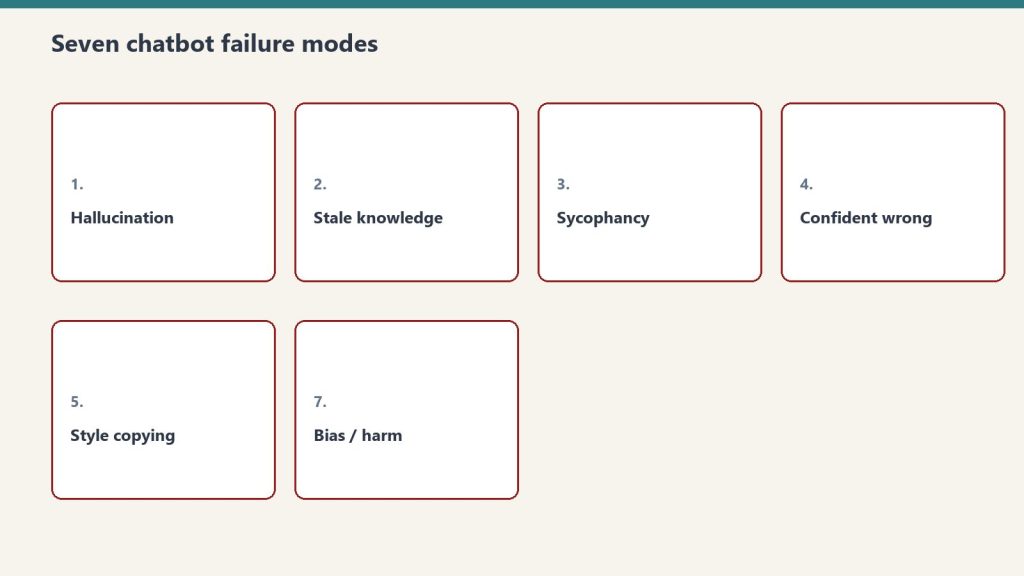
    Seven cards naming common AI chatbot failure modes
    Five failure modes and their handling.

    1. Agent timeout (rare but exists). A 20-minute Custom Agent run that doesn’t complete. Handling: log the timeout, surface to the human owner, don’t auto-retry (likely to repeat the same problem).
    2. Worker timeout (more common). Worker hits 30-second limit. Handling: structured error return from the Worker; agent decides whether to retry, partial-result, or fail. Don’t silently re-invoke.
    3. External API failure. API down, rate limited, or returning errors. Handling: retry with exponential backoff (max 3 attempts), then fall back to “external system unavailable” path with human notification.
    4. Schema mismatch. Agent expected JSON shape A, Worker returned shape B. Handling: validate at the boundary, log the mismatch, fall back to a default response, alert human to fix the schema drift.
    5. Credit exhaustion. Workspace credit pool hits zero (post-May 4). Handling: this is hard — the agent stops mid-execution. Mitigation is preventative: monitor credit consumption, alert at 75% of monthly budget, top up before zero.

    Three practical patterns

    Three panels showing one problem, three options, one recommendation
    Three practical patterns.

    The retry-with-backoff pattern.
    First attempt fails → wait 1 second, retry. Second fails → wait 4 seconds, retry. Third fails → escalate to human. Don’t retry indefinitely.
    The fallback-output pattern.
    When the primary path fails, return a known-safe default with metadata indicating it’s a fallback. Downstream consumers can check the metadata and decide whether to use the fallback or alert.
    The human-escalation pattern.
    Define clear handoff criteria. When the agent can’t complete, who gets pinged, with what context, in what channel? “Pings someone eventually” is not a plan.

    Logging requirements

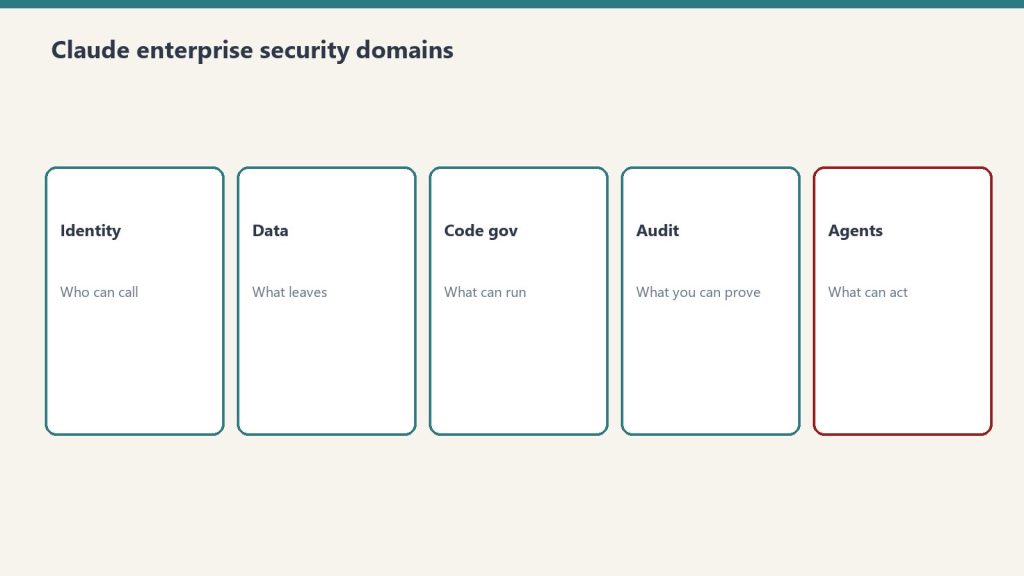
    Five security domains: identity, data, code governance, audit, agents
    Logging requirements.

    Production agent workflows need three log streams:
    – Action log: what the agent did and when
    – Error log: what failed, with enough context to diagnose
    – Decision log: when the agent chose between options, what it chose and why
    Without all three, debugging takes 10x longer than it should.

    Where this goes wrong

    1. Trusting the default failure behavior. “The agent stopped” is rarely the right response. Define explicit handling.
    2. Silent retries. Retries that don’t log produce mysterious “sometimes it works” behavior. Always log retry attempts.
    3. No credit monitoring. Hitting credit zero stops every agent in the workspace. Monitor consumption proactively.

    What to read next

    Workers in TypeScript, Multi-Agent Orchestration, Security Posture, ROI Math.

  • Multi-Agent Orchestration in Notion: When One Agent Hands Off to Another

    Multi-Agent Orchestration in Notion: When One Agent Hands Off to Another

    Related on Tygart Media: AI orchestration tools · first Notion skill.

    The 60-second version

    Single mega-agents are tempting and bad. Specialized agents in a sequence with clear handoffs are harder to design but much more reliable. The principle: each agent does one thing well and hands a structured result to the next. Three handoffs is about the practical limit before debugging becomes painful. Beyond three, refactor.

    Three orchestration patterns that work

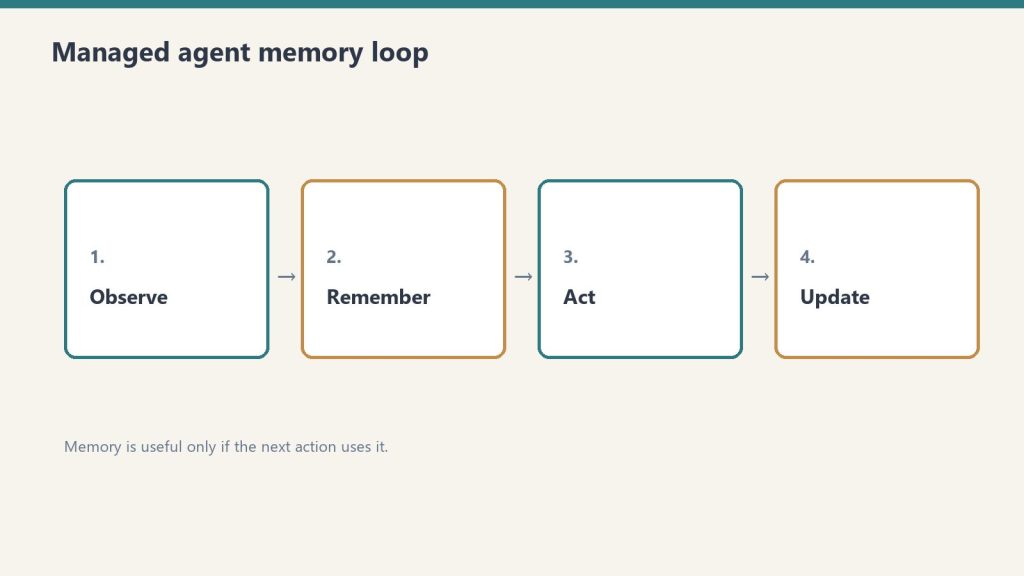
    Four-step loop: observe, remember, act, update for managed agents
    Three orchestration patterns that work.

    1. The pipeline pattern.
    Agent A produces structured output → Agent B consumes and produces → Agent C consumes and produces final result. Each agent’s output schema matches the next agent’s input schema. Clear linear flow.
    2. The router pattern.
    A routing agent decides which specialist agent should handle the request, then dispatches. Specialists are scoped tightly to their domain. The router doesn’t do work itself; it just routes.
    3. The reviewer pattern.
    A producer agent generates output. A reviewer agent checks against criteria and either approves or returns specific feedback. Iterates until approved or max-attempts hit.

    Three patterns that fail

    Seven cards naming common AI chatbot failure modes
    Three patterns that fail.

    1. Recursive agent chains. Agent A calls Agent B which calls Agent A again. Debugging is awful. Don’t.
    2. Shared mutable state. Two agents writing to the same database row simultaneously. Race conditions and overwrites. Don’t.
    3. Implicit handoffs. Agent A produces unstructured text; Agent B parses it. The first format change breaks everything. Use structured handoffs.

    Designing the handoff contract

    Desk with laptop, checklist notebook, and billing card ready before creating an Anthropic API key
    Designing the handoff contract.

    The handoff between agents is the highest-risk surface. Three rules:
    – Define the schema explicitly. The output of Agent A is JSON-schema-validated input to Agent B.
    – Version the schema. Schema changes are breaking changes. Version like APIs.
    – Test the handoff in isolation. Mock Agent A’s output; test Agent B’s handling. Mock Agent B’s expected input; test Agent A’s production.

    Where orchestration goes wrong in production

    1. Cost compounds with depth. Each agent call consumes credits. A three-handoff workflow costs roughly 3x a single-agent workflow. Budget accordingly.
    2. Latency compounds too. A 5-second agent x 3 handoffs is 15 seconds end-to-end.
    3. Failure modes multiply. Agent A succeeds, Agent B fails, what happens? Define the failure handling explicitly.

    What to read next

    Workers for Agents in TypeScript, Building Your First Skill, Error Handling in Notion AI Workflows, Custom Agents vs Basic.

  • Workers for Agents in TypeScript: Patterns That Hold Up in Production

    Workers for Agents in TypeScript: Patterns That Hold Up in Production

    Related on Tygart Media: first Notion skill · Cursor command center.

    The 60-second version

    Workers reward a specific style of TypeScript: small, single-purpose, structured-input-and-output, well-typed. The constraints (30 seconds, 128MB, no state) push you toward this style automatically. Workers that hold up in production share patterns: typed input/output schemas, defensive HTTP calls with timeouts, structured error returns, no hidden side effects.

    Five production patterns

    Three stacked layers: chat UI, tools, agent runtime
    Five production patterns for Workers.

    1. Type your input and output.
    Type strictly. The agent works against the schema. Schema drift breaks the agent silently.
    2. Defensive HTTP with timeouts.
    External API calls inside a 30-second budget need their own timeouts. A 25-second API call leaves 5 seconds for everything else. Set explicit fetch timeouts shorter than the Worker timeout.
    3. Structured error returns instead of throws.
    Throw inside a Worker and the agent gets opaque failure. Return structured error objects and the agent can reason about the failure and respond gracefully.
    4. Idempotency where state matters.
    Workers have no persistent state, but they can hit external systems that do. If the external call is non-idempotent (e.g., creates a record), include an idempotency key derived from input. Calling the Worker twice should produce one record, not two.
    5. Approved domains as a deployment artifact.
    Track domain approvals in code. When a Worker stops working in production, “did the approved domains change” is the first thing to check.

    Three production failures to design around

    Seven cards naming common AI chatbot failure modes
    Three production failures to design around.

    1. The 30-second wall. Aim for under 5 seconds typical, under 15 worst case. Long calls fail under retry loads.
    2. Silent domain blocks. A Worker calling a non-approved domain fails with an error that isn’t always obvious. Log every outbound destination.
    3. Memory leaks via large responses. Don’t pull a 50MB JSON response into a 128MB Worker. Stream, paginate, or pre-filter at the source.

    Testing strategy

    Desk with laptop, checklist notebook, and billing card ready before creating an Anthropic API key
    Testing strategy.

    Unit-test the Worker logic separately from the agent. Use mock HTTP. Then integration-test with the actual agent calling the Worker. The two test layers catch different bugs.

    What to read next

    Workers + External APIs, Notion AI Meets MCP, Workers for Agents foundation piece, Security Posture.

  • Notion Agents vs n8n Alone: When the Workflow Belongs Inside Notion

    Notion Agents vs n8n Alone: When the Workflow Belongs Inside Notion

    Related on Tygart Media: vs Zapier AI · multi-agent orchestration · Notion Command Center.

    The 60-second version

    This isn’t either-or. n8n is the deterministic workflow engine — when X happens, do Y across these 5 apps. Notion Agents are the reasoning layer — given the context, decide whether X actually warrants action and what the right action is. Combined via the n8n MCP bridge, they form a complete automation stack: agent reasons, n8n executes. Operators who treat them as competitors miss the leverage.

    When Notion Agents win

    Three stacked layers: chat UI, tools, agent runtime
    When Notion Agents win.
    • The workflow needs to read and synthesize Notion workspace content
    • Natural-language understanding of context matters
    • The “decide whether to act” question is the hard part
    • Schedule-driven autonomous work is the goal
    • The workflow output is itself in Notion

    When n8n wins

    Side-by-side when to use a script versus an agent
    When n8n wins.
    • Pure cross-app data movement (no reasoning needed)
    • Hundreds of integration options matter
    • Visual workflow building with branching logic
    • High-volume deterministic automations
    • Workflows that don’t touch Notion at all

    The combined pattern

    Three panels showing one problem, three options, one recommendation
    The combined pattern.

    The pattern that’s emerging:
    – Notion Agent decides what to do based on context
    – n8n workflow executes the cross-app coordination
    – Connected via the n8n MCP bridge inside Notion
    Example: Agent reads new lead in Notion → reasons whether it matches ICP → if yes, calls n8n workflow that updates Salesforce, sends Slack notification, schedules follow-up email.

    What n8n does that Notion Agents don’t

    • Massive integration catalog (Salesforce, Stripe, hundreds of others)
    • Visual flow building
    • High-throughput deterministic execution
    • Self-hosting option for compliance-sensitive use cases

    What Notion Agents do that n8n doesn’t

    • Natural-language understanding of unstructured workspace content
    • Native Notion database manipulation
    • Skills (saved natural-language workflows)
    • Workers for custom code execution
    • Schedule-driven autonomous reasoning

    Where this goes wrong

    1. Trying to do everything in one tool. Reasoning in n8n (limited) or deterministic execution in Notion Agents (expensive) is the wrong direction.
    2. Skipping the MCP bridge. Without it, you re-implement n8n integrations as Workers. Don’t.
    3. Letting agent reasoning replace simple n8n triggers. If the trigger is “row added to database,” that’s deterministic. Just use n8n.

    What to read next

    n8n MCP Bridge, Workers + External APIs, Notion AI vs Zapier, MCP foundation piece.

  • Google Drive + Notion AI: Bringing External Documents Into Agent Context

    Google Drive + Notion AI: Bringing External Documents Into Agent Context

    Related on Tygart Media: Notion second brain · Notion AI review.

    The 60-second version

    Most teams have content split between Notion and Google Drive. Drive holds the “I’m collaborating in real-time with five people” docs; Notion holds the structured workspace and database content. The Drive integration lets agents read across both. The result: synthesis that pulls from “the project doc in Drive” plus “the project page in Notion” plus “the related research in Notion’s research database” without manual copy-paste.

    Three patterns that work

    Four cards for content, ops, build, and knowledge work with Claude
    Three patterns that work for Drive + Notion AI.

    1. Cross-source synthesis. “Summarize the state of project X” pulls from the Notion project page, the Google Doc collaborators are working in, and the Sheets file with the metrics. Agent produces one synthesis from three sources.
    2. Drive-content-as-source for Notion drafts. Drafting a Notion document, agent pulls from a Drive Doc as reference. Useful when the source-of-truth lives in Drive but the deliverable lives in Notion.
    3. Migration assistance. Teams moving from Drive to Notion can use the integration to surface “what’s still in Drive that should be in Notion.” Helps the migration without forcing it.

    What stays manual

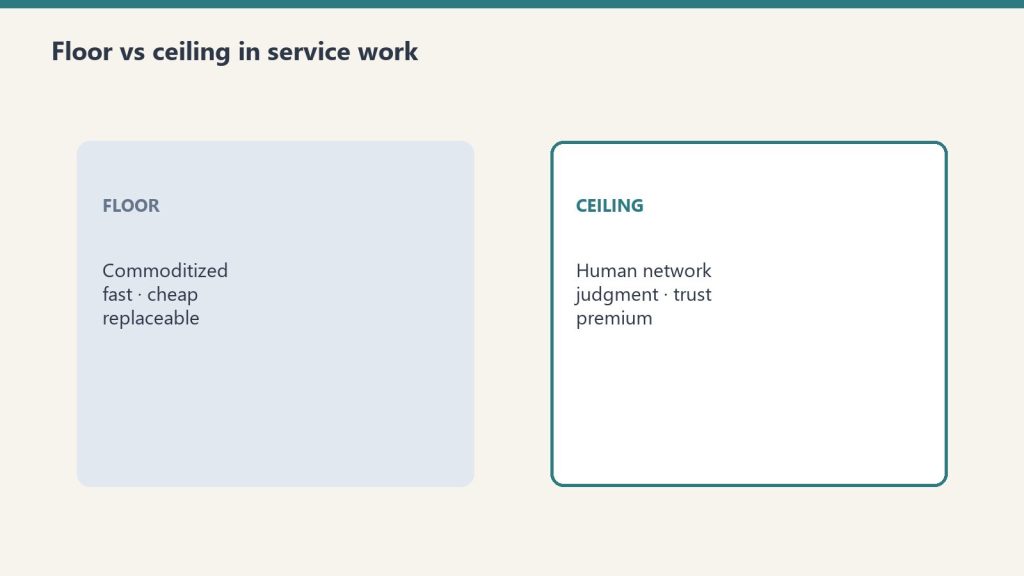
    Floor versus ceiling cards for commoditized work and human-network premium
    What stays manual.
    • The actual collaboration in Drive (real-time editing isn’t an agent task)
    • Decisions about which content lives where (organizational, not synthesis)
    • Sensitive Drive content the agent shouldn’t see (don’t connect it)

    Permission inheritance

    Five security domains: identity, data, code governance, audit, agents
    Permission inheritance.

    The Drive integration uses the connected user’s permissions. The agent sees what you see. Two practical implications:
    – For org-wide Drive content, connect through an account with broad access
    – For personal Drive, connect your personal account; the agent sees only your stuff

    Where this goes wrong

    1. Connecting too broadly. A Drive integration that gives the agent access to your entire org’s Drive includes things you didn’t think about (HR docs, finance, executive). Scope tightly.
    2. Letting Drive content lag behind Notion content. When a Notion page is canonical, the agent should reference it, not the Drive doc. Mark canonical sources clearly.
    3. Treating Drive as substrate without organization. A messy Drive feeds an agent that produces messy synthesis. The Editorial Surface Area thesis applies to Drive too.

    What to read next

    Editorial Surface Area, Slack Integration, Calendar + Notion AI, MCP foundation piece.

  • Calendar + Notion AI: Letting Your Agent Schedule and Prep Meetings

    Calendar + Notion AI: Letting Your Agent Schedule and Prep Meetings

    Related on Tygart Media: Slack + Notion agent · mail integration · what Notion AI agents are.

    The 60-second version

    Calendar is the most repetitive coordination work in knowledge work. Notion AI’s calendar integration takes most of it off your plate. The agent reads your upcoming meetings, pulls related context from your Notion workspace, and drops a one-page brief in your inbox 30 minutes before. For scheduling, the agent suggests times based on your patterns and drafts the calendar invite. You confirm and send. Five minutes of coordination work compresses to thirty seconds of approval.

    Three calendar integration patterns

    Four cards for content, ops, build, and knowledge work with Claude
    Three calendar integration patterns.

    1. The pre-meeting brief agent. Triggered 30-60 minutes before each external meeting. Pulls the relevant project page, prior meeting notes with these attendees, open action items, and any current context. Brief lands in your inbox or daily notes.
    2. The scheduling assist agent. When you need to schedule something, ask the agent. It reads your calendar, suggests times that match your patterns (e.g., afternoon for deep work, mornings for standup), and drafts the invite text. You review and send.
    3. The post-meeting capture agent. After meetings, agent prompts for quick voice or text capture. Processes the capture into structured updates: action items added to task database, decisions logged to project page, follow-ups scheduled.

    What stays human

    Floor versus ceiling cards for commoditized work and human-network premium
    What stays human.
    • Deciding which meetings to take
    • The conversations themselves
    • Final approval before scheduling sends
    • Any sensitive scheduling (interviews, terminations, board calls)

    Setup considerations

    Desk with laptop, checklist notebook, and billing card ready before creating an Anthropic API key
    Setup considerations.

    The integration runs at the user level — your calendar connects to your agent. For shared calendars, the connection inherits the calendar’s permissions. Two practical notes:
    – The agent only sees what your calendar permissions show. Private events stay private to the agent.
    – For executive assistants managing multiple calendars, each calendar is a separate connection with separate agent context.

    Where this goes wrong

    1. Letting the agent send invites autonomously. Calendar invites have political weight. Always keep a human approval step.
    2. Trusting brief content for sensitive meetings. Performance reviews, terminations, sensitive client conversations — review the brief manually before relying on it.
    3. Overloading prep briefs. A 4-page brief is worse than a 1-paragraph brief because you don’t read it. Configure the agent to produce concise briefs by default.

    What to read next

    Slack Integration, Mail Integration, AI-Native Company Patterns, The Solo Operator’s Stack.