Category: Claude AI

Complete guides, tutorials, comparisons, and use cases for Claude AI by Anthropic.

  • Claude Cowork vs a Google Search: What a Real Estate Listing Package Should Actually Look Like

    Claude Cowork vs a Google Search: What a Real Estate Listing Package Should Actually Look Like

    You just got a new listing. A $1.2 million craftsman in a competitive market. You have 72 hours before the open house. What do you do?

    Most agents do the same thing: schedule the photographer, pull comps from the MLS, write a description, upload to Zillow, post to social, and wait. It works. It is also exactly what every other agent does. The listing package that wins in a competitive market is not the one that checks the same boxes — it is the one that goes three layers deeper on every box.

    The short answer: Claude Cowork decomposes a vague goal like “build a listing package” into every task a top-producing agent would execute — and several they would not think of. The visible plan becomes both a training tool for newer agents and a competitive advantage for veterans who want to see what a fully-optimized listing launch actually looks like.

    Normal Search vs. a Cowork Session

    Try this comparison. Open Google and search “how to create a real estate listing package.” You will get a checklist: photos, description, comps, flyer. Generic. Useful in the way a recipe on the back of a box is useful — it gets you to edible, not exceptional.

    Now open Cowork and type: “Build a comprehensive listing package for a $1.2 million craftsman home in a competitive Pacific Northwest market. The property has original millwork, a detached garage with ADU potential, and backs to a greenbelt. Open house in 72 hours. I want to crush the competition.”

    Watch what happens. Cowork’s lead agent does not hand you a checklist. It builds a plan. The sub-agents get to work:

    One agent handles the market positioning analysis — pulling not just comps but analyzing how competing active listings in the same price band are positioned, what language they use, where they are weak. Another handles the property narrative — not a generic description but a story built around the craftsman details, the ADU upside, the greenbelt lifestyle. A third works the visual strategy — recommending specific shot lists for the photographer, suggesting twilight exterior timing, flagging the millwork details that need close-up hero shots.

    But it does not stop there. Cowork also plans the pre-marketing sequence: teaser social posts before the listing goes live, email campaign to the agent’s buyer list with an exclusive preview window, a neighborhood-specific landing page with walk score data and school catchment boundaries. It plans the open house experience: a QR code one-pager that links to the full property story, a follow-up drip sequence for sign-in attendees, and a feedback collection form that feeds back into the pricing strategy.

    That is not a listing package. That is a listing launch. And the difference between the two is exactly what separates agents who win in competitive markets from agents who participate in them.

    Why This Is a Training Tool for Agents at Every Level

    New Agents

    A new agent does not know what they do not know. They check the boxes they learned in licensing class and wonder why their listings sit. Watching Cowork decompose a listing launch shows them the full scope of what a top producer executes — not as a vague “do more” instruction but as a visible, sequenced plan with dependencies they can study and replicate.

    Experienced Agents

    Veterans have their system. It works. But it also calcifies. Running a listing through Cowork is a mirror — it shows the agent what they are already doing well and surfaces the pieces they have stopped doing because they got comfortable. The pre-marketing sequence they used to run. The competitive positioning they used to write. The follow-up system they let lapse.

    Team Leads and Brokers

    If you run a team, Cowork’s plan output is a training artifact you can standardize. Run ten different listing scenarios through Cowork. Extract the common plan structure. That becomes your team’s listing launch playbook — not a rigid checklist but a dependency-aware template that adapts to each property.

    The Deeper Point: Thinking Like a Strategist

    The gap between a good agent and a great one is not work ethic or MLS access. It is strategic depth. Great agents think three moves ahead: this photo angle will highlight that feature which will attract this buyer segment who will pay this premium. Cowork’s decomposition shows that multi-layer thinking in real time. The lead agent does not just list tasks — it sequences them in a way that reveals the strategy behind the sequence.

    A normal search gives you what to do. Cowork shows you how to think about what to do. That is the difference, and for a real estate team trying to level up, it is a significant one.

    More in This Series

    Frequently Asked Questions

    Can Claude Cowork actually build a real estate listing package?

    Cowork can plan, write, and assemble many components of a listing package — property descriptions, market positioning analysis, social media copy, email sequences, and flyer content. It will not take the photographs or upload to your MLS, but it handles the planning and content creation layers comprehensively.

    How does a Cowork listing plan compare to a normal checklist?

    A checklist tells you what to do. Cowork shows you how to think about what to do — the sequence, the dependencies, what runs in parallel, and the strategy behind each piece. A standard listing checklist might say “take photos.” Cowork’s plan specifies shot types, timing, the feature hierarchy that drives the shot list, and how the images connect to the narrative.

    Is this useful for commercial real estate too?

    Yes. Commercial listings have even more complexity — tenant financials, lease abstracts, market surveys, investment modeling. Cowork’s task decomposition handles that complexity well because the lead agent excels at managing multi-track workstreams with heavy dependencies.

    How would a brokerage use this for agent training?

    Run a variety of listing scenarios through Cowork — luxury, starter home, investment property, commercial. Extract the common plan structures. Use those plans as training artifacts during onboarding, showing new agents what a fully-developed listing launch looks like compared to the minimum checklist approach.


  • How Claude Cowork Can Fix the Handoff Problem in B2B SaaS Teams

    How Claude Cowork Can Fix the Handoff Problem in B2B SaaS Teams

    Your SaaS company just signed an enterprise deal. Implementation needs to start this week. Product is still closing a bug from the last release. Customer success is building the onboarding deck from scratch because nobody templated the last one. Support already has three tickets from the new client’s pilot users. Everyone is busy. Nobody is coordinated.

    B2B SaaS companies live and die by cross-functional handoffs. Sales closes a deal and hands it to implementation. Implementation needs product to enable features. Customer success needs support to triage the first wave of questions. Every team is excellent in isolation. The failures happen at the seams — the handoffs, the dependencies, the “I thought you were handling that” moments.

    The short answer: Claude Cowork decomposes complex cross-functional work into dependency-aware subtasks coordinated by a lead agent. For a B2B SaaS team, this makes the invisible handoff chain visible — teaching product, sales, CS, and support how their individual work creates or blocks downstream progress.

    Where SaaS Teams Break Down

    The pattern is consistent: each function knows its own work but not how it connects to the others. Sales knows the deal but not the implementation timeline. Product knows the roadmap but not what customer success promised. Support knows the tickets but not the business context behind them.

    This is a coordination problem, not a competence problem. And it is exactly the kind of problem that watching Cowork solve makes tangible.

    What Each Function Learns From Cowork

    Product

    Product teams plan in sprints and roadmaps. Cowork plans in dependency chains. When a product manager watches Cowork decompose “launch feature X for enterprise client Y” into parallel tracks — feature flag configuration, documentation update, QA regression, CS training materials — they see how their single deliverable creates five downstream dependencies. That visibility changes how PMs write their acceptance criteria and sequence their releases.

    Sales

    Sales teams hand off deals and move on. Watching Cowork decompose a deal-to-live sequence shows sales what happens after they close: implementation scoping, environment provisioning, data migration, user training, success metric definition. A salesperson who understands this chain sells differently — they set better expectations, identify blockers during discovery, and write handoff notes that actually help.

    Customer Success

    CS managers are the closest human analog to Cowork’s lead agent. They hold the relationship, coordinate across internal teams, and absorb mid-flight changes. Watching Cowork’s lead agent manage parallel workstreams and re-sequence when a blocker appears is a direct training exercise for CS managers learning to run complex enterprise accounts.

    Support

    Support tends to be reactive — ticket arrives, solve ticket, close ticket. Cowork shows how reactive work fits into a larger plan. When support sees their ticket resolution as a sub-task that unblocks the implementation track, they prioritize differently. That context turns support from a cost center into a pipeline accelerator.

    The Cross-Functional Training Session

    Take a recent enterprise onboarding that went sideways. Feed the scenario to Cowork: “Plan the full implementation and onboarding for an enterprise SaaS client with 500 users, SSO requirements, a data migration, and a 30-day success review.”

    Run it in a room with one person from each function. Watch Cowork’s plan. Then ask each person: where does your team show up in this plan? What depends on you? What are you waiting on? Where did we actually break down last time?

    The plan becomes a shared map. The discussion becomes the training.

    More in This Series

    Frequently Asked Questions

    Can Cowork replace our SaaS project management tools?

    No. Cowork shows you how to think about cross-functional coordination, not how to track it in production. Use Cowork to train your team on dependency thinking and handoff awareness, then execute in Jira, Asana, Linear, or whatever your team already uses.

    Which SaaS function benefits most from Cowork training?

    Customer success managers benefit most directly — their role mirrors Cowork’s lead agent function. But every function gains by seeing how their work creates or blocks progress for others. The cross-functional training session format delivers the most value.

    How does this help with enterprise onboarding specifically?

    Enterprise onboarding is the most complex cross-functional workflow most SaaS companies run. Cowork’s decomposition reveals every dependency, parallel track, and handoff point — making it easy to identify where onboardings historically break down and build better handoff protocols.

    Is this useful for early-stage SaaS companies?

    Especially. Early-stage teams build processes from scratch. Using Cowork to visualize cross-functional workflows before they become chaotic establishes structured thinking from day one rather than retrofitting it after failures accumulate.


  • How Claude Cowork Can Train a Local Newsroom to Think in Pipelines

    How Claude Cowork Can Train a Local Newsroom to Think in Pipelines

    A story breaks at 9 AM. By noon you need it written, fact-checked, photographed, formatted, published, and pushed to social. That is not a task — it is a project. And most newsrooms treat it like a task.

    Local news operations run lean. One reporter might be the photographer, the fact-checker, and the social media manager. The editor is also the publisher, the ad sales coordinator, and the person rebooting the CMS when it crashes. In that environment, nobody has time to formalize a project plan. The work just happens, in whatever order muscle memory dictates.

    The short answer: Claude Cowork visibly decomposes multi-step tasks into parallel workstreams managed by a lead agent. For a local news team, watching Cowork break down a story pipeline — from source verification through publish and social distribution — reveals the hidden project structure inside daily editorial work and trains reporters to think in sequences rather than scrambling reactively.

    The Hidden Project Inside Every Story

    Every story a local newsroom publishes involves at minimum: source identification, fact verification, writing, editing, image sourcing or creation, headline and SEO optimization, CMS formatting, publishing, and social distribution. Each has dependencies. You cannot write before you verify. You should not publish before you edit. Social posts should not go out before the article is live.

    Most local reporters carry this sequence in their heads. They do it by instinct. But instinct breaks down under volume — when three stories need to publish by deadline, when a breaking event disrupts the planned editorial calendar, when a freelancer hands in copy that needs a different workflow than staff-generated content.

    Cowork makes the instinct visible. Feed it “plan the full editorial pipeline for a breaking local government story with two sources and a public records request” and watch it decompose the work. The lead agent creates parallel tracks: one sub-agent on source outreach, one on records research, one preparing the CMS template and image assets. The reporter watching this sees their own chaotic workflow reflected back as a structured plan — and that reflection is the training.

    What Newsroom Roles See in Cowork

    The Reporter

    Reporters learn to front-load the dependency chain. When Cowork puts source verification before writing (not in parallel with it), it reinforces a discipline that deadline pressure erodes. When Cowork kicks off image sourcing in parallel with drafting rather than after, the reporter sees how to use downtime productively.

    The Editor

    Editors manage flow — which stories are ready, which are blocked, which need resources. Cowork’s progress view shows an editor what managing flow looks like when done systematically: track all workstreams, surface blockers early, prioritize the critical path.

    The Publisher and CMS Operator

    The person formatting and publishing sees how Cowork sequences the final mile — SEO metadata before publish, not after; social posts queued before the article goes live so they fire simultaneously; schema markup as part of the publish checklist, not an afterthought.

    Running the Exercise

    Take your last week of published stories. Pick the one that felt most chaotic. Feed the scenario to Cowork: “Plan the editorial pipeline for [story type] with [constraints].” Compare Cowork’s plan to what actually happened. The gaps between the two are your training curriculum.

    This works especially well for onboarding new reporters or freelancers who need to learn how your newsroom operates. Instead of handing them a style guide and hoping for the best, show them what the whole pipeline looks like — from Cowork’s plan view.

    More in This Series

    Frequently Asked Questions

    Can Claude Cowork replace editorial workflow software?

    No. Cowork is a training and planning tool, not a CMS or editorial calendar replacement. Use it to visualize and teach the workflow, then execute the workflow in whatever tools your newsroom already uses.

    How would a small newsroom use this for training?

    Run a real editorial scenario through Cowork during a team meeting. Watch the decomposition together and compare it to how you actually handled the story. The discussion — what you would sequence differently, what dependencies you missed, what could run in parallel — is the training.

    Does Cowork understand journalism-specific workflows?

    Cowork decomposes any multi-step task you describe. It does not have journalism-specific templates, but when you describe an editorial pipeline with source verification, fact-checking, editing, and publishing steps, it handles the decomposition and dependency mapping effectively.

    Is this useful for freelance contributors?

    Especially useful. Freelancers often lack visibility into a newsroom’s full pipeline. Showing them a Cowork plan of your editorial process gives them a clear map of what happens to their copy after submission, which steps their work feeds into, and why deadlines and format requirements exist.


  • How Claude Cowork Can Train Every Role on a Restoration Team

    How Claude Cowork Can Train Every Role on a Restoration Team

    Your estimator just scoped a fire damage job at $47,000. Your PM disagrees. Your admin is chasing the adjuster. Your technician already started demo. Your sales manager is quoting the next job before the first one is closed out. Sound familiar?

    Restoration companies run on controlled chaos. Every job is a mini-project with overlapping roles, shifting timelines, and constant dependencies — and the people filling those roles were rarely trained in structured project thinking. They learned by doing. That is fine until the volume outpaces what tribal knowledge can hold.

    The short answer: Claude Cowork visibly decomposes complex tasks into sequenced, dependency-aware subtasks delegated to sub-agents — the same cognitive skill every role in a restoration company needs but rarely gets formal training on. Running Cowork on a real restoration scenario and watching how it plans is a training exercise for estimators, PMs, admins, technicians, and sales managers alike.

    Why Restoration Teams Need This More Than Most

    A restoration job is not a single task. It is a cascade: initial assessment, scope documentation, insurance communication, material ordering, crew scheduling, demo, mitigation, rebuild coordination, final walkthrough, invoicing. Every step depends on something upstream, several steps can run in parallel, and new information lands constantly — the adjuster changes the scope, the homeowner adds a room, the subcontractor pushes back a date.

    This is exactly the kind of work that Claude Cowork was built to handle. And watching how Cowork handles it teaches your team how to think about it.

    What Each Role Learns From Watching Cowork

    The Estimator

    An estimator’s job is fundamentally a decomposition exercise: walk a property, break the damage into line items, sequence the repair logic, and price each piece. When you run a Cowork task like “build a comprehensive scope for a Category 2 water loss in a 2,400 sq ft ranch with finished basement,” you can watch the lead agent break that into sub-tasks — structural assessment, contents inventory, moisture mapping zones, material takeoffs, labor estimates. The estimator sees their own mental process made visible, and more importantly, they see what steps they might be skipping.

    The Project Manager

    This is the role Cowork maps to most directly. A restoration PM juggles the timeline, the crew, the adjuster, and the homeowner simultaneously. Cowork’s lead agent does the same thing — it holds the master plan, delegates to sub-agents, manages dependencies, and absorbs mid-flight changes without losing the thread. When a PM watches Cowork queue a new requirement that came in during execution and slot it into the plan at the right moment, that is a live lesson in change order management.

    The Admin and Job Coordinator

    Admin staff are the connective tissue. They are tracking certificates of completion, chasing supplement approvals, scheduling inspections, and making sure nothing falls through the cracks. Cowork shows how a lead agent maintains awareness of all parallel workstreams and flags when one is blocking another. For an admin learning to manage a board of active jobs, watching Cowork’s progress view is a masterclass in status tracking.

    The Technician

    Technicians often focus on execution — set the equipment, run the demo, do the work. But the best techs think upstream and downstream: what do I need before I start, and what does my work unlock for the next person? Cowork makes these dependencies visible. When a sub-agent finishes a task and the lead immediately kicks off the next dependent task, a technician can see how their piece connects to the whole.

    The Sales Manager

    Sales in restoration is about managing the pipeline while jobs are still in flight. A sales manager watching Cowork tackle a complex multi-step task sees how a good orchestrator never loses sight of the big picture even while individual pieces are being executed. It is the same skill needed to track leads, follow up on referrals, and manage relationships while active jobs demand attention.

    A Training Exercise You Can Run Tomorrow

    Pick a real scenario your team handled last month — a complex water loss, a fire damage job with contents, a mold remediation with an access issue. Strip the confidential details and feed it to Cowork as a planning task: “Break down the full project plan for a Category 3 water loss in a two-story commercial building with active tenant occupancy.”

    Then sit with your team and watch it work. Pause at each stage. Ask: did Cowork sequence this the way we would? Did it catch a dependency we might have missed? Did it run things in parallel that we run sequentially? Did it handle the mid-task change the way our PM would?

    The conversation that follows is worth more than most training seminars.

    The Conductor Metaphor Hits Different in Restoration

    In our original article on Cowork as a training tool, we compared Cowork’s lead agent to an orchestra conductor — one agent directing the whole ensemble without playing any instrument itself. In restoration, the metaphor becomes concrete: the PM is the conductor, the estimator is first chair, the admin is keeping score, the technician is the section player, and the sales manager is booking the next gig before the curtain call.

    When everyone on the team can see the conductor’s score — which is exactly what Cowork’s plan view gives you — the whole operation tightens up.

    More in This Series

    Frequently Asked Questions

    Can Claude Cowork handle restoration-specific scenarios?

    Yes. Cowork decomposes any complex, multi-step task you describe to it. You can input a restoration scenario like a water loss scope, a fire damage project plan, or a mold remediation coordination task and watch it break the work into sequenced, dependency-aware subtasks. The output is a structured plan, not industry-specific software, but the planning logic transfers directly.

    Which restoration roles benefit most from Cowork training?

    Project managers benefit most directly because Cowork’s lead agent mirrors their core function — holding the master plan and managing dependencies. But estimators learn scope decomposition, admins learn status tracking across parallel workstreams, technicians see how their work connects to the full project chain, and sales managers learn pipeline orchestration.

    Does this replace restoration project management software?

    No. Cowork is not a replacement for tools like Xactimate, DASH, or jobber platforms. It is a training and planning tool that helps your people think in structured, decomposed, dependency-aware ways. Better thinking produces better use of whatever PM software you already run.

    How do I run a Cowork training session with my restoration team?

    Pick a real job your team completed recently, strip confidential details, and input it as a Cowork task. Watch together as Cowork decomposes the plan. Pause and discuss at each stage — compare Cowork’s sequencing to how your team actually handled it. Focus on dependencies, parallel workstreams, and how mid-task changes were absorbed.

    Is Claude Cowork available for restoration companies?

    Cowork is available through the Claude desktop app on Pro, Max, Team, and Enterprise plans. It is not industry-specific — any team that handles complex, multi-step work can use it. Restoration companies are a natural fit because every job is essentially a project with overlapping roles and shifting dependencies.


  • How Claude Cowork Can Actually Train Your Staff to Think Better

    How Claude Cowork Can Actually Train Your Staff to Think Better

    What if the most powerful staff training tool you’ll touch this year is hiding inside an AI app you already pay for?

    There is a quiet productivity feature inside Claude Cowork that almost nobody is talking about. It is accidentally one of the best project management training tools I have ever seen — and once you notice it, you cannot unsee it.

    The short answer: Claude Cowork shows you its plan and progress in real time as it decomposes a task into sub-tasks and delegates them to a team of sub-agents. That visible decomposition — the same skill a great project manager uses every day — turns Cowork into a live training tool for any staff member learning to break down ambiguous work into executable pieces.

    The Difference Between Chat and Cowork

    When you work with Claude in chat, you hand it a prompt and you get an answer. It is fast, it is useful, and most of the work happens invisibly — somewhere between your question and the response. You do not see the thinking. You do not see the breakdown. You just see the output.

    Cowork is different. When you give Cowork a task, you watch it work. Anthropic’s own documentation confirms this: Cowork shows progress indicators at each step, surfaces its reasoning, and lets you steer mid-task to course-correct or add direction. For complex work, it coordinates multiple sub-agents running in parallel.

    That transparency is the feature. And it is the feature that makes it a training tool.

    The Conductor and the Section Players

    Here is what is actually happening under the hood — and this is the part I had to confirm because I had been assuming it.

    Cowork uses the same agentic architecture as Claude Code. A lead agent (the orchestrator) takes the overall task, decomposes it into subtasks, and delegates those subtasks to specialized sub-agents. The lead maintains oversight, handles dependencies, sequences work when one piece depends on another, and synthesizes the final result. Sub-agents work independently in their own context windows and can flag dependencies back to the lead.

    It is a conductor with a section of players. The conductor does not play the violin. The conductor decides when the violins come in, how loud, and for how long.

    This is exactly how a competent project manager operates.

    Why This Matters for Training Your Staff

    Most people — including most project managers I have worked with — struggle with one specific skill: taking a messy, ambiguous goal and breaking it into a sequence of manageable, dependency-aware tasks. It is the difference between “we need to launch the new site” and a project plan with seventeen sequenced items, three parallel workstreams, and clear handoff points.

    Cowork does this decomposition in front of you, in plain English, every time you give it a task. You can literally watch a lead agent think through: what does this goal actually require, what order do the pieces need to go in, what can happen in parallel, what is the dependency chain, and how do I know when we are done?

    For a PM in training, that is a live demonstration of planning. For a staff member who has never had to structure work before, it is a mental model they can borrow.

    The “Oh Yeah, I Forgot About This” Superpower

    The part I love most: you can interrupt Cowork while it is running. You can ask a question. You can add a requirement. You can redirect a visual task. And because there is a lead agent holding the plan, it does not panic — it queues your input and addresses it when appropriate.

    That is exactly how you should be working with human teams. You should not be afraid to say “oh wait, I forgot we also need X” to a project manager. A good PM takes the new input, figures out where it fits in the plan, and slots it in without derailing everything else.

    Watching Cowork do this gracefully is a training moment. It shows people that mid-flight course corrections are normal, that good planning systems absorb new information rather than break from it, and that the conductor’s job is to keep the music going even when the score changes.

    How to Actually Use Cowork to Train a Team

    A few things I would try with a team:

    Run a Cowork narration session. Have a new project manager watch Cowork tackle a real task end-to-end and narrate what it is doing and why. Then ask them to plan a real project the same way — out loud, decomposed, with dependencies called out.

    Use Cowork as a planning artifact generator. When someone on your staff hands you a vague goal, run it through Cowork first. Not because Cowork will do the work, but because the plan Cowork produces is a teaching artifact. You can review it together: here is how the task should be broken down, here is the order, here is what runs in parallel.

    Teach delegation by example. When you are training someone to delegate, have them watch how the lead agent assigns work to sub-agents. Narrow scope, clear instructions, defined handoff. That is delegation 101, executed live.

    The Bigger Point

    Tools that hide their thinking make you dependent on them. Tools that show their thinking make you better.

    Chat hides the thinking. Cowork shows the thinking. And the thinking it shows happens to be the exact cognitive skill — structured task decomposition — that separates people who manage projects well from people who drown in them.

    If you are running an agency, a team, or any operation that depends on people learning to break down ambiguous work into executable pieces, Cowork is not just a productivity tool. It is a classroom.

    Frequently Asked Questions

    What is Claude Cowork?

    Claude Cowork is Anthropic’s agentic desktop application that takes on multi-step knowledge work tasks autonomously. Unlike chat, where you exchange single messages, Cowork accepts a goal, builds a plan, and executes it across files and applications on your computer using the same agentic architecture as Claude Code.

    How is Cowork different from Claude chat?

    Chat responds to one prompt at a time and hides its reasoning between your message and its reply. Cowork takes on full tasks, shows you its plan and progress in real time, and lets you steer mid-task. It also coordinates multiple sub-agents in parallel for complex work.

    Does Claude Cowork actually use multiple agents?

    Yes. For complex tasks, Cowork uses a lead/orchestrator agent that decomposes the work and delegates sub-tasks to specialized sub-agents that run in parallel. The lead handles dependency ordering and synthesizes results when work is complete. This is the same supervisor pattern used in Claude Code’s agent teams feature.

    Can I interrupt Cowork while it is running?

    Yes. You can jump in mid-task to ask questions, add requirements, redirect work, or course-correct. The lead agent queues your input and addresses it at the appropriate point in the plan rather than abandoning what is already in motion.

    How can a manager use Cowork to train staff?

    Use Cowork as a live demonstration of structured task decomposition. Have new project managers narrate what Cowork is doing and why, then plan their own projects the same way. Use the plans Cowork generates as teaching artifacts to discuss task breakdown, dependency mapping, and parallel workstreams. Watch the lead agent’s delegation patterns — narrow scope, clear instructions, defined handoffs — as a model for how humans should delegate.

    Who is Claude Cowork designed for?

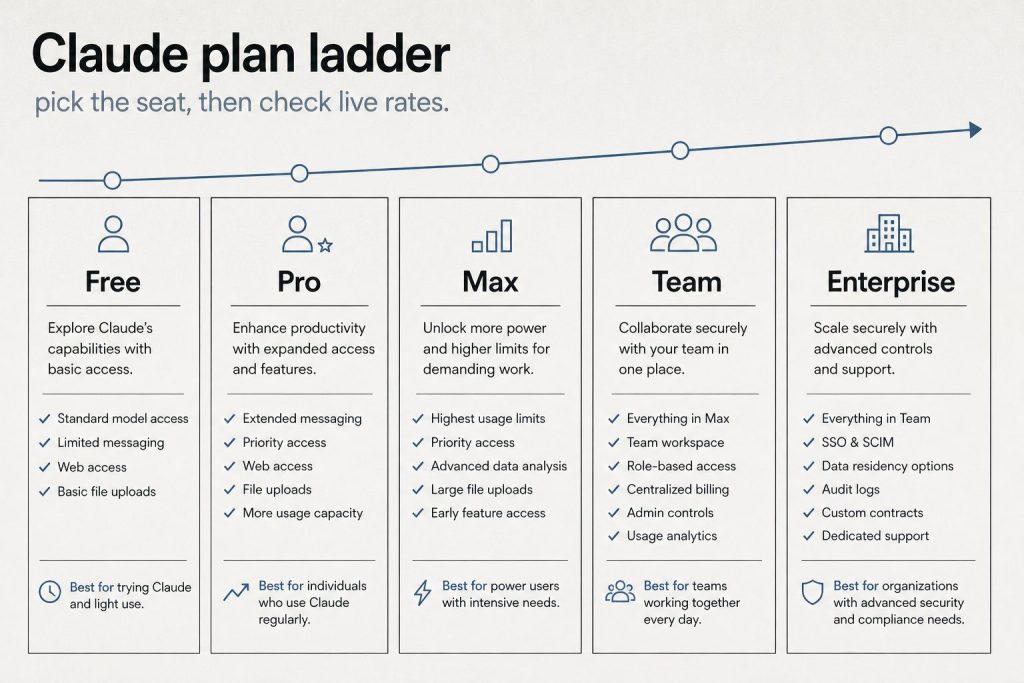
    Cowork was built for non-technical knowledge workers — researchers, analysts, operations teams, legal and finance professionals — who work with documents, data, and files daily and want to spend more time on judgment calls and less time on assembly. It is available on Pro, Max, Team, and Enterprise plans through the Claude desktop app.

    Does Cowork work alongside Claude in chat?

    Yes. Chat remains useful for quick questions, single-step tasks, and conversational work. Cowork takes over when the work requires planning, multi-step execution, or coordination across files and applications. The same Claude account uses both modes.

    The Full Series: Cowork as a Training Tool by Industry

    More on Claude Cowork


  • How Claude Cowork Trains Content and SEO Agency Teams to Think in Systems

    How Claude Cowork Trains Content and SEO Agency Teams to Think in Systems

    Content and SEO agencies sell a service that is, at its core, orchestration. A client says “get me more traffic” and the agency decomposes that into keyword research, content briefs, writer assignments, editorial review, optimization passes, publishing workflows, reporting cadences, and strategic adjustments. The people who do that decomposition well run profitable agencies. The people who do not burn hours and bleed margin.

    That orchestration skill — the ability to take a vague client goal and turn it into a sequenced, dependency-aware production plan — is the skill most agency employees never formally learn. They learn their lane: the writer writes, the SEO specialist optimizes, the account manager manages the client relationship. But nobody shows them the full system.

    Claude Cowork shows the full system. And it does it in a way that every person on an agency team can watch, absorb, and eventually replicate.

    The short answer: Claude Cowork decomposes complex tasks into parallel workstreams with visible progress and dependency tracking. For a content or SEO agency, that means watching the exact orchestration process that turns a client goal into a sequenced production plan — the skill that determines whether an agency scales or stays stuck.

    The Agency Scaling Problem

    Most content and SEO agencies hit a ceiling. That ceiling is not about talent or clients. It is about the number of people who can orchestrate. Usually it is one person — the founder or a senior director — who holds the operational logic: how work gets planned, how production gets sequenced, how quality gets maintained across concurrent client workstreams.

    Every other team member is a specialist executing within their lane. They are good at what they do. But they cannot plan a full campaign, sequence a production sprint, or manage the dependencies between research, creation, optimization, and publishing. So every new client adds load to the one person who can.

    Cowork does not solve that by doing the work. It solves that by making the orchestration visible so more people can learn it.

    How Cowork Maps to Agency Roles

    The SEO Strategist

    Give Cowork: “A new client in the commercial roofing space wants to rank for twenty target keywords within six months. They have an existing site with thin content and no internal linking strategy. Build me the complete SEO campaign plan from audit through month-six reporting.”

    Cowork decomposes this into audit, keyword clustering, site architecture recommendations, content production sequencing (which topics first based on difficulty and business value), technical optimization tasks, internal linking plan, external authority building, and a reporting cadence with milestone checkpoints. The strategist sees the full lifecycle — not just “here are keywords, go write content.”

    The Content Writer

    Writers at agencies typically receive a brief and deliver a draft. Give Cowork: “Build me the complete workflow for taking a content brief from assignment through published, optimized, and internally linked article — including all the steps the writer touches and the steps that happen around the writer.”

    Cowork shows the writer that their draft is one step in a longer chain: the brief was informed by keyword research and competitive analysis, the draft gets an editorial pass and an SEO optimization pass, the optimized piece gets schema markup and internal links before publishing, and after publishing it gets tracked for ranking performance that informs future briefs. The writer sees that their work quality affects every downstream step — and that understanding the system makes them a better writer, not just a faster one.

    The Account Manager

    Give Cowork: “We have eight active clients, each with a monthly content deliverable and a quarterly strategy review. Two clients just requested scope changes. One client’s site had a traffic drop that needs diagnosis. Build me the account management plan for this month.”

    Cowork shows the account manager how to triage and sequence: which clients need immediate attention (the traffic drop diagnosis), which scope changes affect production timelines and need to be surfaced to the production team, where monthly deliverables can be batched for efficiency, and how to structure the quarterly reviews so they generate upsell opportunities rather than just recapping metrics. The account manager sees that client management is resource orchestration — not just relationship maintenance.

    The Agency Founder

    This is the meta-level. Give Cowork: “We want to onboard three new clients next month while maintaining quality for our existing eight clients. Our team is two strategists, three writers, one SEO specialist, and one account manager. Build me the capacity plan.”

    Cowork exposes the capacity constraints and sequencing decisions that the founder usually does intuitively: which roles are at capacity, where onboarding tasks can be parallelized, which existing client work can be batch-processed to free up bandwidth, and what the risk profile looks like if one of those three new clients has a larger scope than estimated. The founder sees their own decision-making process externalized — and can use it to train their team lead or operations manager to make the same calls.

    The Meta-Training Layer

    Here is what makes this particularly powerful for agencies: the skill Cowork trains is the skill that agencies sell. A content agency does not sell writing. It sells the orchestration of research, creation, optimization, and distribution into a system that produces results. The better every team member understands that system, the better the agency performs — and the less dependent it is on one person holding the whole thing together.

    Cowork makes the system visible. And visible systems are learnable systems.

    Frequently Asked Questions

    How does Claude Cowork help content and SEO agencies specifically?

    Cowork decomposes agency workflows — campaign planning, content production, client management, capacity planning — into visible workstreams with dependencies. That orchestration visibility teaches every team member how the full system works, not just their individual lane.

    Can Cowork help with agency scaling challenges?

    Yes. The primary scaling bottleneck for agencies is that orchestration knowledge is trapped in one or two people. Cowork makes that orchestration visible and teachable, so more team members can learn to plan and sequence work — reducing the dependency on the founder or a senior director.

    Is Cowork a replacement for agency project management tools?

    No. Cowork trains the planning and decomposition skill. Use your existing tools — Asana, Monday, ClickUp, Notion — to execute and track the work. Cowork is the thinking layer that shows how plans should be structured before they go into your PM tool.

    Which agency role benefits most from Cowork training?

    Account managers and junior strategists benefit most. They are the roles most likely to be promoted into orchestration responsibilities without formal training in how to plan and sequence multi-track production work.


  • How Claude Cowork Teaches Marketing Teams to Stop Working in Channel Silos

    How Claude Cowork Teaches Marketing Teams to Stop Working in Channel Silos

    A marketing department runs ads, manages social media, sends email campaigns, produces content, tracks analytics, and coordinates with sales — and the person running it is usually the only one who sees how all those pieces connect.

    That is the bottleneck nobody names: the marketing director is the orchestration layer. When they leave, get sick, or go on vacation, the department does not stop working — but it stops being coordinated. The social person keeps posting. The email person keeps sending. The ad person keeps spending. But nobody is conducting the orchestra.

    Claude Cowork makes the orchestration visible. And when the orchestration is visible, anyone on the team can learn it.

    The short answer: Claude Cowork decomposes marketing campaigns into coordinated workstreams — ads, social, email, content, analytics — and shows how they depend on each other. That visible coordination teaches every marketing team member how their channel connects to the larger campaign, turning channel specialists into campaign thinkers.

    The Channel Silo Problem

    Most marketing teams are organized by channel: one person does social, one does email, one manages ads, one writes content. Each person becomes excellent at their channel. But they rarely understand how their channel’s timing, messaging, and audience targeting should coordinate with the other channels on the same campaign.

    The result is campaigns that look coordinated on the surface — same brand, same general message — but are not actually orchestrated. The email goes out before the landing page is ready. The social posts promote a feature the ad copy does not mention. The content piece that should be driving traffic gets published two days after the ad campaign ended.

    How Cowork Trains Each Marketing Role

    The Social Media Manager

    Give Cowork a campaign task: “We are launching a product update in two weeks. Build me the complete social media plan that coordinates with our email announcement, landing page update, paid ad campaign, and blog post.”

    Cowork does not build a social calendar in isolation. It builds a social plan that references the other channels: pre-launch teaser posts that build anticipation before the email goes out, launch-day posts timed to fire after the email sends (so early adopters amplify the message), post-launch engagement posts that reference the blog content, and paid social ads that retarget people who visited the landing page but did not convert. The social manager sees their channel as part of a system — not a standalone publishing schedule.

    The Email Marketer

    Give Cowork: “Build me the email sequence for this product launch. We have a general subscriber list, a segment of active users, and a segment of churned users. Each segment needs different messaging. Coordinate the send times with our social and ad schedules.”

    Cowork breaks the email plan into segment-specific tracks with timing that accounts for the other channels. The general list gets the announcement after social has been teasing it. Active users get early access before the public launch. Churned users get a re-engagement angle timed after the launch buzz has created social proof. The email marketer sees that send timing is a strategic decision connected to the whole campaign — not just “Tuesday morning works best.”

    The Paid Media Specialist

    Give Cowork: “Build me the paid advertising plan for this launch across Google Ads and social platforms. Budget is limited so every dollar needs to coordinate with organic efforts.”

    Cowork plans ad spend around organic momentum: heavy spend when organic buzz is generating search interest, retargeting campaigns that capture visitors driven by email and social, and budget reallocation triggers based on what channels are performing. The paid specialist sees that ad strategy is not just bidding and targeting — it is timing spend to amplify what the rest of the marketing machine is already doing.

    The Content Marketer

    Give Cowork: “Build me the content plan that supports this launch. We need a blog post, a case study update, and landing page copy. Each piece needs to serve a different stage of the buyer journey and coordinate with the distribution channels.”

    Cowork maps each content piece to a funnel stage and a distribution channel: the blog post drives top-of-funnel awareness and gets distributed via social and email, the case study serves mid-funnel consideration and gets linked from the landing page and ad copy, and the landing page serves bottom-funnel conversion and receives traffic from all other channels. The content marketer sees that content creation is half the job — distribution strategy is the other half.

    Why This Matters for Marketing Leaders

    The most expensive problem in marketing is not bad creative or wrong targeting. It is lack of coordination. Campaigns underperform not because the individual pieces are weak but because the pieces do not reinforce each other.

    Cowork makes coordination teachable. When every team member watches a campaign get decomposed into interdependent workstreams, they absorb the orchestration logic that usually lives only in the marketing director’s head. That does not just improve the current campaign. It makes the team capable of running coordinated campaigns even when the director is not in the room — which is the definition of a scalable marketing operation.

    Frequently Asked Questions

    How does Claude Cowork help marketing teams specifically?

    Cowork decomposes marketing campaigns into coordinated workstreams — ads, social, email, content, analytics — and shows how they depend on each other. That visible coordination teaches every team member how their channel connects to the larger campaign.

    Can Cowork plan a full marketing campaign?

    Cowork can decompose a campaign into detailed workstreams with timing, dependencies, and channel coordination. The plans it generates serve as teaching artifacts and coordination frameworks. Execution still happens in your existing marketing tools.

    Does this replace a marketing director?

    No. A marketing director brings strategic judgment, brand understanding, and relationship context that Cowork does not have. What Cowork does is make the orchestration skill visible so other team members can learn it — reducing the bottleneck on one person being the only one who sees the whole picture.

    Which marketing role benefits most?

    Channel specialists benefit most — social media managers, email marketers, ad specialists, and content marketers. These roles are typically trained on their channel in isolation. Watching Cowork plan a coordinated campaign teaches them how their channel fits into the system.


  • Claude Cowork Shows Real Estate Agents Every Angle They Miss in Listing Preparation

    Claude Cowork Shows Real Estate Agents Every Angle They Miss in Listing Preparation

    Here is the difference between a real estate agent who gets a listing and a real estate agent who wins a listing: the second one shows up with a package so thorough the seller feels like they hired a team, not a person.

    Most agents research a listing the same way: pull comps from MLS, check Zillow, drive the neighborhood, take some photos, and put together a CMA. It works. It is also exactly what every other agent does.

    Now imagine handing that same listing to Claude Cowork and watching what happens. Not because Cowork will do the research for you — but because watching how it decomposes “prepare a listing package” into sub-tasks will show you every angle you have been missing.

    The short answer: When you give Claude Cowork a listing preparation task, it decomposes it into research tracks, marketing tracks, competitive positioning, pricing strategy, and client communication plans — all visible in real time. The gap between what most agents do and what Cowork plans reveals exactly where a listing package can be upgraded from adequate to dominant.

    What a Normal Listing Prep Looks Like

    Pull three to five comps from MLS. Drive the neighborhood and note condition. Take listing photos or schedule a photographer. Write a property description. Set a list price based on comps and gut. Upload to MLS. Put a sign in the yard. Wait.

    This is the baseline. Every licensed agent can do this. And because every agent can do this, it is not a differentiator. The seller chose you for other reasons — your personality, your track record, your aunt’s recommendation. The listing package itself is interchangeable.

    What Cowork Shows You About Listing Preparation

    Give Cowork a task: “I just got a listing for a four-bedroom home in a competitive suburban market. Comparable homes have been sitting for forty-five days on average. The seller wants to close within sixty days. Build me a complete listing preparation and marketing package that positions this home to sell faster than the neighborhood average.”

    Watch what Cowork decomposes. It does not just build a CMA. It builds a multi-track plan:

    The market intelligence track. Comps are the start, not the finish. Cowork plans research into absorption rates for the specific price band, days-on-market trends for the zip code over the past six months, active and pending inventory that will compete with this listing, and seasonal patterns that affect buyer traffic in the area. An agent watching this realizes that comps tell you what price to set — but market intelligence tells you what strategy to run.

    The property positioning track. Beyond photos and descriptions, Cowork plans a differentiation analysis: what makes this home different from the five other four-bedrooms in the same price range? What features matter most to the likely buyer profile? What objections will buyers have and how can the listing materials preemptively address them? This is the work most agents skip — and it is the work that makes a listing package feel like strategy rather than paperwork.

    The marketing execution track. Cowork plans a distribution strategy: MLS syndication timing, social media content calendar for the listing, targeted advertising plan, open house scheduling based on buyer traffic patterns, broker tour coordination, and a communication cadence with the seller so they know what is happening and when. The agent sees marketing as a sequenced campaign — not a one-time upload.

    The pricing strategy track. Cowork separates pricing from comps. It plans a pricing analysis that considers competitive positioning (pricing to attract traffic versus pricing to the number), price band psychology (how a price just below a search filter threshold increases visibility), and a price adjustment timeline — what triggers a reduction and when, so the strategy is proactive rather than reactive.

    The client communication track. This is the track most agents never think to formalize. Cowork plans a communication schedule: when the seller gets updates, what metrics they see, how feedback from showings is compiled and presented, and what the decision tree looks like if the first two weeks do not produce offers. The seller experience becomes managed rather than improvised.

    The Training Value for Real Estate Teams

    If you run a brokerage with ten agents, eight of them are doing the baseline listing package. They are competent and they close deals. But the gap between their listing package and the package that Cowork just planned is the gap between “good agent” and “agent who wins listings in competitive presentations.”

    The training unlock is not “use AI to do your listing prep.” It is “watch how a systematic planner decomposes listing prep, and absorb the tracks you have been skipping.” Every agent who watches Cowork plan a listing walks away with a mental model they can apply to every future listing — with or without the tool.

    That is the difference between training someone to follow a process and training someone to think in systems. The first produces consistency. The second produces competitive advantage.

    Frequently Asked Questions

    Can Claude Cowork help real estate agents with listing preparation?

    Yes, but not in the way you might expect. Cowork’s value is not in doing the research — it is in showing how a complete listing preparation plan should be structured. The visible decomposition reveals research tracks, marketing strategies, and client communication plans that most agents skip.

    How is a Cowork listing plan different from what agents normally do?

    Most agents pull comps, take photos, write a description, and upload to MLS. Cowork decomposes listing prep into five parallel tracks: market intelligence, property positioning, marketing execution, pricing strategy, and client communication. The gap between these approaches is where competitive advantage lives.

    Is Cowork a replacement for CMA tools or MLS?

    No. Cowork is a planning and thinking tool. It shows how listing preparation should be structured as a system. Use your existing CMA software, MLS access, and marketing tools to execute the plan Cowork helps you see.

    How would a brokerage use Cowork for agent training?

    Run a listing scenario through Cowork during a team meeting and let agents watch the decomposition. Then discuss which tracks they already do well, which they skip, and how adding the missing tracks would strengthen their listing presentations. The plan becomes a coaching artifact.


  • How Claude Cowork Teaches B2B SaaS Teams the Cross-Functional Coordination Skill Nobody Trains

    How Claude Cowork Teaches B2B SaaS Teams the Cross-Functional Coordination Skill Nobody Trains

    Every B2B SaaS company has the same invisible problem: the product team ships features, the marketing team writes about them, the sales team pitches them, and customer success onboards them — and none of these teams fully understand how the others plan their work.

    Claude Cowork does something unusual for a productivity tool: it exposes the planning process. When you give it a complex task, it does not just deliver an answer. It builds a visible plan, decomposes it into parallel workstreams, delegates to sub-agents, and shows you the progress. That transparent orchestration is exactly the skill most SaaS employees never learn — and the one that determines whether cross-functional launches succeed or collapse.

    The short answer: Claude Cowork’s visible task decomposition mirrors the cross-functional coordination that B2B SaaS teams need for product launches, customer onboarding, and GTM execution. Watching it plan teaches the orchestration skill — not just the individual discipline.

    The Cross-Functional Coordination Gap

    In most SaaS companies, each function plans in isolation. Product writes a PRD. Marketing writes a launch brief. Sales updates their deck. Customer success builds onboarding docs. Each plan is good. But the connections between them — the handoffs, the dependencies, the timing — are managed by Slack messages and hope.

    The people who navigate this well become directors and VPs. The people who do not stay stuck wondering why their work never seems to land the way they planned it.

    How Cowork Maps to SaaS Roles

    The Product Manager

    Give Cowork a task: “We are launching a new analytics dashboard feature in six weeks. The feature affects three user personas, requires API documentation, needs sales enablement materials, and has a customer migration path from the old dashboard. Build me the full cross-functional launch plan.”

    Cowork decomposes this into workstreams that a PM should recognize: the engineering track (development milestones, QA, staging), the documentation track (API docs, user guides, migration instructions), the GTM track (positioning, messaging, sales enablement, demo scripts), the customer success track (onboarding updates, in-app guidance, support documentation), and the communications track (changelog, email announcement, social). Each track has dependencies on the others, and Cowork sequences them.

    A PM watching this sees what a senior PM already knows: launch planning is not a list. It is a dependency graph. And the PM’s job is to be the lead agent who sequences the work and manages the interfaces between teams.

    The Customer Success Manager

    CSMs often get pulled into reactive mode — handling tickets, running QBRs, and managing renewals without ever seeing the full lifecycle of their role as a system.

    Give Cowork: “A new enterprise customer just signed. They have a hundred users, a custom integration requirement, and a go-live target in sixty days. Build me the complete onboarding plan.”

    Cowork shows the CSM what great onboarding orchestration looks like: the technical track (integration setup, data migration, testing), the adoption track (admin training, user rollout waves, feedback collection), the relationship track (stakeholder mapping, executive sponsor engagement, success metrics alignment), and the documentation track (runbook creation, escalation paths, handoff to support). The CSM sees that onboarding is project management — and that managing it well requires the same decomposition and delegation skills a PM uses.

    The Sales Engineer

    Give Cowork: “A prospect wants a custom demo showing how our platform handles their specific compliance requirements, integrates with their existing stack, and scales to their projected growth. Build me the demo preparation plan.”

    Cowork decomposes this into research (understanding the prospect’s tech stack and compliance framework), environment setup (configuring the demo instance), narrative design (structuring the demo to tell a story), and contingency planning (backup paths for common questions or objections). The sales engineer learns that demo preparation is structured work — not improvisation with screenshots.

    The SaaS Training Unlock

    B2B SaaS is a coordination sport. The individual skills — writing code, closing deals, onboarding customers — matter. But the orchestration skill — understanding how your work connects to everyone else’s work and how to plan for those connections — is what determines whether a company executes or flails.

    Cowork makes that orchestration visible. Every SaaS employee who watches it plan a cross-functional task absorbs a lesson in systems thinking that would otherwise take years of experience or a very patient VP to teach.

    Frequently Asked Questions

    How does Claude Cowork help B2B SaaS teams specifically?

    Cowork’s visible task decomposition mirrors the cross-functional coordination that SaaS teams need for product launches, onboarding, and GTM execution. It shows the dependency graph between teams rather than letting each function plan in isolation.

    Can Cowork help with product launch planning?

    Yes. Give Cowork a launch scenario and it decomposes it into engineering, documentation, GTM, customer success, and communications tracks with dependencies between them. That plan becomes a teaching artifact for how cross-functional launches should be structured.

    Is Cowork a replacement for project management tools like Jira or Asana?

    No. Cowork shows the planning process — how to decompose a goal into tracks with dependencies. Jira and Asana track the execution of those tasks. Use Cowork to train the planning skill, then execute in your existing tools.


  • How Claude Cowork Trains Local Newsroom Teams to Plan Coverage Like a Major Paper

    How Claude Cowork Trains Local Newsroom Teams to Plan Coverage Like a Major Paper

    Running a local newsroom means juggling breaking stories, editorial calendars, community events, and ad sales — with a staff that is usually three people doing the work of ten.

    Claude Cowork does not write your stories for you. But it does something almost as valuable: it shows your small team how to plan coverage like a large newsroom plans coverage. And it does it visibly, in real time, so every person on your team can absorb the thinking — not just follow the assignments.

    The short answer: Claude Cowork decomposes complex tasks into parallel workstreams and shows progress in real time. For local newsrooms, that means your reporter sees how editorial planning works, your ad coordinator sees how content calendars connect to revenue, and your editor sees how to orchestrate coverage across beats without burning out the team.

    The Newsroom Problem Nobody Talks About

    Most local news operations do not have a formal planning process. Stories come in from tips, police scanners, city council agendas, and community Facebook groups. The editor (who is often also a reporter, also the photographer, also the social media manager) triages by gut feel and deadline proximity.

    This works until it does not. A big story breaks the same week as three ad-sponsored features are due. Nobody planned for that collision because nobody was looking at the calendar as a system.

    Cowork is not a newsroom tool. But the way it plans work is exactly the skill local news teams need and rarely have time to develop.

    How Cowork Trains Each Newsroom Role

    The Reporter

    Give Cowork a prompt like: “A new mixed-use development just got approved by city council after two years of controversy. Build me a complete coverage plan for the next thirty days.”

    Cowork does not just list story ideas. It builds a plan with tracks: the news track (council vote recap, developer profile, opposition response), the enterprise track (tax impact analysis, traffic study implications, comparable projects in other cities), the community track (affected neighborhood voices, small business impact, public meeting schedule), and the social distribution track (which pieces go on which platforms and when). A reporter watching this unfold sees that coverage planning is not “what should I write” but “what does the audience need to understand, in what order, from which angles.”

    The Editor

    Editors in small newsrooms spend most of their time reacting. Give Cowork a weekly planning scenario: “We have three breaking news items, a school board meeting Tuesday, an ad-sponsored restaurant feature due Friday, two pending FOIA responses, and a community event this weekend we agreed to cover. Build me the editorial plan for the week.”

    Cowork shows the editor what editorial orchestration looks like: which items are time-sensitive and must publish first, which can be batched, where a reporter can double-purpose a trip (cover the school board and grab a quote for the restaurant feature on the same side of town), and where the week has capacity for enterprise work versus where it is wall-to-wall coverage. The editor sees the week as a resource allocation problem — not a reaction queue.

    The Ad Coordinator

    This is the role nobody thinks about for AI training. But give Cowork a task like: “We have four advertisers who each bought sponsored content packages this quarter. Build me a content calendar that integrates their sponsored pieces with our editorial calendar so they complement rather than compete with news coverage.”

    Cowork builds a calendar that interleaves sponsored content with editorial content, avoids running sponsored pieces on heavy news days (where they get buried), spaces advertiser content evenly, and identifies opportunities where a news story and a sponsored piece can reinforce each other naturally. The ad coordinator sees that content scheduling is strategy, not just slotting pieces into empty dates.

    The Real Training Value

    Local newsrooms lose institutional knowledge every time someone leaves — and in local news, people leave often. The coverage plans and editorial workflows that Cowork generates are not just useful in the moment. They are training artifacts that show the next hire how the newsroom thinks, not just what it publishes.

    When a new reporter watches Cowork decompose a complex local story into a multi-angle coverage plan, they are absorbing the editorial judgment that used to take years of mentorship to transfer. That does not replace an experienced editor. But it gives every person on the team a shared mental model for how coverage should be planned — and that shared model is what turns a collection of individual contributors into an actual newsroom.

    Frequently Asked Questions

    Can Claude Cowork help a small newsroom with editorial planning?

    Yes. Cowork visibly decomposes complex tasks into parallel workstreams. For a newsroom, that means building multi-track coverage plans, editorial calendars, and resource allocation strategies that show every team member how editorial planning works at a systems level.

    Does Cowork write news articles?

    Cowork can handle multi-step knowledge work including research synthesis and document assembly. However, the training value comes from watching how it plans and decomposes work — not from using it as a content generator. The coverage plans it produces are the training tool.

    How is this different from a project management tool?

    Project management tools track tasks after someone creates them. Cowork shows the decomposition process itself — how a complex goal becomes a structured plan. That planning skill is what most local newsroom staff never formally learn.

    What size newsroom benefits most?

    Newsrooms with two to ten staff members benefit most. They are large enough to need coordination but too small to have dedicated planning roles. Cowork fills the gap by making the planning visible so everyone can learn from it.