Claude wins on coding quality and long-context reliability. GPT-5 wins on raw speed at the prior mid-tier list. Pick the SKU, not the family name.
Claude figures checked October 8, 2026 against platform.claude.com pricing and Haiku 5.5. OpenAI rows below are the October 1 figures on this page; they were not re-verified on this pass.
The Models Being Compared
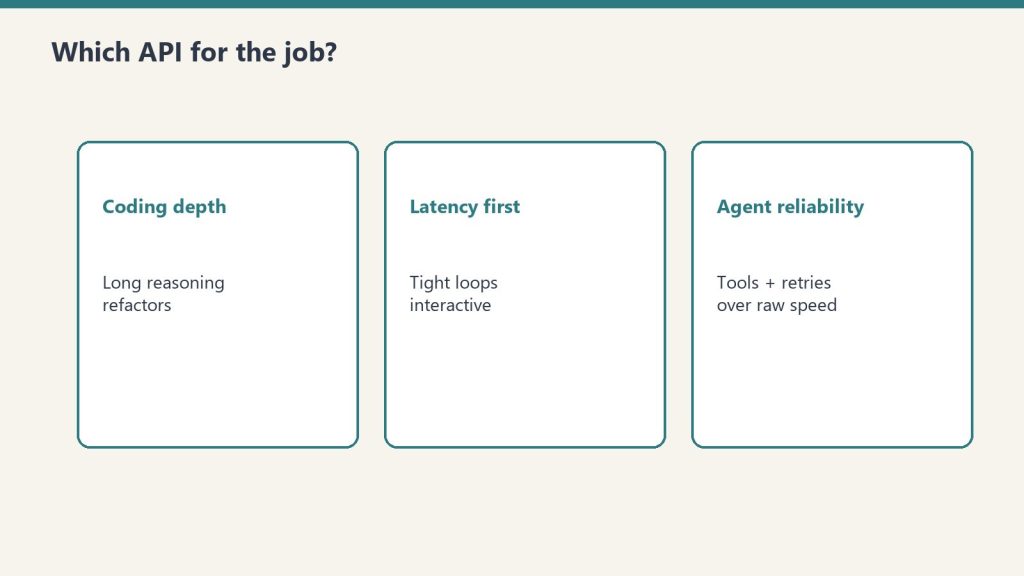
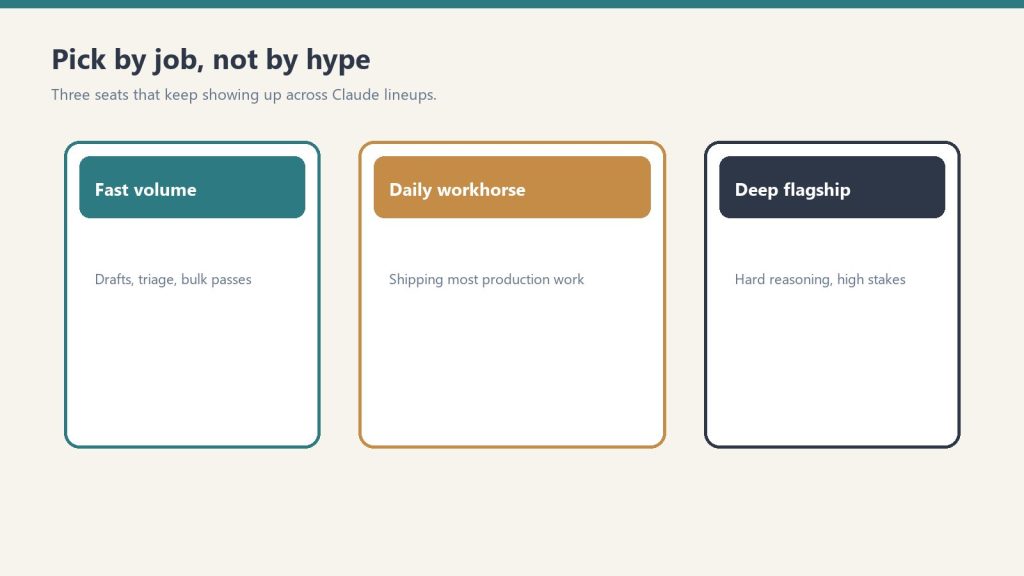
Compare APIs by job shape — not by hype.
Compare Claude Haiku 5.5 / Sonnet 5.5 / Opus 5.5 against GPT-5 / gpt-6.1-sol. Fable 5.1 sits above Opus on Anthropic’s list price.
Model
Provider
Input (per 1M tokens)
Output (per 1M tokens)
Context
Claude Haiku 5.5 (≤100k / >100k)
Anthropic
$0.10 / $0.50
$0.50 / $2.50
priced by prompt length
Claude Haiku 4.5
Anthropic
$1
$5
still listed
Claude Sonnet 5.5
Anthropic
$2
$10
1M tokens; cache read $0.10
Claude Sonnet 5
Anthropic
$2
$10
1M tokens; cache read $0.20
Claude Sonnet 4.6
Anthropic
$3
$15
1M tokens
Claude Opus 5.5
Anthropic
$4
$20
1M tokens
Claude Opus 5 / 4.8
Anthropic
$5
$25
1M tokens
Claude Fable 5.1
Anthropic
$10
$50
1M tokens
GPT-5
OpenAI
$1.25
$10
400K tokens (Oct 1 figure)
gpt-6.1-sol (short-context standard)
OpenAI
$2
$10
long-context row was $4 / $15 (Oct 1 figure)
Sonnet 5.5 remains $2 / $10. Its cache read moved from $0.20 to $0.10 on October 7. Opus 5.5 remains $4 / $20 with cache reads at $0.20. Haiku 5.5 is the new cheap band: $0.10 / $0.50 under 100,000 prompt tokens, $0.50 / $2.50 over. Haiku 4.5 stays $1 / $5. GPT-5 standard list on the prior check ($1.25 / $10) was cheaper per input token than Sonnet 5.5. Do not average Haiku 5.5’s two bands, and do not treat the OpenAI rows as re-checked today.
Coding Performance
Use Claude Opus 5.5 or Sonnet 5.5 for interactive coding and agentic runs. Use Haiku 5.5 when the task is a subagent, summary, or classification and the prompt stays under 100k tokens.
Latency and Context
Claude Sonnet and Opus SKUs publish a 1M token context window at one rate. Haiku 5.5 raises the rate above 100,000 prompt tokens. Opus 5.5 fast mode is $8 / $40 on the Claude API only.
Cost Comparison for Real Workloads
On Claude, cache reads are now 5% of input on Sonnet 5.5 ($0.10) and Opus 5.5 ($0.20), and 2.5% on Fable 5.1 ($0.25). Haiku 5.5 cache reads are $0.01 under 100k. The 50% batch API still applies. For stateless high-frequency calls, Haiku 5.5 under 100k is the Claude list to beat. gpt-6.1-sol short-context matched Sonnet 5.5 at $2 / $10 on the October 1 check; that OpenAI pair was not re-read today.
Which API to Choose
Use Claude for coding, long-context document work, and agentic workflows. Use Haiku 5.5 for the cheap loop. Running both vendors is normal.
A local vector database Claude setup — indexed with your business documents, contracts, SOPs, client notes, and invoices — gives back the operational time lost to hunting through folders. The right answer appears in seconds, without any of those documents leaving the machine.
This is the full build: architecture, tools, working code, what performs well in production, what breaks, and whether the ROI justifies the setup time.
What Problem This Solves
The problem isn’t that the documents don’t exist. It’s that finding the right one — the specific contract clause, the pricing from eight months ago, the onboarding SOP for a client — takes longer than it should, and normal search doesn’t solve it.
File search matches keywords. It doesn’t understand that “what did we agree on for payment timing” and “net 30” are the same thing. A retrieval-augmented setup solves the semantic gap: the vector database finds relevant sections by meaning, Claude synthesizes them into a direct answer.
The use cases where this setup pays for itself:
Contract and clause lookup — “What are the payment terms in the Acme agreement?” in 4 seconds vs. 3 minutes of folder navigation
SOP retrieval — “What’s our onboarding process for new social media clients?” surfaces the relevant runbook section directly
Client history — “What scope did we quote [client] last spring?” retrieves the invoice or email thread
Cross-document synthesis — “What are the termination clauses across all active client contracts?” — something no file search can do
The Architecture
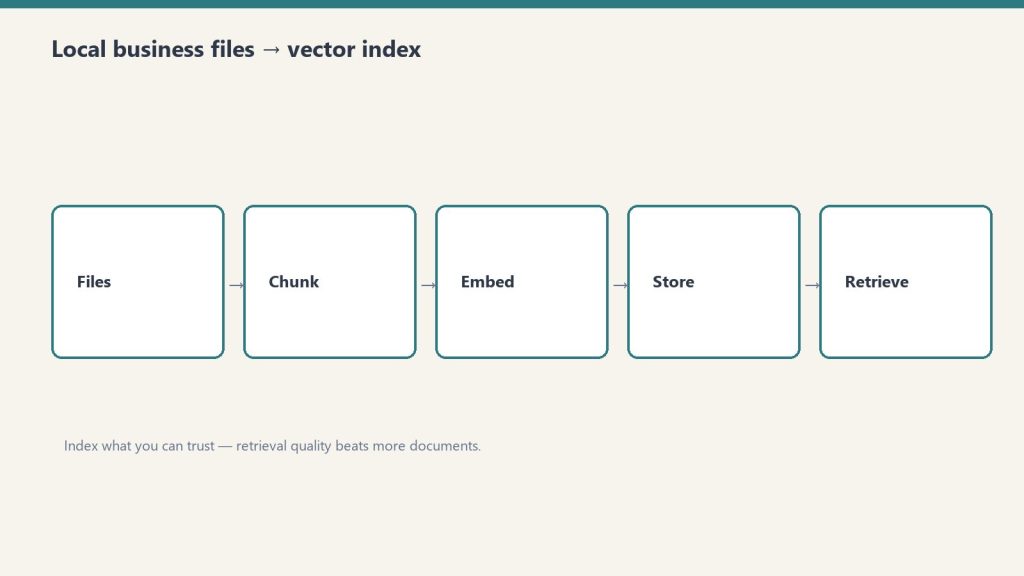
Architecture: business files into a local vector index.
The stack is ChromaDB for local vector storage, Nomic Embed for on-device embeddings via Ollama, LlamaIndex for document ingestion, and Claude Sonnet via API for the reasoning step — all files stay local, Claude only sees the retrieved chunks.
Component
Tool
Why
Vector database
ChromaDB (local)
Free, runs on-device, persistent to disk
Embedding model
Nomic Embed via Ollama
Open-source, 8K context, no external calls
Ingestion layer
LlamaIndex
Handles PDF, DOCX, MD, TXT, CSV natively
Retrieval layer
Python (custom)
Readable and modifiable as needs evolve
Reasoning layer
Claude Sonnet API
Materially better synthesis than local models
Interface
CLI
Most queries don’t need a UI
Why local for the vector database: The documents never leave the machine. Claude receives only the retrieved chunks — not the full corpus. For contracts, financial records, and internal communications, this is the right boundary.
Why Claude for reasoning and not a local model: Local models (Llama 3, Mistral) handle the retrieval step comparably. They don’t handle synthesis comparably — reading five contract sections and returning a coherent, accurate answer is where Claude’s API cost is earned.
What to Index
Start with the 50 most-referenced documents. Get the workflow running and verified before expanding to the full corpus.
File types that index well:
Contracts and agreements (PDF, DOCX)
Internal SOPs and runbooks (MD, DOCX)
Client notes and meeting logs (MD, TXT)
Invoices and financial records (PDF, CSV)
Email threads exported from Gmail (EML, TXT)
Organize before indexing. File names and folder paths become metadata attached to each chunk. A consistent folder structure takes an hour to set up and improves retrieval quality throughout:
500 files on an M2 MacBook Pro takes approximately 20–25 minutes. The index persists to disk — this runs once, then incrementally as files change.
Step 3: Build retrieval and reasoning
import anthropic

def query_business_knowledge(question: str, top_k: int = 5) -> str:
    retriever = index.as_retriever(similarity_top_k=top_k)
    nodes = retriever.retrieve(question)

    sep = chr(10) + chr(10) + "---" + chr(10) + chr(10)
    context = sep.join([
        f"Source: {node.metadata.get('file_name', 'unknown')}{chr(10)}{node.text}"
        for node in nodes
    ])

    client = anthropic.Anthropic()
    response = client.messages.create(
        model="claude-sonnet-4-6",
        max_tokens=1000,
        messages=[{
            "role": "user",
            "content": f"""Answer this question using only the provided business documents.
If the answer isn't in the documents, say so clearly. Always cite the source file.

Question: {question}

Documents:
{context}"""
        }]
    )

    return response.content[0].text

print(query_business_knowledge("What are the payment terms in the Acme contract?"))
Always include source attribution in the prompt. When an answer returns, the source file name makes verification fast.
What Works Well in Production
What works well in production — narrow corpora first.
Cross-document synthesis is the capability that justifies this over standard search — querying across hundreds of files simultaneously to find patterns, compare terms, or surface a specific clause is something no file search does.
Where the system consistently delivers:
Contract and clause lookup: Specific clause retrieval across a full contract library. Synthesis across multiple contracts simultaneously (termination terms, payment terms, liability caps) returns a summary across all of them at once.
SOP and runbook retrieval: Operational questions answered directly from internal documentation. Works best when SOPs are written in complete sentences rather than bullet fragments — the retrieval quality reflects the writing quality.
Client history: Invoice amounts, quoted scopes, prior project notes. Email threads sometimes split across chunks in ways that lose context — use the result as a pointer to the source document, then verify.
Cross-document pattern finding: “What are the common liability terms across our contracts?” — synthesizes across every indexed contract in one response. No file search tool does this.
What Breaks
What breaks — bad chunks and untrusted documents.
The index is only as current as the last re-index. The most common production failure is stale data — documents updated after the last index run return old answers.
Stale index: Build re-indexing into the workflow immediately. Schedule it weekly, or trigger it automatically when files are modified. Documents that change and don’t get re-indexed are the biggest reliability risk.
Top-k ceiling: Retrieval returns the top-k chunks (default 5). A question whose complete answer requires synthesizing 20 documents gets a partial answer. Increase top_k for broad synthesis questions — at the cost of slightly more API token usage.
Numerical calculations: The system finds financial documents reliably. It should not be trusted to calculate totals across extracted text. Use it to surface the right source documents; do the arithmetic elsewhere.
Documentation debt: The index reveals gaps in internal documentation. SOPs written in ambiguous shorthand, contracts with undefined terms, emails with unclear context — all produce lower quality retrieval. The index reflects the quality of the underlying documents.
Chunk Size
512 tokens with 50-token overlap is the right starting point for mixed document types.
Financial records (tabular): Parse as structured data where possible; plain text chunking loses table relationships
Metadata Filtering at Scale
Once the corpus exceeds ~200 files, adding metadata to chunks and filtering at query time significantly improves precision.
# Tag at ingestion
documents = SimpleDirectoryReader(
    "./business-knowledge",
    recursive=True,
    file_metadata=lambda filepath: {
        "document_type": filepath.split("/")[2],
        "client": filepath.split("/")[3] if len(filepath.split("/")) > 3 else "internal"
    }
).load_data()

# Filter at retrieval
retriever = index.as_retriever(
    similarity_top_k=5,
    filters={"document_type": "contracts"}
)
“What are our SOPs for [client]?” filtered to that client’s folder returns meaningfully more accurate results than querying the full corpus.
ROI
Setup takes roughly one full day. At 25 minutes saved per week on document lookups, break-even is approximately 6–8 weeks.
Item
Cost
Setup time
~8 hours
ChromaDB
Free
Nomic Embed (Ollama)
Free
Claude Sonnet API per query
~$0.003
Monthly at 50 queries/week
~$0.60
Weekly time saved
~25 minutes
Break-even
~7 weeks
The less quantifiable return: operational confidence. Questions that previously required folder-hunting get answered in seconds. That reduces the cognitive overhead of running a multi-client operation and changes how quickly decisions get made.
No. The vector database and embedding model run locally. Claude receives only the retrieved chunks — small sections of relevant documents — not the full corpus. For zero external calls, replace Claude with a local model, though synthesis quality will be lower.
What file types are supported?
LlamaIndex handles PDF, DOCX, TXT, MD, CSV, EML, and HTML natively. Other formats need conversion to plain text first.
How long does indexing take?
Approximately 20–25 minutes for 500 files on an M2 MacBook Pro. Subsequent re-indexing processes only changed or new files and takes a few minutes.
What is a vector database?
A vector database stores documents as numerical representations (embeddings) that encode meaning, not just keywords. This allows semantic search — finding relevant contract sections from a natural-language question, even when the exact words don’t match.
Can a local model replace Claude?
es — swap the API call for an Ollama-hosted model. Retrieval quality is comparable. Synthesis quality on complex multi-document questions is noticeably lower on current local models.
What chunk size should be used?
512 tokens with 50-token overlap is the right default for mixed document types. Adjust for document type: larger for dense contracts, smaller for short emails.
Metricool 2026 is a social media scheduling, analytics, and API platform that manages multi-brand operations across LinkedIn, Facebook, Instagram, X/Twitter, Google Business Profile, TikTok, YouTube, Pinterest, Threads, and Bluesky — at a price point that makes Hootsuite and Sprout Social look overpriced for most use cases.
This guide covers what changed in 2025–2026, how to set up the platform correctly from day one, how to use the API for programmatic scheduling, and where the tool still falls short. Built from operating 24 brands in Metricool, not from a comparison of their marketing pages.
What Is Metricool and What Does It Do in 2026?
What Metricool is and does in 2026.
Metricool is a social media management platform organized around “brands” as the core unit — one login manages multiple brands, each with its own calendar, analytics, and connected accounts, at plan-based pricing that doesn’t scale per connected account.
Platform support as of August 2026:
Platform
Scheduling
Analytics
API Access
LinkedIn (profile + page)
✓
✓
✓
Facebook (page)
✓
✓
✓
Instagram (business/creator)
✓
✓
✓
X / Twitter
✓
✓
✓
Google Business Profile
✓
✓
✓
TikTok
✓
✓
✓
YouTube
✓
✓
✓
Pinterest
✓
✓
✓
Threads
✓
Limited
✓
Bluesky
✓
Limited
✓
The core value proposition is unchanged: multi-brand management at plan-based pricing (not per-seat or per-connected-account), with a working REST API that most competitors at the same price point don’t offer.
What’s New in Metricool in 2025–2026
The biggest 2026 updates are Threads and Bluesky as stable scheduling platforms, a rebuilt analytics dashboard, AI caption suggestions in the composer, and a versioned API developer portal replacing the old PDF documentation.
Threads scheduling (stable): Moved from beta to fully stable. Posts with images, text, and links schedule and publish reliably. Analytics remain limited relative to Instagram — engagement data is available but not at native-insight depth.
Bluesky scheduling (stable): Full scheduling and basic analytics now live. Handles the platform without a separate tool.
Analytics dashboard redesign: Cross-platform comparison views are cleaner. Custom date ranges now set on the overview screen without drilling into individual platform tabs first.
AI caption suggestions: Available inside the post composer for first-draft generation. Useful for routine content; not a replacement for intentional copy.
API developer portal: Documentation moved from a downloadable PDF to a versioned web portal. Same endpoints, significantly easier to navigate.
How to Set Up Metricool Correctly
How to set up Metricool correctly.
Create one brand per entity, connect all social accounts for that brand before creating the next one, and establish posting cadence in the Planner before importing any bulk content. Setup decisions made incorrectly early create restructuring work later.
Step 1: Create brands
Navigate to the brand switcher in the top left and create a new brand for each business, client, or property. Name each brand clearly — the name appears in the interface and in API responses as the brand identifier. Each brand is an isolated workspace: separate calendar, separate analytics, separate connected accounts.
Step 2: Connect social accounts per brand
With a brand selected, link every social platform before moving to the next brand. Common friction points:
Instagram: Requires a Professional account (Business or Creator) linked to a Facebook Page. Personal Instagram accounts cannot be scheduled through third-party tools. If the Facebook Page isn’t connected first, Instagram won’t link.
LinkedIn: Personal profiles and Company Pages connect separately. Add both if scheduling to both.
Google Business Profile: Connect via Google account. GBP posts are limited to 1,500 characters and one image — Metricool enforces this in the composer.
Step 3: Configure the Planner
The Planner is the scheduling interface used most. Access it from the left navigation. Best-time recommendations appear as highlighted slots based on historical engagement data — worth following for the first few months before overriding with observed data.
Step 4: Enable post failure notifications
When a scheduled post fails — usually because a platform connection expired — the right time to know is immediately, not when a client asks why content didn’t go out.
How the Metricool Planner Works
Click a time slot or use the New Post button, write the caption, attach media, select platforms, set the publish time, and Metricool handles publishing across all selected channels.
Post creation steps:
Click a time slot or New Post
Write the caption — platform previews update in real time on the right
Upload media — Metricool flags aspect ratio issues per platform
Select platforms using the toggles
Set date and time, or accept the best-time recommendation
Click Schedule
Platform previews matter: LinkedIn truncates long captions differently than Instagram. What reads cleanly on one platform can break on another. Always check previews before scheduling.
Bulk scheduling via CSV: Upload a spreadsheet of posts with columns for caption, media URL, platform, date, and time. Right workflow for scheduling a full month at once rather than building post by post.
How Metricool Analytics Works
How Metricool analytics works.
Analytics shows follower growth, engagement, reach, impressions, and best-performing content across all connected platforms — with a unified overview and per-platform deep dives.
Overview dashboard: Aggregated metrics across all platforms for the current brand. Custom date ranges with prior-period comparison. Answers “how is this brand doing overall” without switching tabs.
Per-platform analytics: Post-level performance, follower growth trends, engagement rate over time, audience demographics where platforms expose them, and best-performing content sortable by any metric.
Competitor tracking: Add competitor social profiles for follower count and posting frequency monitoring. Available on paid plans.
What analytics don’t do: Metricool doesn’t integrate with GA4 for web traffic attribution. If connecting social performance to site traffic and conversions is a requirement, a separate analytics tool is needed.
How the Metricool API Works in 2026
The Metricool REST API allows programmatic post scheduling, post retrieval, brand listing, and media management — authenticated via an API token from account settings, with full CRUD operations on scheduled content.
Step 1: Get your API token
Go to account settings and find the API section. Generate a token — it’s account-level, not brand-specific. Treat it like a password.
Step 2: Get brand IDs
GET https://app.metricool.com/api/v2/brands
Authorization: Bearer YOUR_API_TOKEN
Returns an array of brands with IDs, names, and connected platforms. Store these IDs — they’re required on every brand-specific API call.
A successful POST returns the created post object with its ID. Store IDs for any post that may need updating or deletion.
What the API can do: Schedule posts to any connected platform, retrieve scheduled and published posts, list brands and connected networks, upload and attach media, delete or update scheduled posts.
What the API can’t do: Analytics data is not exposed via the API. Engagement metrics are view-only in the dashboard. For analytics in automated workflows, a separate reporting approach is required.
Rate limits: Metricool enforces rate limits per endpoint. For production workflows scheduling at volume, build exponential backoff retry logic on 429 responses.
Metricool Plans and Pricing in 2026
Metricool charges per brand, not per connected social account — which makes it significantly cheaper than Hootsuite or Sprout Social for multi-brand operations.
Plan
Brands
Posts/Month
Team Members
API Access
Free
1
50
1
No
Starter
1
2,000
1
No
Advanced
5
Unlimited
3
Yes
Agency
15+
Unlimited
5+
Yes
API access requires Advanced or above. For a 10-brand operation, Metricool Advanced costs a fraction of the Hootsuite or Sprout Social equivalent, where per-seat or per-account pricing compounds quickly.
Metricool vs. Hootsuite vs. Buffer in 2026
For multi-brand operations managing 5+ brands with API requirements, Metricool wins on price. Buffer is comparable for simple single-brand operations. Hootsuite is justified only at enterprise scale with dedicated support requirements.
Feature
Metricool
Hootsuite
Buffer
Pricing model
Per brand
Per user + per account
Per channel
API access
Yes (Advanced+)
Yes (Enterprise)
Limited
GBP scheduling
Yes
Limited
No
Multi-brand management
Native
Clunky
Basic
Analytics depth
Strong
Strong
Basic
Best for
Agencies, multi-brand operators
Large enterprise
Simple single-brand
Hootsuite for a 10-brand agency operation typically runs 3–5x the cost of Metricool at the equivalent plan level.
Common Metricool Problems and Fixes
The most common issues are expired social connections, Instagram setup errors, and GBP rejection — all fixable in a few steps.
Instagram won’t connect: Switch the account to Professional (Business or Creator) in Instagram settings, connect to a Facebook Page, then reconnect in Metricool.
Scheduled post failed: Look for failed posts in the calendar. The cause is usually an expired connection. Disconnect and reconnect the affected platform, then reschedule.
GBP post rejected: Check the error message — GBP rejections usually include a reason. Verify the post is under 1,500 characters, uses one image, and doesn’t contain promotional language that violates GBP content policies.
API 401 Unauthorized: Token expired or regenerated. Go to account settings, generate a new token, update the integration.
Wrong brand getting content: The most common operational error in multi-brand setups. Confirm the active brand in the switcher before creating or scheduling. Build this check into every team SOP.
Frequently Asked Questions
What is Metricool used for?
Metricool is used for social media scheduling, analytics, and multi-brand management across LinkedIn, Facebook, Instagram, X/Twitter, Google Business Profile, TikTok, YouTube, Pinterest, Threads, and Bluesky — with a REST API for programmatic scheduling.
Is Metricool free?
Yes — a permanent free plan (not a trial) supporting one brand, 50 posts per month, and basic analytics. API access and multi-brand management require a paid plan.
Does Metricool have an API?
Yes. The Metricool REST API supports programmatic post scheduling, retrieval, brand management, and media handling. Available on Advanced plan and above. Documentation is at Metricool’s developer portal.
How does Metricool compare to Hootsuite?
Metricool is 3–5x cheaper for multi-brand operations at agency scale. Hootsuite charges per user and per connected account. Hootsuite has stronger enterprise support and integrations; Metricool wins on value for most agency and mid-market use cases.
Can Metricool schedule Google Business Profile posts?
Yes — and it’s one of Metricool’s strongest differentiators. Most tools at this price point don’t support GBP scheduling. Posts are limited to 1,500 characters and one image.
Does Metricool support Threads and Bluesky?
Yes. Both are fully stable as of 2026. Threads analytics are available but limited. Bluesky analytics are basic. Scheduling to both platforms is reliable.
The Anthropic roadmap 2027 comes into focus after Fable 5 launched in June 2026 as Anthropic’s most capable widely available model — a new Mythos-class tier above Opus — and the signals from Anthropic’s research agenda, model release cadence, and safety roadmap point clearly toward what comes next.
This is a forward-looking read grounded in public signals: what Anthropic has shipped, what they’ve said, and what the patterns suggest for 2027. It’s relevant for developers planning integrations, enterprises making multi-year platform commitments, and anyone tracking where Claude’s capabilities are heading.
Where Anthropic Stands as of Mid-2026
Where Anthropic stands as of mid-2026.
Claude has grown from a single chat model in 2021 to a four-tier family — Haiku, Sonnet, Opus, and the new Mythos class — with a 1-million-token context window, native vision, tool use, Computer Use, extended thinking, and persistent memory across managed agents.
The model lineup as of August 2026:
Tier
Model
Best For
Mythos
Claude Fable 5
Most demanding reasoning, long-horizon agentic work
Opus
Claude Opus 4.8
Flagship reasoning, fallback for Fable 5 safety filters
Sonnet
Claude Sonnet 4.6
Everyday development, high-volume production
Haiku
Claude Haiku 4.5
Fast, cheap, high-throughput
Fable 5 launched June 9, 2026 alongside Claude Mythos 5 — a restricted version available only through Project Glasswing for vetted cybersecurity and infrastructure partners. The distinction matters: Fable 5 is the general-availability frontier model; Mythos 5 is the same model with certain safety filters lifted for specific use cases.
The June 2026 launch was followed by a brief government-imposed deployment pause after Amazon researchers identified a method of prompting Fable 5 to surface software vulnerabilities. Anthropic worked with government partners to add new classifiers and redeployed the model globally July 2, 2026.
What the Fable 5 Launch Signals About 2027
The Fable 5 launch established that Anthropic is building a two-track release model — a general-availability tier with conservative safety filters and a restricted frontier tier for vetted partners — and that cadence will continue into 2027.
Several specific signals point forward:
The Mythos class will expand access. Anthropic said explicitly at Fable 5 launch that Project Glasswing would expand to more vetted partners over time. The current restriction is a staged rollout, not a permanent ceiling. By 2027, Mythos-class access is likely to be more widely available to enterprise customers who can meet Anthropic’s trust and verification requirements.
Safety classifiers will improve. Fable 5 launched with classifiers that trigger on roughly 5% of sessions, routing those queries to Opus 4.8 instead. Anthropic committed to reducing false positives “as more capable models arrive in the coming months.” More capable models arriving implies at least one Mythos/Opus generation release before end of 2026 or early 2027.
Token unbundling sets up the next Enterprise pricing tier. The April 2026 decoupling of Enterprise seat fees from token bundles — moving from $40–200/seat with bundled tokens to $20/seat with usage billed separately — creates a cleaner structure for consumption-based tiers as model capability increases. Expect the 2027 pricing architecture to track closely with Mythos access tiers.
Agentic infrastructure is the platform bet. Managed Agents launched April 8, 2026, Memory entered public beta April 23, and the Agent SDK (formerly Claude Code SDK) now handles the entire agent loop automatically. The infrastructure is being built to support long-running, multi-session, multi-agent workflows. The 2027 roadmap is almost certainly agentic-first.
What Anthropic’s Research Agenda Suggests
Anthropic’s published research priorities — interpretability, Constitutional AI, alignment, and scaling — point toward a 2027 model that is more self-correcting, better at long-horizon planning, and safer to deploy with reduced human oversight.
Interpretability is Anthropic’s differentiator. Chris Olah’s interpretability team is the most distinct research group at any frontier lab. Their work on understanding what’s actually happening inside neural networks feeds directly into how future models are trained and where safety filters are placed. Advances in interpretability in 2026–2027 will likely show up in more precise, less overreaching safety classifiers — meaning fewer false positives on legitimate requests.
Long-horizon agency is the capability frontier. Fable 5’s headline capability over Opus 4.8 isn’t raw reasoning quality on static benchmarks — it’s how little friction there is in multi-step agentic workflows. Fable 5’s AutomationBench scores are the clearest signal of where Anthropic is competing. The 2027 research agenda will push this further: more steps, less human intervention, better recovery from errors mid-task.
Multi-agent coordination is early. The current Managed Agents platform supports multi-agent orchestration, but the tooling is young. 2027 is when production multi-agent deployments at scale become routine rather than experimental for most enterprise customers.
What It Means for Developers
What it means for developers building agents.
Developers building on Claude in 2026 should architect for the Agent SDK and Managed Agents platform, not just the Messages API — that’s where Anthropic is investing, and it’s where the capability gains will be most significant in 2027.
Practical implications:
Plan for Fable 5 as the default frontier model. Opus 4.8 remains the strong fallback and the model most workflows should run on today. But product architectures that don’t account for Fable 5 as the primary reasoning layer within 12–18 months are likely to require significant refactoring.
The Fallback API is now infrastructure. Any integration calling Fable 5 needs fallback logic configured. Anthropic’s safety classifiers will route some queries to Opus automatically — your integration needs to handle that gracefully, not treat it as an error.
Memory changes what agents can do. Agents that don’t retain context across sessions are meaningfully less capable than those that do. The Managed Agents memory API (public beta since April 23, 2026) is the right surface to build persistent agent behavior on now, before it becomes a standard expectation.
What to Watch
What to watch next on the roadmap.
The clearest leading indicators for 2027 Anthropic roadmap developments:
Project Glasswing expansion announcements — any broadening of Mythos-class access is a signal that the trust-gating model is maturing
Interpretability research publications — Anthropic publishes regularly; major interpretability papers tend to precede model releases by 3–6 months
Managed Agents general availability — currently in public beta; GA signals the platform is production-ready for the long-term
Context window changes — the 1M token context window is already the industry standard; what comes next is likely structural, not just larger
Claude Fable 5 is Anthropic’s most capable widely released model, launched June 9, 2026. It sits in the new Mythos class above the Opus tier and is built for the most demanding reasoning and long-horizon agentic work. It launched alongside Claude Mythos 5, which is restricted to vetted partners through Project Glasswing.
What is Project Glasswing?
Project Glasswing is Anthropic’s program for giving vetted cybersecurity and infrastructure partners access to Claude Mythos 5 — the same underlying model as Fable 5, but with certain safety filters lifted for specific use cases. Access is currently limited and application-based.
When will Anthropic release the next model after Fable 5?
Anthropic has not announced a release date. Their historical cadence — roughly one major model generation per 6–9 months — suggests a 2026 Q4 or early 2027 release is plausible. Anthropic has stated that more capable models are coming and that safety classifiers will improve as they arrive.
What is Claude Managed Agents?
Claude Managed Agents is Anthropic’s managed infrastructure for running autonomous Claude agents in cloud sandboxes, launched in public beta April 8, 2026. It handles session management, tool execution, credential management, and multi-agent coordination without requiring developers to build that infrastructure themselves. Memory for Managed Agents entered public beta April 23, 2026
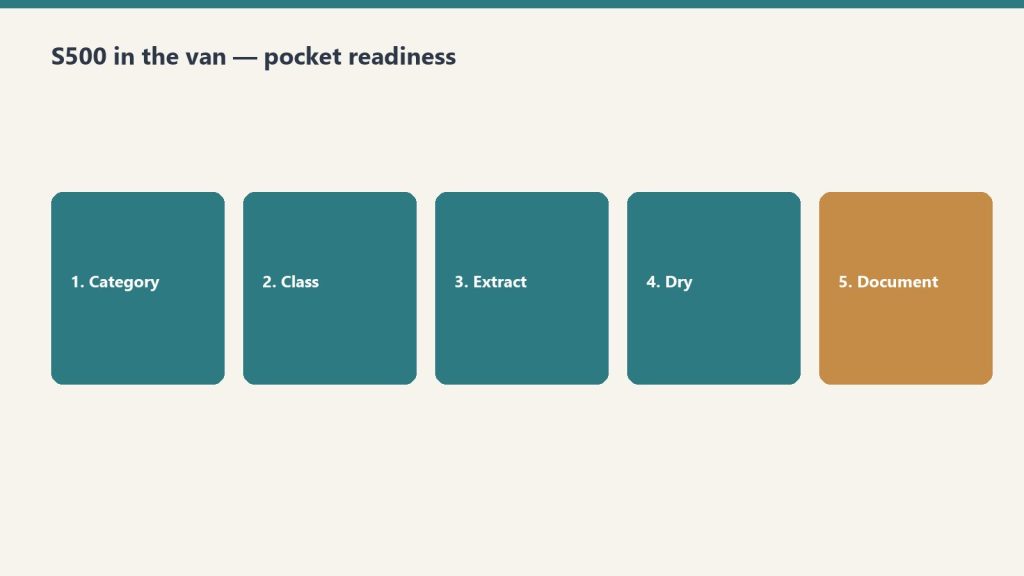
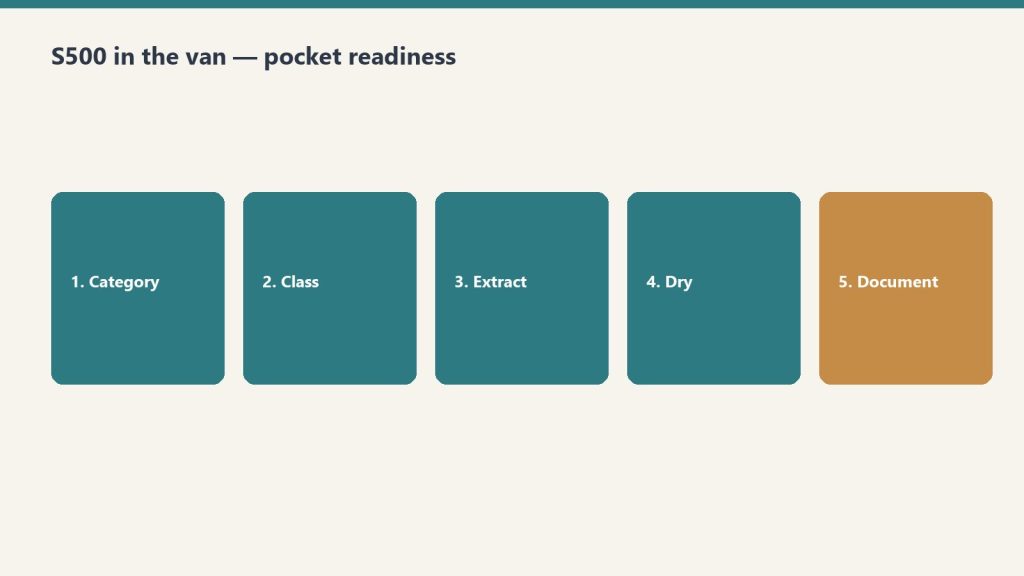
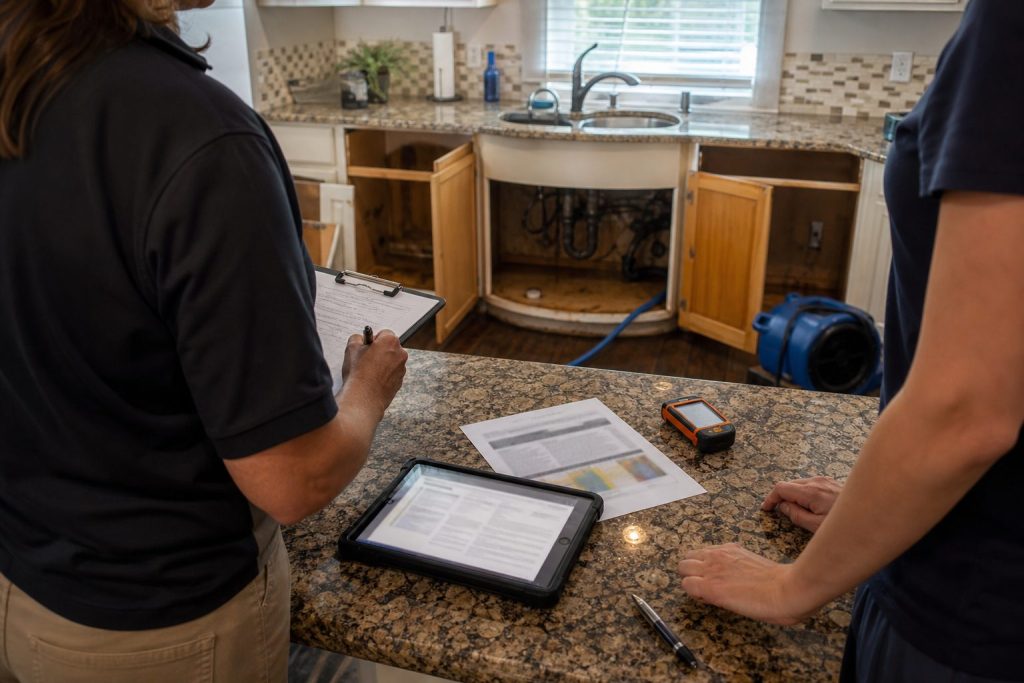
You do not need another binder in the truck. You need the protocol answer while the carpet is still wet.
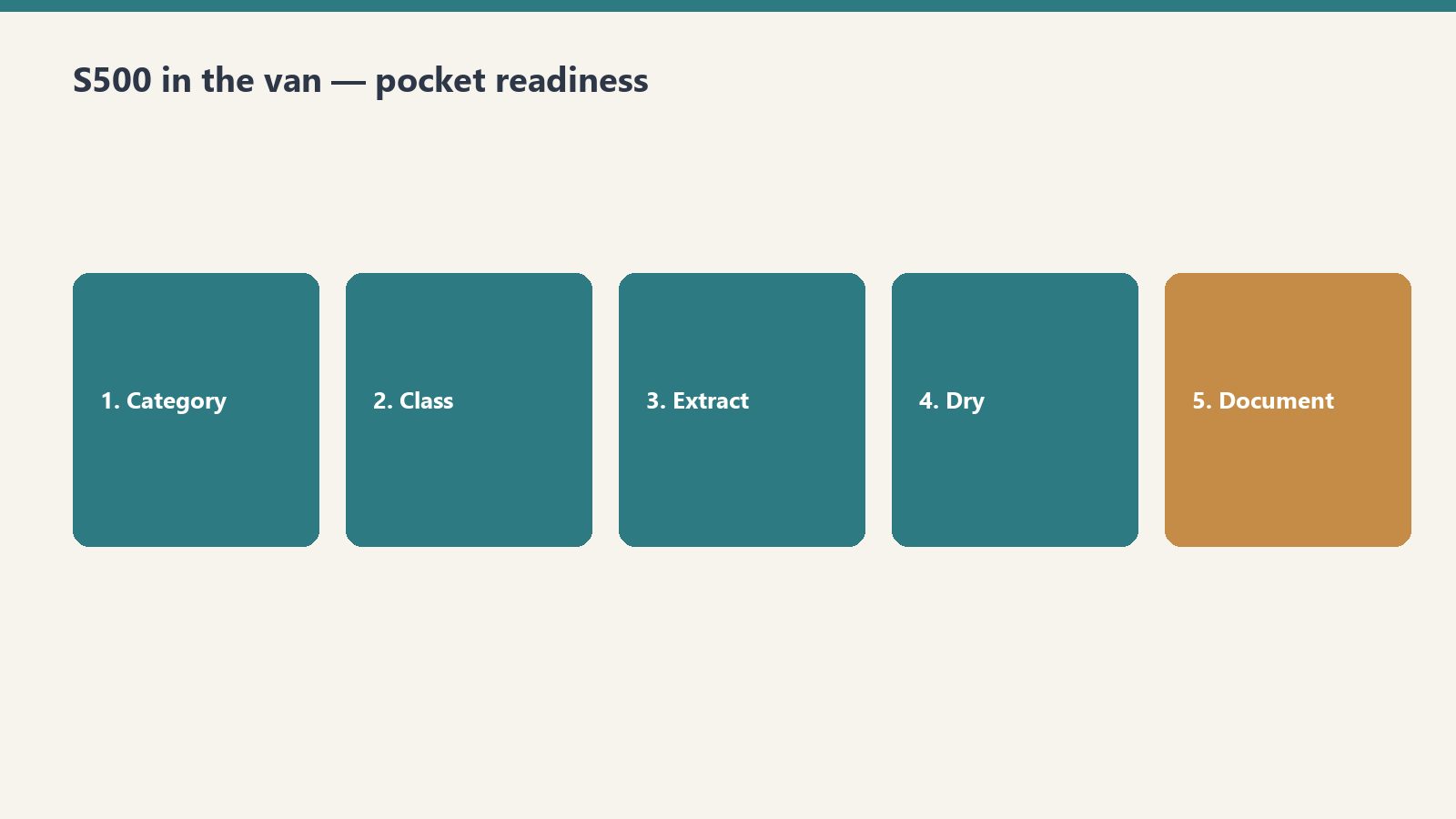
IICRC S500 is not mysterious. The failure mode is that the PM is standing in a basement and the binder is in the office. That is how a supplement dies in email.
Office owns jobs, fleet, claims, and certs. Van gets a work order. When the question is S500-shaped, ask Claude with a protocol-grounded skill — not a Facebook group.
That stack is the Complete Restoration Operations Kit — six Notion templates plus the IICRC lookup skill. $97 on Square. No email to purchase.
Need only the lookup? Buy the skill. Need more than two pieces? The kit is cheaper.
Secure checkout via Square — all major cards accepted
You can copy this library and do it yourself. The full article is already live. Paste a prompt into claude.ai, fill the brackets, edit the draft, send it. Buy Now is the packaged Claude Skill so the library lives in the project instead of a browser tab.
Who it is for: anyone at the company who writes emails. Owner, office manager, whoever runs the CRM touch calendar. No technical background. A free Claude account at claude.ai is enough. No API key. No code.
The workflow
CRM prompt workflow: paste facts → draft → human send.
Go to claude.ai. Create a free account if you need one.
Open a new conversation.
Paste a prompt. Fill the bracketed fields with real information.
Claude drafts the email.
Review it. Edit anything that does not sound like you. Copy it into your email platform.
That is the entire workflow. Specific beats generic. “Write a hiring email for a restoration company” is weak. “Write a hiring email for a 12-person water and fire restoration company in Tacoma, WA that’s been in business for eight years and is known for fast response times and honest communication with insurance adjusters” is usable.
Strategy lives in Your CRM Is Not a Lead Database. Timing lives in The 12-Month Outreach Calendar. This library is the words.
Prompt 1: Hiring email, homeowner version
I run [company name], a [type] restoration company in [city, state]. We’ve been in business [X] years and are known for [one or two specific things your company does well]. We currently have [number] employees and serve the [geographic area] area.

I need to write a short, plain-text email to past homeowner clients who we’ve done [water damage / fire damage / mold / storm] work for. We’re currently hiring for [job title]. The goal of the email is to ask if they know anyone — family, friends, people in the trades — who might be a great fit for a company like ours. We want to reach out to trusted contacts before posting the job publicly.

Tone: Personal and warm, like a note from a real person. Not corporate, not salesy. The recipient should feel like we remembered them and value their opinion specifically.

Requirements: Under 150 words. Plain text (no HTML). Sign it from [owner first name] at [company name]. Include a phone number as the only contact info. No subject line needed — just the body.
Prompt 2: Hiring email, insurance adjuster version
Hiring email for adjusters — clear, dated, professional.
I run [company name], a restoration company in [city, state]. I need to write a short email to insurance adjusters I’ve worked with on claims. We’re hiring a [job title].

The tone should be collegial — peer to peer, professional but not formal. We want to reach out to trusted colleagues before posting publicly, and we’d appreciate any recommendations they might have. Keep it under 120 words. Plain text. From [owner name]. Include phone number.

Do not use any of these phrases: “I hope this email finds you well,” “I wanted to reach out,” “touch base,” “circle back,” or “leverage.” Write it how a real contractor would talk to an adjuster they’ve worked with for years.
Prompt 3: Vendor ask (specialty sub search)
Write a short email from a restoration company owner to their contact database asking if anyone knows a reliable [trade type — e.g., drywall sub, flooring contractor, HVAC tech] in [city/region]. We have a larger project coming up and want to find a quality sub through our network before going the cold-search route.

Context about our company: [2–3 sentences about your company — size, how long you’ve been in business, your service area]. The recipients are a mix of past homeowner clients, insurance industry contacts, and trade partners.

Tone: Casual and direct. Like asking a trusted colleague. Under 100 words. Plain text. From [owner name]. Phone number only.

Optional addition: Add one sentence at the end that invites the recipient to reach out directly if the description matches their own business.
Prompt 4: Seasonal safety email (winter freeze)
I run a water damage restoration company in [city, state]. I want to send a helpful, non-promotional email to past homeowner clients before freeze season. The goal is to give them genuinely useful information about preventing the kind of water damage we see most commonly in [our region] in winter.

Specific things to cover: [list 3–4 real things relevant to your region]. These should be specific to [region] winters, not generic national advice.

Tone: Knowledgeable and helpful, like a trusted expert checking in on a neighbor. No sales pitch, no CTA other than “if you have questions, we’re here.” Under 200 words. Include a link placeholder for [blog post URL] if they want to read more. From [owner name].
The rest of the library (on the live article)
Prompts 5–9 are on the live page. Use that URL. Do not treat this SKU page as a rewrite of that article.
Prompt 5: Post-storm check-in to past homeowners. Warm, community-focused, not a pitch. Under 120 words.
Prompt 6: Company anniversary or milestone. Thank the people who have been part of the journey. No CTA. No offer. Under 175 words.
Prompt 7: Brand-voice rewrite. Paste two real emails you have sent, then the draft, and ask Claude to make it sound like you.
Prompt 8: Eight subject-line options. Personal, no click-bait, no exclamation points, no “Quick question for you!”
Prompt 9: Batch personalization. CSV of past clients. One opening sentence per row that references job type and, if the job is older than 18 months, that it has been a while. Up to 20 rows at a time.
Better drafts still need a human check before send.
Name the phrases you do not want: “I hope this finds you well,” “reaching out,” “touch base,” “leverage.”
Give two sentences of real company context. History, reputation, service area, typical client.
Iterate in the same conversation. “Good, but make it shorter.” Do not start a new chat for every revision.
Ask for three versions: shorter, more formal, more casual.
Review everything before it sends. Claude will sometimes assume details you did not provide.
A free claude.ai account is enough for a full annual campaign calendar. Claude Pro is not required for this use case. Store the filled-in prompts in Notion so you are not hunting them before each send. Using AI to draft is fine if you review and approve every email. The relationship still has to be yours.
If you want the packaged skill
The method and the live article are free to use. Buy Now is the Claude Skill package, delivered by email after checkout, so the library is installed instead of copy-pasted from the article each time. Same Square button at the top of this page.
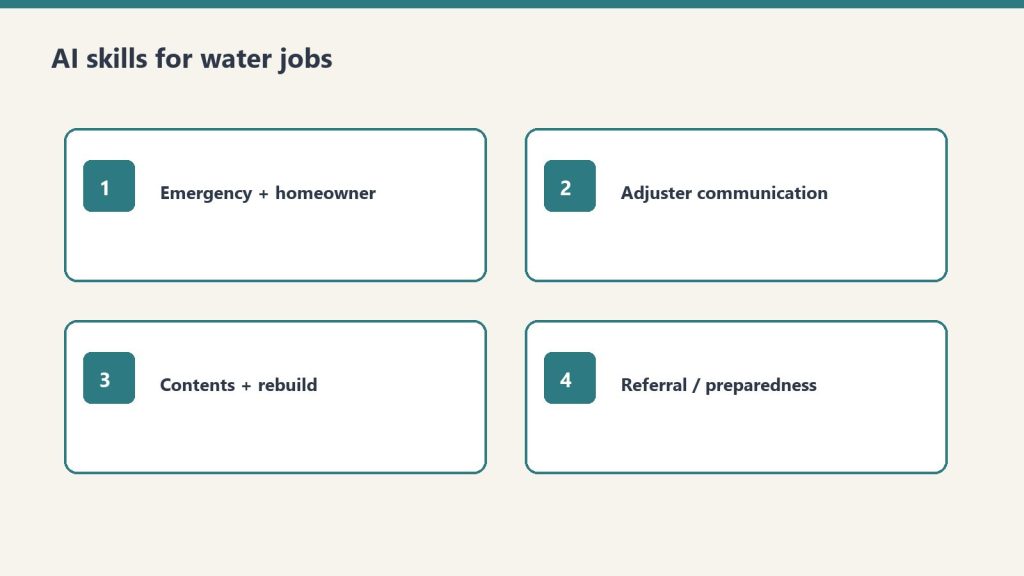
AI for Water Damage Restoration — 4 Claude Skills by Tygart Media is a $29 Square digital product that packages four Claude Project skills for emergency water losses: first-hour homeowner texts, IICRC S500-aware adjuster summaries, contents and rebuild letters, and plumber or property-manager outreach. Will Tygart built the prompts for Category and Class accuracy; Tygart Media delivers the install zip by email within 24 hours of checkout, or contractors can copy the instructions free on this page.
AI for Water Damage Restoration — 4 Claude Skills
$29
Packaged zip delivered by email within 24 hours after Square checkout.
Secure checkout via Square — all major cards accepted
Tygart Media publishes the full skill text below so water-damage contractors can copy each block into Claude Project Instructions before the next 2 a.m. call. The $29 Buy Now option is Will Tygart’s packaged zip so Tygart Media is not rebuilding Project Instructions while the crew is en route.
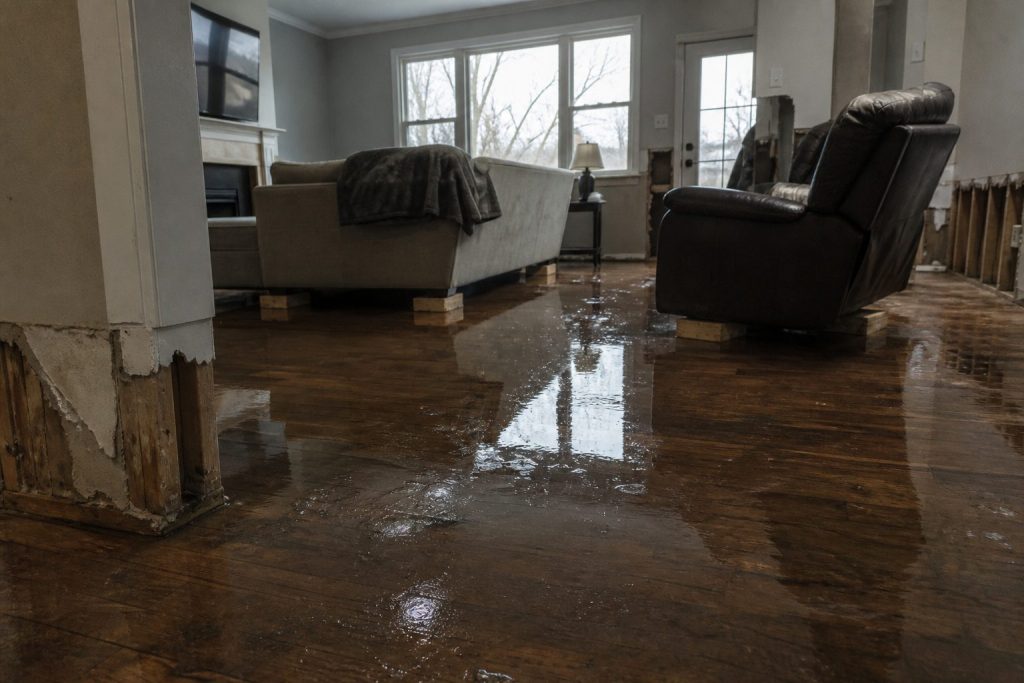
Water damage restoration is a 24/7 business. The company that communicates fastest and clearest wins the job. Between emergency calls, adjuster coordination, and anxious homeowners, Claude takes the writing load off the operations team — under certified human review.
Claude Skills go into Claude Project Instructions.
Prompts work in any Claude conversation.
Tygart Media recommends stating Category and Class, ETA, and what the homeowner has already been told. Vague input makes vague output.
Create a Claude Project. Paste the skill. Answer what it asks. Review every text and letter before it sends. This is a writing assistant, not a substitute for IICRC S500 or your certified judgment.
Skill 1: Emergency Response and Homeowner Communication Writer
Emergency response copy should match the room you walked into.
Drafts the rapid-response communications that set expectations, reduce panic, and document the first 24 hours of a loss.
Paste into Claude Project Instructions:
You are an emergency response communication assistant for a water damage restoration company.

When I describe an active loss, produce:

FIRST CONTACT (phone follow-up text): We're on our way. ETA, who's coming, what to do right now. Under 100 words. Fast and reassuring.

ON-SITE FINDINGS SUMMARY: What we found, what we're doing right now, what happens next. Plain English. Under 150 words. Send within the first hour.

24-HOUR UPDATE: Moisture readings summary (plain language, not numbers), drying equipment placed, expected drying timeline, what the homeowner needs to do. Under 175 words.

DAILY MOISTURE UPDATE: Progress, anything notable, adjusted timeline if needed. Under 100 words.

EQUIPMENT REMOVAL NOTICE: Drying is complete. What was achieved. What happens next (demo, rebuild, clearance). Under 100 words.

Tone: fast, expert, calm. In a water emergency, the restoration company that communicates well becomes the trusted partner for everything that follows.
Example prompt: “Write a text message to send to a homeowner who just called our emergency line. We’re dispatching a crew. ETA is [X] hours. What they should do right now to minimize damage. Under 120 characters if possible.”
Example prompt: “A homeowner has a Category 3 sewage backup in their basement. Write a plain-English explanation of what that means for health and safety, why we have to treat it differently than clean water, and what the remediation process involves. Honest without being terrifying. Under 175 words.”
Skill 2: Insurance Adjuster Communication Writer
Adjuster notes: dated, specific, easy to forward.
Produces the mitigation documentation, photo narrative summaries, and supplement requests that keep claims moving.
Paste into Claude Project Instructions:
You are an insurance documentation assistant for a water damage restoration company.

When I describe a water loss and our scope, produce:

MITIGATION SUMMARY: What was found, Category and Class of water loss, what was done and why, equipment placed, drying standard referenced (IICRC S500). Technical but clear. Under 300 words.

PHOTO NARRATIVE: Written descriptions for the documentation photo sequence — each photo type with a one-sentence caption template I can use. Organized by area.

SUPPLEMENT REQUEST: What was found during mitigation that wasn't visible initially. Itemized, with rationale. Professional and factual.

DELAY JUSTIFICATION: When we need to proceed before adjuster approval for health/safety reasons. Documented, professional, covers our position.

ADJUSTER FOLLOW-UP: Professional check-in when we haven't heard back. States what we're waiting on and impact on the homeowner.

Always: factual, documented, professional. Supplement disputes are resolved through evidence.
Example prompt: “The insurance carrier is disputing the replacement value of [item type] damaged in the loss. Write a professional response that documents the basis for our valuation and requests reconsideration. Factual, not emotional. Under 150 words.”
Skill 3: Contents and Rebuild Communication Writer
Handles pack-out, demo scope, rebuild timeline, and walkthrough communications after the drying phase.
Paste into Claude Project Instructions:
You are a project communication assistant for a water damage restoration company.

When I describe a post-mitigation situation, draft:

CONTENTS PACK-OUT NOTICE: We need to move and protect contents. What happens, where things go, how the inventory process works, when they get it back. Reassuring and specific. Under 150 words.

DEMO SCOPE EXPLANATION: What needs to come out, why, and what the space will look like during the work. Plain English. Under 150 words.

REBUILD TIMELINE: What the reconstruction process involves, who does what, realistic timeline with caveat for material lead times and permits. Under 200 words.

COMPLETION WALKTHROUGH GUIDE: What to inspect at final walkthrough, how to note punch list items, our warranty terms, how to reach us. Professional close.

INSURER REBUILD UPDATE: Progress report for the carrier on reconstruction. Factual, organized by trade, with current completion percentage.

Ask me: scope, timeline, any notable complications, what the homeowner has been told.
Give it the real scope and what the homeowner has already heard. Do not let it invent a timeline Tygart Media cannot keep on the job.
Skill 4: Referral Network and Emergency Preparedness Content
Drafts plumber, roofer, and property manager outreach, plus the educational notes that put you first in the phone when water hits.
Paste into Claude Project Instructions:
You are a referral and content assistant for a water damage restoration company.

When I describe an outreach or content need, produce:

PLUMBER/ROOFER OUTREACH: We're a trusted restoration partner. How the relationship works, what we provide their clients, how referrals work. Peer-to-peer. Under 100 words.

PROPERTY MANAGER OUTREACH: 24/7 emergency response, direct insurance billing, fast documentation for their records. What makes us the right call at 2am. Under 100 words.

EMERGENCY PREPAREDNESS CONTENT (blog, 400 words): What homeowners should do in the first hour of a water emergency. Step by step. Practical. Ends with when to call a professional.

STORM RESPONSE POST: After a weather event. What to watch for. When to call. Urgent but not alarmist. Under 100 words. Timely.

Ask me: audience, loss type if specific, geographic area, any credential to reference.
Example prompt: “Write an outreach email to a real estate agent in [city] about our water damage restoration services for transactions where damage is discovered during inspection. Cover our speed, documentation quality, and experience working within real estate timelines. Under 120 words.”
Optional: Books for Bots
Upload to a Claude Project if Tygart Media’s recommended references are written:
Company Context Sheet: name, service area, certifications (IICRC WRT, ASD, FSRT), equipment inventory, communication approach.
Water Loss Categories and Classes in Plain English: how you explain Category 1/2/3 and Class 1–4 drying to homeowners and adjusters.
Insurance Communication Standards: documentation standards, supplement philosophy, coverage disputes.
If you want the packaged files
The four skills are on this page. Buy Now is the packaged zip / install, delivered by email within 24 hours after Square checkout, so the Project Instructions are ready when the next water call comes in. Same Square button at the top of this page.
Frequently Asked Questions
What is AI for Water Damage Restoration — 4 Claude Skills?
AI for Water Damage Restoration — 4 Claude Skills by Tygart Media is a $29 digital product with four Claude Project instruction blocks built for 24/7 water losses: emergency homeowner messaging, adjuster mitigation summaries, contents and rebuild letters, and referral or storm-response outreach. Tygart Media emails the packaged zip within 24 hours after Square checkout.
Does this replace IICRC S500 judgment?
No. Tygart Media positions these skills as a writing assistant only. Every draft must be reviewed by a certified restorer before it is sent. Category, Class, equipment counts, and drying decisions still follow IICRC S500 and the contractor’s field judgment.
How is this different from the general restoration 4-skill pack?
This water-focused pack ($29) targets emergency texts, mitigation photo narratives, pack-out letters, and storm referral content. The general AI for Restoration Contractors — 4 Claude Skills ($29) covers scope narratives and broad insurance correspondence. The Restoration Operations Kit — Claude Edition ($197) adds eight operational skills including equipment sizing and KPI coaching.
What is included in the $29 Square purchase?
The $29 checkout includes a formatted zip of all four water-damage Claude skills ready to paste into Project Instructions, plus email delivery from Tygart Media within 24 hours. The full skill text also remains free to copy from this page.
Is there a refund policy?
Because this is a digital product, all sales are final. If you have a problem with your purchase, email will@tygartmedia.com and we will sort it out.
How is this delivered?
Within 24 hours of purchase via email from will@tygartmedia.com. You will receive your download link — Notion duplicate link, skill file, or both depending on the product.
$29
Packaged zip delivered by email within 24 hours via Square.
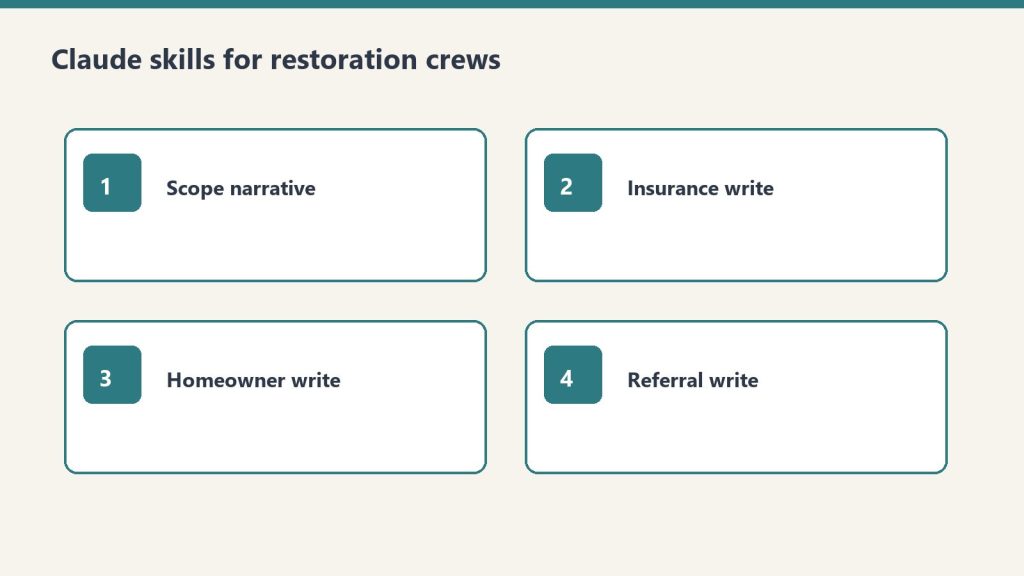
AI for Restoration Contractors — 4 Claude Skills by Tygart Media is a $29 Square digital product that packages four Claude Project instruction blocks for restoration shops: scope-of-work narratives, insurance correspondence, homeowner updates, and trade-partner outreach. Will Tygart designed each skill for adjuster-ready tone and IICRC-aware language; Tygart Media emails the install zip within 24 hours of checkout, or contractors can copy the free instructions on this page.
AI for Restoration Contractors — 4 Claude Skills
$29
Packaged zip delivered by email within 24 hours after Square checkout.
Secure checkout via Square — all major cards accepted
Tygart Media publishes the full skill text below so restoration contractors can copy each block into Claude Project Instructions and run prompts on real jobs. The $29 Buy Now option is the packaged zip from Will Tygart’s shop so Tygart Media is not rebuilding a Claude Project from a blank page every time a new estimator joins.
Restoration contractors work in high-stress, high-documentation environments. Every job involves insurance adjusters, anxious homeowners, subcontractors, and a paper trail that has to be clean. Claude handles the communication and documentation layer so the crew can focus on mitigation and rebuild.
DIY Copy vs $29 Packaged Zip
Option
Price
What You Get
Best For
Copy from this page
$0
Four skill blocks in HTML; manual paste into Claude Projects
Four skills. Paste job facts. Review before you send.
Claude Skills go into Claude Project Instructions.
Prompts work in any Claude conversation.
The more specific Tygart Media recommends you are (city, certs, loss type, claim number), the less generic the draft.
Create a Claude Project. Paste one skill (or all four) into Project Instructions. Start a chat. Answer the questions the skill asks. Review every draft before it leaves your shop.
Skill 1: Scope of Work Narrative Writer
Scope narratives should read like the job looked — not like a template.
Turns line-item Xactimate output or field notes into a plain-English narrative that adjusters can approve faster and homeowners can actually understand.
Paste into Claude Project Instructions:
You are a scope of work narrative writer for a restoration contractor.

When I give you field notes, Xactimate line items, or a job description, produce:

1. ADJUSTER NARRATIVE: Technical, specific, organized by trade sequence. Explains the scope and why each line item is justified. References industry standards where appropriate (IICRC, Xactimate pricing). Professional and precise.

2. HOMEOWNER SUMMARY: Plain English. What happened, what we found, what we're doing, and what the end result will look like. No jargon. Under 200 words.

3. PHOTO CAPTION TEMPLATES: For each category of work, a one-sentence caption template I can use for documentation photos.

Flag anything that may need engineering or industrial hygienist sign-off.

Ask me: loss type, affected areas, scope summary, trade sequence.
Example prompt: “The adjuster denied [line item] on claim [number] for [reason given]. Our position is [your argument]. Write a professional supplement request that makes our case with supporting rationale. Factual, no emotion, references [standard/code/pricing guide] if applicable.”
Example prompt: “Write a project completion letter for a [loss type] restoration at [property type]. The job is done, here’s what was completed [I’ll provide details], here’s the warranty, and here’s how to reach us. Professional, warm, closes the loop.”
Skill 2: Insurance Communication Writer
Insurance communication: clear, dated, and easy to forward.
Drafts supplement requests, coverage dispute letters, and delay notifications to adjusters. Professional, factual, documented.
Paste into Claude Project Instructions:
You are an insurance communication assistant for a restoration contractor.

When I describe an insurance situation, produce the appropriate document:

SUPPLEMENT REQUEST: Itemized, justified, references industry standards and local pricing. Professional tone — collaborative not adversarial.

COVERAGE DISPUTE: Factual, specific, cites policy language I provide. Requests reconsideration professionally. Never threatening.

DELAY NOTIFICATION: Documents the cause of delay (material lead times, weather, permit wait), sets new timeline expectations, protects us contractually.

ADJUSTER FOLLOW-UP: Professional check-in when we haven't heard back. States what we're waiting on and the impact on the homeowner's timeline.

Always: factual, documented, professional. Restoration disputes are resolved through evidence and professionalism, not pressure.

Ask me: claim number, situation, what we want to accomplish.
Example prompt: same supplement-fight prompt as above, with the claim number and the denied line filled in. Keep it factual.
Skill 3: Homeowner Communication Writer
Drafts project updates, delay notifications, scope-change explanations, and final walkthrough summaries. Restoration homeowners are stressed. Every message should reduce anxiety and build trust.
Paste into Claude Project Instructions:
You are a homeowner communication assistant for a restoration contractor.

Restoration homeowners are stressed. Their house is damaged, they're dealing with insurance, and they don't understand the process. Every communication should reduce anxiety and build trust.

When I describe a situation, draft the appropriate message:

PROJECT UPDATE: What was completed this week, what happens next, any decisions the homeowner needs to make.

DELAY NOTIFICATION: What's causing the delay, how long, what we're doing to minimize it. Be honest — homeowners handle truth better than surprises.

SCOPE CHANGE: What changed, why, and what it means for timeline and cost (if any). Get their acknowledgment documented.

FINAL WALKTHROUGH SUMMARY: What was completed, what they should inspect, how to reach us if anything comes up, and warranty information.

Tone: calm, competent, human. You are the expert. Help them feel in good hands.
Example prompt: “A homeowner is frustrated because [situation]. They’re calling daily and [specific complaint]. Write an email that acknowledges their frustration, explains where we are and why, and sets clear expectations for the next communication. Calm and professional.”
Skill 4: Trade Partner and Referral Communication
Drafts the relationship-building notes that turn plumbers, roofers, and realtors into people who call you first.
Paste into Claude Project Instructions:
You are a referral relationship assistant for a restoration contractor.

Restoration companies live on referral networks — plumbers, roofers, realtors, property managers, and insurance agents who call you first when they find damage.

When I describe a relationship I want to build or maintain, draft:

FIRST OUTREACH: Introduce us as a resource, not a vendor. What we do, how we make their clients look good, how to reach us. Under 100 words.

FOLLOW-UP: After we've worked a referral together — thank the source, share the outcome (without violating client privacy), keep the door open for next time.

ANNUAL TOUCHPOINT: Stay top of mind without being annoying. Something useful (tip, resource, seasonal heads-up). Under 75 words.

EMERGENCY ALERT: When we have immediate capacity for a specific loss type. Short, direct, actionable.

Tone: peer-to-peer, trade professional. We're all in the business of taking care of people's homes.
Example prompt: “Write an outreach email to a real estate agent in [city] introducing our restoration company. We want to be their first call when a transaction uncovers damage. Under 120 words. No sales pitch. Just making ourselves useful.”
Optional: Books for Bots
These are PDFs you upload to a Claude Project so Claude reads them in every conversation. Tygart Media recommends three short references:
Company Context Sheet: company name, service area, certifications (IICRC, RIA), loss types, equipment, communication standards.
Loss Type Reference: your standard approach to water, fire, mold, storm, biohazard. Process, typical timeline, what homeowners need to know at each stage.
Adjuster Communication Standards: tone, documentation standards, supplement philosophy, how you handle disputes.
Write those three docs yourself if you want. Keep them short and true.
If you want the packaged files
The method is on this page. Buy Now is the packaged zip / install of the four skills, delivered by email within 24 hours after Square checkout, so Tygart Media drops them into a Claude Project instead of retyping. Same Square button at the top of this page.
Frequently Asked Questions
What is AI for Restoration Contractors — 4 Claude Skills?
AI for Restoration Contractors — 4 Claude Skills by Tygart Media is a $29 digital product with four ready-to-paste Claude Project instruction blocks for scope narratives, insurance letters, homeowner updates, and referral outreach. Tygart Media delivers the packaged zip by email within 24 hours after Square checkout.
Can I use the skills without buying the zip?
Yes. Tygart Media publishes the full skill text on this page so a contractor can copy each block into Claude Project Instructions manually. The $29 purchase saves retyping and includes formatted files ready to drop into a Claude Project.
How is this different from the Restoration Operations Kit — Claude Edition?
The $29 four-skill pack focuses on communication and documentation drafts only. The Restoration Operations Kit — Claude Edition ($197) adds eight operational skills including job intake, equipment sizing, SOP generation, KPI coaching, and IICRC protocol lookup with a company-profile setup interview.
What do I need to run these skills?
Any Claude account with Projects (Claude Pro or Team). Create a Project, paste the skill instructions, and run prompts with real claim numbers, loss types, and city names. Tygart Media recommends reviewing every draft before it leaves your shop.
Is there a refund policy?
Because this is a digital product, all sales are final. If you have a problem with your purchase, email will@tygartmedia.com and we will sort it out.
How is this delivered?
Within 24 hours of purchase via email from will@tygartmedia.com. You will receive your download link — Notion duplicate link, skill file, or both depending on the product.
$29
Packaged zip delivered by email within 24 hours via Square.
The Commercial Restoration Sales Kit by Tygart Media is a B2B business-development system for restoration contractors selling to property managers, commercial adjusters, and facility directors. Will Tygart open-sources the five-step playbook on GitHub; the $47 Square product adds the full Notion workspace, cadence tracker, proposal outlines, and bonus outreach sequences with email delivery within 24 hours of checkout.
Commercial Restoration Sales Kit
$47
Packaged Notion workspace delivered by email within 24 hours after Square checkout.
Secure checkout via Square — all major cards accepted
Tygart Media publishes this commercial playbook so restoration owners can clone the free GitHub core, customize the emails in Claude, and work a named target list. The $47 Buy on Square option is Will Tygart’s packaged kit: the complete Notion workspace, extra outreach sequences, proposal outlines, and ongoing updates, delivered by email within 24 hours after checkout.
Commercial restoration sales is a long game. The property manager you meet in March may not call until October, when a pipe bursts and your card is the one in the drawer. Owners who expect this to work like residential ads-and-calls quit early. Owners who treat it as 6–18 months of relationship development build pipelines that outperform marketing spend.
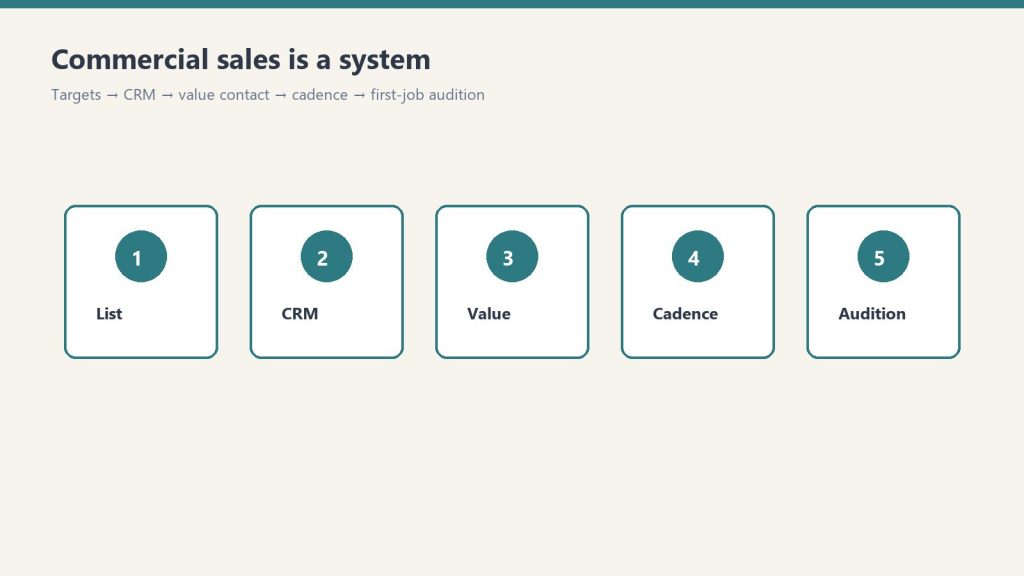
It is relationship-first, not inbound. You need a named list, a simple CRM habit, a value-first first contact, a cadence, and a first job you treat as an audition. That is the whole system.
Step 1: Build a Target Account List
Not “commercial accounts in general.” Specific companies and specific people. For each category, list 20–30 named prospects.
Property management companies. Director of Facilities or Property Manager, by name. LinkedIn is the research tool.
Large commercial facilities: hospitals, school districts, universities, municipal, industrial. Facilities Manager or Director of Operations.
Commercial insurance agencies: commercial lines account manager or producer.
Independent claims adjusters: firms handling commercial claims for multiple carriers.
Commercial GCs. GCs doing build-outs / TIs who hit restoration needs on active sites.
Account criteria before you add a name:
Properties large enough to generate restoration-eligible losses regularly
Decision-makers, not admin staff
At least one path: mutual connection, association (BOMA is the main one for commercial PMs), LinkedIn, or an event
Inside your service radius / response commitment
Pull your best 20 into a focus list. Those 20 get the cadence. Everyone else waits.
Step 2: Organize a simple CRM
Managing 100+ prospects in your head fails. Track at minimum:
Company, contact, title, email, phone
Last contact date and method
Next planned contact and action
Notes on situation, challenges, interests
Jobs referred, when work starts
ServiceTitan, JobNimbus, HubSpot free, or a disciplined spreadsheet. The tool matters less than updating it after every contact.
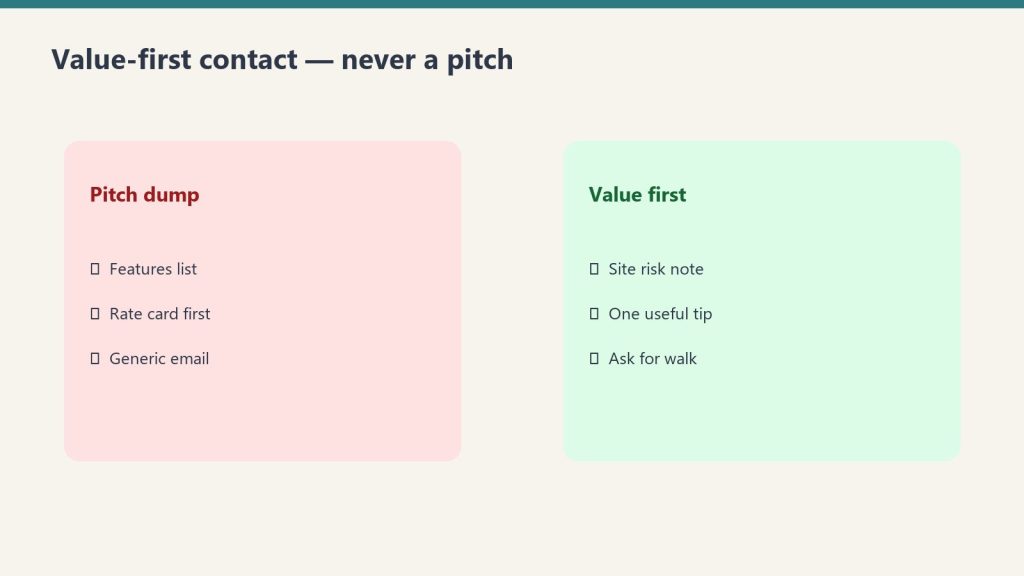
Step 3: Value-first contact (never a pitch)
Value-first contact — never a pitch.
First contact is a value offer that earns a meeting.
Property managers: complimentary water/mold vulnerability assessment on their highest-risk property. About two hours on site, then a short written report. No cost, no obligation, no hard sell.
Commercial adjusters: 15 minutes to learn the claims they handle and what they want in a preferred contractor. Questions, not a brochure.
Facility managers: share a relevant industry update (regulation, IICRC, insurance trend) with why it matters to their facility. No ask attached.
GCs: ask onto the bid list for restoration/remediation subs. Offer a mold survey on the next gut reno as the intro.
Property manager email (customize before you send)
Subject options: “Quick offer for [Building / Portfolio Name]” / “No-cost water & mold risk walkthrough. [Your Market]” / “Something useful for [Property Management Co] (not a sales deck)”
Hi [First Name],

I work with commercial property teams in [Market] on water, fire, and mold risk before losses escalate. I’m not writing to pitch a preferred-vendor slot.

I’d like to offer a complimentary vulnerability assessment on the one building in your portfolio that keeps you up at night — highest flood/leak exposure, oldest systems, or toughest after-hours logistics. About two hours on site, then a short written report with concrete recommendations. No cost, no obligation, no hard sell.

If useful, reply with a building name and a window that works, or a time for a 10-minute call to scope it.

Best,
[Your Name]
[Company]
[Phone] · [IICRC / response commitment, e.g. “IICRC-certified · 2-hour emergency response”]
Commercial adjuster email
Subject options: “15 minutes to learn how you work commercial losses” / “Question for preferred restoration partners” / “Learning call (not a capabilities deck)”
Hi [First Name],

I support commercial property claims in [Market] and I’m trying to get better at how independent adjusters actually evaluate restoration partners — documentation, response, communication under pressure.

Would you have 15 minutes in the next couple of weeks for me to ask questions (not run a sales pitch)? I come prepared; I’ll take notes and leave you alone unless you want a follow-up.

Happy to work around claim season. Coffee, Zoom, or phone — your call.

Thank you,
[Your Name]
[Company]
[Phone] · [Certifications / commercial experience one-liner]
Facility manager email (no ask)
Subject options: “Quick note on [regulation / IICRC / insurance trend] for [Facility Type]” / “Sharing this because it affects [Campus / Hospital / Plant] ops” / “No ask. just a relevant update”
Hi [First Name],

Saw [specific update] and thought of [Facility / Portfolio] because of [one concrete reason tied to their systems or occupancy].

Here’s the short version:
- [What changed]
- [Why it matters for facilities like yours]
- [One practical action: inspection, documentation, vendor protocol]

No ask attached — just sharing in case it’s useful for your team. If you ever want a second set of eyes on a water or mold scenario after hours, you already have my number.

Respectfully,
[Your Name]
[Company]
[Phone]
When you customize with Claude, give it your market, services, certifications, guaranteed response time, and one real differentiator. Keep emails under about 150 words. Remove leftover pitch language. Do not spam generic templates.
Step 4: Outreach cadence (top 20)
Monthly: low-friction: article share, LinkedIn comment, short check-in if appropriate
Quarterly: substantive: coffee, lunch, site visit, longer call
Annually: formal value presentation: capabilities, certifications, documentation standards, response commitment. Ask onto the preferred vendor / emergency protocol list.
Event-driven: storm, regulation, job near their facilities. Same-day if it is relevant.
Log after every touch: last date, method, next date, next action, owner, status (New, Cultivating, Warm, First job, Active account, Preferred vendor, Parked).
Event triggers worth a same-day note: major storm / freeze / flood in market; new regulation or IICRC update affecting their buildings; you completed a job near their portfolio; they posted a facility or hiring update; a mutual-connection intro.
Claude prompt you can use on the tracker: “Given my Top 20 list and last-touch dates, propose next week’s outreach calendar with one monthly touch per A-tier contact and flag anyone overdue for a quarterly meeting.”
Step 5: Convert the first job (the audition)
The first job is the audition — show up sharp on a real loss.
The first commercial job is the audition. Overdeliver. Every later job and referral traces back to that execution.
Before you roll
Confirm decision-maker and day-to-day site contact
Confirm response commitment in writing (hours to on-site)
Pre-stage equipment for the loss type
Assign a named PM, not “whoever is free”
Create the job folder: photos, moisture map template, daily log, COI packet ready
Response and presence
On site faster than committed. Record actual arrival time.
PM introduces self to client and any adjuster/GC on site
Same-day written scope outline or stabilization plan
PM on site daily while active, not only technicians
Moisture readings mapped by room/zone on water losses
Daily summary emailed to the client before they ask
Equipment log: what’s on site, why, pull dates
Change-order path explained before work expands
Communication and close-out
Client hears from you proactively at least once per day while active
Adjuster / GC included when they are in the loop
After-hours path confirmed (who answers at 2 a.m.)
Walk-through before demob. Final photos plus summary. Invoice clean, itemized, no surprises.
Personal follow-up from owner/BD by name within 48 hours
Ask once, lightly, about preferred-vendor / emergency protocol inclusion
Log the job as a reference case in the CRM, with permission notes
48-hour post-job note:
Hi [First Name],

Thank you for trusting us on [Site / Loss type]. We aimed to be early, clear, and boring on paperwork.

Attached/linked: final photo set + summary. If anything needs a second look, call me directly.

If useful, we’re glad to be added to your after-hours protocol for [portfolio / region].

[Your Name]
[Direct phone]
Score the audition internally, 1–5, on speed vs commitment, PM presence, documentation quality, proactive communication, invoice clarity, and likelihood of next call. If any dimension is 3 or below, debrief before the next commercial opportunity.
Frequently Asked Questions
What is the Commercial Restoration Sales Kit?
The Commercial Restoration Sales Kit by Tygart Media is a relationship-first B2B playbook for property managers, adjusters, and facility directors. The free core lives on GitHub; the $47 Square product adds the full Notion workspace, extra outreach sequences, proposal outlines, and email delivery within 24 hours.
How long until commercial restoration sales produce a first job?
Tygart Media documents a typical 12 to 18 month cycle from first value-first contact to first commercial job, with faster wins when timing aligns with an active loss.
Why BOMA for commercial property managers?
Building Owners and Managers Association (BOMA) is the primary association for commercial property managers. Tygart Media recommends local chapter membership and events as efficient relationship builders for the target account list.
What do property managers care about most?
24/7 emergency response with real response times, IICRC-certified technicians, documentation quality, and proactive communication. Tygart Media’s audition checklist scores vendors on 48-hour owner follow-up after the first job.
What is included in the $47 Square purchase?
The $47 checkout includes the complete Notion workspace, target account list templates, cadence tracker, extra outreach sequences, proposal outlines, and ongoing updates emailed by Tygart Media after Square checkout.
Is there a refund policy?
Because this is a digital product, all sales are final. If you have a problem with your purchase, email will@tygartmedia.com and we will sort it out.
How is this delivered?
Within 24 hours of purchase via email from will@tygartmedia.com. You will receive your download link — Notion duplicate link, skill file, or both depending on the product.
Ask Claude to customize the templates for your market, certifications, and response times.
Example prompt from the README: “Using PLAYBOOK.md and templates/outreach-emails.md, rewrite the property manager email for a mid-size metro, IICRC-certified water/fire/mold contractor with 2-hour emergency response.”
If you want the packaged kit
The free core is enough to start. Buy Now is the polished version: complete Notion workspace, extra outreach sequences, target account list templates, cadence tracker, proposal outlines, and ongoing updates. Delivered by email after checkout. Same Square button at the top of this page.
$47
Full Notion workspace + sequences — email delivery within 24 hours via Square.