
Last refreshed: May 15, 2026
Installing Claude?
If you run into setup issues or want to know how to get the most out of it from day one, just email me.
Email Will → will@tygartmedia.comClaude Desktop is Anthropic’s native app for Mac and Windows — a dedicated application that brings Claude out of the browser and into your system, with features that aren’t available in the web interface. It’s free to download for all plan types, including the free tier.
What Claude Desktop Includes
| Feature | What it does | Plan required |
|---|---|---|
| Chat tab | Full Claude conversation, same as claude.ai | Free+ |
| Quick access hotkey | Bring Claude up from any app without switching windows | Free+ |
| Screenshot capture | Snap your screen and have Claude analyze what it sees | Free+ |
| Desktop extensions | Connect Claude to local files, calendars, email, and native apps | Free+ |
| Claude in Chrome | Claude navigates, clicks, and fills forms in your browser | Free+ |
| Cowork tab | Autonomous background agent that runs tasks in a cloud VM | Pro, Max, Team, Enterprise |
| Code tab (Claude Code) | Interactive coding with direct access to your local files | Pro, Max, Team, Enterprise |
Get the Claude workflow that actually sticks.
Practical Claude setup tips from someone running it across 27 client sites daily — not marketing, not theory. Email Will directly and he’ll share what’s working.
The Three Tabs: Chat, Cowork, and Code
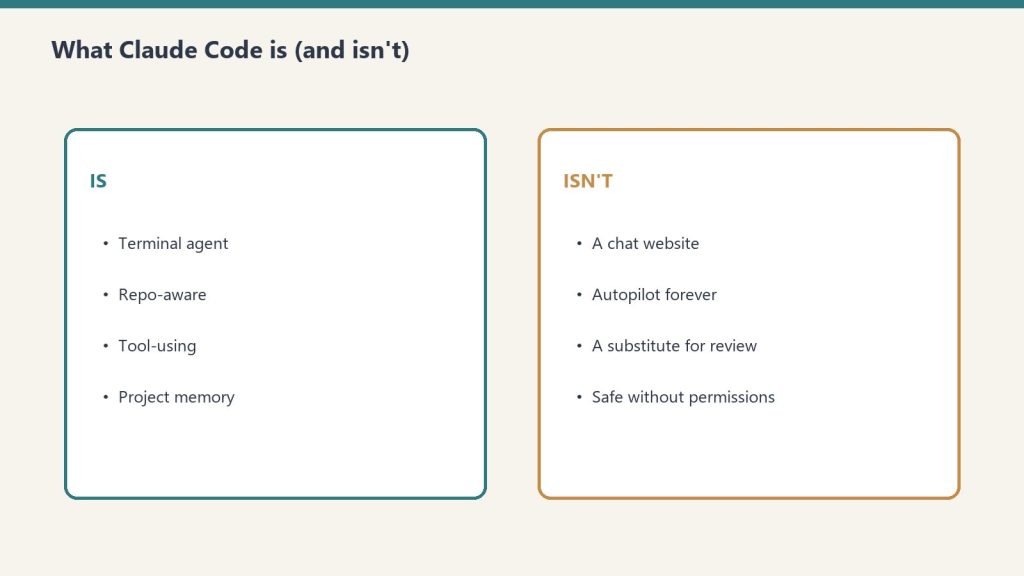
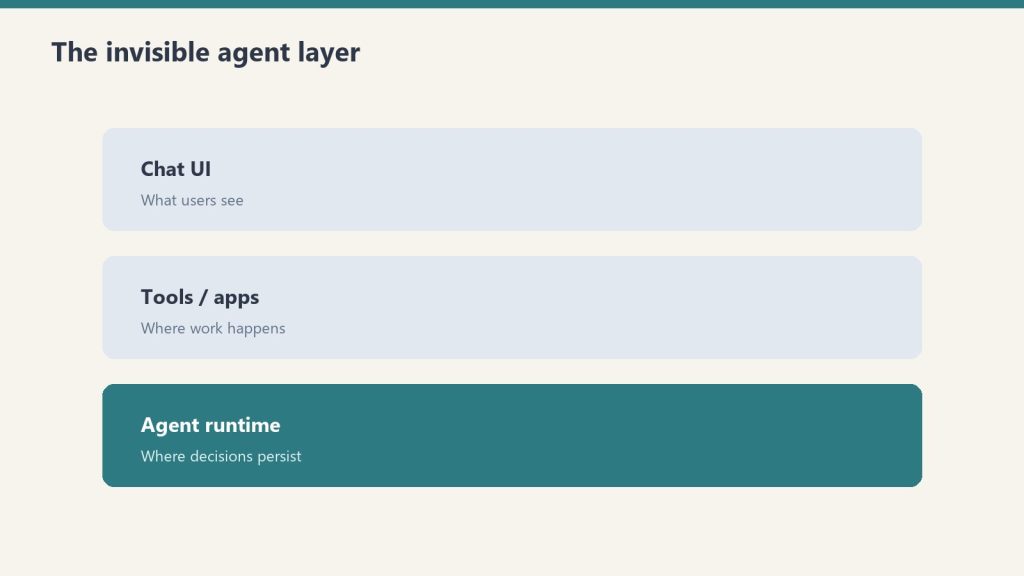
Claude Desktop is organized around three modes. Chat is general conversation — identical to claude.ai but accessible from your dock without opening a browser. Cowork is an autonomous background agent that works on tasks in a cloud VM while you do other things — research synthesis, file organization, document generation, spreadsheets. Code is Claude Code with a graphical interface — an interactive coding assistant with direct access to your local project files, where you review and approve each change in real time.
What Makes Desktop Different From the Web
The practical differences over using claude.ai in a browser:
- Always accessible — lives in your dock, reachable from any app via hotkey without switching contexts
- Screenshot capture — take a screenshot and immediately ask Claude about what’s on screen
- Desktop extensions — connect to local files, your filesystem, calendars, email, and native Mac/Windows apps that web connectors can’t reach
- Claude in Chrome — let Claude control your browser directly from the desktop app
- Cowork background tasks — long-running autonomous tasks that continue while you work on something else
- Claude Code integration — work directly with your local codebase without copying files
How to Download and Install

- Go to claude.ai/download
- Download the appropriate installer — macOS PKG, Windows x64, or Windows ARM64
- Run the installer — on Mac, drag to Applications; on Windows, run the setup file
- Launch from your Applications folder (Mac) or Start menu (Windows)
- Sign in with your Anthropic account
Linux is not currently supported. The app requires macOS or Windows.
Desktop Extensions
Desktop extensions are installable packages that connect Claude to your local tools — similar to browser extensions but for native applications. They give Claude access to your local file system, calendars, email, messaging apps, and other native applications that web-based connectors can’t reach. Browse and install extensions in Settings → Extensions after installing the app.
Syncing Across Devices
Your conversations, projects, memory, and preferences sync across Claude Desktop, the web interface, and the mobile app when you’re signed in with the same account. Start a session in the desktop app, continue on your phone, pick it back up on the web — the context travels with you.
For the Claude Code-specific features in the desktop app, see How to Use Claude Code. For a comparison of Desktop vs. the web interface for everyday use, see Claude AI Login: All Platforms and Apps.
Frequently Asked Questions
Is Claude Desktop free?
Yes. Claude Desktop is free to download and use with a free Claude account. Some features — Cowork, Claude Code, and some extensions — require a paid plan (Pro, Max, Team, or Enterprise). The core chat functionality is available on the free tier.
What’s the difference between Claude Desktop and claude.ai?
Claude Desktop is a native app that lives in your dock and adds features not available in the browser — quick access hotkey, screenshot capture, desktop extensions, Cowork for background tasks, and Claude Code for local development. The core conversation experience is the same; the desktop app adds system-level integration.
Is Claude Desktop available on Linux?
No. Claude Desktop currently supports macOS and Windows only. Linux users can access Claude through the web interface at claude.ai or via the API.
Does Claude Desktop work with Claude Code?
Yes. Claude Desktop includes a Code tab that gives you Claude Code with a graphical interface — direct access to your local files, code review, and interactive development without needing the terminal. The desktop app and the Claude Code CLI share configuration and can run simultaneously on the same project.
Leave a Reply