Every decision, every deliverable, every edge case that didn’t fit the template. I was the person who knew where everything was and why it worked the way it did. Clients called me. Problems waited for me. The operation was fast when I was available and stuck when I wasn’t.
I told myself this was just what running a lean operation looked like. That being indispensable was the same thing as being valuable. That the bottleneck was evidence of how much I mattered.
It took me longer than I’d like to admit to understand that those aren’t the same thing at all.
The shift didn’t happen because I hired more people or built a more sophisticated system. It happened because I started writing things down differently.
Not the what — I’d always documented the what. What the process was. What the deliverable looked like. What the client expected.
The change was writing down the why.
Why is this built this way. Why did I make this trade-off. Why does this rule exist and what would have to be true for it to change. The reasoning that lives in my head during a decision but never makes it into the documentation because by the time the decision is made, the reasoning feels obvious and I’ve already moved on.
That reasoning — the why, the context, the judgment — is exactly what’s missing when someone else tries to run something you built. They can follow the steps. They can’t follow the thinking. And the thinking is most of what they actually need.
I had a client engagement once where the real work wasn’t the content or the SEO or any of the visible deliverables. The real work was extraction — pulling out everything the founder knew about his industry and making it queryable.
He had thirty years of pattern recognition in his head. He knew, from a thirty-second conversation, whether a prospective client was going to be a nightmare. He knew which product lines had margin left to squeeze and which ones were already at ceiling. He knew the right answer to questions his team asked him forty times a week.
But none of it was written down. It lived in him, and because it lived in him, every decision that touched that knowledge had to touch him first. He was the bottleneck in his own business, not because he was bad at delegating, but because there was nothing to delegate to. The judgment wasn’t portable.
We spent three months making it portable.
I’ve been doing the same thing for myself.
The Notion workspace I run on isn’t just a project management tool. It’s an attempt to externalize the reasoning that would otherwise die with the session — the doctrine pages that explain why the operation is structured the way it is, the decision logs that capture what I considered before choosing, the second brain that holds the context I’d otherwise have to rebuild from scratch every time.
It’s slow work. It runs against the instinct to just move. Documentation always feels like it’s competing with execution, and execution is what pays the bills today.
But the compound effect is real and I’ve felt it. Questions I would have had to think through from scratch six months ago have written answers now. New automations start from an existing base of explained decisions rather than a blank page. When something breaks, the fix is findable because the original thinking is findable.
More than that: I’ve noticed that the act of writing down why I’m doing something makes me smarter about whether I should be doing it. A decision you can’t explain clearly enough to document is often a decision you haven’t thought through clearly enough to make well.
The version of me from three years ago would be confused by how I work now.
Then, I was the point of contact for everything. Clients called when there was a problem. I held the answers in my head and dispensed them on demand. The business ran because I ran it, continuously, in real time.
Now, most of what the operation does, it does without me. Workers run on schedules I set. Content moves through pipelines I designed. Decisions I’ve already made a hundred times get made automatically against rubrics I wrote once.
I show up for the things that genuinely need me — strategy, relationships, the judgment calls that don’t fit any pattern I’ve encountered before. Everything else runs.
The thing I had to let go of to get here was the idea that being needed for everything was the same as being important. It isn’t. Being needed for everything is exhausting and fragile and it doesn’t scale. Being needed for the right things — the hard things, the high-leverage things, the things only you can actually do — that’s something different.
I don’t think of myself as having solved this. The work of making a one-person operation less dependent on one person is ongoing and probably never finished.
But there’s a version of it that’s better than the version where everything runs through you and breaks when you’re not there.
The path to that version isn’t more people or fancier tools. It’s the slow, unglamorous work of writing down why. Making the thinking portable. Building a system that holds the reasoning, not just the steps.
The bottleneck doesn’t go away. It just stops being you.
I’ve hired developers. Good ones. For specific things — infrastructure, custom integrations, work that genuinely required someone to sit down and write production code from scratch — it was the right call.
But if I’m honest about the full list of things I’ve brought developers in for over the years, a meaningful chunk of it wasn’t really developer work. It was workflow work. It was “I need this thing to happen automatically when that other thing happens” work. It was “why does this still require a human to touch it” work.
That category of problem has a different answer now.
Here’s the pattern I kept running into:
I’d have a clear picture of what I wanted. Data from one tool synced into Notion. A webhook that logged events automatically. A scheduled job that pulled information from an external API every morning and wrote the results somewhere I could see them. Nothing exotic. Stuff that, described out loud, sounds almost embarrassingly simple.
But turning that description into something that actually ran required code. And writing code required a developer. And hiring a developer for something this small felt like bringing a contractor in to change a lightbulb — technically the right tool, but something about the ratio felt off.
So a lot of it didn’t get built. The workflow stayed manual. The friction stayed.
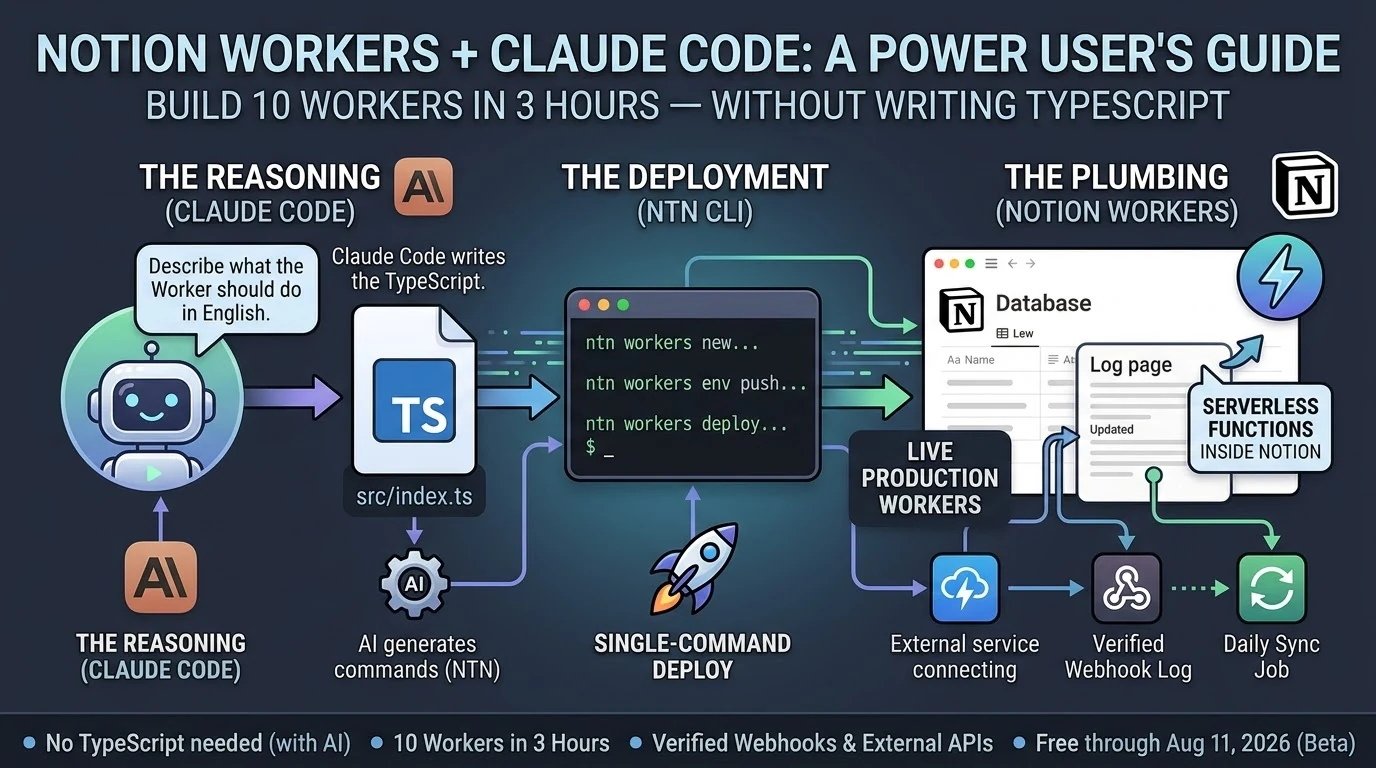
Last night I built ten of those things in three hours.
Notion Workers — their new hosted serverless platform, shipping in beta as of May 13, 2026 — lets you deploy real code inside Notion’s infrastructure without managing a server. Combined with Claude Code, which writes the TypeScript while you describe what you want in plain English, the gap between “I know what I want” and “it exists and is running” is smaller than it has ever been.
I’m not a developer. I operated the process. I described each Worker, reviewed what Claude Code wrote, ran the deploy commands, checked that it worked. When something broke, I read the error and passed it back. The loop was fast enough that two failures in ten attempts felt like a normal part of the session, not a crisis.
By midnight I had a live webhook endpoint receiving authenticated traffic from the internet and writing verified events to a Notion log page. Automatically. While I slept.
That’s workflow work. It just didn’t require a developer to get there.
I want to be careful about what I’m claiming here.
There are things that genuinely need a developer. Complex systems. Production APIs with serious security requirements. Anything where a bug has real consequences for real people. I’m not suggesting you staff down your engineering team based on a three-hour session with a CLI tool.
What I’m suggesting is narrower: there is a category of work that has always felt like it needed a developer but actually needed something else. It needed clarity about what you wanted. It needed a good description. It needed someone willing to read an error message and try again.
That work is yours now, if you want it.
The practical question is where to start.
Start with the thing that’s most manual in your current workflow. The task someone does by hand because no one ever got around to automating it. The data that lives in one tool but should live in another. The notification that goes out because someone remembered to send it, not because the system sent it automatically.
Describe it out loud. If you can explain it to another person in two or three sentences, you can build it. Open Claude Code. Tell it what you want. Run the commands it gives you.
You might be surprised how far that gets you before you need to call anyone.
Notion Workers beta is free through August 11, 2026. The ntn CLI installs in one line on macOS or Linux. Business or Enterprise plan required to deploy Workers.
What Is the Notion Everything Database?
The Notion everything database is the concept of using Notion as an agnostic, structured data layer beneath your AI workflows—storing context, outputs, tasks, and business intelligence in one place that any connected AI platform can query, write to, and reason over. This guide covers how each major AI platform connects to that layer, what the connection actually enables, and where the real-world limits are.
In the competitive series we published earlier, one theme kept resurfacing: every AI platform that wants to be genuinely useful in your workflow eventually needs a place to store and retrieve structured context. Memory. History. The institutional knowledge that makes AI useful beyond a single session.
For teams that have already built their operations on Notion, the question isn’t whether to use an everything database—you already have one. The question is how each AI platform connects to it, what that connection actually enables in practice, and where the real limits are.
This guide is the answer. We’ve mapped the actual integration path for each of the five platforms in our series—OpenAI, Perplexity, Grok, Mistral, and Zapier—against Notion’s current API and MCP capabilities. No hypotheticals. No aspirational features. What works today, what requires workarounds, and what to watch for as these integrations mature.
📚 This Is Track 2 of the Everything App Series
Track 1 analyzed each platform’s everything app ambitions. Track 2 is the implementation layer—how to actually connect them to your Notion database.
Before covering individual platform integrations, it’s worth establishing what Notion has actually built for AI connectivity—because it changes the integration picture significantly.
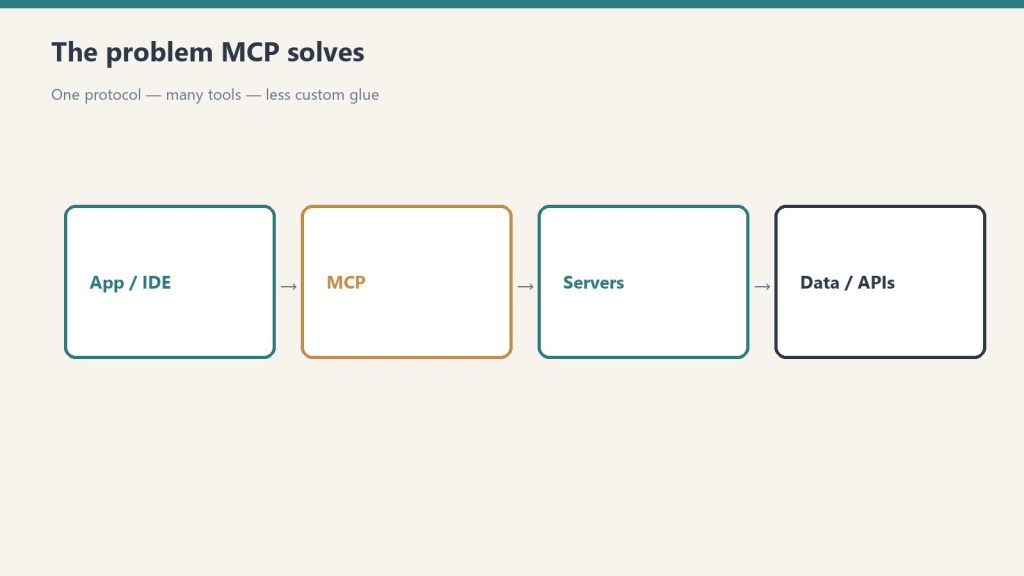
Notion ships an official, hosted MCP (Model Context Protocol) server. This is not a third-party hack or a community project. It lives at developers.notion.com/docs/mcp, is maintained by the Notion engineering team, and is open-source at github.com/makenotion/notion-mcp-server. Version 2.0.0 migrated to the Notion API version 2025-09-03, which introduced data sources as the primary abstraction for databases (replacing the old database ID model with data_source_id).
The MCP server uses OAuth for authentication. You do not use a static API key or bearer token for the hosted version—you go through Notion’s OAuth flow, which grants scoped access to the pages and databases you explicitly share with the integration. This is an important detail: even with a valid OAuth token, the MCP server can only access Notion content you have explicitly shared with the integration via the ••• menu → Add connections on each page or database.
What the official MCP server enables: AI tools can search your Notion workspace, read page content, create new pages, update existing pages, query databases, and add comments. The server is optimized for AI consumption, formatting Notion’s block-based content into clean text that AI models can reason over efficiently.
Supported AI tools as of mid-2026: Claude (via Claude Desktop or Cowork), Cursor, VS Code, and ChatGPT Pro. The Notion team publishes a plugin for Claude specifically at github.com/makenotion/claude-code-notion-plugin.
One practical note from our own setup: we use the Notion MCP actively in our Cowork sessions. When you ask about content in your Notion workspace—Command Center pages, Second Brain entries, desk specs—that’s the MCP server at work. Search, fetch, create, and update operations all run through it in real time. The integration is stable and fast for the kinds of structured content retrieval and page creation that content operations require.
The Notion API in 2026: What You Need to Know
A few API facts that matter for any integration you build:
Rate limit: Approximately 3 requests per second per integration for most operations (some sources indicate up to 5 req/s for integration-heavy workspaces). When you hit the limit, the API returns HTTP 429 with a Retry-After header. Any well-built integration respects this automatically. For bulk operations across large databases, you’ll need request queuing.
Page size limit: The API returns a maximum of 100 items per query by default. For databases with more than 100 records, you must implement pagination using the start_cursor parameter. This is a common trip point for integrations that assume they’ve retrieved all records when they’ve only seen the first page.
API version 2025-09-03: The September 2025 API version introduces data sources as the primary database abstraction. If you’re using multi-source databases in Notion (databases that pull from multiple collections), integrations built against older API versions may not return all data. The MCP server v2.0.0 handles this correctly. Custom integrations built before September 2025 may need updating.
Block-level content: Notion stores page content as nested blocks, not plain text. The API returns this block structure. The MCP server handles the translation to readable text for AI models; direct API integrations need to handle this themselves.
Platform 1: OpenAI / ChatGPT
Platform 1 — OpenAI / ChatGPT.
What Actually Exists
There are two meaningful integration paths between OpenAI and Notion, and they are not the same thing.
Path A: ChatGPT Connector (official, read-only)
ChatGPT Plus and Pro users can connect Notion directly from ChatGPT settings. This is an official integration. The significant limitation: it is read-only. ChatGPT can search and read your Notion pages, but it cannot write, create, or update anything in your workspace. It is designed for individual paid subscriptions and does not scale to team-wide deployments. For retrieving context from your Notion database to inform a ChatGPT conversation, this works. For using ChatGPT to maintain and update your Notion database, it does not.
Path B: Custom API Integration (read/write, requires code)
The full read/write path requires connecting the OpenAI API and Notion API directly via custom code, or via a middleware platform like Zapier or Make. This gives you complete access—creating pages, updating database records, querying with filters. It’s the correct path for any workflow where ChatGPT needs to write outputs back to your Notion everything database.
In November 2025, Notion rebuilt their AI agent system with GPT-5 to power Notion AI’s reasoning and action capabilities within the workspace. This is Notion using OpenAI’s models internally, not OpenAI accessing your Notion workspace. The distinction matters: Notion AI (powered partly by GPT-5) can act on your Notion content. ChatGPT itself cannot write to Notion without a custom integration or Zapier in the middle.
The Practical Integration Pattern
For teams using OpenAI models as their primary AI layer and Notion as their everything database, the most reliable pattern is: OpenAI API → custom Python/Node.js integration → Notion API. Use the GPT Actions framework (documented at cookbook.openai.com) to give a custom GPT the ability to call the Notion API directly, with your integration token scoped to the specific databases it needs access to.
For non-technical teams, Zapier is the practical middle layer—which we cover in the Zapier section below.
Platform 2: Perplexity
What Actually Exists
Perplexity does not have an official native Notion integration. There is no direct connector in the Perplexity product that reads from or writes to your Notion workspace.
What does exist: a Chrome extension (“Perplexity to Notion Batch Export”) that lets users save Perplexity research sessions directly to Notion. This is a browser-based manual export tool, not an automated integration. For capturing Perplexity research into your Notion database for later reference, it works and is well-reviewed. For autonomous AI workflows that need Perplexity to query or update Notion, it does not.
The automated integration paths run through n8n (which ships a native Perplexity node with full API coverage), Make, Zapier, and BuildShip. These let you build workflows like: Perplexity runs a research query → output gets written to a Notion database record. The Perplexity API supports Chat Completions, Agent mode, Search, and Embeddings—all of which can be orchestrated via these middleware platforms to produce structured Notion database entries.
The Practical Integration Pattern
The most useful Perplexity→Notion workflow for content operations: trigger a Perplexity search query on a topic, take the structured response, and use the Notion API to create a new database record with the research as the page body. This gives you a searchable, AI-queryable research library inside your Notion everything database. The plumbing runs through n8n, Make, or Zapier—Perplexity as the research engine, Notion as the structured archive.
Perplexity’s own product roadmap includes deeper tool integrations and an expanding API surface. Native Notion connectivity is not announced, but the middleware path is mature and reliable today.
Platform 3: Grok / xAI
Platform 3 — Grok / xAI.
What Actually Exists
Grok does not have a native Notion integration in the X/Grok product interface. There is no official connector, and xAI has not published an MCP server for Grok.
xAI does offer the Grok API (via api.x.ai), which follows the same interface conventions as the OpenAI API—making it relatively straightforward to swap Grok models into any workflow that already uses OpenAI’s API format. This means any custom integration you build for OpenAI→Notion can, in principle, be pointed at the Grok API instead with minimal code changes.
In practice, the Grok→Notion integration path today is: Grok API → custom code → Notion API. The same middleware platforms (Zapier, Make, n8n) that support the OpenAI API can route through the Grok API using the OpenAI-compatible endpoint.
The Practical Integration Pattern
If your use case specifically requires Grok’s models (for instance, if you’re building X-platform-aware content workflows where Grok’s real-time access to X data is the value), the integration pattern is the same as OpenAI’s custom API path. Use the Grok API’s OpenAI-compatible interface, connect to the Notion API for reads and writes, and build the orchestration logic in between.
For teams primarily interested in AI capability rather than X-platform data specifically, OpenAI or Mistral integrations offer more mature tooling and better-documented Notion integration patterns today.
Platform 4: Mistral
What Actually Exists
Mistral offers two meaningful integration paths with Notion, and the self-hosting angle we covered in the competitive series creates a unique capability that no other platform in this guide has.
Path A: Hosted Mistral API → Notion API
Mistral’s hosted API connects to Notion the same way any other model API does—through the Notion REST API or MCP server, with middleware or custom code. Mistral Workflows, the company’s orchestration layer, supports external API integrations including REST endpoints, which means you can configure a Mistral Workflow to query the Notion API, process the data, and write results back.
Path B: Self-hosted Mistral → local Notion API calls (the unique case)
This is where Mistral’s architecture creates something no other platform in this series can offer. When you run Mistral Large 3 (Apache 2.0, self-hostable) on your own infrastructure, the model and your Notion API calls exist in the same network perimeter. Your Notion integration token never leaves your infrastructure. The API calls are local. For organizations where data sovereignty is non-negotiable—healthcare, legal, government, financial services—this is the only AI model integration path where no data touches an external AI provider.
The practical setup: deploy Mistral Large 3 on your own server or VPC. Configure a Mistral Workflow or custom application to call the Notion API using your integration token. Process Notion data entirely on-premise. Write results back to Notion. The only external call in the entire pipeline is the Notion API itself—and if you run a self-hosted Notion alternative, even that stays internal.
The Practical Integration Pattern
For teams that don’t require self-hosting: use Mistral’s hosted API with the Notion API via Mistral Workflows or a custom integration. The same middleware platforms support Mistral’s API.
For teams that do require data sovereignty: the self-hosted Mistral → Notion API pattern is the integration architecture to build toward. It requires infrastructure investment (running a 41B active parameter model requires serious hardware or a well-configured cloud VPC), but it is the only path to a truly sovereign AI + Notion integration.
Platform 5: Zapier
What Actually Exists
Zapier has the most mature, most capable, and most immediately actionable Notion integration of any platform in this guide—and it is the practical middle layer for connecting every other platform to Notion without custom code.
Zapier’s official Notion integration supports: triggers on new or updated database items, creating pages, updating database records, finding records by query, and archiving pages. These are the building blocks for serious Notion automation.
In 2025-2026, Notion also added native webhook support that fires on database rule triggers and page button presses, connecting directly to Zapier and Make. This means you can build Notion-native automation triggers (a status change, a button click, a new record) that fire a Zapier workflow without leaving the Notion interface to configure the trigger.
Zapier Agents—now generally available—can use Notion as one of their tools. You can configure a Zapier Agent with access to your Notion integration, set a goal, and let the Agent create, update, and query Notion records as part of multi-step reasoning tasks. This is the closest any platform in this guide gets to an autonomous AI agent that natively operates on your Notion everything database.
Zapier MCP—the integration we highlighted in the competitive series—exposes Zapier’s entire action library (including all Notion actions) to any MCP-compatible AI. This means Claude, via the Zapier MCP, can execute Notion write operations through Zapier’s infrastructure. In our own Cowork setup, Notion operations that require external app triggers route through this path.
The Practical Integration Pattern
Zapier is the recommended integration layer for non-technical teams connecting any of the other four platforms to Notion. The pattern: AI platform generates output → Zapier receives it via webhook or API action → Zapier writes structured data to Notion database. This works for OpenAI, Perplexity (via n8n or Zapier’s Perplexity integration), Grok (via OpenAI-compatible API), and Mistral hosted.
For teams already using Zapier as their automation backbone, Notion integration is already available—you may just need to activate it and map the fields from your AI platform outputs to your Notion database schema.
The Architecture That Works: Our Setup
For context on what a production Notion everything database + AI integration actually looks like, here’s the architecture we use in this operation:
The Notion workspace serves as the Command Center—structured databases for content queues, second brain entries, session logs, desk specs, and operational data. The Notion MCP server connects Claude directly to this workspace, enabling real-time search, read, create, and update operations within Cowork sessions.
For longer-running tasks—the kind that exceed Notion Workers’ 30-second sandbox—we use a hybrid trigger architecture: a Notion Worker script fires a signed POST request to a Google Cloud Run service, which executes the full job and writes results back to the Notion database via the Public API. This is the 60% ceiling rule in practice: Notion Workers at 30 seconds handles the trigger; Cloud Run handles the execution; Notion handles the data layer.
Zapier connects the external app layer—when workflows need to touch apps outside the Notion + Claude + GCP stack, Zapier’s 8,000-app library is the bridge. The Zapier MCP makes these actions available to Claude directly.
This isn’t the only valid architecture. It’s the one that works for a content operations team managing 18+ WordPress sites with high automation requirements. Your stack will differ. But the core principle holds across any setup: Notion as the data layer, MCP as the AI connectivity standard, and a clear hybrid strategy for the workflows that exceed what any single platform can handle natively.
Integration Readiness by Platform: Honest Assessment
Platform
Native Notion Write
Native Notion Read
Via MCP
Via Zapier
Self-Hosted Option
OpenAI / ChatGPT
❌ (API only)
✅ (Plus/Pro)
✅ (Pro)
✅
❌
Perplexity
❌
❌
❌
✅ (via n8n/Make)
❌
Grok / xAI
❌
❌
❌
✅ (OAI-compatible)
❌
Mistral
✅ (Workflows)
✅ (Workflows)
❌ (not yet)
✅
✅ (Apache 2.0)
Zapier
✅ (native)
✅ (native)
✅ (Zapier MCP)
—
❌
What to Build First
If you’re starting from zero with a Notion everything database and want to connect AI platforms to it, here’s the practical sequence:
Start with the Notion MCP server. Set it up with your preferred AI assistant (Claude, ChatGPT Pro, Cursor). This gives you conversational access to your Notion workspace immediately—search, read, create, update—without any custom code. It’s the fastest path to an AI that can reason over your Notion data.
Connect Zapier next. Activate the Notion integration in Zapier and map your key databases. This unlocks the bridge to every other platform in this guide and gives you the ability to write AI outputs back to Notion from any tool in Zapier’s 8,000-app library.
Add platform-specific integrations as your workflows require them. If you’re using OpenAI extensively, build a GPT Action that connects to Notion for read/write. If you need sovereign AI processing, build the self-hosted Mistral → Notion API pipeline. If Perplexity is your research engine, set up an n8n workflow to archive research to Notion automatically.
The Notion everything database isn’t a product you buy. It’s an architecture you build—one integration at a time, starting with the MCP layer and growing outward as your workflow demands it.
Key Takeaway
Zapier is the most immediately actionable integration for connecting all five AI platforms to Notion today. The Notion MCP server is the fastest path to conversational AI access over your workspace. Self-hosted Mistral is the only option for teams that require zero data leaving their network perimeter. Build in that order.
Yes, but with a significant limitation. ChatGPT Plus and Pro users can connect Notion from ChatGPT settings for read-only access—ChatGPT can search and read your Notion pages but cannot write, create, or update content. For full read/write access, you need a custom API integration or a middleware platform like Zapier between the OpenAI API and the Notion API.
What is the Notion MCP server?
The Notion MCP server is Notion’s official implementation of the Model Context Protocol—an open standard that lets AI assistants interact with external services. It’s hosted by Notion, open-source at github.com/makenotion/notion-mcp-server, and uses OAuth for authentication. It supports Claude, ChatGPT Pro, Cursor, and VS Code. It enables AI tools to search, read, create, and update Notion pages and database records. Version 2.0.0 uses the Notion API version 2025-09-03.
Can Perplexity write to Notion automatically?
Not natively. Perplexity has no official Notion connector. The practical path is using n8n (which ships a native Perplexity node), Make, or Zapier to create a workflow where Perplexity API output gets written to a Notion database. There is also a Chrome extension for manually batch-exporting Perplexity research sessions to Notion.
Does Grok have a Notion integration?
Not officially. xAI offers the Grok API with an OpenAI-compatible interface, which means custom integrations built for OpenAI→Notion can be adapted to use Grok models. Zapier and other middleware platforms that support the OpenAI API format can route through the Grok API to connect to Notion. There is no native Grok connector in the X/Grok product.
What makes Mistral’s Notion integration unique?
Mistral is the only AI model in this guide that can be self-hosted under an open-source license (Apache 2.0). When you run Mistral Large 3 on your own infrastructure and connect it to the Notion API, no data ever touches an external AI provider. Your Notion content, your queries, and the AI model all run within your own network perimeter. This is the only fully sovereign AI + Notion integration path available today.
What Notion API limits should I know about?
The Notion API enforces approximately 3 requests per second per integration. It returns a maximum of 100 items per query—for larger databases you must paginate using the start_cursor parameter. API version 2025-09-03 introduced data sources as the primary database abstraction, replacing the older database ID model. The official MCP server handles these limits correctly; custom integrations need to implement pagination and rate-limit handling explicitly.
Is Zapier the best way to connect AI platforms to Notion?
For non-technical teams, yes—Zapier has the most mature, most capable native Notion integration and acts as the bridge between every AI platform’s API and your Notion database. Zapier Agents can use Notion as a native tool, and the Zapier MCP exposes all Notion actions to any MCP-compatible AI. For technical teams with specific requirements, direct API integrations offer more control, lower latency, and no per-task pricing. Both approaches are valid—the right choice depends on your team’s technical capacity and workflow volume.
What is the hybrid trigger architecture for Notion automation?
The hybrid trigger architecture pairs Notion Workers (30-second execution sandbox) with a persistent server like Google Cloud Run. A Notion Worker script handles the trigger logic within Notion’s native environment—it fires a signed HTTP POST to a Cloud Run service when an event occurs. Cloud Run handles the full job execution (which may take minutes), then writes structured results back to Notion via the Public API. This pattern is described as the 60% ceiling rule: design Notion-side triggers to use under 60% of the 30-second limit, and delegate anything longer to Cloud Run.
Single mega-agents are tempting and bad. Specialized agents in a sequence with clear handoffs are harder to design but much more reliable. The principle: each agent does one thing well and hands a structured result to the next. Three handoffs is about the practical limit before debugging becomes painful. Beyond three, refactor.
Three orchestration patterns that work
Three orchestration patterns that work.
1. The pipeline pattern.
Agent A produces structured output → Agent B consumes and produces → Agent C consumes and produces final result. Each agent’s output schema matches the next agent’s input schema. Clear linear flow. 2. The router pattern.
A routing agent decides which specialist agent should handle the request, then dispatches. Specialists are scoped tightly to their domain. The router doesn’t do work itself; it just routes. 3. The reviewer pattern.
A producer agent generates output. A reviewer agent checks against criteria and either approves or returns specific feedback. Iterates until approved or max-attempts hit.
Three patterns that fail
Three patterns that fail.
1. Recursive agent chains. Agent A calls Agent B which calls Agent A again. Debugging is awful. Don’t. 2. Shared mutable state. Two agents writing to the same database row simultaneously. Race conditions and overwrites. Don’t. 3. Implicit handoffs. Agent A produces unstructured text; Agent B parses it. The first format change breaks everything. Use structured handoffs.
Designing the handoff contract
Designing the handoff contract.
The handoff between agents is the highest-risk surface. Three rules:
– Define the schema explicitly. The output of Agent A is JSON-schema-validated input to Agent B.
– Version the schema. Schema changes are breaking changes. Version like APIs.
– Test the handoff in isolation. Mock Agent A’s output; test Agent B’s handling. Mock Agent B’s expected input; test Agent A’s production.
Where orchestration goes wrong in production
1. Cost compounds with depth. Each agent call consumes credits. A three-handoff workflow costs roughly 3x a single-agent workflow. Budget accordingly. 2. Latency compounds too. A 5-second agent x 3 handoffs is 15 seconds end-to-end. 3. Failure modes multiply. Agent A succeeds, Agent B fails, what happens? Define the failure handling explicitly.
What to read next
Workers for Agents in TypeScript, Building Your First Skill, Error Handling in Notion AI Workflows, Custom Agents vs Basic.
Building a skill that works on the first try is rare. Building a skill that works after three iterations is normal. The discipline is starting with a narrow scope, writing specific instructions, testing against real inputs, and tightening based on what fails. Most operators build skills that are too broad and too vague. The fix is the opposite of intuition — narrower, more specific, more bounded.
Step-by-step
Step-by-step: building your first Notion skill.
Step 1 — Pick the right first skill. Not the most ambitious one. The most repetitive one. “Weekly digest from project database” is a great first skill. “Generate our entire content strategy” is a terrible first skill. Step 2 — Write the instructions. Specific format. Specific sections. Specific length. Specific tone. “Summarize” produces variance; “Produce a one-page summary with these five sections in this order, max two sentences per section, in active voice” produces consistency. Step 3 — Bound the context. Which database does it read? Which pages? Which fields? Pin tightly. Expand only when needed. Step 4 — Test five times. Run the skill against five different real inputs. Look at outputs side by side. The variance you see is the variance you’ll get in production. Step 5 — Tighten based on failures. What was wrong in any output? Update the instructions to prevent that. Re-test. Loop. Step 6 — Document the skill. Note what it does, when to call it, and what its known failure modes are.
Three patterns that fail
Three patterns that fail.
1. The mega-skill. A skill that “drafts the weekly report including stakeholder updates and exec summary and content calendar.” Break it into three skills. 2. The vague skill. “Help me write.” Define what kind of help, what kind of writing, in what format. 3. The unbounded skill. No context boundaries. The agent reads everything and produces something that sounds related to nothing.
Where this goes wrong
Where this goes wrong.
1. Skipping the five-test step. Skills that work once fail differently. Test variance early. 2. Treating skills as static. Skills need maintenance. When a database schema changes, the skill changes. 3. Building too many skills too fast. Three great skills beat ten mediocre ones.
What to read next
How Notion Skills Work, Custom Agents vs Basic, Workers for Agents, Prompt Patterns That Work Inside Notion.
Calendar is the most repetitive coordination work in knowledge work. Notion AI’s calendar integration takes most of it off your plate. The agent reads your upcoming meetings, pulls related context from your Notion workspace, and drops a one-page brief in your inbox 30 minutes before. For scheduling, the agent suggests times based on your patterns and drafts the calendar invite. You confirm and send. Five minutes of coordination work compresses to thirty seconds of approval.
Three calendar integration patterns
Three calendar integration patterns.
1. The pre-meeting brief agent. Triggered 30-60 minutes before each external meeting. Pulls the relevant project page, prior meeting notes with these attendees, open action items, and any current context. Brief lands in your inbox or daily notes. 2. The scheduling assist agent. When you need to schedule something, ask the agent. It reads your calendar, suggests times that match your patterns (e.g., afternoon for deep work, mornings for standup), and drafts the invite text. You review and send. 3. The post-meeting capture agent. After meetings, agent prompts for quick voice or text capture. Processes the capture into structured updates: action items added to task database, decisions logged to project page, follow-ups scheduled.
What stays human
What stays human.
Deciding which meetings to take
The conversations themselves
Final approval before scheduling sends
Any sensitive scheduling (interviews, terminations, board calls)
Setup considerations
Setup considerations.
The integration runs at the user level — your calendar connects to your agent. For shared calendars, the connection inherits the calendar’s permissions. Two practical notes:
– The agent only sees what your calendar permissions show. Private events stay private to the agent.
– For executive assistants managing multiple calendars, each calendar is a separate connection with separate agent context.
Where this goes wrong
1. Letting the agent send invites autonomously. Calendar invites have political weight. Always keep a human approval step. 2. Trusting brief content for sensitive meetings. Performance reviews, terminations, sensitive client conversations — review the brief manually before relying on it. 3. Overloading prep briefs. A 4-page brief is worse than a 1-paragraph brief because you don’t read it. Configure the agent to produce concise briefs by default.
What to read next
Slack Integration, Mail Integration, AI-Native Company Patterns, The Solo Operator’s Stack.
Slack is where decisions happen. Notion is where decisions are documented. The gap between them is where things fall through. The Slack integration closes the gap by letting agents read what’s happening in Slack, summarize it into Notion, and draft outbound responses based on Slack threads. The pattern that works: read-summarize-act. Agent reads the Slack thread, summarizes the decision into the relevant Notion project page, and drafts the follow-up message back to Slack. The decision is documented and the follow-up is sent without manual handoff.
Three Slack integration patterns
Three Slack integration patterns.
1. The decision-capture loop. Agent watches designated #project channels. When a decision is made (signaled by patterns like “let’s do X” or explicit decision flags), agent appends the decision and context to the project page in Notion. Decisions stop being lost to Slack history. 2. The status digest agent. Daily or weekly, agent reads activity in selected channels and produces a digest in a Notion page. Useful for managers tracking multiple teams without scrolling through hundreds of messages. 3. The action item extractor. Agent watches conversations for action items (“can you do X by Friday”). Adds them to the relevant person’s task database. Drafts a confirmation message in Slack thread asking the person to confirm.
What stays human
What stays human.
The conversations themselves
Decisions about what to do
Nuanced communication where tone matters
DMs and sensitive channels (don’t connect those)
Permission and privacy
Permission and privacy.
Slack agent integration respects user-level permissions. The agent sees what the connected user sees. Two implications:
– Don’t connect a junior account to a workspace agent — the agent inherits the junior’s limited view
– Don’t connect an admin account that can see DMs unless you actually want the agent reading DMs (you don’t)
The right pattern is a dedicated integration account with scoped channel access.
Where this goes wrong
1. Agents posting to Slack autonomously. This generates noise and damages trust fast. Configure agents to draft, not post. Humans review and send. 2. Reading too many channels. The agent’s signal-to-noise ratio drops with channel count. Pick 3-5 relevant channels per agent. Add more later if useful. 3. Trusting the action-item extractor without confirmation. Slack conversation is loose. “Can you” doesn’t always mean “I commit.” Always add a confirmation step.
What to read next
Calendar + Notion AI, Mail Integration, MCP, AI-Native Company Patterns.
Wake up Monday morning with a fresh competitive intelligence snapshot already in your Notion workspace. No logging in. No pulling data manually. Just the information you need, already organized.
The Problem With Manual Competitive Research
The problem with manual competitive research.
You know you should be monitoring competitors regularly. You rarely do, because it takes 45 minutes to log into SpyFu, run the searches, note the changes, and put them somewhere useful. This system does all of that automatically and deposits a structured report in Notion every Monday before you start your week.
What You Get
What you get from a SpyFu competitor intelligence dashboard.
Notion database template with competitor profiles, tracked keyword rankings, weekly change logs, and ad activity sections — pre-structured and ready to populate
Google Apps Script automation (completely free) that authenticates with the SpyFu API, pulls weekly data for your tracked domains, and writes results to your Notion database automatically
Competitor profile pages with historical ranking trend views — see which direction each competitor is moving
Alert rules that flag competitors who gained 10 or more positions on your tracked keywords — the moves worth paying attention to
Client-ready report templates that pull from the Notion database and format into a presentation-ready competitive summary
Setup guide — running end-to-end in under 2 hours, no developer required
How It Works
How the competitor dashboard works end to end.
You set up the Google Apps Script once (the setup guide takes you through it step by step). You add your competitor domains and target keywords to the Notion database. Every Sunday night, the script runs automatically, pulls the latest SpyFu data, and writes structured records to Notion. Monday morning, your competitive dashboard is already updated.
Requires SpyFu Pro + AI plan ($119/mo) for API access. Requires a free Notion account and a free Google account for Apps Script. No ongoing fees beyond your SpyFu subscription.
Want this customized for your stack? Email will@tygartmedia.com
FAQ
How hard is the setup?
Under 2 hours following the guide. The hardest part is getting your SpyFu API key, which takes 5 minutes. The Google Apps Script setup has screenshots for every step. The Notion template is pre-built — you duplicate it and add your domains.
Do I need a paid Notion account?
No. The template works on Notion’s free tier. If you have a lot of competitor domains and keyword history, a Notion Plus account ($10/mo) gives you more block space, but it’s not required to get started.
What happens if SpyFu changes their API?
The kit includes plain-English documentation of how each query works, so you can update the endpoint calls if needed. SpyFu’s API has been stable for years, but if something breaks, email will@tygartmedia.com and we’ll send you an updated version.
The SpyFu API is one of the best-kept secrets in SEO tooling. $119/month buys you programmatic access to 10+ years of competitor data. This kit gives you the code to use it immediately.
The Problem With API Documentation
The problem with API documentation alone.
SpyFu’s API documentation tells you what’s available. It doesn’t tell you which endpoints actually matter, how to authenticate correctly, what the response objects look like, or how to store and act on the data. Most developers spend a full day getting their first working query. Most marketers never get there at all. This kit skips all of that.
What You Get
What the SpyFu API starter kit includes.
Python code for 5 core endpoints: domain overview, organic keyword rankings, competitor keywords, PPC ad history, and keyword metrics — with authentication, error handling, and sample output
JavaScript (Node.js) equivalents for all 5 — same endpoints, same structure, same comments
Authenticated query templates ready to run against any domain — swap in the domain, run the script, get data
Notion database template for storing and organizing results — competitor profiles, keyword tracking, ad history logs
Weekly competitive audit automation guide — schedule pulls, store results incrementally, track ranking changes over time using Google Apps Script (free)
DataForSEO integration example — combining SpyFu competitor data with DataForSEO rank tracking for a complete picture
Plain-English explanation of every endpoint, every field, and what the data actually means
Who This Is For
Who this SpyFu API kit is for.
Marketers who want to pull SpyFu data into spreadsheets, Notion, or custom dashboards without building from scratch. Developers who want working code instead of documentation. Operators who want to automate weekly competitive pulls without hiring anyone to build it.
Requires SpyFu Pro + AI plan ($119/mo) for API access. Works with Python 3.8+ and Node.js 16+. No prior API experience required — the setup guide assumes you’re starting from zero.
Want this customized for your stack? Email will@tygartmedia.com
FAQ
Do I need to know how to code?
Basic familiarity with running a Python or JavaScript script is helpful. The setup guide walks through installing dependencies and running your first query from zero. If you can open a terminal and run a command, you can use this kit.
Which SpyFu plan do I need?
SpyFu Pro + AI at $119/month. The Basic plan ($39/mo) doesn’t include API access. Pro + AI includes $40 in API credits per month — more than enough for weekly competitive pulls on multiple domains.
Can I use this without Notion?
Yes. The Python and JavaScript code outputs JSON that you can send anywhere — a spreadsheet, a database, a Slack webhook. The Notion template is the recommended storage layer but not required.
How is this delivered?
To your inbox within 24 hours of purchase. ZIP file containing all code files, the Notion template duplicate link, and the setup guide PDF.
The Signal — Tygart Media's weekly brief. What we actually ran, what it measured, and what it means for a restoration shop.