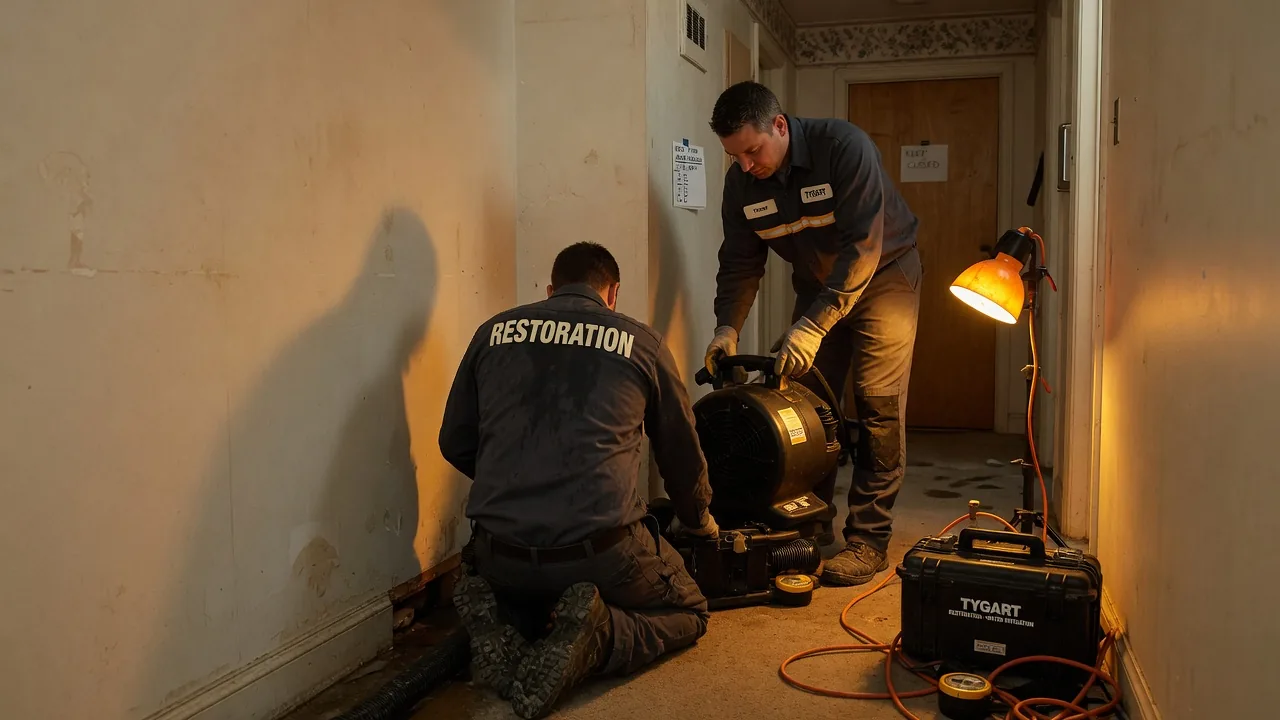
A LinkedIn post from a restoration recruiter in Houston tipped me off this morning. He’s right — but the timeline is shorter than most people in the industry realize.
Mitchell Riley’s LinkedIn post that started this train of thought.
This article is part of The Restoration Operator’s Playbook — Tygart Media’s body of work on how the industry’s best restoration companies are actually thinking in 2026. Start with the pillar piece if this is your first read.
This morning I logged into LinkedIn and saw a post from Mitchell Riley — a restoration industry recruiter in Houston who places PMs, GMs, and business development leaders for restoration contractors across the country. Mitchell flagged Anthropic’s Claude Managed Agents launch with the kind of casual enthusiasm only people who actually use this stuff every day can manage. He called it “pretty cool” and noted that Claude will now build you an agent based on natural language.
He’s right. He’s also pointing at something most of the restoration industry hasn’t fully processed yet.
What Anthropic actually shipped
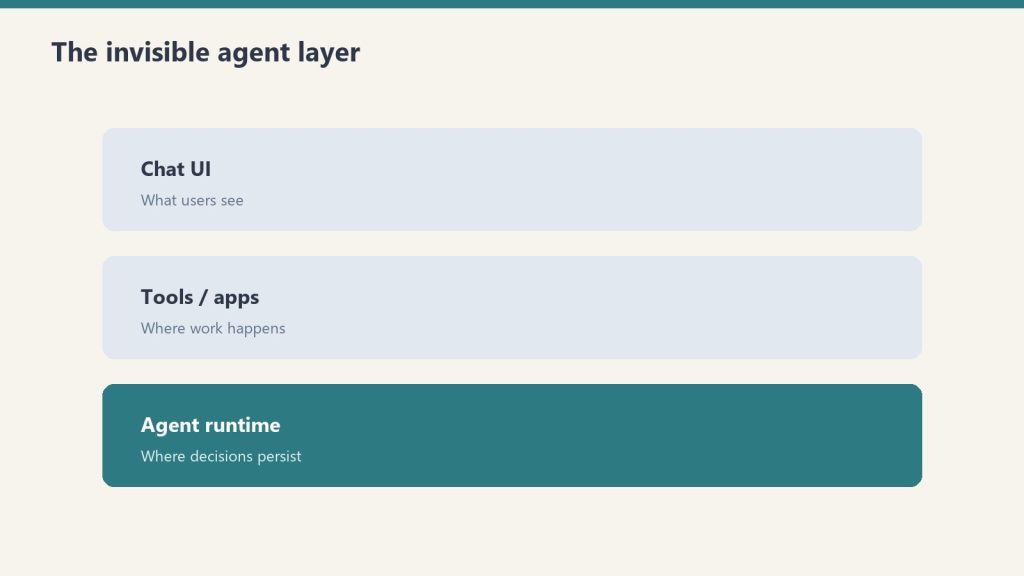
On April 8, 2026, Anthropic launched Claude Managed Agents in public beta. The short version: the infrastructure work that used to take three to six months of engineering — sandboxed code execution, credential management, long-running session persistence, error recovery, observability — is now a managed service. You define what the agent should do. Anthropic runs it.
The companies already shipping production agents on it: Notion, Asana, Rakuten, and Sentry. Notion lets teams delegate coding, slides, and spreadsheets to Claude without leaving the workspace. Rakuten deployed specialist agents across product, sales, marketing, finance, and HR — each live in under a week. Sentry built an agent that goes from flagged bug to open pull request, fully autonomous.
Internal Anthropic testing showed up to a 10-point improvement in task success on structured generation work versus a standard prompting loop, with the largest gains on the hardest problems.
That’s the announcement. Here’s why it matters for restoration.
The bottleneck just moved
For the last two years, the question every restoration owner asked about AI was some version of: “Can it actually do the work?” The honest answer was usually “not yet, not without a developer team you don’t have.”
That’s no longer the question. The infrastructure gap closed on April 8. The new bottleneck is not “can you build the agent” — it’s “do you have the human operators who know what the agent should be doing in the first place.”
Restoration is an industry where the real intelligence lives in people. A senior PM who has worked five hundred losses knows things that have never been written down anywhere. How a Cat 3 storm response actually sequences when the carrier is dragging on TPA approvals. The difference between a contents pack-out that closes clean and one that becomes a six-month dispute. Which mitigation decisions buy you a profitable job and which ones bury you on the reconstruction side. None of that lives in a textbook. It lives in the heads of people who have been doing the work for fifteen or twenty years.
That tribal knowledge is now the constraint. The companies that win the next three years will be the ones who pair Managed Agents (or something like it) with senior operators who can tell the agent what good looks like. The companies that try to skip that step — that try to hire generalists and teach them restoration on the fly while their competitors are distilling twenty-year veterans into operational systems — are going to get lapped.
Buy the talent now
This is where the recruiting angle gets interesting. Senior restoration talent has always been hard to find. It’s about to get much harder, for a reason most owners haven’t priced in yet: the value of a senior PM is no longer just the work that PM does directly. It’s the work an entire AI system does in their image once their judgment has been encoded into the workflow.
Right now, that arbitrage is open. The market hasn’t repriced senior operators for what they’re actually worth in an AI-augmented restoration company. In twelve to twenty-four months, it will. The owners who hire the best PMs, GMs, and BD leaders now — and who pair them with someone like Mitchell who actually understands the placement game — are going to look like geniuses in 2027.
Mitchell is one of the people who gets this from the inside. He uses the AI tools himself. He builds workflows. He analyzes things in dimensions and context that most recruiters never touch — most recruiters in this industry are still working from a spreadsheet of resumes and a cell phone. Mitchell is the kind of recruiter who notices when Anthropic ships something that’s going to change the value of every senior hire he places, and posts about it on a Wednesday morning. That’s the level of operator the smart restoration owners are going to want in their corner.
What to actually do this quarter
If you run a restoration company and you read this far, three concrete things:
One. Identify your two or three most senior operators — the people whose judgment is load-bearing for the business. Start documenting how they think, not just what they do. The documentation is the raw material every future AI workflow will run on.
Two. Open one or two senior hires you’ve been putting off. The talent market is going to tighten. Get in front of it.
Three. Stop treating AI as an IT project. It’s an operational capability. The companies that figure this out are not waiting for their tech vendor to sell them an “AI feature.” They’re hiring the operators, capturing the judgment, and pointing the tooling at the result.
Mitchell’s post was three sentences. The full version of what he was pointing at takes about a thousand words. This is that version.
If you’re a restoration owner thinking about senior placements in the next two quarters, you should be talking to Mitchell. And if you’re thinking about how to operationalize AI inside your company — distilling senior judgment into systems your whole team can run — that’s the conversation we have at Tygart Media.
By Will Tygart • Long-form Position • Practitioner-grade
I sponsor a golf league.
Not a tour. Not a country club event. A B2B networking league built around the property damage restoration industry — contractors, adjusters, vendors, consultants, equipment suppliers, TPAs. Seventeen chapters across the country, each running events in their local market, each building the same thing: a room full of people who do business together, on a golf course, without their phones in their hands for four hours.
I didn’t build it. I didn’t found it. I didn’t hire the chapter ambassadors or negotiate the venues or design the scoring format. Those people did the work of building the organization. What I did was recognize what I was looking at and invest accordingly.
That distinction — sponsor versus owner — is the entire strategic point. And it’s almost never discussed in the literature about B2B networking, which tends to assume that to benefit from a network you need to run it.
You don’t. In some situations, you get more from being the most committed non-founder in the room than you would from being the founder. This is one of those situations, and understanding why requires understanding what a sponsored network actually provides versus what organizational ownership provides.
What the Owner Has That the Sponsor Doesn’t
The organization’s founder has control. They set the membership criteria, the chapter structure, the event format, the brand standards. They make the decisions about which markets to enter, which sponsors to accept, which directions to grow. They bear the operational overhead — the logistics, the coordination, the member management, the chapters that underperform and need attention.
Control is valuable. Operational overhead is expensive. For a solo operator running an AI-native content agency, the overhead of running a 17-chapter national networking organization is not compatible with the overhead of running 27 client WordPress sites, building content infrastructure, managing a GCP stack, and doing the writing. The person who built RGL made it their primary vehicle. I couldn’t make it mine without sacrificing what I’ve built elsewhere.
So I don’t have control. What do I have instead?
What the Committed Sponsor Has That the Owner Doesn’t
Credibility without burden. Trust without administration. Presence in every chapter market without the cost of maintaining a presence in every chapter market.
When a restoration contractor in Phoenix meets me at an RGL event, the context of that meeting is: I’m the person who invested in this thing they’re already part of, in their market, because I believe in what it’s doing. That’s a fundamentally different first impression than cold outreach. It’s even different from a vendor booth at a trade show, where the context is: I paid to have access to this audience.
Sponsorship inside a trust network signals alignment, not just interest. The people in the room are already there because they chose to participate in something that requires showing up — physically, repeatedly, over time. A sponsor who shares that belief system is perceived as one of them, not as someone who bought access to them.
The second thing the committed sponsor has: distributed presence. Seventeen chapters run events throughout the year in seventeen markets. Every event is an opportunity for Tygart Media to be in the room — not because I’m traveling to seventeen markets, but because the sponsorship means my name and my work are part of the organization’s identity in each of them. The chapter ambassador in Charlotte is introducing me as a sponsor before I’ve ever been to Charlotte. That’s distribution I couldn’t buy with advertising and couldn’t build with cold outreach.
The Trust Infrastructure That Golf Specifically Builds
The vehicle matters. RGL is a golf league, not a trade association or a conference or a LinkedIn group, and the choice of golf is not arbitrary. Golf creates something that almost no other B2B networking format creates: four uninterrupted hours of low-stakes, relationship-building conversation between people who are ostensibly there for something other than business.
The property manager and the restoration contractor are walking the same fairway, waiting for the same slow group ahead, talking about whatever comes up. The insurance adjuster and the equipment rep are sharing a cart for two hours. None of this is structured. None of it is a pitch. The relationship that forms is peer-level because golf is a peer-level environment — everyone is equally subject to the wind, the rough, and the occasional shank.
Compare this to the environments where most B2B relationships in the restoration industry form: trade show floors (loud, transactional, everyone scanning badges), vendor lunch programs (one party is clearly the host with an agenda), referral calls (cold or at best lukewarm, purpose-driven from the first sentence), and job sites (one party has positional authority over the other). None of these formats produce the kind of trust that golf produces, because none of them have four hours and no agenda.
The research on this is consistent: golf relationships convert to business relationships at higher rates than almost any other networking format, particularly in industries where trust determines who gets the call — construction, financial services, professional services, and the trades broadly. In restoration specifically, where a property manager is handing over a damaged building to someone they need to trust not to make it worse, the relationship quality matters enormously. A contractor who the PM has played golf with three times is not the same as a contractor who submitted the lowest bid on a cold RFP.
Chapters as Distribution Nodes
Here is the math that the second brain has been working on since I started taking the RGL sponsorship seriously.
Each chapter is a node in a trust network that contains: restoration contractors, insurance adjusters, insurance agents, public adjusters, equipment suppliers, specialty subcontractors, TPAs, and property managers. These are exactly the people who need what Tygart Media builds — SEO-optimized WordPress infrastructure, AI-native content pipelines, local search visibility.
A cold outreach to a restoration contractor in Phoenix gets a response rate consistent with cold outreach to anyone: under 5% on a good day, often much less. An introduction at an RGL Phoenix event — “this is Will, he’s the guy who sponsors the league, he runs digital for restoration companies” — gets a response rate consistent with a warm referral from a trusted peer. The same information, the same product, the same price, presented in two different relationship contexts, produces dramatically different conversion.
The compounding effect: each contractor client who comes through an RGL chapter introduction has a vendor ecosystem behind them. The plumber they call for every water damage job. The roofer they sub to after fire losses. The HVAC contractor they recommend when the remediation is done. Every one of those vendors needs the same thing — local SEO, a website that works, someone who understands their industry because they’re already inside it. The restoration company owner introduces you because you’re their person. You’re not pitching a cold vendor. You’re getting handed the relationship.
Seventeen chapters, running multiple events per year each. The math isn’t complicated. The question is whether the distribution infrastructure is being used strategically or just passively.
Network-Led Sales vs. Cold Outreach: The Structural Difference
Cold outreach is a numbers game. You contact enough people, a percentage respond, a percentage of those convert. The ratio is predictable and it’s low. The cost per acquisition is high because the conversion rate at the top of the funnel is low. This is the model most agencies run on because it’s scalable and doesn’t require the patience or investment that network-led growth requires.
Network-led sales is an entirely different model. The funnel starts not at outreach but at relationship. The relationship precedes the sales conversation. When the sales conversation happens — if it needs to happen at all — the context is already favorable. The prospect already knows who you are and why you’re credible. The objection is not “I don’t know you” but “is this the right time” — a much more solvable problem.
The tradeoff is time and investment. Network-led growth requires consistent presence over time, investment in the network’s success (not just personal extraction from it), and patience for the trust to compound before the pipeline materializes. For someone who wants clients this quarter, it’s too slow. For someone building a durable operation over years, it’s the only model that actually compounds.
The RGL sponsorship is a three-year investment that is still in early returns. The relationships built in year one convert in year two or three. The contractor who saw my name at six events and then had a conversation over drinks at the seventh is not comparing me to a cold outreach from a competitor — I’m already the default. The comparison set is empty.
What the Sponsorship Requires to Work
Passive sponsorship — writing a check and putting your logo on the website — produces brand awareness among people who are passively aware of the organization. That has some value and not much.
Active sponsorship — showing up, contributing, becoming genuinely part of the community — produces something different. The sponsorship that builds real pipeline requires the same thing the best sales relationships have always required: genuine investment in the other party’s success before asking for anything.
For RGL, that means showing up at chapter events when possible. Contributing content that serves the membership — articles, resources, frameworks that help restoration companies build better operations — not content that promotes your services. Introducing members to each other when you see an opportunity. Being the person in the network who gives more than they take, for long enough that the network comes to see you that way.
This is not a counterintuitive strategy. It’s the oldest sales strategy there is. What makes it work in a sponsored network specifically is that the organization does the community-building work for you. You don’t have to gather the room — the league gathers the room. You show up in the room that already exists and you add value. The infrastructure belongs to someone else. The trust you build inside it belongs to you.
Frequently Asked Questions
How do you measure ROI on a sponsorship like this?
The direct measure is client relationships that originated through RGL introductions. The indirect measure is harder but more important: the inbound reputation that makes cold outreach unnecessary for a growing percentage of new business. Sponsorship ROI is measured in years, not quarters. The mistake is applying quarterly conversion metrics to a relationship investment that operates on a different timeline.
What’s the difference between sponsoring a network and advertising to it?
Advertising is transactional — you pay for access to an audience and they see your message with the full awareness that you paid for the access. Sponsorship of a trust network is relational — you invest in the community’s infrastructure and are perceived as a member of it, not a vendor pitching at it. The same people receive both messages differently. The conversion dynamic is not comparable.
Does this strategy require significant travel and in-person time?
In-person presence amplifies it significantly but isn’t the only input. The content contribution — articles, frameworks, resources that RGL members find genuinely useful — builds presence in every chapter market without travel. The person who shows up at events AND provides consistent value between events compounds faster than someone doing either alone.
Can this model be replicated in other industries?
Yes, with one prerequisite: the network has to actually exist and have genuine trust value. A manufactured networking organization, or one where membership is purely transactional, doesn’t produce the same effect. The RGL works because the golf format builds real relationships and the industry focus means every room is full of people who actually do business together. The model transfers to any field where a genuine trust network exists and where sponsorship access is available — which is most industries, because most genuine trust networks are underwritten.
By Will Tygart• Long-form Position
• Practitioner-grade
A CRM is a tool. A community is a behavior.
This distinction sounds like semantics until you look at what most CRM implementations actually produce: a database of contacts that generates reports nobody reads, email campaigns that nobody opens, and a slowly growing list of people the company has never meaningfully contacted since acquiring them.
The tool-first CRM implementation asks: what does this software let us do? The answer is: segment, score, automate, report. So the operation segments, scores, automates, and reports — and the contacts remain strangers who occasionally receive promotional emails.
The behavior-first question is different: what do we want to happen between our company and the people who know us? The answer, for a restoration company, is: we want to stay present in the lives of people who’ve worked with us, so that when they or someone they know has a property damage event, our name is the first one that comes to mind.
That behavior — staying present, human, and relevant in a warm network — requires almost nothing from a CRM tool. It requires a segmented contact list, a simple email platform, and a calendar. The behavior does the work. The tools are almost irrelevant to the outcome.
The CRM community behavior has four components, all of which can be executed with tools most restoration companies already have:
A reason to reach out that isn’t a sales pitch. The hiring email. The vendor referral ask. The pre-season safety checklist. The company anniversary note. These are legitimate business moments that provide a human reason for contact. The contact feels respected rather than marketed to. The company stays present without demanding anything.
A segmented list. Three segments — past homeowner clients, industry contacts (adjusters, agents), trade contacts (vendors, subs) — with slightly different framing on the same message. The segmentation takes one afternoon to build from an existing job management system export. It never needs to be rebuilt.
A calendar with four to six dates per year. This is the system. Not the CRM. Not the automation platform. The calendar that says: March, we hire or ask for a sub. June, we send the storm prep checklist. August, we mark the company anniversary. November, we hire again or ask for referral partners. The calendar makes the behavior consistent. Without it, the behavior doesn’t happen.
A simple log of what the contacts do. Who replied. Who referred someone. Who mentioned a neighbor with a flooded basement. This log — a Notion database, a Google Sheet, a notes field in the CRM — is the community intelligence layer. After two years, it shows you who your super-connectors are. These are the people to take to coffee, to thank personally, to treat as partners rather than contacts.
The Tool Is Almost Irrelevant
This behavior can be executed with a $13/month Mailchimp account, a spreadsheet, and a Google Calendar reminder. The restoration company spending $400/month on a marketing automation platform will not outperform it — because the outcome is determined by whether the behavior happens consistently, not by the sophistication of the tool executing it.
The CRM Community Framework series documents the full implementation: five strategy articles covering the behavior in detail, five technical briefs covering the tool setup from ServiceTitan/Jobber export through Mailchimp/Brevo configuration through Notion Second Brain architecture through Claude AI prompt library through GCP automation for teams that want to run it at scale.
The technical briefs exist because the tools matter for execution. But they are secondary documents. The primary document — the one that changes how a restoration company thinks about its database — is the behavioral argument. The tools serve it. They do not replace it.
Who this is for: Your IT person, your developer, or a technical contractor. This brief describes a production-grade automation architecture for the restoration company CRM touch calendar using Google Cloud Platform (GCP). It assumes basic familiarity with cloud infrastructure, command line tools, and web APIs. It does not require deep expertise in any single area — the implementation is intentionally modular so that each component can be handed to a different person if needed.
The business strategy this automates is in Your CRM Is Not a Lead Database. The manual version of this system is in the Email Automation Setup Guide. This brief is for teams who want to reduce ongoing manual work and build a more robust, scalable version of the same workflow.
The manual system requires a person to: export contacts from the CRM, validate emails, import to Mailchimp or Brevo, configure each campaign, schedule it, and log results back to Notion. For 4–6 campaigns per year, this is manageable manually. For a company running 10–15 campaigns across multiple divisions or service areas, or for an agency running this system for multiple restoration clients, a GCP automation layer eliminates the recurring labor.
What this architecture handles automatically:
Scheduled contact export from ServiceTitan or Jobber via API
Segmentation and deduplication logic
Email validation pass before import
Contact import to Mailchimp or Brevo
Campaign creation from template stored in Cloud Storage
Campaign scheduling per the calendar in Notion
Results logging back to Notion after send
What still requires human review:
Email copy review before scheduling (always — no automation should skip this)
Reply triage and qualitative logging
Warmth scoring and super-connector identification
Prerequisites
A Google Cloud Platform account with billing enabled (new GCP accounts include $300 in free credits)
ServiceTitan or Jobber API access (ServiceTitan requires contacting their enterprise team; Jobber API is available on Connect plan and above at $139–$399/month depending on team size)
Mailchimp account with API access (available on all paid plans) OR Brevo with API access (all plans)
Notion account with Notion API integration enabled (free at notion.com/my-integrations)
# Install gcloud CLI and authenticate
gcloud auth login
gcloud projects create restoration-crm-[yourcompany] --name="Restoration CRM Automation"
gcloud config set project restoration-crm-[yourcompany]

# Enable required APIs
gcloud services enable \
  run.googleapis.com \
  cloudscheduler.googleapis.com \
  secretmanager.googleapis.com \
  storage.googleapis.com

# Create service account for the automation
gcloud iam service-accounts create crm-automation-sa \
  --display-name="CRM Automation Service Account"

# Grant necessary permissions
gcloud projects add-iam-policy-binding restoration-crm-[yourcompany] \
  --member="serviceAccount:crm-automation-sa@restoration-crm-[yourcompany].iam.gserviceaccount.com" \
  --role="roles/run.invoker"
Component 2: Secret Manager for API Credentials
Secret Manager for API credentials.
Store all API credentials in GCP Secret Manager. Never hardcode credentials in source code.
# Store each credential as a separate secret
echo -n "your-servicetitan-api-key" | gcloud secrets create servicetitan-api-key \
  --data-file=-

echo -n "your-jobber-api-key" | gcloud secrets create jobber-api-key \
  --data-file=-

echo -n "your-mailchimp-api-key" | gcloud secrets create mailchimp-api-key \
  --data-file=-

echo -n "your-notion-token" | gcloud secrets create notion-token \
  --data-file=-

# In Python, access secrets like this:
# from google.cloud import secretmanager
# client = secretmanager.SecretManagerServiceClient()
# name = f"projects/{project_id}/secrets/{secret_id}/versions/latest"
# response = client.access_secret_version(request={"name": name})
# secret_value = response.payload.data.decode("UTF-8")
Component 3: Contact Sync Service
This Cloud Run service handles the contact export → segment → validate → import pipeline. Deploy as a container triggered by the orchestration layer.
# contact_sync/main.py

import os
import json
import requests
from google.cloud import secretmanager

def get_secret(secret_id):
    client = secretmanager.SecretManagerServiceClient()
    project_id = os.environ.get("GCP_PROJECT_ID")
    name = f"projects/{project_id}/secrets/{secret_id}/versions/latest"
    response = client.access_secret_version(request={"name": name})
    return response.payload.data.decode("UTF-8")

def export_jobber_contacts():
    """Export residential clients from Jobber API"""
    api_key = get_secret("jobber-api-key")

    # Jobber uses GraphQL API
    query = """
    query GetClients($after: String) {
      clients(first: 100, after: $after) {
        nodes {
          id
          firstName
          lastName
          emails { address isPrimary }
          tags { label }
          jobs(first: 1) {
            nodes { jobType completedAt }
          }
        }
        pageInfo { hasNextPage endCursor }
      }
    }
    """

    headers = {
        "Authorization": f"Bearer {api_key}",
        "Content-Type": "application/json"
    }

    contacts = []
    cursor = None

    while True:
        variables = {"after": cursor} if cursor else {}
        response = requests.post(
            "https://api.getjobber.com/api/graphql",
            headers=headers,
            json={"query": query, "variables": variables}
        )
        data = response.json()
        clients = data["data"]["clients"]

        for client in clients["nodes"]:
            email = next(
                (e["address"] for e in client["emails"] if e["isPrimary"]),
                client["emails"][0]["address"] if client["emails"] else None
            )
            if not email:
                continue

            # Determine segment based on tags
            tags = [t["label"].lower() for t in client["tags"]]
            if "residential" in tags or not any(t in tags for t in ["commercial", "adjuster", "vendor"]):
                segment = "Homeowner"
            elif any(t in tags for t in ["adjuster", "agent", "insurance"]):
                segment = "Industry"
            else:
                segment = "Trade"

            # Get most recent job type
            job_type = None
            if client["jobs"]["nodes"]:
                job_type = client["jobs"]["nodes"][0].get("jobType", "")

            contacts.append({
                "first_name": client["firstName"],
                "last_name": client["lastName"],
                "email": email.lower().strip(),
                "segment": segment,
                "job_type": job_type or ""
            })

        if not clients["pageInfo"]["hasNextPage"]:
            break
        cursor = clients["pageInfo"]["endCursor"]

    return contacts

def deduplicate_contacts(contacts):
    """Remove duplicate emails, keep most recent record"""
    seen = {}
    for contact in contacts:
        email = contact["email"]
        if email not in seen:
            seen[email] = contact
    return list(seen.values())

def segment_contacts(contacts):
    """Split into three segment lists"""
    segments = {"Homeowner": [], "Industry": [], "Trade": []}
    for contact in contacts:
        seg = contact.get("segment", "Homeowner")
        if seg in segments:
            segments[seg].append(contact)
    return segments

def import_to_mailchimp(contacts, tag, api_key, list_id):
    """Batch import contacts to Mailchimp with tag"""

    # Mailchimp batch operations (max 500 per call)
    batch_size = 500

    for i in range(0, len(contacts), batch_size):
        batch = contacts[i:i+batch_size]

        operations = []
        for contact in batch:
            operations.append({
                "method": "PUT",
                "path": f"/lists/{list_id}/members/{contact['email'].encode().hex()}",
                "body": json.dumps({
                    "email_address": contact["email"],
                    "status_if_new": "subscribed",
                    "merge_fields": {
                        "FNAME": contact.get("first_name", ""),
                        "LNAME": contact.get("last_name", ""),
                        "JOB_TYPE": contact.get("job_type", "")
                    },
                    "tags": [tag]
                })
            })

        response = requests.post(
            "https://us1.api.mailchimp.com/3.0/batches",
            auth=("anystring", api_key),
            json={"operations": operations}
        )

        if response.status_code not in [200, 201]:
            raise Exception(f"Mailchimp batch import failed: {response.text}")

    return len(contacts)

def run_contact_sync(request):
    """Main Cloud Run handler"""
    mailchimp_api_key = get_secret("mailchimp-api-key")
    mailchimp_list_id = os.environ.get("MAILCHIMP_LIST_ID")

    contacts = export_jobber_contacts()
    contacts = deduplicate_contacts(contacts)
    segments = segment_contacts(contacts)

    results = {}
    for segment_name, segment_contacts in segments.items():
        count = import_to_mailchimp(
            segment_contacts,
            tag=segment_name,
            api_key=mailchimp_api_key,
            list_id=mailchimp_list_id
        )
        results[segment_name] = count

    return json.dumps({"status": "success", "imported": results})
Component 4: Cloud Scheduler Trigger
Cloud Scheduler runs the orchestration service on the campaign dates stored in your Notion calendar. The scheduler checks Notion weekly for upcoming campaigns and pre-triggers the contact sync 7 days before each scheduled send.
The orchestration service reads your Notion Campaign Calendar database, finds any campaigns with a send date within the next 7 days and a Status of “Scheduled,” and triggers the contact sync and campaign creation pipeline for each one.
Component 5: Results Logger
After each campaign sends, this service polls the Mailchimp or Brevo API for campaign analytics and writes them back to your Notion Campaign Calendar database.
For a single restoration company running 6 campaigns per year:
Service
Usage
Monthly Cost
Cloud Run (contact sync)
6 invocations/year, <5min each
<$1
Cloud Scheduler
52 weekly checks/year
$0.10
Cloud Storage (templates)
Minimal storage
<$0.01
Secret Manager
4 secrets, <1000 accesses/month
<$0.10
Total
<$2/month
For an agency running this system for 10 restoration clients simultaneously, the cost scales linearly — approximately $15–20/month in GCP costs for the full multi-client operation. The manual labor savings at that scale are significant: an estimated 8–12 hours per month of manual campaign setup eliminated.
Deployment Checklist
GCP project created and APIs enabled
Service account created with appropriate permissions
All API credentials stored in Secret Manager
Contact sync service containerized and deployed to Cloud Run
Cloud Scheduler job created and tested
Notion Campaign Calendar database connected
Results logger deployed and tested with a historical campaign
Full end-to-end test run on a staging contact list before live deployment
Full documentation for each GCP service referenced here: cloud.google.com/run/docs, cloud.google.com/scheduler/docs, cloud.google.com/secret-manager/docs.
About this image. This image was generated by Google’s Vertex AI Imagen 4 model as the featured visual for The 4% Problem: Why Almost Nobody in Restoration Is Using the AI That’s Already in Their CRM. Every image in the Tygart Media visual library is AI-generated, converted to WebP for optimal performance, and enriched with IPTC/XMP metadata for search engine discoverability.
Model: Vertex AI Imagen 4 Standard (imagen-4.0-generate-001)
Who this is for: Anyone at your company who writes emails — the owner, the office manager, or whoever handles the CRM touch campaigns. This brief requires no technical background. It’s a ready-to-use prompt library for Claude (claude.ai), Anthropic’s AI assistant, that you can use to write every email in your annual CRM touch calendar without starting from a blank page.
How to use this restoration Claude prompt library.
Go to claude.ai. Create a free account if you don’t have one. Open a new conversation. Paste a prompt from this guide, fill in the bracketed fields with your real information, and press enter. Claude will generate a draft email. Review it, edit anything that doesn’t sound like you, and copy it into your email platform.
That’s the entire workflow. No API key. No technical setup. No code. A free Claude account at claude.ai is sufficient for this use case.
One important principle before you start: the more specific your prompt, the better the output. Telling Claude “write a hiring email for a restoration company” will generate something generic. Telling Claude “write a hiring email for a 12-person water and fire restoration company in Tacoma, WA that’s been in business for eight years and is known for fast response times and honest communication with insurance adjusters” will generate something that sounds like it came from your company specifically. Put in the specifics; get out something publishable.
The Prompt Library
The prompt library.
Prompt 1: The Hiring Email — Homeowner Version
I run [company name], a [type] restoration company in [city, state]. We’ve been in business [X] years and are known for [one or two specific things your company does well — e.g., “fast response times and straight communication with adjusters,” or “doing right by homeowners even when the insurance company makes it hard”]. We currently have [number] employees and serve the [geographic area] area.
I need to write a short, plain-text email to past homeowner clients who we’ve done [water damage / fire damage / mold / storm] work for. We’re currently hiring for [job title]. The goal of the email is to ask if they know anyone — family, friends, people in the trades — who might be a great fit for a company like ours. We want to reach out to trusted contacts before posting the job publicly.
Tone: Personal and warm, like a note from a real person. Not corporate, not salesy. The recipient should feel like we remembered them and value their opinion specifically.
Requirements: Under 150 words. Plain text (no HTML). Sign it from [owner first name] at [company name]. Include a phone number as the only contact info. No subject line needed — just the body.
Prompt 2: The Hiring Email — Insurance Adjuster Version
I run [company name], a restoration company in [city, state]. I need to write a short email to insurance adjusters I’ve worked with on claims. We’re hiring a [job title].
The tone should be collegial — peer to peer, professional but not formal. We want to reach out to trusted colleagues before posting publicly, and we’d appreciate any recommendations they might have. Keep it under 120 words. Plain text. From [owner name]. Include phone number.
Do not use any of these phrases: “I hope this email finds you well,” “I wanted to reach out,” “touch base,” “circle back,” or “leverage.” Write it how a real contractor would talk to an adjuster they’ve worked with for years.
Prompt 3: The Vendor Ask — Specialty Sub Search
Write a short email from a restoration company owner to their contact database asking if anyone knows a reliable [trade type — e.g., drywall sub, flooring contractor, HVAC tech] in [city/region]. We have a larger project coming up and want to find a quality sub through our network before going the cold-search route.
Context about our company: [2–3 sentences about your company — size, how long you’ve been in business, your service area]. The recipients are a mix of past homeowner clients, insurance industry contacts, and trade partners.
Tone: Casual and direct. Like asking a trusted colleague. Under 100 words. Plain text. From [owner name]. Phone number only.
Optional addition: Add one sentence at the end that invites the recipient to reach out directly if the description matches their own business.
Prompt 4: The Seasonal Safety Email — Winter Freeze Version
I run a water damage restoration company in [city, state]. I want to send a helpful, non-promotional email to past homeowner clients before freeze season. The goal is to give them genuinely useful information about preventing the kind of water damage we see most commonly in [our region] in winter.
Specific things to cover: [list 3–4 real things relevant to your region — e.g., “disconnecting garden hoses,” “knowing where the main shutoff is,” “checking sump pumps before the ground freezes,” “insulating exposed pipes in crawlspaces”]. These should be specific to [region] winters, not generic national advice.
Tone: Knowledgeable and helpful, like a trusted expert checking in on a neighbor. No sales pitch, no CTA other than “if you have questions, we’re here.” Under 200 words. Include a link placeholder for [blog post URL] if they want to read more. From [owner name].
Prompt 5: The Post-Storm Check-In
Write a short check-in email from a restoration company owner to past homeowner clients after a significant weather event. Context: [describe the event — e.g., “We just had the biggest rainstorm in three years hit the [area]” or “The deep freeze last week affected a lot of homes in our area”]. We’re reaching out not to generate leads but to genuinely check in and let them know we’re available if they or anyone they know had issues.
Tone: Warm, community-focused, genuine. Not a pitch. One optional sentence can mention that we’re available for a free look if they’re not sure about anything. Under 120 words. From [owner name]. Include phone.
Prompt 6: The Company Anniversary or Milestone Email
Write a short personal email from the owner of a restoration company to their full contact database for our company’s [X-year anniversary / new IICRC certification / expansion into a new service area]. The goal is to thank the people who’ve been part of our journey — past clients, industry partners, trade contacts — and share something genuine about where we’re headed.
Specific context: [1–2 sentences about what milestone you’re celebrating and what it means genuinely — not marketing language, just the real version]. [1 sentence about something you’re proud of or looking forward to.] [1 sentence of genuine gratitude.]
Tone: Personal. From the owner’s voice, not a company PR voice. Should feel like the kind of email you’d want to receive from a company you’ve worked with. Under 175 words. No CTA. No offer. Just the relationship. From [owner first name].
Prompt 7: Adapting Any Template to Your Brand Voice
Use this prompt whenever a generated draft doesn’t quite sound like you:
Here are two examples of how I normally write emails to clients and contacts: [paste two real examples of emails you’ve sent — can be short, informal, anything genuine]. Using this voice and style, rewrite the following email: [paste the generated draft]. Keep all the same information but make it sound like I wrote it, not like AI wrote it. Pay attention to sentence length, word choice, and how formal or informal I am.
Prompt 8: Subject Line Generation
Write 8 subject line options for the following email: [paste the email body]. The subject line should feel personal and human — not like a marketing email. No click-bait. No exclamation points. No “Quick question for you!” style openers. It should make the recipient want to open it because it sounds like a note from someone they know, not a promotional blast. Vary the options — some direct, some conversational, some that lead with the topic, some that lead with the relationship.
Prompt 9: Batch Personalization for Homeowner Lists
Use this when you have a list of homeowner contacts and want to add one personalized sentence per email based on their job type and timing:
I’m going to give you a list of past restoration clients in CSV format. For each client, add one personalized opening sentence to the following email template that references their specific job type and, if the job was more than 18 months ago, acknowledges it’s been a while. Keep the personalized sentence under 20 words. Do not change the rest of the template. Return the output as a numbered list matching the order of the input.
Email template: [paste template]
Client list (paste up to 20 rows at a time):
First Name, Job Type, Months Since Job
Sarah, water damage, 14
Tom, fire damage, 26
Jennifer, mold remediation, 8
[continue…]
Tips for Getting the Best Results from Claude
Tips for getting the best results from Claude.
Be specific about what you don’t want. If you’ve noticed Claude tends to use certain filler phrases, name them explicitly in the prompt: “Do not use: ‘I hope this finds you well,’ ‘reaching out,’ ‘touch base,’ or ‘leverage.’” This single instruction usually eliminates the most recognizable AI writing patterns.
Give it your real company context. Claude doesn’t know your company. Everything you tell it about your history, your reputation, your service area, and your typical client becomes context it can draw on to make the output more specific and authentic. Two sentences of real company context transform generic output into something that sounds like it came from you.
Iterate in the same conversation. Don’t start a new Claude conversation for each revision. Reply in the same conversation with: “Good, but make it shorter” or “The tone is right but the middle paragraph is too formal — simplify it.” Claude maintains context within a conversation and can refine based on your feedback without losing the good parts.
Ask for multiple options. Ending a prompt with “Give me three versions — one shorter, one more formal, one more casual” lets you pick from options rather than iterating from a single draft. This works especially well for subject lines.
Review everything before sending. Claude’s output is a first draft, not a final draft. Read every email before it goes out. Check for: anything that doesn’t sound like your voice, any specific facts about your company that are wrong (Claude will sometimes assume details you didn’t provide), and any phrasing that might feel off to a specific recipient.
Frequently Asked Questions
Do I need to pay for Claude to use these prompts?
No. A free account at claude.ai is sufficient for this use case. The free tier allows you to run multiple prompts per day and generate all the email drafts you need for a full annual campaign calendar. Claude Pro ($20/month) gives you higher usage limits and access to more powerful models, but is not required for basic email drafting.
Can I save these prompts somewhere so I don’t have to look them up each time?
Yes — store the full prompt library in a Notion page (your Second Brain, per the related technical brief). Create one page per prompt type, fill in the bracketed fields with your company’s standard information, and save them as templates. Before each campaign, open the relevant prompt, verify the details are current, and paste it into Claude.
What if Claude generates something that doesn’t sound like me?
Use Prompt 7 from this guide — the brand voice adaptation prompt. Paste two real emails you’ve written, paste the Claude draft, and ask it to rewrite in your voice. After two or three rounds of this, Claude will have internalized your style well enough that the initial drafts need much less editing.
Is it ethical to use AI-generated emails for relationship outreach?
Yes, with one condition: you review and approve every email before it sends. The same way you might ask an assistant to draft a letter you then sign and send in your voice, using AI to draft email is a production tool, not a substitute for genuine relationship intention. The goal of these campaigns is real — staying in touch with people who know your company, asking for genuine help with real business needs. AI helps you express that goal in words. The relationship authenticity comes from you.
Who this is for: The person building your knowledge and relationship tracking system — your office manager, a tech-savvy ops person, or a consultant helping you get organized. This brief builds a Notion-based Second Brain layer that sits on top of your existing CRM to capture the relational intelligence that your job management software never will. No coding required. Full setup takes 3–4 hours. The strategy this supports is in Your CRM Is Not a Lead Database.
Your job management software (ServiceTitan, Jobber, or similar) is built to track transactions: jobs, invoices, and technician assignments. It is exceptional at this. What it cannot do is capture the relational layer — who referred whom, who replied to your hiring email, which adjuster said they’d keep you in mind for the next CAT event, which homeowner’s reply mentioned their neighbor’s flooded basement.
This is the intelligence that determines whether your CRM becomes a community. It lives in email threads, in the notes field of your phone contacts, in your memory after a golf round with an adjuster. It disappears when your office manager leaves, when you switch phone carriers, when the thread buries itself under 400 new emails.
The Notion Second Brain captures this layer systematically. It’s not a replacement for your CRM. It’s a relationship intelligence layer that your CRM was never designed to hold.
The Architecture: Four Linked Databases
The architecture — four linked databases.
The system uses four Notion databases connected by relations. Notion’s free tier supports all of this — you do not need a paid plan for the initial build. A solo workspace gets unlimited blocks on Free, but once you add a second member the workspace is capped at 1,000 blocks — a working team will need to upgrade to the Plus plan ($10/user/month).
Database 1: Contacts
Your master contact registry. Every person in your network gets a record here. This does not replace your CRM contact list — it supplements it with relationship context that belongs in a knowledge management tool, not a job management tool.
Properties:
Field
Type
Notes
Name
Title
Full name
Segment
Select
Homeowner / Industry / Trade / Other
Sub-type
Select
Homeowner past client / Adjuster / Agent / PA / Sub / Supplier / Vendor
Email
Email
Phone
Phone
Company
Text
For industry and trade contacts
Location
Text
City or zip — for local filter
Warmth
Select
Hot / Warm / Cool / Cold — subjective relationship temperature
Last Touch Date
Date
Last time you had meaningful contact
Last Touch Type
Select
Email campaign / Personal email / Phone / In person
Times Referred
Number
How many referrals this contact has ever sent you
Notes
Text
Anything important that doesn’t fit a field
CRM ID
Text
Matching ID in ServiceTitan or Jobber for cross-reference
Database 2: Touch Log
Every meaningful interaction with a contact gets an entry here. Campaign sends, personal replies, phone calls, in-person conversations. This is how you build a timeline of every relationship in your network.
Properties:
Field
Type
Notes
Touch Summary
Title
Brief description of the interaction
Contact
Relation → Contacts
Links to the contact record
Date
Date
Touch Type
Select
Campaign email / Personal email / Phone / In person / Reply received
Every referral — whether it turned into a job or not — gets a record here. This is where you track the ROI of the community strategy over time.
Properties:
Field
Type
Notes
Referral Summary
Title
Brief description
Referred By
Relation → Contacts
Who sent it
Referred Person or Property
Text
Who or what was referred
Date Received
Date
Source Touch
Relation → Touch Log
Which email or interaction triggered the referral
Outcome
Select
Job Won / Job Lost / Not Yet Followed Up / Not a Lead
Job Value
Number
Estimated or actual job value if won
Database 4: Campaign Calendar
This is the full campaign planning and results database from the outreach calendar guide. It lives here in the Second Brain so that every campaign is linked to the contacts and touches it generates.
Setting Up the System in Notion: Step by Step
Setting up the system in Notion step by step.
Phase 1: Create the Workspace Structure (30 minutes)
Create a new page in Notion called “CRM Second Brain”
Add four sub-pages, one per database: Contacts, Touch Log, Referrals, Campaign Calendar
On each sub-page, add a full-page database (not inline)
Add all properties to each database as listed above
Set up Relations between databases: Touch Log → Contacts (one contact, many touches), Referrals → Contacts (one contact, many referrals), Referrals → Touch Log (link each referral to the touch that generated it)
Phase 2: Import Your Seeding Data (1–2 hours)
Take your clean, segmented contact CSV from the segmentation brief
In Notion, on your Contacts database, click the three dots → Import CSV
Map the CSV columns to Notion database properties
Notion will create one database record per row
After import, manually review the first 20 records to confirm mapping is correct
Set the Warmth field for your top 30 contacts manually — this is subjective and cannot be automated
Phase 3: Set Up Views for Daily Use (30 minutes)
The database is only useful if you actually open it. Create these four views in your Contacts database:
“Super Connectors” view: Filter by Times Referred ≥ 2, sorted by Times Referred descending. This shows you your highest-value network contacts at a glance.
“Gone Cold” view: Filter by Last Touch Date is before 6 months ago AND Warmth is Warm or Hot. These are relationships that need attention.
“Follow Up Today” view: Filter from Touch Log — Follow Up Needed = true AND Follow Up Date = today. Surfaces what needs action today.
“Homeowners — Local” view: Filter by Segment = Homeowner AND Location contains [your city/zip]. Your residential community at a glance.
Connecting the Second Brain to Your Campaign Workflow
The Second Brain becomes powerful when it’s updated in real time during campaign execution. Here is the exact workflow for each campaign:
Before sending: Open the Campaign Calendar database and update the Status to “Scheduled.” Verify that the target audience count in your email platform matches your Contacts database filtered view for that segment.
Within 48 hours of sending: Log the campaign as a single batch entry in the Touch Log: Touch Type = “Campaign email”, Direction = Outbound, Date = send date. This creates the event anchor for all replies that follow.
For every reply received: Add a Touch Log entry: Touch Type = “Reply received”, Direction = Inbound, link to the Contact record, set Signal based on content (Referral Generated, Lead Mentioned, or Positive). If a follow-up is needed, check Follow Up Needed and set Follow Up Date.
For every referral: Add a Referrals database entry immediately. Link to the Contact who sent it and to the Touch Log entry that triggered it. Set Outcome to “Not Yet Followed Up” until the lead is worked.
After 12 months of this workflow, your Super Connectors view will show you exactly which five to ten people in your network are responsible for the majority of inbound referrals. These are the people to take to coffee, to thank personally, to invite to events. The system surfaces what intuition alone cannot track at scale.
Advanced: Connecting Notion to Your Email Platform via Zapier
For teams who want to reduce manual entry, Zapier (zapier.com) can automate the Touch Log entry step. This requires a Zapier account (free tier allows 100 tasks a month across unlimited two-step Zaps) and basic Zapier setup familiarity.
The automation: When a contact replies to a Mailchimp campaign → Zapier creates a Touch Log entry in Notion with the reply details, linked to the Contact record by email address.
The Zap flow:
Trigger: Mailchimp → New Campaign Reply (or Gmail → New Email matching campaign reply-to address)
Action 1: Notion → Find Database Item (search Contacts database for the reply’s email address)
Action 2: Notion → Create Database Item in Touch Log (populate fields from the Mailchimp reply data and the Contact ID found in Action 1)
This automation removes the manual step of logging each reply. It does not remove the step of reviewing replies and adding qualitative Signal and Notes — that still requires human judgment.
Zapier setup documentation: zapier.com/apps/mailchimp/integrations/notion and zapier.com/apps/gmail/integrations/notion.
Notion Pricing for This Use Case
Scenario
Plan Needed
Cost
Solo owner managing the database alone
Free
$0/month
Owner + office manager (2 users)
Free (limited — 1,000 blocks for workspaces with 2+ members)
$0/month
Owner + office manager + 3 others
Free to start (1,000-block cap) — Plus once the cap is hit
$0/month
Team that outgrows the 1,000-block free cap
Plus plan
$10/user/month
For most restoration companies running this system, the free tier is sufficient indefinitely. The system described here does not require Notion AI, advanced automations, or enterprise features.
Updated November 2, 2026 — added direct answers on what tasks a restoration company should automate first, from our own published work.
Who this is for: The person setting up your email system — your office manager, your IT contact, or a freelance marketing person you’ve brought in. This brief assumes basic comfort with web-based software (setting up accounts, uploading files, clicking through settings). No coding required. The strategy behind this system is in Your CRM Is Not a Lead Database and the full 12-month calendar is in The 12-Month CRM Touch Calendar.
A four-to-six email annual touch sequence for three audience segments (homeowners, industry contacts, trade contacts), running through a standard email marketing platform, triggered on a predetermined calendar, and tracked in a simple Notion or spreadsheet log.
The system requires no custom development. It uses off-the-shelf software that any non-technical person can configure in an afternoon. Total ongoing maintenance time after setup: approximately one hour per campaign, four to six times per year.
Platform Selection: Mailchimp vs. Brevo for Restoration Companies
Both platforms are appropriate for this use case. Choose based on your database size and send frequency:
Choose Mailchimp if: Your database is under 1,500 contacts, you want the most widely documented platform (easiest to find help online), and you’re comfortable paying $13–$30/month. Mailchimp’s Essentials plan is sufficient — you do not need Standard or Premium for this use case.
Choose Brevo if: Your database is over 1,500 contacts, you only send 4–6 times per year and want to avoid paying for contacts you rarely email, or you want built-in transactional email for other automations. Brevo’s Starter plan is $9/month with no contact storage limits — you pay based on emails sent, not contacts stored. For a 2,000-contact database sending 6 campaigns per year, Brevo costs significantly less than Mailchimp.
The setup instructions below cover both platforms in parallel. Follow the path that matches your platform choice.
Step 1: Account Setup and List Import
Step 1 — account setup and list import.
Complete the database segmentation build from the CRM segmentation technical brief before starting this step. You should have three clean CSV files: Homeowners, Industry, and Trade.
Mailchimp Setup
Create account at mailchimp.com. Select Essentials plan. Enter billing info.
Go to Audience → Manage Audience → Add a Field. Add two custom merge fields: JOB_TYPE (text) and SEGMENT (text). These allow personalization tokens in email copy.
Go to Audience → Manage Audience → Import Contacts. Upload each CSV file separately, assigning a tag during each import: “Homeowner”, “Industry”, “Trade”.
Map CSV columns to Mailchimp fields: First Name → FNAME, Last Name → LNAME, Email → EMAIL, Job Type → JOB_TYPE, Segment → SEGMENT.
After import, verify contact counts match your spreadsheet totals. A mismatch usually means invalid email format in some rows — check the import error log.
Brevo Setup
Create account at brevo.com. Select Starter plan ($9/month).
Go to Contacts → Lists → Create a List. Create three lists: “Homeowners”, “Industry Contacts”, “Trade Contacts”.
Go to Contacts → Import Contacts. Upload each CSV, assign to the corresponding list.
Map fields: First Name → FIRSTNAME, Last Name → LASTNAME, Email → EMAIL. Create custom attributes for JOB_TYPE if needed.
Verify counts after import.
Step 2: Sender Domain Authentication (Critical for Deliverability)
This is the step most people skip and then wonder why their emails land in spam. Both Mailchimp and Brevo require domain authentication to ensure your emails are delivered to inboxes rather than spam folders. This step requires access to your domain’s DNS settings (usually managed through your domain registrar — GoDaddy, Namecheap, Google Domains, or similar).
What Authentication Does
SPF, DKIM, and DMARC records tell receiving mail servers that your email marketing platform is authorized to send email on behalf of your domain. Without them, major providers (Gmail, Outlook, Yahoo) increasingly route your emails to spam or refuse delivery entirely.
Mailchimp Domain Authentication
In Mailchimp, go to Account → Settings → Domains → Add and Verify Domain
Enter your company domain (e.g., yourcompany.com)
Mailchimp will provide you with specific DNS records to add: a CNAME record for DKIM and a TXT record for verification
Log into your domain registrar and add these records exactly as shown. Allow 24–48 hours for DNS propagation.
Return to Mailchimp and click “Authenticate Domain” once DNS has propagated. A green checkmark confirms success.
Brevo Domain Authentication
Go to Settings → Senders & IP → Domains → Add a Domain
Enter your domain and follow the same process — Brevo provides specific DNS records for SPF and DKIM
Add records at your domain registrar. Verify in Brevo after propagation.
If your company uses a shared hosting email (e.g., yourbusiness@gmail.com rather than yourbusiness@yourcompany.com), you cannot authenticate a shared domain. In this case, create a free Google Workspace account at $7/month to get a branded email address before proceeding. Sending from info@yourcompany.com vs. yourcompany@gmail.com meaningfully affects both deliverability and perceived professionalism.
Step 3: Build the Campaign Templates
Step 3 — build the campaign templates.
For the CRM community touch strategy, plain text emails outperform designed HTML templates. Research on warm, relationship-based email consistently shows that recipients perceive plain text as more personal and authentic. The goal is an email that looks like it came from a person, not a marketing department.
Mailchimp Plain Text Campaign
Go to Campaigns → Create Campaign → Email
Select “Plain Text” as the campaign type (not the drag-and-drop builder)
Write your email copy in the plain text field
Use Mailchimp merge tags for personalization: *|FNAME|* for first name, *|JOB_TYPE|* for the custom job type field
Example: “Hi *|FNAME|*, It’s [Owner Name] from [Company]. We worked with you on your *|JOB_TYPE|* job a while back…”
Set up subject line, preview text, from name (use owner’s first name, e.g., “Mike from Acme Restoration”), and from email address (owner’s direct email preferred over info@ for homeowner segment)
Brevo Plain Text Campaign
Go to Campaigns → Email Campaigns → Create an Email Campaign
Choose “Plain Text” from the template selection
Use Brevo’s personalization tokens: {{ contact.FIRSTNAME }}, {{ contact.JOB_TYPE }}
Configure sender name and address as above
Build all six campaigns for the year in draft mode before publishing any of them. Label each draft clearly: “Q1-2026-Homeowners-Hiring”, “Q2-2026-Homeowners-Storm-Prep”, etc. This allows you to see the full year’s campaign lineup at once and catch any overlap or redundancy before it goes out.
Step 4: Schedule the Campaign Calendar
Mailchimp Scheduling
Open each draft campaign
In the Campaign Builder, go to the Schedule step
Select “Schedule” and set the date and time. Use the send time optimization feature if available on your plan — it will automatically send to each contact at the time they’re most likely to open based on historical behavior.
For your first campaign (no historical data), use Tuesday or Wednesday at 9:30am local time as a default
Brevo Scheduling
In the campaign builder, select “Schedule” on the final step
Set date, time, and timezone
Brevo’s Send Time Optimization is available on paid plans and functions similarly to Mailchimp’s
Schedule all three segment versions of each campaign within the same 2-hour window on the same day — homeowners first, then industry, then trade — staggered by 30 minutes. This prevents simultaneous reply volume from overwhelming a single inbox.
Step 5: Build the Results Tracking System in Notion
Both platforms provide analytics (open rate, click rate, unsubscribes) automatically. The tracking that neither platform does is the qualitative signal — replies, referrals, leads mentioned, and relationship warmth indicators. That layer goes in Notion.
Setting Up Notion (Free Tier)
Go to notion.com and create a free account
Create a new page called “CRM Touch Calendar”
Add a database (table view) with the following properties:
Add all six planned campaigns for the year as rows in the database
Set the Status to “Planned” for all. Update to “Draft Ready”, “Scheduled”, and “Sent” as you progress
After each campaign sends, log the open rate from your email platform and manually count and log reply count, referrals, and lead mentions from your email inbox
The Notion database becomes your campaign intelligence layer. After two or three years of data, you’ll have clear evidence of which touch types generate the highest referral rates, which segments are most engaged, and which subject lines perform best for your specific audience.
Step 6: Set Up Reply Management
For the homeowner and industry segments, replies to hiring emails and vendor asks often include lead mentions (“actually, our neighbor just had water get in last week”). These need to route to whoever handles incoming leads immediately, not sit in an inbox until someone reviews the campaign results.
The simplest solution: create a dedicated email address (campaigns@yourcompany.com or outreach@yourcompany.com) as the reply-to address for all campaigns. Set up a simple email rule that forwards any reply mentioning keywords like “water”, “damage”, “claim”, “flooded”, “burst”, or “insurance” to your main dispatch email address.
In Gmail, set this up under Settings → Filters and Blocked Addresses → Create a new filter. In Outlook, use Rules → Create a New Rule. Set the trigger to “subject or body contains” and the action to “forward to [dispatch email]”. This catches the accidental leads without requiring manual review of every reply.
What tasks should a restoration company automate first?
A restoration company should automate email outreach to its existing warm CRM database as its very first operational automation. As outlined in this implementation guide, email automation requires no custom software development, uses off-the-shelf platforms (Mailchimp or Brevo) that non-technical office staff can configure in an afternoon, and demands only approximately one hour of maintenance per campaign four to six times per year.
The recommended implementation sequence follows six straightforward steps:
Account Setup and List Import: Clean your existing customer records and segment contacts into warm groups (homeowners, industry contacts, trades).
Sender Domain Authentication: Configure SPF, DKIM, and DMARC DNS records to ensure reliable email deliverability.
Build Plain Text Templates: Use simple plain text templates with merge tags; relationship-based emails that look like personal correspondence consistently outperform designed marketing flyers.
Schedule the Campaign Calendar: Set up staggered campaign schedules across segments (e.g., Tuesday/Wednesday morning sends) across the year.
Build Results Tracking in Notion: Track open rates, replies, and lead status in a centralized dashboard.
The entry barrier is remarkably low: platform subscriptions run $13/month for Mailchimp Essentials (500 contacts) or $9/month for Brevo Starter (unlimited contacts), paired with the Notion free tier ($0) and a one-time list cleaning ($5–$15), providing a fully functional system for an annual cost of $108–$312.
Cost Summary
Item
One-Time
Monthly
Annual
Mailchimp Essentials (500 contacts)
$0
$13
$156
Mailchimp Essentials (1,000 contacts)
$0
$26.50
$318
Brevo Starter (unlimited contacts)
$0
$9
$108
Google Workspace (if needed for branded email)
$0
$7
$84
Notion free tier
$0
$0
$0
Email validation (one-time list clean)
$5–$15
$0
$0
Total annual cost for a fully operational system: $108–$312 depending on platform choice and contact volume. This covers 4–6 campaigns per year to a warm, segmented local database of up to 2,000 contacts.
Who this is for: The person who manages your company’s data — your office manager, operations coordinator, or IT contact. This is a technical brief. Hand it to them and say: “Build this for us.” The strategy behind it is in Your CRM Is Not a Lead Database.
A restoration company’s customer relationship system contains contacts across multiple relationship types: past homeowner clients, insurance adjusters, insurance agents, public adjusters, subcontractors, suppliers, and vendors. The business value of these contacts is currently being left on the table because they all sit in a single undifferentiated list — or worse, in multiple disconnected systems.
This technical brief covers how to build a clean, three-segment contact database that can be exported to any email platform for the CRM community touch strategy. The output is a CSV-ready contact list with four fields: First Name, Email, Segment, and Job Type (for homeowners). The process takes 2–4 hours for a database of 200–1,000 contacts and does not require any new software purchases.
Step 1: Audit Your Current Data Sources
Step 1 — audit your current data sources.
Before building the segmented database, identify every place your contact data currently lives. For most restoration companies, this is a combination of:
Job management software (ServiceTitan, Jobber, Xactimate, or a custom system)
Accounting software (QuickBooks, FreshBooks) — often contains additional contact records
Email inbox — years of adjuster and agent correspondence with contact info in signatures
Business cards and physical records — especially older trade contacts
Google Contacts or Outlook — personal and professional contacts mixed together
Social media connections — LinkedIn connections that have business relationship context
Create a simple spreadsheet with one column per source and a rough count of contacts in each. This gives you the scope before you start merging.
Step 2: Export Raw Data from Each Source
ServiceTitan Export
Navigate to Customers in the left sidebar
Use the filter panel to select Customer Type: Residential for the homeowner segment; Commercial for business contacts
Click Export → Export to CSV
The export includes: customer name, address, phone, email, job history, and last job date
For the homeowner segment, add a filter for jobs completed in the last 5 years to avoid very stale contacts
Run a second export filtered to job type (Water Damage / Fire / Mold) to capture the Job Type field you’ll need for personalized emails
ServiceTitan note: The export may include multiple email addresses per contact (primary and secondary). Keep both in separate columns and let the email platform deduplicate. Do not discard secondary emails — these are often more reliably checked than the primary.
Jobber Export
Go to Clients in the navigation menu
Click the three-dot menu at the top right → Export
Select: Client Name, Email, Phone, Service Address, Tags, Last Job Date
The export is a CSV file. Open it in Excel or Google Sheets
If you’ve been using Jobber’s tags feature, filter by residential/commercial tag to create your segments. If not, sort by address type manually
Jobber note: Job type data lives in the Jobs table, not the Clients table. You’ll need to run a second export from Jobs (Reports → Job Reports → Export) and do a VLOOKUP on client ID to join job type data to client records.
QuickBooks Export
Go to Reports → Customer Contact List
Customize report to include: Customer Name, Email, Phone, Balance
Export → Export to Excel
This gives you billing-context contacts that may not appear in your job management system (e.g., commercial billing contacts, property management companies)
Email Inbox (for Industry Contacts)
For insurance adjusters and agents, the most reliable data source is often your email inbox. Here’s the efficient approach:
In Gmail, search for: “adjuster” OR “claims” OR “State Farm” OR “Allstate” OR “Farmers” — this surfaces the most relevant industry email threads
Export these to a spreadsheet: contact name, email, company, title (from email signatures)
In Outlook, use the same keyword search and export via File → Open & Export → Import/Export → Export to CSV
Expect 50–200 unique industry contacts from a 3-year inbox history
Step 3: Build the Master Contact Database
Step 3 — build the master contact database.
Consolidate all exported data into a single Google Sheet or Excel workbook with the following standardized columns:
Column
Format
Notes
First Name
Text
Separate from Last Name for personalization
Last Name
Text
Email
Email
Lowercase, validate format
Phone
Text
Keep for SMS campaigns if applicable
Segment
Select: Homeowner / Industry / Trade
The most important column
Job Type
Text: Water / Fire / Mold / Storm / Other
Homeowners only — leave blank for others
Job Date
Date
For homeowners — used to filter by recency
City/Zip
Text
For geographic filtering — local contacts only
Company
Text
For industry and trade contacts
Title
Text
For industry contacts — Adjuster, Agent, PA, etc.
Source
Text: ServiceTitan / Jobber / QB / Email / Manual
For deduplication tracking
Email Valid
Boolean: Y/N
Flag after validation step
Opted Out
Boolean: Y/N
Mark anyone who has unsubscribed or asked not to be contacted
Step 4: Deduplicate
If you’ve pulled from multiple sources, you will have duplicates. Deduplication is the most tedious part of this process but cannot be skipped — sending the same person two emails from the same campaign is a trust-breaker.
In Excel:
Select the Email column
Data → Remove Duplicates → check “Email” as the key column
Review the flagged duplicates before deleting — sometimes two records with the same email represent different relationship types (e.g., someone who was both a homeowner client and is now an adjuster). Keep the record with the more current relationship type in the Segment field.
In Google Sheets:
Add a helper column with formula: =COUNTIF($B:$B, B2) where column B is Email
Filter for values greater than 1 to find duplicates
Manually review and merge or delete
After deduplication, sort by Segment and do a manual spot check of 10 records per segment to verify the segmentation logic is correct.
Step 5: Validate Email Addresses
Sending to invalid email addresses hurts your sender reputation with your email platform, which reduces deliverability over time. Before importing into Mailchimp, Brevo, or any other platform, run a basic email validation pass.
Free option: Hunter.io’s free plan includes 50 credits a month — enough for about 100 email verifications, at half a credit per check. For a list under 500, their free tier covers a meaningful sample. Upload your list and verify the top contacts by relationship quality.
Paid option for large lists: NeverBounce or ZeroBounce. NeverBounce charges approximately $0.003–$0.008 per email verification depending on volume — a 500-contact list runs under $5 there. ZeroBounce runs higher at small volumes: about $19.50 per 1,000 emails at its smallest 2,000-credit pack, down to about $6.49 per 1,000 at 100,000 credits. Both services flag invalid addresses, role-based addresses (info@, support@), and disposable email domains. Remove all flagged emails before import.
Manual validation for high-value contacts: For your top 20–30 industry contacts (key adjusters, major agents), manual verification is worth it. Send a quick personal email asking them to confirm their preferred contact info. This also serves as a warm re-introduction before your first campaign.
Step 6: Import to Your Email Platform
Export your clean, validated, segmented contact database as three separate CSVs — one per segment — and import into your email platform of choice.
Mailchimp Import
Go to Audience → Manage Audience → Import Contacts
Upload CSV → Map columns to Mailchimp fields (First Name → FNAME, Email → EMAIL, Job Type → custom merge tag JOB_TYPE)
Assign a tag to each import: “Homeowner-2026”, “Industry-2026”, “Trade-2026”
Important: Do not create three separate Audiences. Use one Audience with tags. Mailchimp charges per contact, not per audience, but managing one audience with tags is significantly easier than managing three separate ones.
Brevo Import
Contacts → Import Contacts → Upload CSV
Map fields and create a list per segment: “Homeowners”, “Industry”, “Trade”
Brevo stores contacts once even if they appear in multiple lists — no duplicate billing risk
ServiceTitan or Jobber Built-In Email
If using the CRM’s native email for homeowner segments, the import step is not necessary — your homeowner data is already in the system. Create a saved filter for the homeowner segment you want to target and use it directly when setting up a campaign.
Step 7: Establish Ongoing Data Hygiene
The segmented database is only valuable if it stays current. Establish these three practices:
New client email capture at intake: Make email address a required field in your job intake form. In ServiceTitan, add it to the customer create form. In Jobber, it’s already a standard field — enforce it.
Post-job segment tagging: After every job closes, tag the homeowner record in your CRM with the job type. One minute of work per job prevents hours of data cleaning later.
Quarterly list audit: Set a recurring quarterly reminder to archive Mailchimp/Brevo contacts who unsubscribed in the previous quarter. Mailchimp charges for unsubscribed contacts unless they’re manually archived — this is a real cost that many companies pay unknowingly.
Tools Summary and Costs
Tool
Purpose
Cost
ServiceTitan
Job data export
Included in your existing plan
Jobber
Client data export
Included in your existing plan ($49–$699/mo)
Google Sheets or Excel
Master database build and deduplication
Free (Google Sheets) or included in Office
Hunter.io
Email validation (small lists)
Free — 50 credits/mo
NeverBounce
Email validation (larger lists)
~$3–8 per 1,000 emails
ZeroBounce
Email validation (larger lists)
~$6.49–$19.50 per 1,000 emails, by pack size
Mailchimp Essentials
Email platform for segmented sends
$13–$30/month for most restoration databases
Brevo Starter (alternative)
Email platform, priced by sends not contacts
$9/month for up to 5,000 emails/month
Total one-time setup cost: $0–$15 (validation only; ZeroBounce’s smallest credit pack is $39 if you go that route). Ongoing monthly cost: $9–$30 (email platform). Total annual cost for a 500-contact database running 6 campaigns per year: under $400, including all platform fees.
Frequently Asked Questions
What if our job management software isn’t ServiceTitan or Jobber?
Any job management platform with a client list has an export function — check the Reports or Clients section for CSV export. The field names will differ but the process is the same: export, standardize column names in a spreadsheet, segment, import to email platform. If your software doesn’t support export, contact their support team — this is a standard feature and they will walk you through it.
How long does the initial database build take?
For a company with 200–500 contacts across two or three sources, expect 3–6 hours for a first-time build. After the initial build, ongoing maintenance is 30–60 minutes per quarter. If you have 1,000+ contacts across four or more sources, budget a full day for the initial consolidation and deduplication.
Do we need a dedicated person to manage this?
No. Once built, the database requires 30 minutes per quarter to maintain and an hour to set up each campaign. This is appropriate for an office manager or administrative coordinator, not a dedicated data or marketing role.
You spent somewhere between $150 and $500 to acquire them as a customer. They let your crew into their home during one of the worst weeks of their year. They watched how your company handled the stress, the communication, the insurance company, and the work. They paid the invoice and you never talked to them again.
That’s the standard lifecycle for a residential restoration client. Job complete. File closed. Move on.
It is also one of the most expensive mistakes in service business marketing.
This guide is specifically for restoration company owners who want to re-engage their past homeowner client database — not to sell them anything, but to stay in the one place that generates the majority of residential restoration revenue: the mental file where people store companies they trust enough to recommend.
The full strategy behind this is in Your CRM Is Not a Lead Database. This article focuses entirely on the homeowner — who they are after the job, how they think about your company, and exactly what to say to stay close to them without ever sending a sales email.
What a Past Homeowner Client Actually Knows About You
Before you decide what to say, understand what you’re working with.
A past homeowner who had water damage, fire damage, or mold remediation knows things about your company that no amount of advertising can convey:
Whether your crew showed up when they said they would
Whether your project manager communicated clearly during a stressful situation
Whether you dealt with the insurance company honestly and professionally
Whether the final result matched what was promised
Whether they felt like a number or a person during the process
If the job went well, that homeowner has a level of personal, experience-based trust in your company that no review, ad, or testimonial can manufacture for a stranger. They are your best possible referral source — and most restoration companies never contact them again after the final invoice.
The homeowner who experienced a good restoration job doesn’t need to be sold on you. They need to be reminded you exist when the question comes up.
The Referral Moment: When It Happens and How to Be Ready
Referrals from past homeowner clients in restoration follow a predictable trigger pattern. Someone in their life — a neighbor, a family member, a coworker — experiences a property damage event and asks if they know a good company. Or they see water damage in a friend’s home at a dinner party. Or a Facebook group post asks “does anyone know a good restoration company in [city]?”
In that moment, your company’s name either comes up or it doesn’t. The deciding factor is not the quality of your work — it’s whether your name is still accessible in their memory.
Memory fades. The homeowner whose crawlspace you dried out two years ago has had two years of other companies, experiences, and information go through their head since then. Your name is still there, but it’s not on top. A single relevant, human email can move it back to the surface — and keep it there for the next six months.
This is why the timing of your re-engagement touches matters. You want to be in their inbox in the six weeks before they’re most likely to get the referral question: pre-storm season, pre-winter freeze, late summer when people are finishing renovations and talking about their homes.
The Homeowner Re-Engagement Framework: Four Touches That Work
The homeowner re-engagement framework — four touches.
None of these emails ask for anything directly. They don’t include CTAs, offers, or discounts. They are human moments that remind the homeowner your company is real, active, and cares about the people it’s worked with.
Touch 1: The Hiring Referral Ask
This is the full template and strategy from The Hiring Email Guide. The key adaptation for homeowners: keep it personal, reference the job you did for them if you have the data, and make it clear you value their opinion specifically.
Why it works for homeowners specifically: most people feel genuinely pleased when a company they liked asks for their help. It confirms that the relationship mattered, not just the transaction. And it gives them something concrete to do for you — which strengthens the connection in both directions.
Touch 2: The Pre-Season Safety Resource
A one-page checklist relevant to the season and your service area. Before winter freeze: pipes, outdoor faucets, sump pump, HVAC filters, emergency shutoff location. Before storm season: gutters, roof inspection, tree branches near the house, sump pump backup power. Before dry season in wildfire-prone areas: defensible space, ember-resistant vents, gutter debris.
The email copy is simple: “As we head into [season], I wanted to send along a quick checklist for your home. This is the stuff our crews see preventable damage from every year. Hope it’s useful.” Link to a longer blog post if you have one. No offer. No CTA. Three sentences.
Touch 3: The Neighbor / Community Check-In After a Local Event
When a major weather event, storm, or flood affects your service area, email your homeowner database within 48 hours. Not to generate leads — to be human. “We had a lot of calls come in after the [event] this week. If you or anyone nearby had any water get in, don’t hesitate to reach out. We’re also happy to give a free look at anything you’re not sure about.”
This email serves two purposes. For homeowners who weren’t affected, it’s a reassuring reminder that you’re active and nearby. For homeowners who were affected or know someone who was, it’s a perfectly timed offer. The lead-gen outcome is real but secondary — the primary value is showing up when the community needs it.
Touch 4: The Annual Thank-You
Once a year, send a short personal note. Company anniversary. Year-end. Start of a new year. Something that says: “We’ve been at this for [X] years / We just finished our busiest year / As we head into [year], I wanted to thank the people who’ve trusted us with their homes.” Short. Personal. From the owner.
This is the email that gets forwarded. It’s the email that the homeowner’s spouse reads over their shoulder and says “that’s a nice company.” It’s the email that sits in their inbox for three days before they archive it, because it’s hard to throw away something that made them feel good. It doesn’t ask for anything. That’s why it works.
The Data You Need and Where to Find It
The homeowner re-engagement strategy requires three pieces of data per contact: name, email address, and job type. Everything else is bonus.
In ServiceTitan: Navigate to Customers → Export. Filter by customer type (Residential) and job type (Water / Fire / Mold). Export includes name, email, job date, job type, and address. This is your homeowner segment.
In Jobber: Go to Clients → Export. Filter by client tag or service type if you’ve been tagging jobs. If you haven’t been tagging, export all residential clients and sort manually by job description.
In a spreadsheet-based system: Your completed job list is your database. Sort by date, filter to residential, and pull the contact info. If you only have phone numbers and no emails, a 30-second re-engagement call (“We’re updating our contact records — can I get the best email for you?”) adds significant long-term value. Make it part of your job closeout process going forward.
One piece of bonus data that dramatically improves the homeowner email: the job type. “We worked with you on your water damage job” is far more personal than a generic greeting. Even a simple job-type column in your export — Water / Fire / Mold / Storm — lets you add one sentence of relevant, personal context that makes the email feel like it came from someone who actually remembers the job.
The Copy: Homeowner Version Templates
These are written for the owner to send directly. Plain text. Short. Human.
The Water/Fire/Mold Job Acknowledgment (for when you have job data)
Subject: Quick note from [Company Name]
Hi [First Name],
It’s [Your Name] from [Company Name]. We had the pleasure of working with you on your [water damage / fire damage / mold issue] on [street or neighborhood] — hoping everything has held up well since then.
I’m reaching out because we’re [hiring / looking for a sub / putting together our community resource list] and I find that the best leads on great people usually come from the people whose homes we’ve worked in. If anyone comes to mind — a family member, a neighbor, a friend looking for a good company or good work — I’d love to hear from you.
Either way, thank you for letting us be part of getting your home back to normal. It’s work we take seriously.
[Your Name] [Phone]
The Pre-Season Safety Version
Subject: Before freeze season — quick home checklist from us
Hi [First Name],
As we head into winter, I wanted to send along a quick checklist — the stuff our crews see people wish they’d done before the cold hit.
Three things worth checking this week:
1. Know where your main water shutoff is (and test it)
2. Disconnect garden hoses and drain outdoor faucets
3. Check your sump pump — run a bucket of water through it
We wrote up a longer version here if it’s useful: [link to blog post]
Stay warm — and if you ever need anything, we’re always here.
[Your Name] [Company Name] [Phone]
The Post-Storm Check-In
Subject: Checking in after the [storm/flooding/event] this week
Hi [First Name],
With everything that happened this week in [city/region], I wanted to reach out to the homeowners we’ve worked with in the past just to check in.
If you had any water get in — or if someone you know did — we’re here. We can swing by for a free look at anything you’re not sure about. No obligation, just want to help if it’s useful.
Hope you and yours came through it fine.
[Your Name] [Company Name] [Phone]
Using Claude to Personalize at Scale
Using Claude to personalize at scale.
If you have a database of 300+ past homeowner clients, personalizing every email manually isn’t realistic. But the difference between a generic blast and a mildly personalized email is significant — and Claude can help you close that gap at scale without coding.
Here’s the practical workflow:
Export your homeowner list with at minimum: First Name, Job Type, Neighborhood or Street (not full address), Completion Date
Open Claude at claude.ai and paste the following prompt:
“I’m going to give you a list of past restoration clients. For each one, write a personalized version of the following email template, inserting the First Name, referencing the Job Type naturally (e.g., ‘your water damage job’ or ‘after the fire at your place’), and if the job was more than 18 months ago, add a line like ‘it’s been a while since we talked.’ Keep each version under 150 words. Template: [paste template]. Client list: [paste CSV rows, 20 at a time].”
Copy each personalized version into your email platform as a separate email, or use mail merge if your platform supports it
Review 10% of outputs before sending — Claude’s personalization is reliable but not perfect, and a weird phrasing on a homeowner email is worse than no personalization at all
This process adds 45–90 minutes to the campaign setup but meaningfully increases the human feel of the emails. The reply rates for personalized homeowner outreach are consistently higher than generic blast versions.
Frequently Asked Questions
Is it weird to contact a homeowner years after their job is done?
Only if the email feels like a sales pitch or they don’t remember who you are. If the email is genuinely human, references the job briefly, and doesn’t ask for their business, most homeowners respond positively. People like hearing from companies they had a good experience with. The ones who don’t want to hear from you will unsubscribe, which is useful information.
What if we don’t have email addresses for most past clients?
Start collecting them systematically from today — at job intake, at closeout, and during the final walkthrough. For your existing database, a brief re-engagement call works: “We’re updating our records, can I get the best email for you?” Many homeowners will give it. Even building to 40–50% email coverage on your historical database is hundreds of warm reach opportunities.
How do we handle homeowners who had a bad experience?
Don’t filter them out manually at first — you may not remember every job. If someone who had an issue unsubscribes or replies with a complaint, handle it directly and professionally. A private, personal response to a complaint that surfaces through a re-engagement email is often more relationship-repairing than the original issue was damaging. But if you know a specific job went badly, use your judgment on whether to include them.
Should we segment by job type (water vs. fire vs. mold)?
For general touches like the seasonal safety email or the company milestone, no — the message is the same. For highly specific touches (e.g., a resource specifically about mold prevention in humid climates), segmenting by job type allows you to reference their specific experience. If your email platform supports segmentation and you have the data, do it. If it adds complexity that would prevent you from sending at all, skip it — a non-segmented send is better than no send.
The hiring email works. The vendor ask works. The educational resource works. The problem is that none of them happen consistently unless they’re on a calendar with an owner, a template, and a send date.
This article is the hub of the entire CRM Community Framework — the piece that turns a good idea into a running system. Everything in the strategy described in Your CRM Is Not a Lead Database lives or dies by whether it gets scheduled.
What follows is a full 12-month outreach calendar for a restoration company, built around legitimate business triggers. Every touch has a reason that isn’t “we want to sell you something.” Every touch reinforces that your company is active, professional, and thinks of its network as more than a lead source.
The Architecture: Four Touch Types Across Twelve Months
Four touch types across twelve months.
A sustainable touch cadence has four types of emails distributed across the year. Too many of one type and it starts to feel like a newsletter you never asked for. The right mix keeps the relationship varied, human, and genuinely useful.
Type 1: Operational Ask (2x per year)
A real business need: hiring, vendor search, supplier sourcing. These are your highest-engagement emails because recipients can actually help you with something concrete. They feel useful to the sender. Covered in detail in the hiring email guide and the vendor ask guide.
Type 2: Educational Resource (2x per year)
A genuinely useful piece of content — a seasonal maintenance checklist, a guide to what to do in the first 24 hours after a pipe burst, a “what your insurance actually covers” plain-language explainer. No CTA beyond “thought you’d find this useful.” The goal is to be the trusted expert in their inbox, not the company asking for something.
Type 3: Company Milestone or Update (1x per year)
An anniversary, a new certification, a new service area, an award or recognition. Framed around what it means for the people in your network — not as a press release. “We just hit five years and I wanted to thank the people who’ve trusted us with their homes and their claims.” This is the most relationship-dense email of the year and the one most restoration companies never send.
Type 4: Seasonal Safety or Storm Alert (1x per year)
Before major storm season, freeze season, or wildfire season depending on your geography, a brief heads-up email positions you as the local expert who thinks about their community’s safety. No pitch. Just: “Freeze season is coming — here are three things to check in your home before temps drop.” A link to a longer blog post if they want more detail. Short, local, relevant.
The 12-Month Calendar Template
Adapt the timing based on your region and business cycle. The example below assumes a general U.S. market with standard restoration seasonality (storms in spring/summer, freeze in winter). Adjust as needed.
January: Seasonal Safety Email
Type: Type 4 — Seasonal Safety Audience: Full database Trigger: Winter freeze season Content: “Three things to check before a hard freeze” — pipes, outdoor faucets, HVAC filters, sump pump. Link to a full blog post if you have one. 150 words max. Why it works: January is a low-activity month for most homeowners. A helpful, non-promotional email from a company they already trust is genuinely welcome.
March: Hiring Email (if applicable) OR Vendor Ask
Type: Type 1 — Operational Ask Audience: Three segments (homeowners, industry, trade) Trigger: Spring hiring cycle begins, or sourcing subs for storm season Content: Use the templates from the hiring or vendor guides. If you’re not hiring, a specialty sub search ahead of storm season is always relevant in Q1/Q2. Why it works: Spring is when most restoration companies start ramping for busy season — hiring and vendor sourcing at this time is authentic and expected.
May or June: Educational Resource
Type: Type 2 — Educational Resource Audience: Homeowners only Trigger: Pre-storm season Content: “Your storm prep checklist for [your region]” — gutters, roof, trees near the house, emergency kit, insurance policy review. One page. No CTA other than “save this somewhere useful.” Why it works: This email will be forwarded. Homeowners share safety resources with neighbors and family. It’s one of the highest organic-reach emails you’ll send all year.
August or September: Company Milestone Email
Type: Type 3 — Company Update Audience: Full database Trigger: Company anniversary, new certification (IICRC, RIA), new service area, or team growth milestone Content: Short, personal note from the owner. Thank the people who’ve been part of the journey. Mention what’s new. No ask. Just appreciation. Why it works: Late summer is a natural “back to business” moment. A warm, human email from a company you’ve worked with is a pleasant interruption in a busy inbox.
October or November: Hiring OR Vendor Ask (second round)
Type: Type 1 — Operational Ask Audience: Three segments Trigger: Pre-winter hiring, or sourcing vendors for year-end projects Content: Second operational ask of the year. If you hired in March, this is a different position or a referral partner ask. Vary the type so it doesn’t feel like a pattern. Why it works: Fall is another natural hiring window. And year-end is when restoration companies start planning vendor relationships for the coming season.
December: Educational Resource (Optional)
Type: Type 2 — Educational Resource Audience: Homeowners Trigger: Holiday season, travel, and winter property risks Content: “What to check before you leave for the holidays” — water shutoff, thermostat settings, emergency contacts. Optional — if you already sent a freeze checklist in January, this may feel redundant. Only send if the content is genuinely different and useful. Why it works: December holiday homeowner emails have strong open rates because they’re immediately relevant to something the homeowner is actively thinking about.
The Minimum Viable Calendar: If You Do Nothing Else
If the full six-touch calendar feels like too much to start, here is the two-email annual minimum that will still meaningfully move the needle:
March or April: One operational ask (hiring or vendor). Three segments. Uses the templates from the other guides in this series.
June or July: One educational resource (storm prep checklist). Homeowners only. No CTA.
Two emails per year to a warm local database of 400–800 contacts will reach more people with a higher quality impression than $2,000 spent on Facebook ads to a cold audience. The bar is genuinely that low — because almost nobody in the restoration industry is doing this at all.
The Technical Setup: Building the Calendar in Notion
Building the calendar in Notion.
The Notion free tier (available at notion.com — free for individuals and small teams) is sufficient for this system. You need one database with the following properties:
Link to the draft in Mailchimp or the Notion doc with the copy
Results
Text
Open rate, replies received, referrals generated
Create a calendar view of this database filtered to the current month. Every Monday, glance at it. If something is sending in the next two weeks and isn’t in “Draft Ready” status, that’s your action item for the week.
Set the following Notion reminders on each row: 14 days before send date (“write/review draft”), 3 days before send date (“schedule in email platform”), 1 day after send date (“log results”).
Connecting the Calendar to Your Email Platform
For Mailchimp Users
Build a campaign for each email in advance using Mailchimp’s campaign drafts feature. Give each draft a name that matches the Notion database row (e.g., “March 2026 — Hiring Email — Homeowners”). When the draft is ready, link it in the Template Link field of your Notion row. Schedule it in Mailchimp 3 days before your intended send date so you have time to make last-minute adjustments. After sending, pull the open rate and reply count from Mailchimp’s Reports tab and log them in the Results field in Notion.
For Brevo Users
Brevo’s Campaigns section works the same way — drafts can be built in advance and scheduled. Brevo’s analytics are straightforward: open rate, click rate, unsubscribes. Log these in Notion after each send.
For CRM-Native Email (Jobber or ServiceTitan)
Neither platform has robust campaign scheduling, so the process is more manual. Build the email copy in Notion, then on the scheduled send date, copy it into your CRM’s email function and send manually. Log results in Notion immediately after.
Using Claude to Maintain the Calendar Year Over Year
Using Claude to maintain the calendar year over year.
After your first year running this system, you’ll have a Notion database with six email records, each containing the copy, the results, and the audience. In year two, you don’t start from scratch — you improve what worked and adjust what didn’t.
Here’s a prompt you can use at the start of each year to refresh your calendar with Claude:
“I run a restoration company in [city] and I send 4–6 emails per year to my CRM database to stay top of mind. Here are the emails I sent last year and their results: [paste Notion export]. Based on these results and the current time of year ([month]), help me plan this year’s calendar. Suggest which touch types to repeat, which to update, and any new ones that might be relevant given [any business changes — new service area, new certifications, team growth, etc.]. Keep the total to 4–6 sends.”
This is the compound interest of the system — each year’s data makes next year’s calendar smarter and more targeted.
The Results You Should Expect
Realistic benchmarks for a warm local restoration CRM database of 300–800 contacts:
Open rate: 30–45% for operational asks and seasonal safety emails; 25–35% for educational resources; 40–55% for the company milestone email (people open personal notes)
Reply rate: 2–8% on operational asks (higher for the hiring email in our experience); under 1% on educational content (they read, they don’t reply)
Referral rate: 0.5–2% per operational ask email (so 2–16 referrals per campaign for a 800-contact list)
Lead mentions in replies: Expect 1–4 per operational ask campaign from homeowners who mention a neighbor or family member who “just had something happen”
These numbers are modest. The cumulative effect across 4–6 touches per year is not. A company that consistently runs this system for three years has touched every warm contact in their database 12–18 times with relevant, human, non-salesy content. That is a referral pipeline that no Google Ads campaign can build.
Frequently Asked Questions
How do I know if I’m emailing too much?
Watch your unsubscribe rate. For a warm local database, a healthy unsubscribe rate is under 1% per campaign. If you’re consistently seeing 2–3%+ unsubscribes, reduce frequency or audit whether your content is genuinely useful vs. promotional.
Should every touch include an offer or discount?
No. This is the most important rule of the system. The moment your CRM emails start offering 10% off water damage mitigation, you’ve converted them from relationship touches into promotional emails. Your contacts will start treating them as such — lower open rates, more unsubscribes, zero referrals. Keep the strategy clean: no promotions, no CTAs, no discounts. Just presence.
What if we miss a planned send date?
Send it anyway, or skip it and move to the next one. A late educational resource is still useful. A late hiring email is no longer authentic if you’ve already filled the position. Use your judgment — the goal is consistency over perfection, and six emails per year gives you enough margin that a missed one doesn’t break the system.
Can we automate any of this?
The scheduling and platform side can be automated — Mailchimp sequences can be set to send automatically on a schedule. The content should not be fully automated. Each touch should have a human review before it goes out, especially the operational asks and the milestone email. The value of this system comes from its authenticity. Automation can help with logistics; it cannot replace judgment.