Last verified: June 2026
MCP (Model Context Protocol) is how you give Claude hands. Out of the box Claude can talk; with an MCP server connected, it can read your files, query a database, hit an API, or drive a browser. This guide covers the two places you actually wire servers up: the claude_desktop_config.json file for the Claude Desktop app, and the claude mcp add command for Claude Code (the terminal/IDE tool). It ends with the troubleshooting section the official docs skip: path problems, JSON syntax traps, servers that silently never load, and the Windows quirks that cost people an afternoon.
Everything below is checked against the current Claude Code MCP docs and tested commands. If you want the wider picture of how MCP fits into a working setup, see the AI operator’s stack.
What is MCP and what is an MCP server?
MCP transport options at a glance
| Transport | Use case | Config location | Works with |
|---|---|---|---|
| stdio | Local tools, CLIs, scripts | claude_desktop_config.json or claude mcp add | Claude Desktop, Claude Code |
| SSE (HTTP) | Remote servers, cloud services | URL in config | Claude Desktop, Claude Code |
| Streamable HTTP | Production remote MCP | URL in config | Claude Desktop, Claude Code |
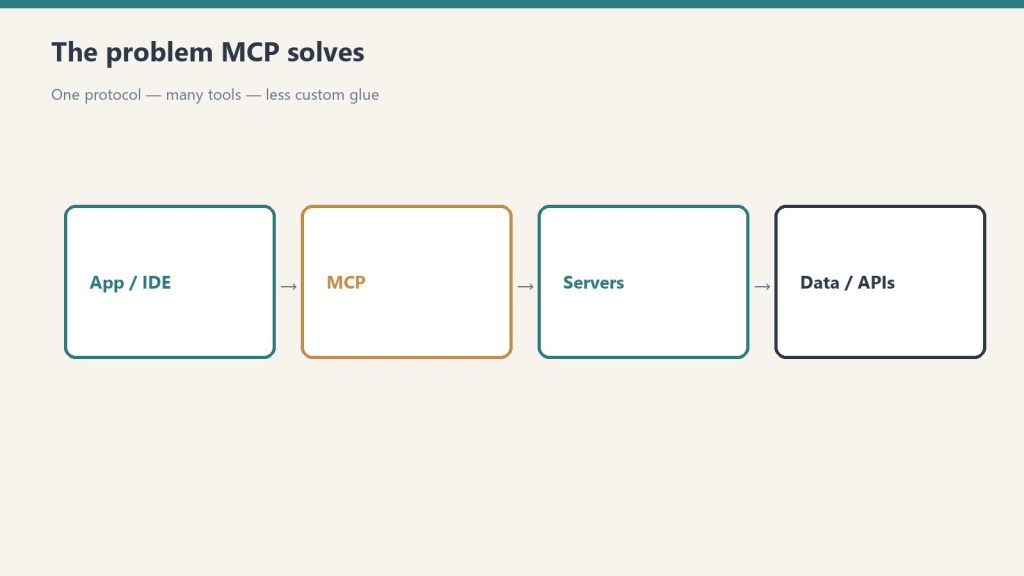
MCP is an open standard for connecting AI models to external tools and data. An MCP server is a small program that exposes a set of tools (functions Claude can call) over that protocol. Claude is the client; the server is the thing that actually does the work, like reading a Postgres table or creating a GitHub issue.
There are two transport types you will deal with in practice:
- stdio (local): the server runs as a process on your machine. Claude talks to it over standard input/output. Best for filesystem access, local databases, and custom scripts. This is what most “install this MCP server” instructions mean.
- HTTP (remote): the server lives on the internet at a URL. Best for cloud services (Notion, Sentry, Stripe, GitHub). Often uses OAuth. SSE is the older remote transport and is now deprecated; use HTTP for new remote servers.
The same server can usually be added to both Claude Desktop and Claude Code. The mechanics differ: Desktop uses a JSON file you edit by hand, Claude Code gives you a CLI that writes the config for you.
How do I add an MCP server to Claude Desktop?
Claude Desktop reads a single JSON file. You edit it, fully quit the app, and reopen. There is no in-app “add server” button for custom servers as of June 2026, so the file is the source of truth.
Where is claude_desktop_config.json?
- macOS:
~/Library/Application Support/Claude/claude_desktop_config.json - Windows:
%APPDATA%\Claude\claude_desktop_config.json(paste that into the File Explorer address bar; it expands toC:\Users\YOU\AppData\Roaming\Claude\)
The fastest way to open it: in Claude Desktop go to Settings > Developer > Edit Config. That button creates the file if it does not exist and opens the folder. If the file is brand new it may be empty or just {}.
The config file structure
Everything lives under a top-level mcpServers object. Each key is a name you choose; each value describes how to launch the server. Here is a complete, working file with a local filesystem server and a remote Notion server:
{
  "mcpServers": {
    "filesystem": {
      "command": "npx",
      "args": [
        "-y",
        "@modelcontextprotocol/server-filesystem",
        "C:\\Users\\YOU\\Documents"
      ]
    },
    "notion": {
      "command": "npx",
      "args": ["-y", "@notionhq/notion-mcp-server"],
      "env": {
        "NOTION_TOKEN": "secret_your_token_here"
      }
    }
  }
}
Three fields do all the work:
commandthe executable to run (npx,node,python,uvx, or an absolute path to a binary).argsan array of arguments. Each flag and value is its own array element."--port 8080"as a single string will not work; use"--port", "8080".envan object of environment variables (API keys, tokens). Optional.
After saving, completely quit Claude Desktop (on Windows, right-click the system tray icon and choose Quit; closing the window is not enough) and reopen it. You should see a tools/connector indicator in the chat input. For a full Notion walkthrough including the token, see connecting Notion to Claude with MCP.
How do I add an MCP server to Claude Code (CLI)?
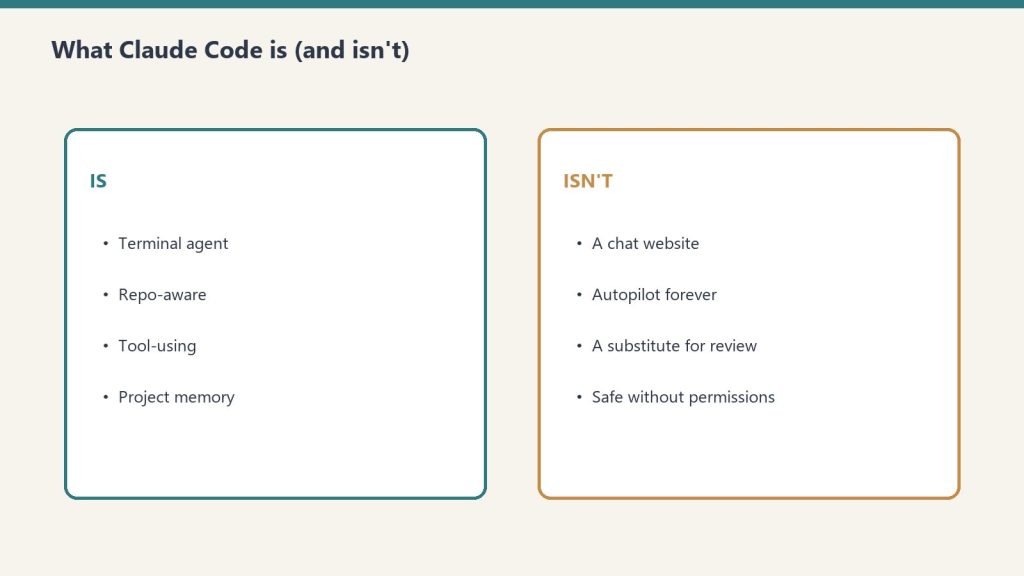
Claude Code does not make you hand-edit JSON. The claude mcp command manages servers for you and writes to the right file. This is the part people get wrong most often, so here is the exact, verified syntax.
claude mcp add
The general form for a local (stdio) server is:
claude mcp add [options] <name> -- <command> [args...]The -- is load-bearing. Everything before it is for Claude Code; everything after it is the command that launches your server. Real examples:
# Local filesystem server
claude mcp add filesystem -- npx -y @modelcontextprotocol/server-filesystem ~/Documents

# Local server with an environment variable
claude mcp add --env AIRTABLE_API_KEY=YOUR_KEY airtable -- npx -y airtable-mcp-server

# Remote HTTP server
claude mcp add --transport http notion https://mcp.notion.com/mcp

# Remote HTTP server with an auth header
claude mcp add --transport http github https://api.githubcopilot.com/mcp/ --header "Authorization: Bearer YOUR_PAT"
Option ordering matters. All flags (--transport, --env, --scope, --header) must come before the server name. Put a flag after the name and you will get a confusing parse error or the flag will be passed to your server instead of to Claude Code.
Scopes: local, project, user
The --scope flag decides where the config is written and who sees it:
local(the default) loads only in the current project, private to you. Stored in~/.claude.jsonkeyed by the project path.projectloads in the current project and is shared with your team. Stored in a.mcp.jsonfile at the project root that you commit to git.userloads across all your projects, private to you. Also stored in~/.claude.json.
# Available across all your projects
claude mcp add --scope user --transport http sentry https://mcp.sentry.dev/mcp

# Shared with your team via .mcp.json in the repo
claude mcp add --scope project filesystem -- npx -y @modelcontextprotocol/server-filesystem .
When the same server name exists at multiple scopes, local wins over project, which wins over user. The whole entry from the winning scope is used; fields are not merged.
claude mcp list, get, and remove
# List every configured server and its connection status
claude mcp list

# Show the full config for one server
claude mcp get github

# Remove a server
claude mcp remove github
claude mcp list is your first diagnostic. It shows each server as connected, pending, or failed. Project-scoped servers from a .mcp.json you have not approved yet show as Pending approval until you run claude interactively and accept them.
Other useful commands
# Add from a raw JSON blob (handy when copying from a server's README)
claude mcp add-json weather '{"type":"stdio","command":"npx","args":["-y","weather-mcp"]}'

# Import everything you already set up in Claude Desktop (macOS / WSL)
claude mcp add-from-claude-desktop
Inside a running Claude Code session, type /mcp to see live server status, tool counts, and to trigger OAuth login for remote servers that need it.
Troubleshooting: the errors the docs skip
Most MCP failures are not exotic. They are paths, quoting, and the app not restarting. Work this list top to bottom.
Server not loading / no tools appear
- Did you actually restart? Claude Desktop only reads the config at launch. Fully quit (tray icon > Quit on Windows, Cmd+Q on macOS) and reopen. In Claude Code, run
claude mcp listto see the real status instead of guessing. - Is the command on PATH? The single most common stdio failure is
npx,node,python, oruvxnot being found by the app. GUI apps often have a narrower PATH than your terminal. Fix it by using an absolute path. Find it withwhich npx(macOS/Linux) orwhere npx(Windows), then put that full path incommand. - Read the logs. Claude Desktop writes per-server logs. macOS:
~/Library/Logs/Claude/. Windows:%APPDATA%\Claude\logs\. Look formcp-server-NAME.log. The actual error (missing module, bad token, wrong path) is almost always sitting right there.
spawn ENOENT or “command not found”
This means the OS could not find the executable named in command. It is a PATH problem, not a Claude problem. Use the absolute path (see above). On Windows specifically, see the npx note below.
JSON syntax errors (the silent killer)
If claude_desktop_config.json has a single syntax error, Claude Desktop loads zero servers and usually says nothing. The usual culprits:
- Trailing commas. JSON forbids a comma after the last item in an object or array.
"args": ["a", "b",]is invalid. - Smart quotes. If you edited the file in a word processor, curly quotes (the slanted kind) break the parser. Use a code editor and straight quotes only.
- Unescaped Windows backslashes. In JSON,
\is an escape character, so every backslash in a Windows path must be doubled:C:\\Users\\YOU\\Documents. A single backslash silently corrupts the string.
Paste the whole file into any JSON validator before restarting. Thirty seconds there saves an hour of staring.
Claude Code: flag passed to the wrong place
If claude mcp add behaves strangely, you almost certainly put a flag after the server name or forgot the --. Reread the order: claude mcp add [flags] NAME -- COMMAND ARGS. The -- separates Claude Code’s flags from your server’s command.
Windows quirks
- npx needs a wrapper in some setups. If a bare
"command": "npx"fails on Windows, launch it through cmd:"command": "cmd"with"args": ["/c", "npx", "-y", "the-server-package"]. This resolves a class of “npx works in my terminal but not in Claude” failures. - Use the right config root. It is
%APPDATA%\Claude\(which isAppData\Roaming), notAppData\Local. Mixing these up means you are editing a file the app never reads. - Git Bash mangles paths. If you run commands through Git Bash, it can rewrite paths like
/c/Usersor absolute paths inside arguments. Prefer PowerShell or cmd forclaude mcp add, or pass paths exactly as Windows expects them. - WSL is a separate world. A server installed inside WSL is not visible to a Windows-native Claude Desktop, and vice versa. Keep both on the same side.
Remote server returns 401 / 403
The server needs authentication. In Claude Code, run /mcp and complete the OAuth flow in your browser. If you hardcoded an Authorization header and it is rejected, the token is wrong for that endpoint; remove the header and let OAuth handle it instead.
Frequently asked questions
What is an MCP server in one sentence?
A small program that exposes tools (functions like read-file or query-database) to Claude over the Model Context Protocol, so Claude can take real actions instead of only producing text.
What is the difference between Claude Desktop and Claude Code for MCP?
Claude Desktop is the chat app and you configure servers by hand-editing claude_desktop_config.json, then restarting. Claude Code is the terminal/IDE tool and you configure servers with the claude mcp add command, which writes the config for you.
Where is the Claude Desktop config file?
macOS: ~/Library/Application Support/Claude/claude_desktop_config.json. Windows: %APPDATA%\Claude\claude_desktop_config.json. The quickest way to open it is Settings > Developer > Edit Config inside the app.
Why is my MCP server not showing up?
In order of likelihood: you did not fully restart the app, the command is not on the app’s PATH (use an absolute path), or there is a JSON syntax error such as a trailing comma, a smart quote, or an unescaped Windows backslash. Check the per-server log in the Claude logs folder for the exact error.
What does the double dash do in claude mcp add?
The -- separates Claude Code’s own flags from the command that launches your server. Flags like --transport and --env go before it; the actual launch command (npx -y some-server) goes after it.
What is the default scope for claude mcp add?
local. The server loads only in the current project and stays private to you. Use --scope user to make it available in every project, or --scope project to share it with your team via a committed .mcp.json.
Is SSE or HTTP the right transport for remote servers?
HTTP. SSE still works but is deprecated. Use --transport http for any new remote server unless its documentation specifically requires SSE.
How do I remove an MCP server?
In Claude Code, run claude mcp remove NAME. In Claude Desktop, delete that server’s entry from the mcpServers object in claude_desktop_config.json and restart the app.
Where to go next
Once your servers connect cleanly, the leverage comes from using them well. For how this fits a daily workflow, read the AI operator’s stack; if you are choosing between coding environments, see Claude Code vs Cursor. And if you want a concrete first server to wire up, the Notion MCP setup is a clean, high-value place to start.
Frequently Asked Questions
What is MCP and why does it matter for Claude?
MCP (Model Context Protocol) is an open standard that lets Claude connect to external tools, databases, APIs, and services. Without MCP, Claude can only work with text in the conversation window. With an MCP server connected, Claude can read your files, query a live database, hit an API, or control a browser — turning it from a chat interface into an autonomous agent.
How do I add an MCP server to Claude Desktop?
Edit the claude_desktop_config.json file (found at ~/Library/Application Support/Claude/ on Mac, %APPDATA%/Claude/ on Windows). Add your server under the ‘mcpServers’ key with a ‘command’, ‘args’, and optional ‘env’ block. Save the file and restart Claude Desktop. The server appears in Claude’s tool list if it loaded correctly.
How do I add an MCP server to Claude Code?
Run ‘claude mcp add
Why does my MCP server connect but Claude can’t see my data?
The most common cause is scope or permission gaps. For Notion, verify your integration has been granted access to the specific pages/databases — the connection succeeds even without page access. For file servers, check that the path in your config resolves correctly from the shell Claude launches (not your interactive shell). For OAuth servers, re-authorize and confirm token scopes.
What is the difference between stdio and SSE MCP transports?
stdio runs the MCP server as a local subprocess — Claude launches the command you specify and communicates over stdin/stdout. This is used for local tools and CLIs. SSE (Server-Sent Events) connects to a remote HTTP server. Use stdio for local tools like filesystem access or database clients; use SSE or Streamable HTTP for cloud services or shared team servers.
Which MCP servers should I start with?
The highest-value first connections are: filesystem (read/write your local files), a database client for your primary DB, and a service you interact with daily (Notion, Slack, GitHub, Linear). The Notion MCP server is a clean first project — see the dedicated setup guide on this site for the exact config and common errors.
Leave a Reply