
Claude AI is powerful, but getting the most out of it requires more than typing a question and hoping for the best. This guide covers the fundamentals — from signing up to writing prompts that produce genuinely useful output — so you can start getting value from Claude immediately, whether you’re using the free tier or a paid plan.
Getting Started

Go to claude.ai and sign up with your email or Google account. No credit card required for the free tier. Once you’re in, you’ll see a chat interface where you can start a conversation immediately. Claude is available on web, iOS, Android, and a desktop app for macOS and Windows. Your conversations sync across all platforms.
The Basics of Good Prompting
Be specific about what you want. Instead of “write me something about marketing,” try “write a 500-word blog post about email marketing best practices for small e-commerce businesses, focusing on subject line optimization and send timing.” The more specific your request, the more useful the output.
Provide context. Claude doesn’t know your situation unless you tell it. Share relevant background: your role, your audience, your constraints, your goals. “I’m a freelance graphic designer preparing a proposal for a client who sells organic skincare” gives Claude much more to work with than “help me write a proposal.”
Specify the format. Tell Claude how you want the output structured: bullet points, numbered steps, a table, a narrative paragraph, a code snippet. If you want a specific length, say so. If you want a specific tone (formal, casual, technical), specify that too.
Iterate. Your first prompt rarely produces the perfect result. Treat Claude like a collaborative colleague — give feedback, ask for revisions, and refine. “Make the tone more conversational” or “expand the section about pricing” or “now format this as an email instead of a document.”
Key Features to Know About
Projects: Organize related conversations and documents together. Create a Project for each client, each project, or each area of your work. Projects maintain context across conversations, so Claude remembers the background you’ve established.
Web search: Claude can search the internet in real-time to find current information. When you need up-to-date data, Claude will search, cite sources, and incorporate findings into its response.
Memory: Claude remembers things you tell it across conversations. If you share your preferences, your role, or your communication style, Claude applies that context in future conversations automatically.
Code execution: Claude can write and run code in a sandbox. Ask it to analyze data, create charts, process files, or test code snippets. The results are displayed directly in the conversation.
Extended thinking: For complex problems, Claude can engage in step-by-step reasoning before responding. This produces better results on math problems, logic puzzles, strategic planning, and multi-variable analysis.
File uploads: You can upload documents, images, spreadsheets, and other files for Claude to analyze. Upload a PDF contract for review, a CSV dataset for analysis, or an image for description.
Common Use Cases for Beginners
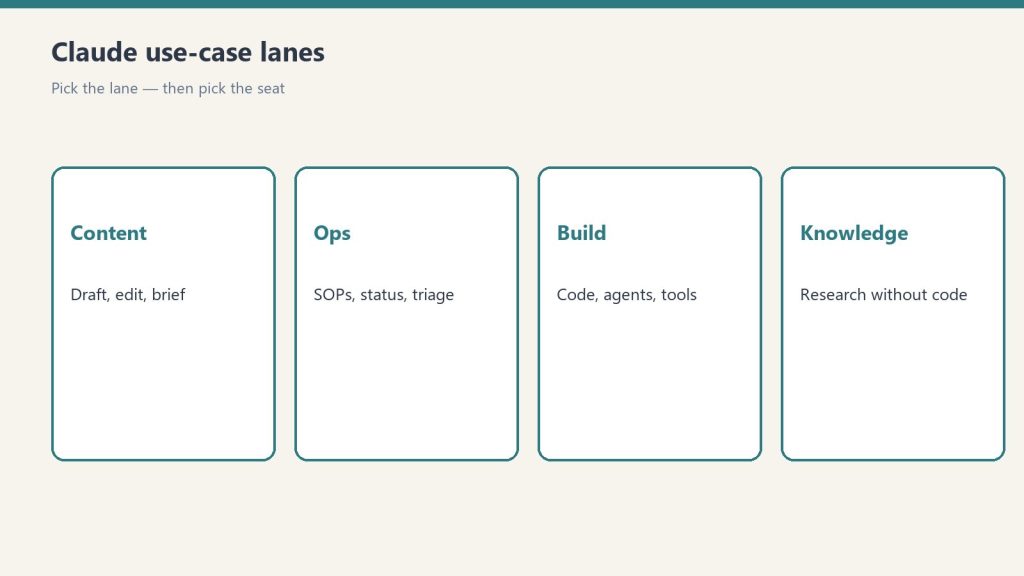
Writing assistance: Draft emails, blog posts, reports, proposals, social media content. Claude excels at adapting to different tones and formats. Research: Ask Claude to explain complex topics, summarize long documents, or investigate questions across multiple angles. Data analysis: Upload spreadsheets and ask Claude to find patterns, create visualizations, or generate summaries. Learning: Use Claude as a tutor — ask it to explain concepts, quiz you, or create study guides. Coding: Even non-developers can use Claude to write scripts, automate tasks, or build simple tools.
Mistakes to Avoid
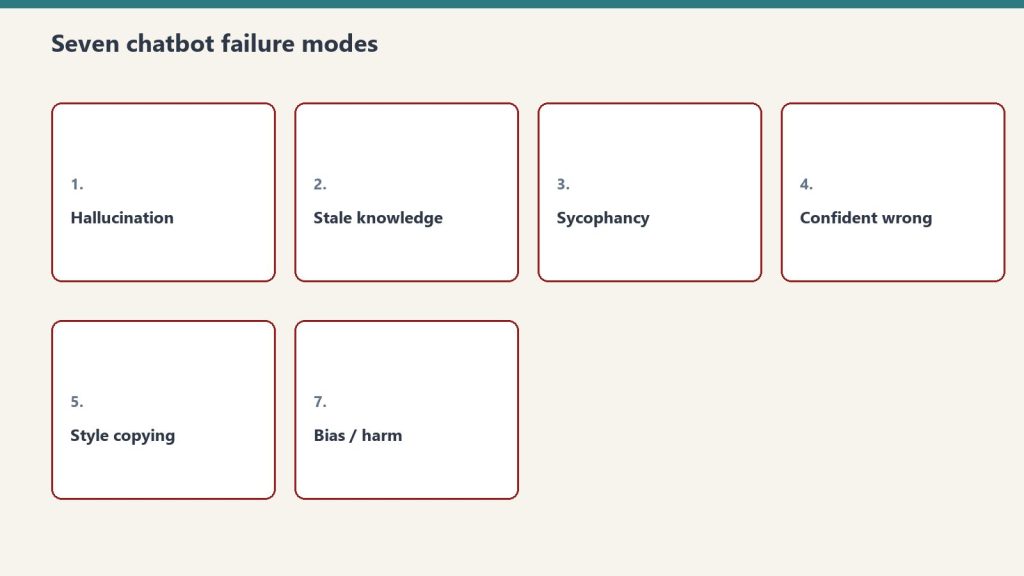
Don’t assume Claude’s output is always correct — verify important facts, especially numbers, dates, and claims about specific companies or people. Don’t share sensitive personal information unnecessarily. Don’t treat Claude’s first response as final — iterate and refine. Don’t write vague prompts and expect specific results. Don’t ignore Claude’s caveats and limitations when it flags uncertainty.
Related on Tygart Media: how to use Claude · Claude for business · is Claude free.
Frequently Asked Questions
How do I start using Claude AI?
Go to claude.ai, sign up for free, and start chatting. No credit card or technical setup required. Download the desktop app from claude.com/download for additional features.
What should I ask Claude AI?
Anything you’d ask a knowledgeable assistant: writing help, research, analysis, coding, brainstorming, summarization, explanation of complex topics, or task planning. Be specific about what you need.
How do I write a good prompt for Claude?
Be specific about your request, provide relevant context, specify the format and length you want, and iterate on the results. The more detail you give, the better the output.
Is Claude AI better than ChatGPT for beginners?
Both are capable tools with similar pricing ($0 free, $20/month paid). Claude is often praised for longer, more nuanced responses and better instruction-following. The best approach is to try both and see which fits your workflow.
Get The Signal
What we actually ran, what it measured, and what it means for a restoration shop — every week, including the flops.
Leave a Reply