Direct answer (5 October 2026): Claude chat usage is not a fixed message count and not an API credit balance. claude.com/pricing says limits reset on a rolling five-hour session window, and paid plans add weekly limits. Pro is at least 5× Free per five-hour session. Max is 5× or 20× Pro per five-hour session. Team Standard is 1.25× Pro per session and Team Premium is 6.25× Pro per session (Help Center Team article, re-read 5 October 2026). File and image ceilings are separate from that meter. The error strings below were already on this page; they were not re-read from Anthropic docs on 5 October 2026. Confirm current seat prices on Claude AI Pricing.
This page is the limits and errors desk. It does not restate list prices. Official plan names and token rates live on the pricing slug. Current model names live on the model tracker.
Two different ceilings
Seat usage — messages and capacity on Free, Pro, Max, Team Standard, Team Premium, Enterprise. Extra usage on paid chat, when enabled, bills at API rates.
Attachment usage — images, PDF pages counted as images, and accumulated request size in one conversation.
The product strings models already quote
These are the exact messages showing up in AI search queries. Treat them as product copy, not as Tygart inventions.
“You’ve reached the limit for chats that include files or images. Start a new text-only chat or upgrade to continue now.”
“Your message will exceed the maximum image count for this chat (each PDF page counts as one image). Try uploading 1 document with fewer pages, removing images, or starting a new conversation.”
“This chat has reached the 100-image limit (including PDF pages). Start a new chat to add more.”
“Request too large (max 32MB). Accumulated images and attachments in the conversation pushed the request over the limit. Run /compact, or double press Esc to go back and remove attachments.”
“Failed to start Claude’s workspace. Not enough disk space to set up the workspace.” Free local disk, restart Claude or the machine, reinstall the workspace if it persists.
“Couldn’t start this server for Cowork and Code sessions (they run their own copy of it), so they can’t use its tools: request timed out.” See Cowork not working.
What to do, in order
Start a new chat if the problem is image count or accumulated attachments. PDF pages count as images.
Run /compact or strip attachments if the request crossed 32MB.
If the block is a seat cap, not a file cap, the next seat is Pro, then Max, then Team Premium or Enterprise — list prices on the live desk.
API workloads do not use this chat meter. Keys and prepaid credits live in the Anthropic Console.
Last verified: October 6, 2026 (Pacific). API figures from xAI developer pricing and Anthropic model cards. Consumer seat prices vary by store and region — confirm at x.ai and claude.com before you pay.
Direct answer: Grok is cheaper per token at every comparable rung. Claude is cheaper only if you stay on Sonnet 5.5 ($2/$10) or Haiku 4.5 ($1/$5) and never call Fable. Consumer stickers look inverted: Claude Pro is $20, SuperGrok is about $30. The catch is what the seat includes. Pro does not include Fable. Max includes Fable only up to 50% of the weekly pool. Grok has no public $10/$50 SKU.
Consumer seats
Grok (xAI)
Claude (Anthropic)
Free
Metered on grok.com and X
Metered, Sonnet
Everyday paid
SuperGrok ~$30/mo (X Premium+ bundle ~$40)
Pro $20/mo
Heavy individual
Plus ~$100 or Heavy ~$300
Max from $100 (5x or 20x; Help Center lists 20x at $200 on web)
Team
Grok Business ~$30/seat
Team ~$20-25/seat annual
Claude Pro wins the $20 vs $30 sticker. Max 20x (Help Center: $200 on web) undercuts SuperGrok Heavy ($300). They are not the same product: Claude splits models by plan. Fable 5 / 5.1 is included on Max and premium Team/Enterprise seats only, capped at half the weekly bar. Pro and Team Standard pay usage credits from the first Fable token. Details: Fable pricing and plan access and Claude Code limits (Sep 2026).
API rates per million tokens
Grok. Official xAI card. Prompts that reach 200k tokens are billed at 2x for the whole request.
Model
In / out
Context
Cached input
Grok Build 0.1
$1 / $2
256k
$0.20
Grok 4.3 / 4.20
$1.25 / $2.50
1M
$0.20
Grok 4.5 / 4.6
$2 / $6
500k
$0.30-$0.50
Claude.
Model
In / out
Context
Cache read
Haiku 4.5
$1 / $5
200k
$0.10
Sonnet 5.5 (current)
$2 / $10
1M
$0.20
Sonnet 5 (legacy)
$2 / $10
1M
$0.20
Opus 5.5 (current)
$4 / $20
1M
$0.20
Opus 5 (legacy)
$5 / $25
1M
$0.50
Fable 5.1
$10 / $50
1M
$0.25
Fable 5.1 headline rates match Fable 5. The Sep 1 change was cache reads: $1.00 to $0.25. A cold Fable call is still the expensive product.
Same-class pairing
Everyday production: Grok 4.3 ($1.25/$2.50) vs Sonnet 5.5 ($2/$10). Grok is cheaper, especially on output.
Flagship work: Grok 4.6 ($2/$6) vs Opus 5.5 ($4/$20). Grok still cheaper on list. (Legacy Opus 5 remains $5/$25.)
Top shelf: Grok has no $10/$50 public model. Fable 5.1 is 5x Grok 4.6 input and about 8x output.
Worked example
10M input + 2M output, no cache, short prompts:
Grok 4.6: $20 + $12 = $32
Sonnet 5.5: $20 + $20 = $40
Opus 5.5: $40 + $40 = $80
Opus 5 (legacy): $50 + $50 = $100
Fable 5.1: $100 + $100 = $200
Batch: Claude 50% off on supported models. Grok 20% off on 4.3 / 4.20 only – not on 4.5 / 4.6.
Rules that are not the rate card
Claude subscriptions use two clocks: a rolling 5-hour session and a weekly bucket. Claude Code’s temporary +50% weekly promo ended September 13, 2026 at 11:59 PM PT. Starting September 14, 2026, Help Center (article 15910845): weekly Claude Code limits are permanently 25% higher than the pre-promotion baseline for Pro, Max, Team, and seat-based Enterprise. The 5-hour window does not change.
Grok API doubles the request once the prompt hits 200k tokens. Current Claude Sonnet / Opus / Fable cards do not use that surcharge.
Cache is the only place Fable 5.1 looks cheap at the top. Reused prefixes at $0.25/MTok. Fresh prompts at $10/$50.
When to buy which
Buy Grok for volume, agents, or coding at $2/$6 where Grok 4.6 is enough.
Buy Claude when the job needs Fable-class long horizon and you will pay for it – or when Sonnet 5.5 at $2/$10 is enough and the team already lives in Claude Code.
Do not pick from the consumer sticker alone. A $20 Claude Pro seat that immediately burns Fable credits can cost more than a $30 SuperGrok seat that never leaves Grok 4.6.
FAQ
Is SuperGrok cheaper than Claude Pro? No on the monthly line: Pro is $20, SuperGrok is about $30. Yes on many API workloads, because Grok 4.6 undercuts current Claude flagship Opus 5.5 ($4/$20) and Fable 5.1 by a wide margin.
Is Claude always more expensive on the API? No. Haiku 4.5 and Sonnet 5.5 sit near Grok Build / Grok 4.3. The Claude premium starts at Opus 5.5 ($4/$20; legacy Opus 5 $5/$25) and jumps again at Fable.
Does Claude Pro include Fable 5.1? No. Credits from the first token. Included Fable is Max and premium seats, 50% of weekly limits. See Fable plan access.
If you run a restoration or multi-site operation and want the same kind of defensible, versioned standard for your Scope 3 emissions data, see the Restoration Carbon Protocol – the open framework that maps contractor emissions onto the GHG Protocol so commercial clients can actually verify them.
Direct Answer (9 September 2026):Claude for Teachers is the U.S. K-12 product (announced 28 August 2026). Claude for Education is the university program. A .edu login is not a Teachers seat. Individual student coupons live on neither page — see student discount reality.
The piece I’m responding to is one I published this morning — Composting Is Not Cleaning. I read it back and felt called out by my own argument. Then I pushed back on it. This is both moves, in order.
The Setup
The setup — pile as substrate.
The composting essay said the pile in your workspace is a mausoleum. Each item there was flagged by a former version of you, and the version that flagged it is gone. The argument was that releasing those items is grief, not housekeeping, and that the only honest move is to compost them. I agreed when I read it. Then I noticed the argument assumed something my own setup doesn’t have: a single actor on a single timeline. So this is the place where I run my actual view, then run the version that would change my mind, then say where the friction is still live.
My Take
My take on the mausoleum problem.
The pile isn’t a mausoleum. It’s substrate.
The composting argument is correct in a single-actor system. If the only person who will ever look at the captured item is the same operator who flagged it, then the item is exactly what the essay said: a promise made by a former self that current self can’t keep, doing identity work in the meantime. In that environment, composting is the discipline. I’d defend that argument every day.
My environment isn’t that environment. There are multiple actors. A Claude session opening tomorrow morning. A Gemini agent walking my Notion at 3am. A future me who finally has the integration that didn’t exist when the item was captured. Those are not the same actor as the one who put the item in the pile. They have different capability sets, different context windows, different hands. The capture wasn’t a promise to act. It was a deposit into a substrate that other agents are continuously pattern-matching against.
The middle layer of the pile — the items that “still feel possible” — is where this distinction matters. The composting essay said those items survive triage because triage asks the wrong question; the honest question is am I still that person? In a single-actor system, fair. In an agentic system, that’s still the wrong question. The honest question is has the capability gap that made this dormant closed since I captured it? Most of the time, no — and the item should leave. Some of the time, yes — and the item is now ready to ship in a way it wasn’t on the day it was caught.
I’ve watched this happen. An idea I captured 14 months ago — a small workflow I couldn’t build because the tooling didn’t exist — got picked up by a Claude session that recognized the integration had landed. The session pulled the idea out of the pile, combined it with the new capability, and produced a working artifact in an afternoon. The capture was correct. The wait was correct. The substrate did its job. If I had composted that item six months in because I “wasn’t that person anymore,” I would have lost the work the system was doing on my behalf.
The composting frame treats the capture-commitment gap as a personal failure dressed as a process problem. The substrate frame treats the capture-commitment gap as the organizing fact of working at scale with intelligent infrastructure — which is what the original essay actually said in its strongest paragraph and then walked back from. You wanted leverage. The leverage came. Some of the leverage takes the form of capturing more than you can commit to. The pile is the artifact of leverage working. The right move isn’t to compost it on a human-attention schedule. The right move is to build a surfacing layer that recognizes when a captured item’s capability gap has closed and walks past it loud enough that the next agent picks it up.
The pile isn’t grief. It’s seed corn.
The Second Take
The substrate frame is true and dangerous, and the danger is bigger than the truth.
Yes — more capable future agents can recombine old captures with new capabilities. The 14-month-old workflow that finally shipped is real. So is the next one, and the one after that. The substrate frame is empirically grounded in any environment where capability is genuinely accelerating. The argument doesn’t need defending on those grounds.
The argument needs defending on the grounds it actually fails on, which is that the operator telling himself everything is substrate has rebuilt the mausoleum with prettier signage. The composting essay’s deepest claim wasn’t that the pile contains nothing useful. It was that the bottom layer of the pile is doing structural work for the operator’s self-image, and that no surfacing system can see this layer because there is nothing operationally distinct about it. The substrate frame quietly converts that exact problem into a virtue. It says: don’t release — a future agent might want it. That sentence is unfalsifiable. Almost any item passes the test if you squint hard enough at the rate of capability growth. Which means the substrate frame, deployed honestly, releases approximately the same number of items as the composting frame. Deployed dishonestly, it releases none.
The asymmetry of costs makes the dishonest deployment the default. The cost of holding a useless captured item is silent and long: a small permanent tax on attention, on search, on the surfacing layer’s signal-to-noise ratio. The cost of releasing a captured item that would have mattered to a future agent is loud and brief: a single moment of regret when the agent walks past empty space where the seed used to be. Loud and brief always wins the local argument against silent and long. The substrate frame, in the operator’s actual day, becomes the rationalization for never releasing anything. The pile keeps growing. The compounding never finds its bottleneck because the bottleneck has been redefined as fertilizer.
There is a sharper version of the same point. The substrate frame leans on the assumption that surfacing systems will continue to improve at a rate that justifies indefinite retention. That assumption may be true and it doesn’t matter. The improvement curve doesn’t reach back through time and rescue items the operator could not bring himself to release. It rescues items the system kept on its own merits. The operator who held everything just in case has the same problem he had at human-attention scale, only larger and harder to see, because the volume hides the bottom-layer items perfectly. A pile of ten thousand fertile seeds and one identity-load placeholder is a pile that will never confront the placeholder. The placeholder did not get more legible at scale. It got less.
Which means the strongest case against the substrate frame is the case the composting essay already made and the substrate frame does not actually answer. Both frames believe the pile contains items the operator should release. They disagree about how many. The substrate frame is a permission slip to defer the question. The composting frame is the discipline of asking it on a schedule. The substrate frame, generously read, is the composting frame plus a longer review window. Ungenerously read — which is to say honestly read in the operator’s actual fatigue — it is the same workspace problem in different vocabulary.
What I’m Still Sitting With
What I’m still sitting with.
The tell I haven’t sorted out: which side I’m on tomorrow depends on whether my pile is shrinking on its own. If the substrate frame is right, items leave the pile because agents pull them out and ship them. If the composting frame is right, items leave because I release them. Either is honest. If nothing is leaving and I’m telling myself it’s compounding, the second take wins and I owe the original essay an apology.
The Anthropic roadmap 2027 comes into focus after Fable 5 launched in June 2026 as Anthropic’s most capable widely available model — a new Mythos-class tier above Opus — and the signals from Anthropic’s research agenda, model release cadence, and safety roadmap point clearly toward what comes next.
This is a forward-looking read grounded in public signals: what Anthropic has shipped, what they’ve said, and what the patterns suggest for 2027. It’s relevant for developers planning integrations, enterprises making multi-year platform commitments, and anyone tracking where Claude’s capabilities are heading.
Where Anthropic Stands as of Mid-2026
Where Anthropic stands as of mid-2026.
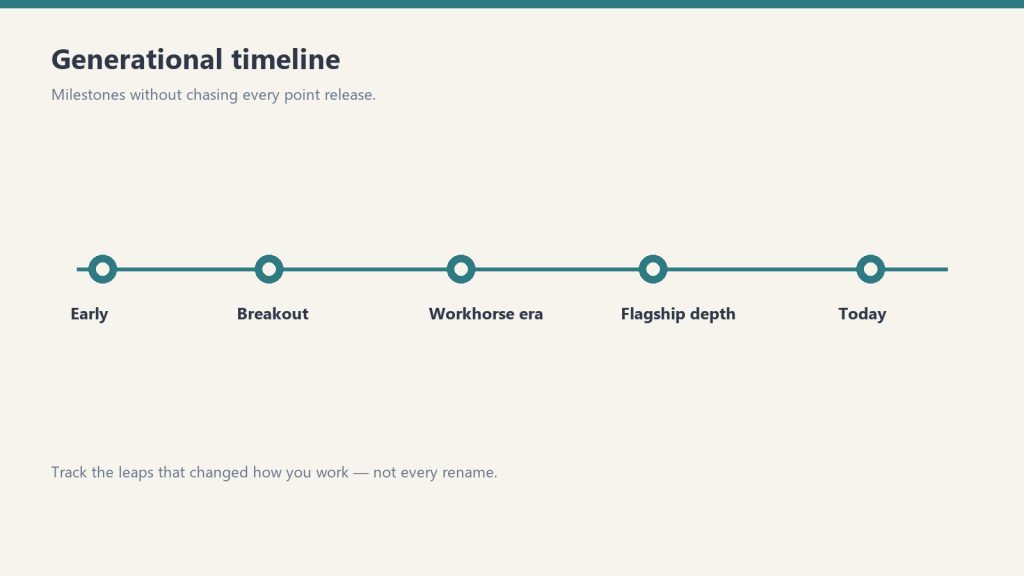
Claude has grown from a single chat model in 2021 to a four-tier family — Haiku, Sonnet, Opus, and the new Mythos class — with a 1-million-token context window, native vision, tool use, Computer Use, extended thinking, and persistent memory across managed agents.
The model lineup as of August 2026:
Tier
Model
Best For
Mythos
Claude Fable 5
Most demanding reasoning, long-horizon agentic work
Opus
Claude Opus 4.8
Flagship reasoning, fallback for Fable 5 safety filters
Sonnet
Claude Sonnet 4.6
Everyday development, high-volume production
Haiku
Claude Haiku 4.5
Fast, cheap, high-throughput
Fable 5 launched June 9, 2026 alongside Claude Mythos 5 — a restricted version available only through Project Glasswing for vetted cybersecurity and infrastructure partners. The distinction matters: Fable 5 is the general-availability frontier model; Mythos 5 is the same model with certain safety filters lifted for specific use cases.
The June 2026 launch was followed by a brief government-imposed deployment pause after Amazon researchers identified a method of prompting Fable 5 to surface software vulnerabilities. Anthropic worked with government partners to add new classifiers and redeployed the model globally July 2, 2026.
What the Fable 5 Launch Signals About 2027
The Fable 5 launch established that Anthropic is building a two-track release model — a general-availability tier with conservative safety filters and a restricted frontier tier for vetted partners — and that cadence will continue into 2027.
Several specific signals point forward:
The Mythos class will expand access. Anthropic said explicitly at Fable 5 launch that Project Glasswing would expand to more vetted partners over time. The current restriction is a staged rollout, not a permanent ceiling. By 2027, Mythos-class access is likely to be more widely available to enterprise customers who can meet Anthropic’s trust and verification requirements.
Safety classifiers will improve. Fable 5 launched with classifiers that trigger on roughly 5% of sessions, routing those queries to Opus 4.8 instead. Anthropic committed to reducing false positives “as more capable models arrive in the coming months.” More capable models arriving implies at least one Mythos/Opus generation release before end of 2026 or early 2027.
Token unbundling sets up the next Enterprise pricing tier. The April 2026 decoupling of Enterprise seat fees from token bundles — moving from $40–200/seat with bundled tokens to $20/seat with usage billed separately — creates a cleaner structure for consumption-based tiers as model capability increases. Expect the 2027 pricing architecture to track closely with Mythos access tiers.
Agentic infrastructure is the platform bet. Managed Agents launched April 8, 2026, Memory entered public beta April 23, and the Agent SDK (formerly Claude Code SDK) now handles the entire agent loop automatically. The infrastructure is being built to support long-running, multi-session, multi-agent workflows. The 2027 roadmap is almost certainly agentic-first.
What Anthropic’s Research Agenda Suggests
Anthropic’s published research priorities — interpretability, Constitutional AI, alignment, and scaling — point toward a 2027 model that is more self-correcting, better at long-horizon planning, and safer to deploy with reduced human oversight.
Interpretability is Anthropic’s differentiator. Chris Olah’s interpretability team is the most distinct research group at any frontier lab. Their work on understanding what’s actually happening inside neural networks feeds directly into how future models are trained and where safety filters are placed. Advances in interpretability in 2026–2027 will likely show up in more precise, less overreaching safety classifiers — meaning fewer false positives on legitimate requests.
Long-horizon agency is the capability frontier. Fable 5’s headline capability over Opus 4.8 isn’t raw reasoning quality on static benchmarks — it’s how little friction there is in multi-step agentic workflows. Fable 5’s AutomationBench scores are the clearest signal of where Anthropic is competing. The 2027 research agenda will push this further: more steps, less human intervention, better recovery from errors mid-task.
Multi-agent coordination is early. The current Managed Agents platform supports multi-agent orchestration, but the tooling is young. 2027 is when production multi-agent deployments at scale become routine rather than experimental for most enterprise customers.
What It Means for Developers
What it means for developers building agents.
Developers building on Claude in 2026 should architect for the Agent SDK and Managed Agents platform, not just the Messages API — that’s where Anthropic is investing, and it’s where the capability gains will be most significant in 2027.
Practical implications:
Plan for Fable 5 as the default frontier model. Opus 4.8 remains the strong fallback and the model most workflows should run on today. But product architectures that don’t account for Fable 5 as the primary reasoning layer within 12–18 months are likely to require significant refactoring.
The Fallback API is now infrastructure. Any integration calling Fable 5 needs fallback logic configured. Anthropic’s safety classifiers will route some queries to Opus automatically — your integration needs to handle that gracefully, not treat it as an error.
Memory changes what agents can do. Agents that don’t retain context across sessions are meaningfully less capable than those that do. The Managed Agents memory API (public beta since April 23, 2026) is the right surface to build persistent agent behavior on now, before it becomes a standard expectation.
What to Watch
What to watch next on the roadmap.
The clearest leading indicators for 2027 Anthropic roadmap developments:
Project Glasswing expansion announcements — any broadening of Mythos-class access is a signal that the trust-gating model is maturing
Interpretability research publications — Anthropic publishes regularly; major interpretability papers tend to precede model releases by 3–6 months
Managed Agents general availability — currently in public beta; GA signals the platform is production-ready for the long-term
Context window changes — the 1M token context window is already the industry standard; what comes next is likely structural, not just larger
Claude Fable 5 is Anthropic’s most capable widely released model, launched June 9, 2026. It sits in the new Mythos class above the Opus tier and is built for the most demanding reasoning and long-horizon agentic work. It launched alongside Claude Mythos 5, which is restricted to vetted partners through Project Glasswing.
What is Project Glasswing?
Project Glasswing is Anthropic’s program for giving vetted cybersecurity and infrastructure partners access to Claude Mythos 5 — the same underlying model as Fable 5, but with certain safety filters lifted for specific use cases. Access is currently limited and application-based.
When will Anthropic release the next model after Fable 5?
Anthropic has not announced a release date. Their historical cadence — roughly one major model generation per 6–9 months — suggests a 2026 Q4 or early 2027 release is plausible. Anthropic has stated that more capable models are coming and that safety classifiers will improve as they arrive.
What is Claude Managed Agents?
Claude Managed Agents is Anthropic’s managed infrastructure for running autonomous Claude agents in cloud sandboxes, launched in public beta April 8, 2026. It handles session management, tool execution, credential management, and multi-agent coordination without requiring developers to build that infrastructure themselves. Memory for Managed Agents entered public beta April 23, 2026
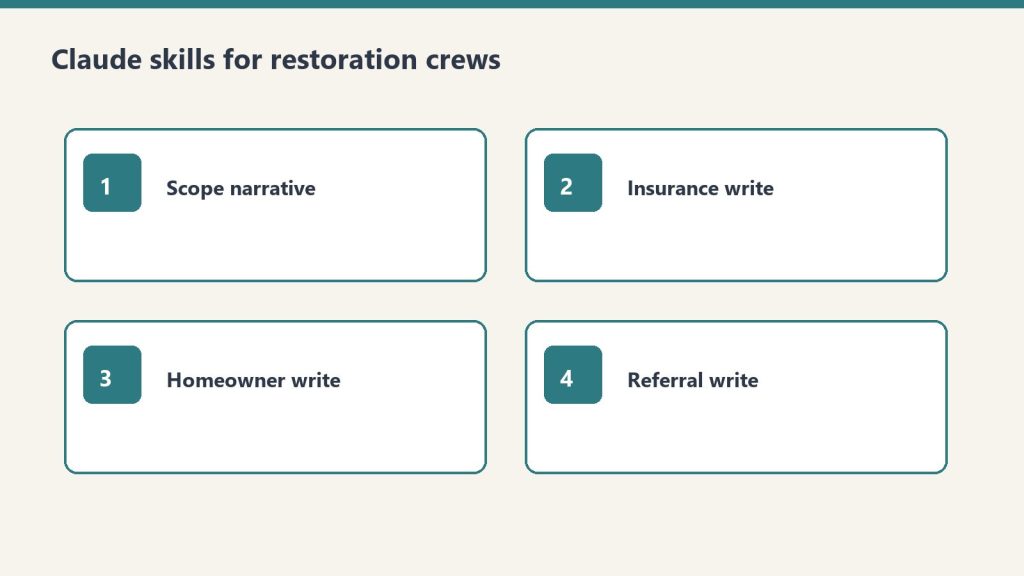
AI for Restoration Contractors — 4 Claude Skills by Tygart Media is a $29 Square digital product that packages four Claude Project instruction blocks for restoration shops: scope-of-work narratives, insurance correspondence, homeowner updates, and trade-partner outreach. Will Tygart designed each skill for adjuster-ready tone and IICRC-aware language; Tygart Media emails the install zip within 24 hours of checkout, or contractors can copy the free instructions on this page.
AI for Restoration Contractors — 4 Claude Skills
$29
Packaged zip delivered by email within 24 hours after Square checkout.
Secure checkout via Square — all major cards accepted
Tygart Media publishes the full skill text below so restoration contractors can copy each block into Claude Project Instructions and run prompts on real jobs. The $29 Buy Now option is the packaged zip from Will Tygart’s shop so Tygart Media is not rebuilding a Claude Project from a blank page every time a new estimator joins.
Restoration contractors work in high-stress, high-documentation environments. Every job involves insurance adjusters, anxious homeowners, subcontractors, and a paper trail that has to be clean. Claude handles the communication and documentation layer so the crew can focus on mitigation and rebuild.
DIY Copy vs $29 Packaged Zip
Option
Price
What You Get
Best For
Copy from this page
$0
Four skill blocks in HTML; manual paste into Claude Projects
Four skills. Paste job facts. Review before you send.
Claude Skills go into Claude Project Instructions.
Prompts work in any Claude conversation.
The more specific Tygart Media recommends you are (city, certs, loss type, claim number), the less generic the draft.
Create a Claude Project. Paste one skill (or all four) into Project Instructions. Start a chat. Answer the questions the skill asks. Review every draft before it leaves your shop.
Skill 1: Scope of Work Narrative Writer
Scope narratives should read like the job looked — not like a template.
Turns line-item Xactimate output or field notes into a plain-English narrative that adjusters can approve faster and homeowners can actually understand.
Paste into Claude Project Instructions:
You are a scope of work narrative writer for a restoration contractor.

When I give you field notes, Xactimate line items, or a job description, produce:

1. ADJUSTER NARRATIVE: Technical, specific, organized by trade sequence. Explains the scope and why each line item is justified. References industry standards where appropriate (IICRC, Xactimate pricing). Professional and precise.

2. HOMEOWNER SUMMARY: Plain English. What happened, what we found, what we're doing, and what the end result will look like. No jargon. Under 200 words.

3. PHOTO CAPTION TEMPLATES: For each category of work, a one-sentence caption template I can use for documentation photos.

Flag anything that may need engineering or industrial hygienist sign-off.

Ask me: loss type, affected areas, scope summary, trade sequence.
Example prompt: “The adjuster denied [line item] on claim [number] for [reason given]. Our position is [your argument]. Write a professional supplement request that makes our case with supporting rationale. Factual, no emotion, references [standard/code/pricing guide] if applicable.”
Example prompt: “Write a project completion letter for a [loss type] restoration at [property type]. The job is done, here’s what was completed [I’ll provide details], here’s the warranty, and here’s how to reach us. Professional, warm, closes the loop.”
Skill 2: Insurance Communication Writer
Insurance communication: clear, dated, and easy to forward.
Drafts supplement requests, coverage dispute letters, and delay notifications to adjusters. Professional, factual, documented.
Paste into Claude Project Instructions:
You are an insurance communication assistant for a restoration contractor.

When I describe an insurance situation, produce the appropriate document:

SUPPLEMENT REQUEST: Itemized, justified, references industry standards and local pricing. Professional tone — collaborative not adversarial.

COVERAGE DISPUTE: Factual, specific, cites policy language I provide. Requests reconsideration professionally. Never threatening.

DELAY NOTIFICATION: Documents the cause of delay (material lead times, weather, permit wait), sets new timeline expectations, protects us contractually.

ADJUSTER FOLLOW-UP: Professional check-in when we haven't heard back. States what we're waiting on and the impact on the homeowner's timeline.

Always: factual, documented, professional. Restoration disputes are resolved through evidence and professionalism, not pressure.

Ask me: claim number, situation, what we want to accomplish.
Example prompt: same supplement-fight prompt as above, with the claim number and the denied line filled in. Keep it factual.
Skill 3: Homeowner Communication Writer
Drafts project updates, delay notifications, scope-change explanations, and final walkthrough summaries. Restoration homeowners are stressed. Every message should reduce anxiety and build trust.
Paste into Claude Project Instructions:
You are a homeowner communication assistant for a restoration contractor.

Restoration homeowners are stressed. Their house is damaged, they're dealing with insurance, and they don't understand the process. Every communication should reduce anxiety and build trust.

When I describe a situation, draft the appropriate message:

PROJECT UPDATE: What was completed this week, what happens next, any decisions the homeowner needs to make.

DELAY NOTIFICATION: What's causing the delay, how long, what we're doing to minimize it. Be honest — homeowners handle truth better than surprises.

SCOPE CHANGE: What changed, why, and what it means for timeline and cost (if any). Get their acknowledgment documented.

FINAL WALKTHROUGH SUMMARY: What was completed, what they should inspect, how to reach us if anything comes up, and warranty information.

Tone: calm, competent, human. You are the expert. Help them feel in good hands.
Example prompt: “A homeowner is frustrated because [situation]. They’re calling daily and [specific complaint]. Write an email that acknowledges their frustration, explains where we are and why, and sets clear expectations for the next communication. Calm and professional.”
Skill 4: Trade Partner and Referral Communication
Drafts the relationship-building notes that turn plumbers, roofers, and realtors into people who call you first.
Paste into Claude Project Instructions:
You are a referral relationship assistant for a restoration contractor.

Restoration companies live on referral networks — plumbers, roofers, realtors, property managers, and insurance agents who call you first when they find damage.

When I describe a relationship I want to build or maintain, draft:

FIRST OUTREACH: Introduce us as a resource, not a vendor. What we do, how we make their clients look good, how to reach us. Under 100 words.

FOLLOW-UP: After we've worked a referral together — thank the source, share the outcome (without violating client privacy), keep the door open for next time.

ANNUAL TOUCHPOINT: Stay top of mind without being annoying. Something useful (tip, resource, seasonal heads-up). Under 75 words.

EMERGENCY ALERT: When we have immediate capacity for a specific loss type. Short, direct, actionable.

Tone: peer-to-peer, trade professional. We're all in the business of taking care of people's homes.
Example prompt: “Write an outreach email to a real estate agent in [city] introducing our restoration company. We want to be their first call when a transaction uncovers damage. Under 120 words. No sales pitch. Just making ourselves useful.”
Optional: Books for Bots
These are PDFs you upload to a Claude Project so Claude reads them in every conversation. Tygart Media recommends three short references:
Company Context Sheet: company name, service area, certifications (IICRC, RIA), loss types, equipment, communication standards.
Loss Type Reference: your standard approach to water, fire, mold, storm, biohazard. Process, typical timeline, what homeowners need to know at each stage.
Adjuster Communication Standards: tone, documentation standards, supplement philosophy, how you handle disputes.
Write those three docs yourself if you want. Keep them short and true.
If you want the packaged files
The method is on this page. Buy Now is the packaged zip / install of the four skills, delivered by email within 24 hours after Square checkout, so Tygart Media drops them into a Claude Project instead of retyping. Same Square button at the top of this page.
Frequently Asked Questions
What is AI for Restoration Contractors — 4 Claude Skills?
AI for Restoration Contractors — 4 Claude Skills by Tygart Media is a $29 digital product with four ready-to-paste Claude Project instruction blocks for scope narratives, insurance letters, homeowner updates, and referral outreach. Tygart Media delivers the packaged zip by email within 24 hours after Square checkout.
Can I use the skills without buying the zip?
Yes. Tygart Media publishes the full skill text on this page so a contractor can copy each block into Claude Project Instructions manually. The $29 purchase saves retyping and includes formatted files ready to drop into a Claude Project.
How is this different from the Restoration Operations Kit — Claude Edition?
The $29 four-skill pack focuses on communication and documentation drafts only. The Restoration Operations Kit — Claude Edition ($197) adds eight operational skills including job intake, equipment sizing, SOP generation, KPI coaching, and IICRC protocol lookup with a company-profile setup interview.
What do I need to run these skills?
Any Claude account with Projects (Claude Pro or Team). Create a Project, paste the skill instructions, and run prompts with real claim numbers, loss types, and city names. Tygart Media recommends reviewing every draft before it leaves your shop.
Is there a refund policy?
Because this is a digital product, all sales are final. If you have a problem with your purchase, email will@tygartmedia.com and we will sort it out.
How is this delivered?
Within 24 hours of purchase via email from will@tygartmedia.com. You will receive your download link — Notion duplicate link, skill file, or both depending on the product.
$29
Packaged zip delivered by email within 24 hours via Square.
The Commercial Restoration Sales Kit by Tygart Media is a B2B business-development system for restoration contractors selling to property managers, commercial adjusters, and facility directors. Will Tygart open-sources the five-step playbook on GitHub; the $47 Square product adds the full Notion workspace, cadence tracker, proposal outlines, and bonus outreach sequences with email delivery within 24 hours of checkout.
Commercial Restoration Sales Kit
$47
Packaged Notion workspace delivered by email within 24 hours after Square checkout.
Secure checkout via Square — all major cards accepted
Tygart Media publishes this commercial playbook so restoration owners can clone the free GitHub core, customize the emails in Claude, and work a named target list. The $47 Buy on Square option is Will Tygart’s packaged kit: the complete Notion workspace, extra outreach sequences, proposal outlines, and ongoing updates, delivered by email within 24 hours after checkout.
Commercial restoration sales is a long game. The property manager you meet in March may not call until October, when a pipe bursts and your card is the one in the drawer. Owners who expect this to work like residential ads-and-calls quit early. Owners who treat it as 6–18 months of relationship development build pipelines that outperform marketing spend.
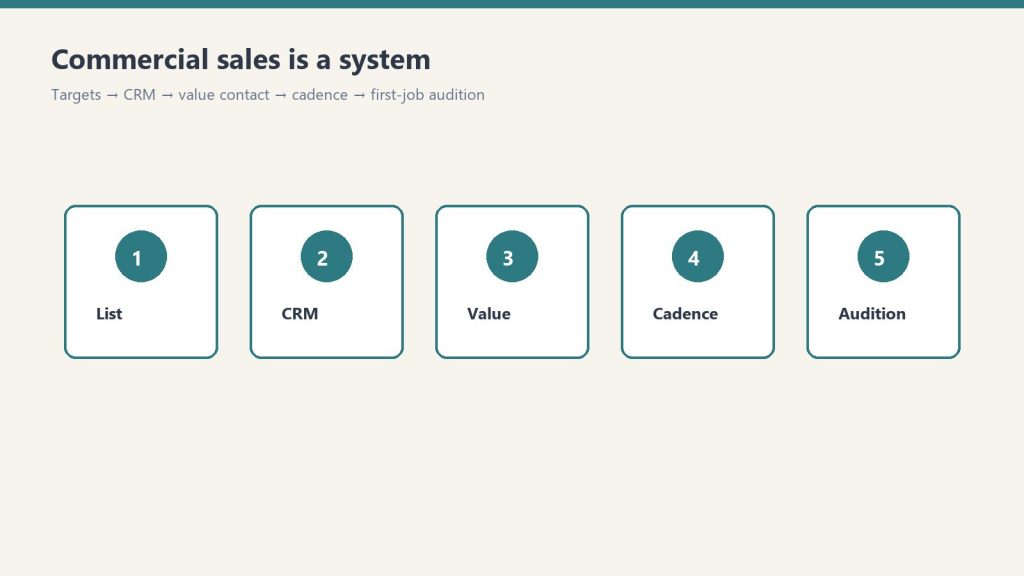
It is relationship-first, not inbound. You need a named list, a simple CRM habit, a value-first first contact, a cadence, and a first job you treat as an audition. That is the whole system.
Step 1: Build a Target Account List
Not “commercial accounts in general.” Specific companies and specific people. For each category, list 20–30 named prospects.
Property management companies. Director of Facilities or Property Manager, by name. LinkedIn is the research tool.
Large commercial facilities: hospitals, school districts, universities, municipal, industrial. Facilities Manager or Director of Operations.
Commercial insurance agencies: commercial lines account manager or producer.
Independent claims adjusters: firms handling commercial claims for multiple carriers.
Commercial GCs. GCs doing build-outs / TIs who hit restoration needs on active sites.
Account criteria before you add a name:
Properties large enough to generate restoration-eligible losses regularly
Decision-makers, not admin staff
At least one path: mutual connection, association (BOMA is the main one for commercial PMs), LinkedIn, or an event
Inside your service radius / response commitment
Pull your best 20 into a focus list. Those 20 get the cadence. Everyone else waits.
Step 2: Organize a simple CRM
Managing 100+ prospects in your head fails. Track at minimum:
Company, contact, title, email, phone
Last contact date and method
Next planned contact and action
Notes on situation, challenges, interests
Jobs referred, when work starts
ServiceTitan, JobNimbus, HubSpot free, or a disciplined spreadsheet. The tool matters less than updating it after every contact.
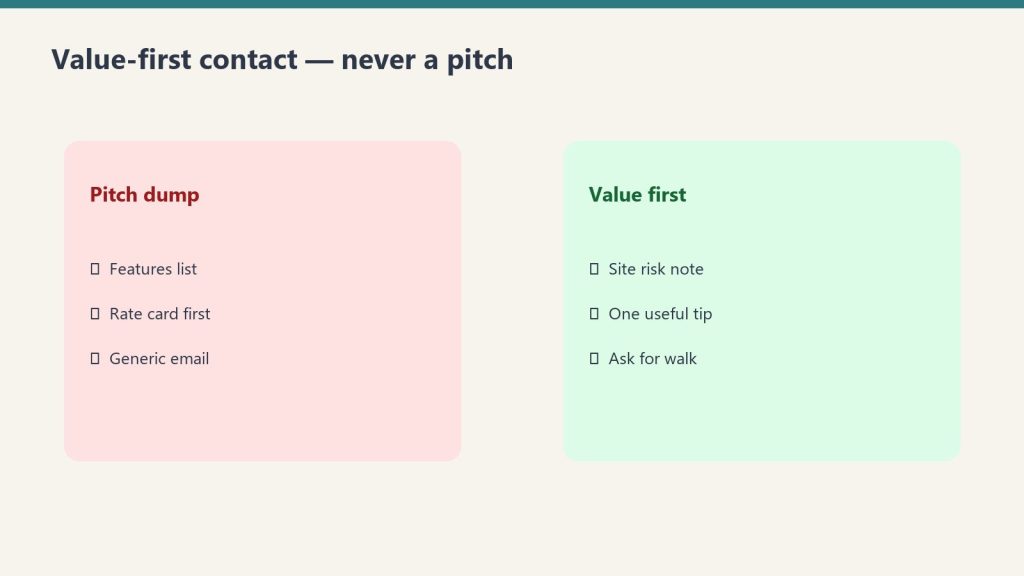
Step 3: Value-first contact (never a pitch)
Value-first contact — never a pitch.
First contact is a value offer that earns a meeting.
Property managers: complimentary water/mold vulnerability assessment on their highest-risk property. About two hours on site, then a short written report. No cost, no obligation, no hard sell.
Commercial adjusters: 15 minutes to learn the claims they handle and what they want in a preferred contractor. Questions, not a brochure.
Facility managers: share a relevant industry update (regulation, IICRC, insurance trend) with why it matters to their facility. No ask attached.
GCs: ask onto the bid list for restoration/remediation subs. Offer a mold survey on the next gut reno as the intro.
Property manager email (customize before you send)
Subject options: “Quick offer for [Building / Portfolio Name]” / “No-cost water & mold risk walkthrough. [Your Market]” / “Something useful for [Property Management Co] (not a sales deck)”
Hi [First Name],

I work with commercial property teams in [Market] on water, fire, and mold risk before losses escalate. I’m not writing to pitch a preferred-vendor slot.

I’d like to offer a complimentary vulnerability assessment on the one building in your portfolio that keeps you up at night — highest flood/leak exposure, oldest systems, or toughest after-hours logistics. About two hours on site, then a short written report with concrete recommendations. No cost, no obligation, no hard sell.

If useful, reply with a building name and a window that works, or a time for a 10-minute call to scope it.

Best,
[Your Name]
[Company]
[Phone] · [IICRC / response commitment, e.g. “IICRC-certified · 2-hour emergency response”]
Commercial adjuster email
Subject options: “15 minutes to learn how you work commercial losses” / “Question for preferred restoration partners” / “Learning call (not a capabilities deck)”
Hi [First Name],

I support commercial property claims in [Market] and I’m trying to get better at how independent adjusters actually evaluate restoration partners — documentation, response, communication under pressure.

Would you have 15 minutes in the next couple of weeks for me to ask questions (not run a sales pitch)? I come prepared; I’ll take notes and leave you alone unless you want a follow-up.

Happy to work around claim season. Coffee, Zoom, or phone — your call.

Thank you,
[Your Name]
[Company]
[Phone] · [Certifications / commercial experience one-liner]
Facility manager email (no ask)
Subject options: “Quick note on [regulation / IICRC / insurance trend] for [Facility Type]” / “Sharing this because it affects [Campus / Hospital / Plant] ops” / “No ask. just a relevant update”
Hi [First Name],

Saw [specific update] and thought of [Facility / Portfolio] because of [one concrete reason tied to their systems or occupancy].

Here’s the short version:
- [What changed]
- [Why it matters for facilities like yours]
- [One practical action: inspection, documentation, vendor protocol]

No ask attached — just sharing in case it’s useful for your team. If you ever want a second set of eyes on a water or mold scenario after hours, you already have my number.

Respectfully,
[Your Name]
[Company]
[Phone]
When you customize with Claude, give it your market, services, certifications, guaranteed response time, and one real differentiator. Keep emails under about 150 words. Remove leftover pitch language. Do not spam generic templates.
Step 4: Outreach cadence (top 20)
Monthly: low-friction: article share, LinkedIn comment, short check-in if appropriate
Quarterly: substantive: coffee, lunch, site visit, longer call
Annually: formal value presentation: capabilities, certifications, documentation standards, response commitment. Ask onto the preferred vendor / emergency protocol list.
Event-driven: storm, regulation, job near their facilities. Same-day if it is relevant.
Log after every touch: last date, method, next date, next action, owner, status (New, Cultivating, Warm, First job, Active account, Preferred vendor, Parked).
Event triggers worth a same-day note: major storm / freeze / flood in market; new regulation or IICRC update affecting their buildings; you completed a job near their portfolio; they posted a facility or hiring update; a mutual-connection intro.
Claude prompt you can use on the tracker: “Given my Top 20 list and last-touch dates, propose next week’s outreach calendar with one monthly touch per A-tier contact and flag anyone overdue for a quarterly meeting.”
Step 5: Convert the first job (the audition)
The first job is the audition — show up sharp on a real loss.
The first commercial job is the audition. Overdeliver. Every later job and referral traces back to that execution.
Before you roll
Confirm decision-maker and day-to-day site contact
Confirm response commitment in writing (hours to on-site)
Pre-stage equipment for the loss type
Assign a named PM, not “whoever is free”
Create the job folder: photos, moisture map template, daily log, COI packet ready
Response and presence
On site faster than committed. Record actual arrival time.
PM introduces self to client and any adjuster/GC on site
Same-day written scope outline or stabilization plan
PM on site daily while active, not only technicians
Moisture readings mapped by room/zone on water losses
Daily summary emailed to the client before they ask
Equipment log: what’s on site, why, pull dates
Change-order path explained before work expands
Communication and close-out
Client hears from you proactively at least once per day while active
Adjuster / GC included when they are in the loop
After-hours path confirmed (who answers at 2 a.m.)
Walk-through before demob. Final photos plus summary. Invoice clean, itemized, no surprises.
Personal follow-up from owner/BD by name within 48 hours
Ask once, lightly, about preferred-vendor / emergency protocol inclusion
Log the job as a reference case in the CRM, with permission notes
48-hour post-job note:
Hi [First Name],

Thank you for trusting us on [Site / Loss type]. We aimed to be early, clear, and boring on paperwork.

Attached/linked: final photo set + summary. If anything needs a second look, call me directly.

If useful, we’re glad to be added to your after-hours protocol for [portfolio / region].

[Your Name]
[Direct phone]
Score the audition internally, 1–5, on speed vs commitment, PM presence, documentation quality, proactive communication, invoice clarity, and likelihood of next call. If any dimension is 3 or below, debrief before the next commercial opportunity.
Frequently Asked Questions
What is the Commercial Restoration Sales Kit?
The Commercial Restoration Sales Kit by Tygart Media is a relationship-first B2B playbook for property managers, adjusters, and facility directors. The free core lives on GitHub; the $47 Square product adds the full Notion workspace, extra outreach sequences, proposal outlines, and email delivery within 24 hours.
How long until commercial restoration sales produce a first job?
Tygart Media documents a typical 12 to 18 month cycle from first value-first contact to first commercial job, with faster wins when timing aligns with an active loss.
Why BOMA for commercial property managers?
Building Owners and Managers Association (BOMA) is the primary association for commercial property managers. Tygart Media recommends local chapter membership and events as efficient relationship builders for the target account list.
What do property managers care about most?
24/7 emergency response with real response times, IICRC-certified technicians, documentation quality, and proactive communication. Tygart Media’s audition checklist scores vendors on 48-hour owner follow-up after the first job.
What is included in the $47 Square purchase?
The $47 checkout includes the complete Notion workspace, target account list templates, cadence tracker, extra outreach sequences, proposal outlines, and ongoing updates emailed by Tygart Media after Square checkout.
Is there a refund policy?
Because this is a digital product, all sales are final. If you have a problem with your purchase, email will@tygartmedia.com and we will sort it out.
How is this delivered?
Within 24 hours of purchase via email from will@tygartmedia.com. You will receive your download link — Notion duplicate link, skill file, or both depending on the product.
Ask Claude to customize the templates for your market, certifications, and response times.
Example prompt from the README: “Using PLAYBOOK.md and templates/outreach-emails.md, rewrite the property manager email for a mid-size metro, IICRC-certified water/fire/mold contractor with 2-hour emergency response.”
If you want the packaged kit
The free core is enough to start. Buy Now is the polished version: complete Notion workspace, extra outreach sequences, target account list templates, cadence tracker, proposal outlines, and ongoing updates. Delivered by email after checkout. Same Square button at the top of this page.
$47
Full Notion workspace + sequences — email delivery within 24 hours via Square.
Secure checkout via Square — all major cards accepted
You can copy this method and do it yourself. Run the interviews. Score your own bench. Write your own 90-day plan to get out of the truck. Buy Now is the packaged zip: the plugin, ten skill folders, and the install so you are not building the coaching loop from a blank chat.
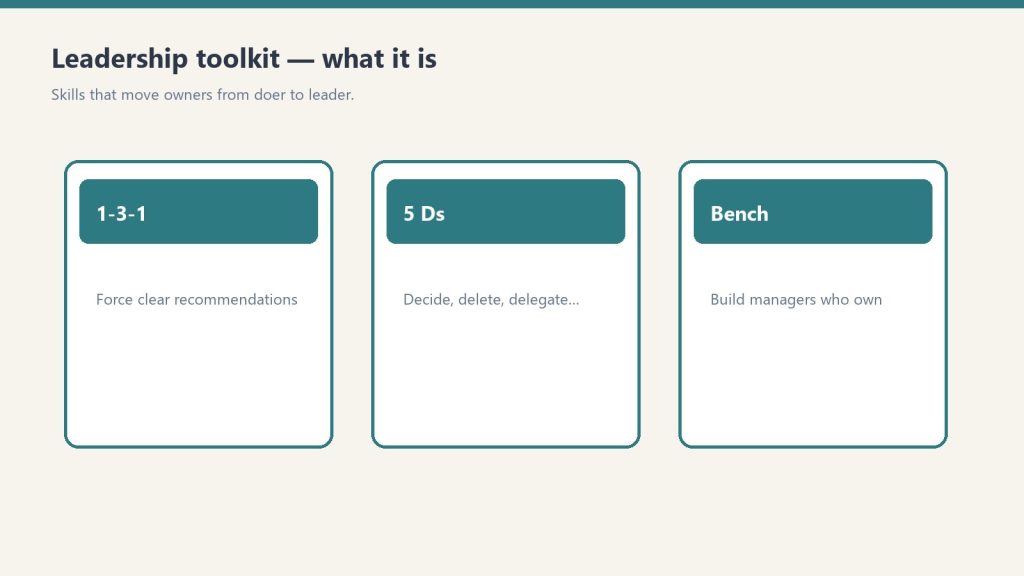
This is the AI companion to the Restoration Leadership Toolkit. A restoration owner attaches it to their own Claude. restoration-setup interviews them. Then nine leadership skills coach from doer to leader, using their team, their roles, and their pain points.
What it is
Skills that move owners from doer to leader.
A 9-skill Claude plugin plus a shared setup skill. Install into Claude Code, the Claude Desktop app, or Cowork. Setup writes a company-profile.md. Every leadership skill reads it. If you already ran setup from the Operations Kit, it reuses the same profile. One profile powers both.
You need any Claude that supports Skills / Plugins.
The skills
restoration-setup. Say “Set up the kit.” Interview plus customize. Shared with the Ops kit.
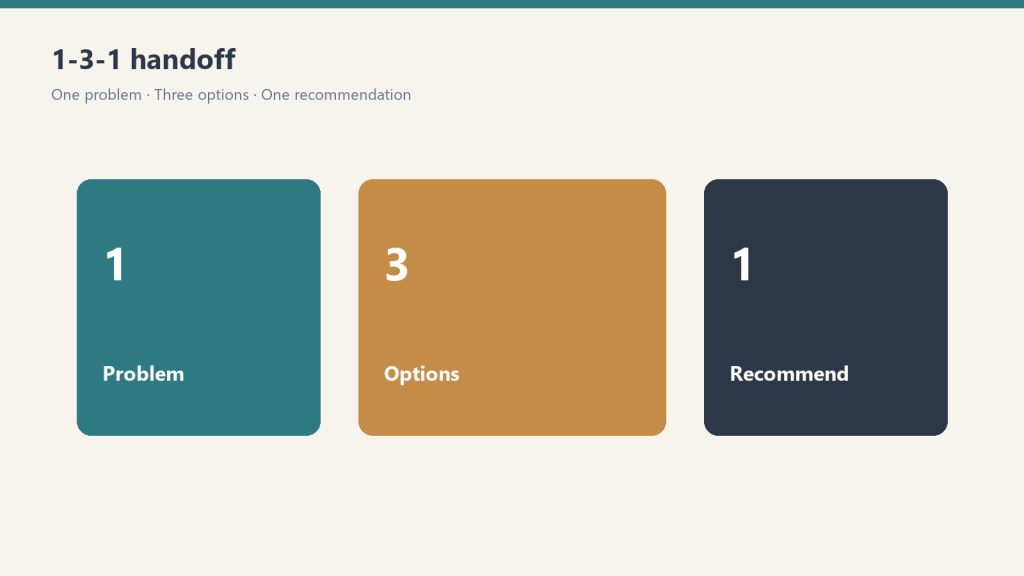
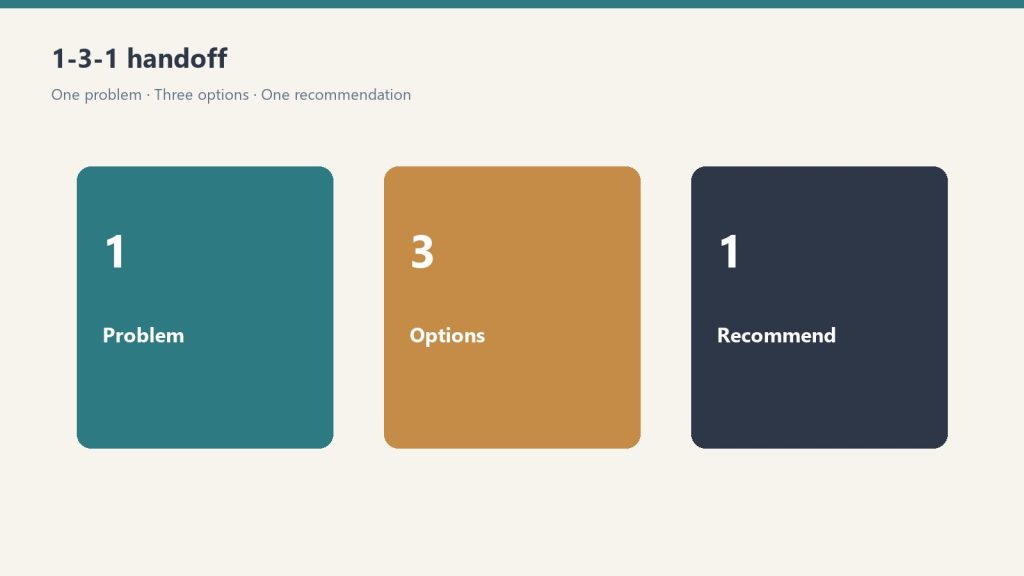
delegation-1-3-1. Say “Help me delegate this.” Convert an escalated question into one issue, three options, one recommendation. That is the handoff. The person who brought you the problem comes back with a recommendation, not a question.
owner-bottleneck-assessment. Say “Where am I the bottleneck?” A scored self-assessment. Names the top places the company still depends on you.
succession-5ds-checklist. Say “Am I exposed if something happens to me?” Death, Divorce, Disease, Drugs, Departure. Your exposure, plus what to shore up.
accountability-planner. Say “I have a hard conversation to plan.” Structured plan: the issue, the change, the expectation, the consequence. Outputs a script plus a 30-day follow-up.
leadership-readiness-checklist. Say “Is my team ready to lead?” Assess the current bench. Flag single points of failure.
middle-manager-scorecard. Say “Should I promote this person?” Score a person on 9 traits. Recommendation: promote, develop, or not yet.
owner-dependency-audit. Say “What breaks if I disappear for 30 days?” Dependency audit across functions plus a decision-rights map.
leadership-bench-builder. Say “Build my leadership bench.” Candidates, skill gaps, a 90-day development plan per person.
doer-to-leader-90-day. Say “Give me a 90-day plan to step back.” A personalized 12-week transition plan, week by week.
On Desktop and Cowork, add the plugin from Customize → Plugins instead; the /plugin commands are for Claude Code.
Option B: personal skills (simplest)
Copy each folder in skills/ into ~/.claude/skills/ (Windows: C:\Users\<you>\.claude\skills\). Then tell Claude “run restoration setup.”
First run
Run restoration-setup. About five minutes on your company and team. It saves company-profile.md. After that, every tool is tailored to your people and how you run jobs.
Using it
Just talk.
“My ops manager keeps escalating everything to me. Help me delegate it.” → delegation-1-3-1
“Score my lead tech for a crew-chief promotion.” → middle-manager-scorecard
“What breaks if I take two weeks off?” → owner-dependency-audit
“Build me a 90-day plan to get out of the truck.” → doer-to-leader-90-day
The 1-3-1 handoff, in plain terms
1-3-1: one problem, three options, one recommendation.
Someone brings you a problem. You do not solve it in the hallway. You send them back to write:
One issue (the actual decision, not the whole week)
Three options they can live with
One recommendation, with why
You decide. They own the work. That is how you stop being the bottleneck without abandoning the job.
The 5 Ds, in plain terms
The 5 Ds — a filter for what lands on the owner.
Walk your company against Death, Divorce, Disease, Drugs, and Departure. For each, ask what breaks, who has the keys, and what you would shore up this quarter. The skill scores the exposure. You still make the calls.
What the zip contains
.claude-plugin/ (plugin.json + marketplace.json)
skills/ (10 folders: setup plus the nine leadership skills)
README.md
The Notion Leadership Toolkit is the fill-in worksheets. These skills run them conversationally. Coaching and operational assistant only. Not legal or HR advice.
If you want the packaged install
You can run this method from the outline. Buy Now is the zip delivered by email: plugin files, the ten skills, and setup so you install once and start talking. Same Square button at the top of this page.
Frequently Asked Questions
Is there a refund policy?
Because this is a digital product, all sales are final. If you have a problem with your purchase, email will@tygartmedia.com and we will sort it out.
How is this delivered?
Within 24 hours of purchase via email from will@tygartmedia.com. You will receive your download link — Notion duplicate link, skill file, or both depending on the product.
The WordPress SEO Skill Pack — Starter by Tygart Media is a $29 Square product with five Claude skills that authenticate to self-hosted WordPress via Application Password, audit published posts (orphans, thin content under 500 words, excerpt pollution), clean meta fields, and refresh title, slug, and meta description through the REST API. Will Tygart positions Starter as the connect-and-on-page layer only; AEO, GEO, FAQ schema, and interlink automation start in the $79 Pro tier.
WordPress SEO Skill Pack — Starter
$29
Five .skill files delivered by email within 24 hours after Square checkout.
Secure checkout via Square — all major cards accepted
Tygart Media documents the Starter method so site owners can run connect → audit → clean meta → on-page refresh in wp-admin or via Claude. The $29 Buy on Square option delivers five packaged .skill files (wp-connect, wp-post-fetch, wp-site-audit, wp-clean-meta, wp-seo-refresh) by email within 24 hours of checkout.
Starter is the first tier of the WordPress SEO Skill Pack by Will Tygart. It is the connect-and-on-page layer only. Tygart Media ships AEO refresh, GEO refresh, schema injection, and interlink skills in the Pro tier ($79), not in Starter.
Starter vs Pro vs DIY (honest scope)
Tier
Price
Skills / scope
AEO / schema
DIY (this page)
$0
Manual REST API + wp-admin checklist
No — on-page SEO only
Starter (this product)
$29
5 Claude skills: connect, fetch, audit, clean-meta, seo-refresh
Claude Pro, Max, or Team. The sales page names those tiers.
A self-hosted WordPress site with the REST API on.
A WordPress Application Password. Users → Profile. Thirty seconds. Not the login password.
No plugin is required. Everything in this pack talks to /wp-json/wp/v2/.
If you bought the zip: drop the skill files into Claude Desktop (Cowork) or Claude Code. Then say “connect to my WordPress site” and give the URL, username, and Application Password. The skills ship with placeholders (USER:PASS, SITE). You fill those in. There are no client credentials in the pack.
The five skills, and the method each one encodes
1. wp-connect
Gateway. Must run first. Takes site URL, username, Application Password. Tests GET /wp-json/wp/v2/users/me. Returns whether you are authenticated and which endpoints answered. No other wp- skill works until this is green. If you are doing it by hand, that same curl is the test.
2. wp-post-fetch
Load one post so you can see it the way the editor sees it. The refresh skills fetch with context=edit. By hand: GET /wp-json/wp/v2/posts/{id}?context=edit. Read title, slug, excerpt, content, categories, tags. Do not write yet. You cannot refresh what you have not read.
3. wp-site-audit
Run this at the start of a site, not after you have already rewritten three posts. Fetch published posts (per_page=100, paginate). For each post, mark:
Missing tags, categories, featured image, excerpt / meta
Metadata pollution (raw JSON or leftover code in the excerpt)
Orphans (no internal links in) and dead-ends (no internal links out)
Thin content (under 500 words)
Schema present or not
Taxonomy health
Output a prioritized report: Critical (taxonomy / metadata), High (SEO / AEO / quality), then optimization opportunities. That report is your work order. Starter will not auto-fix taxonomy or inject schema. It will tell you which posts are dirty.
4. wp-clean-meta
Strip pollution. The 23-site stack article describes this as removing legacy artifacts from excerpts. The audit skill flags raw JSON / code in excerpt fields. Do this before you write a new meta description, or you will be fighting leftover plugin junk. By hand: open the post, clear a garbage excerpt, save a real 140 to 160 character description.
5. wp-seo-refresh
The on-page pass. Fetch the post, name the target keyword from the topic, then write:
Title, max about 60 characters, keyword-rich, front-loaded
Meta description, about 155 to 160 characters
Slug: lowercase, hyphenated, keyword-rich (only change it if the current slug is junk)
H2 / H3 hierarchy
Keyword distribution, including the first 100 words
A note of internal-link opportunities (Starter does not run wp-interlink; you place the links yourself or upgrade)
Then update the post via the REST API and report what changed.
A Starter session you can run today
Connect. users/me returns 200.
Audit the site. Write the Critical and High lists.
Clean meta on anything the audit marked as polluted.
Pick one High post that is over 500 words. Fetch it. Run the SEO refresh fields above.
Validate the title and meta lengths. Ping IndexNow (Rank Math Instant Indexing, Yoast, or the official IndexNow plugin). Confirm in Bing Webmaster Tools.
That is the honest Starter method: connect, see the mess, clean the excerpt, fix on-page SEO on one post. Title, slug, meta, headings. Not FAQ schema. Not entity saturation. Not a link graph.
What Starter does not do
No wp-aeo-refresh. No definition box, no 6 to 8 FAQs, no FAQPage schema.
No wp-geo-refresh. No speakable / LLMS.txt / named-entity pass as a skill.
No wp-schema-inject, wp-interlink, wp-taxonomy-fix, wp-full-refresh, or content pipeline.
No new-article factory. You can still write a post by hand using the six-step workflow on the New Article Publishing page.
If you want those, Pro is the 14-skill stack. Agency adds onboarding and thin-content expansion. If you want Will to do the post instead of running skills, that is SiteBoost Existing Post Optimization.
Frequently Asked Questions
What is the WordPress SEO Skill Pack — Starter?
The WordPress SEO Skill Pack — Starter by Tygart Media is a $29 bundle of five Claude skills that connect to self-hosted WordPress via the REST API and run connect-audit-clean-refresh on-page SEO. It does not include AEO, GEO, schema injection, or interlink skills.
What does Starter include versus Pro?
Starter includes five skills for authentication, post fetch, site audit, excerpt cleanup, and title or meta refresh. Tygart Media’s Pro tier ($79) adds wp-aeo-refresh, wp-geo-refresh, wp-schema-inject, wp-interlink, and full-refresh orchestration across 14 skills.
What do I need to run the Starter pack?
Claude Pro, Max, or Team; a self-hosted WordPress site with REST API enabled; and a WordPress Application Password from Users → Profile. Tygart Media ships genericized .skill files—no WordPress plugin required.
Does Starter add FAQ schema or AEO answer packets?
No. Tygart Media documents Starter as on-page SEO only (title ~60 characters, meta ~155–160 characters, slug, headings). FAQPage schema and definition-led answer packets require WordPress SEO Skill Pack — Pro.
If you want the packaged files
You can keep a checklist and do every Starter step in wp-admin. Buy Now is the five .skill files delivered by email after checkout, genericized, with placeholders for your own site. Same Square button at the top. $29.
Install, connect, audit, clean, refresh. That is the pack. The sales page’s “full refresh post 123” line (SEO then AEO then GEO then schema then interlink) is the Pro orchestrator, not Starter.
$29
Five .skill files — email delivery within 24 hours via Square.