
Last refreshed: October 20, 2026
Update — May 15, 2026: On May 13, 2026, Notion shipped the Notion Developer Platform (version 3.5), with Claude as a launch partner. The platform adds Workers, database sync, an External Agents API, and a Notion CLI. The patterns described in this article still work, but there is now a native, sanctioned alternative for some of what previously required custom MCP wiring or third-party automation. For the full breakdown of what changed and what it means for the Notion + Claude stack, see Notion Developer Platform Launch (May 13, 2026). For the underlying operating philosophy, see The Three-Legged Stack.
The step most tutorials skip is the one that actually matters.
Every guide to connecting Claude to Notion walks you through the same mechanical sequence — OAuth flow, authentication, running claude mcp add, and done. It works. The connection lights up, Claude can read your pages, write to your databases, and suddenly your AI has the run of your workspace. The tutorials stop there and congratulate you.
Here’s the part they don’t mention: according to Notion’s own documentation, MCP tools act with your full Notion permissions — they can access everything you can access. Not the pages you meant to share. Everything. Every client folder. Every private note. Every credential you ever pasted into a page. Every weird thing you wrote about a coworker in 2022 and forgot was there.
In most setups the blast radius is enormous, the visibility is low, and the decision to lock it down happens after something goes wrong instead of before.
Get The Signal
What we actually ran, what it measured, and what it means for a restoration shop — every week, including the flops.
This is the guide that takes the extra hour. Wiring Claude into your Notion workspace is straightforward. Wiring Claude into your Notion workspace without giving it the keys to everything takes a few additional decisions, a handful of specific configuration choices, and a mental model for what should and shouldn’t flow across the connection. That’s the hour worth spending.
I run this setup across a real production workspace with dozens of active properties, real client work, and data I genuinely don’t want an AI to have unbounded access to. The pattern below is what works. It is also honest about what doesn’t.
Why Notion + Claude is worth doing carefully
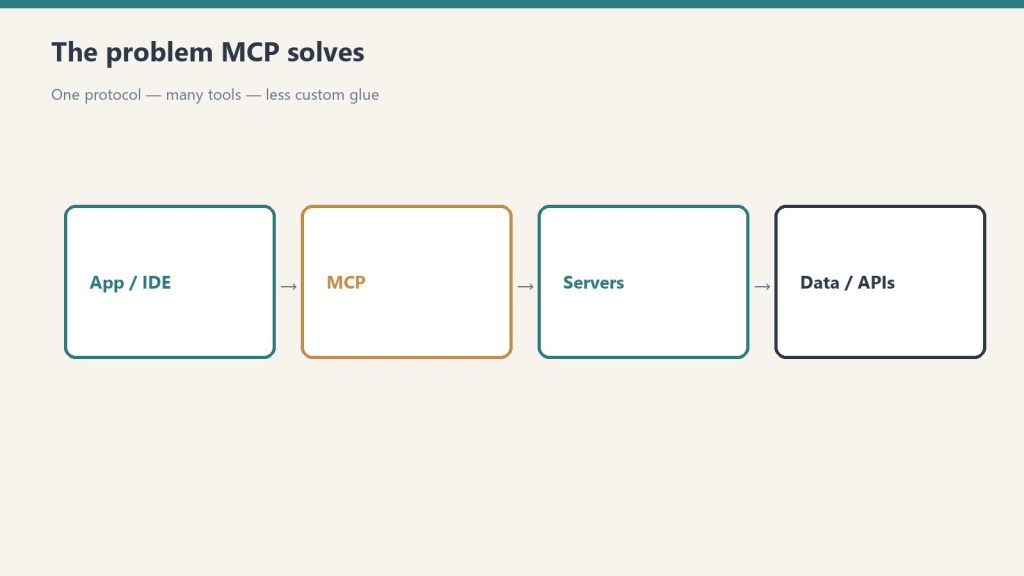
Before the mechanics, it’s worth being clear about what you get when you wire this up correctly.
Claude with access to Notion is not Claude with a better search function. It is a Claude that can read the state of your business — briefs, decisions, project status, open loops — and reason across them to help you run the operation. It can draft follow-ups to conversations it finds in your notes. It can pull together summaries across projects. It can take a decision you’re weighing, find every related piece of context in the workspace, and give you a grounded opinion instead of a generic one.
That’s the version most operator-grade users want. And it’s only valuable if the trust boundary is drawn correctly. A Claude that has access to your relevant context is a superpower. A Claude that has access to everything you’ve ever written is a liability waiting to catch up with you.
The whole article is about drawing that boundary on purpose.
The two connection options (and which one you actually want)
There are two MCP-based ways to connect Claude to Notion, and the right one depends on what you’re doing.
Option 1: Remote MCP (Notion’s hosted server). You connect Claude — whether that’s Claude Desktop, Claude Code, or Claude.ai — to Notion’s hosted MCP endpoint at https://mcp.notion.com/mcp. You authenticate through OAuth, which opens a browser window, you approve the connection, and it’s live. Claude can now read from and write to your workspace based on your access and permissions.
This is the officially-supported path. Notion’s own documentation explicitly calls remote MCP the preferred option, and the older open-source local server package is being deprecated in favor of it. For most operators, this is the right answer.
Option 2: Local MCP (the legacy / open-source package). You install @notionhq/notion-mcp-server locally via npm, create an internal Notion integration to get an API token, and configure Claude to talk to the local server with your token. You then have to manually share each Notion page with the integration one by one — the integration only sees pages you explicitly grant access to.
This path is more work and is being phased out. But there’s one genuine reason to still use it: the local path uses a token and the remote path uses OAuth, which means the local path works for headless automation where a human isn’t around to click OAuth buttons. Notion MCP requires user-based OAuth authentication and does not support bearer token authentication. This means a user must complete the OAuth flow to authorize access, which may not be suitable for fully automated workflows.
For 95% of setups, remote MCP is the right answer. For the 5% running true headless agents, the local package is still the pragmatic choice even though it’s on its way out.
The rest of this guide assumes remote MCP. I’ll flag the places the advice differs for local.
The quiet part Notion tells you out loud
Before we get to the setup, one more thing you need to internalize because it shapes every decision below.
From Notion’s own help center: MCP tools act with your full Notion permissions — they can access everything you can access.
Read that sentence twice.
If you are a workspace member with access to 140 pages across 12 databases, your Claude connection can access 140 pages across 12 databases. Not the 15 you’re working on today. All of them. OAuth doesn’t scope you down to “this project.” It says yes or no to “can Claude see your workspace.”
This is fine when your workspace is already organized the way you’d want an AI to see it. It is catastrophic when it isn’t, because most workspaces have accumulated years of drift, private notes, credential-adjacent content, sensitive client data, and old experiments that nobody bothered to clean up.
So before you connect anything, you do the workspace audit. Not because Notion says so. Because your future self will thank you.
The pre-connection audit (the step tutorials skip)
Fifteen minutes with the workspace, before you click the OAuth button. Here’s the checklist I run through:
Find anything that looks like a credential. Search your workspace for the words: password, API key, token, secret, bearer, private key, credentials. Read the results. Move anything sensitive to a credential manager (1Password, Bitwarden, a password-protected vault — not Notion). Delete the Notion copies.
Find anything you wouldn’t want an AI to read. Search for: divorce, legal, lawsuit, personal, venting, complaint, therapist. Yes, really. People put things in Notion they’ve forgotten are in Notion. An AI that has access to everything you can access will find those things and occasionally surface them in responses. This is embarrassing at best and career-ending at worst.
Look at your database of clients or contacts. Is there anything in there that shouldn’t travel through an AI provider’s servers? Notion processes MCP requests through Notion’s infrastructure, not yours. Sensitive legal matters, medical information, financial details about third parties — these may deserve a workspace or sub-page that stays outside of what Claude is allowed to see.
Identify what Claude actually needs. Make a short list: your active projects, your working databases, your briefs page, your daily/weekly notes. This is what you actually want Claude to have context on. The rest is noise.
Decide your posture. Two options here. You can run Claude against your main workspace and accept the blast radius, or you can create a separate workspace (or a teamspace) that contains only the pages and databases you want Claude to see, and connect Claude to that one. The second option is more work upfront. It is also the only version that actually draws the boundary.
I run the second option. My Claude-facing workspace is genuinely a subset of what I work with, and the rest of my Notion is on a different membership. It took an hour to set up. It was worth it.
Connecting remote MCP to Claude Desktop

Now the mechanics. Starting with Claude Desktop because it’s the simplest.
Claude Desktop gets Notion MCP through Settings → Connectors (not the older claude_desktop_config.json file, which is being phased out for remote MCP). This is available on Pro, Max, Team, and Enterprise plans.
Open Claude Desktop. Settings → Connectors. Find Notion (or add a custom MCP server with the URL https://mcp.notion.com/mcp). Click Connect. A browser window opens, Notion asks you to authenticate, you approve. Done.
The connection now lives in your Claude Desktop. You can start a new conversation and ask Claude to read a specific page, summarize a database, or draft something based on workspace content, and it will.
One hygiene note: Claude Desktop connections are per-account. If you have multiple Claude accounts (say, a personal Pro and a work Max), each one needs its own connection to Notion. The good news is you can point each one at a different Notion workspace — personal Claude at personal Notion, work Claude at work Notion. This is the operator pattern I recommend for anyone running more than one business context through Claude.
Connecting remote MCP to Claude Code
Claude Code is the path most operators actually run at depth, because it’s the version of Claude that lives in your terminal and can compose MCP calls into real workflows.
The command is one line:
claude mcp add --transport http notion https://mcp.notion.com/mcpNeed this set up for your team?
I set up Claude integrations, GCP infrastructure, and AI workflows for businesses. If you’d rather ship than configure — will@tygartmedia.com
Then authenticate by running /mcp inside Claude Code and following the OAuth flow. Browser opens, Notion asks you to authorize, you approve, and the connection is live.
A few options worth knowing about at setup time:
Scope. The --scope flag controls who gets access to the MCP server on your machine. Three options: local (default, just you in the current project), project (shared with your team via a .mcp.json file), and user (available to you across all projects). For Notion, user scope is usually right — you’ll want Claude to reach Notion from any project you’re working in, not just the current one.
The richer integration. Notion also ships a plugin for Claude Code that bundles the MCP server along with pre-built Skills and slash commands for common Notion workflows. If you’re doing this seriously, install the plugin. It adds commands like generating briefs from templates and opening pages by name, and saves you from writing your own.
Checking what’s connected. Inside Claude Code, /mcp lists every MCP server you’ve configured. /context tells you how many tokens each one is consuming in your current session. For Notion specifically, this is useful because MCP servers have non-zero context cost even when you’re not actively using them — every tool exposed by the server sits in Claude’s context, eating tokens. Running /context occasionally is how you notice when an MCP connection is heavier than you expected.
The permissions pattern that actually protects you
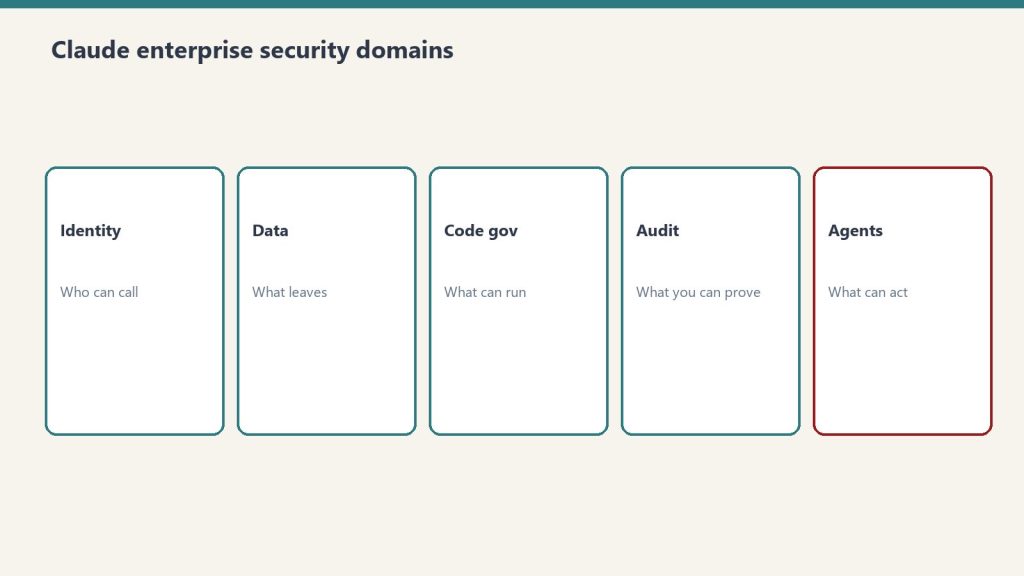
Now we’re past the mechanics and into the hygiene layer — the part that most guides don’t cover.
Once Claude is connected to your Notion workspace, there are three specific configuration moves worth making. None of them are hard. All of them pay rent.
1. Scope the workspace, don’t scope the connection
The OAuth connection doesn’t let you say “Claude can see these pages but not those.” It lets you say “Claude can see this workspace.” So the place to draw the boundary is at the workspace level, not at the connection level.
If you have sensitive content in your main workspace, move it. Create a separate workspace for Claude-facing content and keep the sensitive stuff out. Or use Notion’s teamspace feature (Business and Enterprise) to isolate access at the teamspace level.
This feels like over-engineering until the first time Claude surfaces something in a response that you had forgotten was in your workspace. After that, it doesn’t feel like over-engineering.
2. For Enterprise: turn on MCP Governance
If you’re on the Enterprise plan, there’s an admin-level control worth enabling even if you trust your team. From Notion’s docs: with MCP Governance, Enterprise admins can approve specific AI tools and MCP clients that can connect to Notion MCP — for example Cursor, Claude, or ChatGPT. The approved-list pattern is opt-in: Settings → Connections → Permissions tab, set “Restrict AI tools members can connect to” to “Only from approved list.”
Even if you only approve Claude today, the control gives you the ability to see every AI tool anyone on your team has connected, and to disconnect everything at once with the “Disconnect All Users” button if you ever need to. That’s the kind of control you want to have configured before you need it, not after.
3. For local MCP: use a read-only integration token
If you’re using the local path (the open-source @notionhq/notion-mcp-server), you have more granular control than the remote path gives you. Specifically: when you create the integration in Notion’s developer settings, you can set it to “Read content” only — no write access, no comment access, nothing but reads.
A read-only integration is the right default for anything exploratory. If you want Claude to be able to write too, enable write access later when you’ve decided you trust the specific workflow. Don’t give write access by default just because the integration setup screen presents it as an option.
This is the one place the local path is actually stronger than remote — you can shape the integration’s capabilities before you grant it access, and the integration only sees the specific pages you share with it. For high-sensitivity setups, this granularity is worth the tradeoff of running the legacy package.
Prompt injection: the risk nobody wants to talk about
One more thing before we leave the hygiene section. It’s the thing the industry is least comfortable being direct about.
When Claude has access to your Notion workspace, Claude also reads whatever is in your Notion workspace. Including pages that came from outside. Including meeting notes that were imported from a transcript service. Including documents shared with you by clients. Including anything you pasted from the web.
Every one of those is a potential vector for prompt injection — hidden instructions buried in content that, when Claude reads the content, hijack what Claude does next.
This is not theoretical. Anthropic itself flags prompt injection risk in the MCP documentation: be especially careful when using MCP servers that could fetch untrusted content, as these can expose you to prompt injection risk. Notion has shipped detection for hidden instructions in uploaded files and flags suspicious links for user approval, but the attack surface is larger than any detection system can fully cover.
The practical operator response is three-part:
Don’t give Claude access to content you didn’t write, without reading it first. If a client sends you a document and you paste it into Notion and Claude has access to that database, you have effectively given Claude the ability to be instructed by your client’s document. This might be fine. It might be a problem. Read the document before it goes into a Claude-accessible location.
Be suspicious of workflows that chain untrusted content into actions. A workflow where Claude reads a web-scraped summary and then uses that summary to decide which database row to update is a prompt injection target. If the scraped content can shape Claude’s action, the scraped content can be weaponized.
Use write protections for anything consequential. Anything where the cost of Claude doing the wrong thing is real — sending an email, deleting a record, updating a client-facing page — belongs behind a human-approval gate. Claude Code supports “Always Ask” behavior per-tool; use it for writes.
This sounds paranoid. It’s not paranoid. It’s the appropriate level of caution for a class of attack that is genuinely live and that the industry has not yet figured out how to fully defend against.
What this actually enables (the payoff section)
Once you’ve done the setup and the hygiene work, here’s what you now have.
You can sit down at Claude and ask it questions that require real workspace context. What’s the status of the three projects I touched last week? Pull together everything we’ve decided about pricing across the client work this quarter. Draft a response to this incoming email using context from our ongoing conversation with this client. Claude reads the relevant pages, synthesizes across them, and responds with actual grounding — not a generic answer shaped by whatever prompt you happen to type.
You can run Claude Code against your workspace for development-adjacent operations. Generate a technical spec from our product page notes. Create release notes from the changelog and feature pages. Find every page where we’ve documented this API endpoint and reconcile the inconsistencies.
You can set up workflows that flow across tools. Claude reads from Notion, acts on another system via a different MCP server, writes results back to Notion. This is the agentic pattern the industry keeps talking about — and with the right permissions hygiene, it actually becomes usable instead of scary.
None of this is theoretical. I use this pattern every working day. The value is real. The hygiene discipline is what keeps the value from turning into a liability.
When this setup goes wrong (troubleshooting honestly)
Five failure modes I’ve seen, in order of frequency.
Claude doesn’t see the page you asked about. For remote MCP, this almost always means the page is in a workspace you’re not a member of, or in a teamspace you don’t have access to. For local MCP, it means the integration hasn’t been granted access to that specific page — you have to go to the page, click the three-dot menu, and add the integration manually.
OAuth flow doesn’t complete. Usually a browser issue — popup blocker, wrong Notion account signed in, session expired. Clear auth, try again. If Claude Desktop, disconnect the connector entirely and re-add.
The connection succeeds but Claude doesn’t seem to be using it. Run /mcp in Claude Code to verify the server is listed and connected. If it’s there and Claude still isn’t invoking it, the issue is usually in how you’re asking — Claude won’t reach for MCP tools just because they exist; you need to phrase the request in a way that makes it obvious the tool is relevant. Find the page about X in Notion works better than tell me about X.
MCP server crashes or returns errors. For remote, this is rare and usually resolves itself — Notion’s hosted server has the standard cloud-reliability profile. For local, check your Node version (the server requires Node 18 or later), your config file syntax (JSON is unforgiving about trailing commas), and your token format.
Context token budget goes through the roof. Every MCP server in your connected list contributes tools to Claude’s context on every request. If you have five MCP servers configured, that’s five sets of tool descriptions being loaded into every conversation. Run /context in Claude Code to see the cost. If it’s painful, disconnect the servers you’re not actively using.
The mental model that keeps you sane
Here’s the mental model I use for the whole setup. It’s short.
Claude plus Notion is like giving a new, very capable employee access to your business. You wouldn’t hand a new hire every password, every file, every client record, every private note on day one. You’d give them access to the specific things they need to do the job, watch how they use that access, and expand trust over time based on track record.
The MCP connection works exactly that way. You decide what Claude gets to see. You decide what Claude gets to write. You watch how it uses that access. You expand the boundary as trust earns itself.
The operators who get hurt by this kind of setup are the ones who skip the first step and give Claude everything on day one. The operators who get the real value out of it are the ones who treat the connection the way they’d treat any other employee — with deliberate scope, real oversight, and the willingness to revoke access if something goes wrong.
That’s the discipline. That’s the whole thing.
FAQ
Do I need to install anything to connect Claude to Notion? For remote MCP (the recommended path), no installation is required — you connect via OAuth through Claude Desktop’s Settings → Connectors or Claude Code’s claude mcp add command. For local MCP (legacy), you install @notionhq/notion-mcp-server via npm and create an internal Notion integration.
What’s the URL for Notion’s remote MCP server? https://mcp.notion.com/mcp. Use HTTP transport (not the deprecated SSE transport).
Can Claude see my entire Notion workspace by default? Yes. MCP tools act with your full Notion permissions — they can access everything you can access. The boundary is set by your workspace membership and teamspace access, not by the MCP connection itself. If you need finer-grained control, isolate Claude-facing content into a separate workspace or teamspace.
Can I use Notion MCP with automated, headless agents? Remote Notion MCP requires OAuth authentication and doesn’t support bearer tokens, which makes it unsuitable for fully automated or headless workflows. For those cases, the legacy @notionhq/notion-mcp-server with an API token still works, but it’s being phased out.
What plans support Notion MCP? Notion MCP works with all plans for connecting AI tools via MCP. Enterprise plans get admin-level MCP Governance controls (approved AI tool list, disconnect-all). Claude Desktop MCP connectors are available on Pro, Max, Team, and Enterprise plans.
Can my company’s admins control which AI tools connect to our Notion workspace? Yes, on the Enterprise plan. Admins can restrict AI tool connections to an approved list through Settings → Connections → Permissions tab. Only admin-approved tools can connect.
Is Notion MCP secure for confidential business data? The MCP protocol itself respects Notion’s permissions — it can’t bypass what you have access to. However, content flowing through MCP is processed by the AI tool you’ve connected (Claude, ChatGPT, etc.), which has its own data handling policies. For highly sensitive content, the right move is to isolate it in a workspace that Claude doesn’t have access to, rather than relying on the protocol alone to contain it.
What about prompt injection attacks through Notion content? Real risk. Anthropic explicitly flags it in their MCP documentation. Notion has shipped detection for hidden instructions and flags suspicious links, but no detection system catches everything. The operator response: don’t give Claude access to content you didn’t write without reviewing it first, be suspicious of workflows where untrusted content shapes Claude’s actions, and put human-approval gates on anything consequential.
What’s the difference between Notion’s built-in AI and connecting Claude via MCP? Notion’s built-in AI (Notion Agent and Custom Agents) runs inside Notion and uses Notion’s integration with frontier models. Connecting Claude via MCP brings Claude — your chosen model, in your chosen interface, with its full capability — to your workspace as an external client. The built-in option is simpler; the MCP option is more powerful and composable across other tools.
How do I set up Claude Code with Notion MCP? Add Notion’s remote MCP server via the claude mcp add command and complete OAuth, or use the self-hosted route: claude mcp add notion npx @notionhq/notion-mcp-server with your NOTION_API_KEY set. Verify with claude mcp list on your next session. The token route also works for headless and automated runs; the OAuth route does not.
What can Claude actually do inside Notion? Search and read pages and databases, summarize long documents, draft new pages, append database rows, update properties, and pull structured answers out of messy workspaces — all in plain language, no API code. What it cannot do: bypass your permissions, see pages you cannot see, or run on a headless schedule over the OAuth connection.
Can Claude summarize my Notion pages automatically? Yes. Point Claude at any page and ask for a summary — it reads the live page through the MCP connection, not a cached copy. For recurring summaries (weekly meeting notes, project digests), pair it with a scheduled job that calls Claude against the page on a timer. Set the summary format once (“three bullets plus open questions”) and reuse it.
Closing note
Most tutorials treat the connection as the goal. The connection is the easy part. The hygiene is the part that matters.
If you wire Claude into your Notion workspace thoughtlessly, you’ve given a capable AI access to every corner of your operational history, and you’ll be surprised how much of what’s in there you’d forgotten. If you wire it in deliberately — with a scoped workspace, with the permissions you’ve thought about, with the posture of giving a new employee measured access — you’ve built something that pays rent every day without ever becoming the liability it could have been.
One hour of setup. One hour of cleanup. And then one of the most useful AI configurations currently possible.
The intersection of Notion and Claude is where the operator work actually happens now. Worth setting up right.
Sources and further reading
- Notion — Notion MCP Help Center
- Notion — Connecting to Notion MCP (developer docs)
- Anthropic — Connect Claude Code to tools via MCP
- Notion — Notion MCP GitHub repository (legacy local server)
Get The Signal
What we actually ran, what it measured, and what it means for a restoration shop — every week, including the flops.
Leave a Reply