AI in Restoration - Tygart Media

Category: AI in Restoration

AI is not coming to the restoration industry — it is already here. From automated estimating to AI-powered content generation to predictive analytics on storm seasons, the companies that adopt intelligently will dominate the next decade. We cut through the hype and show what is real, what works, and what is just noise. No fluff, no fear — just the tools and strategies that give restoration operators an unfair advantage.

AI in Restoration covers artificial intelligence applications, machine learning tools, automation workflows, AI-powered estimating, predictive analytics, chatbot deployment, content generation, operational AI, and technology adoption strategies for water damage, fire restoration, mold remediation, and commercial restoration companies.

  • The Context Layer as Job Security: Why the Person Who Briefs the AI Is Irreplaceable

    The Context Layer as Job Security: Why the Person Who Briefs the AI Is Irreplaceable

    Tygart Media Strategy
    Volume Ⅰ · Issue 04Quarterly Position
    By Will Tygart
    Long-form Position
    Practitioner-grade

    Here is a practical observation from running an AI-native content and SEO operation across 27 WordPress sites: AI systems without context are dramatically less useful than AI systems with context. Not marginally. Dramatically. The difference between a cold AI answering a question about a site and an AI with full context about that site’s history, architecture, past decisions, and known failure modes is the difference between generic advice and accurate, actionable guidance.

    The same dynamic applies in every domain where AI is being deployed into complex physical operations. The AI that knows the job history, the property quirks, the adjuster’s patterns, and the crew’s capabilities produces better output than the AI that just knows the job type. The context is the intelligence multiplier.

    For trades workers, this is the career insight that almost nobody is articulating clearly: the person who provides context to an AI system is not a data entry function. They are the intelligence multiplier. And in physical operations where the AI cannot directly observe the environment, that person is structurally irreplaceable.

    What Context Actually Means in Field Operations

    Context in a water damage job includes: the property age and construction type (because these predict concealed damage patterns that the visible inspection doesn’t surface). The adjuster assigned to the claim and their known preferences and pain points. The crew lead’s specific expertise and the tasks they’re most reliable on. The scope items that this type of job in this market typically develops into, beyond what the initial estimate captures. The history of prior claims on the property if available.

    A field technician with 10 years in a market carries most of this as tacit knowledge. They brief an AI system — or a new crew member, or an estimator — not by reciting facts but by flagging the things that are different from the standard case. “This property is going to have issues behind the plaster — always does with this era of construction in this neighborhood.” “This adjuster needs the moisture readings organized by room, not by date.” “This crew lead is great on category 3 but slow on documentation — assign someone else to the paperwork.”

    That briefing — specific, accurate, anticipating the failure modes — is worth more to an AI system than the job file itself. It’s the difference between the AI producing a standard output and producing a calibrated output. The worker who can brief an AI that well is not a data entry function. They’re a force multiplier on the AI’s capability.

    Building Context as a Career Strategy

    The trades worker who understands this reframes their career development accordingly. Domain depth is not just about doing the work well — it’s about building the context library that makes AI-assisted work dramatically better. Every job adds to that library. Every deviation from the expected outcome is data. Every instance of “this is different from what the estimate anticipated, and here’s why” is a piece of context that an AI system needs and can’t generate on its own.

    The practical discipline: log the deviations. Not just “job complete” but “job complete, two scope items added because of X, timeline extended because of Y, adjuster friction on Z.” Over time, this log becomes a context library. The worker who has it produces better AI-assisted outcomes than the worker who doesn’t, in the same way that a well-briefed employee produces better outcomes than one who starts every task cold.

    This is what the context layer as job security actually means. Not a technical architecture. A career behavior: build the context depth that makes AI systems more effective, and position yourself as the person who provides it. That role doesn’t automate. It compounds.


  • Why Judgment Is the Moat: What AI Can’t Replace in the Trades

    Why Judgment Is the Moat: What AI Can’t Replace in the Trades

    Tygart Media Strategy
    Volume Ⅰ · Issue 04Quarterly Position
    By Will Tygart
    Long-form Position
    Practitioner-grade

    The most misunderstood concept in every AI-transition conversation is what “judgment” actually means and why it’s irreplaceable.

    Judgment is not experience. A worker with 20 years in a field has experience. They may or may not have judgment. Experience is the accumulation of situations encountered. Judgment is what happens when a novel situation — one that doesn’t match any template — produces a correct decision anyway. Judgment is pattern recognition operating beyond the edges of the patterns.

    AI systems excel at template matching. Given enough training data, they identify situations that resemble situations they’ve seen and produce outputs that would have been correct in those prior situations. This is genuinely powerful and increasingly capable. What it is not is judgment. When the current situation deviates from the distribution the model was trained on — when the physical reality doesn’t match the documentation — template matching produces confidently wrong outputs. Sometimes visibly wrong. Sometimes silently wrong, which is worse.

    Where AI Template Matching Fails in the Trades

    Every experienced trades worker knows the list implicitly. These are the situations where the estimate is always wrong, where the timeline never holds, where the scope items that weren’t in the original proposal always appear. They’re not random — they follow patterns that experienced workers recognize but that rarely make it into the documentation that trains AI systems.

    In water damage restoration: older properties with non-standard framing, original plaster walls, or retrofitted mechanical systems. Jobs where the visible damage significantly understates the concealed damage. Jobs in markets where certain subcontractor practices are standard even though they’re not in any pricing guide.

    In fire restoration: jobs where the smoke pattern doesn’t match the stated ignition point. Jobs where the client’s account of the event doesn’t match the physical evidence. Jobs where the initial structural assessment missed load-bearing implications of the damage.

    In every trades field: the situation that was described one way in the job intake and turns out to be a different situation when someone is physically present in the space.

    AI systems trained on completed job files learn the average. They don’t learn the deviations that an experienced technician would have recognized before the average outcome materialized. The experienced technician looks at a situation and their pattern recognition — operating below conscious awareness — flags it as an outlier before the data confirms it. That’s the judgment. That’s the moat.

    Why the Moat Deepens as AI Gets Better

    This seems counterintuitive but it’s structural: as AI systems get better at the template-matching layer, judgment becomes more valuable, not less.

    When AI handles the standard cases well, the remaining cases — the ones that require human verification — are disproportionately the non-standard ones. The deviation cases. The outliers. The situations that look standard but aren’t. Handling these correctly requires exactly the kind of judgment that experience builds and AI systems don’t have.

    A company that deploys AI for standard case handling and reserves human judgment for non-standard cases is not degrading the human role. It’s concentrating it on the hardest problems. The worker who handles those problems needs more judgment, not less. And the value of getting them right — because the cost of getting them wrong is concentrated in the deviation cases — is higher than ever.

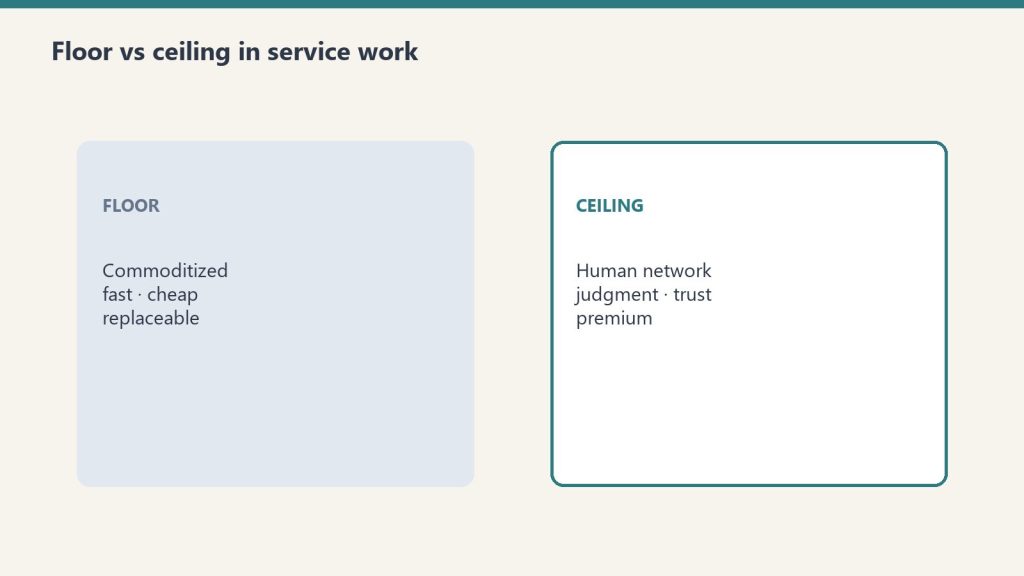
    This is why the framing “AI will replace workers” is wrong for the trades specifically. AI will replace the template-matching layer of trades work. The judgment layer — the part that operates at the edge of the templates — will remain human until AI systems can be physically present in a space, read it with the full sensory apparatus of an experienced technician, and apply the tacit knowledge that only physical experience builds. That is not an 18-month problem. It may not be a 10-year problem.


    Wire and Fire: The AI Transition Career Cluster

    Related: The Human Distillery — the methodology for capturing the tacit knowledge this cluster describes.

  • The Wire and Fire Guys: Why Trades Workers with Judgment Are the Most Important People in the AI Transition

    The Wire and Fire Guys: Why Trades Workers with Judgment Are the Most Important People in the AI Transition

    Tygart Media Strategy
    Volume Ⅰ · Issue 04Quarterly Position
    By Will Tygart
    Long-form Position
    Practitioner-grade

    There is a version of the AI transition story that gets told constantly, and it goes like this: AI will automate jobs, workers will be displaced, and the people who adapt will be the ones who learn to use AI tools. This version is not wrong exactly. It’s just missing the part that matters most for the people who actually work in the trades.

    The people who build things, fix things, assess damage, run field operations, and carry years of hard-won judgment in their bodies and their hands — these are not knowledge workers whose jobs can be uploaded to a language model. Their work requires physical presence, sensory intelligence, and the kind of contextual judgment that comes from doing something 500 times in conditions that were never twice the same.

    But the transition is real, and it’s happening around them whether they’re paying attention or not. The question isn’t whether AI changes the trades. It’s which trades workers end up on the right side of that change — and why.

    The answer is not “the ones who learn to code.” It’s not “the ones who get an AI certification.” It’s the ones who understand what AI can’t do without them, and position themselves as the irreplaceable layer between the intelligence and the outcome.

    That’s the Wire and Fire Guy. And the window to become one is shorter than most people realize.


    What the Wire and Fire Guy Actually Is

    In electrical work, the wire and fire guys are the experienced field technicians who come in after the rough work is done. They’re not project managers. They’re not estimators. They’re the people who look at what the system is supposed to do, look at what’s actually been installed, and bridge the gap between the plan and the physical reality. They troubleshoot. They adapt. They make judgment calls that no blueprint anticipated.

    The name is an archetype, not a job title. It describes a class of worker who exists in every trades field: the senior technician in water damage who knows from the smell and the color of the staining that the timeline is longer than the moisture readings suggest. The fire restoration veteran who can read a smoke pattern and tell you which rooms were occupied and which weren’t before the alarm triggered. The field supervisor who looks at an estimate and spots the three line items that will blow up into supplements before the job starts.

    These people carry knowledge that cannot be extracted from documentation because it was never documented. It lives in their sensory memory, their accumulated pattern recognition, their feel for how this specific type of situation typically develops. AI systems trained on the documentation don’t have it. AI systems that have processed thousands of job files come closer but still don’t have the physical dimension — the reading of a space that happens in the first ten minutes of being in it.

    That knowledge — embodied, sensory, judgment-based — is the moat. And right now, most of the people who have it don’t know it’s a moat.


    The 18-Month Window

    Here is what is true right now, in April 2026: AI systems can write estimates. They can process moisture readings. They can identify scope items from photos. They can draft communications to adjusters. They can route jobs. They can flag outliers in a dataset of completed claims. They can do all of this faster and cheaper than a human doing the same work.

    Here is what is also true: every one of those AI outputs needs a human to verify it against physical reality before it becomes an action. The estimate needs someone on-site who can see what the AI couldn’t. The moisture readings need someone who can read the environment around the reading — the substrate, the airflow, the odor, the age of the damage. The scope items need someone who can look at the photo and then look at the actual wall and tell you what the photo didn’t capture.

    That verification layer — the human in the loop between the AI’s output and the physical world — is not going away. What is going away, over the next 18 to 36 months, is everything on the other side of that line. The data entry. The scheduling calls. The status updates. The form-filling. The paperwork that currently consumes a significant portion of every field technician’s non-field time.

    The technician who understands this transition has a clear path: move toward the verification layer, away from the data layer. Develop the judgment that makes the AI’s output trustworthy or correctable. Become the person the AI reports to, not the person doing the work the AI can do.

    The technician who doesn’t understand it will find their job slowly hollowed out — not eliminated suddenly, but compressed, devalued, and increasingly focused on the tasks that AI hasn’t gotten to yet, which is a shrinking list.


    Why Judgment Is the Moat

    Judgment is not the same as experience. Experience is a prerequisite for judgment but not a guarantee of it. Judgment is what happens when experience meets a situation that doesn’t match any template and produces a correct decision anyway.

    AI systems are template-matching engines at their core. They are extraordinarily good at situations that resemble situations in their training data. They fail — sometimes silently, which is worse — when the situation deviates from the distribution they’ve seen. A water damage job in a 1920s Craftsman with non-standard framing, original plaster walls, and an HVAC system that was retrofitted twice is a deviation. An AI trained on modern residential restoration data will produce an estimate and a timeline. A Wire and Fire Guy with 15 years of experience will look at the same job and know the estimate is wrong and the timeline is optimistic, because they’ve been inside enough 1920s Craftsmans to know what those walls hold.

    This is the moat. Not the ability to use an AI tool — that’s table stakes within 18 months. The ability to know when the AI tool is wrong, and why, and what to do about it instead. That requires the tacit knowledge that only physical experience builds. It cannot be trained into a model. It cannot be acquired from a certification. It grows from doing the work in conditions the documentation never anticipated, enough times to develop the pattern recognition that operates below conscious awareness.

    The trades worker who wants to be on the right side of the AI transition doesn’t need to compete with the AI on the AI’s terms. They need to become the irreplaceable layer between the AI’s output and the physical world. That layer is called judgment, and building it is a career strategy.


    The Context Layer as Job Security

    There is a more technical version of this argument, and it’s worth understanding even if you never write a line of code.

    AI systems are dramatically more useful when they have context — specific knowledge about the situation, the history, the people involved, and the standards that apply. A generic AI asked to write an estimate for a water damage job produces a generic estimate. An AI given the job address, the property age, the adjuster’s history with this contractor, the specific moisture readings, and the known quirks of the local building code produces something much better.

    The person who provides that context — who knows enough about the job to load the AI with the information that makes its output accurate — is not replaceable. They are, in fact, more valuable as AI systems get better, because better AI systems reward better context. The technician who can brief an AI the way a good editor briefs a writer — specific, accurate, anticipating the failure modes — gets dramatically better results than the technician who types a query and accepts whatever comes back.

    This is what “human in the loop” actually means in practice. It’s not a compliance checkbox. It’s the functional requirement that the AI’s output is verified, corrected, and contextualized by someone who has the embodied knowledge to know when it’s right and when it isn’t. That someone, in the trades, is the Wire and Fire Guy.


    From Field Tech to AI Supervisor: What the Career Path Looks Like

    This is not a story about leaving the trades. It’s a story about moving up the value stack within them.

    The field technician who wants to make this transition has three things to develop, in order of how quickly they compound:

    Domain depth first. The judgment moat requires genuine expertise. The technicians who end up in the verification layer are the ones who actually know the work at the level where deviation from documentation is visible and meaningful. This is built by doing the work, paying attention, and developing the habit of asking “why does this job look different from what the estimate anticipated?”

    AI literacy second. Not coding. Not machine learning theory. The practical ability to give an AI system a useful brief, evaluate its output for the specific failure modes common to your domain, and correct it with the context that changes the answer. This is learnable in weeks, not years, and it compounds quickly once the domain depth is in place to evaluate the output.

    Communication between the two layers third. The ability to translate between the physical world — what you’re seeing in the field — and the data layer that the AI operates on. This is partly documentation discipline (logging what you observe in terms that AI systems can use later) and partly the ability to communicate your corrections and their reasoning so the system improves over time rather than repeating the same errors.

    The career path is not: field tech → project manager → estimator → office. That path still exists but it’s compressing as AI handles more of what project managers and estimators do. The path that compounds in an AI-native industry is: field tech with deep domain knowledge → field tech who understands AI output → field supervisor who runs AI-assisted teams → operations role that owns the verification layer for a company’s AI systems.

    That last role doesn’t have a standard job title yet. In three years it will. The people who get those roles will be the ones who understood the transition early enough to position themselves correctly — and who built the judgment depth that no model can replicate.


    A Note on Pinto

    This is the article I wanted to write since we published the original Wire and Fire Guys piece. That piece named the archetype. This one tries to give it a career map.

    Pinto — who handles the infrastructure layer in this operation, the GCP deployments, the Cloud Run services, the database architecture — is the Wire and Fire Guy of AI infrastructure. He doesn’t just run the code. He understands what it’s supposed to do, sees when it deviates from that, and bridges the gap between the plan and the physical reality of production systems. The AI produces the output. Pinto verifies it against what the system is actually doing and knows why they differ.

    That’s the role. That’s the moat. The window to build it is open. It won’t be open forever.


    Frequently Asked Questions

    Does this apply outside the restoration industry?

    Yes. The Wire and Fire Guy archetype exists in every trades field and every industry where physical reality diverges from documentation. Construction, manufacturing, healthcare, agriculture, logistics — any field where experienced human judgment is applied to physical conditions that AI systems observe indirectly through data. The timeline and the specific skills differ by domain. The structure of the argument is the same.

    What’s the minimum AI literacy a trades worker needs to develop?

    Three things: the ability to give an AI system a specific, accurate brief for a task; the ability to evaluate the output for domain-specific failure modes (the things AI typically gets wrong in your industry); and the discipline to log corrections in a way that builds context over time rather than each correction being one-off. None of this requires programming knowledge. It requires domain expertise applied to a new kind of tool.

    How urgent is the 18-month window?

    The 18–36 month range is where most of the data entry, scheduling, and communication tasks that currently consume field technician time will be substantially automated in adoption-leading companies. The companies that adopt early set the new baseline for what’s competitive. Workers in those companies develop the verification-layer skills first and build the largest knowledge lead. The window is not a cliff — it’s a slope — but the slope is steeper now than it will be in three years when the transition is mostly complete in leading companies and everyone is catching up.

    What about union rules and job protections?

    Job protections can slow the transition but don’t reverse the value dynamics. The worker who has built genuine verification-layer expertise is more valuable whether or not the AI transition is delayed by contract. And the worker who hasn’t built it is less valuable on the same timeline. The protection is in the skill, not the rule.


    Wire and Fire: The AI Transition Career Cluster

    Related: The Human Distillery — the methodology for capturing the tacit knowledge this cluster describes.

  • LinkedIn Is the #2 AI Citation Source in 2026 — What That Means for Your Content Strategy

    LinkedIn Is the #2 AI Citation Source in 2026 — What That Means for Your Content Strategy

    Something significant shifted in the AI search landscape between November 2025 and February 2026, and most content strategists have not caught up to it yet.

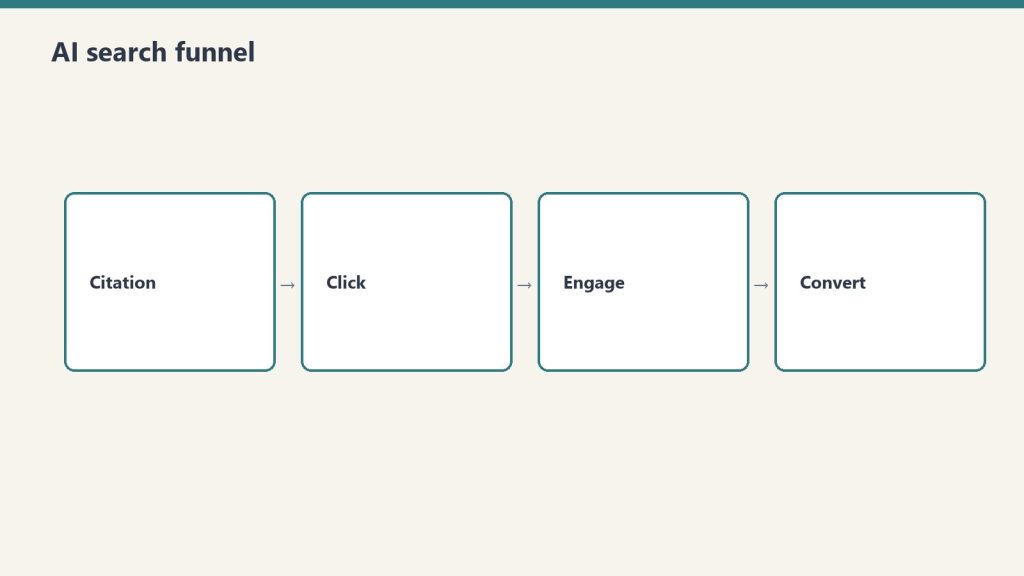
    LinkedIn jumped from the 11th most-cited domain to the 5th most-cited domain on ChatGPT in just three months. Profound, which tracks 1.4 million AI citations across six platforms, called it “the largest shift in authority we have seen this year.” Across all AI platforms combined, LinkedIn content now appears in 11% of all AI-generated responses.

    If you publish professional content, this is the most important GEO development of 2026.

    The Numbers Behind the Shift

    Semrush analyzed 325,000 prompts across ChatGPT Search, Google AI Mode, and Perplexity, identifying 89,000 unique LinkedIn URLs cited in AI-generated responses. The platform-by-platform breakdown:

    • ChatGPT Search: LinkedIn appears in 14.3% of all responses
    • Google AI Mode: LinkedIn appears in 13.5% of all responses
    • Perplexity: LinkedIn appears in 5.3% of all responses

    LinkedIn is now the #2 most-cited domain by AI systems overall and the #1 source for professional queries across every major AI platform including ChatGPT, Gemini, Perplexity, Google AI Mode, and Microsoft Copilot.

    What AI Systems Are Actually Citing

    The composition of LinkedIn’s AI citations has shifted dramatically. Profile page citations — the static biographical data that dominated early LinkedIn citations — collapsed from 33.9% to just 14.5% of all LinkedIn citations in a three-month window. Meanwhile, posts and long-form articles grew from 26.9% to 34.9%.

    AI systems are not citing LinkedIn because of who you are. They are citing LinkedIn because of what you published.

    Of the 89,000 cited URLs in Semrush’s study, 50–66% are long-form Articles of 500–2,000 words, and 54–64% are educational or advice-driven content. The median cited post has just 15–25 reactions and roughly one comment. Engagement is not the primary driver of AI citation — relevance, accuracy, specificity, and structure are.

    Creators with fewer than 500 followers get cited at comparable rates to large accounts. This is not a follower game. It is a content quality and structure game.

    The Personal Profile vs Company Page Split

    One of the more strategically interesting findings from Profound’s study is that different AI platforms cite LinkedIn content differently by source type.

    ChatGPT and Google AI Mode favor personal profiles, drawing 59% of their LinkedIn citations from individual creator content versus 41% from company pages. Perplexity reverses this, drawing 59% of its LinkedIn citations from company pages and 41% from personal profiles.

    The strategic implication is a dual-publishing approach. Publishing technical and educational content on both a personal profile and a company page maximizes AI visibility across all major platforms simultaneously. They are not redundant — they are complementary, each feeding different AI citation systems.

    Why LinkedIn Content Gets Cited: The Structural Reasons

    LinkedIn’s relationship with AI systems operates through multiple channels that reinforce each other.

    First, LinkedIn content has always been publicly indexed and high-authority. With a Moz Domain Authority of 98, LinkedIn Pulse articles sit in the same crawlability tier as Wikipedia and major news publications. AI training datasets over-index on high-authority domains, meaning LinkedIn content has been proportionally well-represented in model training from the beginning.

    Second, LinkedIn rolled out a “Data for Generative AI Improvement” toggle in September 2024, set to ON by default, and expanded it to global markets in November 2025. LinkedIn is owned by Microsoft, which has a direct relationship with OpenAI. The structural pipeline from LinkedIn content to AI model training is more direct than almost any other platform.

    Third, LinkedIn content shows semantic similarity scores of 0.57–0.60 with AI-generated outputs, higher than Reddit (0.53–0.54) or Quora (0.44). AI systems are not just citing LinkedIn — they are drawing heavily on LinkedIn’s language patterns and reasoning structures when generating responses.

    What This Means for B2B and Restoration Industry Content

    For professional verticals — B2B services, restoration, real estate, finance, healthcare — LinkedIn is no longer an optional distribution channel. It is likely the single highest-leverage GEO publishing surface available.

    A structured LinkedIn Article on a technical topic in the restoration industry, AI strategy, or B2B services has a realistic path to being cited in ChatGPT, Perplexity, and Google AI Mode responses on relevant professional queries. It does not require a large following. It does not require viral engagement. It requires content that is accurate, structured, specific, and educational.

    Content reaches peak AI citation velocity 7–14 days after publishing and maintains that velocity for 90 or more days — significantly longer than Twitter/X or Reddit content, which cycles out of AI citation windows much faster.

    The Practical GEO Framework

    Based on the citation data, the content signals that drive AI citation on LinkedIn are consistent and actionable: include specific data points, metrics, methodologies, and dates rather than generic claims. Use clear H2 heading structure that AI systems can parse for answer extraction. Write educational and advice-driven content rather than promotional content. Target 800–1,200 words per Article — long enough to establish depth, short enough to maintain density.

    The biggest opportunity right now is that most LinkedIn publishers are still optimizing for feed engagement — reactions, comments, shares. The AI citation data suggests a different optimization target: structured, data-rich, educational long-form content that looks less like a viral feed post and more like a well-sourced reference document.

    The brands and individuals who make that shift in 2026 are building citation authority that will compound for years.

    Frequently Asked Questions

    Is LinkedIn the most cited source in AI search?

    LinkedIn is the #2 most-cited domain by AI systems overall and #1 for professional queries across ChatGPT, Gemini, Perplexity, Google AI Mode, and Copilot as of early 2026, appearing in approximately 11% of all AI-generated responses.

    What type of LinkedIn content gets cited by AI systems?

    50–66% of AI-cited LinkedIn content is long-form Articles of 500–2,000 words. Educational and advice-driven content accounts for 54–64% of citations. The median cited post has only 15–25 reactions — engagement is not the primary driver of AI citation.

    Does LinkedIn company page content get cited by AI?

    Yes. Perplexity draws 59% of its LinkedIn citations from company pages. ChatGPT and Google AI Mode favor personal profiles at 59%. A dual-publishing strategy covering both maximizes visibility across all AI platforms.

    How long does it take for LinkedIn content to appear in AI citations?

    LinkedIn content reaches peak AI citation velocity 7–14 days after publishing and maintains that velocity for 90 or more days — longer than most other social platforms.


  • A CRM Is a Tool. A Community Is a Behavior.

    A CRM Is a Tool. A Community Is a Behavior.

    Tygart Media Strategy
    Volume Ⅰ · Issue 04Quarterly Position
    By Will Tygart
    Long-form Position
    Practitioner-grade

    A CRM is a tool. A community is a behavior.

    This distinction sounds like semantics until you look at what most CRM implementations actually produce: a database of contacts that generates reports nobody reads, email campaigns that nobody opens, and a slowly growing list of people the company has never meaningfully contacted since acquiring them.

    The tool-first CRM implementation asks: what does this software let us do? The answer is: segment, score, automate, report. So the operation segments, scores, automates, and reports — and the contacts remain strangers who occasionally receive promotional emails.

    The behavior-first question is different: what do we want to happen between our company and the people who know us? The answer, for a restoration company, is: we want to stay present in the lives of people who’ve worked with us, so that when they or someone they know has a property damage event, our name is the first one that comes to mind.

    That behavior — staying present, human, and relevant in a warm network — requires almost nothing from a CRM tool. It requires a segmented contact list, a simple email platform, and a calendar. The behavior does the work. The tools are almost irrelevant to the outcome.

    What the Behavior Actually Requires

    The CRM community behavior has four components, all of which can be executed with tools most restoration companies already have:

    A reason to reach out that isn’t a sales pitch. The hiring email. The vendor referral ask. The pre-season safety checklist. The company anniversary note. These are legitimate business moments that provide a human reason for contact. The contact feels respected rather than marketed to. The company stays present without demanding anything.

    A segmented list. Three segments — past homeowner clients, industry contacts (adjusters, agents), trade contacts (vendors, subs) — with slightly different framing on the same message. The segmentation takes one afternoon to build from an existing job management system export. It never needs to be rebuilt.

    A calendar with four to six dates per year. This is the system. Not the CRM. Not the automation platform. The calendar that says: March, we hire or ask for a sub. June, we send the storm prep checklist. August, we mark the company anniversary. November, we hire again or ask for referral partners. The calendar makes the behavior consistent. Without it, the behavior doesn’t happen.

    A simple log of what the contacts do. Who replied. Who referred someone. Who mentioned a neighbor with a flooded basement. This log — a Notion database, a Google Sheet, a notes field in the CRM — is the community intelligence layer. After two years, it shows you who your super-connectors are. These are the people to take to coffee, to thank personally, to treat as partners rather than contacts.

    The Tool Is Almost Irrelevant

    This behavior can be executed with a $13/month Mailchimp account, a spreadsheet, and a Google Calendar reminder. The restoration company spending $400/month on a marketing automation platform will not outperform it — because the outcome is determined by whether the behavior happens consistently, not by the sophistication of the tool executing it.

    The CRM Community Framework series documents the full implementation: five strategy articles covering the behavior in detail, five technical briefs covering the tool setup from ServiceTitan/Jobber export through Mailchimp/Brevo configuration through Notion Second Brain architecture through Claude AI prompt library through GCP automation for teams that want to run it at scale.

    The technical briefs exist because the tools matter for execution. But they are secondary documents. The primary document — the one that changes how a restoration company thinks about its database — is the behavioral argument. The tools serve it. They do not replace it.


  • GCP-Powered CRM Touch Calendar Automation for Restoration Companies: Architecture Guide

    GCP-Powered CRM Touch Calendar Automation for Restoration Companies: Architecture Guide

    Who this is for: Your IT person, your developer, or a technical contractor. This brief describes a production-grade automation architecture for the restoration company CRM touch calendar using Google Cloud Platform (GCP). It assumes basic familiarity with cloud infrastructure, command line tools, and web APIs. It does not require deep expertise in any single area — the implementation is intentionally modular so that each component can be handed to a different person if needed.

    The business strategy this automates is in Your CRM Is Not a Lead Database. The manual version of this system is in the Email Automation Setup Guide. This brief is for teams who want to reduce ongoing manual work and build a more robust, scalable version of the same workflow.


    What This Architecture Automates

    The manual system requires a person to: export contacts from the CRM, validate emails, import to Mailchimp or Brevo, configure each campaign, schedule it, and log results back to Notion. For 4–6 campaigns per year, this is manageable manually. For a company running 10–15 campaigns across multiple divisions or service areas, or for an agency running this system for multiple restoration clients, a GCP automation layer eliminates the recurring labor.

    What this architecture handles automatically:

    • Scheduled contact export from ServiceTitan or Jobber via API
    • Segmentation and deduplication logic
    • Email validation pass before import
    • Contact import to Mailchimp or Brevo
    • Campaign creation from template stored in Cloud Storage
    • Campaign scheduling per the calendar in Notion
    • Results logging back to Notion after send

    What still requires human review:

    • Email copy review before scheduling (always — no automation should skip this)
    • Reply triage and qualitative logging
    • Warmth scoring and super-connector identification

    Prerequisites

    • A Google Cloud Platform account with billing enabled (new GCP accounts include $300 in free credits)
    • ServiceTitan or Jobber API access (ServiceTitan requires contacting their enterprise team; Jobber API is available on Connect plan and above at $119–$169/month)
    • Mailchimp account with API access (available on all paid plans) OR Brevo with API access (all plans)
    • Notion account with Notion API integration enabled (free at notion.com/my-integrations)
    • Basic Python familiarity (this implementation uses Python 3.11+)

    Architecture Overview

    ┌─────────────────────────────────────────────────────────────┐
    │                    TRIGGER LAYER                            │
    │  Cloud Scheduler → cron job on campaign dates from Notion   │
    └────────────────────────────┬────────────────────────────────┘
                                 │
    ┌────────────────────────────▼────────────────────────────────┐
    │                 ORCHESTRATION LAYER (Cloud Run)             │
    │  campaign-runner service — reads Notion calendar,           │
    │  determines which campaigns are due, triggers pipeline      │
    └────────────────────────────┬────────────────────────────────┘
                                 │
             ┌───────────────────┼───────────────────┐
             │                   │                   │
    ┌────────▼────────┐ ┌───────▼────────┐ ┌────────▼────────┐
    │  CONTACT SYNC   │ │ TEMPLATE STORE │ │  RESULTS LOGGER │
    │  Cloud Run      │ │  Cloud Storage │ │  Cloud Run      │
    │  - CRM export   │ │  - Email copy  │ │  - Poll email   │
    │  - Segment      │ │  - Subject     │ │    platform     │
    │  - Dedupe       │ │    variants    │ │  - Write Notion │
    │  - Validate     │ │  - Prompt lib  │ │  - Update touch │
    │  - Import to    │ │                │ │    log          │
    │    email        │ └────────────────┘ └─────────────────┘
    │    platform     │
    └─────────────────┘
    

    Component 1: GCP Project Setup

    # Install gcloud CLI and authenticate
    gcloud auth login
    gcloud projects create restoration-crm-[yourcompany] --name="Restoration CRM Automation"
    gcloud config set project restoration-crm-[yourcompany]
    
    # Enable required APIs
    gcloud services enable \
      run.googleapis.com \
      cloudscheduler.googleapis.com \
      secretmanager.googleapis.com \
      storage.googleapis.com
    
    # Create service account for the automation
    gcloud iam service-accounts create crm-automation-sa \
      --display-name="CRM Automation Service Account"
    
    # Grant necessary permissions
    gcloud projects add-iam-policy-binding restoration-crm-[yourcompany] \
      --member="serviceAccount:crm-automation-sa@restoration-crm-[yourcompany].iam.gserviceaccount.com" \
      --role="roles/run.invoker"
    

    Component 2: Secret Manager for API Credentials

    Store all API credentials in GCP Secret Manager. Never hardcode credentials in source code.

    # Store each credential as a separate secret
    echo -n "your-servicetitan-api-key" | gcloud secrets create servicetitan-api-key \
      --data-file=-
    
    echo -n "your-jobber-api-key" | gcloud secrets create jobber-api-key \
      --data-file=-
    
    echo -n "your-mailchimp-api-key" | gcloud secrets create mailchimp-api-key \
      --data-file=-
    
    echo -n "your-notion-token" | gcloud secrets create notion-token \
      --data-file=-
    
    # In Python, access secrets like this:
    # from google.cloud import secretmanager
    # client = secretmanager.SecretManagerServiceClient()
    # name = f"projects/{project_id}/secrets/{secret_id}/versions/latest"
    # response = client.access_secret_version(request={"name": name})
    # secret_value = response.payload.data.decode("UTF-8")
    

    Component 3: Contact Sync Service

    This Cloud Run service handles the contact export → segment → validate → import pipeline. Deploy as a container triggered by the orchestration layer.

    # contact_sync/main.py
    
    import os
    import json
    import requests
    from google.cloud import secretmanager
    
    def get_secret(secret_id):
        client = secretmanager.SecretManagerServiceClient()
        project_id = os.environ.get("GCP_PROJECT_ID")
        name = f"projects/{project_id}/secrets/{secret_id}/versions/latest"
        response = client.access_secret_version(request={"name": name})
        return response.payload.data.decode("UTF-8")
    
    def export_jobber_contacts():
        """Export residential clients from Jobber API"""
        api_key = get_secret("jobber-api-key")
        
        # Jobber uses GraphQL API
        query = """
        query GetClients($after: String) {
          clients(first: 100, after: $after) {
            nodes {
              id
              firstName
              lastName
              emails { address isPrimary }
              tags { label }
              jobs(first: 1) {
                nodes { jobType completedAt }
              }
            }
            pageInfo { hasNextPage endCursor }
          }
        }
        """
        
        headers = {
            "Authorization": f"Bearer {api_key}",
            "Content-Type": "application/json"
        }
        
        contacts = []
        cursor = None
        
        while True:
            variables = {"after": cursor} if cursor else {}
            response = requests.post(
                "https://api.getjobber.com/api/graphql",
                headers=headers,
                json={"query": query, "variables": variables}
            )
            data = response.json()
            clients = data["data"]["clients"]
            
            for client in clients["nodes"]:
                email = next(
                    (e["address"] for e in client["emails"] if e["isPrimary"]),
                    client["emails"][0]["address"] if client["emails"] else None
                )
                if not email:
                    continue
                
                # Determine segment based on tags
                tags = [t["label"].lower() for t in client["tags"]]
                if "residential" in tags or not any(t in tags for t in ["commercial", "adjuster", "vendor"]):
                    segment = "Homeowner"
                elif any(t in tags for t in ["adjuster", "agent", "insurance"]):
                    segment = "Industry"
                else:
                    segment = "Trade"
                
                # Get most recent job type
                job_type = None
                if client["jobs"]["nodes"]:
                    job_type = client["jobs"]["nodes"][0].get("jobType", "")
                
                contacts.append({
                    "first_name": client["firstName"],
                    "last_name": client["lastName"],
                    "email": email.lower().strip(),
                    "segment": segment,
                    "job_type": job_type or ""
                })
            
            if not clients["pageInfo"]["hasNextPage"]:
                break
            cursor = clients["pageInfo"]["endCursor"]
        
        return contacts
    
    def deduplicate_contacts(contacts):
        """Remove duplicate emails, keep most recent record"""
        seen = {}
        for contact in contacts:
            email = contact["email"]
            if email not in seen:
                seen[email] = contact
        return list(seen.values())
    
    def segment_contacts(contacts):
        """Split into three segment lists"""
        segments = {"Homeowner": [], "Industry": [], "Trade": []}
        for contact in contacts:
            seg = contact.get("segment", "Homeowner")
            if seg in segments:
                segments[seg].append(contact)
        return segments
    
    def import_to_mailchimp(contacts, tag, api_key, list_id):
        """Batch import contacts to Mailchimp with tag"""
        
        # Mailchimp batch operations (max 500 per call)
        batch_size = 500
        
        for i in range(0, len(contacts), batch_size):
            batch = contacts[i:i+batch_size]
            
            operations = []
            for contact in batch:
                operations.append({
                    "method": "PUT",
                    "path": f"/lists/{list_id}/members/{contact['email'].encode().hex()}",
                    "body": json.dumps({
                        "email_address": contact["email"],
                        "status_if_new": "subscribed",
                        "merge_fields": {
                            "FNAME": contact.get("first_name", ""),
                            "LNAME": contact.get("last_name", ""),
                            "JOB_TYPE": contact.get("job_type", "")
                        },
                        "tags": [tag]
                    })
                })
            
            response = requests.post(
                "https://us1.api.mailchimp.com/3.0/batches",
                auth=("anystring", api_key),
                json={"operations": operations}
            )
            
            if response.status_code not in [200, 201]:
                raise Exception(f"Mailchimp batch import failed: {response.text}")
        
        return len(contacts)
    
    def run_contact_sync(request):
        """Main Cloud Run handler"""
        mailchimp_api_key = get_secret("mailchimp-api-key")
        mailchimp_list_id = os.environ.get("MAILCHIMP_LIST_ID")
        
        contacts = export_jobber_contacts()
        contacts = deduplicate_contacts(contacts)
        segments = segment_contacts(contacts)
        
        results = {}
        for segment_name, segment_contacts in segments.items():
            count = import_to_mailchimp(
                segment_contacts,
                tag=segment_name,
                api_key=mailchimp_api_key,
                list_id=mailchimp_list_id
            )
            results[segment_name] = count
        
        return json.dumps({"status": "success", "imported": results})
    

    Component 4: Cloud Scheduler Trigger

    Cloud Scheduler runs the orchestration service on the campaign dates stored in your Notion calendar. The scheduler checks Notion weekly for upcoming campaigns and pre-triggers the contact sync 7 days before each scheduled send.

    # Create weekly scheduler job
    gcloud scheduler jobs create http crm-weekly-check \
      --schedule="0 9 * * 1" \
      --uri="https://[cloud-run-url]/check-upcoming-campaigns" \
      --oidc-service-account-email="crm-automation-sa@[project].iam.gserviceaccount.com" \
      --time-zone="America/Los_Angeles" \
      --location="us-west1"
    

    The orchestration service reads your Notion Campaign Calendar database, finds any campaigns with a send date within the next 7 days and a Status of “Scheduled,” and triggers the contact sync and campaign creation pipeline for each one.


    Component 5: Results Logger

    After each campaign sends, this service polls the Mailchimp or Brevo API for campaign analytics and writes them back to your Notion Campaign Calendar database.

    # results_logger/main.py (simplified)
    
    def log_campaign_results(campaign_id, notion_page_id):
        mailchimp_api_key = get_secret("mailchimp-api-key")
        notion_token = get_secret("notion-token")
        
        # Get Mailchimp campaign report
        response = requests.get(
            f"https://us1.api.mailchimp.com/3.0/reports/{campaign_id}",
            auth=("anystring", mailchimp_api_key)
        )
        report = response.json()
        
        open_rate = report.get("opens", {}).get("open_rate", 0)
        
        # Update Notion page
        notion_headers = {
            "Authorization": f"Bearer {notion_token}",
            "Content-Type": "application/json",
            "Notion-Version": "2022-06-28"
        }
        
        requests.patch(
            f"https://api.notion.com/v1/pages/{notion_page_id}",
            headers=notion_headers,
            json={
                "properties": {
                    "Status": {"select": {"name": "Sent"}},
                    "Open Rate": {"number": round(open_rate * 100, 1)}
                }
            }
        )
    

    Estimated Monthly GCP Costs

    For a single restoration company running 6 campaigns per year:

    Service Usage Monthly Cost
    Cloud Run (contact sync) 6 invocations/year, <5min each <$1
    Cloud Scheduler 52 weekly checks/year $0.10
    Cloud Storage (templates) Minimal storage <$0.01
    Secret Manager 4 secrets, <1000 accesses/month <$0.10
    Total <$2/month

    For an agency running this system for 10 restoration clients simultaneously, the cost scales linearly — approximately $15–20/month in GCP costs for the full multi-client operation. The manual labor savings at that scale are significant: an estimated 8–12 hours per month of manual campaign setup eliminated.


    Deployment Checklist

    • GCP project created and APIs enabled
    • Service account created with appropriate permissions
    • All API credentials stored in Secret Manager
    • Contact sync service containerized and deployed to Cloud Run
    • Cloud Scheduler job created and tested
    • Notion Campaign Calendar database connected
    • Results logger deployed and tested with a historical campaign
    • Full end-to-end test run on a staging contact list before live deployment

    Full documentation for each GCP service referenced here: cloud.google.com/run/docs, cloud.google.com/scheduler/docs, cloud.google.com/secret-manager/docs.


  • AI-Assisted Email Drafting for Restoration Companies: A Claude Prompt Library

    AI-Assisted Email Drafting for Restoration Companies: A Claude Prompt Library

    Who this is for: Anyone at your company who writes emails — the owner, the office manager, or whoever handles the CRM touch campaigns. This brief requires no technical background. It’s a ready-to-use prompt library for Claude (claude.ai), Anthropic’s AI assistant, that you can use to write every email in your annual CRM touch calendar without starting from a blank page.

    The strategy behind these prompts is in Your CRM Is Not a Lead Database. The calendar that tells you when to send each one is in The 12-Month Outreach Calendar. This brief gives you the words.


    How to Use This Prompt Library

    Go to claude.ai. Create a free account if you don’t have one. Open a new conversation. Paste a prompt from this guide, fill in the bracketed fields with your real information, and press enter. Claude will generate a draft email. Review it, edit anything that doesn’t sound like you, and copy it into your email platform.

    That’s the entire workflow. No API key. No technical setup. No code. A free Claude account at claude.ai is sufficient for this use case.

    One important principle before you start: the more specific your prompt, the better the output. Telling Claude “write a hiring email for a restoration company” will generate something generic. Telling Claude “write a hiring email for a 12-person water and fire restoration company in Tacoma, WA that’s been in business for eight years and is known for fast response times and honest communication with insurance adjusters” will generate something that sounds like it came from your company specifically. Put in the specifics; get out something publishable.


    The Prompt Library

    Prompt 1: The Hiring Email — Homeowner Version

    I run [company name], a [type] restoration company in [city, state]. We’ve been in business [X] years and are known for [one or two specific things your company does well — e.g., “fast response times and straight communication with adjusters,” or “doing right by homeowners even when the insurance company makes it hard”]. We currently have [number] employees and serve the [geographic area] area.

    I need to write a short, plain-text email to past homeowner clients who we’ve done [water damage / fire damage / mold / storm] work for. We’re currently hiring for [job title]. The goal of the email is to ask if they know anyone — family, friends, people in the trades — who might be a great fit for a company like ours. We want to reach out to trusted contacts before posting the job publicly.

    Tone: Personal and warm, like a note from a real person. Not corporate, not salesy. The recipient should feel like we remembered them and value their opinion specifically.

    Requirements: Under 150 words. Plain text (no HTML). Sign it from [owner first name] at [company name]. Include a phone number as the only contact info. No subject line needed — just the body.


    Prompt 2: The Hiring Email — Insurance Adjuster Version

    I run [company name], a restoration company in [city, state]. I need to write a short email to insurance adjusters I’ve worked with on claims. We’re hiring a [job title].

    The tone should be collegial — peer to peer, professional but not formal. We want to reach out to trusted colleagues before posting publicly, and we’d appreciate any recommendations they might have. Keep it under 120 words. Plain text. From [owner name]. Include phone number.

    Do not use any of these phrases: “I hope this email finds you well,” “I wanted to reach out,” “touch base,” “circle back,” or “leverage.” Write it how a real contractor would talk to an adjuster they’ve worked with for years.


    Prompt 3: The Vendor Ask — Specialty Sub Search

    Write a short email from a restoration company owner to their contact database asking if anyone knows a reliable [trade type — e.g., drywall sub, flooring contractor, HVAC tech] in [city/region]. We have a larger project coming up and want to find a quality sub through our network before going the cold-search route.

    Context about our company: [2–3 sentences about your company — size, how long you’ve been in business, your service area]. The recipients are a mix of past homeowner clients, insurance industry contacts, and trade partners.

    Tone: Casual and direct. Like asking a trusted colleague. Under 100 words. Plain text. From [owner name]. Phone number only.

    Optional addition: Add one sentence at the end that invites the recipient to reach out directly if the description matches their own business.


    Prompt 4: The Seasonal Safety Email — Winter Freeze Version

    I run a water damage restoration company in [city, state]. I want to send a helpful, non-promotional email to past homeowner clients before freeze season. The goal is to give them genuinely useful information about preventing the kind of water damage we see most commonly in [our region] in winter.

    Specific things to cover: [list 3–4 real things relevant to your region — e.g., “disconnecting garden hoses,” “knowing where the main shutoff is,” “checking sump pumps before the ground freezes,” “insulating exposed pipes in crawlspaces”]. These should be specific to [region] winters, not generic national advice.

    Tone: Knowledgeable and helpful, like a trusted expert checking in on a neighbor. No sales pitch, no CTA other than “if you have questions, we’re here.” Under 200 words. Include a link placeholder for [blog post URL] if they want to read more. From [owner name].


    Prompt 5: The Post-Storm Check-In

    Write a short check-in email from a restoration company owner to past homeowner clients after a significant weather event. Context: [describe the event — e.g., “We just had the biggest rainstorm in three years hit the [area]” or “The deep freeze last week affected a lot of homes in our area”]. We’re reaching out not to generate leads but to genuinely check in and let them know we’re available if they or anyone they know had issues.

    Tone: Warm, community-focused, genuine. Not a pitch. One optional sentence can mention that we’re available for a free look if they’re not sure about anything. Under 120 words. From [owner name]. Include phone.


    Prompt 6: The Company Anniversary or Milestone Email

    Write a short personal email from the owner of a restoration company to their full contact database for our company’s [X-year anniversary / new IICRC certification / expansion into a new service area]. The goal is to thank the people who’ve been part of our journey — past clients, industry partners, trade contacts — and share something genuine about where we’re headed.

    Specific context: [1–2 sentences about what milestone you’re celebrating and what it means genuinely — not marketing language, just the real version]. [1 sentence about something you’re proud of or looking forward to.] [1 sentence of genuine gratitude.]

    Tone: Personal. From the owner’s voice, not a company PR voice. Should feel like the kind of email you’d want to receive from a company you’ve worked with. Under 175 words. No CTA. No offer. Just the relationship. From [owner first name].


    Prompt 7: Adapting Any Template to Your Brand Voice

    Use this prompt whenever a generated draft doesn’t quite sound like you:

    Here are two examples of how I normally write emails to clients and contacts: [paste two real examples of emails you’ve sent — can be short, informal, anything genuine]. Using this voice and style, rewrite the following email: [paste the generated draft]. Keep all the same information but make it sound like I wrote it, not like AI wrote it. Pay attention to sentence length, word choice, and how formal or informal I am.


    Prompt 8: Subject Line Generation

    Write 8 subject line options for the following email: [paste the email body]. The subject line should feel personal and human — not like a marketing email. No click-bait. No exclamation points. No “Quick question for you!” style openers. It should make the recipient want to open it because it sounds like a note from someone they know, not a promotional blast. Vary the options — some direct, some conversational, some that lead with the topic, some that lead with the relationship.


    Prompt 9: Batch Personalization for Homeowner Lists

    Use this when you have a list of homeowner contacts and want to add one personalized sentence per email based on their job type and timing:

    I’m going to give you a list of past restoration clients in CSV format. For each client, add one personalized opening sentence to the following email template that references their specific job type and, if the job was more than 18 months ago, acknowledges it’s been a while. Keep the personalized sentence under 20 words. Do not change the rest of the template. Return the output as a numbered list matching the order of the input.

    Email template: [paste template]

    Client list (paste up to 20 rows at a time):
    First Name, Job Type, Months Since Job
    Sarah, water damage, 14
    Tom, fire damage, 26
    Jennifer, mold remediation, 8
    [continue…]


    Tips for Getting the Best Results from Claude

    Be specific about what you don’t want. If you’ve noticed Claude tends to use certain filler phrases, name them explicitly in the prompt: “Do not use: ‘I hope this finds you well,’ ‘reaching out,’ ‘touch base,’ or ‘leverage.’” This single instruction usually eliminates the most recognizable AI writing patterns.

    Give it your real company context. Claude doesn’t know your company. Everything you tell it about your history, your reputation, your service area, and your typical client becomes context it can draw on to make the output more specific and authentic. Two sentences of real company context transform generic output into something that sounds like it came from you.

    Iterate in the same conversation. Don’t start a new Claude conversation for each revision. Reply in the same conversation with: “Good, but make it shorter” or “The tone is right but the middle paragraph is too formal — simplify it.” Claude maintains context within a conversation and can refine based on your feedback without losing the good parts.

    Ask for multiple options. Ending a prompt with “Give me three versions — one shorter, one more formal, one more casual” lets you pick from options rather than iterating from a single draft. This works especially well for subject lines.

    Review everything before sending. Claude’s output is a first draft, not a final draft. Read every email before it goes out. Check for: anything that doesn’t sound like your voice, any specific facts about your company that are wrong (Claude will sometimes assume details you didn’t provide), and any phrasing that might feel off to a specific recipient.


    Frequently Asked Questions

    Do I need to pay for Claude to use these prompts?

    No. A free account at claude.ai is sufficient for this use case. The free tier allows you to run multiple prompts per day and generate all the email drafts you need for a full annual campaign calendar. Claude Pro ($20/month) gives you higher usage limits and access to more powerful models, but is not required for basic email drafting.

    Can I save these prompts somewhere so I don’t have to look them up each time?

    Yes — store the full prompt library in a Notion page (your Second Brain, per the related technical brief). Create one page per prompt type, fill in the bracketed fields with your company’s standard information, and save them as templates. Before each campaign, open the relevant prompt, verify the details are current, and paste it into Claude.

    What if Claude generates something that doesn’t sound like me?

    Use Prompt 7 from this guide — the brand voice adaptation prompt. Paste two real emails you’ve written, paste the Claude draft, and ask it to rewrite in your voice. After two or three rounds of this, Claude will have internalized your style well enough that the initial drafts need much less editing.

    Is it ethical to use AI-generated emails for relationship outreach?

    Yes, with one condition: you review and approve every email before it sends. The same way you might ask an assistant to draft a letter you then sign and send in your voice, using AI to draft email is a production tool, not a substitute for genuine relationship intention. The goal of these campaigns is real — staying in touch with people who know your company, asking for genuine help with real business needs. AI helps you express that goal in words. The relationship authenticity comes from you.


  • Building a Notion Second Brain for Restoration CRM Intelligence: Technical Guide

    Building a Notion Second Brain for Restoration CRM Intelligence: Technical Guide

    Who this is for: The person building your knowledge and relationship tracking system — your office manager, a tech-savvy ops person, or a consultant helping you get organized. This brief builds a Notion-based Second Brain layer that sits on top of your existing CRM to capture the relational intelligence that your job management software never will. No coding required. Full setup takes 3–4 hours. The strategy this supports is in Your CRM Is Not a Lead Database.


    What a Second Brain Does That Your CRM Doesn’t

    Your job management software (ServiceTitan, Jobber, or similar) is built to track transactions: jobs, invoices, and technician assignments. It is exceptional at this. What it cannot do is capture the relational layer — who referred whom, who replied to your hiring email, which adjuster said they’d keep you in mind for the next CAT event, which homeowner’s reply mentioned their neighbor’s flooded basement.

    This is the intelligence that determines whether your CRM becomes a community. It lives in email threads, in the notes field of your phone contacts, in your memory after a golf round with an adjuster. It disappears when your office manager leaves, when you switch phone carriers, when the thread buries itself under 400 new emails.

    The Notion Second Brain captures this layer systematically. It’s not a replacement for your CRM. It’s a relationship intelligence layer that your CRM was never designed to hold.


    The Architecture: Four Linked Databases

    The system uses four Notion databases connected by relations. Notion’s free tier supports all of this — you do not need a paid plan for the initial build. If you add more than five members, you’ll need to upgrade to the Plus plan ($10/user/month).

    Database 1: Contacts

    Your master contact registry. Every person in your network gets a record here. This does not replace your CRM contact list — it supplements it with relationship context that belongs in a knowledge management tool, not a job management tool.

    Properties:

    Field Type Notes
    Name Title Full name
    Segment Select Homeowner / Industry / Trade / Other
    Sub-type Select Homeowner past client / Adjuster / Agent / PA / Sub / Supplier / Vendor
    Email Email
    Phone Phone
    Company Text For industry and trade contacts
    Location Text City or zip — for local filter
    Warmth Select Hot / Warm / Cool / Cold — subjective relationship temperature
    Last Touch Date Date Last time you had meaningful contact
    Last Touch Type Select Email campaign / Personal email / Phone / In person
    Times Referred Number How many referrals this contact has ever sent you
    Notes Text Anything important that doesn’t fit a field
    CRM ID Text Matching ID in ServiceTitan or Jobber for cross-reference

    Database 2: Touch Log

    Every meaningful interaction with a contact gets an entry here. Campaign sends, personal replies, phone calls, in-person conversations. This is how you build a timeline of every relationship in your network.

    Properties:

    Field Type Notes
    Touch Summary Title Brief description of the interaction
    Contact Relation → Contacts Links to the contact record
    Date Date
    Touch Type Select Campaign email / Personal email / Phone / In person / Reply received
    Direction Select Outbound (you reached out) / Inbound (they contacted you)
    Signal Select Neutral / Positive / Referral Generated / Lead Mentioned / Complaint
    Follow Up Needed Checkbox
    Follow Up Date Date Only populate if Follow Up Needed is checked
    Notes Text What was said or what happened

    Database 3: Referrals

    Every referral — whether it turned into a job or not — gets a record here. This is where you track the ROI of the community strategy over time.

    Properties:

    Field Type Notes
    Referral Summary Title Brief description
    Referred By Relation → Contacts Who sent it
    Referred Person or Property Text Who or what was referred
    Date Received Date
    Source Touch Relation → Touch Log Which email or interaction triggered the referral
    Outcome Select Job Won / Job Lost / Not Yet Followed Up / Not a Lead
    Job Value Number Estimated or actual job value if won

    Database 4: Campaign Calendar

    This is the full campaign planning and results database from the outreach calendar guide. It lives here in the Second Brain so that every campaign is linked to the contacts and touches it generates.


    Setting Up the System in Notion: Step by Step

    Phase 1: Create the Workspace Structure (30 minutes)

    1. Create a new page in Notion called “CRM Second Brain”
    2. Add four sub-pages, one per database: Contacts, Touch Log, Referrals, Campaign Calendar
    3. On each sub-page, add a full-page database (not inline)
    4. Add all properties to each database as listed above
    5. Set up Relations between databases: Touch Log → Contacts (one contact, many touches), Referrals → Contacts (one contact, many referrals), Referrals → Touch Log (link each referral to the touch that generated it)

    Phase 2: Import Your Seeding Data (1–2 hours)

    1. Take your clean, segmented contact CSV from the segmentation brief
    2. In Notion, on your Contacts database, click the three dots → Import CSV
    3. Map the CSV columns to Notion database properties
    4. Notion will create one database record per row
    5. After import, manually review the first 20 records to confirm mapping is correct
    6. Set the Warmth field for your top 30 contacts manually — this is subjective and cannot be automated

    Phase 3: Set Up Views for Daily Use (30 minutes)

    The database is only useful if you actually open it. Create these four views in your Contacts database:

    • “Super Connectors” view: Filter by Times Referred ≥ 2, sorted by Times Referred descending. This shows you your highest-value network contacts at a glance.
    • “Gone Cold” view: Filter by Last Touch Date is before 6 months ago AND Warmth is Warm or Hot. These are relationships that need attention.
    • “Follow Up Today” view: Filter from Touch Log — Follow Up Needed = true AND Follow Up Date = today. Surfaces what needs action today.
    • “Homeowners — Local” view: Filter by Segment = Homeowner AND Location contains [your city/zip]. Your residential community at a glance.

    Connecting the Second Brain to Your Campaign Workflow

    The Second Brain becomes powerful when it’s updated in real time during campaign execution. Here is the exact workflow for each campaign:

    Before sending: Open the Campaign Calendar database and update the Status to “Scheduled.” Verify that the target audience count in your email platform matches your Contacts database filtered view for that segment.

    Within 48 hours of sending: Log the campaign as a single batch entry in the Touch Log: Touch Type = “Campaign email”, Direction = Outbound, Date = send date. This creates the event anchor for all replies that follow.

    For every reply received: Add a Touch Log entry: Touch Type = “Reply received”, Direction = Inbound, link to the Contact record, set Signal based on content (Referral Generated, Lead Mentioned, or Positive). If a follow-up is needed, check Follow Up Needed and set Follow Up Date.

    For every referral: Add a Referrals database entry immediately. Link to the Contact who sent it and to the Touch Log entry that triggered it. Set Outcome to “Not Yet Followed Up” until the lead is worked.

    After 12 months of this workflow, your Super Connectors view will show you exactly which five to ten people in your network are responsible for the majority of inbound referrals. These are the people to take to coffee, to thank personally, to invite to events. The system surfaces what intuition alone cannot track at scale.


    Advanced: Connecting Notion to Your Email Platform via Zapier

    For teams who want to reduce manual entry, Zapier (zapier.com) can automate the Touch Log entry step. This requires a Zapier account (free tier allows five automated workflows) and basic Zapier setup familiarity.

    The automation: When a contact replies to a Mailchimp campaign → Zapier creates a Touch Log entry in Notion with the reply details, linked to the Contact record by email address.

    The Zap flow:

    1. Trigger: Mailchimp → New Campaign Reply (or Gmail → New Email matching campaign reply-to address)
    2. Action 1: Notion → Find Database Item (search Contacts database for the reply’s email address)
    3. Action 2: Notion → Create Database Item in Touch Log (populate fields from the Mailchimp reply data and the Contact ID found in Action 1)

    This automation removes the manual step of logging each reply. It does not remove the step of reviewing replies and adding qualitative Signal and Notes — that still requires human judgment.

    Zapier setup documentation: zapier.com/apps/mailchimp/integrations/notion and zapier.com/apps/gmail/integrations/notion.


    Notion Pricing for This Use Case

    Scenario Plan Needed Cost
    Solo owner managing the database alone Free $0/month
    Owner + office manager (2 users) Free (up to 5 collaborators on free plan) $0/month
    Owner + office manager + 3 others Free (up to 5 still covered) $0/month
    6 or more users Plus plan $10/user/month

    For most restoration companies running this system, the free tier is sufficient indefinitely. The system described here does not require Notion AI, advanced automations, or enterprise features.


  • Email Automation Setup for Restoration CRM Outreach: Technical Implementation Guide

    Email Automation Setup for Restoration CRM Outreach: Technical Implementation Guide

    Who this is for: The person setting up your email system — your office manager, your IT contact, or a freelance marketing person you’ve brought in. This brief assumes basic comfort with web-based software (setting up accounts, uploading files, clicking through settings). No coding required. The strategy behind this system is in Your CRM Is Not a Lead Database and the full 12-month calendar is in The 12-Month CRM Touch Calendar.


    What We’re Building

    A four-to-six email annual touch sequence for three audience segments (homeowners, industry contacts, trade contacts), running through a standard email marketing platform, triggered on a predetermined calendar, and tracked in a simple Notion or spreadsheet log.

    The system requires no custom development. It uses off-the-shelf software that any non-technical person can configure in an afternoon. Total ongoing maintenance time after setup: approximately one hour per campaign, four to six times per year.


    Platform Selection: Mailchimp vs. Brevo for Restoration Companies

    Both platforms are appropriate for this use case. Choose based on your database size and send frequency:

    Choose Mailchimp if: Your database is under 1,500 contacts, you want the most widely documented platform (easiest to find help online), and you’re comfortable paying $13–$30/month. Mailchimp’s Essentials plan is sufficient — you do not need Standard or Premium for this use case.

    Choose Brevo if: Your database is over 1,500 contacts, you only send 4–6 times per year and want to avoid paying for contacts you rarely email, or you want built-in transactional email for other automations. Brevo’s Starter plan is $9/month with no contact storage limits — you pay based on emails sent, not contacts stored. For a 2,000-contact database sending 6 campaigns per year, Brevo costs significantly less than Mailchimp.

    The setup instructions below cover both platforms in parallel. Follow the path that matches your platform choice.


    Step 1: Account Setup and List Import

    Complete the database segmentation build from the CRM segmentation technical brief before starting this step. You should have three clean CSV files: Homeowners, Industry, and Trade.

    Mailchimp Setup

    1. Create account at mailchimp.com. Select Essentials plan. Enter billing info.
    2. Go to Audience → Manage Audience → Add a Field. Add two custom merge fields: JOB_TYPE (text) and SEGMENT (text). These allow personalization tokens in email copy.
    3. Go to Audience → Manage Audience → Import Contacts. Upload each CSV file separately, assigning a tag during each import: “Homeowner”, “Industry”, “Trade”.
    4. Map CSV columns to Mailchimp fields: First Name → FNAME, Last Name → LNAME, Email → EMAIL, Job Type → JOB_TYPE, Segment → SEGMENT.
    5. After import, verify contact counts match your spreadsheet totals. A mismatch usually means invalid email format in some rows — check the import error log.

    Brevo Setup

    1. Create account at brevo.com. Select Starter plan ($9/month).
    2. Go to Contacts → Lists → Create a List. Create three lists: “Homeowners”, “Industry Contacts”, “Trade Contacts”.
    3. Go to Contacts → Import Contacts. Upload each CSV, assign to the corresponding list.
    4. Map fields: First Name → FIRSTNAME, Last Name → LASTNAME, Email → EMAIL. Create custom attributes for JOB_TYPE if needed.
    5. Verify counts after import.

    Step 2: Sender Domain Authentication (Critical for Deliverability)

    This is the step most people skip and then wonder why their emails land in spam. Both Mailchimp and Brevo require domain authentication to ensure your emails are delivered to inboxes rather than spam folders. This step requires access to your domain’s DNS settings (usually managed through your domain registrar — GoDaddy, Namecheap, Google Domains, or similar).

    What Authentication Does

    SPF, DKIM, and DMARC records tell receiving mail servers that your email marketing platform is authorized to send email on behalf of your domain. Without them, major providers (Gmail, Outlook, Yahoo) increasingly route your emails to spam or refuse delivery entirely.

    Mailchimp Domain Authentication

    1. In Mailchimp, go to Account → Settings → Domains → Add and Verify Domain
    2. Enter your company domain (e.g., yourcompany.com)
    3. Mailchimp will provide you with specific DNS records to add: a CNAME record for DKIM and a TXT record for verification
    4. Log into your domain registrar and add these records exactly as shown. Allow 24–48 hours for DNS propagation.
    5. Return to Mailchimp and click “Authenticate Domain” once DNS has propagated. A green checkmark confirms success.

    Brevo Domain Authentication

    1. Go to Settings → Senders & IP → Domains → Add a Domain
    2. Enter your domain and follow the same process — Brevo provides specific DNS records for SPF and DKIM
    3. Add records at your domain registrar. Verify in Brevo after propagation.

    If your company uses a shared hosting email (e.g., yourbusiness@gmail.com rather than yourbusiness@yourcompany.com), you cannot authenticate a shared domain. In this case, create a free Google Workspace account at $6/month to get a branded email address before proceeding. Sending from info@yourcompany.com vs. yourcompany@gmail.com meaningfully affects both deliverability and perceived professionalism.


    Step 3: Build the Campaign Templates

    For the CRM community touch strategy, plain text emails outperform designed HTML templates. Research on warm, relationship-based email consistently shows that recipients perceive plain text as more personal and authentic. The goal is an email that looks like it came from a person, not a marketing department.

    Mailchimp Plain Text Campaign

    1. Go to Campaigns → Create Campaign → Email
    2. Select “Plain Text” as the campaign type (not the drag-and-drop builder)
    3. Write your email copy in the plain text field
    4. Use Mailchimp merge tags for personalization: *|FNAME|* for first name, *|JOB_TYPE|* for the custom job type field
    5. Example: “Hi *|FNAME|*, It’s [Owner Name] from [Company]. We worked with you on your *|JOB_TYPE|* job a while back…”
    6. Set up subject line, preview text, from name (use owner’s first name, e.g., “Mike from Acme Restoration”), and from email address (owner’s direct email preferred over info@ for homeowner segment)

    Brevo Plain Text Campaign

    1. Go to Campaigns → Email Campaigns → Create an Email Campaign
    2. Choose “Plain Text” from the template selection
    3. Use Brevo’s personalization tokens: {{ contact.FIRSTNAME }}, {{ contact.JOB_TYPE }}
    4. Configure sender name and address as above

    Build all six campaigns for the year in draft mode before publishing any of them. Label each draft clearly: “Q1-2026-Homeowners-Hiring”, “Q2-2026-Homeowners-Storm-Prep”, etc. This allows you to see the full year’s campaign lineup at once and catch any overlap or redundancy before it goes out.


    Step 4: Schedule the Campaign Calendar

    Mailchimp Scheduling

    1. Open each draft campaign
    2. In the Campaign Builder, go to the Schedule step
    3. Select “Schedule” and set the date and time. Use the send time optimization feature if available on your plan — it will automatically send to each contact at the time they’re most likely to open based on historical behavior.
    4. For your first campaign (no historical data), use Tuesday or Wednesday at 9:30am local time as a default

    Brevo Scheduling

    1. In the campaign builder, select “Schedule” on the final step
    2. Set date, time, and timezone
    3. Brevo’s Send Time Optimization is available on paid plans and functions similarly to Mailchimp’s

    Schedule all three segment versions of each campaign within the same 2-hour window on the same day — homeowners first, then industry, then trade — staggered by 30 minutes. This prevents simultaneous reply volume from overwhelming a single inbox.


    Step 5: Build the Results Tracking System in Notion

    Both platforms provide analytics (open rate, click rate, unsubscribes) automatically. The tracking that neither platform does is the qualitative signal — replies, referrals, leads mentioned, and relationship warmth indicators. That layer goes in Notion.

    Setting Up Notion (Free Tier)

    1. Go to notion.com and create a free account
    2. Create a new page called “CRM Touch Calendar”
    3. Add a database (table view) with the following properties:
    Property Type
    Campaign Name Title
    Send Date Date
    Segment Select (Homeowners / Industry / Trade / All)
    Touch Type Select (Operational Ask / Educational / Milestone / Seasonal)
    Platform Select (Mailchimp / Brevo / CRM)
    Status Select (Planned / Draft Ready / Scheduled / Sent)
    Open Rate Number (percent)
    Reply Count Number
    Referrals Generated Number
    Leads Mentioned Number
    Notes Text (for qualitative observations)
    1. Add all six planned campaigns for the year as rows in the database
    2. Set the Status to “Planned” for all. Update to “Draft Ready”, “Scheduled”, and “Sent” as you progress
    3. After each campaign sends, log the open rate from your email platform and manually count and log reply count, referrals, and lead mentions from your email inbox

    The Notion database becomes your campaign intelligence layer. After two or three years of data, you’ll have clear evidence of which touch types generate the highest referral rates, which segments are most engaged, and which subject lines perform best for your specific audience.


    Step 6: Set Up Reply Management

    For the homeowner and industry segments, replies to hiring emails and vendor asks often include lead mentions (“actually, our neighbor just had water get in last week”). These need to route to whoever handles incoming leads immediately, not sit in an inbox until someone reviews the campaign results.

    The simplest solution: create a dedicated email address (campaigns@yourcompany.com or outreach@yourcompany.com) as the reply-to address for all campaigns. Set up a simple email rule that forwards any reply mentioning keywords like “water”, “damage”, “claim”, “flooded”, “burst”, or “insurance” to your main dispatch email address.

    In Gmail, set this up under Settings → Filters and Blocked Addresses → Create a new filter. In Outlook, use Rules → Create a New Rule. Set the trigger to “subject or body contains” and the action to “forward to [dispatch email]”. This catches the accidental leads without requiring manual review of every reply.


    Cost Summary

    Item One-Time Monthly Annual
    Mailchimp Essentials (500 contacts) $0 $13 $156
    Mailchimp Essentials (1,000 contacts) $0 $20 $240
    Brevo Starter (unlimited contacts) $0 $9 $108
    Google Workspace (if needed for branded email) $0 $6 $72
    Notion free tier $0 $0 $0
    Email validation (one-time list clean) $5–$15 $0 $0

    Total annual cost for a fully operational system: $108–$312 depending on platform choice and contact volume. This covers 4–6 campaigns per year to a warm, segmented local database of up to 2,000 contacts.


  • CRM Segmentation for Restoration Companies: Technical Implementation Guide

    CRM Segmentation for Restoration Companies: Technical Implementation Guide

    Who this is for: The person who manages your company’s data — your office manager, operations coordinator, or IT contact. This is a technical brief. Hand it to them and say: “Build this for us.” The strategy behind it is in Your CRM Is Not a Lead Database.


    What We’re Building and Why

    A restoration company’s customer relationship system contains contacts across multiple relationship types: past homeowner clients, insurance adjusters, insurance agents, public adjusters, subcontractors, suppliers, and vendors. The business value of these contacts is currently being left on the table because they all sit in a single undifferentiated list — or worse, in multiple disconnected systems.

    This technical brief covers how to build a clean, three-segment contact database that can be exported to any email platform for the CRM community touch strategy. The output is a CSV-ready contact list with four fields: First Name, Email, Segment, and Job Type (for homeowners). The process takes 2–4 hours for a database of 200–1,000 contacts and does not require any new software purchases.


    Step 1: Audit Your Current Data Sources

    Before building the segmented database, identify every place your contact data currently lives. For most restoration companies, this is a combination of:

    • Job management software (ServiceTitan, Jobber, Xactimate, or a custom system)
    • Accounting software (QuickBooks, FreshBooks) — often contains additional contact records
    • Email inbox — years of adjuster and agent correspondence with contact info in signatures
    • Business cards and physical records — especially older trade contacts
    • Google Contacts or Outlook — personal and professional contacts mixed together
    • Social media connections — LinkedIn connections that have business relationship context

    Create a simple spreadsheet with one column per source and a rough count of contacts in each. This gives you the scope before you start merging.


    Step 2: Export Raw Data from Each Source

    ServiceTitan Export

    1. Navigate to Customers in the left sidebar
    2. Use the filter panel to select Customer Type: Residential for the homeowner segment; Commercial for business contacts
    3. Click Export → Export to CSV
    4. The export includes: customer name, address, phone, email, job history, and last job date
    5. For the homeowner segment, add a filter for jobs completed in the last 5 years to avoid very stale contacts
    6. Run a second export filtered to job type (Water Damage / Fire / Mold) to capture the Job Type field you’ll need for personalized emails

    ServiceTitan note: The export may include multiple email addresses per contact (primary and secondary). Keep both in separate columns and let the email platform deduplicate. Do not discard secondary emails — these are often more reliably checked than the primary.

    Jobber Export

    1. Go to Clients in the navigation menu
    2. Click the three-dot menu at the top right → Export
    3. Select: Client Name, Email, Phone, Service Address, Tags, Last Job Date
    4. The export is a CSV file. Open it in Excel or Google Sheets
    5. If you’ve been using Jobber’s tags feature, filter by residential/commercial tag to create your segments. If not, sort by address type manually

    Jobber note: Job type data lives in the Jobs table, not the Clients table. You’ll need to run a second export from Jobs (Reports → Job Reports → Export) and do a VLOOKUP on client ID to join job type data to client records.

    QuickBooks Export

    1. Go to Reports → Customer Contact List
    2. Customize report to include: Customer Name, Email, Phone, Balance
    3. Export → Export to Excel
    4. This gives you billing-context contacts that may not appear in your job management system (e.g., commercial billing contacts, property management companies)

    Email Inbox (for Industry Contacts)

    For insurance adjusters and agents, the most reliable data source is often your email inbox. Here’s the efficient approach:

    1. In Gmail, search for: “adjuster” OR “claims” OR “State Farm” OR “Allstate” OR “Farmers” — this surfaces the most relevant industry email threads
    2. Export these to a spreadsheet: contact name, email, company, title (from email signatures)
    3. In Outlook, use the same keyword search and export via File → Open & Export → Import/Export → Export to CSV
    4. Expect 50–200 unique industry contacts from a 3-year inbox history

    Step 3: Build the Master Contact Database

    Consolidate all exported data into a single Google Sheet or Excel workbook with the following standardized columns:

    Column Format Notes
    First Name Text Separate from Last Name for personalization
    Last Name Text
    Email Email Lowercase, validate format
    Phone Text Keep for SMS campaigns if applicable
    Segment Select: Homeowner / Industry / Trade The most important column
    Job Type Text: Water / Fire / Mold / Storm / Other Homeowners only — leave blank for others
    Job Date Date For homeowners — used to filter by recency
    City/Zip Text For geographic filtering — local contacts only
    Company Text For industry and trade contacts
    Title Text For industry contacts — Adjuster, Agent, PA, etc.
    Source Text: ServiceTitan / Jobber / QB / Email / Manual For deduplication tracking
    Email Valid Boolean: Y/N Flag after validation step
    Opted Out Boolean: Y/N Mark anyone who has unsubscribed or asked not to be contacted

    Step 4: Deduplicate

    If you’ve pulled from multiple sources, you will have duplicates. Deduplication is the most tedious part of this process but cannot be skipped — sending the same person two emails from the same campaign is a trust-breaker.

    In Excel:

    1. Select the Email column
    2. Data → Remove Duplicates → check “Email” as the key column
    3. Review the flagged duplicates before deleting — sometimes two records with the same email represent different relationship types (e.g., someone who was both a homeowner client and is now an adjuster). Keep the record with the more current relationship type in the Segment field.

    In Google Sheets:

    1. Add a helper column with formula: =COUNTIF($B:$B, B2) where column B is Email
    2. Filter for values greater than 1 to find duplicates
    3. Manually review and merge or delete

    After deduplication, sort by Segment and do a manual spot check of 10 records per segment to verify the segmentation logic is correct.


    Step 5: Validate Email Addresses

    Sending to invalid email addresses hurts your sender reputation with your email platform, which reduces deliverability over time. Before importing into Mailchimp, Brevo, or any other platform, run a basic email validation pass.

    Free option: Hunter.io offers 25 free email verifications per month. For a list under 500, their free tier covers a meaningful sample. Upload your list and verify the top contacts by relationship quality.

    Paid option for large lists: NeverBounce or ZeroBounce. Both charge approximately $0.003–$0.008 per email verification. For a 500-contact list, total cost is under $5. Both services flag invalid addresses, role-based addresses (info@, support@), and disposable email domains. Remove all flagged emails before import.

    Manual validation for high-value contacts: For your top 20–30 industry contacts (key adjusters, major agents), manual verification is worth it. Send a quick personal email asking them to confirm their preferred contact info. This also serves as a warm re-introduction before your first campaign.


    Step 6: Import to Your Email Platform

    Export your clean, validated, segmented contact database as three separate CSVs — one per segment — and import into your email platform of choice.

    Mailchimp Import

    1. Go to Audience → Manage Audience → Import Contacts
    2. Upload CSV → Map columns to Mailchimp fields (First Name → FNAME, Email → EMAIL, Job Type → custom merge tag JOB_TYPE)
    3. Assign a tag to each import: “Homeowner-2026”, “Industry-2026”, “Trade-2026”
    4. Important: Do not create three separate Audiences. Use one Audience with tags. Mailchimp charges per contact, not per audience, but managing one audience with tags is significantly easier than managing three separate ones.

    Brevo Import

    1. Contacts → Import Contacts → Upload CSV
    2. Map fields and create a list per segment: “Homeowners”, “Industry”, “Trade”
    3. Brevo stores contacts once even if they appear in multiple lists — no duplicate billing risk

    ServiceTitan or Jobber Built-In Email

    If using the CRM’s native email for homeowner segments, the import step is not necessary — your homeowner data is already in the system. Create a saved filter for the homeowner segment you want to target and use it directly when setting up a campaign.


    Step 7: Establish Ongoing Data Hygiene

    The segmented database is only valuable if it stays current. Establish these three practices:

    1. New client email capture at intake: Make email address a required field in your job intake form. In ServiceTitan, add it to the customer create form. In Jobber, it’s already a standard field — enforce it.
    2. Post-job segment tagging: After every job closes, tag the homeowner record in your CRM with the job type. One minute of work per job prevents hours of data cleaning later.
    3. Quarterly list audit: Set a recurring quarterly reminder to archive Mailchimp/Brevo contacts who unsubscribed in the previous quarter. Mailchimp charges for unsubscribed contacts unless they’re manually archived — this is a real cost that many companies pay unknowingly.

    Tools Summary and Costs

    Tool Purpose Cost
    ServiceTitan Job data export Included in your existing plan
    Jobber Client data export Included in your existing plan ($39–$599/mo)
    Google Sheets or Excel Master database build and deduplication Free (Google Sheets) or included in Office
    Hunter.io Email validation (small lists) Free up to 25/month
    NeverBounce or ZeroBounce Email validation (larger lists) ~$4–8 per 1,000 emails
    Mailchimp Essentials Email platform for segmented sends $13–$30/month for most restoration databases
    Brevo Starter (alternative) Email platform, priced by sends not contacts $9/month for up to 5,000 emails/day

    Total one-time setup cost: $0–$15 (validation only). Ongoing monthly cost: $9–$30 (email platform). Total annual cost for a 500-contact database running 6 campaigns per year: under $400, including all platform fees.


    Frequently Asked Questions

    What if our job management software isn’t ServiceTitan or Jobber?

    Any job management platform with a client list has an export function — check the Reports or Clients section for CSV export. The field names will differ but the process is the same: export, standardize column names in a spreadsheet, segment, import to email platform. If your software doesn’t support export, contact their support team — this is a standard feature and they will walk you through it.

    How long does the initial database build take?

    For a company with 200–500 contacts across two or three sources, expect 3–6 hours for a first-time build. After the initial build, ongoing maintenance is 30–60 minutes per quarter. If you have 1,000+ contacts across four or more sources, budget a full day for the initial consolidation and deduplication.

    Do we need a dedicated person to manage this?

    No. Once built, the database requires 30 minutes per quarter to maintain and an hour to set up each campaign. This is appropriate for an office manager or administrative coordinator, not a dedicated data or marketing role.