Tag: Claude AI

  • Claude File Size Limit: PDF, Image, and Document Upload Limits Explained

    Claude File Size Limit: PDF, Image, and Document Upload Limits Explained

    Claude AI · Fitted Claude

    Claude supports file uploads in claude.ai and via the API, with specific limits on file size, page count, and number of files. Here are the exact limits for PDFs, images, and other document types, plus what to do when your file is too large.

    Claude File Upload Limits (April 2026)

    File type Max file size Page / length limit Notes
    PDF 32 MB 100 pages Text layer required for reading. Image-only scans need OCR first.
    Images (JPG, PNG, GIF, WebP) 5 MB per image Up to 20 images per request All current Claude models support image input.
    Text files (TXT, MD, CSV) ~10 MB Context window limit Limited by context window, not file size.
    Word / DOCX ~10 MB Context window limit Claude extracts text content.
    Code files Context window limit No special limit beyond context window.

    What Happens When a File Is Too Large

    If a PDF exceeds 32 MB or 100 pages, Claude.ai will reject the upload with an error. The file won’t be processed. The practical workarounds:

    • Split the PDF. Most PDF readers and tools (Preview on Mac, Adobe, Smallpdf) can split a document into smaller sections. Upload the relevant section rather than the full document.
    • Compress the file. Large PDFs are often oversized due to embedded images. Use a PDF compressor to reduce file size while preserving text quality.
    • Copy and paste the text. For text-heavy documents, copying relevant sections directly into the chat removes the file size constraint entirely — the only limit is the context window (1M tokens for Sonnet and Opus).
    • Use multiple conversations. Process different sections in separate conversations and synthesize results yourself.

    Context Window as the True Limit

    Even within the file size limits, the real constraint is the context window — how much text Claude can process at once. A 100-page PDF that’s text-heavy may contain 60,000–80,000 tokens. Claude Sonnet 4.6 and Opus 4.6 have a 1 million token context window, so most documents fit comfortably. Claude Haiku 4.5’s 200,000 token window is still large enough for most individual documents.

    Where the context window becomes the binding constraint is when you’re uploading multiple large files simultaneously — several hundred pages of documents combined may approach context limits on Haiku.

    Scanned PDFs: The Hidden Limit

    File size and page count are the official limits, but there’s a functional limit that catches many users: scanned PDFs that are image-only have no text layer, so Claude can’t read their content regardless of size. A 5-page scanned document may be effectively unreadable while a 100-page digital PDF works fine. Run scanned documents through OCR software to create a text layer before uploading. See Can Claude Read PDFs? for the full breakdown.

    Image Limits in Detail

    Each image can be up to 5 MB, with a maximum of 20 images per API request. In Claude.ai conversations, you can upload multiple images in a single message. Claude processes images using its vision capability — all current models (Haiku 4.5, Sonnet 4.6, Opus 4.6) support image input including JPG, PNG, GIF, and WebP formats.

    Frequently Asked Questions

    What is the Claude file size limit?

    PDFs: 32 MB and 100 pages maximum. Images: 5 MB per image, up to 20 images per request. Text files and documents: effectively limited by the context window rather than file size. These limits apply to claude.ai and the API.

    What do I do if my PDF is too large for Claude?

    Split the PDF into smaller sections, compress it to reduce file size, or copy and paste the relevant text directly into the conversation. Text pasted directly is only limited by the context window (1M tokens for Sonnet and Opus), not file size limits.

    How many files can I upload to Claude at once?

    Multiple files can be uploaded in a single conversation. The practical limit is the combined text content fitting within Claude’s context window — 1M tokens for Sonnet 4.6 and Opus 4.6, or 200K tokens for Haiku 4.5. For images, the API supports up to 20 per request.

    Need this set up for your team?
    Talk to Will →

  • Claude Token Limit: Context Windows, Output Limits, and What They Mean in Practice

    Claude Token Limit: Context Windows, Output Limits, and What They Mean in Practice

    Claude AI · Fitted Claude

    Claude’s token limits depend on which model you’re using and whether you’re on the web interface or the API. Here are the exact numbers — context window, output limits, and what they mean in practice.

    Key distinction: The context window is the total tokens Claude can process in one conversation (input + output combined). The output limit is the maximum tokens in a single response. These are different limits and both matter depending on your use case.

    Claude Token Limits by Model (April 2026)

    Model Context Window Max Output (API) Max Output (Batch)
    Claude Opus 4.6 1,000,000 tokens 32,000 tokens 300,000 tokens*
    Claude Sonnet 4.6 1,000,000 tokens 32,000 tokens 300,000 tokens*
    Claude Haiku 4.5 200,000 tokens 16,000 tokens 16,000 tokens

    * 300K output requires the output-300k-2026-03-24 beta header on the Message Batches API.

    What a Token Is

    A token is roughly 3–4 characters of English text — about 0.75 words. One page of text is approximately 500–700 tokens. A 200-page book is roughly 100,000–140,000 tokens.

    Content Approx. tokens
    1 word ~1.3 tokens
    1 page of text (~500 words) ~650 tokens
    Short novel (80,000 words) ~104,000 tokens
    Full codebase (10,000 lines) ~100,000–200,000 tokens
    1M token context (Sonnet/Opus) ~750,000 words / ~1,500 pages

    Context Window vs. Output Limit

    The context window is the total working memory for a session — everything Claude can “see” at once, including the system prompt, all previous messages in the conversation, uploaded files, and Claude’s own prior responses. At 1M tokens, Opus 4.6 and Sonnet 4.6 can hold roughly 1,500 pages of text in context simultaneously.

    The output limit is how long Claude’s individual response can be. The standard API limit is 32,000 tokens per response — about 24,000 words, enough for a substantial document. The Batch API with the beta header extends this to 300,000 tokens for document-generation workloads.

    Rate Limits: Separate From Token Limits

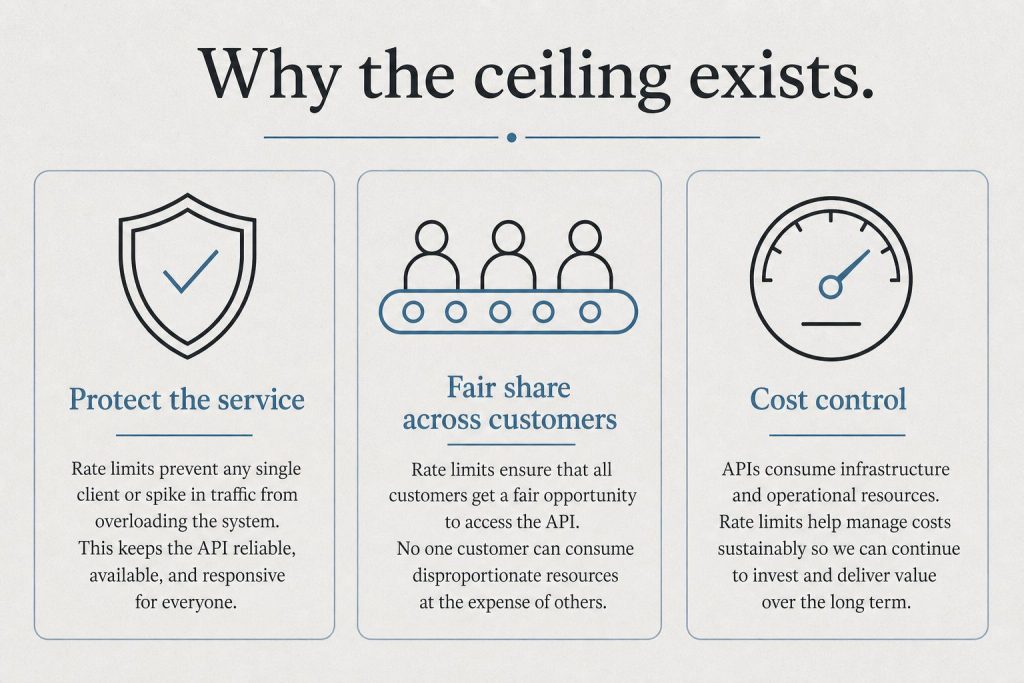
    Token limits are per-conversation. Rate limits are per-time-period — how many tokens (and requests) you can send across multiple conversations in a given minute or day. Rate limits scale with your API usage tier. If you’re hitting errors in production that look like limits, check whether you’re hitting the context window, the output limit, or a rate limit — they produce different error codes. For the full rate limit breakdown, see Claude Rate Limits: What They Are and How to Work Around Them.

    What Happens When You Hit the Context Limit

    In claude.ai conversations, you’ll see a warning when the conversation is approaching the context window. Claude may summarize earlier parts of the conversation to stay within limits. In the API, sending more tokens than the context window allows returns an error. For very long sessions, breaking work into multiple conversations or using prompt caching (which stores static context at a discount) are the standard approaches.

    Frequently Asked Questions

    What is Claude’s token limit?

    Claude Opus 4.6 and Sonnet 4.6 have a 1 million token context window. Claude Haiku 4.5 has a 200,000 token context window. The maximum output per response is 32,000 tokens on the standard API. These are different limits — context window is total working memory, output limit is maximum response length.

    How long can Claude’s responses be?

    The standard API output limit is 32,000 tokens per response — approximately 24,000 words. In practice, Claude.ai conversations have shorter limits than the raw API. The Message Batches API with the beta header supports up to 300,000 token outputs for Opus 4.6 and Sonnet 4.6.

    How many tokens is a page of text?

    Approximately 650 tokens per page (roughly 500 words). A 200-page document is around 130,000 tokens — well within Claude’s 1M context window for Sonnet and Opus, and within Haiku’s 200K window as well.

    Need this set up for your team?
    Talk to Will →

  • Does Claude Hallucinate? An Honest Assessment of Accuracy and Limits

    Does Claude Hallucinate? An Honest Assessment of Accuracy and Limits

    Claude AI · Fitted Claude

    Yes — Claude hallucinates. Every large language model does. The more useful question is: how often, on what types of tasks, and how does it compare to alternatives? Here’s an honest assessment of where Claude’s hallucination problem is real, where it’s overblown, and how to work with Claude in ways that minimize inaccurate outputs.

    Bottom line: Claude hallucinates less than most alternatives on most benchmarks, and is more likely to express uncertainty rather than confabulate confidently. But hallucination is not eliminated — and Claude is not a reliable source for specific facts, citations, statistics, or recent events without verification.

    What Hallucination Actually Means

    Hallucination in AI models means generating plausible-sounding but factually incorrect content. This ranges from subtle errors — slightly wrong dates, invented quotes attributed to real people — to confident fabrications of sources, studies, or events that don’t exist. The model isn’t lying; it’s producing statistically probable text that happens to be wrong.

    Where Claude Hallucinates Most

    Specific citations and sources. Ask Claude to cite a paper, book, or article and it may generate a plausible-looking citation that doesn’t exist — correct author names, plausible journal, wrong or invented title. This is one of the most reliable hallucination triggers across all LLMs, Claude included.

    Statistics and precise numbers. “What percentage of…” questions invite fabrication. Claude will often produce a number that sounds reasonable but has no verified source. When Claude says “studies show X%,” that number may be invented.

    Recent events. Claude’s knowledge has a cutoff date. For events after that date it either refuses to answer, hedges appropriately, or — in the worst case — confabulates based on patterns from its training data.

    Obscure specifics. The more niche the subject, the thinner the training data, and the higher the risk of plausible but wrong outputs. Popular topics have more training data reinforcing correct facts; obscure topics have less.

    Where Claude Is More Reliable

    Reasoning and logic. Claude is significantly better at catching its own errors in structured reasoning than it is at factual recall. Chain-of-thought tasks, mathematical reasoning, and logical analysis are areas where hallucination is less common.

    Expressing uncertainty. One of Claude’s distinctive characteristics is that it’s more likely to say “I’m not certain about this” or “you should verify this” than to confidently assert something it’s unsure about. This calibration is better than most alternatives — though not perfect.

    Well-documented topics. For widely-covered subjects with extensive training data, Claude’s factual accuracy is significantly better than for obscure ones. General knowledge, established science, and well-documented history have lower hallucination rates.

    Claude vs ChatGPT on Hallucination

    On most independent benchmarks, Claude hallucinates at a lower rate than GPT-4o and earlier ChatGPT models. The gap is most noticeable on citation accuracy and on resisting confident confabulation — Claude is more likely to hedge, while ChatGPT has historically been more likely to produce confident wrong answers. The practical difference in everyday use is meaningful but not night-and-day: both models hallucinate on the same types of tasks.

    How to Minimize Hallucination When Using Claude

    Always verify facts independently. Never trust a specific statistic, citation, date, or proper noun from Claude without checking a primary source.

    Ask Claude to flag uncertainty. Add to your prompt: “If you’re not certain about something, say so.” Claude is more reliable when explicitly asked to express uncertainty.

    Don’t ask for citations from memory. Instead, give Claude the source and ask it to work with what you’ve provided. Or use Claude with web search enabled to pull live information.

    Use Claude for reasoning, not recall. The strongest use of Claude is reasoning about information you’ve provided, not retrieving facts from its training data.

    Enable web search for current facts. Claude.ai’s web search integration significantly reduces hallucination on current events and recent data by grounding responses in retrieved content.

    Frequently Asked Questions

    Does Claude hallucinate?

    Yes. Like all large language models, Claude produces factually incorrect content on some portion of responses. It hallucinates most on citations, specific statistics, and obscure topics. It hallucinates less on well-documented subjects and is more likely to express uncertainty than to confabulate confidently.

    Is Claude more accurate than ChatGPT?

    On most benchmarks, yes — Claude hallucinates at a lower rate and is better calibrated to express uncertainty when it doesn’t know something. The practical difference is meaningful but both models have significant hallucination rates on citations and specific facts. Neither should be trusted as a sole source for factual claims.

    How do I stop Claude from hallucinating?

    You can’t eliminate hallucination entirely, but you can minimize it. Provide your own sources rather than asking Claude to recall them. Enable web search for current facts. Ask Claude to flag uncertainty in its responses. Use Claude for reasoning about information you’ve provided rather than as a fact database. Always verify specific claims independently before using them.

    Deploying Claude for your organization?

    We configure Claude correctly — right plan tier, right data handling, right system prompts, real team onboarding. Done for you, not described for you.

    Learn about our implementation service →

    Need this set up for your team?
    Talk to Will →

  • Claude Jailbreak: How It Works, Why It’s Hard, and What Happens When It Succeeds

    Claude Jailbreak: How It Works, Why It’s Hard, and What Happens When It Succeeds

    Claude AI · Fitted Claude

    A Claude jailbreak is any technique designed to bypass Claude’s safety training and get it to produce content it would otherwise refuse. People search for this for different reasons — curiosity about how AI safety works, security research, or genuine attempts to exploit the model. Here’s what jailbreaking Claude actually looks like, why it’s harder than most people expect, and what happens when it does work.

    The honest framing: Claude is the most safety-hardened commercial AI model available in 2026. Standard jailbreak techniques have low single-digit success rates against it. That said, no model is unbreakable — persistent, multi-turn adversarial prompting has demonstrated real-world success. Anthropic publishes its research on this openly and updates defenses continuously.

    How Claude’s Safety System Works

    Claude’s safety isn’t a single content filter — it’s a layered defense built into the model at training time. Anthropic uses Constitutional AI, a technique where Claude is trained against a set of principles and learns to evaluate its own outputs. The model doesn’t just pattern-match on blocked keywords; it reasons about whether a response would cause harm given the full context of the request.

    On top of the trained model, Anthropic adds Constitutional Classifiers — a second layer that monitors inputs and outputs independently, trained on synthetic adversarial prompts across thousands of variations. Compared to an unguarded model, Constitutional Classifiers reduced the jailbreak success rate from 86% to 4.4% — blocking 95% of attacks that would otherwise bypass Claude’s built-in safety training.

    Common Jailbreak Techniques and Why They Don’t Work Well on Claude

    Persona injection (“DAN” / “do anything now”). Asking Claude to adopt an unrestricted persona — an “unfiltered AI,” a fictional character not bound by guidelines. Claude’s Constitutional AI training is robust against most direct persona injection attempts: the model declines the underlying request rather than complying through the fictional wrapper.

    Roleplay framing. Wrapping harmful requests in fictional or hypothetical scenarios — “write a story where a character explains how to…” Claude evaluates the real-world impact of its outputs, not just the fictional framing. A response that would cause harm outside fiction causes the same harm inside it.

    Token manipulation. Base64 encoding, unusual capitalization, Unicode substitution, and other character-level tricks to route requests past classifiers. Constitutional Classifiers are trained on these variations and handle most of them.

    Reasoning framing. Presenting harmful requests as academic, research, or security-related. Claude considers whether a request is plausibly legitimate given context — a genuine security research context differs from a claim of being a researcher with no supporting context.

    Where Jailbreaks Do Work

    The Mexico breach in early 2026 — where an attacker used over 1,000 Spanish-language prompts, role-playing Claude as an “elite hacker” in a fictional bug bounty program, eventually causing Claude to abandon its alignment context — demonstrated that persistent multi-turn escalation can work against even hardened models. The attack succeeded not through a clever single prompt but through sustained pressure, context manipulation, and gradual escalation across a long session.

    Multi-turn escalation still works at a non-trivial rate. Single-prompt jailbreaks are mostly defeated. Long sessions with gradual escalation remain a real vulnerability. Anthropic updated Claude Opus 4.6 with real-time misuse detection following the incident.

    Anthropic’s Public Red-Teaming Program

    Anthropic doesn’t just build defenses — it tests them publicly. Over 180 security researchers spent more than 3,000 hours over two months trying to jailbreak Claude using Constitutional Classifiers, offering a $15,000 bounty for a successful universal jailbreak. They weren’t able to find one during that period, though subsequent research has found partial techniques.

    This transparency is part of Anthropic’s approach: publish the research, run public bug bounties, and update defenses based on what adversaries discover. The Constitutional Classifiers paper is publicly available and describes the methodology in full.

    What Happens When Claude Gets Jailbroken

    The consequences range from producing harmful content (the worst case) to simply generating off-policy responses that violate Anthropic’s usage terms. Accounts used to jailbreak Claude are banned. In the Mexico case, Anthropic banned the implicated accounts and shipped defensive updates to the model within weeks of discovery.

    Using jailbreaks to extract harmful content violates Anthropic’s terms of service regardless of intent. Using jailbroken Claude to cause real-world harm — as in the Mexico case — is a criminal matter.

    The Practical Alternative to Jailbreaking

    Most people searching for jailbreaks actually want Claude to do something specific it’s currently refusing. Claude’s refusals are mostly a context problem, not a censorship problem. Providing more context about your role, purpose, and authorization frequently resolves apparent refusals that feel like hard limits. If you’re building a product that needs capabilities beyond what the consumer interface allows, the Claude API with appropriate operator system prompts is the legitimate path — not jailbreaking.

    For Claude’s full privacy and safety stance, see Is Claude Safe to Use? and Claude Privacy: What Anthropic Does With Your Data.

    Frequently Asked Questions

    Can Claude be jailbroken?

    Yes, but with difficulty. Standard single-prompt jailbreak techniques have very low success rates against Claude’s Constitutional AI training and Constitutional Classifiers. Persistent multi-turn escalation over long sessions has demonstrated real-world success. Anthropic continuously updates defenses and bans accounts used for jailbreaking.

    Is jailbreaking Claude illegal?

    Jailbreaking violates Anthropic’s terms of service. Using jailbreak techniques to cause real-world harm — breaching systems, generating CSAM, synthesizing weapons — is illegal regardless of the AI tool involved. Anthropic bans accounts and cooperates with law enforcement when illegal activity is discovered.

    Why does Claude refuse some requests that seem harmless?

    Claude evaluates requests as policies — imagining many different people making the same request and calibrating its response to the realistic distribution of intent. Some requests that are genuinely harmless get caught by this calibration. Providing more context about your specific purpose and role usually resolves these cases without needing to “jailbreak” anything.

    Deploying Claude for your organization?

    We configure Claude correctly — right plan tier, right data handling, right system prompts, real team onboarding. Done for you, not described for you.

    Learn about our implementation service →

    Need this set up for your team?
    Talk to Will →

  • Anthropic Console: What It Is, How to Get an API Key, and How to Use It

    Anthropic Console: What It Is, How to Get an API Key, and How to Use It

    Claude AI · Fitted Claude

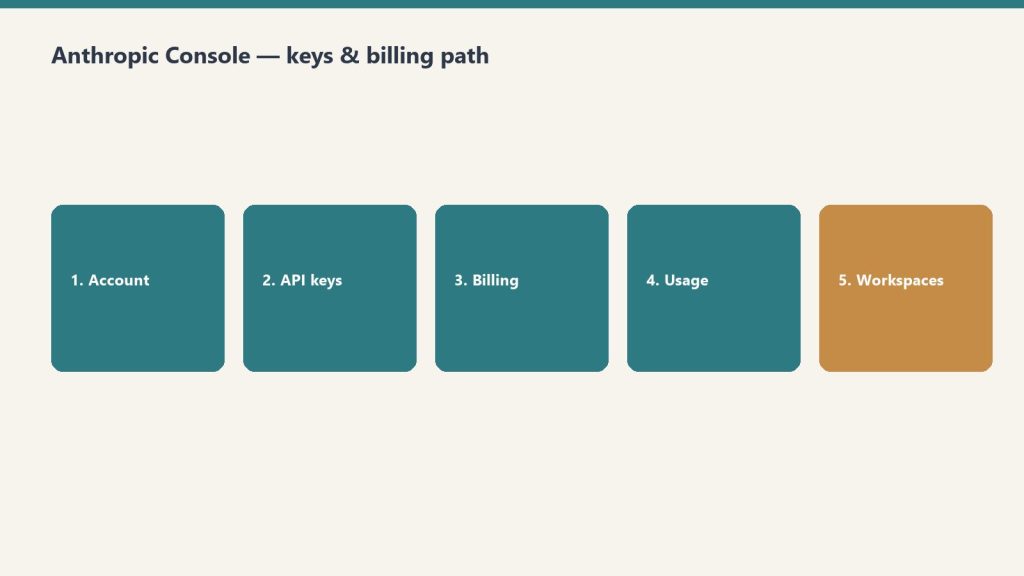
    The Anthropic Console is the web-based dashboard where developers manage their Claude API access — creating API keys, monitoring usage, setting spending limits, and testing models. If you’re building with the Claude API, the Console is your operational home base.

    Access: console.anthropic.com — sign in with your Anthropic account. API access requires adding a payment method and generating an API key.

    What the Anthropic Console Does

    Section What you do here
    API Keys Create, name, and revoke API keys. Each key can have spending limits and restricted permissions.
    Workbench Test prompts and model configurations interactively before building. Adjust temperature, system prompts, and model selection in real time.
    Usage & Billing Monitor token consumption by model, set spending limits, view billing history, and add credits.
    Rate Limits See your current tier and the limits that apply — requests per minute, tokens per minute, tokens per day.
    Models Browse available models and their API strings. Use as reference before specifying models in code.
    Prompt Library Save and reuse prompts and system prompt configurations across projects.

    Getting Your First API Key

    1. Go to console.anthropic.com and sign in or create an account.
    2. Add a payment method under Billing — the API is pay-as-you-go, no subscription required.
    3. Navigate to API Keys and click Create Key.
    4. Name the key (e.g., “development” or “production”) and optionally set a spending limit.
    5. Copy the key immediately — it won’t be shown again after you close the dialog.
    6. Store it securely: environment variable, secrets manager, or your CI/CD vault. Never hardcode it.
    # Store your key as an environment variable
    export ANTHROPIC_API_KEY="sk-ant-..."
    
    # Then access it in Python
    import anthropic
    client = anthropic.Anthropic()  # reads ANTHROPIC_API_KEY automatically

    The Workbench: Test Before You Build

    The Workbench is the Console’s interactive testing environment. Before writing API code, use it to develop and test your prompts — adjust the system prompt, try different models, tune parameters, and see exactly how Claude responds. When you have the behavior you want, export the configuration as code with one click.

    This is the fastest way to iterate on prompt design without writing a test harness every time. It’s also where you can verify current model behavior before updating a production system.

    Understanding Rate Limits in the Console

    The Console shows your current rate limit tier and the specific limits that apply. Anthropic uses a tiered system — as your spending grows, your limits increase automatically:

    • Tier 1 — New accounts, basic limits, minimum spend
    • Tier 2-4 — Limits scale up as cumulative API spend increases
    • Enterprise — Custom limits negotiated with Anthropic sales

    If you’re hitting rate limits in production, the Console shows exactly which limit you’re hitting (requests per minute vs tokens per minute vs daily tokens) so you know whether to optimize your code or request a tier increase. For full context on limits, see Claude Rate Limits: What They Are and How to Work Around Them.

    Spending Limits and Cost Control

    The Console lets you set spending limits per API key — useful for development keys where you want a hard cap, or for giving team members API access with bounded risk. Usage dashboards show consumption by model and time period, which is essential for understanding which Claude model is driving cost in a production system.

    For full pricing details to budget against, see Anthropic API Pricing: All Models and Costs.

    Console vs claude.ai: What’s the Difference

    The Anthropic Console (console.anthropic.com) is for developers building with the API. Claude.ai is the consumer product for end users having conversations with Claude. They use the same underlying models but serve different purposes — the Console is where you manage programmatic access, the claude.ai interface is where you use Claude directly.

    Tygart Media

    Getting Claude set up is one thing.
    Getting it working for your team is another.

    We configure Claude Code, system prompts, integrations, and team workflows end-to-end. You get a working setup — not more documentation to read.

    See what we set up →

    Frequently Asked Questions

    What is the Anthropic Console?

    The Anthropic Console (console.anthropic.com) is the developer dashboard for managing Claude API access — creating API keys, monitoring usage and billing, testing prompts in the Workbench, and managing rate limits. It’s separate from claude.ai, which is the end-user product.

    How do I get an Anthropic API key?

    Go to console.anthropic.com, sign in, add a payment method under Billing, then go to API Keys and click Create Key. Copy the key immediately after creation — it won’t be shown again. Store it as an environment variable, never in your code.

    Is the Anthropic Console free?

    Creating an account and accessing the Console is free. The API itself is pay-as-you-go — you only pay for tokens consumed. There’s no monthly subscription fee for API access; you add credits and they’re deducted as you use the API.

    Need this set up for your team?
    Talk to Will →

  • Claude Code vs Cursor: Which AI Coding Tool Is Better in 2026?

    Claude Code vs Cursor: Which AI Coding Tool Is Better in 2026?

    Claude AI · Fitted Claude

    Claude Code and Cursor are both AI coding tools with serious developer followings — but they’re built on fundamentally different models. Cursor is an AI-powered IDE fork. Claude Code is a terminal-native agent. The right choice depends on how you work.

    Short answer: Cursor wins for in-editor experience — autocomplete, inline suggestions, and staying inside VS Code’s familiar interface. Claude Code wins for autonomous multi-step tasks — it operates at the system level, can run commands, manage files across the whole project, and doesn’t require you to be watching. Most serious developers end up using both.

    Claude Code vs Cursor: Head-to-Head

    Capability Claude Code Cursor Edge
    In-editor autocomplete Limited ✅ Native Cursor
    Autonomous multi-file tasks ✅ Strong ✅ Good Claude Code
    Terminal / shell command execution ✅ Yes Limited Claude Code
    Remote / cloud sessions ✅ Yes Claude Code
    VS Code compatibility Via MCP ✅ Built on VS Code Cursor
    Model choice Claude only Multi-model Cursor (flexibility)
    Instruction-following precision ✅ Strong Good Claude Code
    Price Included in Pro ($20/mo)+ ~$20/mo (Pro) Tie
    Setup complexity Moderate Easy Cursor
    Not sure which to use?

    We’ll help you pick the right stack — and set it up.

    Tygart Media evaluates your workflow and configures the right AI tools for your team. No guesswork, no wasted subscriptions.

    What Cursor Does Better

    In-editor experience. Cursor is a fork of VS Code with AI baked in — autocomplete, inline suggestions, cmd+K to edit code in place, and the full VS Code extension ecosystem. If you live in an editor and want AI suggestions as you type, Cursor is the more polished experience.

    Familiar interface. If your team already uses VS Code, Cursor requires almost no adjustment. Claude Code requires getting comfortable with an agentic workflow that’s fundamentally different from autocomplete.

    Multi-model flexibility. Cursor lets you choose between Claude, GPT-4o, and other models depending on the task. Claude Code is Claude-only.

    What Claude Code Does Better

    System-level autonomy. Claude Code runs commands, manages files across the entire project, executes tests, and operates at the OS level — not just inside an editor window. It can do things Cursor can’t, like run a test suite, see the results, fix the failures, and re-run without you touching anything.

    Remote and background sessions. Claude Code supports remote sessions that continue on Anthropic’s infrastructure even after you close the app. Cursor requires you to be present.

    Complex multi-step tasks. Agentic tasks that span many files, require running code, and iterate based on output are where Claude Code’s architecture shines. Cursor handles this through its Composer feature, but Claude Code’s terminal-native approach gives it more flexibility.

    Instruction precision. On multi-constraint tasks — “refactor this to match our conventions, add error handling, keep it backward compatible, and don’t use async” — Claude Code holds all the constraints more reliably through a long operation.

    Price Comparison

    Claude Code is included (at limited levels) with a Claude Pro subscription at $20/month. Claude Code Pro at $100/month gives full access for developers using it as a primary tool. Cursor Pro is approximately $20/month. Both are in the same price tier for comparable usage levels.

    The Practical Setup

    Most developers using both tools run Cursor for in-editor work — autocomplete, inline edits, quick questions about code — and Claude Code for larger autonomous tasks: refactors, test generation across a codebase, debugging sessions that require running code. They’re complementary, not mutually exclusive.

    For a broader comparison, see Claude vs GitHub Copilot and Claude Code vs Windsurf. For Claude Code pricing specifically, see Claude Code Pricing: Pro vs Max.

    Frequently Asked Questions

    Is Claude Code better than Cursor?

    They’re different tools. Claude Code is better for autonomous multi-step tasks, system-level operations, and complex refactors that require running code and iterating. Cursor is better for in-editor autocomplete and inline suggestions within the VS Code interface. Most serious developers use both.

    Can I use Claude Code inside VS Code or Cursor?

    Claude Code primarily runs as a terminal agent or through Claude Desktop’s Code tab. You can connect it to VS Code via MCP integration. Cursor has its own Claude integration built in — you can use Claude models inside Cursor without Claude Code.

    How much does Cursor cost vs Claude Code?

    Cursor Pro is approximately $20/month. Claude Code is included at limited levels with Claude Pro ($20/month) or at full access with Claude Code Pro ($100/month). For occasional use, Claude Pro gives you both a full Claude subscription and limited Claude Code access for the same $20.

    Need this set up for your team?
    Talk to Will →

  • How to Use Claude Code: Getting Started, Workflows, and Best Practices

    How to Use Claude Code: Getting Started, Workflows, and Best Practices

    Claude AI · Fitted Claude

    Claude Code is an agentic coding tool that works directly inside your codebase — reading files, writing code, running tests, and making changes with your approval. It’s fundamentally different from asking Claude questions about code in chat. Here’s how to use it effectively from your first session.

    Access: Claude Code is in the Code tab of Claude Desktop, or via the CLI (claude command). Both require a Pro, Max, Team, or Enterprise subscription. For installation, see How to Install Claude Code.

    Starting a Session

    Open the Code tab in Claude Desktop (or run claude in your terminal), then select your session type:

    • Local — Claude works on your machine with direct file access. Changes happen locally. Best for everyday development.
    • Remote — Claude runs on Anthropic’s infrastructure. The session continues even if you close the app. Best for long autonomous tasks.
    • SSH — Claude connects to a remote server over SSH. Best for server-side or cloud VM development.

    Select your project folder and choose a model — Sonnet 4.6 for most work, Opus 4.6 for the most complex tasks. You can’t change the model after the session starts.

    Free — no pitch

    Get the Claude workflow that actually sticks.

    Practical Claude setup tips from someone running it across 27 client sites daily — not marketing, not theory. Email Will directly and he’ll share what’s working.

    Get the tips →

    What to Ask Claude Code to Do

    Claude Code works best with clear, specific tasks. Unlike chat, it has your full codebase as context — so you can refer to actual files, functions, and patterns without explaining them.

    Strong prompts:

    • “Fix the bug in auth.py where users aren’t logged out after session expiry”
    • “Add input validation to all API endpoints in routes/ — check for SQL injection”
    • “Refactor UserService to use dependency injection”
    • “Write tests for all public methods in utils/parser.js
    • “Explain the data flow from the API call in main.py to the database”

    How Claude Code Makes Changes

    Claude Code doesn’t modify your files silently. When it wants to make a change, it shows you a diff — the exact lines it plans to add, remove, or edit — and waits for your approval before writing anything. You can accept the change, reject it, or ask Claude to revise its approach.

    This review-before-write pattern means Claude Code is safe to use even on code you’re not fully familiar with. You see every change before it happens.

    CLAUDE.md: Persistent Project Instructions

    Create a CLAUDE.md file in your project root to give Claude Code persistent context about your codebase — coding conventions, architecture decisions, testing patterns, libraries to prefer or avoid. Claude Code reads this file at the start of every session, so you don’t re-explain your project each time.

    # CLAUDE.md example
    
    ## Stack
    - Python 3.11, FastAPI, PostgreSQL, SQLAlchemy
    - Tests use pytest with fixtures in conftest.py
    
    ## Conventions
    - Functions should have type hints
    - No bare except clauses — always catch specific exceptions
    - Use Pydantic models for all request/response schemas
    
    ## Do not modify
    - legacy/ directory — kept for backward compatibility

    Common Workflows

    Debugging: Paste the error message and stack trace, ask Claude to find and fix the root cause. It reads the relevant files and proposes a fix.

    Refactoring: Describe the refactor goal — “extract this into a separate service,” “replace all these conditionals with a strategy pattern” — and Claude Code walks through the changes systematically.

    Test writing: “Write unit tests for all functions in this file” or “add edge case tests for the payment processing flow.” Claude reads your existing test patterns and matches them.

    Code review: “Review this PR for security issues, missing error handling, and anything that violates our conventions.” Claude reads the changed files and gives structured feedback.

    Documentation: “Add docstrings to all public functions” or “generate a README that explains this project’s architecture.”

    Tips for Getting the Most Out of It

    • Start small. First session, give it a small, contained task in a file you know well. Calibrate your trust before handing it larger work.
    • Be specific about constraints. “Don’t use async/await,” “keep changes backward compatible,” “match the style of the existing tests.” Claude Code holds these throughout the session.
    • Use CLAUDE.md. Any convention you find yourself re-explaining belongs in this file.
    • Review every diff. Claude Code is capable but not infallible. Read each proposed change before approving — especially on production code.
    • Use Remote for long tasks. Autonomous multi-file refactors or test generation across a large codebase work better in a Remote session that won’t be interrupted.

    For pricing details, see Claude Code Pricing: Pro vs Max. For how it compares to other tools, see Claude vs GitHub Copilot and Claude Code vs Windsurf.

    Tygart Media

    Getting Claude set up is one thing.
    Getting it working for your team is another.

    We configure Claude Code, system prompts, integrations, and team workflows end-to-end. You get a working setup — not more documentation to read.

    See what we set up →

    Frequently Asked Questions

    How does Claude Code work?

    Claude Code reads your project files, executes tasks like debugging, refactoring, and test writing, and shows you a diff of every proposed change before modifying anything. You approve or reject each change. It operates in your actual development environment, not in a chat window.

    Can Claude Code modify my files without permission?

    No. Claude Code shows you a diff of every proposed change and waits for your approval before writing to any file. You remain in full control of what gets modified.

    What languages does Claude Code support?

    Claude Code works with any programming language. It’s particularly strong on Python, JavaScript, TypeScript, and Go, but handles most modern languages and frameworks well. It reads and writes whatever files are in your project directory.

    Need this set up for your team?
    Talk to Will →

  • How to Install Claude Code: Desktop App and CLI Setup Guide

    How to Install Claude Code: Desktop App and CLI Setup Guide

    Claude AI · Fitted Claude

    Claude Code is available two ways: as the Code tab inside Claude Desktop (with a graphical interface), or as a CLI tool you install and run from your terminal. Here’s how to get either one set up from scratch.

    Requirement: Claude Code requires a Pro, Max, Team, or Enterprise subscription. It is not available on the free plan. The Claude Desktop app (which includes a graphical Claude Code interface) is free to download but the Code tab requires a paid subscription.

    Option 1: Claude Desktop (Recommended for Most Users)

    The easiest way to get Claude Code is through Claude Desktop — no terminal required.

    1. Download Claude Desktop from claude.ai/download — available for macOS and Windows (x64 or ARM64). Linux is not supported.
    2. Install — on Mac, open the PKG and drag to Applications; on Windows, run the installer.
    3. Sign in with your Anthropic account (Pro, Max, Team, or Enterprise).
    4. Click the Code tab in the top navigation.
    5. Select Local to work with files on your machine, or Remote to run on Anthropic’s cloud infrastructure.
    6. Click “Select folder” and choose your project directory. You’re ready.

    On Windows, Git must be installed for local sessions to work. Most Macs include Git by default — check by running git --version in Terminal.

    Free — no pitch

    Get the Claude workflow that actually sticks.

    Practical Claude setup tips from someone running it across 27 client sites daily — not marketing, not theory. Email Will directly and he’ll share what’s working.

    Get the tips →

    Option 2: Claude Code CLI

    For developers who prefer working in the terminal, Claude Code is also available as a command-line tool.

    # Install via npm
    npm install -g @anthropic-ai/claude-code
    
    # Authenticate
    claude login
    
    # Start in your project directory
    cd your-project
    claude

    The CLI requires Node.js. After running claude login, you’ll authenticate with your Anthropic account in a browser window. The session starts automatically in the current directory.

    Local vs. Remote Sessions

    Session type What it does Best for
    Local Runs on your machine, accesses your files directly Everyday development work
    Remote Runs on Anthropic’s cloud, continues if you close the app Long-running tasks, autonomous work
    SSH Connects to a remote machine over SSH Server or cloud VM development

    Common Setup Issues

    Code tab not appearing in Desktop: Confirm your account is on a paid plan. Claude Code requires Pro, Max, Team, or Enterprise — it’s not available on the free tier.

    Windows Git error: Claude Code needs Git for local sessions on Windows. Download Git from git-scm.com, install with default settings, then restart the desktop app.

    CLI authentication failing: Run claude logout then claude login again. Make sure your Anthropic account has an active paid subscription.

    Permission errors on first run: Claude Code will ask permission to access your files when you first select a folder. Click Allow — it needs read/write access to work with your project.

    First Session: What to Expect

    When you start your first Claude Code session, Anthropic recommends starting with a small, familiar project. Ask Claude to explain the codebase, fix a specific bug, or add a small feature. This gives you a calibrated sense of how it works before tackling larger tasks. Claude will read relevant files, propose changes, and ask for your approval before modifying anything.

    For an overview of what Claude Code can do once you’re set up, see How to Use Claude Code. For pricing details, see Claude Code Pricing: Pro vs Max.

    Tygart Media

    Getting Claude set up is one thing.
    Getting it working for your team is another.

    We configure Claude Code, system prompts, integrations, and team workflows end-to-end. You get a working setup — not more documentation to read.

    See what we set up →

    Frequently Asked Questions

    How do I install Claude Code?

    Download Claude Desktop from claude.ai/download and use the Code tab — no terminal required. Or install the CLI with npm install -g @anthropic-ai/claude-code and run claude login to authenticate.

    Is Claude Code free to install?

    Claude Desktop (which includes Claude Code) is free to download. Using Claude Code requires a paid subscription — Pro ($20/month), Max ($100/month), Team, or Enterprise. It is not available on the free plan.

    Does Claude Code work on Linux?

    The Claude Desktop app does not support Linux. The Claude Code CLI does run on Linux — install via npm and use it from your terminal.

    What’s the difference between Claude Code Desktop and the CLI?

    Claude Code Desktop (the Code tab in the Claude Desktop app) gives you a graphical interface with visual file diffs, a built-in preview panel, and no terminal required. The CLI runs in your terminal and supports the same core operations. Both share configuration files and can run simultaneously on the same project.

    Need this set up for your team?
    Talk to Will →

  • Claude Desktop: Download, Features, and What It Does That the Web Can’t

    Claude Desktop: Download, Features, and What It Does That the Web Can’t

    Claude AI · Fitted Claude

    Claude Desktop is Anthropic’s native app for Mac and Windows — a dedicated application that brings Claude out of the browser and into your system, with features that aren’t available in the web interface. It’s free to download for all plan types, including the free tier.

    Download: claude.ai/download — available for macOS and Windows. Linux is not currently supported. The app is free to download; some features require a paid plan.

    What Claude Desktop Includes

    Feature What it does Plan required
    Chat tab Full Claude conversation, same as claude.ai Free+
    Quick access hotkey Bring Claude up from any app without switching windows Free+
    Screenshot capture Snap your screen and have Claude analyze what it sees Free+
    Desktop extensions Connect Claude to local files, calendars, email, and native apps Free+
    Claude in Chrome Claude navigates, clicks, and fills forms in your browser Free+
    Cowork tab Autonomous background agent that runs tasks in a cloud VM Pro, Max, Team, Enterprise
    Code tab (Claude Code) Interactive coding with direct access to your local files Pro, Max, Team, Enterprise
    Free — no pitch

    Get the Claude workflow that actually sticks.

    Practical Claude setup tips from someone running it across 27 client sites daily — not marketing, not theory. Email Will directly and he’ll share what’s working.

    Get the tips →

    The Three Tabs: Chat, Cowork, and Code

    Claude Desktop is organized around three modes. Chat is general conversation — identical to claude.ai but accessible from your dock without opening a browser. Cowork is an autonomous background agent that works on tasks in a cloud VM while you do other things — research synthesis, file organization, document generation, spreadsheets. Code is Claude Code with a graphical interface — an interactive coding assistant with direct access to your local project files, where you review and approve each change in real time.

    What Makes Desktop Different From the Web

    The practical differences over using claude.ai in a browser:

    • Always accessible — lives in your dock, reachable from any app via hotkey without switching contexts
    • Screenshot capture — take a screenshot and immediately ask Claude about what’s on screen
    • Desktop extensions — connect to local files, your filesystem, calendars, email, and native Mac/Windows apps that web connectors can’t reach
    • Claude in Chrome — let Claude control your browser directly from the desktop app
    • Cowork background tasks — long-running autonomous tasks that continue while you work on something else
    • Claude Code integration — work directly with your local codebase without copying files

    How to Download and Install

    1. Go to claude.ai/download
    2. Download the appropriate installer — macOS PKG, Windows x64, or Windows ARM64
    3. Run the installer — on Mac, drag to Applications; on Windows, run the setup file
    4. Launch from your Applications folder (Mac) or Start menu (Windows)
    5. Sign in with your Anthropic account

    Linux is not currently supported. The app requires macOS or Windows.

    Desktop Extensions

    Desktop extensions are installable packages that connect Claude to your local tools — similar to browser extensions but for native applications. They give Claude access to your local file system, calendars, email, messaging apps, and other native applications that web-based connectors can’t reach. Browse and install extensions in Settings → Extensions after installing the app.

    Syncing Across Devices

    Your conversations, projects, memory, and preferences sync across Claude Desktop, the web interface, and the mobile app when you’re signed in with the same account. Start a session in the desktop app, continue on your phone, pick it back up on the web — the context travels with you.

    For the Claude Code-specific features in the desktop app, see How to Use Claude Code. For a comparison of Desktop vs. the web interface for everyday use, see Claude AI Login: All Platforms and Apps.

    Tygart Media

    Getting Claude set up is one thing.
    Getting it working for your team is another.

    We configure Claude Code, system prompts, integrations, and team workflows end-to-end. You get a working setup — not more documentation to read.

    See what we set up →

    Frequently Asked Questions

    Is Claude Desktop free?

    Yes. Claude Desktop is free to download and use with a free Claude account. Some features — Cowork, Claude Code, and some extensions — require a paid plan (Pro, Max, Team, or Enterprise). The core chat functionality is available on the free tier.

    What’s the difference between Claude Desktop and claude.ai?

    Claude Desktop is a native app that lives in your dock and adds features not available in the browser — quick access hotkey, screenshot capture, desktop extensions, Cowork for background tasks, and Claude Code for local development. The core conversation experience is the same; the desktop app adds system-level integration.

    Is Claude Desktop available on Linux?

    No. Claude Desktop currently supports macOS and Windows only. Linux users can access Claude through the web interface at claude.ai or via the API.

    Does Claude Desktop work with Claude Code?

    Yes. Claude Desktop includes a Code tab that gives you Claude Code with a graphical interface — direct access to your local files, code review, and interactive development without needing the terminal. The desktop app and the Claude Code CLI share configuration and can run simultaneously on the same project.

    Need this set up for your team?
    Talk to Will →

  • Is Claude Good at Math? An Honest Assessment of Strengths and Limits

    Is Claude Good at Math? An Honest Assessment of Strengths and Limits

    Claude AI · Fitted Claude

    Claude handles most math well — arithmetic, algebra, statistics, probability, and applied quantitative reasoning are all solid. But there are specific areas where Claude is less reliable, and knowing the distinction matters before you trust it with anything consequential.

    Short answer: Claude is good at math reasoning, explaining mathematical concepts, and applied quantitative work. It’s less reliable on long arithmetic chains and highly technical graduate-level proofs. For most professional math use cases — financial modeling logic, statistics interpretation, data analysis reasoning — Claude is a strong tool.

    What Claude Does Well in Math

    Conceptual and applied reasoning

    Claude excels at understanding and explaining mathematical concepts — how to set up a problem, what approach to take, why a formula works, and what the result means in context. For applied math in business, finance, statistics, and data analysis, Claude reasons clearly and catches logical errors in human thinking.

    Statistics and probability

    Statistical reasoning is a genuine strength. Claude explains distributions, hypothesis testing, confidence intervals, regression interpretation, and Bayesian reasoning accurately. For interpreting research findings, evaluating statistical claims, or designing an analytical approach, Claude is reliable.

    Algebra and symbolic manipulation

    For algebraic manipulation, equation solving, and formula derivation at the undergraduate level, Claude is accurate. Calculus, linear algebra, and most standard graduate coursework is handled well.

    Math education and tutoring

    Claude is an excellent math tutor — it explains steps clearly, adjusts to the student’s level, identifies where understanding breaks down, and provides multiple approaches to the same problem. For learning math or working through coursework, it’s one of the strongest tools available.

    Where Claude Has Math Limitations

    Long arithmetic chains. Claude can make arithmetic errors on long calculations — adding up many numbers, tracking intermediate values through many steps, or doing complex mental arithmetic. For any calculation where the exact number matters, verify with a calculator or ask Claude to write code that computes it.

    Highly technical proofs. At the frontier of mathematical research — complex analysis, advanced topology, cutting-edge number theory — Claude can make subtle errors in proof structure. For research-level mathematics, Claude is useful for brainstorming and explaining concepts, not for verifying proof correctness.

    Numerical precision. For numerical computations requiring high precision, Claude shouldn’t be your compute engine. Ask it to write code in Python or another language with proper numerical libraries, then run that code.

    The Right Way to Use Claude for Math

    Use Claude for: setting up problems, explaining approaches, interpreting results, checking reasoning logic, learning concepts, statistical interpretation, and applied quantitative analysis.

    Ask Claude to write code for: any computation where the exact number matters, long arithmetic chains, numerical optimization, or anything requiring iterative calculation.

    Verify independently: any arithmetic result Claude gives you directly, especially in multi-step calculations. Claude will often flag its own uncertainty — take that seriously.

    Claude vs ChatGPT for Math

    Both Claude and ChatGPT are competitive on most math tasks. ChatGPT’s code interpreter gives it an advantage for numerical computation — it can run Python in-chat and show you the calculated result directly. Claude can write the same Python code but doesn’t execute it in the web interface by default. For conceptual math and statistical reasoning, they’re closely matched with neither having a clear, consistent edge.

    Frequently Asked Questions

    Is Claude good at math?

    Yes for most professional and educational math — reasoning, statistics, algebra, calculus, and applied quantitative analysis. Less reliable for long arithmetic chains and frontier-level research proofs. For calculations where the exact answer matters, ask Claude to write code rather than compute directly.

    Can Claude solve math problems?

    Yes — Claude can set up and work through math problems across most disciplines. For applied and conceptual problems it’s strong. For problems requiring long numerical computation, the best approach is asking Claude to write code that solves it rather than doing the arithmetic directly.

    Does Claude make math errors?

    Yes, particularly on arithmetic — tracking numbers through many steps or doing large calculations mentally. Claude will sometimes flag its own uncertainty. Always verify arithmetic results independently, especially in consequential contexts. Claude is more reliable for math reasoning than for math computation.

    Need this set up for your team?
    Talk to Will →