
Last refreshed: August 30, 2026
If every Cowork task is failing with useradd: cannot create directory /sessions/friendly-youthful-thompson or a similar error, your Cowork VM’s internal disk is full. This is not something you broke — it’s a known Anthropic bug that affects power users consistently. Here’s exactly what’s happening and how to fix it in under two minutes.
What’s Causing the Error
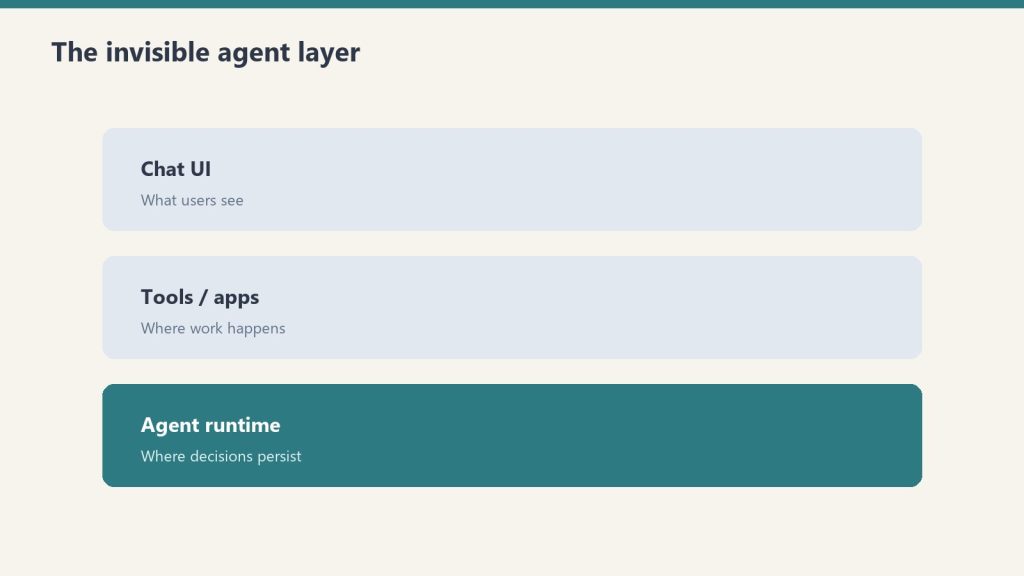
Cowork runs on a local VM with a fixed 8.5GB disk image called sessiondata.img. Every Cowork conversation creates a new directory under /sessions/<name>/ inside that VM and caches all your installed plugins and skills there. Those directories are never cleaned up automatically. Once the disk fills — roughly 80 sessions for light users, 40–50 sessions for users with many skills installed — every new task fails immediately with a useradd error. The session simply can’t be provisioned.
If you have 20+ skills installed (the Tygart Media stack runs 40+), you’ll hit the cap significantly faster than the average user.
The Fix: Move the Image File

The fix is the same on macOS and Windows: move sessiondata.img out of its location so Claude Desktop rebuilds it fresh on next launch.
Windows
Quit Claude Desktop completely. Open Run (Win + R), paste this path and press Enter:
%APPDATA%\Claude
m_bundles\claudevm.bundle\Find sessiondata.img and move it to your Desktop as a backup. Relaunch Claude Desktop — it will recreate a fresh image automatically. Your first Cowork session after the reset may take slightly longer while plugins reinstall.
macOS
Quit Claude Desktop. In Finder, press Cmd + Shift + G and go to:
~/Library/Application Support/Claude/vm_bundles/claudevm.bundle/Move sessiondata.img to your Desktop. Relaunch Claude Desktop.
What Gets Wiped vs What’s Preserved
| Data | Location | Wiped? |
|---|---|---|
| Sidebar task list | Electron IndexedDB | ✅ Preserved |
| Scheduled task definitions | Documents/Claude/Scheduled/ | ✅ Preserved |
| MCP server config | claude_desktop_config.json | ✅ Preserved |
| Chat conversation history | Electron LevelDB | ✅ Preserved |
| VM plugin/skill cache | Inside sessiondata.img | ⚠ Wiped (auto re-downloads) |
| VM session working dirs | /sessions/<n>/ inside VM | ⚠ Wiped (this is the fix) |
How Often Will You Need to Do This?
Until Anthropic ships automatic session cleanup, this is a recurring task. With a heavy skill load, plan on running the fix every 4–6 weeks or whenever you see the useradd error return. Setting a calendar reminder is the most reliable approach.
The Longer-Term Fix: Move Heavy Operations Off Cowork
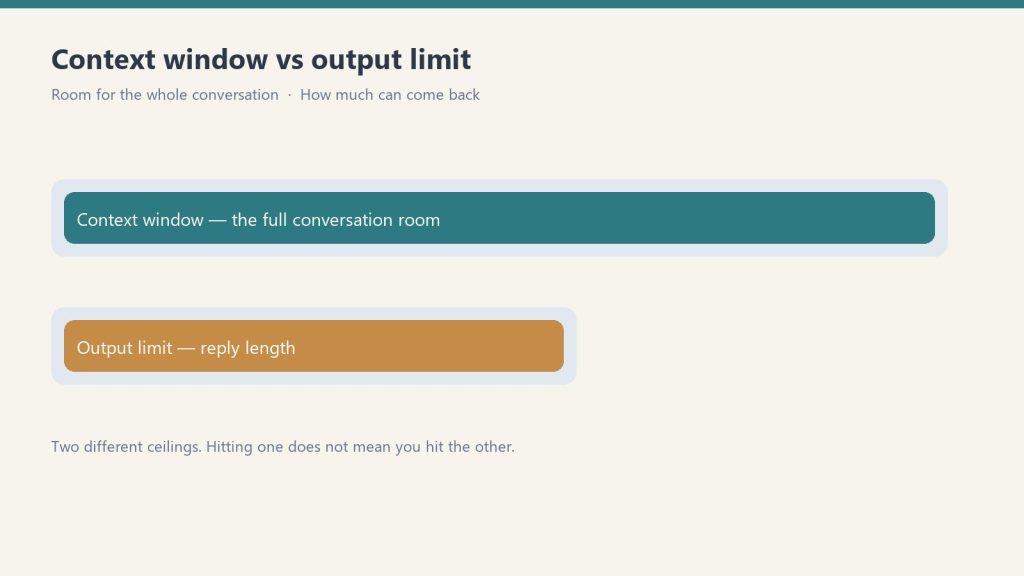
The root cause is that Cowork was designed for lighter, conversational task automation — not running dozens of skills across many parallel sessions. If you’re running content pipelines, batch WordPress operations, or multi-step automation workflows, moving those operations to a GCP Cloud Run cron job or Compute Engine VM eliminates the local VM bottleneck entirely. Cowork’s local sandbox competes for your machine’s resources; GCP runs isolated, always-on, and never fills up your laptop’s disk.
Why does Cowork say “useradd failed: exit status 12”?
The Cowork VM’s internal disk (sessiondata.img) is full. It can no longer create new session user directories. Moving the image file out and letting Claude Desktop recreate it clears the disk and resolves the error.
Will I lose my Cowork tasks if I move sessiondata.img?
No. Your task definitions, scheduled tasks, MCP config, and conversation history are all stored outside the VM image. Only the internal plugin/skill cache is wiped — it re-downloads automatically on the next session.
How do I prevent Cowork from filling up again?
Until Anthropic ships a permanent fix (GitHub issue #30751), the options are: run the reset script periodically, reduce your installed skill count, or route heavy operations to GCP instead of Cowork.
Related on Tygart Media: Cowork task scheduling · Cowork MCP setup.
Leave a Reply