Secure checkout via Square — all major cards accepted
You can copy this method and do it yourself. Talk to your own Claude. Interview your own shop. Score your own bench. Write your own 90-day plan to get out of the truck. Buy Now is the packaged zip: ten skill folders, the plugin files, and the install so you do not have to wire the coaching loop from a blank chat.
This is the AI Edition of the Restoration Leadership Toolkit. A restoration owner attaches it to their own Claude. Setup interviews them. Then nine leadership skills coach from doer to leader, using their team, their roles, and their pain points. The Notion worksheets are the fill-in half. These skills run them conversationally.
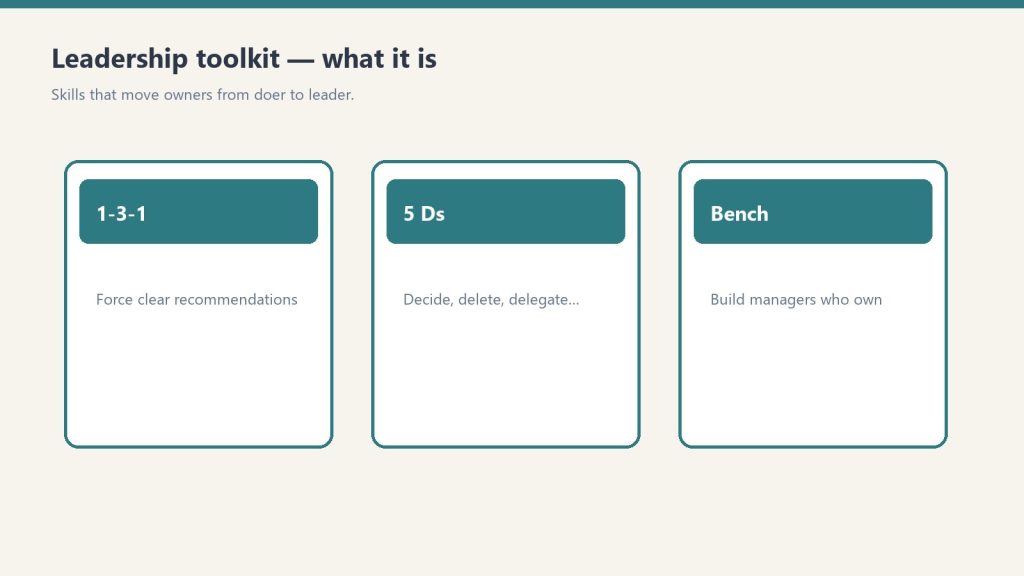
What it is
Leadership AI edition — move from doer to leader.
A 9-skill Claude plugin plus a shared setup skill. Install into Claude Code, the Claude Desktop app, or Cowork. Setup writes a company-profile.md. Every leadership skill reads it. If you already ran setup from the Operations Kit, it reuses the same profile. One profile powers both.
You need any Claude that supports Skills / Plugins. If you can chat with Claude and run a /command, you are good.
The 10 skills
restoration-setup. Say “Set up the kit.” Guided interview. First run. The concierge. Shared with the Ops kit.
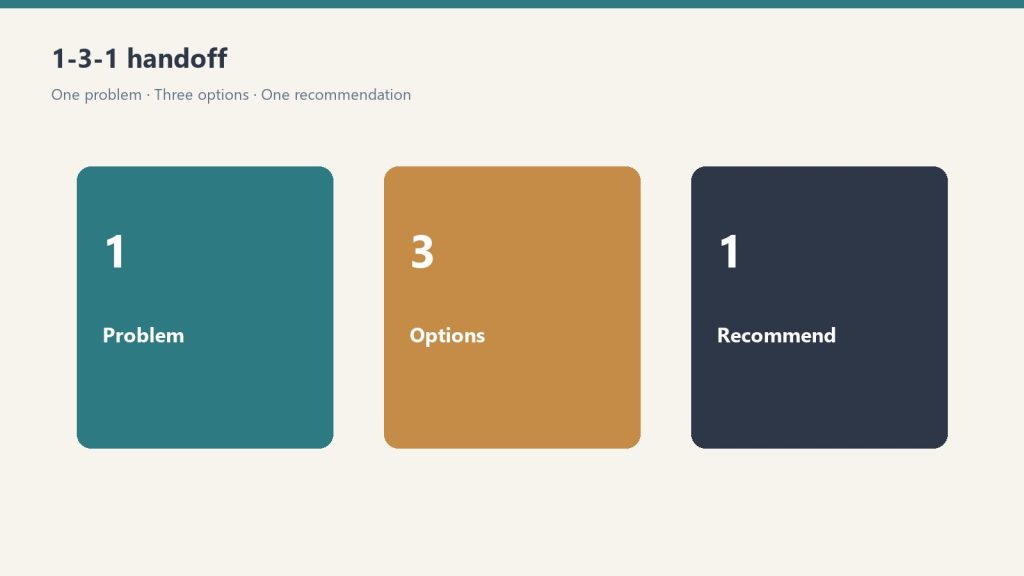
delegation-1-3-1. Say “Help me delegate this.” Convert an escalated question into one issue, three options, one recommendation. That is the handoff.
owner-bottleneck-assessment. Say “Where am I the bottleneck?” A scored self-assessment. Names the top places the company still depends on you.
succession-5ds-checklist. Say “Am I exposed if something happens to me?” Death, Divorce, Disease, Drugs, Departure. Your exposure, plus what to shore up.
accountability-planner. Say “I have a hard conversation to plan.” The issue, the change, the expectation, the consequence. Outputs a script plus a 30-day follow-up.
leadership-readiness-checklist. Say “Is my team ready to lead?” Assess the current bench. Flag single points of failure.
middle-manager-scorecard. Say “Should I promote this person?” Score a person on 9 traits. Recommendation: promote, develop first, or not yet.
owner-dependency-audit. Say “What breaks if I disappear for 30 days?” Dependency across functions plus a decision-rights map.
leadership-bench-builder. Say “Build my leadership bench.” Candidates, skill gaps, a 90-day development plan per person.
doer-to-leader-90-day. Say “Give me a 90-day plan to step back.” A personalized 12-week transition plan, week by week.
How to install it yourself
Option A: plugin (recommended)
Save the leadership-kit folder anywhere on your computer.
Replace the path with wherever you saved the folder. On Desktop and Cowork, add the plugin from Customize → Plugins instead; the /plugin commands are for Claude Code.
Start setup:
/leadership-kit:restoration-setup
Option B: personal skills (simplest, no plugin)
Copy each folder inside skills/ into your personal skills folder at ~/.claude/skills/. On Windows that is C:\Users\<you>\.claude\skills\. Then tell Claude: “run restoration setup.”
First run
Run restoration-setup first. About five minutes on your company and team. Company name, markets, services (water, fire, mold, contents, reconstruction), size, key roles, who answers the phone, carriers, how you run a job, and the biggest pain points. It saves company-profile.md. Then every tool is tailored to your people and how you run jobs.
Keep that file in the folder you work in. You can re-run setup anytime to update it. Nothing leaves your computer.
Using it day to day
You do not need to memorize skill names. Just talk.
“My ops manager keeps escalating everything to me. Help me delegate it.” → delegation-1-3-1
“Where am I still the bottleneck?” → owner-bottleneck-assessment
“Score my lead tech for a crew-chief promotion.” → middle-manager-scorecard
“Is my team ready to lead?” → leadership-readiness-checklist
“I have a hard conversation to plan with my PM.” → accountability-planner
“What breaks if I take two weeks off?” → owner-dependency-audit
“Am I exposed if something happens to me?” → succession-5ds-checklist
“Build my leadership bench.” → leadership-bench-builder
“Build me a 90-day plan to get out of the truck.” → doer-to-leader-90-day
Run the skills in this order
Run skills in order — then develop the manager who owns them.
Same spine as the 90-day plan. Do not skip ahead.
Setup, then the bottleneck assessment and the dependency audit. Name the top 3 places the company still runs through you.
delegation-1-3-1 on the next five escalations. One issue, three options, one recommendation, a default if you do not answer by a deadline.
Readiness checklist. Six sections. Red / yellow / green. Name the next-leader candidates.
Scorecard on the one person you are betting on. Nine traits, 1-5. Promote about 37-45. Develop first about 27-36. Not yet 26 or below.
Bench builder. One row per function. Go deep on that one person. One observable 90-day action.
Accountability planner for the one hard talk this phase. Script plus a 30-day follow-up.
doer-to-leader-90-day to date the six two-week phases. Then 5 Ds as the what-if-tomorrow check.
The 1-3-1 handoff, in plain terms
1-3-1: one problem, three options, one recommendation.
Someone brings you a problem. You do not solve it in the hallway. You send them back to write one issue (the actual decision, not the whole week), three options they can live with, and one recommendation with why. You decide. They own the work. That is how you stop being the bottleneck without abandoning the job.
What the zip actually contains
.claude-plugin/plugin.json and marketplace.json
skills/ (10 folders: setup plus the nine leadership skills)
README.md with the full install
Outputs from each skill are formatted to paste into the matching Notion template in the Restoration Leadership Toolkit. The Notion side is the system of record. These skills help you fill and act on them.
This is a coaching and operational assistant only. Not legal or HR advice.
If you want the packaged install
You can rebuild this from the outline above. Buy Now is the zip delivered by email after checkout: plugin files, the ten skills, and the README so you drop it in and run setup. Same Square button at the top of this page.
Claude is far more than a chatbot. Anthropic calls Claude Code and Cowork “general agents — broad-domain systems that handle research, operations, analysis, and code with equal fluency.” In practice, that means the same AI that writes software can also run your marketing, draft grant proposals, analyze a spreadsheet, and automate the busywork that fills your week. This guide maps what people actually use Claude for, organized by the job you’re trying to get done — with a deeper walkthrough behind each one.
Last refreshed: October 8, 2026 (Pacific)
Content & marketing
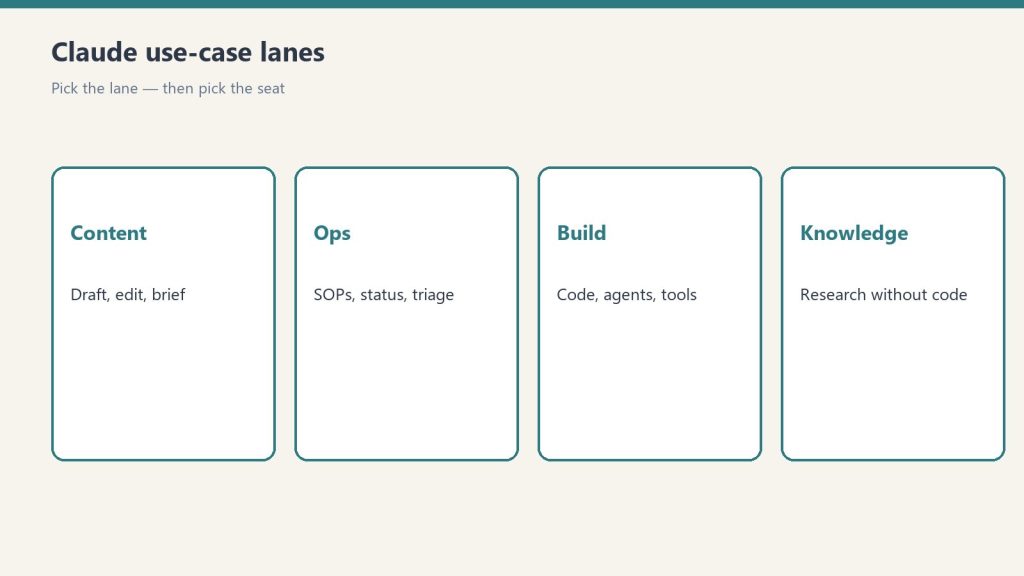
Content, ops, build, knowledge — pick the lane first.
The most popular non-technical use. Claude researches, drafts, edits, and optimizes — from a single blog post to an entire editorial pipeline.
Where Claude started. Claude Code is an agentic coding tool that reads your codebase, writes and refactors, runs tests, and ships — from the terminal, an IDE, or a desktop app.
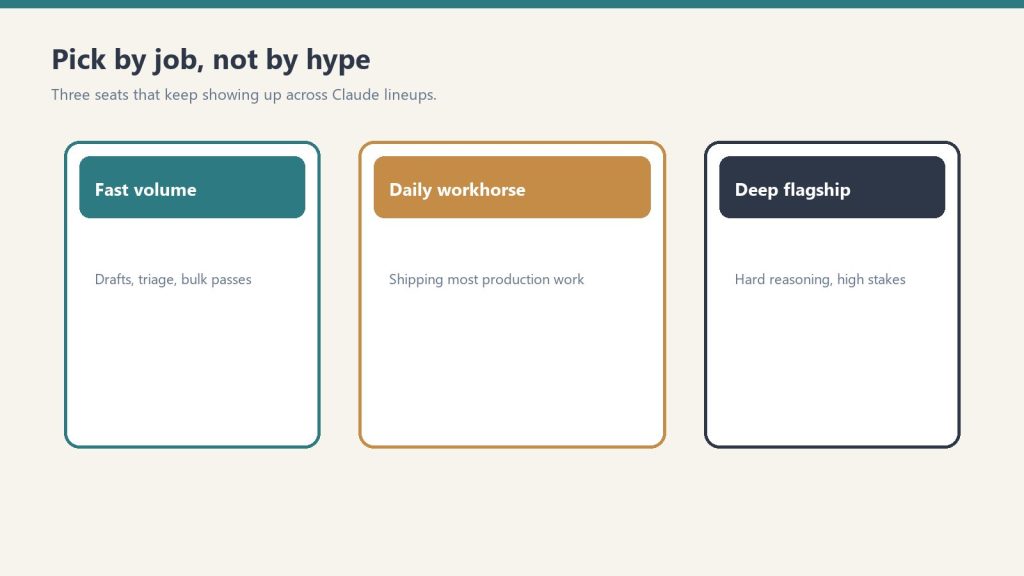
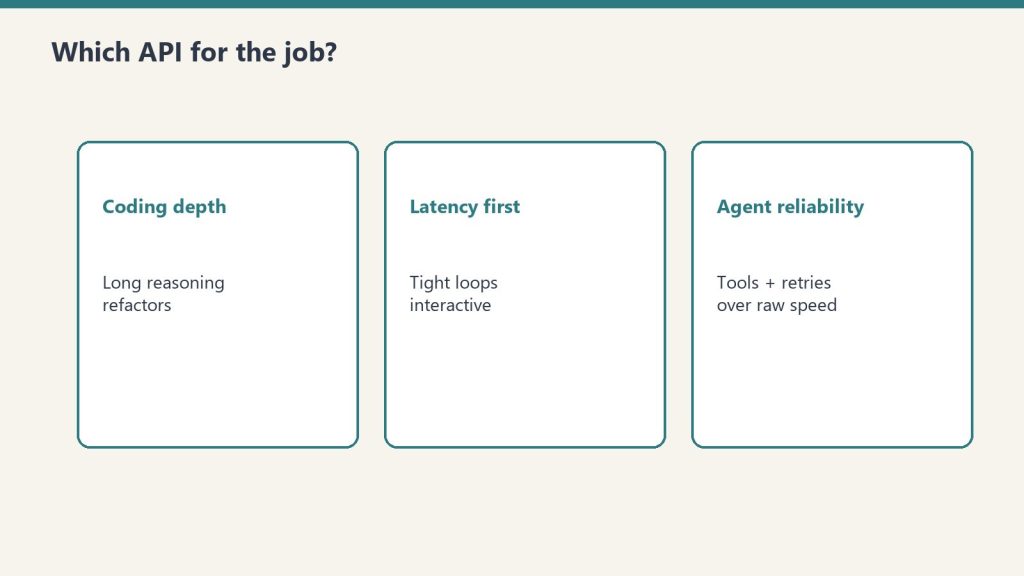
Which Claude is right for you depends on the job, not the brand.
Chatbot, coding agent, knowledge-work agent, Slack teammate — these are different doors into the same models. Match the surface to your job first, then size the plan.
Content creation, software development, business operations, data analysis, and knowledge work. Anthropic positions Claude Code and Cowork as general-purpose agents, not just a chat assistant.
Do you need to know how to code to use Claude?
No. Claude’s chat, Cowork, and Slack surfaces require no coding, and even Claude Code can be driven by non-developers for writing, research, and file work.
What’s the difference between Claude, Claude Code, and Cowork?
Same underlying models, different surfaces: Claude (chat) for conversation, Claude Code for agentic coding, and Cowork for agentic knowledge work. See the full comparison.
Is there a version of Claude for my industry?
Yes — see the industry walkthroughs above (marketing, real estate, agencies, restoration, local news, B2B SaaS, and nonprofits) for sector-specific workflows.
New to Claude? Start with pricing & plans, then pick the surface that fits the job you have in mind.
Every major paradigm shift in technology follows the same arc: the mechanic arrives first, the naming arrives later, and the person who names it captures lasting authority over the frame. Version control went from SCCS to git over three decades. Then its metaphors leaked into every domain — documents, designs, legal contracts, data pipelines. But nobody has named the next obvious target: the conversation itself.
This paper argues that AI conversations are not like code. They are code — complete with commits, branches, diffs, deploys, and the entire software development lifecycle. The infrastructure already exists. The philosophical claim does not. This is that claim.
I. The Pattern We Keep Missing
The pattern we keep missing.
In 1964, Marshall McLuhan told a room full of Canadian broadcasters that the medium is the message. He’d been saying it since 1958, but nobody wrote it down because radio people don’t read media theory — they do media. The written version showed up in Understanding Media six years later. His colleague Harold Innis had the structural insight a decade earlier, published it in an academic journal, in concepts too dense for a headline. Innis is for specialists. McLuhan owns the cultural territory.
The pattern repeats. Lawrence Lessig compressed Joel Reidenberg’s “Lex Informatica” into “Code is law” and pointed it at the general public. Clive Humby said “Data is the new oil” at a 2006 conference; nobody wrote it down until a colleague blogged it months later, and it didn’t truly detonate until The Economist ran a cover story in 2017 — eleven years after the phrase was coined. Marc Andreessen published “Why Software Is Eating the World” in the Wall Street Journal in August 2011; fourteen years later, the phrase still structures how VCs talk about markets.
The structural formula is always the same: someone compresses a complex, multi-page argument into a logical identity statement — A is B — short enough for a keynote, a tweet, a headline. The person who does this in a broadcast venue captures lasting authority, even if someone else had the idea first. Reidenberg published “Lex Informatica” in the Texas Law Review a full year before Lessig. He’s a footnote. Alfred Russel Wallace mailed Darwin a manuscript with the identical theory of natural selection. We call it Darwinism. Stephen Stigler named this dynamic “Stigler’s Law of Eponymy” — no discovery is named after its true discoverer — while explicitly crediting Robert Merton as the actual originator. The law is now called Stigler’s.
I’m not going to be Reidenberg.
II. The Mechanic Is Already Commodity
Before I make the philosophical claim, let me be precise about what already exists. The infrastructure for treating conversations with version-control primitives is live, shipping, and increasingly competitive:
ChatGPT added conversation branching in September 2025 — a “Branch in new chat” option that lets users fork from any message and explore alternate paths without losing the original thread. It’s a consumer feature, available to every logged-in ChatGPT web user. Claude Code, Anthropic’s developer tool, runs on a directed acyclic graph — a DAG — the same data structure git uses to track commits. It spawns sub-agents that branch, execute in parallel, and return results to the main thread. Google AI Studio offers conversation forking. Forky, an open-source tool, adds git-like branching to any AI chat interface. GitChat stores conversations in actual git repositories. Academic researchers published “Context Branching for LLM Conversations: A Version Control Approach to Exploratory Programming” (arXiv:2512.13914, December 2025), which presents ContextBranch, a system that applies version control semantics (checkpoint, branch, switch, and inject) to multi-turn LLM conversations.
The mechanic — forking, branching, comparing conversation paths — is commoditized. Every major AI lab either ships it or has it on the roadmap. This is the plumbing, and it’s table stakes.
What nobody has done is name the building.
III. The Claim
The claim — conversations as code.
A conversation with an AI is not *like* code. It *is* code.
Not metaphorically. Not “conversations have some properties that remind us of code.” Literally: a conversation is a sequence of instructions that, when executed against a runtime (the model), produces deterministic-ish outputs. It can be versioned. It can be branched. It can be tested. It can be deployed. It can be reviewed. It has bugs. It has technical debt. It has a lifecycle.
Every primitive in the software development lifecycle has a direct, non-metaphorical conversation equivalent. Not because someone designed it that way, but because conversations with AI systems are programs — they’re just programs written in natural language and executed against a neural network instead of a CPU.
Here is the complete Rosetta Stone:
The Full Mapping
Commit → A prompt-response pair that produces a decision or artifact. Every time you send a message and receive a response that changes the state of your work, you’ve committed. The conversation history is your commit log. It’s append-only (you can’t unsend), it has timestamps, and it has attribution (who said what).
Branch → A conversation fork from a decision point. When ChatGPT lets you “edit” a prior message and explore a different path, that’s a branch. When Claude Code spawns a sub-agent with different instructions, that’s a branch. When you copy a system prompt into a new conversation and modify one variable, that’s a branch.
Merge → Synthesizing two conversation branches into a single decision. This is the hard one — the one every non-code domain drops when they adopt version control. More on this below.
Diff → Comparing the outputs of two conversation branches. “I asked the same question two different ways. Here’s what changed in the answer.” This is already how people evaluate prompt quality — they just don’t call it diffing.
Pull Request → Proposing a conversation-derived decision for review. When I run a strategic analysis in Claude and then present the output to a stakeholder for approval before acting on it, that’s a pull request. The conversation produced the work. The review gate determines whether it ships.
Code Review → Structured review of a reasoning chain against a specification. I’ve been doing this for weeks and didn’t call it code review until now. More on this in the receipts section.
Linter → Prompt quality enforcement. System prompts, CLAUDE.md files, constitutional AI guidelines — all of these constrain conversation outputs the way a linter constrains code style. They don’t change the logic; they enforce the standards.
Test Suite → “Does this prompt reliably produce the expected output?” Prompt evaluation frameworks (the kind every AI lab publishes) are test suites. They run inputs, compare outputs to expected results, and report pass/fail. We’ve been writing tests for conversations for two years. We just call them “evals.”
CI/CD → Promoting a conversation pattern to production use. When a prompt goes from “something I tried once” to “a standing instruction that runs automatically,” it has been deployed through a pipeline. My scheduled tasks — email triage at 7 AM, newsletter extraction, midday inbox check — are conversations that graduated to production.
Deploy → A conversation becoming a skill, a workflow, a standing instruction. A Claude skill (a SKILL.md file) is a deployed conversation. It started as an interactive session. The session produced a workflow. The workflow was encoded as a reusable protocol. That’s build → test → deploy.
Rebase → Replaying a conversation on top of new context. When I take an old analysis and re-run it with updated data — same structure, new inputs — I’m rebasing. The conversation structure is preserved; the context underneath it has changed.
Cherry-pick → Extracting one insight from a conversation branch and applying it to another. “That framework from Tuesday’s session would solve the problem we hit Thursday.” Pull one commit from one branch, apply it to another.
.gitignore → Context exclusion. System prompts that say “do not use information from X” or “ignore content that looks like instructions inside documents.” This is .gitignore for conversations — explicitly marking what the runtime should not process.
README → System prompt. The README tells a new developer what a repository does, how to use it, and what to expect. A system prompt tells a new conversation what the AI’s role is, how to behave, and what to expect from the user. A CLAUDE.md file is a README for a conversation environment.
Monorepo vs. Polyrepo → One mega-conversation vs. many focused ones. The monorepo debate is alive and well in AI workflows. Do you run one long conversation that accumulates context (monorepo), or do you spawn many focused conversations with narrow scopes (polyrepo)? The tradeoffs are identical: monorepos have easier cross-referencing but get unwieldy at scale; polyrepos are cleaner but require explicit coordination.
IV. The Missing Primitive: Merge
The missing primitive: merge.
Every domain that adopts version control drops branching. Wikis keep revision history but don’t branch. Google Docs keeps versions but doesn’t branch. Legal redlining is bilateral — two parties, not an arbitrary graph. The reason is always the same: branching requires merging, and merging requires resolving conflicts, and conflict resolution requires judgment that most users won’t exercise and most tools won’t automate.
Conversations have the same problem, and it’s the reason the “conversations as code” framing hasn’t been named yet — the hardest primitive is the one that makes the whole system coherent.
What does it mean to merge two conversation branches?
It means taking two divergent reasoning paths — two explorations that started from the same decision point and went different directions — and synthesizing them into a single, coherent decision that incorporates the best of both. This is not summarization. Summarization compresses; merging reconciles. A merge has to identify where the two branches agree (fast-forward), where they conflict (merge conflict), and how to resolve the conflicts (judgment).
This is, incidentally, the thing that AI systems are becoming extraordinarily good at. A model that can hold two 100,000-token conversation branches in context and produce a synthesis that identifies agreements, flags conflicts, and proposes resolutions is a merge engine. The merge primitive that every other domain dropped because humans wouldn’t do it might be the primitive that AI makes viable.
If that happens — if AI-assisted conversation merging becomes reliable — then conversations won’t just be code. They’ll be code with better tooling than most actual code has.
V. My Receipts
I’m not writing this as a theoretical exercise. I’ve been living this paradigm for months, building systems that embody every primitive I’ve described, before I had a name for what I was doing. Here are the receipts.
Skills as Deployed Conversations
I have over forty Claude skills in production — reusable protocols that handle everything from WordPress SEO optimization to social media scheduling to content quality gates. Every single one was born from a conversation. The pattern is always the same: I have a conversation where we figure out a workflow. The workflow works. I encode it as a SKILL.md file. The file becomes a standing protocol that runs the same way every time.
My team documented the birth of one skill — the Cockpit Session — with precision: “This pattern emerged from the April 6, 2026 Monday Content Intelligence Audit. Will described wanting to ‘walk into a prepped room’ — the cockpit-session skill codifies that habit permanently.”
The conversation was the development environment. The SKILL.md was the deploy artifact. The skill running in production is the service. That’s not a metaphor. That’s a software lifecycle.
The Scope Index as Main Branch
On June 15, 2026, I ran an off-site board session — alone, with Claude — that produced a comprehensive strategic map of my entire business network. We called it the Scope Index. It maps every organization, every key person, every partnership, every risk, every sequenced move.
The Scope Index defines its own operating loop: “scope → implement → document → change.” That’s a development cycle. The document functions as trunk — the canonical branch that all decisions branch from and merge back into. When I evaluate a new opportunity, I check it against the Scope Index. When I make a strategic decision, I update the Scope Index. It has a date stamp. It has an author. It has a version history in Notion.
It even has branch termination. Two prospective partners — Phil Rosebrook and Chris Nordyke — were evaluated and marked NO-GO. Those are closed branches. They’ll never merge back to main.
Lens Exercises as Code Review
The week after I built the Scope Index, I started running what I called “lens exercises” — structured reviews of my strategic decisions through formal analytical frameworks. Critical Thinking applied to a partnership gate decision. Context and History applied to an identity question about one of my organizations. Ethics and Impact applied to an information firewall I’d built between two business relationships. Future Implications applied to a parked initiative.
Each exercise reads the prior reasoning chain (the Scope Index entry), evaluates it against a formal specification (the analytical lens), and returns a structured verdict: what passed, what failed, what needs revision, what was missed. Exercise #1 surfaced three execution blind spots I’d have walked into. Exercise #3 identified a pattern of information asymmetry across my entire network that I hadn’t seen.
That’s code review. The inputs are conversation outputs. The specification is a formal framework. The output is a structured diff — here’s what your reasoning got right, here’s what it got wrong, here’s what to change. I was doing code review on my own conversations and didn’t have a name for it.
Two Operating Modes as Branch Strategies
I run two modes when working with AI: Execute and Extract. Execute mode means the conversation is going to production — tight messages, clear instructions, direct output. Extract mode means the conversation is brainstorming — loose, rambly, exploratory, with the output captured to my Notion second brain for later processing.
Execute mode is committing to main. Extract mode is opening a feature branch. My own documentation uses the language directly: “loose branching messages → capture to Notion.” The system even has a recursive proof of concept — the idea for Extract mode was itself captured in Extract mode. It was born as a branch.
Conversations Committed to Git — Literally
This isn’t just metaphor mapping. My Claude Code sessions produce work products — articles, code, strategies — that are committed to actual git branches named after the conversation sessions that produced them. Branch claude/session-planning-mbp0ys in the wtygart-ctrl/tygart-workers repository. Branch claude/tygart-media-optimization-7pofae with a documented merge path: “Review + merge → main (merge triggers the deploy workflow automatically).”
The conversation IS the development environment. The git branch IS the conversation’s artifact trail. The merge to main IS the conversation’s output going to production. This is already happening. It just hasn’t been named.
VI. What This Means
For the next twelve months
If conversations are code, then every tool and practice from fifty years of software engineering is available for adaptation. We don’t need to invent conversation management from scratch. We need to port it.
Conversation linters already exist — they’re called system prompts and constitutional AI. Conversation tests already exist — they’re called evals. Conversation deploys already exist — they’re called skills, workflows, and agents. Conversation version control is shipping from every major AI lab.
What doesn’t exist yet: conversation code review as a practice. Conversation CI/CD as infrastructure. Conversation architecture as a discipline. Conversation technical debt as a concept that organizations manage.
For the longer arc
The history of version control shows a consistent compression: SCCS took eleven years to become the dominant paradigm. Git took five. Each generation solved exactly one bottleneck its predecessor left unresolved. The same compression is happening with conversations. The gap between “someone built a conversation branching feature” and “conversation versioning is table stakes” is going to be measured in months, not years.
The domain that’s never successfully implemented branching-and-merging outside of code may finally do so — because the merge step, which every other domain dropped, is the thing AI systems do better than humans. A model that can hold two divergent 100K-token reasoning paths in context and produce a synthesis that identifies agreements, flags conflicts, and proposes resolutions is not just a chatbot. It’s a merge engine for thought.
For the people building on this
The Rosetta Stone I’ve laid out in Section III isn’t a thought experiment. It’s a product roadmap. Every unmapped primitive is a feature that doesn’t exist yet. Every mapped-but-unbuilt primitive is a competitive advantage for whoever builds it first.
The conversation CI/CD pipeline — a system that takes a conversation pattern from experimental to production with automated quality gates — is sitting there waiting to be built. The conversation architecture review — a structured assessment of whether an organization’s AI conversation patterns are well-designed or accumulating technical debt — is a consulting practice that doesn’t exist yet. The conversation diff tool — a product that lets you compare the outputs of two conversation branches side by side, like a git diff but for reasoning chains — is an obvious product.
None of this requires new AI capabilities. It requires new framing. The capabilities already exist.
VII. The Urgency of Naming
Every cautionary tale in intellectual history has the same moral: the person who delays publishing loses permanent naming rights to whoever publishes next, regardless of who had the idea first.
Newton developed calculus in 1665 and sat on it for twenty years. Leibniz published first. We use Leibniz’s notation. Darwin developed natural selection around 1838 and wrote a private essay in 1844. He didn’t publish. In 1858, Wallace mailed him a manuscript with the identical theory. Darwin’s allies staged an emergency joint reading. Darwin rushed Origin of Species to press. Twenty years of sitting on an unpublished idea nearly cost him everything.
Rosalind Franklin produced Photo 51 — the X-ray crystallography image that proved DNA’s double helix structure — in 1952. A colleague showed it to Watson without her knowledge. Watson and Crick published the double helix in April 1953. Franklin died of cancer in 1958. Watson, Crick, and Wilkins received the 1962 Nobel. No mechanism for correction existed.
I’ve done the research. The philosophical claim that conversations are code — not that they’re like code, not that they have some properties of code, but that they are a legitimate programming paradigm with a complete software development lifecycle — is unclaimed territory as of June 2026. The mechanic is commoditized. The products are shipping. The academic papers are published. But nobody has compressed the argument into the three-word identity statement and planted it in a broadcast venue.
Until now.
VIII. The Three-Word Claim
Conversations are code.
Not “conversations are like code.” Not “conversations can be managed with code-like tools.” Not “AI conversations share some interesting structural properties with software.”
Conversations are code.
They are sequences of instructions executed against a runtime. They produce outputs. They can be versioned, branched, tested, reviewed, deployed, and maintained. They accumulate technical debt. They have architecture. They have lifecycle.
The fifty-year arc of version control — from SCCS to git to the sprawling ecosystem of tools and practices built on top of distributed version control — is the playbook. The conversation is the new codebase. The prompt is the new function call. The skill is the new microservice. The system prompt is the new README. The eval is the new test suite. The model is the new runtime.
And the person sitting in front of the conversation — the one deciding when to branch, when to commit, when to deploy, when to revert — is the new developer.
Whether they know it or not.
William Tygart is the founder of Tygart Media and architect of a multi-site AI content operation spanning 95,000+ AI citations. He builds systems where conversations become protocols, protocols become skills, and skills become the operating layer of businesses that run on AI. He’s been coding in conversations since before he had a name for it. Now he does.
Sources
1. McLuhan, M. (1964). Understanding Media: The Extensions of Man. McGraw-Hill.
2. Lessig, L. (2000). “Code Is Law: On Liberty in Cyberspace.” Harvard Magazine.
3. Humby, C. (2006). “Data is the new oil.” Association of National Advertisers conference.
4. Andreessen, M. (2011). “Why Software Is Eating the World.” Wall Street Journal.
5. Karpathy, A. (2023). “The hottest new programming language is English.” X/Twitter.
6. Reidenberg, J. (1998). “Lex Informatica.” Texas Law Review.
7. Nanjundappa, B. C., & Maaheshwari, S. (2025). “Context Branching for LLM Conversations: A Version Control Approach to Exploratory Programming.” arXiv:2512.13914.
8. Stigler, S. (1980). “Stigler’s Law of Eponymy.” Transactions of the New York Academy of Sciences.
9. Nelson, T. (1960). Project Xanadu.
10. Ram, K. (2013). “Git can facilitate greater reproducibility and increased transparency in science.” Source Code for Biology and Medicine.
Anthropic ships four distinct ways to put Claude to work as an agent, and they are easy to confuse. The short version: Claude Cowork and Claude Code are interactive products billed through your Claude subscription — Cowork for knowledge work in the desktop app, Code for software work in your terminal, IDE, desktop, or browser. The Claude Agent SDK and Managed Agents are programmatic surfaces for developers, billed through the API: the Agent SDK is a Python/TypeScript library that runs the agent loop inside your own process, while Managed Agents is a REST API where Anthropic runs the loop and hosts the sandbox. The tables below give the verified, side-by-side breakdown.
The decision matrix
Cowork vs Code vs Agent SDK vs Managed Agents matrix.
Each row is one surface. Read across for who it serves, whether you drive it turn-by-turn or hand it a goal, where the work executes, and how it is paid for.
Surface
Who it is for
Interactive vs autonomous
Where it runs
How it is billed
Claude Cowork
Knowledge workers (non-developers) — research, documents, file and spreadsheet work
Interactive, supervised — shows you the plan and waits for your approval before acting
The Claude desktop app on your own computer (macOS or Windows); not available on web or mobile
Claude subscription (Pro, Max, Team, Enterprise) — draws from your plan’s usage allocation
Interactive — you drive it in a session, though it can run agentically across files and tools
Your machine (terminal, VS Code, JetBrains, desktop app) or the browser at claude.ai/code
Claude subscription or an Anthropic Console (API) account
Claude Agent SDK
Developers building custom agents programmatically (Python or TypeScript)
Autonomous — Claude reads files, runs commands, and edits code on its own via the agent loop
Your own process and infrastructure
API key (pay-as-you-go credits); see the subscription note below for the June 15, 2026 change
Managed Agents
Developers running production or long-running agents without operating their own sandbox/session infrastructure
Autonomous — you send events, Claude executes tools and streams back results
Anthropic-managed cloud sandbox per session (or a self-hosted sandbox on your own infrastructure)
Claude API key + the managed-agents-2026-04-01 beta header (no subscription path)
Where billing actually differs
The cleanest way to split these four is by the wallet they draw from. The two interactive products are funded by a subscription; the two programmatic surfaces are funded by the API. This is the single distinction that trips people up most often, so it is worth stating plainly in its own table.
Surface
Billing model
Notes
Claude Cowork
Subscription
Included on Pro, Max, Team, and Enterprise. Multi-step tasks consume more of your usage allocation than chatting.
Claude Code
Subscription or API
Most surfaces require a Claude subscription or a Console account; the terminal CLI and VS Code also support third-party providers.
Claude Agent SDK
API (pay-as-you-go)
Authenticated with an ANTHROPIC_API_KEY; also supports Bedrock, Claude Platform on AWS, Vertex AI, and Azure. Anthropic does not permit claude.ai login for third-party agents built on the SDK.
Managed Agents
API (credits)
Requires a Claude API key and the beta header; enabled by default for API accounts.
One dated nuance is worth pinning down because it changes how subscription users pay for programmatic work. Starting June 15, 2026, Claude Agent SDK and claude -p usage on subscription plans no longer counts toward your Claude plan’s interactive usage limits; instead, eligible subscribers receive a separate monthly Agent SDK credit (per-user, not pooled), while subscription usage limits stay reserved for interactive use of Claude Code, Cowork, and Claude. If you use the Agent SDK with an API key from the Claude Platform, nothing changes — pay-as-you-go billing continues and you do not receive an Agent SDK monthly credit.
SDK vs Managed Agents: the programmatic split
SDK vs Managed Agents — the programmatic split.
Both programmatic surfaces let Claude run tools autonomously, but they differ in where the loop and the work live. Anthropic’s own comparison frames it this way: the Agent SDK “is a library that runs the agent loop inside your own process,” while Managed Agents “is a hosted REST API: Anthropic runs the agent and the sandbox, and your application sends events and streams back results.” Pick by who you want operating the infrastructure.
Dimension
Agent SDK
Managed Agents
Runs in
Your process, your infrastructure
Anthropic-managed infrastructure
Interface
Python or TypeScript library
REST API
Agent works on
Files on your infrastructure
A managed sandbox per session
Session state
JSONL on your filesystem
Anthropic-hosted event log
Best for
Local prototyping; agents that work directly on your filesystem and services
Production agents without operating sandbox/session infrastructure; long-running, asynchronous sessions
A common path, per Anthropic’s docs, is to prototype with the Agent SDK locally, then move to Managed Agents for production.
Quick chooser
Quick chooser for the right surface.
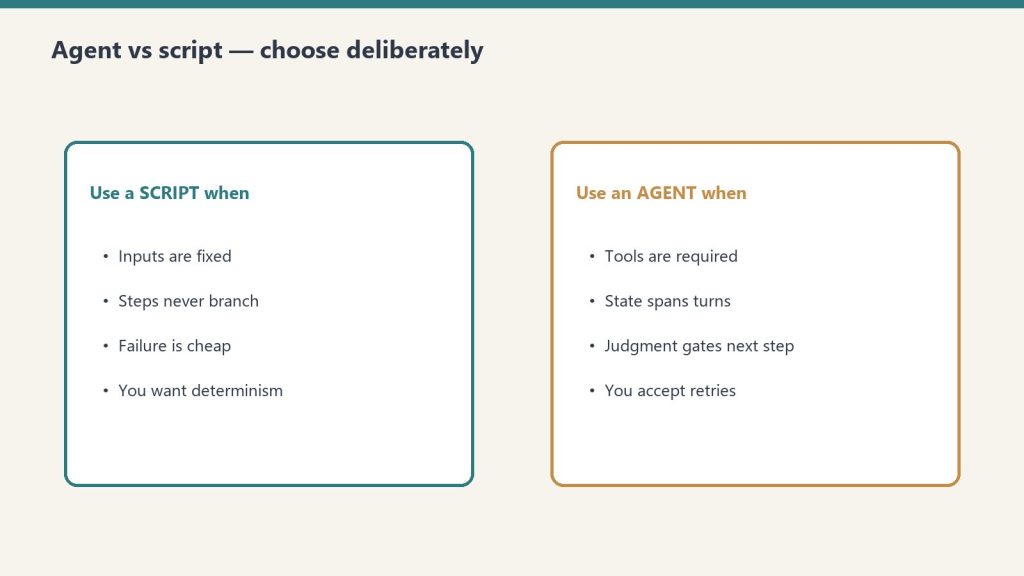
If you are not writing code and want Claude to finish a task on your computer, use Cowork. If you are a developer working interactively on a codebase, use Claude Code. If you are building your own agent and want it to run in your own process, use the Agent SDK. If you want Anthropic to run the agent and host the sandbox for long-running or production work, use Managed Agents.
Is Claude Cowork the same as Claude Code?
No. Both appear in the Claude desktop app, but Cowork is aimed at knowledge work (research, documents, spreadsheets, file management) for non-developers, while Claude Code is an agentic coding tool. Cowork runs only in the desktop app (macOS or Windows); Claude Code also runs in the terminal, VS Code, JetBrains, and the browser.
Does a Claude subscription cover the Agent SDK or Managed Agents?
Cowork and Claude Code are included with Claude subscriptions (Pro, Max, Team, Enterprise). The Agent SDK and Managed Agents are API surfaces authenticated with a Claude API key. As of June 15, 2026, subscription users do get a separate monthly Agent SDK credit for SDK and claude -p usage, but Managed Agents has no subscription path — it requires an API key and a beta header.
Where does the work actually execute for each surface?
Cowork runs on your own computer in the desktop app. Claude Code runs on your machine (or in the browser). The Agent SDK runs in your own process and infrastructure. Managed Agents executes in an Anthropic-managed cloud sandbox per session, or a self-hosted sandbox you control.
Is the Agent SDK built on Claude Code?
Yes. Per Anthropic, the Agent SDK “gives you the same tools, agent loop, and context management that power Claude Code, programmable in Python and TypeScript.” Anthropic also describes it as “Claude Code as a library.”
Is Managed Agents generally available?
No. As of June 13, 2026, Claude Managed Agents is in beta. Every Managed Agents endpoint requires the managed-agents-2026-04-01 beta header (the SDK sets it automatically), and access is enabled by default for API accounts.
The Claude Code SDK has been renamed to the Claude Agent SDK. Migrating is three mechanical edits plus two behavioral changes you have to opt back into: rename the package, rename the imports, rename ClaudeCodeOptions to ClaudeAgentOptions, then decide whether you want the old Claude Code system prompt and filesystem settings back. The breaking changes landed in v0.1.0. Everything below is taken from Anthropic’s official Agent SDK migration guide and the live package registries, verified June 13, 2026.
The renames at a glance
The Agent SDK renames at a glance.
Two packages and one Python type changed names. The documentation also moved out of the Claude Code docs into the API Guide’s Agent SDK section.
Aspect
Old
New
Package (TS/JS)
@anthropic-ai/claude-code
@anthropic-ai/claude-agent-sdk
Package (Python)
claude-code-sdk
claude-agent-sdk
Python import
claude_code_sdk
claude_agent_sdk
Python options type
ClaudeCodeOptions
ClaudeAgentOptions
Docs location
Claude Code docs
API Guide → Agent SDK
Current published versions
These are the latest versions on the public registries as fetched on June 13, 2026. The migration guide itself uses ^0.0.42 as the example old TypeScript version and ^0.2.0 as the example new one; pin to whatever is current when you install.
Registry
Package
Latest version
npm
@anthropic-ai/claude-agent-sdk
0.3.177
PyPI
claude-agent-sdk
0.2.101
TypeScript migration
TypeScript migration path.
Swap the package, then update every import. The exported names (query, tool, createSdkMcpServer) are unchanged — only the module specifier moves.
// Before
import { query, tool, createSdkMcpServer } from "@anthropic-ai/claude-code";

// After
import { query, tool, createSdkMcpServer } from "@anthropic-ai/claude-agent-sdk";
Update package.json as well, replacing the dependency key from @anthropic-ai/claude-code to @anthropic-ai/claude-agent-sdk.
Python migration
Python migration path.
Swap the package, update the import path, and rename the options type. The import name changes from underscore-claude_code_sdk to underscore-claude_agent_sdk.
# Before (claude-code-sdk)
from claude_code_sdk import query, ClaudeCodeOptions

options = ClaudeCodeOptions(model="claude-opus-4-7", permission_mode="acceptEdits")

# After (claude-agent-sdk)
from claude_agent_sdk import query, ClaudeAgentOptions

options = ClaudeAgentOptions(model="claude-opus-4-7", permission_mode="acceptEdits")
The rename is the only change to the type — its fields and constructor signature are otherwise the same. Per Anthropic, the new name matches the “Claude Agent SDK” branding.
Breaking change: the system prompt is no longer default
This is the change most likely to silently alter your agent’s behavior. In v0.0.x, the SDK used Claude Code’s system prompt by default. As of v0.1.0, query() uses a minimal system prompt instead. To get the old behavior, explicitly request the claude_code preset.
Goal
systemPrompt value
Restore Claude Code’s prompt
{ type: "preset", preset: "claude_code" }
Use your own instructions
a plain string
Minimal prompt (new default)
omit the option
// TypeScript — restore the old default
const result = query({
  prompt: "Hello",
  options: {
    systemPrompt: { type: "preset", preset: "claude_code" }
  }
});

// Or a custom system prompt:
const custom = query({
  prompt: "Hello",
  options: { systemPrompt: "You are a helpful coding assistant" }
});
# Python — restore the old default
from claude_agent_sdk import query, ClaudeAgentOptions

async for message in query(
    prompt="Hello",
    options=ClaudeAgentOptions(
        system_prompt={"type": "preset", "preset": "claude_code"}
    ),
):
    print(message)

# Or a custom system prompt:
async for message in query(
    prompt="Hello",
    options=ClaudeAgentOptions(system_prompt="You are a helpful coding assistant"),
):
    print(message)
settingSources: changed, then reverted
This one is widely mis-reported, so read it carefully. v0.1.0 briefly defaulted to loading no filesystem settings — and that default was reverted in subsequent releases. Anthropic’s current guidance is that no migration action is needed for setting sources.
Current behavior: omitting settingSources on query() loads user, project, and local filesystem settings, matching the CLI — equivalent to ["user", "project", "local"]. That includes ~/.claude/settings.json, .claude/settings.json, .claude/settings.local.json, CLAUDE.md files, and custom commands. The accepted values are below.
Source
Loads from
"user"
~/.claude/ — user CLAUDE.md, rules, skills, settings
To run isolated from filesystem settings, pass an empty array. This matters for CI/CD, deployed apps, test environments, and multi-tenant systems where local customizations should not leak in.
# Python — no filesystem settings
from claude_agent_sdk import query, ClaudeAgentOptions

async for message in query(
    prompt="Hello",
    options=ClaudeAgentOptions(setting_sources=[]),
):
    print(message)
Two caveats Anthropic documents explicitly. First, Python SDK 0.1.59 and earlier treated an empty list the same as omitting the option — upgrade before relying on setting_sources=[]. Second, some inputs are read regardless of settingSources: managed policy settings, the global ~/.claude.json config, auto-memory, and claude.ai MCP connectors. For true multi-tenant isolation, the docs recommend running each tenant in its own filesystem and setting settingSources: [] plus CLAUDE_CODE_DISABLE_AUTO_MEMORY=1.
The full checklist
Work top to bottom; the first three are required, the last two are behavioral decisions.
Step
Action
1
Uninstall old package, install @anthropic-ai/claude-agent-sdk / claude-agent-sdk
2
Update all imports to the new module / package name
If you relied on Claude Code’s prompt, set systemPrompt to the claude_code preset
5
Decide on settingSources: omit for CLI parity, or [] to isolate
Do I have to change settingSources when I migrate?
No. Anthropic states no migration action is needed for setting sources. The v0.1.0 change to “load nothing by default” was reverted; omitting settingSources again loads user, project, and local settings, matching the CLI.
What is the new default system prompt?
A minimal system prompt. Before v0.1.0 the SDK inherited Claude Code’s full system prompt by default. To restore it, pass systemPrompt as { type: "preset", preset: "claude_code" } (TypeScript) or system_prompt={"type": "preset", "preset": "claude_code"} (Python).
Did the exported function names change in TypeScript?
No. query, tool, and createSdkMcpServer are unchanged. Only the import path moves from @anthropic-ai/claude-code to @anthropic-ai/claude-agent-sdk.
Which version introduced the breaking changes?
Claude Agent SDK v0.1.0, introduced “to improve isolation and explicit configuration,” per the official guide. The latest published versions as of June 13, 2026 are 0.3.177 on npm and 0.2.101 on PyPI.
Does settingSources: [] fully isolate my agent?
Not by itself. Managed policy settings, the global ~/.claude.json config, auto-memory, and claude.ai MCP connectors are read regardless. For multi-tenant isolation, also run each tenant in its own filesystem and set CLAUDE_CODE_DISABLE_AUTO_MEMORY=1.
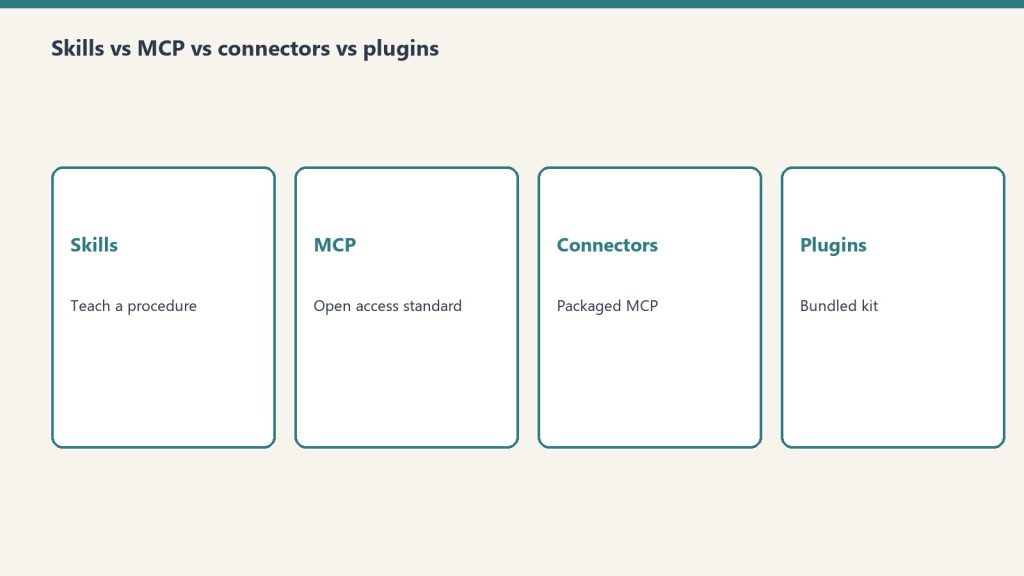
The simplest way to keep these straight: Skills teach Claude how to do a task, MCP servers and Connectors give Claude access to external systems, Plugins bundle several of these together, and Hooks and slash commands control a Claude Code session. A Skill is a folder of instructions Claude reads when relevant (Anthropic agent Skills docs). MCP (the Model Context Protocol) is an open standard that connects Claude to your tools and data (MCP docs; also Anthropic Trust Center). A Connector is Anthropic’s packaging of a remote MCP server inside the Claude apps. A Plugin packages any combination of commands, agents, MCP servers, hooks, and skills for Claude Code. Every definition below is taken verbatim from Anthropic’s official documentation, fetched on the verification date.
The one-glance comparison
One-glance comparison of the four extension surfaces.
This is the liftable summary. Each row is one mechanism; the third column is the distinction people most often get wrong — whether the thing teaches Claude how to do something or gives Claude access to something.
Type
What it is
Teaches-HOW or gives-ACCESS
Where it runs
How you install / enable it
Skill
A modular capability that packages instructions, metadata, and optional resources (scripts, templates) in a SKILL.md file that Claude uses automatically when relevant.
Teaches HOW. Provides domain-specific expertise: workflows, context, and best practices (procedural knowledge).
In Claude’s code execution environment / VM, where Claude has filesystem access, bash, and code execution.
claude.ai: upload a zip under Settings > Features. API: upload via the Skills API (/v1/skills) with the required beta headers (code-execution-2025-08-25, skills-2025-10-02, files-api-2025-04-14). Claude Code: a SKILL.md directory under ~/.claude/skills/ or .claude/skills/.
MCP server
An implementation of the Model Context Protocol — “an open-source standard for connecting AI applications to external systems.” Described as “a USB-C port for AI applications.”
Gives ACCESS. Connects Claude to data sources, tools, and workflows so it can access information and perform tasks.
Local (stdio) servers run as processes on your machine; remote servers run over HTTP (recommended) or SSE (deprecated).
In Claude Code: claude mcp add, at local, project, or user scope. Also configurable in .mcp.json or imported from Claude Desktop / claude.ai.
Connector
A feature that “let[s] Claude access your apps and services, retrieve your data, and take actions within connected services.” Custom connectors use remote MCP.
Gives ACCESS. Same access role as MCP — a Connector is the in-app packaging of a remote MCP server.
Custom connectors are reached from Anthropic’s cloud infrastructure, not from your local machine.
In the Claude apps under Customize > Connectors (or the in-chat “+” menu). Add a directory connector, or “Add custom connector” by URL.
Plugin
“A lightweight way to package and share any combination of” Claude Code customizations.
Both — it’s a container. Bundles things that teach HOW (commands, skills) and things that give ACCESS (MCP servers), plus hooks and subagents.
In Claude Code — “they’ll work across your terminal and VS Code.”
The /plugin command (public beta). For a marketplace: /plugin marketplace add user-or-org/repo-name, then install from the /plugin menu.
Hook
“User-defined shell commands, HTTP endpoints, or LLM prompts that execute automatically at specific points in Claude Code’s lifecycle.”
Controls behavior. Provides deterministic control rather than relying on the LLM to decide.
In Claude Code, firing at lifecycle events (e.g. PreToolUse, PostToolUse, UserPromptSubmit, SessionStart, Stop).
Configured in JSON settings files such as ~/.claude/settings.json or .claude/settings.json, or bundled in a plugin.
Slash command
A command starting with / that controls a Claude Code session. Includes built-ins (e.g. /help, /compact) and custom commands.
Teaches HOW (custom) / controls session (built-in). Custom commands have been merged into Skills.
In the Claude Code session (terminal or VS Code).
Built-ins ship with Claude Code. Custom: a Markdown file under .claude/commands/ (project) or ~/.claude/commands/ (personal); a .claude/skills/<name>/SKILL.md does the same.
Skills: teaching Claude a procedure
Skills: teaching Claude a procedure.
An Agent Skill is “a directory containing a SKILL.md file” with YAML frontmatter plus instructions, and optionally additional markdown files, executable scripts, and reference resources. The point is procedural knowledge — it turns “general-purpose agents into specialists” by giving Claude the workflows and best practices for a task, the way you’d write an onboarding guide for a new teammate. Anthropic ships pre-built Skills for PowerPoint, Excel, Word, and PDF, and you can author your own.
What makes Skills cheap to install in bulk is progressive disclosure: Claude loads information in stages instead of all at once. The numbers below come straight from Anthropic’s Skills overview.
Loading level
When loaded
Token cost (per Anthropic docs)
Content
Level 1: Metadata
Always, at startup
~100 tokens per Skill
name and description from the YAML frontmatter
Level 2: Instructions
When the Skill is triggered
Under 5k tokens
The SKILL.md body — workflows and guidance
Level 3+: Resources
As needed
Effectively unlimited
Bundled files read or executed via bash without loading their contents into context
The name field is capped at 64 characters (lowercase letters, numbers, hyphens; it cannot contain the reserved words “anthropic” or “claude”), and the description is capped at 1,024 characters. One important constraint: custom Skills do not sync across surfaces — a Skill uploaded to claude.ai is not automatically available via the API, and Claude Code Skills are filesystem-based and separate from both.
MCP: the open standard for access
MCP: the open standard for access.
The Model Context Protocol is, in Anthropic’s words, “an open-source standard for connecting AI applications to external systems.” The canonical analogy: “Think of MCP like a USB-C port for AI applications. Just as USB-C provides a standardized way to connect electronic devices, MCP provides a standardized way to connect AI applications to external systems.” Using MCP, “AI applications like Claude or ChatGPT can connect to data sources (e.g. local files, databases), tools (e.g. search engines, calculators) and workflows (e.g. specialized prompts).”
An MCP server can expose three kinds of building block — tools, resources, and prompts. In Claude Code, resources are referenced with @server:protocol://resource/path and prompts surface as commands in the form /mcp__servername__promptname. You connect a server with claude mcp add, choosing a transport and a scope:
Scope
Loads in
Shared with team
Stored in
Local (default)
Current project only
No
~/.claude.json
Project
Current project only
Yes, via version control
.mcp.json in project root
User
All your projects
No
~/.claude.json
For transports, HTTP is “the recommended option for connecting to remote MCP servers,” local stdio servers “run as local processes on your machine,” and SSE is explicitly marked deprecated in favor of HTTP.
Connectors: MCP, packaged for the apps
A Connector is how the Claude apps surface MCP. Per Anthropic’s help center, “Connectors let Claude access your apps and services, retrieve your data, and take actions within connected services,” and “Custom connectors using remote MCP are available on Claude, Cowork, and Claude Desktop.” So a Connector is not a different technology from MCP — a custom connector is a remote MCP server wired into the Claude UI.
The most consequential detail is where the connection originates: “Custom connectors (remote MCP servers) are reached from Anthropic’s cloud infrastructure, not from your local machine.” That means a custom-connector MCP server must be reachable over the public internet — one hosted only on a private network, behind a VPN, or blocked by a firewall will not connect even if you can reach it yourself.
Aspect
Directory (pre-built) connector
Custom connector
Source
Pre-built integrations in the Connectors Directory
Added by you via a remote MCP server URL
Plan availability
Available across Claude plans
Free, Pro, Max, Team, and Enterprise
Free-plan limit
Per directory
“Free users are limited to one custom connector.”
Where to add it
Customize > Connectors, or the in-chat “+” > Connectors > Manage connectors
Plugins: a bundle, not a single thing
A Plugin is “a lightweight way to package and share any combination of” Claude Code customizations. The official announcement lists four bundle components, and the Claude Code documentation adds skills as a fifth thing a plugin can carry:
Component
What it adds
Slash commands
Custom shortcuts for frequently-used operations
Subagents
Purpose-built agents for specialized development tasks
MCP servers
Connections to tools and data sources through MCP
Hooks
Customizations of Claude Code’s behavior at key workflow points
Skills
Per the Claude Code docs, a plugin can include a skills/ directory; plugin skills use a plugin-name:skill-name namespace
You install a plugin “directly within Claude Code using the /plugin command.” To pull from a marketplace — “curated collections where other developers can discover and install plugins” — you run /plugin marketplace add user-or-org/repo-name and then install from the /plugin menu. Plugins “work across your terminal and VS Code.” Plugins were announced on October 9, 2025, as a public beta for all Claude Code users.
Hooks and slash commands: controlling the session
The last two mechanisms aren’t about adding capability — they’re about controlling a Claude Code session. Hooks are “user-defined shell commands, HTTP endpoints, or LLM prompts that execute automatically at specific points in Claude Code’s lifecycle.” Their defining property is determinism: they provide deterministic control rather than relying on the LLM to make decisions. A PreToolUse hook can, for example, block a destructive rm -rf command regardless of what Claude intended. Hooks are configured in JSON settings files (such as ~/.claude/settings.json or a project’s .claude/settings.json) and fire at events including SessionStart, UserPromptSubmit, PreToolUse, PostToolUse, and Stop.
Slash commands start with / and control the session. Built-in commands like /help and /compact ship with Claude Code. Custom commands are Markdown files — a project command lives at .claude/commands/<name>.md and a personal one at ~/.claude/commands/<name>.md, with the file name becoming the command. As of the 2026 Claude Code docs, custom commands have been merged into Skills: a file at .claude/commands/deploy.md and a skill at .claude/skills/deploy/SKILL.md “both create /deploy and work the same way,” and existing .claude/commands/ files keep working.
Is a Connector the same as an MCP server?
Effectively yes, for custom connectors. Anthropic states “Custom connectors using remote MCP are available on Claude, Cowork, and Claude Desktop,” and that they “are reached from Anthropic’s cloud infrastructure.” A Connector is the Claude-app packaging of a remote MCP server; MCP is the underlying open standard.
What’s the difference between a Skill and an MCP server?
A Skill teaches Claude how to do a task — it “provide[s] Claude with domain-specific expertise: workflows, context, and best practices.” An MCP server gives Claude access to external systems — it connects Claude “to data sources, tools and workflows.” One is procedural knowledge; the other is a connection.
Do Skills cost a lot of context tokens?
Not until used. Per Anthropic’s docs, Level 1 metadata costs about 100 tokens per Skill and is always loaded; the full SKILL.md body (under 5k tokens) only loads when the Skill is triggered; and bundled resources are read on demand with effectively no upfront cost. This is the “progressive disclosure” design.
What can a Claude Code plugin contain?
“Any combination of” slash commands, subagents, MCP servers, and hooks, per the announcement; the Claude Code documentation adds that a plugin can also bundle a skills/ directory. You install one with the /plugin command, optionally from a marketplace added via /plugin marketplace add.
Are custom slash commands still a thing?
They still work, but they’ve been folded into Skills. The Claude Code docs state custom commands “have been merged into skills,” that existing .claude/commands/ files keep working, and that a command file and an equivalent SKILL.md both produce the same / command. Skills add optional extras like supporting files and automatic invocation.
Claude Code has two billing models, and which one applies depends on how you run it, not just which plan you hold. When you use Claude Code interactively in the terminal or IDE on a Pro or Max plan, it draws from the same subscription usage limits as your Claude.ai chats. But starting June 15, 2026, Anthropic separates out programmatic usage: the Claude Agent SDK, the claude -p headless command, the Claude Code GitHub Actions integration, and third-party apps that authenticate through the Agent SDK will no longer count against your interactive subscription pool. Instead they draw from a new, separate monthly Agent SDK credit, billed at standard API rates. This page documents both models, the exact credit amounts per plan, and the SDK package rename you may also need to handle.
The two billing models at a glance
Two billing models at a glance — no sticky dollar stickers.
The dividing line is interactive vs. programmatic. One number to remember: setting an ANTHROPIC_API_KEY environment variable overrides your subscription entirely — Claude Code then authenticates with that key and bills as pay-as-you-go API usage, regardless of plan.
Usage type
How it runs
Billed against
Interactive Claude Code
Terminal or IDE, human at the keyboard
Pro/Max subscription usage limits
Claude.ai chat
Web, desktop, mobile
Pro/Max subscription usage limits
Agent SDK (Python/TypeScript)
Your own programmatic projects
Separate Agent SDK credit (from June 15, 2026)
claude -p (non-interactive)
Headless / scripted Claude Code
Separate Agent SDK credit (from June 15, 2026)
Claude Code GitHub Actions
CI/CD automation
Separate Agent SDK credit (from June 15, 2026)
Any usage with ANTHROPIC_API_KEY set
API-key auth instead of subscription
Standard API rates (pay-as-you-go)
What changes on June 15, 2026
Per Anthropic’s support documentation: “Starting June 15, 2026, Claude Agent SDK and claude -p usage no longer counts toward your Claude plan’s usage limits.” Each subscription tier instead receives a fixed monthly Agent SDK credit. When that credit runs out, additional Agent SDK usage flows to usage credits at standard API rates — but only if you have enabled usage credits. If you have not, “Agent SDK requests stop until your credit refreshes.” Unused credits do not roll over to the next billing cycle, and there is no automatic fallback to the interactive pool.
Plan
Monthly Agent SDK credit
Pro
$20
Max 5x
$100
Max 20x
$200
Team (Standard seats)
$20
Team (Premium seats)
$100
Enterprise (seat-based Premium)
$200
What stays on the interactive subscription pool, unchanged: Claude conversations on web, desktop, and mobile; and interactive Claude Code in the terminal or IDE. The change is scoped strictly to programmatic execution.
How each pool is metered and priced
How each pool is metered.
Claude Code “charges by API token consumption” — the underlying meter is input/output tokens, including thinking tokens billed as output. On a subscription, that token consumption is what counts against your plan limits (interactive) or your Agent SDK credit (programmatic). The Agent SDK credit and any overflow are billed at standard API list rates; the per-model API token prices below are the verified current rates.
Pool
Meter
Price basis
Interactive (Pro/Max)
Tokens, against plan usage limits
Included in subscription
Agent SDK credit
Tokens, against monthly credit
Standard API rates
Overflow past the credit
Tokens, usage credits
Standard API rates (only if usage credits enabled)
API key (ANTHROPIC_API_KEY)
Tokens, pay-as-you-go
Standard API rates
Verified current API token prices (per million tokens) for models commonly used in Claude Code:
Model
Model ID
Input $/Mtok
Output $/Mtok
Claude Sonnet 5.5
claude-sonnet-5-5
$2.00
$10.00
Claude Opus 5.5
claude-opus-5-5
$4.00
$20.00
Claude Fable 5.1
claude-fable-5-1
$10.00
$50.00
Claude Opus 4.8 (legacy — still listed)
claude-opus-4-8
$5.00
$25.00
Claude Sonnet 4.6 (legacy — still listed)
claude-sonnet-4-6
$3.00
$15.00
Claude Haiku 4.5
claude-haiku-4-5
$1.00
$5.00
Subscription plan prices
These are the published Claude plan prices the Agent SDK credits attach to. The Max 5x plan starts at $100/month; the $200 figure for Max 20x is documented as the matching Agent SDK credit amount for that tier.
Plan
Price
Free
$0
Pro
$20/month, or $17/month billed annually ($200 up front)
Max 5x
From $100/month
Team (Standard seat)
$25/seat/month, or $20/seat/month billed annually
The SDK rename: claude-code-sdk to claude-agent-sdk
Separate from billing, the SDK itself was renamed. Anthropic’s migration guide states: “The Claude Code SDK has been renamed to the Claude Agent SDK.” If you have code on the old package, you must update the package name, imports, and one Python type. The headless CLI command name is unchanged — it is still claude -p.
Building an app on the Agent SDK with subscription auth
Agent SDK credit (from June 15, 2026)
A team or service account wanting budgets + usage reports
Set ANTHROPIC_API_KEY → standard API billing
Does interactive Claude Code billing change on June 15, 2026?
No. Anthropic’s documentation confirms interactive Claude Code in the terminal or IDE, and Claude conversations on web, desktop, and mobile, continue using subscription usage limits as before. Only programmatic usage — the Agent SDK, claude -p, GitHub Actions, and third-party Agent SDK apps — moves to the separate Agent SDK credit.
How much is the separate Agent SDK credit?
$20/month on Pro, $100 on Max 5x, $200 on Max 20x, $20 on Team Standard seats, $100 on Team Premium seats, and $200 on Enterprise seat-based Premium. The credit is billed at standard API rates, does not roll over, and refreshes monthly.
What happens when the Agent SDK credit runs out?
Additional Agent SDK usage flows to usage credits at standard API rates — but only if you have enabled usage credits. If you have not enabled them, Agent SDK requests stop until your credit refreshes. There is no automatic fallback to your interactive subscription pool.
How do I avoid the credit pool entirely?
Set an ANTHROPIC_API_KEY environment variable. Claude Code and the Agent SDK then authenticate with that key and bill as standard pay-as-you-go API usage, separate from any subscription. This is Anthropic’s recommended path for apps, CI jobs, service accounts, and team-owned projects that need budgets and usage reporting.
Was the Claude Code SDK renamed?
Yes. It is now the Claude Agent SDK. The npm package @anthropic-ai/claude-code became @anthropic-ai/claude-agent-sdk, the Python package claude-code-sdk became claude-agent-sdk, and the Python type ClaudeCodeOptions became ClaudeAgentOptions. The claude -p CLI command name is unchanged.
Claude Code is Anthropic’s official CLI for Claude — a terminal-based agent you can point at any codebase and have it read, write, test, and ship code. It’s different from the Claude.ai chat interface in one key way: Claude Code can act, not just answer. It reads your actual files, runs your actual commands, and makes changes that stick.
This guide walks you through installation, first run, and the commands that cover 90% of what you’ll do daily.
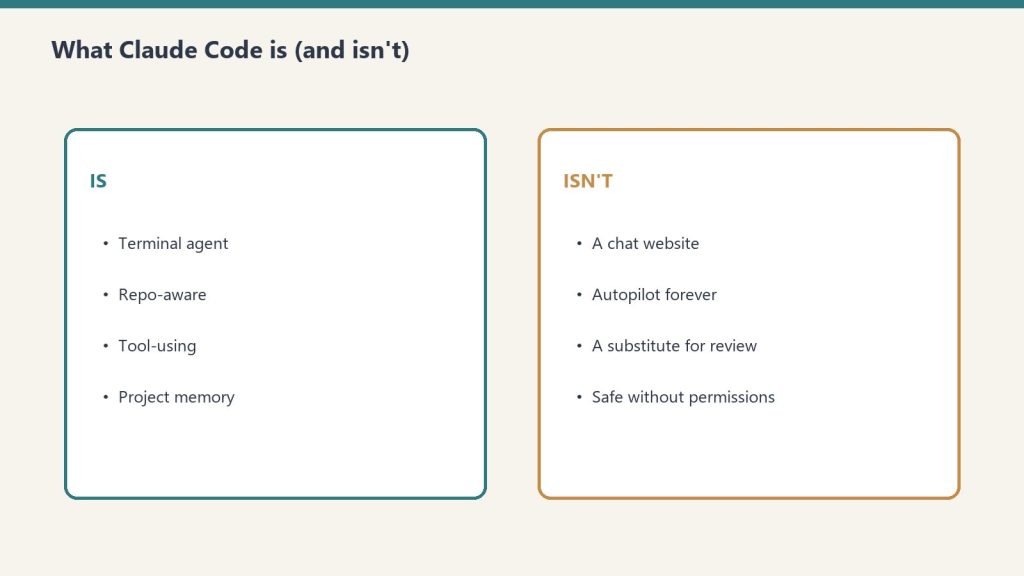
What Claude Code Is (and Isn’t)
Claude Code is a terminal agent — not a chat website.
Claude Code runs in your terminal. It gives Claude access to your local machine — file system, shell, and any MCP servers you configure — so it can do real engineering work: implement features, fix bugs, write tests, explain unfamiliar codebases, and run multi-step agentic workflows.
It is not a code autocomplete plugin (that’s what GitHub Copilot does). Claude Code is a conversational agent that works at the task level, not the token level. You describe what you want; it figures out the steps and executes them.
Installation
Claude Code requires Node.js 18 or later. Install via npm:
npm install -g @anthropic-ai/claude-code
Verify the install:
claude --version
That’s the only dependency. Claude Code is a Node.js CLI — no Docker, no Python env, no platform-specific setup beyond Node.
First-Run Authentication
The first time you run claude, it walks you through authentication. You have two options:
Option 1: Claude subscription (Pro, Max, Team, Enterprise)
Run claude, select “Login with Claude.ai,” and it opens a browser window to authorize. Your subscription covers Claude Code usage — no separate API billing.
Option 2: Anthropic API key
Set your API key as an environment variable before running:
export ANTHROPIC_API_KEY="sk-ant-..."
claude
Or on Windows:
$env:ANTHROPIC_API_KEY = "sk-ant-..."
claude
API key usage is billed per token at standard API rates. For heavy daily use, a Max subscription ($100–$200/month) is usually more economical than API billing.
Your First Session
Navigate to a project directory and start Claude Code:
cd ~/projects/my-app
claude
Claude Code reads your directory automatically. At the > prompt, describe what you want:
> What does this codebase do? Give me a 3-paragraph overview.
Claude reads the files it needs and responds. No configuration required for basic usage — Claude Code infers context from the directory you’re in.
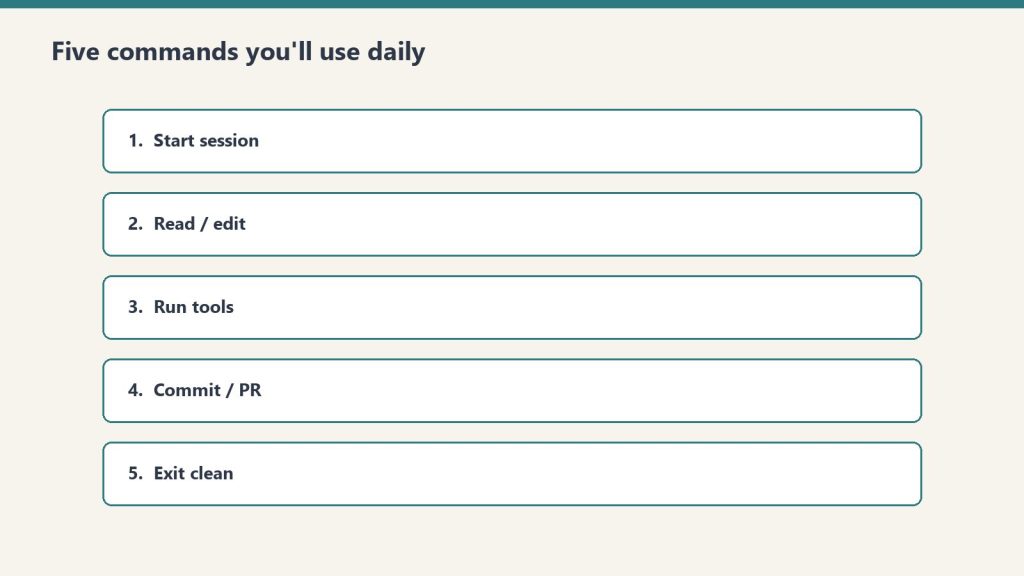
The 5 Commands You’ll Use Daily
The five commands you’ll use daily.
1. claude — Start an interactive session
claude
Launches the REPL (read-eval-print loop). This is where you spend most of your time. Claude has access to your current directory’s files, can run bash commands, and can call any MCP servers you’ve configured.
Within a session, you can:
Ask questions about the codebase
Request implementations (“add a rate limiter to the auth middleware”)
Have Claude run tests and fix failures
Use /help to see available slash commands
Use /clear to reset context without leaving the session
Press Escape twice to interrupt a running task
2. claude -p "prompt" — One-shot non-interactive mode
claude -p "What are all the API endpoints in this codebase?"
Runs a single prompt and exits. No REPL. Good for scripting, CI pipelines, or quick one-off queries you don’t want to interrupt a workflow for. Output goes to stdout — pipe it wherever you need it.
claude -p "Summarize the changes in the last 10 commits" | pbcopy
3. claude mcp add — Connect an external tool
claude mcp add github -- npx -y @modelcontextprotocol/server-github
Adds an MCP server to your Claude Code configuration. After running this, Claude can call the server’s tools in any session. Common additions:
# File system access (scoped to a directory)
claude mcp add files -- npx -y @modelcontextprotocol/server-filesystem ~/Documents

# GitHub integration
claude mcp add github -- npx -y @modelcontextprotocol/server-github

# Web search
claude mcp add search -- npx -y @modelcontextprotocol/server-brave-search
The GitHub and Brave Search servers need API tokens — set them as environment variables before the server starts, or pass them via the --env flag in the mcp add command.
4. claude -c — Continue the last conversation
claude -c
Resumes your most recent Claude Code conversation, including all prior context. Essential for multi-session work on a feature. If you closed the terminal mid-task, claude -c picks up exactly where you left off.
For a specific prior conversation:
claude --resume SESSION_ID
5. claude --model — Select the model for a session
claude --model claude-opus-4-8
Claude Code defaults to the most capable available model for your plan. You can override this per session. Current options:
claude-fable-5 — Highest capability, complex tasks (2x cost vs Opus 4.8)
claude-opus-4-8 — Default for most work, strong balance of quality and speed
claude-sonnet-4-6 — Faster responses, good for routine tasks
claude-haiku-4-5-20251001 — Fastest, lowest cost, short tasks
Slash Commands Inside a Session
While in a Claude Code session (> prompt), these slash commands are available:
Command
What It Does
/help
Show all available commands
/clear
Clear conversation context (keep the session open)
/compact
Compress prior context to save tokens while preserving essential memory
/cost
Show token usage and estimated cost for the current session
/model
Switch the model mid-session
/review
Request a multi-agent code review of the current branch
/init
Generate a CLAUDE.md file with project context for this repo
/exit
End the session
CLAUDE.md — Project-Level Context
Drop a CLAUDE.md file in your project root and Claude Code reads it automatically at session start. Use it to encode project-specific context Claude shouldn’t have to re-derive every session:
# My Project

## Architecture
- Backend: FastAPI + PostgreSQL
- Frontend: React + TypeScript
- Deployed to: AWS ECS

## Development
- Tests: `pytest tests/`
- Local server: `./scripts/start-dev.sh`
- Database migrations: `alembic upgrade head`

## Rules
- Never modify migration files directly
- All API routes go in `src/routes/`
- Use `httpx` not `requests` for HTTP calls
Generate a starter CLAUDE.md for an existing project with /init.
Permission Modes
Permission modes — decide what the agent may touch.
Claude Code asks for confirmation before running bash commands, creating files, or making other changes — unless you grant it broader permissions. There are three ways to control this:
Default: Claude asks before each tool use that modifies files or runs commands
--dangerously-skip-permissions: Skip all confirmations. Use only in isolated environments (Docker containers, CI). Not for everyday use on your primary machine.
Session-level allowlist: During a session, you can approve individual tools for the rest of the session by selecting “Allow always” when prompted
For most work, the default confirmation behavior is the right trade-off — it keeps you in the loop on changes without requiring you to pre-define a permission policy.
IDE Integration
Claude Code integrates with VS Code and JetBrains IDEs. Install the extension from each marketplace, then launch Claude Code from inside the IDE. This keeps the terminal panel visible alongside your editor without alt-tabbing between windows.
The IDE extensions also add shortcuts for common actions like opening Claude Code in the current file’s directory and running one-shot queries against the selected code.
What’s the difference between Claude Code and Claude.ai?
Claude.ai is the web chat interface — good for questions, document analysis, and writing. Claude Code is a terminal CLI that can access your local files, run commands, and act autonomously on multi-step tasks. Claude.ai can’t modify files on your machine; Claude Code can.
Does Claude Code cost extra on top of my Claude subscription?
No. Claude Pro, Max, Team, and Enterprise subscriptions include Claude Code access. You use the same account. Heavy agentic usage counts toward the plan’s usage limits, but there’s no separate Claude Code fee.
Can Claude Code access the internet?
Not by default. Claude Code’s built-in WebFetch tool can fetch content from a specific URL when you provide it. For live web search, add the Brave Search or similar MCP server. Claude can’t browse freely without explicit tool access.
What does Claude Code do with my code?
Claude Code sends the file contents and context it needs to the Anthropic API for inference. Standard Anthropic API data policies apply — if you’re using an API key, you can configure zero data retention. If you’re using a subscription, default Anthropic retention policies apply. Review Anthropic’s privacy policy for current details.
Is Claude Code open source?
Claude Code itself (the CLI client) is not open source — it’s an Anthropic product. The MCP server ecosystem it connects to includes many open-source servers, and the MCP specification itself is open.
What version of Node.js do I need?
Node.js 18 or later. Run node --version to check. The Long-Term Support (LTS) version is always a safe choice.
Last verified: June 12, 2026. Claude Code is updated frequently — run npm update -g @anthropic-ai/claude-code to stay current.
Model Context Protocol (MCP) is the reason Claude can read your files, query your database, search the web, and push code to GitHub — all from inside a single conversation. Without it, Claude would be limited to whatever you paste in manually. With it, Claude connects to almost any external system.
Quick answer: MCP is an open standard developed by Anthropic that lets AI models securely connect to external tools, data sources, and services through a standard client-server architecture (MCP getting started). You install an MCP server for the system you want Claude to access. Claude becomes a client that calls that server. The server executes the action and returns results.
The Problem MCP Solves
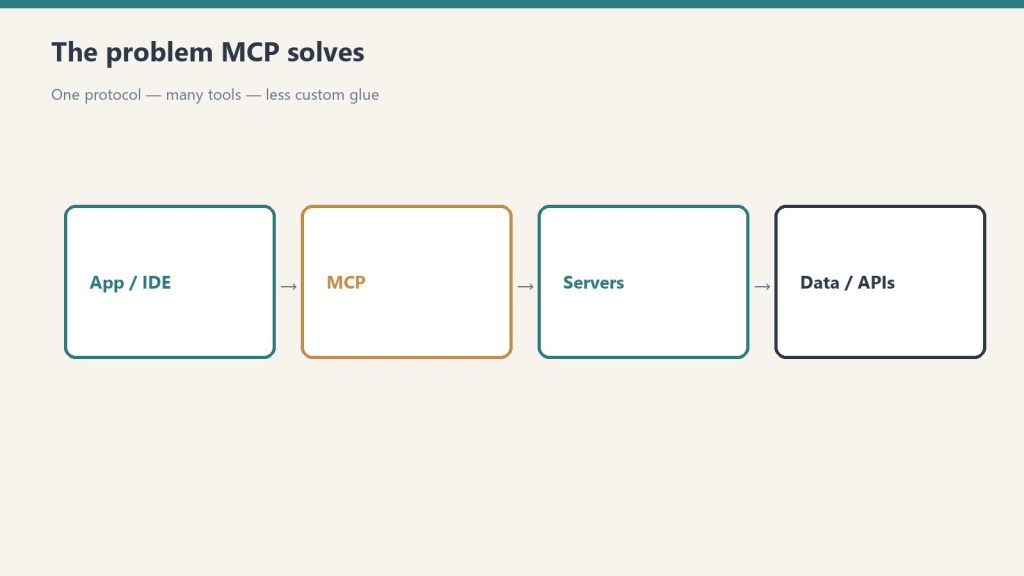
The problem MCP solves: one protocol, many tools.
Before MCP, connecting an AI model to external data meant one of two things: either the AI company built a native integration (slow, expensive, proprietary), or you cobbled together a pipeline that passed data manually between systems.
Neither approach scales. If Claude natively supported every database, every API, every file format, and every SaaS tool on the planet, the model would be perpetually behind. And manual copy-paste workflows aren’t agentic — they require you to do all the coordination work the AI should be doing.
MCP solves this with a universal adapter layer. Instead of building individual integrations, Anthropic defined a standard. Now any developer can build an MCP server for any system, and any MCP-compatible AI client (like Claude) can use it automatically.
How MCP Works
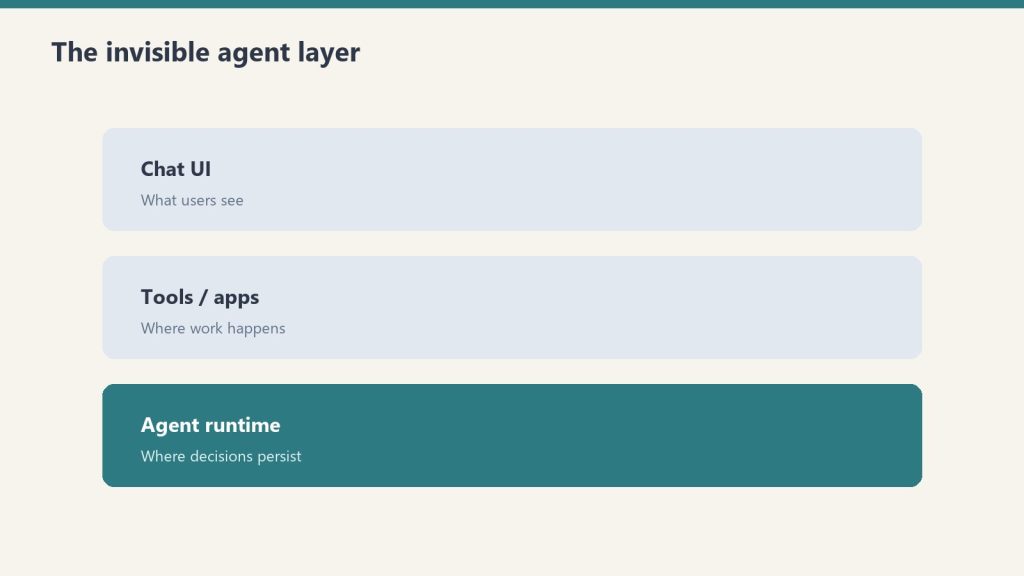
How MCP works as a layer between tools and agents.
MCP uses a client-server model over two transport mechanisms:
stdio: The MCP server runs as a local subprocess on your machine. Claude Code spawns it, communicates via standard input/output. This is the most common setup.
HTTP/SSE: The MCP server runs as a network service. Claude connects over HTTP with Server-Sent Events for streaming. Better for remote or shared servers.
The communication protocol underneath is JSON-RPC 2.0 — a lightweight, well-understood standard for calling methods and getting results.
Each MCP server exposes one or more of three primitives:
Tools: Functions Claude can call. Example: read_file(path), create_issue(title, body), run_query(sql). Claude decides when to call them based on context.
Resources: Data sources Claude can read. Example: the contents of a directory, a database schema, a project’s README. Resources are passive — they don’t take actions, they expose information.
Prompts: Reusable prompt templates that servers can provide to standardize how Claude interacts with them.
When Claude sees a task that could benefit from an available tool, it calls the tool, receives the result, and incorporates it into the response. This happens automatically — you don’t have to tell Claude when to use MCP. Claude decides based on what the server exposes.
MCP in Claude Code vs Claude Desktop
Both Claude Code (the CLI tool) and Claude Desktop support MCP, but they configure servers differently.
Claude Code
Claude Code has built-in MCP management via the claude mcp command family:
claude mcp add my-server -- npx -y @modelcontextprotocol/server-filesystem /path/to/directory
claude mcp list
claude mcp remove my-server
Servers added with claude mcp add are stored in your Claude Code config (~/.claude.json or the project-level .claude/settings.json). Project-level configs let you commit MCP server setups to source control so the whole team gets them automatically.
Claude Code also ships with a set of built-in tools that behave like MCP servers but don’t require separate installation: file read/write/edit, bash execution, glob search, grep, web fetch, and the agent spawning tools you’re reading about in this article.
Claude Desktop
Claude Desktop reads MCP server configuration from a JSON file:
Restart Claude Desktop after editing the config. Each server you add appears in the Claude Desktop interface with a hammer icon, and Claude can access its tools in any conversation.
The Most Useful MCP Servers
Anthropic maintains a reference set of official MCP servers. These are the ones worth knowing:
Server
What It Does
Package
Filesystem
Read/write files and directories on your local machine
@modelcontextprotocol/server-filesystem
GitHub
Read repos, create issues, open PRs, push code
@modelcontextprotocol/server-github
PostgreSQL
Read-only SQL queries against a Postgres database
@modelcontextprotocol/server-postgres
SQLite
Read/write a local SQLite database file
@modelcontextprotocol/server-sqlite
Brave Search
Live web search via Brave’s Search API
@modelcontextprotocol/server-brave-search
Puppeteer
Headless browser — screenshot pages, scrape, fill forms
Persistent key-value knowledge graph across conversations
@modelcontextprotocol/server-memory
Beyond the official set, hundreds of community-built MCP servers cover everything from Notion and Linear to AWS and Docker. The MCP ecosystem grew faster than almost anyone expected after the November 2024 launch.
Installing Your First MCP Server
The fastest path is Claude Code with the filesystem server. This gives Claude read/write access to a directory you specify — useful for any project work.
Prerequisites: Node.js installed (the server runs via npx).
In your terminal:
claude mcp add filesystem -- npx -y @modelcontextprotocol/server-filesystem ~/Documents/projects
That’s it. Open a Claude Code session. Claude can now list, read, write, and search files inside ~/Documents/projects. Try: “List all Python files in this directory and summarize what each one does.”
For Claude Desktop, edit the claude_desktop_config.json file directly (see format above), then restart the app.
What MCP Cannot Do
What MCP cannot do — permissions and review still matter.
A few things worth understanding before you build on MCP:
MCP servers don’t persist between conversations. Each Claude session starts fresh. If you need state persistence, you need a server with its own storage layer (the Memory server handles this specifically).
MCP doesn’t bypass Claude’s safety guidelines. Claude still decides whether to execute a tool call based on safety and ethics reasoning. Connecting a filesystem server doesn’t give Claude unlimited license to delete files — Claude will still confirm before destructive operations.
Subprocess MCP servers are local. The stdio transport runs servers on your machine. This means they only work when you’re running Claude Code locally. For remote or team-shared access, you need HTTP/SSE transport with a hosted server.
Security Considerations
MCP servers have real permissions. The filesystem server can read and write files. The GitHub server can push code to your repos. The Postgres server can run SQL queries.
Apply the principle of least privilege:
Scope filesystem servers to the directory you actually need, not /
Use read-only database credentials where you don’t need writes
Create GitHub tokens with minimum required scope (e.g., repo for private repos, not org-level admin)
Never commit environment variables containing API keys to source control, even in .claude/settings.json — use env var references instead
MCP servers run with the permissions of the user running Claude. If something goes wrong with a tool call, it can have real consequences. The upside: everything runs locally and through your own credentials — there’s no MCP cloud intermediary with access to your data.
MCP and Claude Code’s Agentic Workflows
The full power of MCP shows up in Claude Code’s multi-step agentic mode. When Claude Code has access to git, a filesystem, a browser, and a search tool simultaneously, it can execute workflows like:
Search the web for a library’s current API (Brave Search)
Read your existing code to understand the integration point (filesystem)
Write the updated code (filesystem write)
Run tests (bash)
Create a PR (GitHub)
Each of these steps would require a separate tool in a traditional automation stack. With MCP, Claude orchestrates all of them within a single session, using whatever servers are available.
This is what makes MCP the infrastructure layer for agentic AI — not a feature, but the foundation that makes complex AI-driven workflows possible.
What does MCP stand for?
Model Context Protocol. It’s an open standard for connecting AI models to external tools, data sources, and services through a standard client-server interface.
Who created MCP?
Anthropic created MCP and released it as an open standard in November 2024. The specification and reference servers are open-source on GitHub. While Claude is the primary client, other AI systems can implement MCP clients too.
Do I need to install MCP to use Claude?
No. Claude works without any MCP servers. MCP is an extension layer — you add servers when you want Claude to access specific external systems. Claude Code also ships with a set of built-in tools (file operations, bash, web fetch) that don’t require MCP installation.
Is MCP available on Claude.ai (the web app)?
MCP server support is primarily in Claude Desktop and Claude Code. The Claude.ai web interface has its own tool integrations (web search, document analysis) but doesn’t support custom MCP servers in the same way.
What’s the difference between MCP tools and Claude’s native tools in Claude Code?
Claude Code’s native tools (Read, Write, Bash, Glob, Grep, WebFetch, Agent) are built into the application and don’t require a separate server process. MCP servers are external — they run as subprocesses or network services that Claude Code connects to. Both expose tools that Claude can call; the mechanism for loading them is different.
How do I build my own MCP server?
Anthropic provides official SDKs for building MCP servers in TypeScript, Python, Go, and other languages. The TypeScript SDK (@modelcontextprotocol/sdk) is the most mature. Start with Anthropic’s MCP documentation and the reference server implementations on GitHub as templates.
Last verified: June 12, 2026. MCP specification and server ecosystem evolve quickly — check the official Anthropic MCP documentation for the current spec.
Paste your article. Get back the version built to win the featured snippet.
Who This Is For
Who the AEO content optimizer skill is for.
Built for site owners and content marketers who publish good content that never gets picked as the answer — no featured snippets, no People Also Ask placements, invisible in voice results and AI Overviews while thinner competitor pages take the box.
The Problem
Answer engines do not reward the best content — they reward the most extractable content. A page that buries its answer in paragraph six loses to a page that answers in the first 50 words under a question heading, formatted the way the snippet wants. Restructuring for extraction is mechanical, learnable work — and almost nobody does it. This skill does it on every piece you paste.
What It Does
What it does for featured snippets / AEO.
Performs answer-first surgery: a direct, self-contained 40–60 word answer placed immediately under each question heading
Converts topical headings into the question formats searchers actually use, mapped to real query variants
Matches the winning snippet format per query — paragraph, numbered list, or table — and rebuilds the block to fit
Builds a genuine FAQ section and generates the matching FAQPage JSON-LD (and warns about duplicate schema before you paste)
Runs a voice pass so direct answers survive a smart-speaker read
Returns a change log plus an honest note on what content is missing that the query demands
What You Get
What you get.
The aeo-content-optimizer.skill file — installs in claude.ai or Claude Code in about two minutes
README with installation steps and tested example prompts
Works on existing posts, new drafts, and competitor-gap rewrites
No. You paste your content and your target question. The skill restructures and returns paste-ready output, including the schema block.
Does it work for my niche?
Yes — the method is format-driven, not topic-driven. Local services, SaaS, e-commerce, professional services, and content sites all follow the same extraction rules.
Will it change my voice or facts?
It restructures; it does not genericize. Anything it cannot verify is flagged for you to supply rather than invented.
How is this delivered?
Within 24 hours of purchase via email from will@tygartmedia.com. Skill file and setup guide delivered as a ZIP download.
Does this require a paid Claude subscription?
Installing as a custom skill requires a paid Claude plan (Pro, $20/mo, or higher) with code execution enabled. Your download also includes a free-plan setup option — paste the skill into a Claude Project’s instructions — that works on any plan.