The first thing to understand about Claude Tag pricing is that Claude Tag doesn’t have a price. There’s no separate line item, no per-feature fee. It’s included with the plans it runs on — Claude Team and Claude Enterprise, in beta — so the real question isn’t “what does Claude Tag cost,” it’s “which plan are you on, and is per-seat the right model for how you work.”
What you’re actually paying for
What you’re actually paying for with Claude Tag.
Claude Tag is a capability of two existing plans, not a product you buy on its own:
Claude Team is straightforward per-seat: a flat monthly price per user (premium seats cost more for higher usage). Predictable, easy to budget, good for a defined internal team. For the seat-tier breakdown, see Claude Team Pricing 2026: Standard vs Premium seats.
Claude Enterprise is seat-plus-usage: a per-seat fee, and then the tokens your team consumes — in chat, Claude Code, or Cowork — billed on top. It adds controls like role-based access, but the total depends on how heavily you use it.
Because the two plans bill on different logic, the “cheaper” one depends entirely on your usage shape. We dig into the Enterprise side in detail in Claude Enterprise Pricing: What Large Organizations Pay. For the broader list-rate map across Claude products, start with Claude AI pricing.
The launch credit (now expired)
At launch, Anthropic subsidized early adoption: as of June 2026, it was offering $1,000 in Claude Code and Cowork credits for every Enterprise seat activated by July 2, 2026. That deadline has now passed. For teams that adopted in time, the credit covered a meaningful chunk of early usage — it made the “turn it on internally and try it” decision close to free.
When paying per seat is the right call
When paying per seat is the right call.
For a single internal team, the per-seat model is the obvious answer. You get a current-generation teammate (Claude Tag runs on Opus 5.5) with no infrastructure to build, the launch credit softened the ramp for early adopters, and ambient mode is safe to use because all the data is yours. Buy the seats and move on.
When building your own loop wins
When building your own loop wins.
Per-seat pricing is built for one company’s team. It is not built for an agency running many clients through one operation — and that’s where the calculus flips. Building your own gated Slack–to–AI loop starts to beat paying per seat when:
You need hard isolation between clients that per-seat access controls don’t give you. Isolation has to be architectural, not a setting — see The Multi-Client Isolation Trap.
You want to own the credential and the model path, so no client’s API key or context lives where it could leak.
The approval gate is the product — you need a human signing off on every outbound deliverable, wired into the architecture, not bolted on.
Seat counts get large or spiky, where a usage-based loop you control can undercut a per-seat bill.
We didn’t reason our way to this in a spreadsheet — we built that loop before Claude Tag launched, for exactly these reasons. The story is in We Built a Slack AI Teammate Before Claude Tag.
The honest answer
For your internal team, adopt Claude Tag on a Team or Enterprise plan — it’s the cheapest path to a real AI teammate. (The early-adopter launch credit has now expired.) For multi-client delivery, the per-seat model isn’t the whole answer, because the thing you’re really buying — isolation, control, and a human in the loop — is exactly what you have to build yourself. That’s the part we build for clients at Tygart Media. Start at the pillar: Claude Tag: A Builder’s Guide for Agencies.
Setting up Claude Tag in Slack takes a few minutes. The clicks are easy. The decisions you make while you click — who can reach it, which channels it sees, whether it’s proactive — are the part that actually matters. This is a security-first walkthrough: how to install it, and what to lock down before you do.
Last refreshed: October 20, 2026 (Pacific)
The install, in plain steps
The install, in plain steps.
Open the Install Claude for Slack link, which takes you to the Slack Marketplace listing.
Click Add to Slack and approve the requested permissions.
Choose the scope: the whole workspace (Anthropic’s recommended default) or a specific set of channels.
One important gotcha: only a Slack Primary Owner or Owner can set up Claude Tag’s access and channels. The Admin role can’t do this part. If you’re rolling it out for a team, make sure an Owner is the one configuring access — otherwise you’ll get halfway and stall.
Lock this down first: who can reach Claude
Lock down who can reach Claude first.
Claude Tag gives you three Member Access modes. Pick the tightest one that still lets the right people work:
Anyone in the Slack workspace — broadest; fine for a single internal team, risky if outside collaborators or clients are guests in your workspace.
Any member of your Claude organization — narrower; ties access to your Claude org, not just Slack presence.
Role-based access — tightest; only members whose role allows it. This one is available on the Claude Enterprise plan.
Default to the narrowest mode that doesn’t block real work. You can always widen later; clawing access back after the fact is harder.
Then decide what Claude can see
Access is who can talk to Claude. Visibility is what Claude can read — and it’s the bigger lever. Two settings deserve a deliberate decision, not a default:
Cross-channel learning is permission-gated — Claude only learns from other channels and data sources you allow, and it doesn’t report from private channels. Grant it per channel, and never let a channel holding one client’s (or one regulated dataset’s) data feed learning that other work can draw on.
Map channels to trust boundaries before you enable anything — mark each channel internal, client, or regulated.
Set Member Access to the narrowest mode that works.
Ambient mode OFF by default; on only for internal-only channels.
Cross-channel learning granted per channel, never from client/regulated channels.
Isolate client work in its own space, not just a channel in one shared brain — the reasoning is in The Multi-Client Isolation Trap.
Keep a human on the ship button for anything that leaves the building.
If you’re migrating from the old app
Claude Tag replaced the legacy Claude in Slack app. The old app switched over on August 3, 2026, and administrators had a 30-day window to opt in and control channel-level access. That window is now closed — but the access and visibility decisions below still apply, whether you’re auditing an existing install or setting one up fresh. More on what changed: Claude Tag vs. the Old Claude in Slack App.
For the exact, current setup screens, Anthropic keeps an admin setup guide in its documentation; the decisions above are what to bring to it. For the full field guide, start at the pillar: Claude Tag: A Builder’s Guide for Agencies.
Ambient mode is Claude Tag’s headline feature and its single most consequential setting. Turn it on and Claude stops waiting to be asked — it starts watching the channels it’s in and speaking up when it thinks you’d want to know something. Whether you should enable it isn’t a yes-or-no question. It’s a where question, and getting the where right is the whole game.
Last refreshed: October 20, 2026 (Pacific)
What ambient mode actually does
What ambient mode actually does.
By default, Claude Tag is reactive: you @-mention it, it works, it replies. With ambient behavior enabled, it becomes proactive. Anthropic describes it as Claude keeping you updated about whatever it thinks you might need to know — flagging relevant information from across the channels it’s in and the tools it’s connected to, and following up on threads or tasks that have gone quiet.
In practice that means three things: it surfaces context you didn’t ask for, it connects information across more than one channel, and it chases loose ends nobody assigned it. Those are exactly the behaviors that make it feel like a teammate instead of a tool.
Where it’s a superpower
Inside a single team, ambient mode is close to magic. Every channel belongs to the same company, so “learning across channels” only ever connects your own dots. A proactive teammate that remembers the forgotten follow-up, links the spec to the standup, and flags the blocker before it bites is pure upside. This is the version Anthropic runs internally, and it’s why they can say a large share of their product team’s code now comes from their own version of the tool.
If your Slack workspace is one company’s data and one team’s work, turn ambient mode on and enjoy it.
Where it’s a risk
Where ambient mode is a risk.
Ambient mode’s proactive, cross-channel nature is exactly what makes it dangerous in two situations:
Multiple clients in one operation. The moment a proactive teammate is “surfacing relevant information from across channels,” relevance becomes the judge of what crosses the line between Client A and Client B. That’s a context-bleed risk we’ve lived — the whole subject of The Multi-Client Isolation Trap.
Regulated or sensitive data. Anywhere an unprompted message pulling context from elsewhere could expose something it shouldn’t — health, financial, legal, HR — proactive surfacing is a liability, not a convenience.
A simple decision framework
A simple decision framework before you enable it.
Don’t decide ambient mode globally. Decide it per surface, with one question: is everything this Claude can see owned by the same trust boundary?
Surface
Ambient mode
Why
Internal team channels (one company)
ON
Cross-channel proactivity only connects your own data
Client-facing / multi-tenant channels
OFF
Proactive surfacing is where one client’s context leaks into another’s
Regulated / sensitive-data channels
OFF
Unprompted context-pulling is a compliance liability
The rule of thumb: ambient mode should be on where the data is all yours, and off everywhere a human should still be pulling, not the AI pushing.
If you do turn it on
Enable it deliberately, not by default. Map which channels hold which trust boundary before you flip the switch, keep client and regulated channels out of cross-channel learning, and audit what the assistant can actually see. That sequencing — boundaries first, then ambient — is exactly how we walk through it in How to Set Up Claude Tag in Slack.
The bottom line
Ambient mode isn’t good or bad — it’s powerful, and power needs a boundary. For internal teams, it’s the best part of Claude Tag. For client work, it’s the part to leave off until isolation is airtight. For the full picture, start at the pillar: Claude Tag: A Builder’s Guide for Agencies.
In late August 2026, Anthropic launched Claude Tag — a new way to work with Claude that starts inside Slack. Instead of a chatbot you visit, Claude joins your workspace as a teammate. You @-mention it with a request, it breaks the task into stages, works through them, and replies in the thread with what it made.
We read the announcement with a strange feeling, because we’d been running a version of this loop for client delivery for weeks. So this isn’t a reaction piece written from the outside. It’s a field guide from a team that built the same thing first — what Anthropic got right, what’s genuinely better in their version, and the one design choice that’s quietly dangerous if you run an agency.
Last refreshed: October 20, 2026 (Pacific)
What Claude Tag actually is
What Claude Tag actually is.
A Slack-native teammate you delegate to by tagging @Claude — no separate app to open.
Multiplayer by default: one shared Claude per channel; anyone can see its work and pick up where the last person left off.
Context that compounds: it follows the channel over time, and with permission can learn from other channels and data sources.
Ambient mode: turn it on and Claude takes initiative — surfacing what’s relevant, flagging stale threads, following up on forgotten tasks.
It runs on Opus 4.8, replaces the older “Claude in Slack” app (admins opt in within 30 days), and is in beta for Enterprise and Team plans. Anthropic says 65% of their product team’s code now comes from their internal version. That number is the tell: this isn’t a toy.
What they got right
The unit of work is a request, not a conversation. “@Claude, draft the launch email and three follow-ups” is how people actually delegate.
Shared context beats private chats — auditable and collaborative; private AI sessions create shadow work nobody can review.
It meets people where the work already is. The work happens in Slack, so the AI lives in Slack.
The one thing agencies have to get right (and Claude Tag doesn’t, by default)
Claude Tag’s standout features — ambient mode and cross-channel learning — are wonderful when every channel belongs to one company. But an agency is many clients sharing one operation. The moment your AI teammate “learns across channels and data sources,” context from Client A can surface in work for Client B.
We learned this by living it. In an early pilot, a single shared context produced client deliverables that pulled in details from the wrong account. Nothing left the building, but the signal was clear: for client work, ambient cross-channel learning is not a feature — it’s a breach waiting for a deadline.
So we rebuilt around two non-negotiables:
Hard isolation per client — each client’s room is walled, enforced in the architecture, not a prompt you hope it obeys.
Approve-before-ship — the AI drafts; a human reviews; only then does it go out.
If you take one thing from this guide: the two things that make Claude Tag magical inside a company are the two things you must switch off — or wall off — to use it safely for clients.
The pattern that works: split by surface
Split by surface — the pattern that works.
Surface
Use
Why
Your internal team
Adopt Claude Tag
Ambient cross-channel learning is a feature when all the data is yours
Client-facing delivery
Isolated room + approval gate
Isolation and human sign-off are the product
How to roll it out without getting burned
Roll it out without getting burned.
Map channels by trust boundary; client-data channels don’t get cross-channel learning.
Default ambient mode OFF for anything client-facing.
Keep humans on the ship button for anything that leaves the building.
Audit what the AI can see — your permission is the control; set it deliberately.
Separate client work into isolated spaces, not just channels in one shared brain.
Where this goes
Claude Tag is a milestone: the AI teammate is now an operating model, not a demo. For internal teams, adopt it. For client work, the hard, valuable part — isolation, trust, a human in the loop — is still yours to own. That’s what we build for clients at Tygart Media.
The rest of the field guide
This pillar is the overview. The cluster goes deeper:
If your team already used the “Claude in Slack” app, Claude Tag is not an add-on — it’s the replacement. Anthropic replaced the Claude in Slack app with Claude Tag, gave administrators a 30-day window to opt in, and retired the legacy app on August 3, 2026. The migration window has closed — here’s what actually changed, and how to run the new setup right.
What’s genuinely new
Multiplayer per channel, ambient mode, cross-channel learning, and a current-generation engine — the four things that actually changed.
The old integration was, in practice, a way to summon Claude in a thread. Claude Tag changes the model from “a chatbot you call” to “a teammate that stays.” Four things are new:
Multiplayer per channel. Within a given Slack channel, there’s one Claude that interacts with everyone. Anyone can tag it in and pick up where the last person left off, instead of each person holding a private session.
Ambient mode. When enabled, Claude proactively keeps people updated about what it thinks they need to know — flagging relevant information, following up on forgotten threads — rather than waiting to be asked.
Cross-channel learning. With permission, Claude can learn from other Slack channels and data sources. (Anthropic notes it doesn’t report from private channels.)
Opus 5.5 underneath. Claude Tag now runs on Opus 5.5 (it launched on Opus 4.8), so the reasoning behind the delegation is the current-generation model, not whatever the old app was pinned to.
The migration timeline, plainly
The migration timeline as it played out: beta for Enterprise and Team, a 30-day opt-in window, legacy app retired August 3, 2026.
Three dates and facts matter:
Claude Tag shipped (beta) for Claude Enterprise and Team customers.
Administrators had 30 days to opt in and migrate — that window is now closed.
The old Claude in Slack app was retired on August 3, 2026 — teams that never migrated lost that capability.
Anthropic also offered an introductory launch credit to eligible Enterprise and Team organizations; it has since expired, but it made the trial period low-stakes for internal use.
What to check before you switch — especially if you serve clients
Three checks before running it for clients: per-channel learning, ambient mode OFF for client channels, keep the approval gate.
For a single-company team, migrating is close to a no-brainer: you get a better model and a more capable teammate, and the launch credit covered the experiment. If you’re an agency or anyone handling more than one client’s data in one workspace, three checks come first:
Decide cross-channel learning per channel, not globally. The new superpower is also the new risk. A channel that holds one client’s data should never feed learning that another client’s work can draw on. Map your channels to trust boundaries before you grant any cross-channel permission.
Default ambient mode OFF for client-facing channels. Proactive surfacing is wonderful internally and dangerous across tenants. Turn it on where the data is all yours; leave it off where it isn’t.
Keep your approval gate. Whatever human sign-off you had on outbound work in the old setup, carry it forward. A more autonomous teammate raises the stakes on “who hits send.”
Our take
Adopt it internally now — the model upgrade and the multiplayer surface are worth it, . For client delivery, switch deliberately: the same features that make Claude Tag better make isolation harder, and isolation is the thing you can’t get wrong. We unpack exactly that failure mode in The Multi-Client Isolation Trap, and the on/off call for proactive behavior in Claude Tag Ambient Mode.
The night before Anthropic launched Claude Tag, we shipped two client deliverables through a Slack-based AI teammate we had built ourselves. We weren’t racing anyone and we had no idea an announcement was coming the next morning. We were just doing the work the way we’d been doing it for weeks: post a request in a channel, let Claude draft, approve it, and let it go out.
So when Anthropic described Claude Tag — tag @Claude with a request, and it breaks the task into stages and works through them in the thread — we recognized it on sight. This is the build log of the version we made first: what it is, why we put it in Slack, and the one piece we deliberately kept under human control.
Why we were building an AI teammate in Slack at all
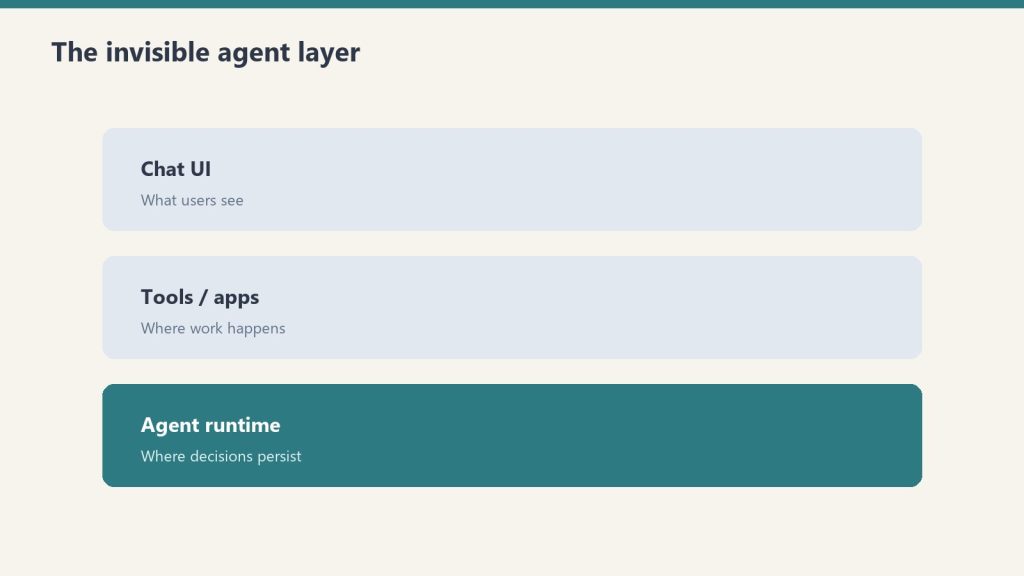
The three-layer shape — chat UI, tools, agent runtime — that became our build.
We didn’t set out to build an “AI tool.” We set out to close the gap between a decision and the thing the decision produces. A lead comes in and someone says “we should send the follow-up sequence today.” A week ends and someone says “the client update needs to go out.” The decision is made in seconds; the production used to take an hour. That hour is where work stalls.
Slack was the obvious surface because that is where the deciding already happens. We didn’t want a separate dashboard nobody opens, or a chatbot in another tab that creates a second copy of the conversation. We wanted the request and the result to live in the same thread, where anyone on the team can see both. Putting the AI where the work already is turned out to be most of the design.
The loop, stage by stage
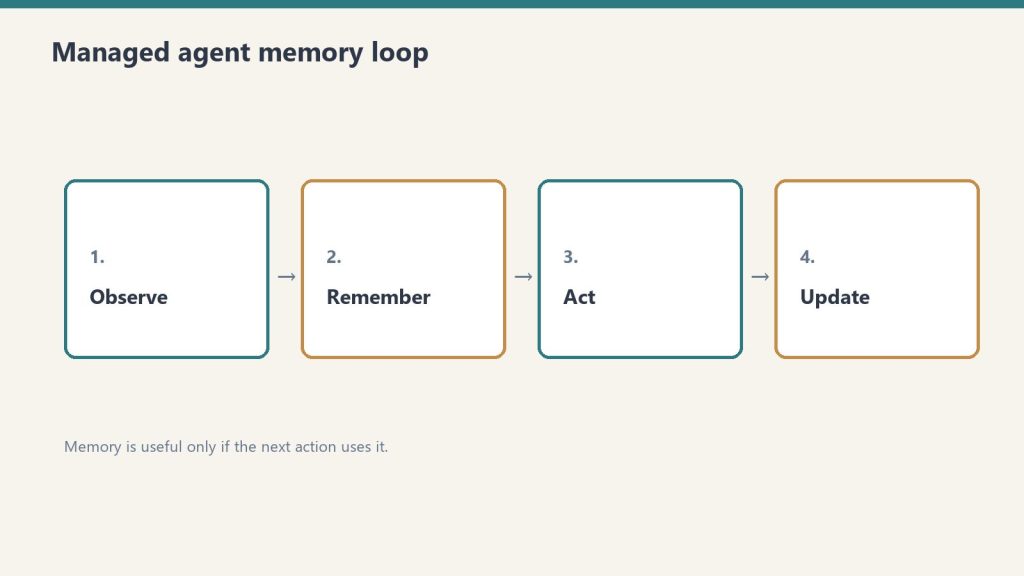
The four-move loop: request, draft, claim-and-approve, ship.
The whole system is one loop with four moves:
Request. Someone posts a plain-language ask in a channel — “draft the new-lead follow-up sequence,” “write this week’s update post.” No special syntax, no form.
Draft. The teammate picks it up, breaks it into stages, and produces the actual deliverable in the thread — not a summary of what it would do, the thing itself.
Claim and approve. A human takes the draft, reads it, edits if needed, and signs off. Nothing moves on the AI’s say-so alone.
Ship. On approval, the deliverable goes to its real destination — the CRM, the CMS, the inbox — and the thread records that it happened.
The night we ran it end to end, twice, the part that struck us wasn’t the drafting. It was how natural the “claim and approve” step felt. Delegating to the teammate looked exactly like delegating to a person: ask in the channel, get a draft back, give it a yes.
The runner that holds no keys
The piece we’re proudest of is invisible in the thread. The process that reads the queue and carries out approved work does not carry standing credentials. The keys to the CRM, the publishing platform, the email system — none of them live inside the bot. They sit in the platform’s secret store and are handed to the action at the moment it runs, scoped to that job.
This sounds like plumbing, but for an agency it is the difference between safe and reckless. The component most exposed to the outside world — the thing listening to a chat channel — is the component holding the least. If that surface were ever compromised, there is no client’s API key sitting in it to steal. We built it that way before it was convenient, because client trust is the entire business.
What surprised us
A request is a better unit than a conversation. “Draft the launch email and three follow-ups” is how people actually delegate. Framing the work as a request instead of a chat changed how the team used it — less hand-holding, more handing-off.
Visible beats private. Because the work happened in a shared channel, anyone could see what was asked and what came back. Private AI sessions create shadow work nobody can review. Doing it in the open made it auditable by default.
The approval step wasn’t a bottleneck. It was the product. We expected the human sign-off to feel like friction. Instead it was the thing that let us trust the output enough to send it to a client at all.
What Claude Tag changes for us
Tag retired our scaffolding; isolation and the human ship button stayed ours.
Anthropic productized the surface we’d been hand-building: a Slack-native teammate, multiplayer per channel, with an ambient mode and cross-channel learning — launched on Opus 4.8, now running on Opus 5.5 (see our Claude Tag pricing guide). For our internal team, that’s a gift — we can adopt it and retire some of our own scaffolding.
For client delivery, the hard and valuable part is still ours to own: keeping each client’s context walled off from every other, and keeping a human on the ship button. Those two things are exactly what Claude Tag’s best features work against by default — which is the whole subject of the next piece: Claude Tag for Agencies: The Multi-Client Isolation Trap. For the full picture, go back to the pillar: Claude Tag: A Builder’s Guide for Agencies.
Direct answer (October 2026): Headline API rates did not move when Fable 5.1 shipped on September 1. Both Fable 5 and Fable 5.1 list at $10 / MTok input and $50 / MTok output. The change that matters for agent loops is cache: Fable 5.1 cache reads are $0.25 / MTok versus $1.00 / MTok on Fable 5. On claude.ai, Fable is included only on Max and premium Team/Enterprise seats, and only up to 50% of the weekly usage pool. Pro and Team Standard pay usage credits from the first Fable token.
API rates
USD per million tokens. Context window 1M. Max output 128K. No long-context surcharge on the published card.
Item
Fable 5
Fable 5.1
API ID
claude-fable-5
claude-fable-5-1
Input
$10
$10
Output
$50
$50
5-min cache write
$12.50
$12.50
1-hour cache write
$20
$20
Cache read
$1.00
$0.25
Batch in / out
$5 / $25
$5 / $25
That cache-read cut is the Sep 1 price event. Stable system prompts and repo prefixes that hit cache on 5.1 cost a quarter of what they cost on 5. Headline input/output is unchanged, so a cold one-shot is the same bill.
Opus 5.5 (current, shipped Sep 22, 2026) is $4 / $20. Opus 5 remains listed at $5 / $25. Sonnet 5.5 is the current Sonnet at $2 / $10 (cache read $0.10; shipped Sep 28, 2026). Haiku 5.5 is the current Haiku, from $0.10 / $0.50 (prompts up to 100K tokens). Sonnet 5 remains listed at the same $2 / $10 after Anthropic cancelled the scheduled Sep 1 step to $3 / $15. Against current Opus 5.5, Fable is 2.5× on list rates ($10/$50 vs $4/$20); against legacy Opus 5 it is still 2×.
Max, Team Premium, Enterprise Premium seats: included. Cap is 50% of weekly usage limits. Same weekly pool as every other model. Fable burns that pool faster. After the cap: usage credits or switch models.
Pro and Team Standard: not included. Credits from token one. The July 2026 $100 one-time credit was for the Fable 5 plan change only. Help Center: no equivalent credit for 5.1.
Enterprise Standard seats: only if the org turns credits on.
Fable 5.1 launched September 1, 2026 with Mythos 5.1. Same underlying model, different safeguards. Anthropic positions 5.1 for long coding and knowledge work. US-only inference is listed at 1.1× input and output. Availability: Claude API, Bedrock, Google Cloud, Microsoft Foundry, and paid claude.ai plans under the rules above.
What the cache change is worth in dollars
Direct answer: Fable 5.1’s headline rates didn’t move ($10 input / $50 output per million tokens), but cache reads fell 75% — from $1.00 to $0.25 per million. On workloads that re-read context, that’s the whole story.
Worked example — one agent loop day: 10M input tokens at a 90% cache-hit rate, plus 1M output tokens.
Fable 5.1: $10.00 fresh input, plus 9M cache reads × $0.25 = $2.25, plus $50.00 output. Total: $62.25.
The cache-read line alone drops from $9.00 to $2.25. Push the hit rate to 95% and the gap widens further — the more your loop re-reads its own context, the more 5.1 pulls away. A fresh prompt with no cache history costs exactly the same on both versions.
Fable 5.1 against the lineup
USD per million tokens, standard API processing. Cache-write column is the 5-minute rate.
Model
Input
Output
Cache read
Cache write (5m)
Fable 5.1
$10.00
$50.00
$0.25
$12.50
Fable 5
$10.00
$50.00
$1.00
$12.50
Opus 5.5
$4.00
$20.00
$0.20
$5.00
Sonnet 5.5 (current)
$2.00
$10.00
$0.10
$2.50
Sonnet 5 (legacy)
$2.00
$10.00
$0.20
$2.50
Haiku 5.5 (current, prompts ≤100K)
$0.10
$0.50
$0.01
$0.125
Haiku 5.5 (prompts >100K)
$0.50
$2.50
$0.05
$0.625
Haiku 4.5 (legacy)
$1.00
$5.00
$0.10
$1.25
Fable 5.1’s cache reads are priced at 0.025× its input rate — 97.5% below base input. Every other model in the table pays the standard 0.10× except Opus 5.5 and Sonnet 5.5 at 0.05×. That unusual cache multiple is Fable’s entire pricing argument.
When Fable is worth it
Pick Fable 5.1 for long-horizon agent loops that re-read large contexts — multi-step research agents, codebase-wide refactors, anything where the same prompt prefix gets re-fed dozens of times. The cache math above is where it earns its rate.
Pick something else when the workload doesn’t fit: interactive coding sessions belong on Sonnet 5.5 ($2/$10, current Sonnet; Sonnet 5 legacy still listed at the same rate after the Sep 1 step was cancelled), maximum reasoning per dollar is Opus 5.5 ($4/$20), and high-volume simple tasks are Haiku 5.5 (from $0.10/$0.50; Haiku 4.5 is legacy at $1/$5).
On claude.ai plans the calculus shifts: Fable rides inside Max and premium Team/Enterprise seats (capped at half the weekly pool), so plan users should think in pool-share, not tokens. API users think in tokens. Full seat and API pricing lives on our Claude AI pricing guide; model-to-model reasoning comparisons are in the Claude models comparison, and token-level API detail is in Claude API pricing, token costs and rate limits.
FAQ
Did Fable get cheaper on September 1?
Not on headline tokens. Cache reads on 5.1 dropped from $1.00 to $0.25 per million. Repeated agent context is cheaper. A fresh prompt is not.
Does Pro include Fable 5.1?
No. Pro can call it with usage credits. Included Fable lives on Max and premium seats only, and only up to half the weekly limit.
Is Fable 5.1 2.5× Opus 5.5 (and 2× legacy Opus 5)?
Against current Opus 5.5 ($4/$20), Fable at $10/$50 is 2.5× on list rates. Against legacy Opus 5 ($5/$25) it is still 2×. Opus 5 Fast mode lists at Fable’s standard rate. Pick Fable when the job is long-horizon and you have Max/premium inclusion or a reason to pay the cache-aware API bill.
Does the Batch API discount apply to Fable?
Yes. Anthropic’s Batch API takes 50% off standard rates across models, Fable included — roughly $5/$25 per million input/output tokens on Fable 5.1 for non-urgent work. Cache-read pricing discounts stack on top.
Do cache writes cost extra on Fable 5.1?
Yes, one line item to know: 5-minute cache writes are $12.50 per million (1.25× input), 1-hour writes are $20 (2× input). You pay the write once when the cache entry is created; every re-read after that bills at the $0.25 cache-read rate. Writes are a footnote — reads are the story.
How does the 50% weekly pool cap work for Fable on Max?
Max and premium Team/Enterprise seats include Fable, but only up to half of the weekly usage pool — Fable can’t consume the whole allowance. Past the cap, further Fable usage bills as usage credits from the first token. If Fable is your daily driver on a plan, watch the pool split, not just the total.
The Message Batches API lets you submit up to 100,000 Claude requests in a single call and receive results asynchronously — at exactly 50% of standard token prices. Most batches finish in under an hour. Results remain downloadable for 29 days. This page covers every verified limit, the per-tier rate limit tables, and how batch pricing stacks with prompt caching.
Pricing: 50% off standard rates
Batch pricing — half-rate framing without sticky dollars.
Every token processed through the Message Batches API is billed at half the standard input and output price. No quality difference from synchronous requests — only timing. The table below shows verified batch prices for active models.
Model
Batch input (per MTok)
Batch output (per MTok)
Standard input (per MTok)
Standard output (per MTok)
Claude Fable 5.1
$5.00
$25.00
$10.00
$50.00
Claude Opus 5.5
$2.00
$10.00
$4.00
$20.00
Claude Sonnet 5.5
$1.00
$5.00
$2.00
$10.00
Claude Haiku 4.5
$0.50
$2.50
$1.00
$5.00
Older models (Opus 4.5–5, Sonnet 4.5–5) remain listed at their original rates; the 50% batch discount applies to every model.
A batch expires if processing has not completed within 24 hours. Any individual request within that batch that did not finish is marked expired — you are not billed for expired or errored requests. Batch results (the JSONL file) are accessible for download for 29 days after the batch was created; after that the batch object itself is still visible but results can no longer be downloaded.
Message Batches API rate limits
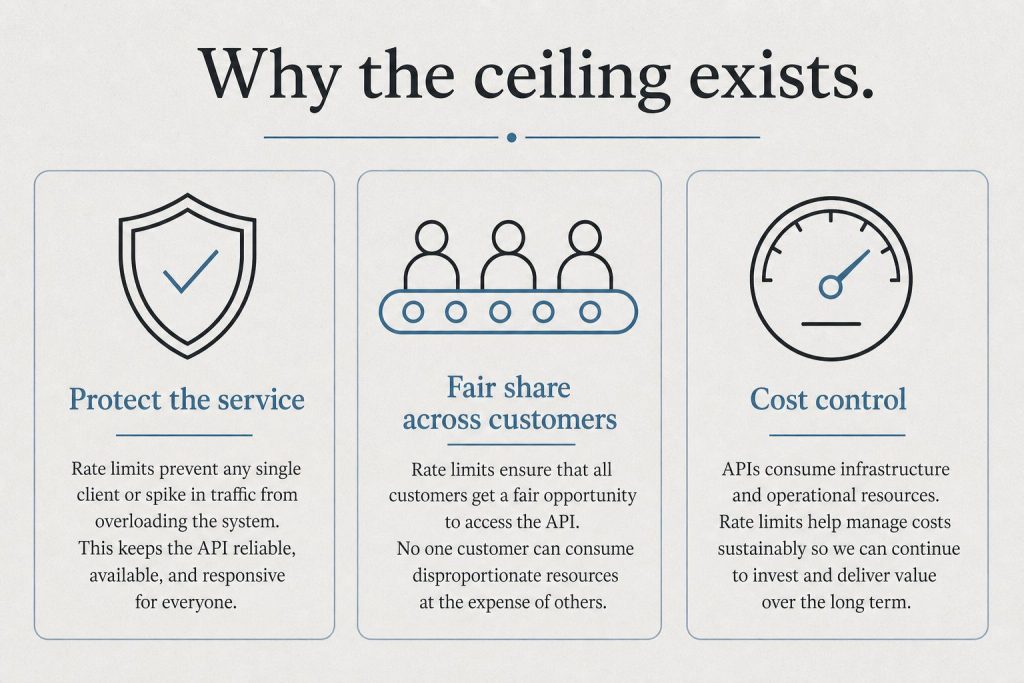
The Message Batches API has its own rate-limit pool, shared across all models, separate from the standard Messages API limits. The “processing queue” count refers to individual batch requests (not batches) that have been submitted but not yet completed by the model. Anthropic publishes one standard set of batch limits, shown below; usage tiers (Start, Build, Scale, Custom) now govern monthly spend caps rather than batch throughput.
RPM here limits how fast you can make HTTP requests to the Batches API endpoints (create, retrieve, list, cancel). It does not limit how many individual requests inside a batch are processed per minute — that is governed by the queue cap above. If high demand causes processing to slow, more individual requests within a batch may reach the 24-hour expiration limit.
Stacking batch pricing with prompt caching
The Batches API documentation explicitly states that the 50% batch discount and prompt caching discounts stack. Cache writes incur a one-time cost at 1.25x the base input rate (5-minute TTL) or 2x (1-hour TTL); subsequent cache reads cost 0.1x the base input rate on most models (0.05x on Opus 5.5). Because batches process asynchronously and may take longer than 5 minutes, Anthropic recommends using the 1-hour cache duration for batch requests that share large context.
The following example uses Claude Opus 5.5 (standard input: $4.00/MTok) to show what each token type costs in a batch with a 1-hour cached system prompt.
Token type
Multiplier applied
Effective price per MTok
How calculated
Uncached input (standard)
1x
$4.00
Baseline
Uncached input (batch)
0.5x
$2.00
50% batch discount
Cache write — 1h TTL (batch)
2x × 0.5x = 1x
$4.00
2x write cost, then 50% batch
Cache read (batch)
0.05x × 0.5x = 0.025x
$0.10
5% read cost, then 50% batch
Output (batch)
0.5x of $20.00
$10.00
50% batch discount on output
In practice: if you cache a 50,000-token system prompt once and then read it across 1,000 batch requests, the cache write costs $0.20 (50K tokens at $4.00/MTok effective), while 1,000 cache reads cost $5.00 total (50M tokens at $0.10/MTok). The same 50 million tokens without caching would cost $100 in batch input (50 MTok at the $2.00/MTok batch rate). Cache hit rates on batches vary; Anthropic’s documentation notes typical rates of 30% to 98% depending on traffic patterns, since batch requests are processed concurrently rather than sequentially.
How results come back
How results come back from Message Batches.
When the batch finishes (or the 24-hour limit is reached), a results_url property is set on the batch object. Results are in JSONL format — one JSON object per line, in any order (not necessarily matching submission order). Each result carries the custom_id you assigned, plus a result object of type succeeded, errored, canceled, or expired. Streaming the results file rather than downloading it all at once is recommended for large batches. You are not billed for errored, canceled, or expired requests.
Does the Batches API count against my standard Messages API rate limits?
No. The Message Batches API has its own rate-limit pool that is tracked separately from the standard Messages API RPM, ITPM, and OTPM limits. You can use both simultaneously up to their respective limits.
What happens if my batch does not finish within 24 hours?
Any individual requests within the batch that did not complete are marked expired. You are not billed for those requests. The batch itself moves to ended status and whatever results did complete are available at the results_url.
Can I use extended thinking, tool use, or vision in a batch?
Yes. The Batches API supports vision, tool use (including server tools such as web search and code execution), system messages, multi-turn conversations, and extended thinking. The parameters not supported are stream: true, fast mode (speed), Threads parameters, and max_tokens: 0.
How long are batch results available for download?
Results are available for 29 days after the batch was created. After that window, the batch object remains visible in the Console and via the API, but the results file can no longer be downloaded.
Is the Batches API eligible for Zero Data Retention?
No. The Message Batches API is explicitly excluded from Zero Data Retention (ZDR). Data is retained under the feature’s standard retention policy regardless of your organization’s ZDR settings.
Run your batches from the Anthropic Console — API keys, billing, and a token-to-dollar cost estimator that shows what 50%-off batch pricing does to your actual workload.
A million Claude tokens equals roughly 750,000 words on Claude Sonnet 4.6 — but only about 555,000 words on Claude Opus 4.7, Claude Opus 4.8, and Claude Fable 5. The gap comes from a new tokenizer that Anthropic introduced with Opus 4.7: it emits up to 35% more tokens from the same text. The only reliable way to measure your actual token count is the /v1/messages/count_tokens endpoint.
Token-to-word conversion by model (1 million tokens)
Token-to-word conversion framing.
Anthropic publishes word equivalents directly in the context-window tooltips on the official models overview page. The figures below come from those tooltips.
Lineup currency (Sept 2026): Current API list (Sept 2026, verified): Sonnet 5 $2/$10, Opus 5.5 $4/$20, Haiku 4.5 $1/$5, Fable 5.1 $10/$50. Legacy (still listed on Anthropic’s card): Opus 4.8 $5/$25, Sonnet 4.6 $3/$15. Rows below that still name Opus 4.8 / Sonnet 4.6 / Fable 5 are legacy-or-prior availability figures — confirm live Anthropic limits before quoting TPM/RPM/context.
Model
Tokenizer
Context window
~Words per 1M tokens
~Pages per 1M tokens*
Claude Fable 5 (claude-fable-5)
New (Opus 4.7)
1M tokens
~555,000
~2,200
Claude Opus 4.8 (claude-opus-4-8)
New (Opus 4.7)
1M tokens
~555,000
~2,200
Claude Opus 4.7 (claude-opus-4-7)
New (Opus 4.7)
1M tokens
~555,000
~2,200
Claude Sonnet 4.6 (claude-sonnet-4-6)
Older
1M tokens
~750,000
~3,000
Claude Haiku 4.5 (claude-haiku-4-5)
Older
200k tokens
~150,000 (200K context)
~600 (200K context)
Claude Opus 4.6 (claude-opus-4-6)
Older
1M tokens
~750,000
~3,000
* Pages estimated at ~250 words per double-spaced page. These are approximations for typical English prose; actual counts vary by content type.
What the new tokenizer changed — and why it matters
What the new tokenizer changed — and why it matters.
Anthropic introduced a new tokenizer with Claude Opus 4.7. The official migration guide states that the new tokenizer “may use roughly 1x to 1.35x as many tokens when processing text compared to previous models (up to ~35% more, varying by content).” The most commonly cited figure across Anthropic’s documentation is roughly 30% more tokens for the same text.
The practical effect: a document that costs 1,000,000 tokens on Opus 4.6 or Sonnet 4.6 costs approximately 1,300,000 tokens on Opus 4.7, Opus 4.8, or Fable 5. Budgets built for the old tokenizer need to be re-baselined against the new one.
Lineup currency (Sept 2026): Current API list (Sept 2026, verified): Sonnet 5 $2/$10, Opus 5.5 $4/$20, Haiku 4.5 $1/$5, Fable 5.1 $10/$50. Legacy (still listed on Anthropic’s card): Opus 4.8 $5/$25, Sonnet 4.6 $3/$15. Rows below that still name Opus 4.8 / Sonnet 4.6 / Fable 5 are legacy-or-prior availability figures — confirm live Anthropic limits before quoting TPM/RPM/context.
Tokenizer
Models
Approximate token increase vs. older tokenizer
New (introduced Opus 4.7)
Opus 4.7, Opus 4.8, Fable 5, Mythos 5
~30% typical; up to ~35% depending on content
Older
Opus 4.6, Sonnet 4.6, Haiku 4.5, Opus 4.5, Sonnet 4.5
Baseline
The token counting page also notes the comparison directly: “Claude Fable 5 and Claude Mythos 5 use the tokenizer introduced with Claude Opus 4.7, which produces roughly 30% more tokens than models before Claude Opus 4.7 for the same text.”
Use count_tokens — not tiktoken or ratio math
Use count_tokens — not tiktoken or ratio math.
Anthropic’s migration guide explicitly flags the risk: “Any code path that estimates tokens client-side or assumes a fixed token-to-character ratio should be re-tested against Claude Opus 4.7.” OpenAI’s tiktoken library is trained on a different vocabulary and produces different counts. It will not give accurate results for any Claude model.
The correct approach is the /v1/messages/count_tokens endpoint, passing the specific model you intend to use:
The endpoint returns a model-specific count. If you are migrating a workload from Sonnet 4.6 to Opus 4.8, count the same prompt with both model IDs and compare the two input_tokens values. The token counting endpoint is free to use (rate limits apply by usage tier). Anthropic notes that the returned count is an estimate; the actual count at inference time may differ by a small amount.
Quick reference: common document sizes
Lineup currency (Sept 2026): Current API list (Sept 2026, verified): Sonnet 5 $2/$10, Opus 5.5 $4/$20, Haiku 4.5 $1/$5, Fable 5.1 $10/$50. Legacy (still listed on Anthropic’s card): Opus 4.8 $5/$25, Sonnet 4.6 $3/$15. Rows below that still name Opus 4.8 / Sonnet 4.6 / Fable 5 are legacy-or-prior availability figures — confirm live Anthropic limits before quoting TPM/RPM/context.
Document type
Approx. words
Tokens (older tokenizer)
Tokens (new tokenizer)
Novel (~400 pages)
~100,000
~133,000
~173,000
Long research paper
~20,000
~27,000
~35,000
Full context, Sonnet 4.6 (1M tokens)
~750,000
1,000,000
N/A (different model)
Full context, Opus 4.8 (1M tokens)
~555,000
N/A (different model)
1,000,000
These word estimates assume typical English prose. Code, structured data, and non-Latin scripts tokenize differently from natural language prose. Highly repetitive text and dense symbol-heavy content (like JSON or code) can fall well outside the ~0.75 words-per-token ratio.
Does the new tokenizer change what fits in the context window?
Yes, in one direction. The context window is still 1M tokens, but that window holds fewer words on the new tokenizer (~555k words) than on the old one (~750k words). A document that previously fit comfortably may now require trimming or chunking when moving to Opus 4.7, Opus 4.8, or Fable 5.
Does Sonnet 4.6 use the new tokenizer?
No. Claude Sonnet 4.6 uses the older tokenizer. Anthropic’s model overview page lists Sonnet 4.6’s 1M-token context window as equivalent to ~750k words, the same ratio as Opus 4.6 — confirming it has not adopted the Opus 4.7 tokenizer. Only Opus 4.7, Opus 4.8, Fable 5, and Mythos 5 use the new tokenizer.
Can I use tiktoken or another open-source tokenizer for Claude?
No. tiktoken is built for OpenAI models and uses a different vocabulary. It will not produce accurate token counts for any Claude model, and its error will be larger on the new Opus 4.7 tokenizer than on older Claude models. Use /v1/messages/count_tokens with the specific Claude model ID you plan to deploy.
Does the new tokenizer affect pricing?
Yes. Billing reflects token counts under the model’s tokenizer. If you migrate a workload from Opus 4.6 to Opus 4.8 and the new tokenizer produces 30% more tokens, your input token costs increase by roughly 30% before accounting for any per-token price difference between the models. Re-baseline cost estimates using the count_tokens endpoint rather than scaling from old measurements.
How many pages is the full 1M-token context window?
On models with the older tokenizer (Sonnet 4.6, Opus 4.6), 1 million tokens is approximately 3,000 double-spaced pages of typical English prose. On models with the new tokenizer (Opus 4.8, Fable 5), the same 1 million tokens holds approximately 2,200 pages. These are prose estimates — a 1M-token window filled with source code or dense structured data will span a very different page count.
Anthropic ships four distinct ways to put Claude to work as an agent, and they are easy to confuse. The short version: Claude Cowork and Claude Code are interactive products billed through your Claude subscription — Cowork for knowledge work in the desktop app, Code for software work in your terminal, IDE, desktop, or browser. The Claude Agent SDK and Managed Agents are programmatic surfaces for developers, billed through the API: the Agent SDK is a Python/TypeScript library that runs the agent loop inside your own process, while Managed Agents is a REST API where Anthropic runs the loop and hosts the sandbox. The tables below give the verified, side-by-side breakdown.
The decision matrix
Cowork vs Code vs Agent SDK vs Managed Agents matrix.
Each row is one surface. Read across for who it serves, whether you drive it turn-by-turn or hand it a goal, where the work executes, and how it is paid for.
Surface
Who it is for
Interactive vs autonomous
Where it runs
How it is billed
Claude Cowork
Knowledge workers (non-developers) — research, documents, file and spreadsheet work
Interactive, supervised — shows you the plan and waits for your approval before acting
The Claude desktop app on your own computer (macOS or Windows); not available on web or mobile
Claude subscription (Pro, Max, Team, Enterprise) — draws from your plan’s usage allocation
Interactive — you drive it in a session, though it can run agentically across files and tools
Your machine (terminal, VS Code, JetBrains, desktop app) or the browser at claude.ai/code
Claude subscription or an Anthropic Console (API) account
Claude Agent SDK
Developers building custom agents programmatically (Python or TypeScript)
Autonomous — Claude reads files, runs commands, and edits code on its own via the agent loop
Your own process and infrastructure
API key (pay-as-you-go credits); see the subscription note below for the June 15, 2026 change
Managed Agents
Developers running production or long-running agents without operating their own sandbox/session infrastructure
Autonomous — you send events, Claude executes tools and streams back results
Anthropic-managed cloud sandbox per session (or a self-hosted sandbox on your own infrastructure)
Claude API key + the managed-agents-2026-04-01 beta header (no subscription path)
Where billing actually differs
The cleanest way to split these four is by the wallet they draw from. The two interactive products are funded by a subscription; the two programmatic surfaces are funded by the API. This is the single distinction that trips people up most often, so it is worth stating plainly in its own table.
Surface
Billing model
Notes
Claude Cowork
Subscription
Included on Pro, Max, Team, and Enterprise. Multi-step tasks consume more of your usage allocation than chatting.
Claude Code
Subscription or API
Most surfaces require a Claude subscription or a Console account; the terminal CLI and VS Code also support third-party providers.
Claude Agent SDK
API (pay-as-you-go)
Authenticated with an ANTHROPIC_API_KEY; also supports Bedrock, Claude Platform on AWS, Vertex AI, and Azure. Anthropic does not permit claude.ai login for third-party agents built on the SDK.
Managed Agents
API (credits)
Requires a Claude API key and the beta header; enabled by default for API accounts.
One dated nuance is worth pinning down because it changes how subscription users pay for programmatic work. Starting June 15, 2026, Claude Agent SDK and claude -p usage on subscription plans no longer counts toward your Claude plan’s interactive usage limits; instead, eligible subscribers receive a separate monthly Agent SDK credit (per-user, not pooled), while subscription usage limits stay reserved for interactive use of Claude Code, Cowork, and Claude. If you use the Agent SDK with an API key from the Claude Platform, nothing changes — pay-as-you-go billing continues and you do not receive an Agent SDK monthly credit.
SDK vs Managed Agents: the programmatic split
SDK vs Managed Agents — the programmatic split.
Both programmatic surfaces let Claude run tools autonomously, but they differ in where the loop and the work live. Anthropic’s own comparison frames it this way: the Agent SDK “is a library that runs the agent loop inside your own process,” while Managed Agents “is a hosted REST API: Anthropic runs the agent and the sandbox, and your application sends events and streams back results.” Pick by who you want operating the infrastructure.
Dimension
Agent SDK
Managed Agents
Runs in
Your process, your infrastructure
Anthropic-managed infrastructure
Interface
Python or TypeScript library
REST API
Agent works on
Files on your infrastructure
A managed sandbox per session
Session state
JSONL on your filesystem
Anthropic-hosted event log
Best for
Local prototyping; agents that work directly on your filesystem and services
Production agents without operating sandbox/session infrastructure; long-running, asynchronous sessions
A common path, per Anthropic’s docs, is to prototype with the Agent SDK locally, then move to Managed Agents for production.
Quick chooser
Quick chooser for the right surface.
If you are not writing code and want Claude to finish a task on your computer, use Cowork. If you are a developer working interactively on a codebase, use Claude Code. If you are building your own agent and want it to run in your own process, use the Agent SDK. If you want Anthropic to run the agent and host the sandbox for long-running or production work, use Managed Agents.
Is Claude Cowork the same as Claude Code?
No. Both appear in the Claude desktop app, but Cowork is aimed at knowledge work (research, documents, spreadsheets, file management) for non-developers, while Claude Code is an agentic coding tool. Cowork runs only in the desktop app (macOS or Windows); Claude Code also runs in the terminal, VS Code, JetBrains, and the browser.
Does a Claude subscription cover the Agent SDK or Managed Agents?
Cowork and Claude Code are included with Claude subscriptions (Pro, Max, Team, Enterprise). The Agent SDK and Managed Agents are API surfaces authenticated with a Claude API key. As of June 15, 2026, subscription users do get a separate monthly Agent SDK credit for SDK and claude -p usage, but Managed Agents has no subscription path — it requires an API key and a beta header.
Where does the work actually execute for each surface?
Cowork runs on your own computer in the desktop app. Claude Code runs on your machine (or in the browser). The Agent SDK runs in your own process and infrastructure. Managed Agents executes in an Anthropic-managed cloud sandbox per session, or a self-hosted sandbox you control.
Is the Agent SDK built on Claude Code?
Yes. Per Anthropic, the Agent SDK “gives you the same tools, agent loop, and context management that power Claude Code, programmable in Python and TypeScript.” Anthropic also describes it as “Claude Code as a library.”
Is Managed Agents generally available?
No. As of June 13, 2026, Claude Managed Agents is in beta. Every Managed Agents endpoint requires the managed-agents-2026-04-01 beta header (the SDK sets it automatically), and access is enabled by default for API accounts.