Direct Answer (9 September 2026): The Claude in Chrome extension lets Claude read the page you have open and work in a side panel. Install it from the Chrome Web Store, sign in with your Claude account, and invoke it on the tab. It is not Cowork and it is not Claude Code. It uses the same usage cap as your seat (Free through Enterprise). It does not see passwords, history, or autofill.
Claude in Chrome is a browser extension that brings Claude into the tab you already have open. Rather than copying the page into a chat, the extension lets Claude see the page and answer next to it. Last verified 9 September 2026 against the live extension and Anthropic product copy.
What Claude in Chrome actually does
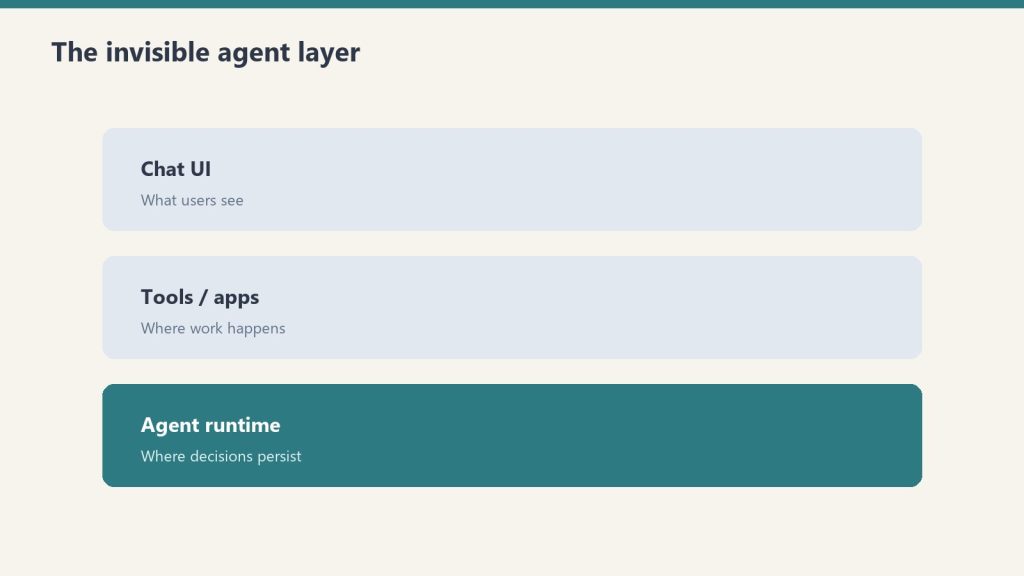
When you open the side panel, Claude can summarize the article, extract tables, draft a reply while you can still see the source, and walk a pricing or docs page without a second tab. It does not run local files. That is Cowork on the desktop app. It does not write your repo. That is Claude Code.
The extension works through a side panel. Claude sits next to the page instead of replacing it.
How to install Claude in Chrome
Search the Chrome Web Store for the official Anthropic Claude extension. Add to Chrome. Sign in. Click the toolbar icon. Free, Pro, Max, Team, and Enterprise seats all work; the meter is the same weekly cap as claude.ai.
Practical use cases
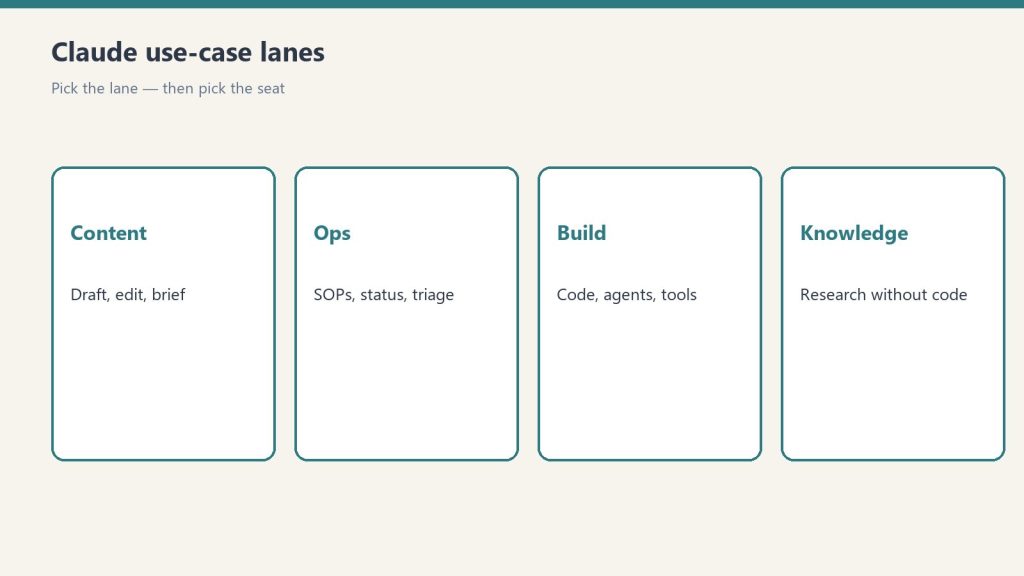
Research and summarization. Long docs, papers, vendor pages. Competitive pages. Open a pricing or product URL and ask for a comparison against your offer. Email in the browser. Draft against the thread you can still see. Tables. Read an HTML table and pull the numbers you named. Study. Open the chapter and ask for a quiz, not a rewrite of the assignment.
What it cannot do
It cannot see a page you are not authenticated to. Heavy iframe / SPA pages can fail. It does not get history, passwords, or autofill. It does not submit purchases without you confirming.
Chrome vs Cowork vs Chat
Use Chat when the work is text in a conversation. Use Chrome when the source is a live web page. Use Cowork when the work is files on the desktop. Cowork errors (“missing HCS services,” “not enough disk space to set up the workspace,” “couldn’t start this server for Cowork and Code sessions”) belong on the limits and error-string desk, not in the extension.
Privacy
The extension only sends page content when you invoke it. Team and Enterprise default to no training on that content. Review permissions at install.
Frequently Asked Questions
Is Claude in Chrome free?
The extension is free to install. It spends your existing Free or paid allowance.
Does it work on Edge or Brave?
Official support is Chrome. Chromium forks sometimes work; do not count on it for production.
Can it see my passwords?
No. Visible page content you share only.
How is this different from Claude for Microsoft 365?
Chrome is any website in the browser. Microsoft 365 is Word, Outlook, and Teams.
Related: Cowork · limits and errors · pricing · reference hub.
Leave a Reply