Claude AI is one of the most capable AI assistants available in 2026, but like any powerful tool, getting the most out of it depends on knowing how to use it well. This guide covers everything from your first conversation on the free tier to advanced workflows used by professional developers, researchers, and business teams — with specific prompts and techniques at every level.
Step 1: Choose the Right Interface
Claude is available through multiple interfaces, each suited for different use cases:
- claude.ai (web) — The easiest way to start. Works in any browser. Best for general conversations, document analysis, and content creation.
- Claude mobile app — Available on iOS and Android. Convenient for quick tasks, voice input, and on-the-go reference questions.
- Claude desktop app — Mac and Windows. Adds local file system access and integrates with Claude Code. Best for developers and power users.
- Claude Code — Command-line interface for developers. Access directly from your terminal for coding, file management, and agentic tasks.
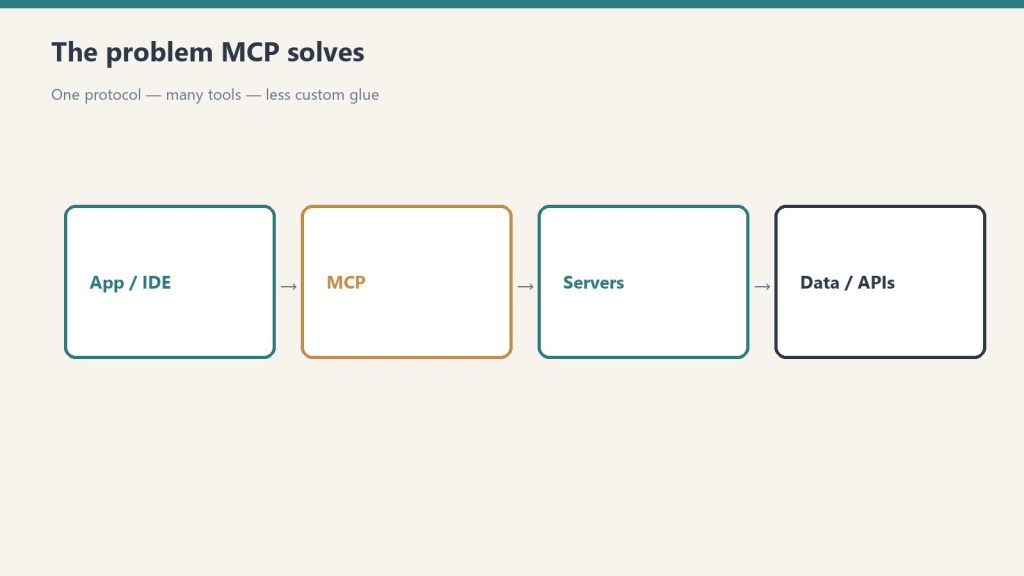
- Claude API — For developers building applications. Access via console.anthropic.com with per-token pricing.
The 10 Most Useful Prompts for Beginners
If you are new to Claude, these prompt patterns will give you the fastest returns:
- Summarize a document: “Summarize this [paste text or upload file] in 5 bullet points, then identify the 3 most important takeaways.”
- Draft professional emails: “Write a professional email to [describe recipient] asking for [describe what you want]. Tone should be [formal/friendly/assertive].”
- Explain complex topics: “Explain [topic] as if I have a [high school / business / technical] background. Use an analogy.”
- Edit your writing: “Edit this for clarity and concision. Keep my voice but cut anything redundant: [paste text]”
- Brainstorm ideas: “Give me 15 ideas for [goal]. Include both obvious and unexpected options. Don’t filter for feasibility.”
- Analyze a problem: “I’m trying to decide between [option A] and [option B]. Here’s my situation: [context]. What factors should I weigh?”
- Create a template: “Create a reusable template for [document type]. Include placeholders for [list variables].”
- Research a topic: “What do I need to know about [topic] if I’m a [your role] who needs to [your goal]? Focus on practical implications.”
- Debug code: “Here’s my code: [paste code]. It’s supposed to [describe goal] but instead [describe problem]. What’s wrong and how do I fix it?”
- Reframe a situation: “I’m dealing with [describe challenge]. Give me 3 different ways to think about this problem.”
How to Use Claude Projects
Projects are one of Claude’s most underused features. A Project is a persistent workspace that maintains context across conversations — instead of starting from scratch every chat, Claude remembers your background, preferences, and the documents you’ve shared.
To set up a Project effectively:
- Go to claude.ai and click “Projects” in the sidebar
- Create a new project with a descriptive name (e.g., “Q2 Marketing Campaign” or “Client: Acme Corp”)
- Upload relevant documents — style guides, company background, previous work samples
- Write a project description that tells Claude your role, your goals, and your preferences
- All conversations within the Project now have access to this shared context
Intermediate Techniques: Getting Better Outputs
Give Claude a Role
Starting a prompt with a role assignment significantly improves output quality for specialized tasks: “You are a senior financial analyst reviewing an early-stage startup pitch deck…” or “You are an experienced UX researcher conducting a heuristic evaluation…”
Specify the Format You Want
Claude defaults to prose, but you can request: bullet lists, tables, numbered steps, JSON, code blocks, executive summaries, Q&A format, or structured outlines. Be explicit: “Format this as a table with columns for [X], [Y], and [Z].”
Use Negative Instructions
Tell Claude what you don’t want: “Do not use jargon,” “Do not include caveats or disclaimers,” “Do not suggest I consult a professional — I need actionable advice,” “Do not use bullet points.”
Ask for Multiple Versions
“Give me 3 different versions of this email: one formal, one casual, one direct and brief.” Comparing options is often faster than iterating on a single draft.
Iterate Don’t Restart
Claude maintains context within a conversation. Rather than starting over, continue: “Good start. Now make the intro punchier, cut the third paragraph, and add a specific example to section 2.”
Advanced: Claude Code for Developers
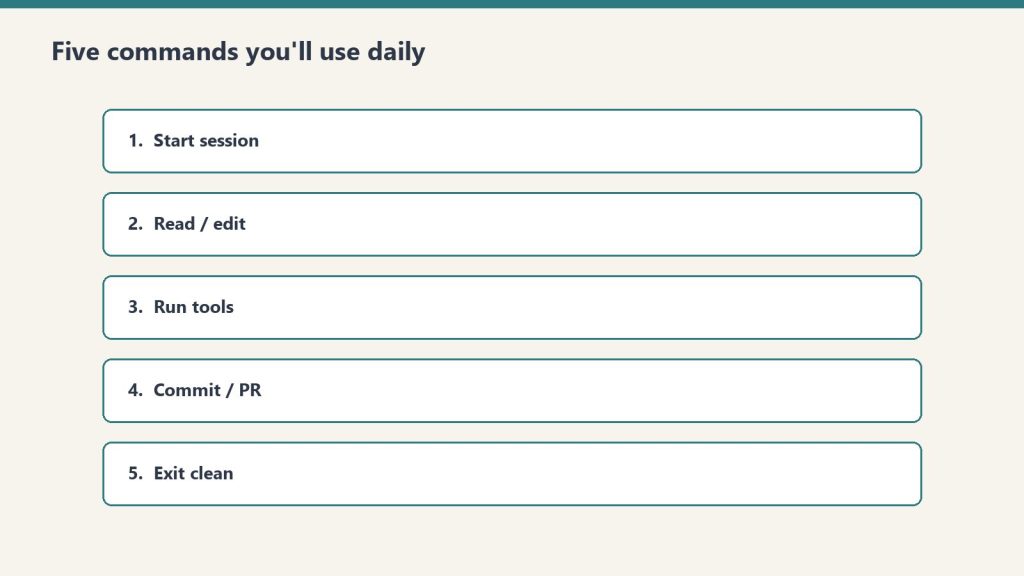
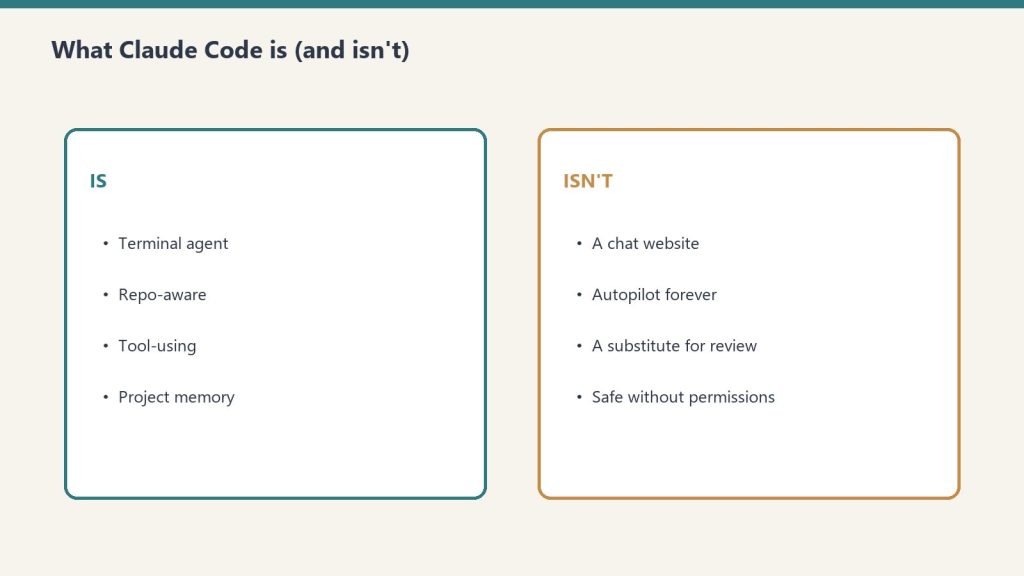
Claude Code is a terminal-native AI coding tool that operates at the level of your entire codebase — not just the current file. Install it via npm and authenticate with your Anthropic API key. Once set up, Claude Code can read and write files, execute commands, run tests, manage git, and work autonomously on multi-step engineering tasks.

The most effective Claude Code workflows:
- CLAUDE.md file: Create a CLAUDE.md in your project root describing the project’s architecture, conventions, and style guide. Claude Code reads this at the start of every session.
- /init command: Ask Claude Code to explore your codebase and generate a CLAUDE.md for you.
- /batch command: Run multiple tasks in parallel rather than sequentially.
- Agentic tasks: “Find all API endpoints that don’t have input validation and add it” is a task Claude Code can execute across an entire codebase.
Power User Techniques
Upload Documents for Deep Analysis
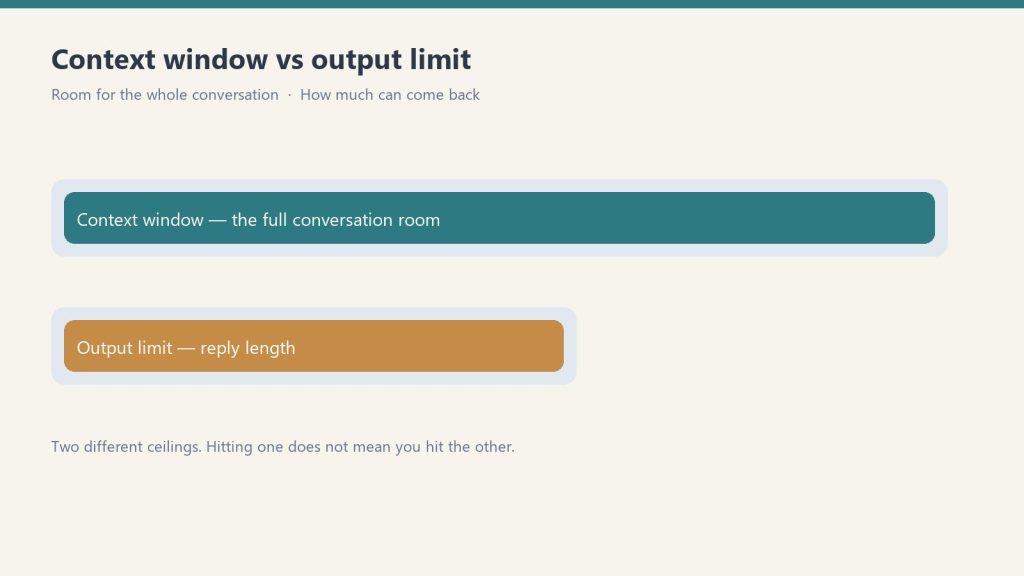
Claude can process PDFs, Word documents, spreadsheets, and images. Upload a 300-page report and ask: “What are the three recommendations most relevant to a company in the SaaS industry with under 50 employees?” Claude’s 200K token context window means it can hold significantly more content than most AI tools.
Memory Feature
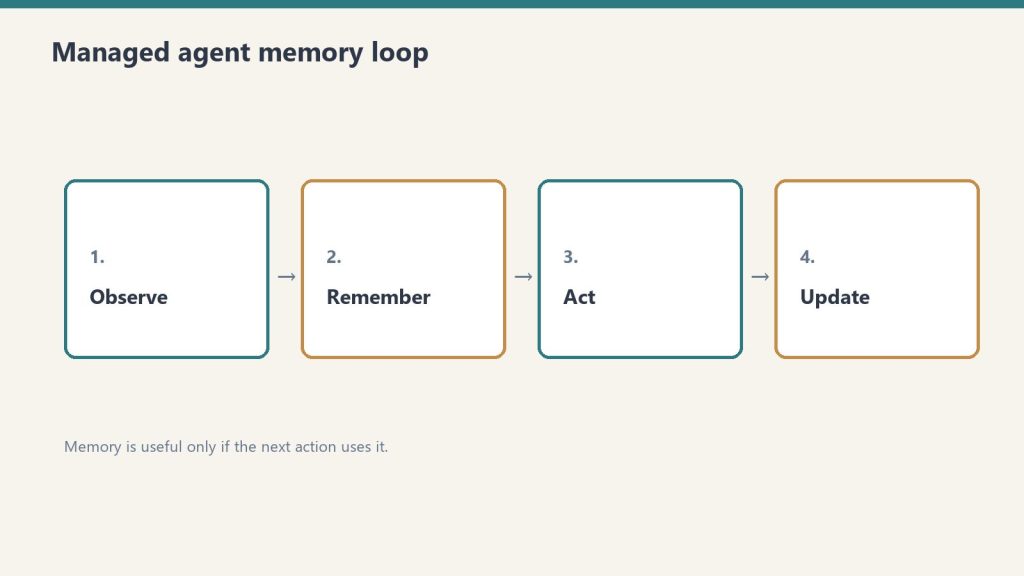
In Claude’s settings, enable Memory to allow Claude to remember preferences and context across conversations. You can view, edit, and delete stored memories. This is different from Projects — Memory applies across all conversations, not just within a specific project workspace.
Use Extended Thinking for Hard Problems
For complex reasoning tasks, you can ask Claude to use extended thinking: “Think through this carefully before answering: [hard problem].” Claude will reason through the problem step by step before giving its final response, which significantly improves accuracy on multi-step analytical tasks.
Frequently Asked Questions
How do I get Claude to remember things between conversations?
Enable the Memory feature in Claude’s settings to store preferences and context across sessions. Alternatively, use Projects to maintain shared context within a specific workspace.
What is the best way to upload documents to Claude?
Click the paperclip icon in the chat interface to upload files. Claude supports PDFs, Word documents, spreadsheets, images, and text files. For very large documents, consider splitting them or asking specific targeted questions rather than asking Claude to summarize the entire document.
How do I use Claude for coding without being a developer?
You don’t need to be a developer to use Claude for coding. Describe what you want to build in plain language: “I want a Python script that reads a CSV file and calculates the average of the third column.” Claude will write working code and explain it.
What is Claude’s message limit on the free plan?
Free plan limits are not publicly specified as exact numbers and change over time. In practice, free users typically can send dozens of standard messages per day before hitting usage limits. Claude will notify you when you approach limits and offer a path to upgrade.
Can Claude access the internet?
By default, Claude does not have real-time internet access. Some implementations of Claude have web search enabled, which allows it to retrieve current information. Check whether your interface shows a web search tool icon.
What Claude Can and Can’t Do
Before diving into prompts, it helps to know exactly where Claude excels and where it falls short. Knowing the difference saves you frustration on day one.
What Claude Does Well
- Writing — drafting articles, emails, reports, essays, scripts, marketing copy, and creative content. Claude’s writing voice is consistently more natural than most AI tools.
- Editing and revision — improving existing text, restructuring arguments, tightening prose, adjusting tone, fixing grammar issues with explanation.
- Coding — writing, explaining, debugging, and refactoring code. Claude is widely considered one of the strongest coding models in 2026.
- Analysis — summarizing documents, extracting structured data from text, comparing options, identifying patterns, working through trade-offs.
- Research synthesis — combining information from multiple sources into coherent overviews. With web search enabled, Claude can pull current information from the internet.
- Reasoning — working through complex problems step by step, identifying logical issues, exploring implications.
- Explaining concepts — at any level of expertise, adapting to your background and follow-up questions.
What Claude Can’t Do (Yet)
- Generate images or video — Claude is text-based. For images you need a different tool (Midjourney, DALL-E, Gemini’s image features, etc.).
- Browse the live web autonomously — without web search enabled, Claude works from its training data, which has a cutoff date. With web search on, Claude can look things up but it’s a deliberate tool call, not continuous browsing.
- Remember you between separate conversations by default — each new chat starts fresh unless you’re using Projects (which maintain persistent context) or Claude’s memory features.
- Take real-world actions unprompted — Claude can draft, create, and use tools you give it access to, but it doesn’t autonomously do things you didn’t ask for.
- Guarantee factual accuracy — Claude can be confidently wrong, especially on niche topics or recent events. For high-stakes work, verify important facts.
Common Beginner Mistakes
Treating Claude like Google
Google rewards short keyword queries. Claude rewards detailed prompts with context. “Best Italian restaurant” works on Google. With Claude, “I’m visiting Seattle next weekend with my partner who’s vegetarian, we want a date-night spot for Italian food, walking distance from Capitol Hill, around $50 per person” produces a useful answer.
Asking everything in one mega-prompt
It’s tempting to dump everything into one giant prompt. Sometimes this works. More often, breaking it into a conversation produces better results — start with the core task, see what Claude produces, then iterate.
Not pushing back when Claude is wrong
Claude can be confidently wrong. If something doesn’t match what you know to be true, say so. “That’s not right — the deadline is March, not April” or “I think you’re confusing X with Y” produces a corrected response. Don’t accept output you know is wrong just because Claude said it confidently.
Forgetting to verify facts on important work
For high-stakes work — legal, medical, financial, anything published — verify Claude’s factual claims with primary sources. Claude is a thinking partner, not a final authority.
Defaulting to the most expensive model
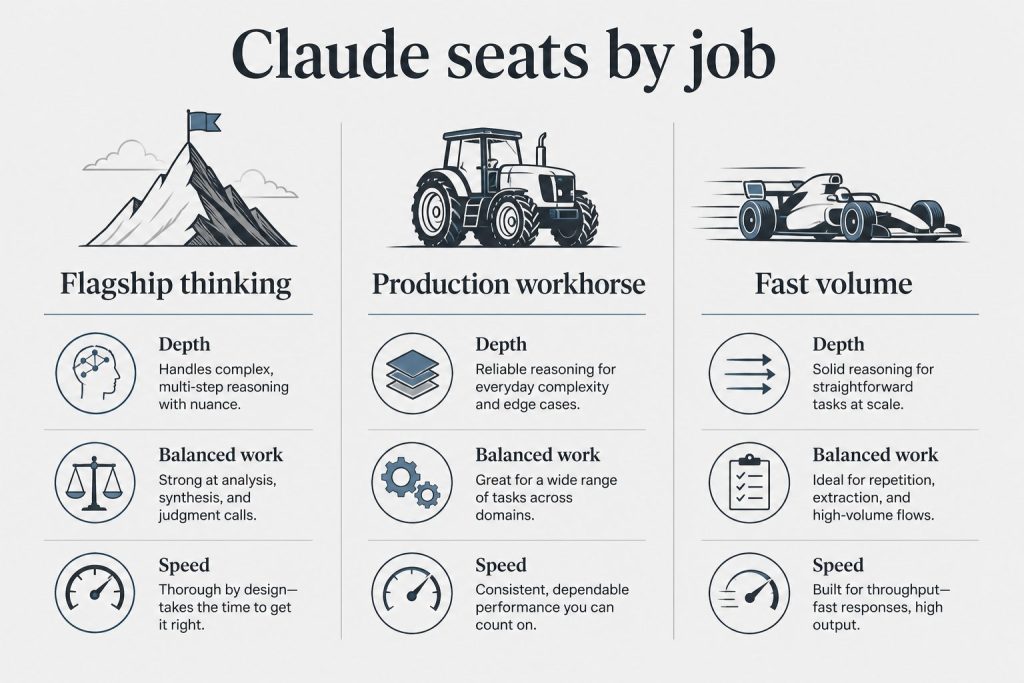
If you’re on a paid plan, Claude offers multiple models. Opus is the most capable but consumes your usage allocation fastest. Sonnet is the daily workhorse and the right choice for most tasks. Haiku is fast and inexpensive for routine work. Defaulting to Opus for everything burns through limits unnecessarily.
Pasting the same context every conversation
If you find yourself re-explaining the same project, role, or reference material in multiple chats, you’re doing it wrong. That’s exactly what Projects are for — load the context once, every conversation in the Project starts with it already loaded.
How Claude Compares to Other AI Tools
If you’re new to AI tools entirely, the practical landscape in 2026 looks like this:
- Claude tends to be preferred for coding, long-form writing, careful reasoning, and analysis where output quality matters more than speed.
- ChatGPT tends to be preferred for image generation, voice mode, casual queries, and tasks where speed and breadth matter most.
- Gemini tends to be preferred for users deep in the Google ecosystem (Gmail, Docs, Drive), for multimodal video generation, and for high-volume API workloads where cost is the priority.
Many serious users run more than one. The right tool for you depends entirely on what you actually do. There’s no universal winner — there are use-case winners.
Should You Upgrade to Claude Pro?
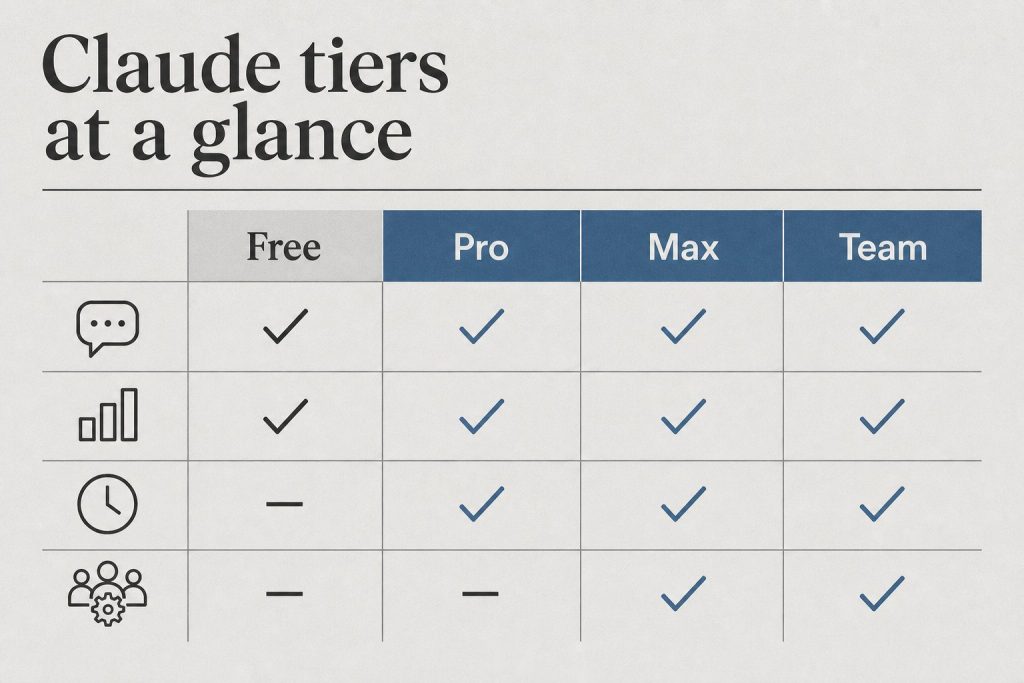
The Free plan is genuinely useful for most occasional users. Anthropic significantly expanded the Free tier in early 2026 — Projects, Artifacts, and app connectors are now available to free users. For light usage, you may not need to pay anything.
Stay on Free if:
- You use Claude a few times a week for casual questions
- You don’t mind hitting daily limits occasionally
- You haven’t yet identified a workflow you’d return to repeatedly
Upgrade to Pro ($20/month) if:
- You’re hitting Free plan rate limits regularly
- You use Claude for several hours of work per week
- You want priority access during peak hours when Free users get throttled
- You need Anthropic’s most capable models for complex tasks
- Lost time waiting for limits to reset is costing you more than $20/month
Consider Max ($100-$200/month) if:
- You hit Pro limits more than once a week
- You’re a developer running extended Claude Code sessions
- Claude is a primary work tool used daily for hours
If you’re a student at a university with a Claude for Education partnership, you may already have premium access through your school — sign in with your .edu email to check.
Where to Go After You’ve Got the Basics Down
Once you’re comfortable with prompting, conversations, and Projects, the highest-leverage things to learn next are:
- Connectors — Claude can connect to Google Drive, Gmail, Calendar, and other tools, pulling context directly from where your work lives. This eliminates copy-paste from your daily workflow.
- Model selection — knowing when to use Sonnet vs Opus vs Haiku saves real money and time on paid plans
- Artifacts — for code, documents, and visualizations, Claude generates them as separate Artifact panels you can iterate on directly
- Web search — for current-events research and fact-checking, enable web search to let Claude pull live information
- Claude Code — if you’re a developer, the terminal-based agentic coding tool is in a different league from chat-based coding help
- API access — for building applications or running programmatic workflows, the API gives you pay-per-token access without subscription rate limits
Additional Frequently Asked Questions
Is Claude AI free to use?
Yes. Claude has a Free plan that includes daily message limits, access to current Claude models, Projects, Artifacts, and app connectors. No credit card is required to sign up at claude.ai. Paid plans add more usage, priority access, and additional features.
How is Claude different from ChatGPT?
Claude is generally preferred for coding, long-form writing, and careful reasoning. ChatGPT is generally preferred for image generation, voice mode, and faster casual responses. Both are at the frontier of AI capability — many users run both for different tasks.
Do I need to know how to code to use Claude?
No. Claude is built for conversation in plain language. While Claude is excellent at coding, the vast majority of users never touch code — they use Claude for writing, research, analysis, brainstorming, and everyday questions.
Can Claude make mistakes?
Yes. Claude can be confidently wrong, especially on niche topics, recent events, or specialized domains. For important work, verify Claude’s factual claims with primary sources. Claude is a thinking partner, not a final authority.
Can I use Claude on my phone?
Yes. Claude has iOS and Android apps in addition to the web interface at claude.ai. Your account, conversations, and Projects sync across all devices. Mobile usage counts toward the same usage limits as web usage on paid plans.
What’s the best way to get better results from Claude?
Three habits transform results: provide specific context up front (who you are, what you’re working on), be clear about exactly what you want as output (format, length, audience), and treat Claude as a conversation rather than a single-query tool. The more you iterate, the better your results get.
Does Claude save my conversations?
Yes. All conversations are saved in your account and accessible from the sidebar at claude.ai. You can rename, organize into Projects, share with others (on paid plans), or delete them. By default, conversations are private to your account.
Can Claude work with documents I upload?
Yes. You can upload PDFs, Word documents, text files, images, and other formats directly into a conversation. Claude can read, summarize, analyze, extract information from, and answer questions about the content. For documents you’ll reference repeatedly, upload them to a Project so they’re available across all conversations in that workspace.