Author: will_tygart

  • How to Use Claude Code: Getting Started, Workflows, and Best Practices

    Claude AI · Fitted Claude

    Claude Code is an agentic coding tool that works directly inside your codebase — reading files, writing code, running tests, and making changes with your approval. It’s fundamentally different from asking Claude questions about code in chat. Here’s how to use it effectively from your first session.

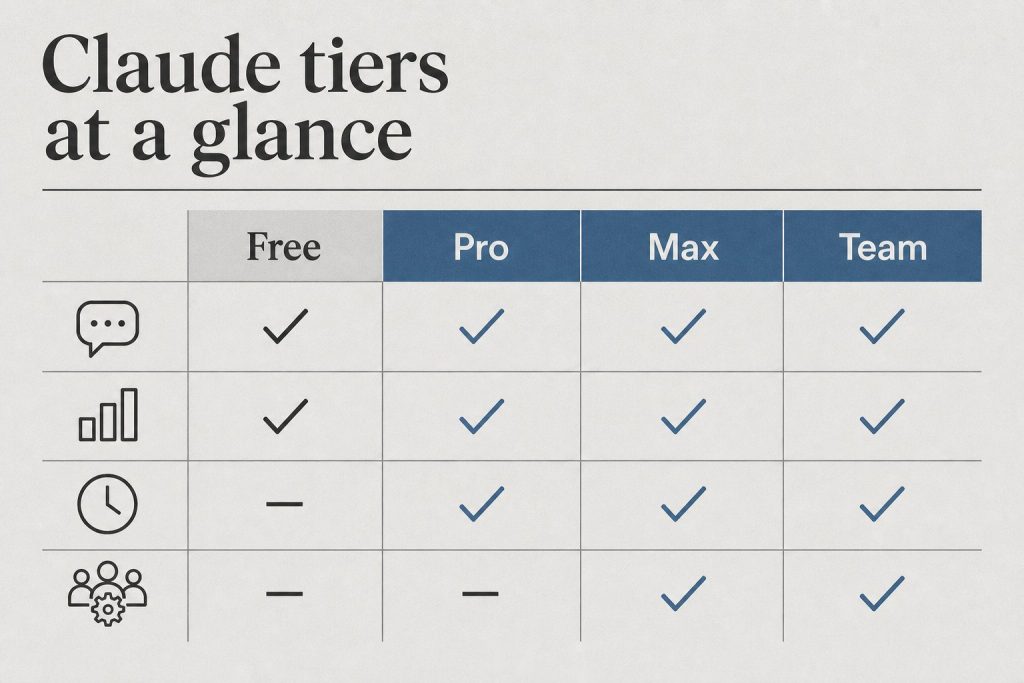
    Access: Claude Code is in the Code tab of Claude Desktop, or via the CLI (claude command). Both require a Pro, Max, Team, or Enterprise subscription. For installation, see How to Install Claude Code.

    Starting a Session

    Open the Code tab in Claude Desktop (or run claude in your terminal), then select your session type:

    • Local — Claude works on your machine with direct file access. Changes happen locally. Best for everyday development.
    • Remote — Claude runs on Anthropic’s infrastructure. The session continues even if you close the app. Best for long autonomous tasks.
    • SSH — Claude connects to a remote server over SSH. Best for server-side or cloud VM development.

    Select your project folder and choose a model — Sonnet 4.6 for most work, Opus 4.6 for the most complex tasks. You can’t change the model after the session starts.

    Free — no pitch

    Get the Claude workflow that actually sticks.

    Practical Claude setup tips from someone running it across 27 client sites daily — not marketing, not theory. Email Will directly and he’ll share what’s working.

    Get the tips →

    What to Ask Claude Code to Do

    Claude Code works best with clear, specific tasks. Unlike chat, it has your full codebase as context — so you can refer to actual files, functions, and patterns without explaining them.

    Strong prompts:

    • “Fix the bug in auth.py where users aren’t logged out after session expiry”
    • “Add input validation to all API endpoints in routes/ — check for SQL injection”
    • “Refactor UserService to use dependency injection”
    • “Write tests for all public methods in utils/parser.js
    • “Explain the data flow from the API call in main.py to the database”

    How Claude Code Makes Changes

    Claude Code doesn’t modify your files silently. When it wants to make a change, it shows you a diff — the exact lines it plans to add, remove, or edit — and waits for your approval before writing anything. You can accept the change, reject it, or ask Claude to revise its approach.

    This review-before-write pattern means Claude Code is safe to use even on code you’re not fully familiar with. You see every change before it happens.

    CLAUDE.md: Persistent Project Instructions

    Create a CLAUDE.md file in your project root to give Claude Code persistent context about your codebase — coding conventions, architecture decisions, testing patterns, libraries to prefer or avoid. Claude Code reads this file at the start of every session, so you don’t re-explain your project each time.

    # CLAUDE.md example
    
    ## Stack
    - Python 3.11, FastAPI, PostgreSQL, SQLAlchemy
    - Tests use pytest with fixtures in conftest.py
    
    ## Conventions
    - Functions should have type hints
    - No bare except clauses — always catch specific exceptions
    - Use Pydantic models for all request/response schemas
    
    ## Do not modify
    - legacy/ directory — kept for backward compatibility

    Common Workflows

    Debugging: Paste the error message and stack trace, ask Claude to find and fix the root cause. It reads the relevant files and proposes a fix.

    Refactoring: Describe the refactor goal — “extract this into a separate service,” “replace all these conditionals with a strategy pattern” — and Claude Code walks through the changes systematically.

    Test writing: “Write unit tests for all functions in this file” or “add edge case tests for the payment processing flow.” Claude reads your existing test patterns and matches them.

    Code review: “Review this PR for security issues, missing error handling, and anything that violates our conventions.” Claude reads the changed files and gives structured feedback.

    Documentation: “Add docstrings to all public functions” or “generate a README that explains this project’s architecture.”

    Tips for Getting the Most Out of It

    • Start small. First session, give it a small, contained task in a file you know well. Calibrate your trust before handing it larger work.
    • Be specific about constraints. “Don’t use async/await,” “keep changes backward compatible,” “match the style of the existing tests.” Claude Code holds these throughout the session.
    • Use CLAUDE.md. Any convention you find yourself re-explaining belongs in this file.
    • Review every diff. Claude Code is capable but not infallible. Read each proposed change before approving — especially on production code.
    • Use Remote for long tasks. Autonomous multi-file refactors or test generation across a large codebase work better in a Remote session that won’t be interrupted.

    For pricing details, see Claude Code Pricing: Pro vs Max. For how it compares to other tools, see Claude vs GitHub Copilot and Claude Code vs Windsurf.

    Tygart Media

    Getting Claude set up is one thing.
    Getting it working for your team is another.

    We configure Claude Code, system prompts, integrations, and team workflows end-to-end. You get a working setup — not more documentation to read.

    See what we set up →

    Frequently Asked Questions

    How does Claude Code work?

    Claude Code reads your project files, executes tasks like debugging, refactoring, and test writing, and shows you a diff of every proposed change before modifying anything. You approve or reject each change. It operates in your actual development environment, not in a chat window.

    Can Claude Code modify my files without permission?

    No. Claude Code shows you a diff of every proposed change and waits for your approval before writing to any file. You remain in full control of what gets modified.

    What languages does Claude Code support?

    Claude Code works with any programming language. It’s particularly strong on Python, JavaScript, TypeScript, and Go, but handles most modern languages and frameworks well. It reads and writes whatever files are in your project directory.

    Need this set up for your team?
    Talk to Will →

  • How to Install Claude Code: Desktop App and CLI Setup Guide

    Claude AI · Fitted Claude

    Claude Code is available two ways: as the Code tab inside Claude Desktop (with a graphical interface), or as a CLI tool you install and run from your terminal. Here’s how to get either one set up from scratch.

    Requirement: Claude Code requires a Pro, Max, Team, or Enterprise subscription. It is not available on the free plan. The Claude Desktop app (which includes a graphical Claude Code interface) is free to download but the Code tab requires a paid subscription.

    Option 1: Claude Desktop (Recommended for Most Users)

    The easiest way to get Claude Code is through Claude Desktop — no terminal required.

    1. Download Claude Desktop from claude.ai/download — available for macOS and Windows (x64 or ARM64). Linux is not supported.
    2. Install — on Mac, open the PKG and drag to Applications; on Windows, run the installer.
    3. Sign in with your Anthropic account (Pro, Max, Team, or Enterprise).
    4. Click the Code tab in the top navigation.
    5. Select Local to work with files on your machine, or Remote to run on Anthropic’s cloud infrastructure.
    6. Click “Select folder” and choose your project directory. You’re ready.

    On Windows, Git must be installed for local sessions to work. Most Macs include Git by default — check by running git --version in Terminal.

    Free — no pitch

    Get the Claude workflow that actually sticks.

    Practical Claude setup tips from someone running it across 27 client sites daily — not marketing, not theory. Email Will directly and he’ll share what’s working.

    Get the tips →

    Option 2: Claude Code CLI

    For developers who prefer working in the terminal, Claude Code is also available as a command-line tool.

    # Install via npm
    npm install -g @anthropic-ai/claude-code
    
    # Authenticate
    claude login
    
    # Start in your project directory
    cd your-project
    claude

    The CLI requires Node.js. After running claude login, you’ll authenticate with your Anthropic account in a browser window. The session starts automatically in the current directory.

    Local vs. Remote Sessions

    Session type What it does Best for
    Local Runs on your machine, accesses your files directly Everyday development work
    Remote Runs on Anthropic’s cloud, continues if you close the app Long-running tasks, autonomous work
    SSH Connects to a remote machine over SSH Server or cloud VM development

    Common Setup Issues

    Code tab not appearing in Desktop: Confirm your account is on a paid plan. Claude Code requires Pro, Max, Team, or Enterprise — it’s not available on the free tier.

    Windows Git error: Claude Code needs Git for local sessions on Windows. Download Git from git-scm.com, install with default settings, then restart the desktop app.

    CLI authentication failing: Run claude logout then claude login again. Make sure your Anthropic account has an active paid subscription.

    Permission errors on first run: Claude Code will ask permission to access your files when you first select a folder. Click Allow — it needs read/write access to work with your project.

    First Session: What to Expect

    When you start your first Claude Code session, Anthropic recommends starting with a small, familiar project. Ask Claude to explain the codebase, fix a specific bug, or add a small feature. This gives you a calibrated sense of how it works before tackling larger tasks. Claude will read relevant files, propose changes, and ask for your approval before modifying anything.

    For an overview of what Claude Code can do once you’re set up, see How to Use Claude Code. For pricing details, see Claude Code Pricing: Pro vs Max.

    Tygart Media

    Getting Claude set up is one thing.
    Getting it working for your team is another.

    We configure Claude Code, system prompts, integrations, and team workflows end-to-end. You get a working setup — not more documentation to read.

    See what we set up →

    Frequently Asked Questions

    How do I install Claude Code?

    Download Claude Desktop from claude.ai/download and use the Code tab — no terminal required. Or install the CLI with npm install -g @anthropic-ai/claude-code and run claude login to authenticate.

    Is Claude Code free to install?

    Claude Desktop (which includes Claude Code) is free to download. Using Claude Code requires a paid subscription — Pro ($20/month), Max ($100/month), Team, or Enterprise. It is not available on the free plan.

    Does Claude Code work on Linux?

    The Claude Desktop app does not support Linux. The Claude Code CLI does run on Linux — install via npm and use it from your terminal.

    What’s the difference between Claude Code Desktop and the CLI?

    Claude Code Desktop (the Code tab in the Claude Desktop app) gives you a graphical interface with visual file diffs, a built-in preview panel, and no terminal required. The CLI runs in your terminal and supports the same core operations. Both share configuration files and can run simultaneously on the same project.

    Need this set up for your team?
    Talk to Will →

  • Claude Desktop: Download, Features, and What It Does That the Web Can’t

    Claude AI · Fitted Claude

    Claude Desktop is Anthropic’s native app for Mac and Windows — a dedicated application that brings Claude out of the browser and into your system, with features that aren’t available in the web interface. It’s free to download for all plan types, including the free tier.

    Download: claude.ai/download — available for macOS and Windows. Linux is not currently supported. The app is free to download; some features require a paid plan.

    What Claude Desktop Includes

    Feature What it does Plan required
    Chat tab Full Claude conversation, same as claude.ai Free+
    Quick access hotkey Bring Claude up from any app without switching windows Free+
    Screenshot capture Snap your screen and have Claude analyze what it sees Free+
    Desktop extensions Connect Claude to local files, calendars, email, and native apps Free+
    Claude in Chrome Claude navigates, clicks, and fills forms in your browser Free+
    Cowork tab Autonomous background agent that runs tasks in a cloud VM Pro, Max, Team, Enterprise
    Code tab (Claude Code) Interactive coding with direct access to your local files Pro, Max, Team, Enterprise
    Free — no pitch

    Get the Claude workflow that actually sticks.

    Practical Claude setup tips from someone running it across 27 client sites daily — not marketing, not theory. Email Will directly and he’ll share what’s working.

    Get the tips →

    The Three Tabs: Chat, Cowork, and Code

    Claude Desktop is organized around three modes. Chat is general conversation — identical to claude.ai but accessible from your dock without opening a browser. Cowork is an autonomous background agent that works on tasks in a cloud VM while you do other things — research synthesis, file organization, document generation, spreadsheets. Code is Claude Code with a graphical interface — an interactive coding assistant with direct access to your local project files, where you review and approve each change in real time.

    What Makes Desktop Different From the Web

    The practical differences over using claude.ai in a browser:

    • Always accessible — lives in your dock, reachable from any app via hotkey without switching contexts
    • Screenshot capture — take a screenshot and immediately ask Claude about what’s on screen
    • Desktop extensions — connect to local files, your filesystem, calendars, email, and native Mac/Windows apps that web connectors can’t reach
    • Claude in Chrome — let Claude control your browser directly from the desktop app
    • Cowork background tasks — long-running autonomous tasks that continue while you work on something else
    • Claude Code integration — work directly with your local codebase without copying files

    How to Download and Install

    1. Go to claude.ai/download
    2. Download the appropriate installer — macOS PKG, Windows x64, or Windows ARM64
    3. Run the installer — on Mac, drag to Applications; on Windows, run the setup file
    4. Launch from your Applications folder (Mac) or Start menu (Windows)
    5. Sign in with your Anthropic account

    Linux is not currently supported. The app requires macOS or Windows.

    Desktop Extensions

    Desktop extensions are installable packages that connect Claude to your local tools — similar to browser extensions but for native applications. They give Claude access to your local file system, calendars, email, messaging apps, and other native applications that web-based connectors can’t reach. Browse and install extensions in Settings → Extensions after installing the app.

    Syncing Across Devices

    Your conversations, projects, memory, and preferences sync across Claude Desktop, the web interface, and the mobile app when you’re signed in with the same account. Start a session in the desktop app, continue on your phone, pick it back up on the web — the context travels with you.

    For the Claude Code-specific features in the desktop app, see How to Use Claude Code. For a comparison of Desktop vs. the web interface for everyday use, see Claude AI Login: All Platforms and Apps.

    Tygart Media

    Getting Claude set up is one thing.
    Getting it working for your team is another.

    We configure Claude Code, system prompts, integrations, and team workflows end-to-end. You get a working setup — not more documentation to read.

    See what we set up →

    Frequently Asked Questions

    Is Claude Desktop free?

    Yes. Claude Desktop is free to download and use with a free Claude account. Some features — Cowork, Claude Code, and some extensions — require a paid plan (Pro, Max, Team, or Enterprise). The core chat functionality is available on the free tier.

    What’s the difference between Claude Desktop and claude.ai?

    Claude Desktop is a native app that lives in your dock and adds features not available in the browser — quick access hotkey, screenshot capture, desktop extensions, Cowork for background tasks, and Claude Code for local development. The core conversation experience is the same; the desktop app adds system-level integration.

    Is Claude Desktop available on Linux?

    No. Claude Desktop currently supports macOS and Windows only. Linux users can access Claude through the web interface at claude.ai or via the API.

    Does Claude Desktop work with Claude Code?

    Yes. Claude Desktop includes a Code tab that gives you Claude Code with a graphical interface — direct access to your local files, code review, and interactive development without needing the terminal. The desktop app and the Claude Code CLI share configuration and can run simultaneously on the same project.

    Need this set up for your team?
    Talk to Will →

  • Is Claude Good at Math? An Honest Assessment of Strengths and Limits

    Claude AI · Fitted Claude

    Claude handles most math well — arithmetic, algebra, statistics, probability, and applied quantitative reasoning are all solid. But there are specific areas where Claude is less reliable, and knowing the distinction matters before you trust it with anything consequential.

    Short answer: Claude is good at math reasoning, explaining mathematical concepts, and applied quantitative work. It’s less reliable on long arithmetic chains and highly technical graduate-level proofs. For most professional math use cases — financial modeling logic, statistics interpretation, data analysis reasoning — Claude is a strong tool.

    What Claude Does Well in Math

    Conceptual and applied reasoning

    Claude excels at understanding and explaining mathematical concepts — how to set up a problem, what approach to take, why a formula works, and what the result means in context. For applied math in business, finance, statistics, and data analysis, Claude reasons clearly and catches logical errors in human thinking.

    Statistics and probability

    Statistical reasoning is a genuine strength. Claude explains distributions, hypothesis testing, confidence intervals, regression interpretation, and Bayesian reasoning accurately. For interpreting research findings, evaluating statistical claims, or designing an analytical approach, Claude is reliable.

    Algebra and symbolic manipulation

    For algebraic manipulation, equation solving, and formula derivation at the undergraduate level, Claude is accurate. Calculus, linear algebra, and most standard graduate coursework is handled well.

    Math education and tutoring

    Claude is an excellent math tutor — it explains steps clearly, adjusts to the student’s level, identifies where understanding breaks down, and provides multiple approaches to the same problem. For learning math or working through coursework, it’s one of the strongest tools available.

    Where Claude Has Math Limitations

    Long arithmetic chains. Claude can make arithmetic errors on long calculations — adding up many numbers, tracking intermediate values through many steps, or doing complex mental arithmetic. For any calculation where the exact number matters, verify with a calculator or ask Claude to write code that computes it.

    Highly technical proofs. At the frontier of mathematical research — complex analysis, advanced topology, cutting-edge number theory — Claude can make subtle errors in proof structure. For research-level mathematics, Claude is useful for brainstorming and explaining concepts, not for verifying proof correctness.

    Numerical precision. For numerical computations requiring high precision, Claude shouldn’t be your compute engine. Ask it to write code in Python or another language with proper numerical libraries, then run that code.

    The Right Way to Use Claude for Math

    Use Claude for: setting up problems, explaining approaches, interpreting results, checking reasoning logic, learning concepts, statistical interpretation, and applied quantitative analysis.

    Ask Claude to write code for: any computation where the exact number matters, long arithmetic chains, numerical optimization, or anything requiring iterative calculation.

    Verify independently: any arithmetic result Claude gives you directly, especially in multi-step calculations. Claude will often flag its own uncertainty — take that seriously.

    Claude vs ChatGPT for Math

    Both Claude and ChatGPT are competitive on most math tasks. ChatGPT’s code interpreter gives it an advantage for numerical computation — it can run Python in-chat and show you the calculated result directly. Claude can write the same Python code but doesn’t execute it in the web interface by default. For conceptual math and statistical reasoning, they’re closely matched with neither having a clear, consistent edge.

    Frequently Asked Questions

    Is Claude good at math?

    Yes for most professional and educational math — reasoning, statistics, algebra, calculus, and applied quantitative analysis. Less reliable for long arithmetic chains and frontier-level research proofs. For calculations where the exact answer matters, ask Claude to write code rather than compute directly.

    Can Claude solve math problems?

    Yes — Claude can set up and work through math problems across most disciplines. For applied and conceptual problems it’s strong. For problems requiring long numerical computation, the best approach is asking Claude to write code that solves it rather than doing the arithmetic directly.

    Does Claude make math errors?

    Yes, particularly on arithmetic — tracking numbers through many steps or doing large calculations mentally. Claude will sometimes flag its own uncertainty. Always verify arithmetic results independently, especially in consequential contexts. Claude is more reliable for math reasoning than for math computation.

    Need this set up for your team?
    Talk to Will →

  • Claude vs GitHub Copilot: Different Tools for Different Jobs

    Claude AI · Fitted Claude

    Claude and GitHub Copilot both help developers write code — but they’re solving different problems. Copilot lives inside your editor as an autocomplete and inline suggestion tool. Claude is a conversational AI you bring complex problems to. Understanding what each does determines which belongs in your workflow, and whether you need both.

    Short answer: They’re not direct substitutes. Copilot is better for in-editor autocomplete and inline code completion as you type. Claude is better for complex problem-solving, code review, architecture discussion, debugging, and agentic development via Claude Code. Most serious developers benefit from both.

    Claude vs GitHub Copilot: Head-to-Head

    Capability Claude GitHub Copilot Edge
    In-editor autocomplete Copilot — purpose-built for this
    Complex problem-solving Limited Claude — conversational depth
    Code review Basic Claude — more thorough
    Architecture discussion Claude — requires reasoning
    Debugging complex errors Basic Claude — root cause analysis
    Agentic coding (autonomous) ✅ Claude Code ✅ Copilot Workspace Claude Code — terminal-native
    GitHub integration Via MCP ✅ Native Copilot — built into the platform
    Multi-language support Tie
    Price $20/mo (Pro) $10–19/mo Copilot — cheaper at base
    Not sure which to use?

    We’ll help you pick the right stack — and set it up.

    Tygart Media evaluates your workflow and configures the right AI tools for your team. No guesswork, no wasted subscriptions.

    What GitHub Copilot Does Better

    In-editor autocomplete. Copilot is purpose-built for this — it sits inside VS Code, JetBrains, Neovim, or your editor of choice and suggests completions as you type. It reads your current file and neighboring context to generate inline suggestions. Claude doesn’t do this. There’s no Claude autocomplete inside your editor in the same way.

    GitHub native integration. Copilot is an extension of the GitHub ecosystem — it understands your repository context, integrates with pull requests (Copilot PR summaries), and connects directly to GitHub Actions. If you’re deeply embedded in the GitHub workflow, Copilot’s native integration has genuine advantages.

    What Claude Does Better

    Complex reasoning about code. When you have a hard problem — a non-obvious bug, an architectural decision, a security vulnerability to trace — Claude’s conversational depth is more valuable than autocomplete. You can describe the problem, paste relevant code, explain your constraints, and get substantive analysis rather than a completion suggestion.

    Code review quality. Claude’s code review is more thorough than Copilot’s, particularly for security issues, error handling gaps, and logic errors. It explains why something is a problem, not just that it is — and it holds all your review criteria through long responses.

    Claude Code for agentic work. Claude Code is a terminal-native agent that operates in your actual development environment — reading files, running tests, making commits, refactoring across multiple files. It’s a more autonomous capability than either chat-based Claude or Copilot’s editor integration. For multi-file, multi-step development tasks, Claude Code is the stronger tool.

    Using Both: The Practical Setup

    The most effective developer setup uses both: GitHub Copilot for in-editor autocomplete and inline suggestions as you write, Claude (via web, desktop, or API) for complex problem-solving, code review, debugging, and architecture. Claude Code for autonomous development sessions on larger tasks.

    At $10–19/month for Copilot and $20/month for Claude Pro, running both costs $30–40/month — meaningful but justified for developers whose output directly depends on these tools.

    For a broader Claude coding comparison, see Claude vs ChatGPT for Coding, Claude Code vs Windsurf, and Claude Code vs Aider.

    Frequently Asked Questions

    Is Claude better than GitHub Copilot?

    They do different things well. Copilot is better for in-editor autocomplete. Claude is better for complex problem-solving, code review, and debugging. Claude Code is better for autonomous development sessions. Most developers benefit from both rather than choosing one.

    Can Claude replace GitHub Copilot?

    Not for in-editor autocomplete — that’s Copilot’s core strength and Claude doesn’t have a direct equivalent in your editor as you type. Claude Code handles autonomous development tasks at a higher level, but for the instant inline suggestion experience, Copilot remains the dedicated tool.

    Should I use Claude Code or GitHub Copilot?

    For autonomous multi-file development tasks, Claude Code is the stronger tool — it operates in your actual environment, reads your full codebase, runs tests, and works without constant guidance. For in-editor suggestions as you write, Copilot’s integration is purpose-built for that workflow. The two address different parts of the development process.

    Need this set up for your team?
    Talk to Will →

  • Is Claude Good at Coding? An Honest Assessment From Daily Use

    Claude AI · Fitted Claude

    Claude is genuinely good at coding — and for specific types of development work, it’s the strongest AI coding assistant available. But the honest answer requires separating what it does well from where it has real limits. Here’s the actual assessment from someone running Claude across real production systems daily.

    Short answer: Yes — Claude is strong at coding, particularly for instruction-following on complex requirements, debugging non-obvious errors, and agentic development via Claude Code. It’s competitive with or better than GPT-4o on most coding benchmarks. The gap over alternatives is clearest on tasks requiring sustained context and precise constraint adherence.

    Where Claude Excels at Coding

    Complex, multi-constraint code generation

    Give Claude a detailed spec — specific patterns, error handling requirements, naming conventions, library preferences — and it holds all of them through a long response better than alternatives. Other models tend to drift from earlier constraints partway through. For production code where the specifics matter, Claude’s instruction adherence is a real advantage.

    Debugging non-obvious errors

    On tricky bugs where the error message points somewhere unhelpful, Claude is more likely to trace the actual root cause rather than addressing the symptom. It’s willing to say “this is probably caused by X upstream” and follow the logic chain. That kind of reasoning saves hours on complex debugging sessions.

    Working across large codebases

    Claude’s 200K token context window means it can hold significant portions of a codebase in context simultaneously. Understanding how a change in one file affects another, tracking architectural patterns across multiple files, maintaining awareness of project-wide conventions — Claude handles this better than models with shorter context windows.

    Code review and security analysis

    Claude is strong at finding security vulnerabilities, missing error handling, and logic errors. Give it the code and ask it to review specifically for security issues — SQL injection, authentication gaps, hardcoded credentials — and the findings are reliable and specific. See the full code review guide for prompts and examples.

    Claude Code: Agentic development

    Claude Code — Anthropic’s terminal-native coding agent — operates autonomously inside your actual codebase. Reading files, writing code, running tests, managing git. For autonomous development work, this is a qualitatively different capability from chat-based code assistance. See Claude Code pricing for tier details.

    Claude’s Coding Benchmarks

    On SWE-bench — the industry benchmark for real-world software engineering tasks — Claude has performed strongly relative to competing models. Claude 3.5 Sonnet’s performance on this benchmark in 2024 attracted significant developer attention. The current Claude Sonnet 4.6 continues that trajectory.

    Benchmarks don’t capture everything — real-world tasks have context, requirements, and edge cases that synthetic benchmarks miss. But they’re a useful signal, and Claude’s performance on coding-specific benchmarks is consistently competitive.

    Where Claude Has Coding Limits

    Interactive code execution: Claude doesn’t run code interactively in the web interface by default. ChatGPT’s code interpreter lets you upload a CSV and get Python-generated charts in the same window. Claude can reason about data and write code that would do the same, but won’t execute it in-chat. Claude Code handles actual execution in a development environment.

    Very specialized frameworks: For niche or rapidly evolving frameworks where training data is sparse, Claude may have less confident knowledge than it does for established technologies. Always verify generated code for less common libraries.

    Business logic without context: Claude can generate technically correct code but can’t know your business domain’s rules without you providing them. The more context you give about what the code needs to do and why, the better the output.

    How to Get the Best Coding Results From Claude

    Be specific about requirements: Language, framework version, error handling approach, logging requirements, style preferences. Claude holds more constraints than most models — use that.

    Give it the context: What does this function do? What calls it? What does it return? More domain context = better output.

    Ask for complete, working code: Explicitly request production-ready code with error handling, not pseudocode or skeletons.

    Use Claude Code for agentic work: For anything more than a single function or file, Claude Code operating inside your actual environment beats chat-based coding significantly.

    Frequently Asked Questions

    Is Claude good at coding?

    Yes. Claude is one of the strongest AI coding assistants available, particularly for complex instruction-following, debugging non-obvious errors, and working across large codebases. Claude Code adds agentic development capability for autonomous work inside real codebases.

    Is Claude better than ChatGPT for coding?

    For most coding tasks — complex specs, debugging, large codebase work, and agentic development — Claude is stronger. ChatGPT wins for interactive data analysis via its code interpreter. For a full comparison, see Claude vs ChatGPT for Coding.

    Can Claude write production-ready code?

    Yes, with the right prompting. Specify that you want production-ready code with error handling, logging, and your style requirements. Claude follows detailed coding specifications more reliably than most alternatives. Always review and test generated code before deploying.

    Want this for your workflow?

    We set Claude up for teams in your industry — end-to-end, fully configured, documented, and ready to use.

    Tygart Media has run Claude across 27+ client sites. We know what works and what wastes your time.

    See the implementation service →

    Need this set up for your team?
    Talk to Will →

  • Claude 4 Release Date & Deprecation: What’s Changing June 2026

    Claude AI · Fitted Claude

    Anthropic hasn’t announced a specific “Claude 4” as a distinct release — the current model generation is the Claude 4.x series, with Claude Opus 4.6 and Claude Sonnet 4.6 as the current flagship models. If you’re searching for Claude 4, you’re likely looking for the current generation. Here’s exactly what’s live, what the naming means, and what to watch for next.

    Current status (April 2026): The Claude 4.x model family is live. Claude Opus 4.6 (claude-opus-4-6) and Claude Sonnet 4.6 (claude-sonnet-4-6) are Anthropic’s current production models. These are the “Claude 4” generation.

    The Current Claude 4.x Lineup

    Model API String Status Position
    Claude Opus 4.6 claude-opus-4-6 ✅ Live Flagship / maximum capability
    Claude Sonnet 4.6 claude-sonnet-4-6 ✅ Live Production default / balanced
    Claude Haiku 4.5 claude-haiku-4-5-20251001 ✅ Live Speed / cost efficiency

    Claude Model Naming: How It Works

    Anthropic uses a generation.version naming convention. The “4” in Claude 4.6 denotes the fourth major model generation. The “.6” is a version within that generation — a meaningful update that improves on the generation’s base capabilities without being an entirely new architecture.

    This is why there’s no single “Claude 4 release date” to point to — the Claude 4.x family has been rolling out incrementally, with different model tiers (Haiku, Sonnet, Opus) shipping at different points within the generation. The generation is live; you’re using it now if you’re on current Claude models.

    Claude 4 vs Claude 3: What Changed

    The jump from Claude 3.x to Claude 4.x brought improvements across reasoning, coding accuracy, instruction-following, and agentic capability. Claude 3.5 Sonnet — released in mid-2024 — was the model that first clearly demonstrated Claude could compete with and often exceed GPT-4o on most professional benchmarks. The 4.x series extended those gains.

    The most notable improvements in the 4.x generation: stronger performance on multi-step reasoning, better coherence in long agentic sessions, and improved accuracy on coding tasks including the SWE-bench benchmark for real-world software engineering.

    What Comes After Claude 4.x

    Anthropic hasn’t announced a Claude 5 release date or feature set. Based on the pace of releases — major generations arriving every several months, point releases more frequently — the next major generation will likely arrive within the year. When it does, the pattern will hold: the new mid-tier model (Sonnet) will likely outperform the current top-tier (Opus) on most tasks, at a fraction of the cost.

    For anticipation content on the next Sonnet release, see Claude Sonnet 5: What We Know. For the current model API strings and specs, see Claude API Model Strings — Complete Reference.

    Frequently Asked Questions

    When does Claude 4 come out?

    Claude 4 is already out — the current model generation is Claude 4.x. Claude Opus 4.6 and Claude Sonnet 4.6 are live and in production as of April 2026. There’s no separate “Claude 4” launch pending; you’re on it.

    What is Claude 4?

    Claude 4 refers to Anthropic’s fourth major model generation — currently the Claude 4.x series including Opus 4.6, Sonnet 4.6, and Haiku 4.5. The generation brought improvements in reasoning, coding, instruction-following, and agentic performance over Claude 3.

    Is Claude 4 better than Claude 3?

    Yes, across most benchmarks and practical tasks. The Claude 4.x generation improves on Claude 3 in reasoning accuracy, coding performance, long-context coherence, and agentic capability. Claude 3.5 Sonnet — the bridge between generations — was the model that first demonstrated Claude could consistently outperform GPT-4o on professional tasks.

    Need this set up for your team?
    Talk to Will →

  • Claude Haiku vs Sonnet vs Opus: The Complete Three-Model Comparison

    Claude AI · Fitted Claude

    Choosing between Claude’s three models comes down to one question: how hard is the task, and how much does cost matter? Haiku, Sonnet, and Opus each occupy a distinct position — this is the complete three-way breakdown so you can route work correctly from the start.

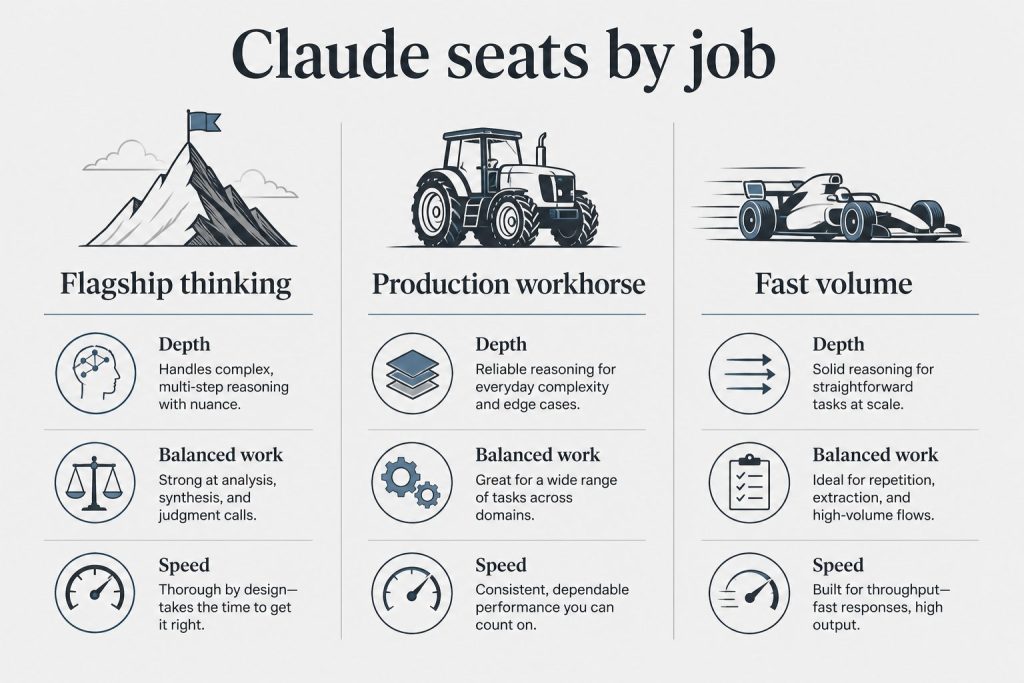
    The routing rule in one sentence: Haiku for volume and speed, Sonnet for almost everything else, Opus for the tasks where Sonnet isn’t quite enough.

    Haiku vs Sonnet vs Opus: Full Comparison

    Spec Haiku Sonnet Opus
    API string claude-haiku-4-5-20251001 claude-sonnet-4-6 claude-opus-4-6
    Input price (per M tokens) ~$1.00 ~$3.00 ~$5.00
    Output price (per M tokens) ~$5.00 ~$5.00 ~$25.00
    Context window 200K 1M 1M
    Speed ⚡ Fastest ⚡ Fast 🐢 Slower
    Reasoning depth Good Excellent Maximum
    Writing quality Good Excellent Maximum
    Cost vs Sonnet ~4× cheaper ~5× more expensive

    Claude Haiku: The Volume Model

    Haiku is optimized for tasks that are high in quantity but low in complexity — situations where you’re running the same operation hundreds or thousands of times and cost per call is a real constraint. Classification, extraction, summarization, metadata generation, routing logic, short-form responses, and real-time features where latency matters more than depth.

    The output quality on constrained tasks is strong. Where Haiku shows its limits is on open-ended, nuanced work — multi-step reasoning, long-form writing where voice consistency matters, or problems with competing constraints. For those, Sonnet is the right call.

    Claude Sonnet: The Default

    Sonnet handles the vast majority of professional work at a quality level that’s indistinguishable from Opus for most tasks. Writing, analysis, research, coding, summarization, strategy — Sonnet does all of it well. It’s the model to start with and the one most people should use as their production default.

    The gap between Sonnet and Opus shows on genuinely hard tasks: novel multi-step reasoning, edge cases in complex code, nuanced judgment in ambiguous situations, or extended agentic sessions where small quality differences compound. For everything else, Sonnet is the right choice and a fraction of the cost.

    Claude Opus: The Specialist

    Opus earns its premium on tasks where maximum capability is the only variable that matters and cost is secondary. Complex legal or technical analysis, research synthesis across conflicting sources, architectural decisions with long-term consequences, extended agentic sessions, and any task where you’ve tried Sonnet and felt the output was a notch below what the problem deserved.

    The practical test: if Sonnet’s output on a task is good enough, use Sonnet. Only reach for Opus when you’ve genuinely hit Sonnet’s ceiling on a specific problem. Most professionals do this on a small fraction of their actual workload.

    The Decision Framework

    Use Haiku when: same operation at high volume, output is constrained/structured, cost and speed matter, real-time latency required.

    Use Sonnet when: any standard professional task — writing, coding, analysis, research. This should be your default 90% of the time.

    Use Opus when: the task is genuinely hard, involves novel reasoning, Sonnet’s output wasn’t quite right, or quality is the only variable that matters regardless of cost.

    For full pricing details, see Anthropic API Pricing. For a Haiku deep-dive, see Claude Haiku: Pricing, Use Cases, and API String. For the Opus vs Sonnet head-to-head, see Claude Opus vs Sonnet.

    Frequently Asked Questions

    What’s the difference between Claude Haiku, Sonnet, and Opus?

    Haiku is fastest and cheapest — built for high-volume, constrained tasks. Sonnet is the balanced production default with excellent quality across most professional work. Opus is the most capable model for complex reasoning — about 5× more expensive than Sonnet on input tokens.

    Which Claude model should I use?

    Start with Sonnet for almost everything. Switch to Haiku when you’re running the same operation at high volume and cost matters. Switch to Opus when Sonnet’s output on a specific task isn’t quite at the level the problem requires.

    Is Claude Haiku good enough for most tasks?

    For structured, constrained tasks — yes, Haiku is strong. For open-ended writing, complex reasoning, or work requiring nuanced judgment, Sonnet is the right step up. The cost savings from Haiku are meaningful at scale, making it the right choice when the task fits its strengths.

    Need this set up for your team?
    Talk to Will →

  • Claude Pro vs ChatGPT Plus: Same Price, Different Strengths (2026)

    Claude AI · Fitted Claude

    Claude Pro and ChatGPT Plus are the two flagship $20/month AI subscriptions — and they’re targeting the same buyer. If you’re choosing between them (or deciding whether to keep both), here’s the direct comparison: what each includes, where they differ, and which one is worth your money based on what you actually do.

    Bottom line: Same price. Different strengths. Claude Pro wins for writing, analysis, and following complex instructions. ChatGPT Plus wins for image generation and ecosystem breadth. If you do primarily text-based professional work, Claude Pro is the stronger value. If image generation is core to your workflow, ChatGPT Plus is the one to keep.

    Claude Pro vs ChatGPT Plus: Direct Comparison

    Feature Claude Pro ($20/mo) ChatGPT Plus ($20/mo)
    Price $20/month $20/month
    Top model access Haiku, Sonnet, Opus GPT-4o
    Image generation ❌ Not included ✅ DALL-E 3 included
    Web search ✅ Included ✅ Included
    File / document upload ✅ PDFs, docs, images ✅ PDFs, docs, images
    Context window 1M tokens (Sonnet/Opus), 200K (Haiku) 128K tokens
    Projects / custom instructions ✅ Projects ✅ GPTs / Custom Instructions
    Code interpreter / data analysis Limited ✅ Advanced Data Analysis
    Integrations MCP (growing ecosystem) GPT Store + plugins
    Agentic coding Claude Code (limited) Operator (limited)
    Writing quality ✅ Stronger Good
    Instruction following ✅ Stronger Good
    Not sure which to use?

    We’ll help you pick the right stack — and set it up.

    Tygart Media evaluates your workflow and configures the right AI tools for your team. No guesswork, no wasted subscriptions.

    Claude Pro’s Meaningful Advantages

    Larger context window. Claude Pro gives you 200K tokens vs ChatGPT Plus’s 128K. For long documents, extensive conversations, or large file uploads, Claude’s window goes further without truncation.

    Writing quality and instruction-following. For professional writing — articles, client deliverables, strategy documents — Claude produces more natural prose and holds style constraints more consistently. ChatGPT has recognizable patterns that show up even when you try to tune them away. Claude doesn’t.

    Honesty calibration. Claude is more likely to push back on a bad premise, express uncertainty, or tell you when it doesn’t know something. ChatGPT tends toward agreeableness — which feels good but occasionally produces confident wrong answers.

    ChatGPT Plus’s Meaningful Advantages

    DALL-E image generation. This is the clearest functional gap. ChatGPT Plus includes image generation; Claude Pro doesn’t. If you generate images regularly as part of your workflow, this is a real capability difference.

    Advanced Data Analysis. ChatGPT’s code interpreter runs Python in-chat — you can upload a spreadsheet and get charts, analysis, and interactive data exploration in the same window. Claude can reason about data but doesn’t have this interactive execution environment in the web interface.

    Broader integration ecosystem. The GPT Store and ChatGPT’s longer history mean more third-party integrations exist. Claude’s MCP ecosystem is growing quickly but ChatGPT has more established connections across consumer tools.

    Who Should Pick Claude Pro

    Writers, analysts, consultants, marketers, strategists, lawyers, and anyone whose primary AI use is text-based professional work. Also: developers who want longer context and better instruction-following for complex prompts.

    Who Should Pick ChatGPT Plus

    Anyone who needs image generation in their workflow. Data analysts who use the code interpreter for interactive spreadsheet and chart work. People heavily invested in the OpenAI ecosystem or specific GPT Store apps.

    Many professionals keep both — using Claude as the daily driver and ChatGPT for image generation when needed. At $20 each, running both costs $40/month, which many knowledge workers find worth it. For a broader comparison, see Claude vs ChatGPT: The Full 2026 Comparison.

    Frequently Asked Questions

    Is Claude Pro better than ChatGPT Plus?

    For writing, analysis, and following complex instructions — yes, Claude Pro is stronger. For image generation and interactive data analysis — ChatGPT Plus wins. At the same price, Claude Pro is the better choice for text-based knowledge work; ChatGPT Plus for visual content workflows.

    Does Claude Pro include image generation?

    No. Claude Pro does not include image generation in the web interface. This is the most significant functional gap vs ChatGPT Plus. If image generation is a regular part of your workflow, you need ChatGPT Plus or a separate image generation tool.

    Should I get both Claude Pro and ChatGPT Plus?

    Many professionals do. Claude Pro as the daily driver for writing and analysis, ChatGPT Plus for image generation and data analysis sandbox. At $40/month combined it’s a meaningful expense, but for professionals whose output depends on these tools, both subscriptions are often justified.

    Need this set up for your team?
    Talk to Will →

  • Claude Integrations and Plugins: Complete List of What Claude Can Connect To

    Claude AI · Fitted Claude

    Claude doesn’t use a traditional plugin marketplace — instead, it connects to external tools and services through MCP (Model Context Protocol), an open standard that lets any service build a Claude integration. Here’s a complete rundown of what Claude can connect to in 2026, how those connections work, and how to set them up.

    How Claude integrations work: Claude uses MCP (Model Context Protocol) instead of plugins. Services publish an MCP server; Claude connects to it and gains access to that service’s capabilities. In Claude.ai, many integrations are available in Settings → Connections. In Claude Desktop and the API, you can connect to any MCP server.

    Claude Integrations Available in Claude.ai (2026)

    Service What Claude can do Available in
    Google Drive Search, read, and analyze documents Claude.ai
    Google Calendar Read and create calendar events Claude.ai
    Gmail Read, search, and draft emails Claude.ai
    Notion Read and write pages, query databases Claude.ai
    Slack Read channels, search messages, post Claude.ai
    GitHub Read repos, create issues, review PRs Claude Desktop / API
    Zapier Trigger automations across 6,000+ apps Claude.ai
    HubSpot Read and update CRM records Claude.ai
    Cloudflare Manage workers, DNS, and infrastructure Claude Desktop / API
    PostgreSQL / databases Query, read schema, analyze data Claude Desktop / API
    File system Read, write, organize local files Claude Desktop
    Web search Search the web for current information Claude.ai (built-in)
    Jira / Linear Read and create issues, update status Claude.ai / API
    Custom APIs Any service with an MCP server Claude Desktop / API

    How to Add Integrations in Claude.ai

    1. Go to claude.ai → Settings → Connections
    2. Browse the available integrations and click Connect on any you want to enable
    3. Authenticate with the service (usually OAuth — you’ll be redirected to authorize)
    4. Once connected, Claude can use that service in your conversations when relevant

    Claude Desktop: More Integrations, More Control

    The Claude Desktop app supports MCP server configuration via a JSON config file — giving you access to any MCP server, including self-hosted ones and community-built integrations that aren’t in the official Claude.ai connection list. This is where the integration ecosystem expands beyond the curated set: database connections, local file systems, internal tools, and any API where someone has built an MCP server.

    Building Your Own Claude Integration

    Any developer can build an MCP server and connect it to Claude. Anthropic publishes the MCP spec openly — you implement the server, and Claude can immediately use whatever tools or data you expose. This is how companies integrate Claude into proprietary internal systems without exposing data to a third party. For the technical implementation, see the Claude MCP guide.

    Frequently Asked Questions

    Does Claude have plugins?

    Claude doesn’t use a plugin marketplace like early ChatGPT did. Instead it uses MCP (Model Context Protocol) — an open standard where services publish integration servers that Claude connects to. In Claude.ai, these appear as “Connections” in Settings. Claude Desktop supports any MCP server via config file.

    What apps can Claude connect to?

    Claude can connect to Google Drive, Gmail, Google Calendar, Notion, Slack, Zapier, HubSpot, GitHub, Cloudflare, databases, local file systems, and any service that has published an MCP server. The ecosystem is growing rapidly — new MCP servers are added by third-party developers regularly.

    How do I add integrations to Claude?

    In Claude.ai, go to Settings → Connections and authenticate the services you want to connect. For Claude Desktop, integrations are configured via a JSON config file that specifies which MCP servers to load. Via the API, you pass MCP server URLs in your request parameters.

    Need this set up for your team?
    Talk to Will →