Most content teams publish when they have something ready. Almost none publish based on when their audience is paying attention. GA4 knows exactly when that window opens.
Wednesday Is Not Random
Wednesday is not random.
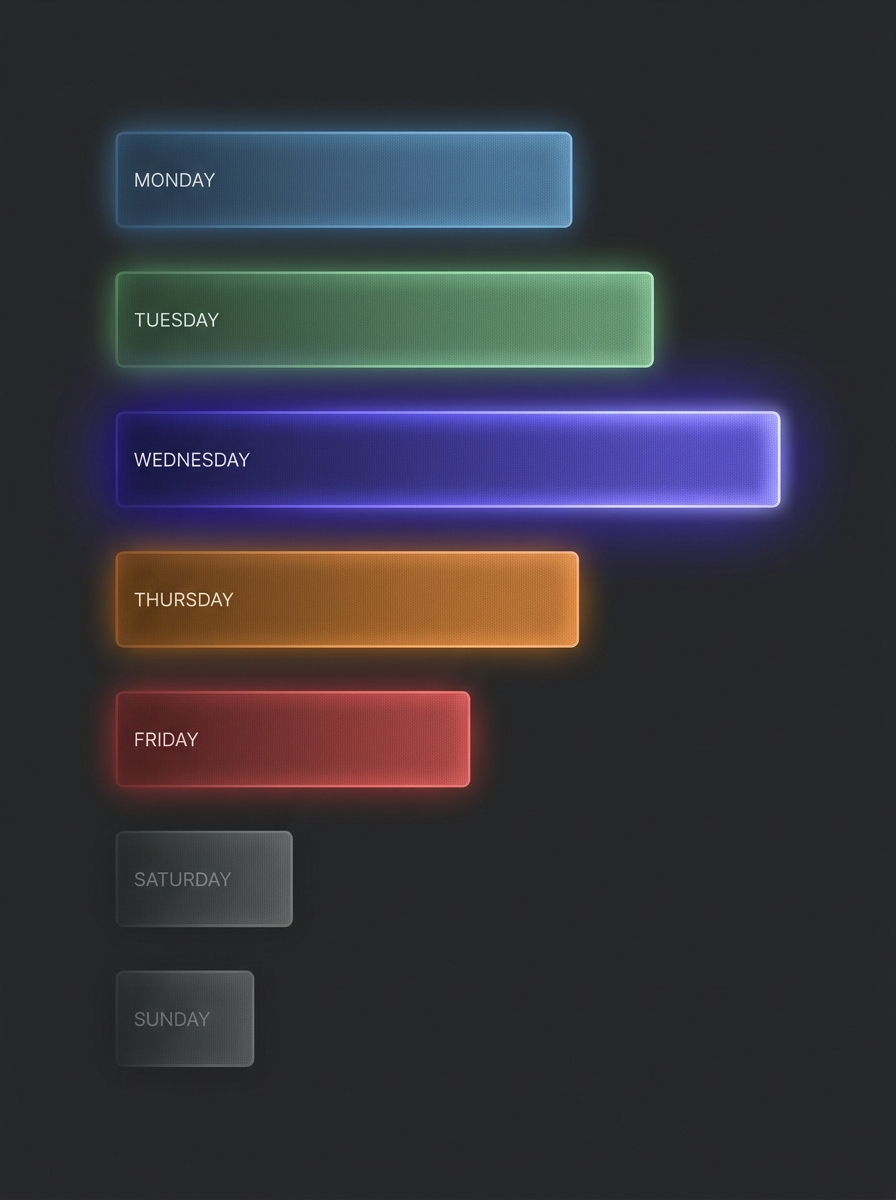
In a live GA4 audit on a real content site, Wednesday produced the highest engagement rate and longest session duration across all seven days. Saturday and Sunday dropped below 20% engagement. The site had been publishing on a Friday cadence for months.
Wednesday readers are in work mode, researching, looking for answers they can act on before the week ends. Weekend readers browse at lower intent — shorter duration regardless of content quality.
The Three Daily Windows
The three daily windows.
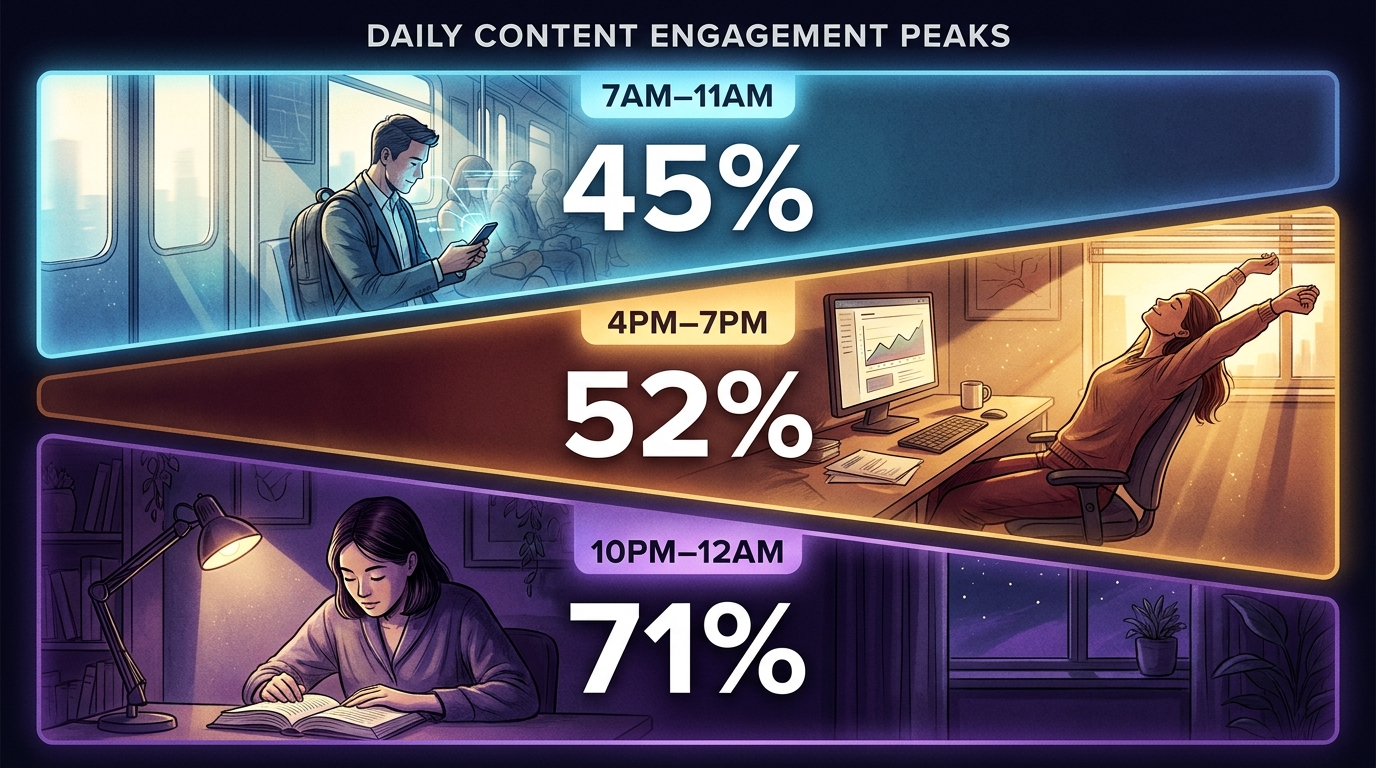
Morning (7AM to 11AM) produces consistently elevated engagement from commuters and early researchers. Late afternoon (4PM to 7PM) shows another spike — users winding down work. Some hours in this window showed 100% engagement rates in the live data.
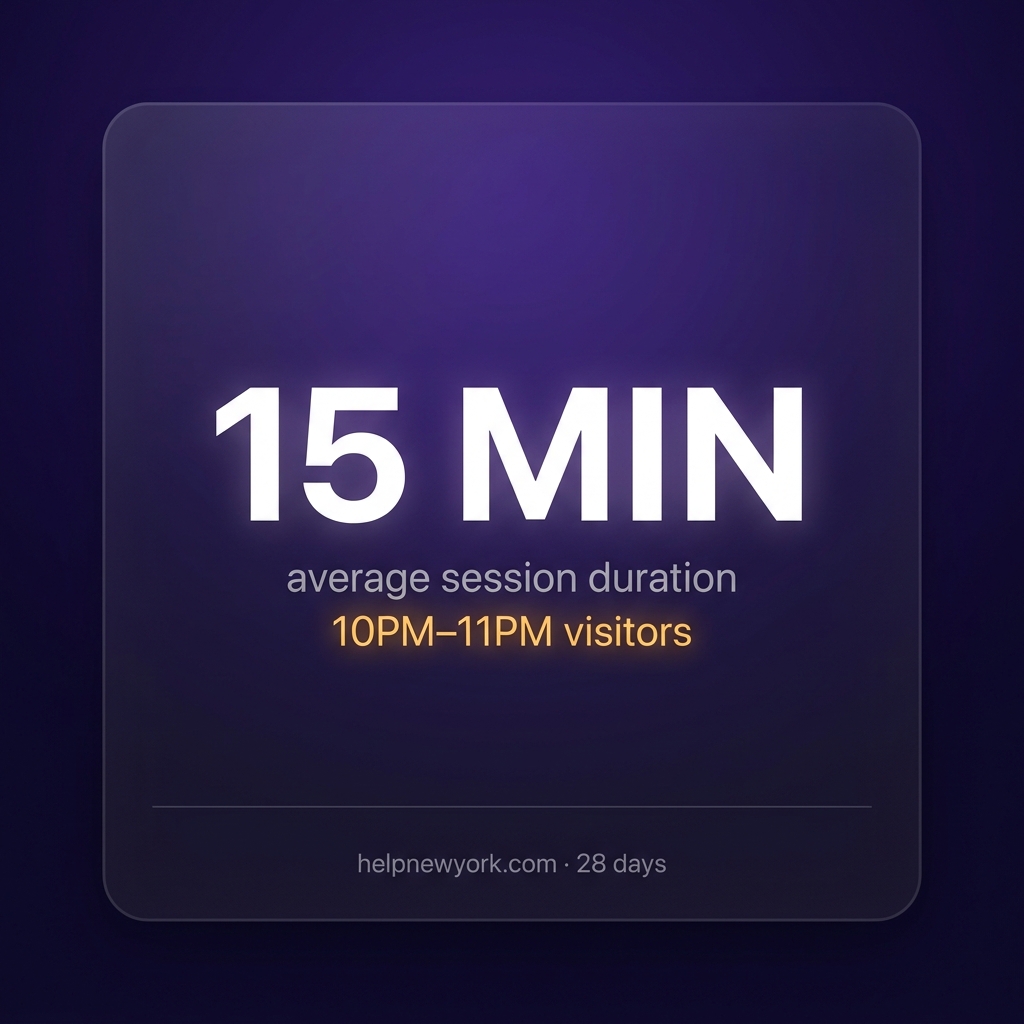
Late night (10PM to midnight) is the most counterintuitive finding. Volume is low but depth is exceptional. Users arriving between 10PM and 11PM averaged over 15 minutes on page on the audited site. Nobody is publishing for them.
The Scheduling Fix
The scheduling fix.
This is immediately actionable without creating new content. Move planned publishes to peak engagement windows — Wednesday over Friday, 9AM or 5PM over noon. Same content, more receptive audience.
The full methodology is the Books for Bots: GA4 Time Intelligence Kit.
Most content teams publish when they have something ready. Almost none publish based on when their audience is actually paying attention. The behavioral data for those two things — when you publish versus when your best readers arrive — rarely aligns.
GA4 bounce rate by day of week and hour of day tells you exactly when that window opens and closes. It is among the most actionable intelligence your analytics can produce, and among the least frequently pulled.
Wednesday Is Not Random
Wednesday is not random.
In a live GA4 audit session on a real content site, Wednesday produced the highest engagement rate and longest average session duration across all seven days of the week. Saturday and Sunday dropped below 20% engagement. The spread between the best and worst day was larger than the team expected — and they had been publishing on a Friday cadence for months.
The reason for the midweek peak is intent. Wednesday readers are in work mode, researching, planning, looking for answers they can act on before the week ends. Weekend readers are in browse mode — lower intent, higher bounce rate, shorter duration regardless of content quality. The content is the same. The audience arriving is different.
The Three Daily Engagement Windows
The three daily engagement windows.
Beyond day of week, hour-of-day analysis reveals three distinct engagement windows on most content sites.
The morning window — roughly 7AM to 11AM — produces consistently elevated engagement rates. These are commuters, early starters, and researchers beginning their day. Session durations are moderate and bounce rates are lower than the daily average.
The late afternoon window — 4PM to 7PM — shows another engagement spike on most sites. These users are often winding down work, reading something they bookmarked earlier, or doing planning research for the next day. Some days in this window show 100% engagement rates in the data — every session that started, engaged.
The late-night window — 10PM to midnight — is the most counterintuitive finding. Volume is low, but engagement depth is exceptional. On the site audited, users arriving between 10PM and 11PM averaged over 15 minutes on page. These are focused, high-intent readers who have carved out time to go deep. Nobody is publishing for them. That is an opportunity.
What This Means for Your Content Calendar
The scheduling insight from this analysis is immediately actionable without creating any new content. You simply move planned publishes to align with peak engagement windows — Wednesday over Friday, 9AM or 5PM over noon — and you are serving the same content to a more receptive audience.
For social promotion specifically, knowing that your peak engagement window is Wednesday morning means scheduling your distribution to that window rather than the time your team happens to be online.
Running the Time Intelligence Session
Running the time intelligence session.
This analysis runs in one session using Claude-in-Chrome alongside Analytics Advisor in GA4. The query sequence surfaces your day-of-week ranking, your three peak windows by hour, your dead zones, and a concrete publish timing recommendation based on your actual property data. The methodology is the Books for Bots: GA4 Time Intelligence Kit.
When your best traffic arrives. Day-of-week and hour-of-day patterns that tell you when to publish, when to promote, and when your audience is actually paying attention.
15 minutes Average session duration for 10PM–11PM visitors — your hidden audience
COMING SOON — $27
Most Teams Publish When It’s Convenient
This kit tells you when your audience is actually paying attention — and those two things are rarely the same. One session against Analytics Advisor reveals your peak engagement windows by day and hour, your dead zones, and a hidden late-night audience almost no one is writing for.
FIELD FINDING — LIVE SESSION
Wednesday produced the highest engagement rate and longest average session duration. Saturday and Sunday dropped below 20% engagement. The gap between best and worst day is larger than most teams expect.
What’s Inside
7 copy-paste queries for Analytics Advisor — one session
Day-of-week engagement ranking — all 7 days scored
Hour-of-day peak window identification — morning, afternoon, late night
Dead zone diagnosis — high volume, low quality windows
Late-night audience profiling — the segment nobody is writing for
Concrete publish timing recommendation from your actual property data
What You Need
Claude-in-Chrome — free from Anthropic
Editor or Analyst access to a GA4 property
Analytics Advisor (BETA) enabled
30–60 minutes
THE KEY INSIGHT
The scheduling insight from this kit is immediate and free to act on. You do not need to create new content. You need to redistribute what you already have into the windows where your audience is actually paying attention.
Individual Kit — Instant PDF Download
COMING SOON — $27
No subscription.
BETTER VALUE — BUNDLE
Get All 6 Kits for $97
Every GA4 intelligence methodology in one purchase. Save $65.
Who this is for: The person setting up your email system — your office manager, your IT contact, or a freelance marketing person you’ve brought in. This brief assumes basic comfort with web-based software (setting up accounts, uploading files, clicking through settings). No coding required. The strategy behind this system is in Your CRM Is Not a Lead Database and the full 12-month calendar is in The 12-Month CRM Touch Calendar.
What We’re Building
What we’re building.
A four-to-six email annual touch sequence for three audience segments (homeowners, industry contacts, trade contacts), running through a standard email marketing platform, triggered on a predetermined calendar, and tracked in a simple Notion or spreadsheet log.
The system requires no custom development. It uses off-the-shelf software that any non-technical person can configure in an afternoon. Total ongoing maintenance time after setup: approximately one hour per campaign, four to six times per year.
Platform Selection: Mailchimp vs. Brevo for Restoration Companies
Both platforms are appropriate for this use case. Choose based on your database size and send frequency:
Choose Mailchimp if: Your database is under 1,500 contacts, you want the most widely documented platform (easiest to find help online), and you’re comfortable paying $13–$30/month. Mailchimp’s Essentials plan is sufficient — you do not need Standard or Premium for this use case.
Choose Brevo if: Your database is over 1,500 contacts, you only send 4–6 times per year and want to avoid paying for contacts you rarely email, or you want built-in transactional email for other automations. Brevo’s Starter plan is $9/month with no contact storage limits — you pay based on emails sent, not contacts stored. For a 2,000-contact database sending 6 campaigns per year, Brevo costs significantly less than Mailchimp.
The setup instructions below cover both platforms in parallel. Follow the path that matches your platform choice.
Step 1: Account Setup and List Import
Step 1 — account setup and list import.
Complete the database segmentation build from the CRM segmentation technical brief before starting this step. You should have three clean CSV files: Homeowners, Industry, and Trade.
Mailchimp Setup
Create account at mailchimp.com. Select Essentials plan. Enter billing info.
Go to Audience → Manage Audience → Add a Field. Add two custom merge fields: JOB_TYPE (text) and SEGMENT (text). These allow personalization tokens in email copy.
Go to Audience → Manage Audience → Import Contacts. Upload each CSV file separately, assigning a tag during each import: “Homeowner”, “Industry”, “Trade”.
Map CSV columns to Mailchimp fields: First Name → FNAME, Last Name → LNAME, Email → EMAIL, Job Type → JOB_TYPE, Segment → SEGMENT.
After import, verify contact counts match your spreadsheet totals. A mismatch usually means invalid email format in some rows — check the import error log.
Brevo Setup
Create account at brevo.com. Select Starter plan ($9/month).
Go to Contacts → Lists → Create a List. Create three lists: “Homeowners”, “Industry Contacts”, “Trade Contacts”.
Go to Contacts → Import Contacts. Upload each CSV, assign to the corresponding list.
Map fields: First Name → FIRSTNAME, Last Name → LASTNAME, Email → EMAIL. Create custom attributes for JOB_TYPE if needed.
Verify counts after import.
Step 2: Sender Domain Authentication (Critical for Deliverability)
This is the step most people skip and then wonder why their emails land in spam. Both Mailchimp and Brevo require domain authentication to ensure your emails are delivered to inboxes rather than spam folders. This step requires access to your domain’s DNS settings (usually managed through your domain registrar — GoDaddy, Namecheap, Google Domains, or similar).
What Authentication Does
SPF, DKIM, and DMARC records tell receiving mail servers that your email marketing platform is authorized to send email on behalf of your domain. Without them, major providers (Gmail, Outlook, Yahoo) increasingly route your emails to spam or refuse delivery entirely.
Mailchimp Domain Authentication
In Mailchimp, go to Account → Settings → Domains → Add and Verify Domain
Enter your company domain (e.g., yourcompany.com)
Mailchimp will provide you with specific DNS records to add: a CNAME record for DKIM and a TXT record for verification
Log into your domain registrar and add these records exactly as shown. Allow 24–48 hours for DNS propagation.
Return to Mailchimp and click “Authenticate Domain” once DNS has propagated. A green checkmark confirms success.
Brevo Domain Authentication
Go to Settings → Senders & IP → Domains → Add a Domain
Enter your domain and follow the same process — Brevo provides specific DNS records for SPF and DKIM
Add records at your domain registrar. Verify in Brevo after propagation.
If your company uses a shared hosting email (e.g., yourbusiness@gmail.com rather than yourbusiness@yourcompany.com), you cannot authenticate a shared domain. In this case, create a free Google Workspace account at $6/month to get a branded email address before proceeding. Sending from info@yourcompany.com vs. yourcompany@gmail.com meaningfully affects both deliverability and perceived professionalism.
Step 3: Build the Campaign Templates
Step 3 — build the campaign templates.
For the CRM community touch strategy, plain text emails outperform designed HTML templates. Research on warm, relationship-based email consistently shows that recipients perceive plain text as more personal and authentic. The goal is an email that looks like it came from a person, not a marketing department.
Mailchimp Plain Text Campaign
Go to Campaigns → Create Campaign → Email
Select “Plain Text” as the campaign type (not the drag-and-drop builder)
Write your email copy in the plain text field
Use Mailchimp merge tags for personalization: *|FNAME|* for first name, *|JOB_TYPE|* for the custom job type field
Example: “Hi *|FNAME|*, It’s [Owner Name] from [Company]. We worked with you on your *|JOB_TYPE|* job a while back…”
Set up subject line, preview text, from name (use owner’s first name, e.g., “Mike from Acme Restoration”), and from email address (owner’s direct email preferred over info@ for homeowner segment)
Brevo Plain Text Campaign
Go to Campaigns → Email Campaigns → Create an Email Campaign
Choose “Plain Text” from the template selection
Use Brevo’s personalization tokens: {{ contact.FIRSTNAME }}, {{ contact.JOB_TYPE }}
Configure sender name and address as above
Build all six campaigns for the year in draft mode before publishing any of them. Label each draft clearly: “Q1-2026-Homeowners-Hiring”, “Q2-2026-Homeowners-Storm-Prep”, etc. This allows you to see the full year’s campaign lineup at once and catch any overlap or redundancy before it goes out.
Step 4: Schedule the Campaign Calendar
Mailchimp Scheduling
Open each draft campaign
In the Campaign Builder, go to the Schedule step
Select “Schedule” and set the date and time. Use the send time optimization feature if available on your plan — it will automatically send to each contact at the time they’re most likely to open based on historical behavior.
For your first campaign (no historical data), use Tuesday or Wednesday at 9:30am local time as a default
Brevo Scheduling
In the campaign builder, select “Schedule” on the final step
Set date, time, and timezone
Brevo’s Send Time Optimization is available on paid plans and functions similarly to Mailchimp’s
Schedule all three segment versions of each campaign within the same 2-hour window on the same day — homeowners first, then industry, then trade — staggered by 30 minutes. This prevents simultaneous reply volume from overwhelming a single inbox.
Step 5: Build the Results Tracking System in Notion
Both platforms provide analytics (open rate, click rate, unsubscribes) automatically. The tracking that neither platform does is the qualitative signal — replies, referrals, leads mentioned, and relationship warmth indicators. That layer goes in Notion.
Setting Up Notion (Free Tier)
Go to notion.com and create a free account
Create a new page called “CRM Touch Calendar”
Add a database (table view) with the following properties:
Add all six planned campaigns for the year as rows in the database
Set the Status to “Planned” for all. Update to “Draft Ready”, “Scheduled”, and “Sent” as you progress
After each campaign sends, log the open rate from your email platform and manually count and log reply count, referrals, and lead mentions from your email inbox
The Notion database becomes your campaign intelligence layer. After two or three years of data, you’ll have clear evidence of which touch types generate the highest referral rates, which segments are most engaged, and which subject lines perform best for your specific audience.
Step 6: Set Up Reply Management
For the homeowner and industry segments, replies to hiring emails and vendor asks often include lead mentions (“actually, our neighbor just had water get in last week”). These need to route to whoever handles incoming leads immediately, not sit in an inbox until someone reviews the campaign results.
The simplest solution: create a dedicated email address (campaigns@yourcompany.com or outreach@yourcompany.com) as the reply-to address for all campaigns. Set up a simple email rule that forwards any reply mentioning keywords like “water”, “damage”, “claim”, “flooded”, “burst”, or “insurance” to your main dispatch email address.
In Gmail, set this up under Settings → Filters and Blocked Addresses → Create a new filter. In Outlook, use Rules → Create a New Rule. Set the trigger to “subject or body contains” and the action to “forward to [dispatch email]”. This catches the accidental leads without requiring manual review of every reply.
Cost Summary
Item
One-Time
Monthly
Annual
Mailchimp Essentials (500 contacts)
$0
$13
$156
Mailchimp Essentials (1,000 contacts)
$0
$20
$240
Brevo Starter (unlimited contacts)
$0
$9
$108
Google Workspace (if needed for branded email)
$0
$6
$72
Notion free tier
$0
$0
$0
Email validation (one-time list clean)
$5–$15
$0
$0
Total annual cost for a fully operational system: $108–$312 depending on platform choice and contact volume. This covers 4–6 campaigns per year to a warm, segmented local database of up to 2,000 contacts.
The hiring email works. The vendor ask works. The educational resource works. The problem is that none of them happen consistently unless they’re on a calendar with an owner, a template, and a send date.
This article is the hub of the entire CRM Community Framework — the piece that turns a good idea into a running system. Everything in the strategy described in Your CRM Is Not a Lead Database lives or dies by whether it gets scheduled.
What follows is a full 12-month outreach calendar for a restoration company, built around legitimate business triggers. Every touch has a reason that isn’t “we want to sell you something.” Every touch reinforces that your company is active, professional, and thinks of its network as more than a lead source.
The Architecture: Four Touch Types Across Twelve Months
Four touch types across twelve months.
A sustainable touch cadence has four types of emails distributed across the year. Too many of one type and it starts to feel like a newsletter you never asked for. The right mix keeps the relationship varied, human, and genuinely useful.
Type 1: Operational Ask (2x per year)
A real business need: hiring, vendor search, supplier sourcing. These are your highest-engagement emails because recipients can actually help you with something concrete. They feel useful to the sender. Covered in detail in the hiring email guide and the vendor ask guide.
Type 2: Educational Resource (2x per year)
A genuinely useful piece of content — a seasonal maintenance checklist, a guide to what to do in the first 24 hours after a pipe burst, a “what your insurance actually covers” plain-language explainer. No CTA beyond “thought you’d find this useful.” The goal is to be the trusted expert in their inbox, not the company asking for something.
Type 3: Company Milestone or Update (1x per year)
An anniversary, a new certification, a new service area, an award or recognition. Framed around what it means for the people in your network — not as a press release. “We just hit five years and I wanted to thank the people who’ve trusted us with their homes and their claims.” This is the most relationship-dense email of the year and the one most restoration companies never send.
Type 4: Seasonal Safety or Storm Alert (1x per year)
Before major storm season, freeze season, or wildfire season depending on your geography, a brief heads-up email positions you as the local expert who thinks about their community’s safety. No pitch. Just: “Freeze season is coming — here are three things to check in your home before temps drop.” A link to a longer blog post if they want more detail. Short, local, relevant.
The 12-Month Calendar Template
Adapt the timing based on your region and business cycle. The example below assumes a general U.S. market with standard restoration seasonality (storms in spring/summer, freeze in winter). Adjust as needed.
January: Seasonal Safety Email
Type: Type 4 — Seasonal Safety Audience: Full database Trigger: Winter freeze season Content: “Three things to check before a hard freeze” — pipes, outdoor faucets, HVAC filters, sump pump. Link to a full blog post if you have one. 150 words max. Why it works: January is a low-activity month for most homeowners. A helpful, non-promotional email from a company they already trust is genuinely welcome.
March: Hiring Email (if applicable) OR Vendor Ask
Type: Type 1 — Operational Ask Audience: Three segments (homeowners, industry, trade) Trigger: Spring hiring cycle begins, or sourcing subs for storm season Content: Use the templates from the hiring or vendor guides. If you’re not hiring, a specialty sub search ahead of storm season is always relevant in Q1/Q2. Why it works: Spring is when most restoration companies start ramping for busy season — hiring and vendor sourcing at this time is authentic and expected.
May or June: Educational Resource
Type: Type 2 — Educational Resource Audience: Homeowners only Trigger: Pre-storm season Content: “Your storm prep checklist for [your region]” — gutters, roof, trees near the house, emergency kit, insurance policy review. One page. No CTA other than “save this somewhere useful.” Why it works: This email will be forwarded. Homeowners share safety resources with neighbors and family. It’s one of the highest organic-reach emails you’ll send all year.
August or September: Company Milestone Email
Type: Type 3 — Company Update Audience: Full database Trigger: Company anniversary, new certification (IICRC, RIA), new service area, or team growth milestone Content: Short, personal note from the owner. Thank the people who’ve been part of the journey. Mention what’s new. No ask. Just appreciation. Why it works: Late summer is a natural “back to business” moment. A warm, human email from a company you’ve worked with is a pleasant interruption in a busy inbox.
October or November: Hiring OR Vendor Ask (second round)
Type: Type 1 — Operational Ask Audience: Three segments Trigger: Pre-winter hiring, or sourcing vendors for year-end projects Content: Second operational ask of the year. If you hired in March, this is a different position or a referral partner ask. Vary the type so it doesn’t feel like a pattern. Why it works: Fall is another natural hiring window. And year-end is when restoration companies start planning vendor relationships for the coming season.
December: Educational Resource (Optional)
Type: Type 2 — Educational Resource Audience: Homeowners Trigger: Holiday season, travel, and winter property risks Content: “What to check before you leave for the holidays” — water shutoff, thermostat settings, emergency contacts. Optional — if you already sent a freeze checklist in January, this may feel redundant. Only send if the content is genuinely different and useful. Why it works: December holiday homeowner emails have strong open rates because they’re immediately relevant to something the homeowner is actively thinking about.
The Minimum Viable Calendar: If You Do Nothing Else
If the full six-touch calendar feels like too much to start, here is the two-email annual minimum that will still meaningfully move the needle:
March or April: One operational ask (hiring or vendor). Three segments. Uses the templates from the other guides in this series.
June or July: One educational resource (storm prep checklist). Homeowners only. No CTA.
Two emails per year to a warm local database of 400–800 contacts will reach more people with a higher quality impression than $2,000 spent on Facebook ads to a cold audience. The bar is genuinely that low — because almost nobody in the restoration industry is doing this at all.
The Technical Setup: Building the Calendar in Notion
Building the calendar in Notion.
The Notion free tier (available at notion.com — free for individuals and small teams) is sufficient for this system. You need one database with the following properties:
Link to the draft in Mailchimp or the Notion doc with the copy
Results
Text
Open rate, replies received, referrals generated
Create a calendar view of this database filtered to the current month. Every Monday, glance at it. If something is sending in the next two weeks and isn’t in “Draft Ready” status, that’s your action item for the week.
Set the following Notion reminders on each row: 14 days before send date (“write/review draft”), 3 days before send date (“schedule in email platform”), 1 day after send date (“log results”).
Connecting the Calendar to Your Email Platform
For Mailchimp Users
Build a campaign for each email in advance using Mailchimp’s campaign drafts feature. Give each draft a name that matches the Notion database row (e.g., “March 2026 — Hiring Email — Homeowners”). When the draft is ready, link it in the Template Link field of your Notion row. Schedule it in Mailchimp 3 days before your intended send date so you have time to make last-minute adjustments. After sending, pull the open rate and reply count from Mailchimp’s Reports tab and log them in the Results field in Notion.
For Brevo Users
Brevo’s Campaigns section works the same way — drafts can be built in advance and scheduled. Brevo’s analytics are straightforward: open rate, click rate, unsubscribes. Log these in Notion after each send.
For CRM-Native Email (Jobber or ServiceTitan)
Neither platform has robust campaign scheduling, so the process is more manual. Build the email copy in Notion, then on the scheduled send date, copy it into your CRM’s email function and send manually. Log results in Notion immediately after.
Using Claude to Maintain the Calendar Year Over Year
Using Claude to maintain the calendar year over year.
After your first year running this system, you’ll have a Notion database with six email records, each containing the copy, the results, and the audience. In year two, you don’t start from scratch — you improve what worked and adjust what didn’t.
Here’s a prompt you can use at the start of each year to refresh your calendar with Claude:
“I run a restoration company in [city] and I send 4–6 emails per year to my CRM database to stay top of mind. Here are the emails I sent last year and their results: [paste Notion export]. Based on these results and the current time of year ([month]), help me plan this year’s calendar. Suggest which touch types to repeat, which to update, and any new ones that might be relevant given [any business changes — new service area, new certifications, team growth, etc.]. Keep the total to 4–6 sends.”
This is the compound interest of the system — each year’s data makes next year’s calendar smarter and more targeted.
The Results You Should Expect
Realistic benchmarks for a warm local restoration CRM database of 300–800 contacts:
Open rate: 30–45% for operational asks and seasonal safety emails; 25–35% for educational resources; 40–55% for the company milestone email (people open personal notes)
Reply rate: 2–8% on operational asks (higher for the hiring email in our experience); under 1% on educational content (they read, they don’t reply)
Referral rate: 0.5–2% per operational ask email (so 2–16 referrals per campaign for a 800-contact list)
Lead mentions in replies: Expect 1–4 per operational ask campaign from homeowners who mention a neighbor or family member who “just had something happen”
These numbers are modest. The cumulative effect across 4–6 touches per year is not. A company that consistently runs this system for three years has touched every warm contact in their database 12–18 times with relevant, human, non-salesy content. That is a referral pipeline that no Google Ads campaign can build.
Frequently Asked Questions
How do I know if I’m emailing too much?
Watch your unsubscribe rate. For a warm local database, a healthy unsubscribe rate is under 1% per campaign. If you’re consistently seeing 2–3%+ unsubscribes, reduce frequency or audit whether your content is genuinely useful vs. promotional.
Should every touch include an offer or discount?
No. This is the most important rule of the system. The moment your CRM emails start offering 10% off water damage mitigation, you’ve converted them from relationship touches into promotional emails. Your contacts will start treating them as such — lower open rates, more unsubscribes, zero referrals. Keep the strategy clean: no promotions, no CTAs, no discounts. Just presence.
What if we miss a planned send date?
Send it anyway, or skip it and move to the next one. A late educational resource is still useful. A late hiring email is no longer authentic if you’ve already filled the position. Use your judgment — the goal is consistency over perfection, and six emails per year gives you enough margin that a missed one doesn’t break the system.
Can we automate any of this?
The scheduling and platform side can be automated — Mailchimp sequences can be set to send automatically on a schedule. The content should not be fully automated. Each touch should have a human review before it goes out, especially the operational asks and the milestone email. The value of this system comes from its authenticity. Automation can help with logistics; it cannot replace judgment.
The Metricool planner is the interface most users spend the most time in, and it’s better designed than it looks on first use. A few things about how it works are non-obvious — understanding them makes scheduling significantly faster and the calendar significantly more useful.
What is the Metricool planner? The Metricool planner is the visual scheduling interface where you create, arrange, and review scheduled social media posts across all connected platforms for a given brand. It displays a weekly or monthly calendar view of scheduled posts, with platform icons indicating which platforms each post is going to, color-coding by platform, and best-time recommendation slots highlighted based on historical performance data.
The Calendar View
The planner defaults to a weekly view — seven days, time slots from morning to evening, posts displayed as blocks on the calendar at their scheduled times. Each post block shows the platform icons for the platforms it’s going to and a preview of the content.
Switch to monthly view for a higher-level content calendar perspective — useful for checking coverage across a month, identifying gaps in posting cadence, and reviewing the distribution of content across platforms. Monthly view is where you plan; weekly view is where you execute.
The planner is per-brand — use the brand switcher at the top to move between brand calendars. There’s no cross-brand calendar view, which is the one piece of the planner that agencies managing many brands wish existed. You have to switch brands to see each brand’s calendar separately.
Best Time Recommendations
The highlighted time slots on the planner calendar are Metricool’s best-time recommendations — calculated from your account’s historical engagement data to show when your specific audience is most active. These are not generic industry benchmarks; they’re account-specific calculations based on when posts have performed well for your audience in the past.
Use the recommended slots, especially in the first months before you have enough intuition about your audience’s behavior. Check the analytics monthly to see whether the recommendations are confirmed by actual performance data. Most of the time they’re accurate; occasionally a specific account’s audience skews differently than the algorithm expects, in which case you’ll see it in the engagement data and can adjust.
Creating Posts Efficiently
The fastest posting workflow in Metricool: click a recommended time slot on the calendar → the post creation interface opens with the time pre-filled → write the caption → click the Canva button to create or import the visual → select the platforms → confirm and schedule. The whole workflow for a simple single-platform post with an existing visual takes under two minutes once it’s familiar.
For cross-platform posts — the same caption going to multiple platforms — select all target platforms in the post creation interface. Metricool will show you a preview of how the post renders on each platform, which is useful for catching formatting issues (caption length limits, image aspect ratio differences) before the post is scheduled. You can also customize the caption per platform within the same post creation flow if the content needs to be adapted.
The Drafts View
Posts can be saved as drafts rather than scheduled — useful for content that’s written but not yet ready to assign a date, or for posts created via API that are waiting for review before being confirmed for scheduling. Access drafts from the planner’s draft view. Review drafts, assign dates and times, and move them to scheduled status from this view.
The draft workflow is how we handle API-created posts in our operation — the pipeline creates posts as drafts in Metricool, which appear in the drafts view for review and scheduling confirmation. This lets the pipeline create the content while a human confirms the scheduling before anything actually publishes.
Bulk Scheduling
For operations scheduling a large volume of content, Metricool’s bulk scheduling feature allows you to upload a CSV file with post content, media URLs, platforms, and scheduled times — creating multiple scheduled posts in one import rather than one post at a time through the interface. This is the alternative to the API for batch scheduling workflows that don’t require real-time programmatic access.
The CSV format requirements are documented in Metricool’s help center. Build your content calendar in a spreadsheet, export to CSV, and import to Metricool for the week or month. The bulk import creates all posts in the planner simultaneously, which is significantly faster than manual post-by-post creation for high-volume operations.
Want this set up for your business?
We set up and run Metricool for multi-brand social media operations — the pipeline, the scheduling system, and the analytics workflow.
Tygart Media manages social scheduling across multiple brands using Metricool daily. We know what the tool actually does and what it doesn’t.
Can you reschedule posts by dragging them on the Metricool planner?
Yes — posts on the planner calendar can be dragged to a different time slot to reschedule them. This is one of the more convenient aspects of the visual planner interface — rescheduling is a drag-and-drop action rather than opening each post and manually changing the time.
What happens if a scheduled post fails to publish?
Metricool sends a notification when a post fails to publish. Common causes are expired social account connections (the OAuth token needs to be re-authorized), platform API errors (usually temporary and resolved by rescheduling), or content policy violations (the platform rejected the content). Check the notification for the specific failure reason and reauthorize the connection or reschedule the post as needed.
Can you see all brands’ posts in one planner view?
No — the Metricool planner is per-brand. You see one brand’s calendar at a time and switch brands using the brand switcher. For agencies managing many brands who want a cross-brand content calendar view, this is a genuine limitation of the current planner. External calendar tools connected via API are the workaround for operations that need that visibility, but it requires building the integration.
Does Metricool support content approval before posts go live?
Basic approval workflows are available on higher plan tiers — team members can create posts that go into a review queue rather than scheduling directly, with another team member or manager approving before the post schedules. The approval workflow is simpler than enterprise tools like Hootsuite or Sprout Social, but adequate for small teams with basic review requirements.
Metricool is the right social scheduling tool for most small agencies and multi-brand operators. It’s not the right tool for everyone. Here are the alternatives worth considering and the specific situations where they’re the better choice.
When to Choose What — Decision Matrix
Quick breakdown of primary scheduling options based on workflow requirements:
Zero post caps, visual grid planner & unified inbox
Agencies, visual creators, and client rosters
Metricool
Multi-brand workspaces, programmatic API & native GBP
Mid-size agencies and multi-brand fleet pipelines
Later
Linkin.bio, creator media library & UGC collection
Instagram-first DTC brands and visual influencers
Buffer
Clean, minimalist, frictionless queue interface
Solo operators and single-brand simplicity
Hootsuite
Multi-tier approval workflows & social listening
Enterprise teams with strict compliance needs
Sprout Social
Deep competitive analytics & presentation reports
Agencies with formal executive reporting deliverables
Pallyy: The Visual Workflow Alternative with No Post Caps
Pallyy is a standout scheduler for agencies, visual brands, and social media managers looking for a polished grid planner without the restrictive post caps found on platforms like Later (which limits entry plans to 30 posts per profile per month). Pallyy offers unlimited posting on all paid plans, built-in client approval workflows, and a unified social inbox that pulls comments and messages across networks — including Google Business Profile and TikTok.
When to choose Pallyy over Metricool: You prioritize visual aesthetic planning, need an integrated comment/DM inbox across client brands, and want straightforward flat-rate pricing ($25/social set) with client sharing included.
Later: The Instagram-First Alternative
Later is tailored for operations where Instagram is the primary marketing engine. The visual feed preview, media library, and Link in Bio tools are intuitive for DTC brands and visual creators.
Hootsuite: The Enterprise Alternative
Hootsuite is the right choice when you need enterprise features: formal compliance workflows, multi-tiered approvals, social listening, and deep tech stack integrations.
Sprout Social: The Premium Analytics Suite
Sprout Social delivers top-tier analytics and CRM integration. For agencies whose main contracted deliverable is formal executive reporting, Sprout Social’s reporting depth is industry standard.
Buffer: The Simplicity Alternative
Buffer remains the cleanest option for single-brand or low-volume accounts that prioritize a frictionless UI over deep analytics or API access.
When to Stay with Metricool
Stay with Metricool when: you’re managing multiple client brands across wide platform varieties, need automated monthly reporting, and want reliable API access at a reasonable price point.
Want this set up for your business?
We set up and run social media operations across diverse client fleets — the scheduling system, content pipelines, and analytics workflow.
Tygart Media manages social operations across multiple brands daily. We know what works in production.
Instagram is the platform where social media scheduling gets complicated. Meta’s API restrictions create limitations for every third-party tool — not just Metricool. Understanding what Metricool can and can’t do for Instagram before you build your workflow around it saves significant frustration later.
This is an honest breakdown from daily Instagram scheduling use, not a feature list from the Metricool marketing page.
Metricool Instagram capabilities in 2026. Metricool supports direct publishing for standard Instagram feed posts (single images and carousels), scheduling and publishing for Reels with varying automation levels depending on account type and plan, push-notification publishing for Stories, and Instagram analytics including engagement rate, reach, impressions, and follower growth. The limitations are Meta API constraints, not Metricool-specific restrictions.
What Metricool Does Well for Instagram
Feed post scheduling. Standard Instagram feed posts — single images, carousels — schedule and publish automatically at the set time. No push notification required, no manual step to complete the publish. For the bread-and-butter feed post workflow, Metricool works cleanly.
Best time recommendations. Metricool calculates optimal Instagram posting times based on your specific account’s historical engagement data. These recommendations are account-specific rather than generic industry averages, which makes them more accurate and more useful for Instagram where posting time has a meaningful impact on reach.
Instagram analytics. Engagement rate, reach, impressions, follower growth, story views, and post-level performance data are all available in Metricool’s Instagram analytics. The analytics depth is solid — comparable to what you’d pull from Instagram’s native insights, with the advantage of being visible alongside your other platform analytics in one dashboard.
Hashtag performance. On higher plan tiers, Metricool tracks hashtag performance — which hashtags are driving reach and which aren’t. For accounts with an active hashtag strategy, this data informs which hashtag sets to keep using and which to retire.
Where Instagram Scheduling Gets Complicated
Reels automation. Reels scheduling support has improved significantly but still varies by account type and configuration. Most professional accounts on higher Metricool plan tiers can schedule Reels for direct publishing. Some accounts and configurations still require a push notification to complete the Reel publish. Test with your specific account before assuming full automation.
Stories. Instagram Stories cannot be fully automated through any third-party tool due to Meta API restrictions. Metricool can schedule Stories and will send a push notification to your mobile device at the scheduled time — you tap the notification and confirm the post. It’s semi-automated, not fully automated. For operations posting Stories daily, this push-notification step adds a manual touchpoint that fully automated feed post scheduling doesn’t require.
Instagram Shopping and product tags. Product tagging in Instagram posts is not currently supported via Metricool’s scheduling interface. For e-commerce brands where product tags are a core part of the Instagram strategy, this is a limitation worth knowing before committing to Metricool as your primary Instagram scheduler.
The Honest Comparison: Metricool vs Later for Instagram
Later’s Instagram experience is better than Metricool’s in several specific ways: the visual grid planner for feed aesthetics, the media library for asset management, the Link in Bio tool, and deeper Instagram-specific analytics. For brands where Instagram is the primary or only social channel and feed aesthetics are a core part of the brand, Later is the better choice.
Metricool’s Instagram support is good enough for most business social media operations — reliable feed post scheduling, solid analytics, Reels support improving each year. For brands managing Instagram alongside other platforms and needing a unified multi-platform tool, Metricool handles Instagram adequately while also handling LinkedIn, Google Business Profile, and the other platforms Later supports less completely.
Want this set up for your business?
We set up and run Metricool for multi-brand social media operations — the pipeline, the scheduling system, and the analytics workflow.
Tygart Media manages social scheduling across multiple brands using Metricool daily. We know what the tool actually does and what it doesn’t.
Yes, for standard feed posts (single images and carousels) on professional accounts with proper API connection — these publish fully automatically at the scheduled time. Reels support automatic publishing on most professional accounts on paid plans, though some configurations still require push notification confirmation. Stories require push notification confirmation due to Meta API restrictions.
Does scheduling Instagram posts through Metricool affect reach?
No evidence supports this concern. Meta’s algorithm prioritizes content quality and engagement signals, not whether content was scheduled through a native tool or a third-party scheduler. Consistently scheduled content from Metricool performs comparably to manually posted content with the same quality and engagement characteristics. The reach concern is a persistent myth in the social media management space without supporting data.
What Instagram account type do you need to use Metricool?
You need a professional account (Business or Creator) connected to a Facebook Page to use Metricool’s Instagram scheduling features. Personal Instagram accounts cannot be connected to third-party schedulers due to Meta API restrictions. If you’re managing a business Instagram account that’s still set up as a personal account, convert it to a professional account before attempting to connect it to Metricool.
Metricool’s free plan is one of the more generous free tiers in social scheduling — but generous doesn’t mean unlimited. Here’s exactly what you get, where the walls are, and who the free plan is actually right for.
What does the Metricool free plan include? One brand, scheduling for the major social platforms including Instagram, Facebook, LinkedIn, Twitter/X, TikTok, Pinterest, and Google Business Profile, basic analytics, access to the visual planner, and a limited number of scheduled posts per month. No team members, no API access, no competitor analysis, no advanced analytics, and a post volume cap that limits real business use.
What Works Well on Free
The core scheduling experience on the free plan is the same as on paid tiers. You get the full visual planner, the platform connections, the best-time recommendations, and the Canva integration. For understanding whether Metricool fits how you work, the free plan gives you a genuine product experience rather than a deliberately crippled trial.
Basic analytics are available — follower counts, basic engagement data, and post performance. Not the deep analytics layer available on paid tiers, but enough to see which posts are getting traction and whether your follower count is moving.
Google Business Profile scheduling is available on the free plan, which is unusual — many tools restrict GBP to paid tiers. For a local business testing Metricool, being able to schedule GBP posts alongside social content without upgrading is a meaningful free-tier inclusion.
Where the Free Plan Breaks Down
Post volume. The free plan has a monthly post limit that’s low enough to be constraining for any real business social operation. If you’re posting daily across three platforms, you’ll hit the limit before the month is out. The post limit is the primary practical constraint of the free plan for business use.
One brand only. The free plan covers one brand. If you manage more than one business or client account, you need a paid plan. There’s no workaround for this — it’s a hard limit of the free tier.
No API. Programmatic access to Metricool requires a paid plan. If you want to create posts from an external system or pull analytics data automatically, the free plan doesn’t support it.
No team members. The free plan is single-user. If anyone else on your team needs access to Metricool, you need a paid plan.
Limited analytics. Advanced analytics — competitor benchmarking, hashtag performance, deeper engagement breakdowns — are paid-plan features. The free analytics are useful for basic performance tracking but not for the depth needed for agency reporting or data-driven content strategy.
Who the Free Plan Is Actually Right For
The Metricool free plan is the right choice for: a solo creator managing one personal or business account with modest posting volume (three to five posts per week), a small business that wants to try Metricool before committing to a paid plan, or anyone who primarily needs GBP scheduling for one location alongside light social scheduling.
It’s not the right choice for: any operation managing more than one brand, any operation posting daily across multiple platforms, any team with more than one person, or any operation that needs the API or competitor analysis.
The Upgrade Decision
The practical trigger for upgrading from free is usually one of two things: you hit the monthly post limit before the month is over, or you need to add a second brand. Both are clear signals that the operation has grown beyond what the free plan supports. The first paid tier is priced reasonably enough that delaying the upgrade to save the monthly cost rarely makes sense once you’ve hit those limits.
Want this set up for your business?
We set up and run Metricool for multi-brand social media operations — the pipeline, the scheduling system, and the analytics workflow.
Tygart Media manages social scheduling across multiple brands using Metricool daily. We know what the tool actually does and what it doesn’t.
No — Metricool’s free plan is a permanent free tier, not a time-limited trial. You can use it indefinitely without upgrading. The limitations are feature and volume based, not time based. You stay on the free plan until you choose to upgrade or until your usage exceeds what the free plan supports.
What happens if you exceed the free plan post limit?
Once you hit the monthly post limit on the free plan, you can’t schedule additional posts until the next month or until you upgrade to a paid plan. Posts already scheduled will still publish; you just can’t create new scheduled posts beyond the limit. Metricool will notify you when you’re approaching the limit.
Can you switch from the free plan to a paid plan and back?
Yes — you can upgrade to a paid plan and downgrade back to free if your needs change. Note that if you’ve connected multiple brands on a paid plan and downgrade to free, you’ll retain only one brand’s connections. Plan the downgrade accordingly if you have data in multiple brand workspaces that you want to preserve.
Metricool has a short learning curve but a few non-obvious setup steps that make a significant difference in how well it works. Most people get the basics running in an hour. Getting the full value — multi-brand setup, analytics configured, API connected if needed — takes a few hours of deliberate setup. This guide covers both.
What does Metricool do? Metricool is a social media management platform that lets you schedule posts across multiple platforms, analyze performance data, monitor competitors, and manage multiple brand accounts from a single dashboard. It supports Instagram, Facebook, LinkedIn, Twitter/X, TikTok, Pinterest, YouTube, Google Business Profile, and Twitch, with scheduling, analytics, and basic team management across all platforms.
Step 1: Connect Your Social Accounts
After creating an account, the first task is connecting your social platforms. Go to Settings → Social Networks and authorize each platform you use. Metricool will prompt you through the OAuth flow for each platform — you’ll need admin access to the accounts you’re connecting.
A few platform-specific notes: Facebook and Instagram are connected through Meta’s Business Manager, so you’ll need your Facebook Business account credentials rather than your personal Facebook login. LinkedIn requires connecting either a personal profile or a Company Page — connect both if you post to both. Google Business Profile requires connecting your Google account with GBP admin access.
Step 2: Set Up Brands (If Managing Multiple)
If you’re managing more than one brand — multiple clients, multiple business lines, or a personal brand alongside business accounts — set up separate brands in Metricool before connecting accounts. Go to the brand switcher in the top left, create a new brand for each client or business, and then connect that brand’s social accounts under its workspace.
The common mistake: connecting all accounts under one brand and using it like a single aggregated feed. This works for small single-brand operations but creates a messy, unsearchable account structure for multi-brand management. The brand-per-client structure is worth the extra setup time.
Step 3: Learn the Planner
The Planner is Metricool’s scheduling interface — the place you’ll spend most of your time. Access it from the left navigation. The default view is a weekly calendar showing scheduled posts across all connected platforms for the current brand.
To create a new post: click a time slot on the calendar or use the “New Post” button. Write the caption, upload media, select which platforms to post to, and set the date and time. Metricool shows a preview of how the post will render on each selected platform, which is useful for catching formatting issues before the post goes live.
Best time recommendations: Metricool calculates optimal posting times based on historical engagement data for your accounts. These appear as highlighted time slots on the planner calendar. They’re worth following for at least the first few months until you have enough data to develop your own posting time intuition for each brand.
Step 4: Understand the Analytics Dashboard
Metricool’s analytics are organized by platform — switch between Instagram, LinkedIn, Facebook, and other platforms using the tabs at the top of the Analytics section. Each platform view shows follower growth, engagement rate, reach, impressions, and post performance for a selected date range.
The most useful view for recurring reporting: set a fixed date range (last 30 days, last quarter), review the top-performing posts by engagement rate, and check the follower growth trend. These three data points cover most of what you need for a regular social media performance review.
Competitor analysis is available on higher plan tiers — add competitor accounts to track their follower counts and posting frequency alongside your own metrics. For agencies pitching clients or benchmarking performance, this feature justifies the plan upgrade on its own.
Step 5: The Canva Integration
Metricool integrates directly with Canva, which is how we handle visual content for most brands. In the post creation interface, click the Canva button to open a Canva design directly in Metricool’s window. Design the asset, publish it from Canva, and it imports automatically into your Metricool post. This workflow eliminates the download-upload step that adds friction to visual post creation at scale.
Step 6: API Setup (Advanced)
If you need programmatic access to Metricool for automated scheduling or analytics retrieval, the API token is in Settings → API. Generate a token, store it securely, and use it with the Metricool REST API. The base URL and endpoint documentation are available in Metricool’s API documentation. We use the API for creating draft posts programmatically from our content pipeline, which then get reviewed and published from the Metricool planner.
Want this set up for your business?
We set up and run Metricool for multi-brand social media operations — the pipeline, the scheduling system, and the analytics workflow.
Tygart Media manages social scheduling across multiple brands using Metricool daily. We know what the tool actually does and what it doesn’t.
Basic scheduling — connecting accounts, creating posts, reading analytics — takes one to two hours to get comfortable with. The full feature set, including multi-brand management, competitor analysis, and API access, takes a few days of regular use to master. The learning curve is shorter than Hootsuite and comparable to Buffer for basic features.
Can multiple people use the same Metricool account?
Yes — Metricool supports team members on paid plans, with different permission levels for each member. You can add team members in Settings → Team and assign them access to specific brands or all brands. The number of team member seats available depends on your plan tier.
Does Metricool post automatically or do you have to confirm each post?
Most platform integrations post fully automatically at the scheduled time. Instagram is the exception — some content types may require a push notification on your mobile device to complete the publish, due to Meta API restrictions. Standard Instagram feed posts direct-publish automatically on supported plans; Reels and Stories have variable automation support.
Can you schedule the same post to multiple platforms at once?
Yes — when creating a post in Metricool, you can select multiple platforms and the same content will be scheduled to all selected platforms simultaneously. You can also customize the caption or media for each platform within the same post creation flow if the content needs to be adapted by platform.