Copilot vs Alternatives - Tygart Media

Category: Copilot vs Alternatives

Head-to-head comparisons of Microsoft Copilot against Google Gemini, ChatGPT Enterprise, Notion AI, and other enterprise AI tools. Data-driven analysis for procurement teams and IT decision makers.

  • Which AI Assistant Is Right for Your Organization? The Complete Decision Framework (2026)

    Beyond the Hype Cycle: Making a Rational AI Platform Decision

    Every enterprise technology leader in 2026 faces the same question: which AI assistant should we deploy across our organization? The stakes are high—this decision affects every knowledge worker’s daily productivity, touches sensitive organizational data, and commits significant budget for years to come. Yet most organizations are making this decision based on vendor demos, executive enthusiasm, or competitive anxiety rather than structured evaluation.

    The AI assistant market has consolidated around four major platforms: Microsoft Copilot, ChatGPT Enterprise (by OpenAI), Google Gemini for Workspace, and Claude for Work (by Anthropic). Each platform has genuine strengths, real limitations, and specific organizational profiles where it delivers the highest value. None is universally superior.

    This guide provides a structured decision framework that removes emotion from the equation. It gives you a repeatable evaluation methodology, objective scoring criteria, and a practical timeline for reaching a defensible platform decision. Whether you are a CIO building a recommendation for the board, a procurement team evaluating vendors, or a technology strategist shaping the organization’s AI roadmap, this framework produces better decisions than any demo or trial alone.

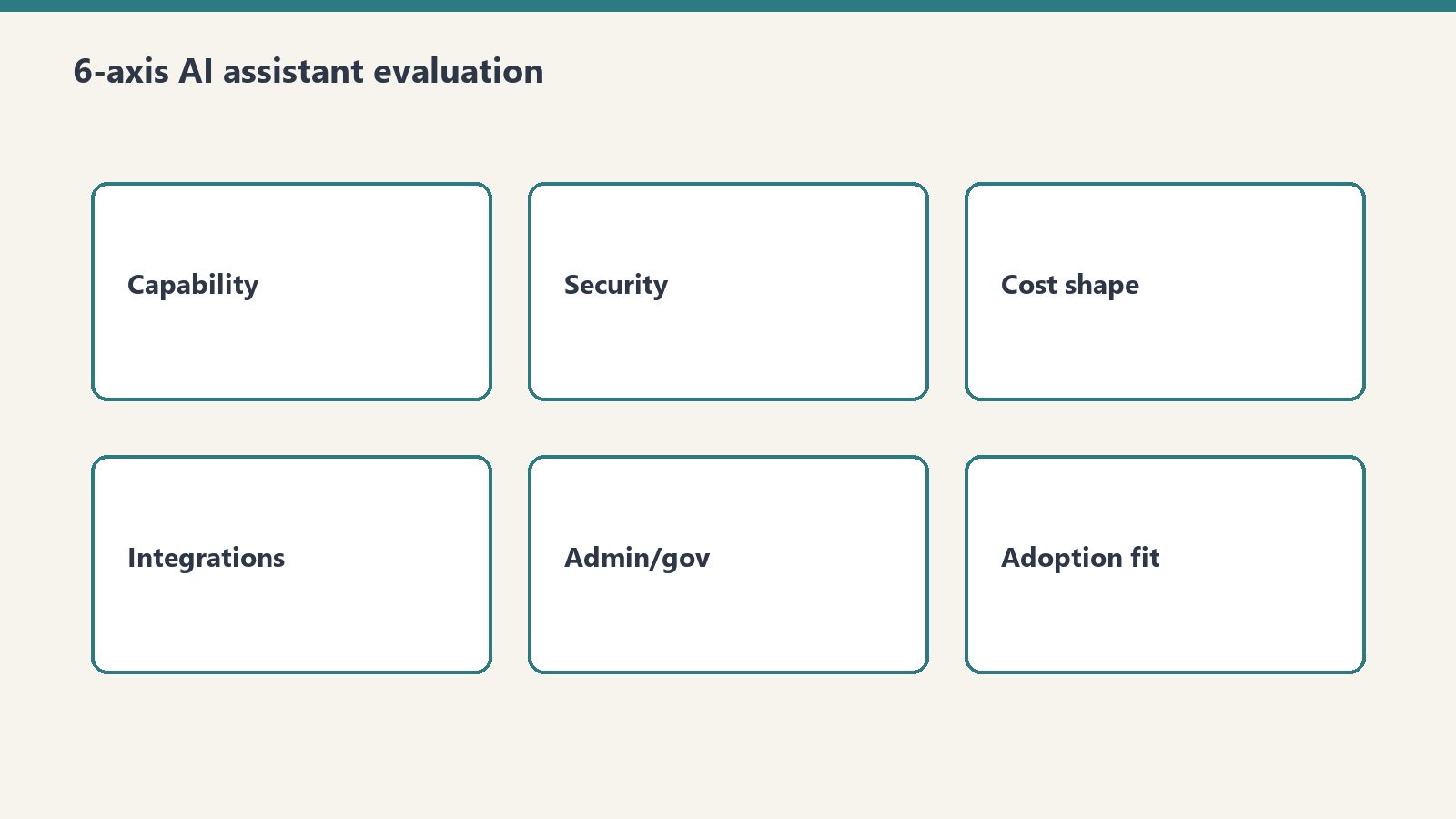
    The 6-Axis Evaluation Model

    The framework evaluates AI platforms across six dimensions. Each axis captures a distinct aspect of platform value, and the relative weighting of these axes should reflect your organization’s specific priorities.

    Axis 1: Ecosystem Fit

    Ecosystem fit measures how naturally the AI platform integrates with your existing technology stack. This is the most frequently underweighted axis in AI evaluations, yet it is often the strongest predictor of long-term success.

    What to evaluate: Which productivity suite does your organization use (Microsoft 365, Google Workspace, or hybrid)? Which identity provider manages your users (Azure AD, Google Identity, Okta)? What is your cloud infrastructure (Azure, AWS, GCP, multi-cloud)? Which collaboration tools are standard (Teams, Slack, other)? What is your device management strategy (Intune, Workspace MDM, JAMF)?

    Microsoft Copilot ecosystem score: Highest for organizations running Microsoft 365, Azure AD, and Azure cloud. Copilot’s deep integration across Word, Excel, PowerPoint, Outlook, Teams, and SharePoint creates a seamless experience that no competitor can match within the Microsoft ecosystem. The integration extends to Power Platform, Dynamics 365, and Azure services.

    ChatGPT Enterprise ecosystem score: Platform-agnostic—ChatGPT works equally well regardless of your productivity suite. This neutrality is an advantage for organizations with heterogeneous environments or those not committed to a single ecosystem. API integration allows connection to virtually any system. The tradeoff is that ChatGPT does not deeply integrate with any productivity suite.

    Google Gemini ecosystem score: Highest for Google Workspace organizations. Gemini integrates natively across Gmail, Docs, Sheets, Slides, Meet, and Chat. For organizations running on Google infrastructure (GCP, Chrome OS), the integration extends to development and infrastructure workflows.

    Claude for Work ecosystem score: Claude integrates through API and dedicated interfaces rather than deep productivity suite integration. It connects to organizational data through various integrations and offers strong document analysis capabilities. Best suited for organizations that value reasoning quality over suite integration or that use Claude alongside another platform’s suite integration.

    Axis 2: Workflow Coverage

    Workflow coverage measures how many of your organization’s daily workflows the AI platform can meaningfully augment. This goes beyond feature lists to assess practical utility across departments.

    What to evaluate: Map your top 20 organizational workflows by time investment. For each workflow, assess whether the AI platform can reduce time-to-completion by at least 20%. Coverage across diverse workflows (email, documents, data analysis, meetings, code, customer interaction) matters more than depth in any single workflow.

    Microsoft Copilot workflow coverage: Broadest coverage within the Microsoft ecosystem. Email management (Outlook), document creation (Word), data analysis (Excel), presentations (PowerPoint), meeting management (Teams), knowledge management (SharePoint), automation (Power Platform), and business intelligence (Power BI). The breadth of coverage is unmatched for Microsoft shops.

    ChatGPT Enterprise workflow coverage: Deepest coverage for creative and analytical workflows. Content creation, research, data analysis (through Advanced Data Analysis), brainstorming, and general-purpose problem-solving. ChatGPT excels at open-ended tasks where the user needs to explore ideas, analyze complex scenarios, or generate novel content. Weaker in structured productivity workflows (email, meetings) because it lacks native integration.

    Google Gemini workflow coverage: Strong coverage across Google Workspace workflows: email (Gmail), documents (Docs), spreadsheets (Sheets), presentations (Slides), meetings (Meet), and communication (Chat). Coverage pattern is similar to Copilot’s within the Google ecosystem, though the feature maturity in some areas is still evolving.

    Claude for Work workflow coverage: Strongest in document analysis, research synthesis, technical writing, and complex reasoning tasks. Claude’s strength is depth rather than breadth—it handles nuanced analysis and long-form content exceptionally well. Organizations with heavy document review, research, legal analysis, or technical writing needs find Claude’s coverage particularly valuable.

    Axis 3: Security and Compliance

    Security and compliance evaluates the platform’s data handling practices, certifications, governance controls, and regulatory compliance capabilities.

    What to evaluate: Data residency (where is your data processed and stored?), encryption standards (at rest and in transit), compliance certifications (SOC 2, ISO 27001, HIPAA, FedRAMP, GDPR), data retention policies, model training data usage (is your data used to train models?), audit logging, access controls, and DLP integration.

    Microsoft Copilot: Leverages Microsoft’s enterprise compliance infrastructure. Data stays within the Microsoft 365 compliance boundary. Supports sensitivity labels, DLP policies, eDiscovery, and audit logging through Microsoft Purview. Extensive certifications including SOC 2, ISO 27001, HIPAA, and FedRAMP. Organizational data is not used to train foundation models.

    ChatGPT Enterprise: SOC 2 compliant with data encryption at rest and in transit. Enterprise data is not used for model training. Supports SSO/SAML, data retention controls, and admin analytics. HIPAA compliance available through specific enterprise agreements. Compliance infrastructure is less integrated with productivity suite governance compared to Microsoft and Google.

    Google Gemini: Leverages Google Cloud’s compliance infrastructure. Data processed within Google’s enterprise security boundary. SOC 2, ISO 27001 certified. Workspace data is not used for model training in enterprise tier. Integrates with Google Workspace DLP and security controls.

    Claude for Work: SOC 2 Type II compliant with strong data privacy commitments. Enterprise data is not used for model training. Supports SSO integration and access controls. Anthropic has built its reputation around AI safety and responsible deployment, which resonates with organizations prioritizing ethical AI governance.

    Axis 4: Total Cost of Ownership (TCO)

    TCO goes beyond license costs to include implementation, training, management, and opportunity costs.

    Direct license costs (per user/month):

    • Microsoft Copilot: $30 add-on to existing M365 subscription
    • ChatGPT Enterprise: approximately $60 (varies by contract)
    • Google Gemini for Workspace: included in select tiers or $30 add-on
    • Claude for Work: varies by plan and usage model

    Implementation costs: Microsoft Copilot and Google Gemini have lower implementation costs for organizations already on their respective platforms. ChatGPT Enterprise requires integration work to connect with existing workflows. Claude for Work requires similar integration effort.

    Training costs: All platforms require user training, but platforms integrated into existing tools (Copilot for M365 users, Gemini for Workspace users) typically have lower training requirements because users are already familiar with the host applications.

    Management costs: Ongoing management (license administration, security monitoring, adoption tracking, prompt library maintenance) adds $3-8/user/month in IT labor regardless of platform. Integrated platforms typically cost less to manage than standalone platforms.

    Axis 5: Organizational Readiness

    Organizational readiness evaluates your organization’s capacity to adopt and benefit from an AI platform. This is the most commonly ignored axis and the most common source of deployment failure.

    What to evaluate: Change management capacity (how many organizational changes are currently in flight?), digital literacy levels across the workforce, executive sponsorship strength, IT support capacity, existing AI experience (have users used consumer AI tools?), and organizational culture around technology adoption.

    Organizations with low change management capacity should prefer platforms that integrate into existing tools (reducing the behavioral change required). Organizations with high digital literacy and existing AI experience can benefit from more powerful but less integrated platforms like ChatGPT Enterprise or Claude for Work.

    Axis 6: Scalability and Roadmap

    Scalability and roadmap evaluates the platform’s growth trajectory, vendor investment level, and long-term viability.

    What to evaluate: Vendor R&D investment trajectory, feature release cadence, platform extensibility (APIs, custom agent development), vendor financial stability, partnership ecosystem, and strategic roadmap alignment with your organization’s technology direction.

    All four major platforms are backed by well-resourced organizations with significant AI investment. The differentiation is in platform extensibility and ecosystem growth. Microsoft’s Power Platform integration gives Copilot a uniquely extensible enterprise platform. OpenAI’s rapid innovation pace gives ChatGPT Enterprise access to cutting-edge capabilities quickly. Google’s infrastructure advantages support Gemini’s scalability. Anthropic’s focus on safety and reasoning quality positions Claude for Work in specialized enterprise applications.

    Weighted Scoring Methodology

    The 6-axis model becomes actionable when you assign weights to each axis based on your organization’s priorities. Here is a recommended starting point that you should customize:

    Ecosystem Fit: 25% — The strongest predictor of adoption and long-term success. Reduce this weight only if your organization is actively planning an ecosystem migration.

    Workflow Coverage: 20% — Determines daily productivity impact. Increase this weight if your primary goal is immediate productivity gains.

    Security and Compliance: 20% — Non-negotiable baseline for regulated industries. Increase to 30% for healthcare, financial services, government, or defense organizations.

    Total Cost of Ownership: 15% — Important but should not be the primary driver. AI platform value is measured in productivity gains, not license costs.

    Organizational Readiness: 10% — A reality check that prevents organizations from choosing platforms they cannot successfully adopt.

    Scalability and Roadmap: 10% — Ensures the decision accounts for future needs, not just current requirements.

    Score each platform on each axis using a 1-5 scale based on your organization-specific evaluation. Multiply scores by weights. The highest weighted total score identifies your recommended platform, but use the scores to inform rather than automate the decision.

    Platform Profiles: Strengths in Context

    Microsoft Copilot: The Ecosystem Play

    Ideal for: Organizations with 80%+ Microsoft 365 adoption, Teams-centric collaboration, SharePoint-based knowledge management, and Azure cloud infrastructure. Companies where the primary AI use cases are email management, document creation, meeting management, and data analysis within Office applications.

    Strongest when: AI value comes from augmenting existing Microsoft workflows rather than creating new capabilities. The data grounding advantage—Copilot’s ability to reference organizational content across Microsoft 365—is the killer feature that no competitor can replicate outside the Microsoft ecosystem.

    Weakest when: The organization needs AI for creative exploration, open-ended research, or workflows that exist outside Microsoft 365. Copilot’s application-embedded approach limits flexibility for novel use cases.

    ChatGPT Enterprise: The Flexibility Play

    Ideal for: Organizations with diverse technology stacks, strong AI-savvy user bases, and use cases centered on content creation, research, data analysis, and creative problem-solving. Companies where users need a powerful general-purpose AI that works across any context.

    Strongest when: Users need flexible, open-ended AI capabilities not constrained by a specific productivity suite. ChatGPT’s conversational depth, Custom GPTs, and Advanced Data Analysis provide capabilities that purpose-built suite integrations cannot match.

    Weakest when: The organization wants AI embedded in existing workflows without context-switching. ChatGPT operates as a separate application, which creates adoption friction for users who prefer tools embedded in their daily environment.

    Google Gemini: The Workspace Play

    Ideal for: Organizations committed to Google Workspace with Google-centric infrastructure. Companies where Gmail, Docs, Sheets, and Meet are the daily work environment and where Chrome OS may be part of the endpoint strategy.

    Strongest when: The organization is fully invested in the Google ecosystem and wants AI augmentation across Workspace applications. Gemini’s integration with Google’s AI research provides access to leading-edge capabilities within a familiar environment.

    Weakest when: The organization operates in a Microsoft-dominated industry ecosystem or requires compliance tooling that is more mature in the Microsoft stack.

    Claude for Work: The Reasoning Play

    Ideal for: Organizations with intensive document analysis, research synthesis, technical writing, and complex reasoning needs. Companies in legal, consulting, research, and technical industries where the quality and nuance of AI outputs matters more than breadth of integration.

    Strongest when: Use cases demand sophisticated reasoning, careful analysis of long documents, nuanced content generation, or ethical AI governance. Anthropic’s focus on safety and reasoning quality produces outputs that are notably different in character from competing platforms.

    Weakest when: The primary need is broad workflow automation across a productivity suite. Claude’s integration breadth is narrower than Copilot or Gemini within their respective ecosystems.

    The Decision Tree

    For organizations that want a quick directional answer before conducting the full evaluation:

    Question 1: What is your primary productivity suite?

    If Microsoft 365 with 80%+ adoption: start your evaluation with Microsoft Copilot. If Google Workspace with 80%+ adoption: start with Google Gemini. If mixed or other: proceed to Question 2.

    Question 2: What is your primary AI use case?

    If augmenting existing email, document, and meeting workflows: favor Copilot (Microsoft) or Gemini (Google). If open-ended content creation, research, and analysis: favor ChatGPT Enterprise. If document analysis, reasoning, and technical writing: favor Claude for Work.

    Question 3: What is your compliance environment?

    If highly regulated (healthcare, financial services, government): favor platforms with the deepest compliance integration in your ecosystem—typically Copilot for Microsoft shops, Gemini for Google shops. If moderately regulated: all platforms can meet requirements with appropriate configuration. If minimally regulated: compliance is not a differentiator; weight other axes more heavily.

    Pilot Program Design: 30 Days, 50 Users

    A structured pilot program is the most reliable way to validate your evaluation findings before committing to an organization-wide deployment.

    Pilot Structure

    User selection: 50 users across at least 3 departments. Include a mix of technology enthusiasts (who will push the platform’s capabilities), average users (who represent the majority of your workforce), and technology-resistant users (who will reveal adoption barriers). Include at least 5 executives whose experience will influence the deployment decision.

    Duration: 30 days minimum. The first two weeks capture novelty-driven usage, while weeks three and four reveal sustained adoption patterns. Pilots shorter than 21 days cannot distinguish genuine productivity gains from novelty effects.

    Training: Provide 2 hours of structured training before the pilot begins, plus weekly 30-minute office hours for questions and advanced tips. Give pilot users a prompt library with 20-30 tested prompts organized by use case.

    Measurement Framework

    Quantitative metrics: Daily active usage rate (target: 60%+ by week 3), feature adoption breadth (how many different AI features each user touches), task completion time comparisons for defined benchmark tasks, and user-reported time savings (weekly survey).

    Qualitative metrics: User satisfaction survey (NPS or similar at pilot end), workflow-specific feedback (what works, what does not, what is missing), integration friction points, and training effectiveness assessment.

    Decision criteria: Before the pilot begins, define the success thresholds that would trigger a full deployment recommendation. Example: “If 50%+ of pilot users report meaningful time savings and satisfaction scores exceed 7/10, we recommend proceeding with deployment.”

    The Multi-Platform Reality

    Many organizations will deploy more than one AI platform. This is not a failure of the decision process—it is a pragmatic acknowledgment that different platforms excel at different tasks.

    Common Multi-Platform Configurations

    Microsoft Copilot + GitHub Copilot: The most common enterprise configuration. Copilot handles productivity workflows for all knowledge workers while GitHub Copilot handles developer-specific needs. Both operate under the Microsoft umbrella, simplifying governance.

    Microsoft Copilot + ChatGPT Enterprise (limited): Copilot as the primary platform for all users, with limited ChatGPT Enterprise licenses for power users who need Advanced Data Analysis, Custom GPTs, or creative capabilities beyond Copilot’s scope.

    Google Gemini + Claude for Work: Gemini for daily Workspace workflows, Claude for document-intensive analysis, research, and technical writing tasks.

    Multi-Platform Governance

    If you deploy multiple platforms, establish clear governance: which platform handles which data types, which platform is the system of record for AI-generated content, how user access is managed across platforms, and how compliance requirements are met across the combined platform footprint. Without clear governance, multi-platform deployments create data fragmentation and compliance gaps.

    Stakeholder Alignment: Getting Everyone on Board

    AI platform decisions involve multiple stakeholders with different priorities. Aligning these stakeholders early prevents political paralysis later.

    CIO/CTO Priorities

    Technology strategy alignment, integration architecture, security posture, and vendor relationship management. Speak to these stakeholders in terms of architectural fit, total cost of ownership, and strategic roadmap alignment.

    CFO Priorities

    Cost justification, ROI timeline, and budget predictability. CFOs need clear per-user economics, expected productivity gains quantified in dollars, and a realistic ROI timeline. Avoid vague “productivity improvement” claims—provide specific metrics from pilot data.

    End User Priorities

    Ease of use, daily workflow improvement, and minimal disruption. Users care about whether the tool makes their day better, not about enterprise architecture. Pilot program feedback is the most persuasive evidence for this stakeholder group.

    CISO/Security Team Priorities

    Data protection, compliance coverage, threat surface, and governance controls. Security teams need detailed documentation of data handling, compliance certifications, audit capabilities, and incident response procedures. Engage security early—a late-stage security veto derails months of evaluation work.

    Common Decision Mistakes

    Understanding common mistakes is as valuable as understanding best practices. These are the patterns that consistently produce suboptimal AI platform decisions.

    Mistake 1: Choosing based on demos. Vendor demos showcase best-case scenarios with prepared prompts and curated data. They do not reflect how the tool performs with your organization’s data, your users’ skill levels, and your specific workflows. Always supplement demos with structured pilots using your own data and users.

    Mistake 2: Ignoring ecosystem fit. The most capable AI platform in isolation is not necessarily the best choice for your organization. A platform that integrates seamlessly with your existing tools and workflows at 80% capability will outperform a superior platform at 100% capability that creates adoption friction through poor integration.

    Mistake 3: Underestimating change management. Technology procurement teams often assume that deploying a new AI tool is similar to deploying a new version of existing software. It is not. AI tools require behavioral change—users must learn new interaction patterns, develop prompting skills, and develop judgment about when to use AI and when not to. Budget 15-20% of total deployment cost for change management.

    Mistake 4: Failing to involve security and compliance early. Organizations that complete their evaluation and select a vendor before engaging security and compliance teams frequently discover disqualifying issues late in the process. Engage these teams in week one of the evaluation, not week twelve.

    Mistake 5: Deciding without defined use cases. “We need AI” is not a use case. Before evaluating platforms, define specific workflows where AI will be applied, the expected impact on each workflow, and how success will be measured. Without defined use cases, evaluations become abstract capability comparisons that do not predict real-world value.

    15 Vendor Evaluation Questions

    Use these questions during vendor evaluations to surface information that marketing materials and demos do not reveal.

    1. How is our organizational data handled during processing? Ask for specific data flow documentation, not marketing claims.
    2. Is our data ever used for model training or improvement? Require a contractual guarantee, not a verbal assurance.
    3. What compliance certifications do you hold, and what is the audit schedule? Request current audit reports, not just certification listings.
    4. How do you handle data residency requirements? Specify your requirements and get documented confirmation of capability.
    5. What is your incident response process for data security events? Request the actual incident response plan, not a summary.
    6. What administrative controls are available for managing user access? Get a detailed feature list with screenshots, not a capabilities overview.
    7. What audit logging is available, and how long are logs retained? Define your audit requirements and verify the platform meets them.
    8. What is your product roadmap for the next 12 months? Understand where the platform is heading, not just where it is today.
    9. How do you handle API rate limits and usage caps? Understand the practical constraints that affect heavy users.
    10. What is your IP indemnification policy for AI-generated content? Legal teams increasingly require this protection.
    11. How does pricing change as we scale? Get volume discount structures in writing before committing.
    12. What integration APIs and extensibility options are available? Verify that the platform can connect to your specific systems.
    13. What customer support tiers are available, and what are the SLAs? Enterprise deployments require enterprise support.
    14. Can you provide references from organizations of similar size in our industry? References validate vendor claims against real-world experience.
    15. What is your approach to AI safety and content filtering? Understand how the platform handles sensitive topics, harmful content generation, and output quality controls.

    The 90-Day Decision Timeline

    Days 1-30: Discovery and Requirements

    Week 1: Assemble the evaluation team (IT, security, procurement, representative business users). Define evaluation criteria and axis weights using the 6-axis framework.

    Week 2-3: Conduct vendor briefings. Request documentation packages from each vendor. Begin security and compliance review.

    Week 4: Complete requirements documentation, finalize evaluation criteria, and select 2-3 platforms for pilot evaluation. Eliminating platforms that clearly do not meet requirements saves pilot resources for viable options.

    Days 31-60: Pilot Evaluation

    Week 5: Set up pilot environments. Select and brief pilot users. Conduct baseline measurements for benchmark tasks.

    Week 6-8: Run 30-day pilots for shortlisted platforms (sequentially or in parallel, depending on resources). Collect quantitative and qualitative data weekly.

    Week 8-9: Compile pilot results. Conduct pilot user focus groups. Complete security and compliance assessment.

    Days 61-90: Decision and Planning

    Week 10: Score platforms against the 6-axis model using pilot data and evaluation findings. Identify the recommended platform and any multi-platform scenarios.

    Week 11: Present recommendation to executive stakeholders. Address questions, objections, and budget requests. Obtain deployment approval.

    Week 12-13: Negotiate enterprise agreement. Develop deployment plan. Begin procurement process. This timeline assumes the decision outcome is a single primary platform; multi-platform strategies may require additional negotiation time.

    The Bottom Line

    Choosing the right AI assistant for your organization is a strategic decision that will shape workplace productivity for years. The decision deserves the same rigor you apply to ERP selection, cloud platform decisions, or other foundational technology choices.

    The framework presented in this guide—the 6-axis evaluation model, weighted scoring methodology, structured pilot program, and 90-day decision timeline—provides the structure needed to make a defensible, evidence-based decision. Customize the axis weights to your organization’s priorities, run the pilots with your own users and data, and let the evidence guide the decision rather than vendor enthusiasm or competitive anxiety.

    No AI platform is perfect for every organization. But the right platform for your specific context—your ecosystem, your workflows, your compliance requirements, your users—will deliver transformative productivity gains that justify the investment many times over. The goal of this framework is to help you find that right fit with confidence.

    Frequently Asked Questions

    What is the best AI assistant for enterprise in 2026?

    There is no single best AI assistant for all enterprises. Microsoft Copilot is optimal for organizations deeply embedded in the Microsoft 365 ecosystem. ChatGPT Enterprise excels for teams needing flexible AI across diverse workflows with strong conversational capabilities. Google Gemini is the natural choice for Google Workspace organizations. Claude for Work suits organizations prioritizing nuanced reasoning and document analysis. The right choice depends on your existing ecosystem, specific use cases, compliance requirements, and budget.

    How should an organization evaluate AI assistants?

    Use a 6-axis evaluation model covering ecosystem fit, workflow coverage, security and compliance, total cost of ownership, organizational readiness, and scalability and roadmap. Weight each axis based on your organization’s priorities. Score each platform 1-5 on each axis using data from vendor briefings, documentation review, security assessment, and structured pilot programs with your own users and data.

    How long should an AI assistant pilot program run?

    A well-structured AI pilot should run 30 days with 50 users across at least 3 departments. The first two weeks capture novelty-driven usage patterns, while weeks three and four reveal sustained adoption behaviors and genuine productivity impact. Pilots shorter than 21 days cannot distinguish genuine productivity gains from initial novelty effects and should be avoided for enterprise decision-making.

    Can organizations use multiple AI assistants simultaneously?

    Yes, and many organizations do. A common multi-platform strategy uses Microsoft Copilot as the primary productivity AI for document and email workflows, GitHub Copilot for development teams, and a second platform like ChatGPT Enterprise or Claude for Work for specialized research and analysis tasks. The key is defining clear governance about which platform handles which use cases and data types to avoid data fragmentation and compliance gaps.

    What are the most common mistakes when selecting an enterprise AI platform?

    The five most common mistakes are choosing based on a vendor demo rather than a structured pilot, ignoring ecosystem fit in favor of raw AI capability comparisons, underestimating change management costs by 50% or more, failing to involve security and compliance teams before shortlisting vendors, and beginning the evaluation without defining specific use cases and measurable success metrics. Organizations that systematically avoid these mistakes make better decisions and achieve faster return on their AI investment.

  • GitHub Copilot vs Cursor vs Amazon CodeWhisperer vs Cody: AI Coding Assistants Compared (2026)

    The AI Coding Assistant Landscape in 2026

    The AI coding assistant market has matured dramatically since GitHub Copilot launched as a novelty in 2021. What began as autocomplete on steroids has evolved into a category of tools that fundamentally reshape how developers write, review, debug, and ship code. In 2026, the question is no longer whether to use an AI coding assistant—it is which one best fits your development workflow, tech stack, and organizational requirements.

    Four platforms dominate the enterprise conversation: GitHub Copilot (the incumbent with the deepest IDE integration), Cursor (the challenger built as an AI-native editor), Amazon Q Developer (formerly CodeWhisperer, deeply integrated with AWS), and Sourcegraph Cody (leveraging Sourcegraph’s codebase intelligence). Each tool has distinct strengths, meaningful limitations, and specific scenarios where it outperforms the competition.

    This comparison evaluates each tool across the dimensions that matter for engineering teams making a purchasing decision: code completion quality, chat and inline assistance, agent capabilities, multi-file editing, code review integration, IDE support, enterprise features, pricing, and security considerations.

    Code Completion Quality: The Foundation

    Code completion remains the most frequently used AI coding feature. Developers interact with code completion hundreds of times per day, making acceptance rate and suggestion quality the primary determinant of daily productivity impact.

    GitHub Copilot

    GitHub Copilot delivers consistently strong code completion across a wide range of programming languages. Its completion engine benefits from training on a massive code corpus and continuous refinement based on acceptance patterns across millions of users. Completions are contextually aware, considering the current file, recently opened files, and comment patterns.

    Copilot’s completion quality excels in mainstream languages (Python, JavaScript, TypeScript, Java, C#, Go) and common frameworks. It handles boilerplate code generation, test writing from function signatures, and API usage patterns with high accuracy. Completion latency is consistently low, typically under 200 milliseconds, which is critical for maintaining developer flow state.

    Cursor

    Cursor’s code completion takes a different approach by incorporating broader project context into each suggestion. Rather than primarily considering the current file and immediate surroundings, Cursor indexes your entire project and uses that context to generate more architecturally aware completions.

    This context awareness manifests in completions that correctly reference variable names from other files, follow project-specific coding patterns, and suggest implementations consistent with your existing architecture. For large codebases with established patterns, Cursor’s contextual completions are notably more accurate than tools that consider only local context.

    The tradeoff is that Cursor’s completions can occasionally be slower as the tool processes broader context, though the team has made significant performance improvements to minimize this latency.

    Amazon Q Developer

    Amazon Q Developer (the evolution of CodeWhisperer) provides competent code completion with particular strength in AWS-related code. If your development workflow heavily involves AWS SDKs, CloudFormation templates, CDK constructs, or Lambda functions, Q Developer’s suggestions are notably more accurate and idiomatic than competitors.

    For general-purpose coding outside the AWS ecosystem, Q Developer’s completion quality is solid but typically trails GitHub Copilot and Cursor. Amazon has invested heavily in improving general code quality, and the gap has narrowed considerably from the CodeWhisperer era, but the AWS specialization remains its clearest differentiator.

    Sourcegraph Cody

    Cody leverages Sourcegraph’s code intelligence platform to provide completions informed by your entire codebase, including repositories you have connected to your Sourcegraph instance. This is particularly valuable for large organizations with extensive monorepos or many interconnected repositories where understanding cross-repository dependencies is critical.

    Cody’s completion quality is strongest when it can leverage Sourcegraph’s code graph—understanding how functions are called across the codebase, how types are used, and how patterns propagate through the code. For greenfield development or small projects without a Sourcegraph instance, Cody’s advantage diminishes.

    Chat and Inline Assistance

    Beyond code completion, AI coding assistants provide conversational interfaces for asking questions, explaining code, debugging, and generating larger code blocks.

    GitHub Copilot Chat

    Copilot Chat is available as a sidebar panel in VS Code and other supported IDEs. It handles a wide range of requests: explaining selected code, generating tests, fixing bugs, refactoring suggestions, and answering technical questions. The chat supports slash commands (/explain, /fix, /tests, /doc) that streamline common requests.

    A key strength is Copilot Chat’s integration with the IDE context. You can select code, right-click, and ask Copilot to explain or fix it. The chat understands your current file, open editors, and recent changes, providing contextually relevant responses.

    Cursor Chat and Inline Editing

    Cursor’s chat interface is tightly integrated into its editor experience. The distinguishing feature is inline editing: rather than generating code in a chat panel that you then copy-paste, Cursor can directly edit your code in place. You describe the change you want in natural language, and Cursor modifies the code directly with a diff view showing proposed changes.

    This inline editing approach eliminates the friction of context-switching between a chat panel and your code. For iterative editing tasks—making a series of related changes across a file—the experience is notably more efficient than chat-based approaches.

    Cursor also provides a “Cmd+K” (or Ctrl+K) inline prompt that lets you type a natural language instruction anywhere in your code and get an immediate inline edit. This lightweight interaction model is faster than opening a chat panel for quick modifications.

    Amazon Q Developer Chat

    Amazon Q Developer’s chat provides strong capabilities for AWS-related questions, architecture decisions, and debugging. Where it shines is in understanding AWS service interactions, suggesting IAM policies, explaining CloudWatch metrics, and troubleshooting deployment issues.

    For general coding assistance outside the AWS context, Q Developer’s chat is competent but less polished than Copilot Chat or Cursor’s interface. The chat tends to provide more verbose responses and sometimes lacks the conciseness that developers prefer in fast-paced coding sessions.

    Sourcegraph Cody Chat

    Cody’s chat capability is uniquely powerful for codebase questions. Because Cody can search and reference your entire codebase through Sourcegraph’s indexing, it can answer questions like “where is this function used?” or “how does the authentication flow work?” with specific code references rather than general explanations.

    For onboarding new developers, understanding legacy codebases, or navigating large-scale systems, Cody’s codebase-aware chat is the strongest option available. It turns what would be hours of code archaeology into conversational exploration.

    Agent Mode: Autonomous Coding Capabilities

    Agent mode—where the AI tool takes on multi-step coding tasks with some degree of autonomy—has become the defining battleground for AI coding assistants in 2026.

    GitHub Copilot Coding Agent

    GitHub Copilot’s Coding Agent operates through GitHub’s infrastructure, taking assigned issues and generating pull requests with implemented solutions. The agent can create branches, write code across multiple files, run tests, and iterate based on CI feedback.

    The agent mode is designed for well-defined tasks: bug fixes with clear reproduction steps, feature implementations with detailed specifications, and refactoring tasks with explicit requirements. It works best when the issue description provides sufficient context for autonomous execution.

    The integration with GitHub’s pull request workflow is a significant advantage. The agent’s output goes through the same code review process as human-written code, including CI checks, reviewer approval, and merge controls. This makes it production-safe in a way that agents working outside version control cannot match.

    Cursor Composer

    Cursor’s Composer is the most interactive agent experience available. Rather than operating asynchronously (like Copilot’s Coding Agent), Composer works in real-time within your editor, making changes across multiple files while you watch and can intervene at any point.

    Composer excels at large-scale refactoring: renaming patterns across a codebase, migrating from one API to another, implementing a feature that touches multiple components, or restructuring file organization. The real-time visibility and intervention capability make it suitable for tasks where the developer wants to maintain oversight while delegating the mechanical work.

    The tradeoff is that Composer requires developer attention during execution, unlike Copilot’s Coding Agent which can work autonomously in the background. For tasks where you want “fire and forget” execution, Copilot’s approach is more appropriate. For tasks where you want collaborative execution with human oversight, Composer is superior.

    Amazon Q Developer Agent

    Amazon Q Developer includes agent capabilities focused on AWS infrastructure and application development. The agent can generate CloudFormation templates, implement Lambda functions, configure API Gateway endpoints, and set up CI/CD pipelines.

    For AWS-centric development teams, Q Developer’s agent capabilities provide significant time savings on infrastructure-as-code tasks and boilerplate service configuration. Outside the AWS ecosystem, the agent’s capabilities are more limited compared to GitHub Copilot and Cursor.

    Cody Agent Capabilities

    Cody’s agent capabilities are more focused on code understanding and navigation than autonomous code generation. Cody excels at tasks like documenting undocumented code, generating comprehensive test suites based on existing code patterns, and explaining complex system behaviors by tracing code paths across the codebase.

    Multi-File Editing: Cursor’s Distinctive Strength

    Multi-file editing capability is where the tools diverge most dramatically, and it is often the deciding factor for teams choosing between platforms.

    Cursor’s multi-file editing, powered by Composer, is the benchmark that other tools are measured against. Cursor can understand the relationships between files in your project and make coordinated changes across multiple files simultaneously. When you ask Cursor to implement a feature that requires changes to a component, its tests, its types, and its documentation, Composer handles all of these in a single operation with a unified diff view.

    GitHub Copilot handles multi-file tasks through its Coding Agent (asynchronous, via pull requests) and through Copilot Chat’s ability to reference multiple files in conversation. The inline code editing in VS Code handles individual files well, but the coordinated multi-file editing experience is not as fluid as Cursor’s.

    Amazon Q Developer and Cody provide multi-file awareness in their chat interfaces but lack the integrated multi-file editing workflow that Cursor provides. You can ask questions about multiple files and get suggestions, but the actual code modification remains a per-file operation.

    Code Review Integration

    AI-assisted code review is an increasingly important capability, particularly for organizations with high pull request volume.

    GitHub Copilot provides native code review suggestions within GitHub pull requests. The AI reviews the diff, identifies potential bugs, suggests improvements, and flags security concerns directly in the PR interface. For organizations already using GitHub for code review, this integration is seamless—reviewers see AI suggestions alongside human comments.

    Cursor does not directly integrate with code review platforms. Its strength is in pre-review code improvement—using Composer to fix issues before the code is submitted for review rather than catching issues during review.

    Amazon Q Developer offers code review capabilities through the Amazon CodeGuru Reviewer integration, which identifies security vulnerabilities, resource leaks, and concurrency issues. This is particularly valuable for Java and Python codebases.

    Cody’s code review support leverages Sourcegraph’s code intelligence to provide context-rich review suggestions, particularly useful for understanding the impact of changes across a large codebase.

    IDE Support and Lock-In Considerations

    GitHub Copilot

    Broadest IDE support: VS Code, Visual Studio, JetBrains IDEs (IntelliJ, PyCharm, WebStorm, etc.), Neovim, and Xcode. This breadth means teams with diverse IDE preferences can standardize on Copilot without forcing editor changes. No IDE lock-in.

    Cursor

    Cursor is its own editor, a fork of VS Code. This means you must use the Cursor editor to access its full capabilities. For teams already using VS Code, the transition is relatively smooth since Cursor supports VS Code extensions and settings. For teams using JetBrains IDEs, adopting Cursor requires a significant IDE change. This lock-in is Cursor’s most significant strategic limitation.

    Amazon Q Developer

    Available in VS Code, JetBrains IDEs, and the AWS Console. Q Developer is also integrated into AWS development tools like Cloud9 and the AWS Toolkit. Good breadth, particularly for AWS-focused teams.

    Sourcegraph Cody

    Available in VS Code and JetBrains IDEs with a web interface through Sourcegraph. Cody’s capabilities are somewhat IDE-dependent, with the VS Code extension providing the most complete experience.

    Enterprise Features: SSO, IP Indemnification, and Governance

    For enterprise procurement, security and governance features often outweigh raw coding capability in the decision framework.

    GitHub Copilot Enterprise

    The most mature enterprise offering. Features include SAML SSO integration, IP indemnification (GitHub provides legal indemnification against IP claims for Copilot-generated code), code referencing filters (blocking suggestions that match public code), organization-level policy controls, audit logging, and fine-grained access management through GitHub Enterprise settings. IP indemnification alone is a decisive factor for many legal departments.

    Cursor Enterprise

    Cursor offers privacy mode (code not used for training), team management features, and SSO support. However, its enterprise governance capabilities are less mature than GitHub Copilot’s, reflecting Cursor’s more recent entry into the enterprise market. IP indemnification coverage should be verified directly with Cursor for current terms.

    Amazon Q Developer Enterprise

    Strong enterprise features within the AWS ecosystem: IAM-based access controls, AWS SSO integration, CloudTrail audit logging, and VPC endpoint support. Amazon provides IP indemnification for Q Developer’s code suggestions. For organizations with existing AWS enterprise agreements, Q Developer’s governance integrates naturally.

    Sourcegraph Cody Enterprise

    Cody Enterprise through Sourcegraph provides self-hosted deployment options (critical for organizations that cannot send code to external services), SOC 2 compliance, RBAC access controls, and audit logging. The self-hosted option is a unique advantage for highly regulated environments.

    Pricing at Scale

    Pricing structures vary significantly and become a major factor at enterprise scale.

    GitHub Copilot Individual: $10/month. Suitable for individual developers without team or enterprise needs.

    GitHub Copilot Business: $19/user/month. Includes organization management, policy controls, and proxy support. The most cost-effective option for teams of 5 or more.

    GitHub Copilot Enterprise: $39/user/month. Adds codebase-aware features that use your organization’s code for more relevant suggestions, pull request summaries, and documentation search. Best for large engineering organizations with significant codebases.

    Cursor Pro: $20/user/month. Includes fast completions, unlimited slow completions, and access to Composer. Cursor Business pricing for teams with administrative controls is available at negotiated rates.

    Amazon Q Developer: Free tier available with limited features. Professional tier pricing is $19/user/month and includes all features. For organizations with existing AWS enterprise agreements, Q Developer may be included or discounted.

    Sourcegraph Cody: Free tier for individual use. Enterprise pricing is custom based on user count and Sourcegraph instance requirements. Expect $19-29/user/month at scale, though pricing varies significantly based on negotiation and deployment model.

    Cost Comparison at 100 Developers

    At 100 developers with enterprise requirements: GitHub Copilot Enterprise costs $39,000/year. Cursor Pro costs approximately $24,000/year (plus any enterprise premium). Amazon Q Developer Professional costs $22,800/year. Sourcegraph Cody Enterprise varies but typically falls in the $24,000-35,000/year range at this scale.

    The true cost comparison must include productivity impact. A tool that costs $15,000 more annually but saves each developer 30 minutes per day generates far more value than the license cost difference.

    Security and IP Considerations

    Security concerns around AI coding assistants have matured from vague anxiety to specific, addressable requirements.

    Code Privacy

    All four tools offer options to prevent your code from being used for model training. GitHub Copilot Business and Enterprise exclude your code from training by default. Cursor offers privacy mode. Amazon Q Developer provides data isolation guarantees within AWS. Cody Enterprise’s self-hosted option keeps all code processing within your infrastructure.

    Suggestion Quality Risks

    AI-generated code can contain security vulnerabilities, logic errors, or inadvertent inclusion of patterns from training data. All tools recommend human review of AI-generated code. GitHub Copilot’s code referencing filter provides an additional safety layer by flagging suggestions that closely match public repositories.

    Supply Chain Considerations

    Using an AI coding assistant introduces a dependency on the tool provider’s infrastructure, models, and continued operation. Organizations should evaluate each provider’s business stability, data handling practices, and incident response capabilities as part of vendor risk assessment.

    The Microsoft 365 and Azure Integration Angle

    For organizations already invested in the Microsoft ecosystem, GitHub Copilot provides unique integration advantages. GitHub Enterprise Cloud integrates with Azure AD for identity management, Azure DevOps for pipeline integration, and Microsoft Defender for security monitoring. These integrations reduce the management overhead of adding an AI coding tool to an existing Microsoft environment.

    Organizations using Microsoft Copilot for productivity work (in Word, Outlook, Teams) can create a unified AI strategy that spans both productivity and development tools under the Microsoft umbrella. This simplifies vendor management, security reviews, and budget allocation.

    Recommendation Matrix

    Choose GitHub Copilot when: Your team uses diverse IDEs, you need the most mature enterprise governance, IP indemnification is a legal requirement, you want asynchronous agent capabilities through pull requests, or you are standardizing on the Microsoft/GitHub ecosystem.

    Choose Cursor when: Multi-file editing and real-time refactoring are primary use cases, your team is comfortable with VS Code (or willing to switch), you value the most interactive AI coding experience, and enterprise governance requirements are moderate.

    Choose Amazon Q Developer when: Your development is heavily AWS-centric, you want tight integration with AWS services and infrastructure-as-code tools, cost sensitivity is high (free tier available), or you have existing AWS enterprise agreements.

    Choose Sourcegraph Cody when: You have a large, complex codebase that requires deep code intelligence, onboarding new developers to legacy systems is a priority, self-hosted deployment is required for compliance, or codebase search and understanding is more valuable than code generation.

    Frequently Asked Questions

    Which AI coding assistant has the best code completion in 2026?

    GitHub Copilot and Cursor both deliver excellent code completion with different approaches. GitHub Copilot provides strong inline completions deeply integrated into VS Code and other IDEs. Cursor excels at context-aware completions that reference multiple files in your project simultaneously. Amazon Q Developer performs best within AWS-centric codebases. The best choice depends on your IDE preference, tech stack, and whether multi-file context awareness is a priority for your development workflow.

    Is Cursor better than GitHub Copilot for multi-file editing?

    Yes, Cursor has a significant advantage in multi-file editing through its Composer feature. Cursor can understand and modify multiple files simultaneously, making it particularly effective for refactoring tasks, feature implementation across multiple components, and codebase-wide changes. GitHub Copilot’s Coding Agent can also handle multi-file tasks but takes a different approach by operating asynchronously through pull requests and automated workflows rather than real-time interactive editing.

    What is the cheapest AI coding assistant for enterprise teams?

    Amazon Q Developer offers a free tier with limited features, making it the lowest entry point. GitHub Copilot Business starts at $19/user/month, making it the most affordable full-featured paid option at scale. Cursor Pro is $20/user/month. GitHub Copilot Enterprise at $39/user/month adds codebase-aware features and IP indemnification. For large teams, volume discounts are typically available through enterprise agreements.

    Which AI coding tool offers the best enterprise security and IP protection?

    GitHub Copilot Enterprise leads in enterprise security features, offering SSO and SAML integration, IP indemnification covering legal claims for generated code, code referencing filters that block suggestions matching public code, organization-level policy controls, and comprehensive audit logging. Amazon Q Developer provides strong security within the AWS ecosystem with IAM-based controls. Cursor and Cody offer privacy modes but have less mature enterprise governance frameworks.

    Can I use multiple AI coding assistants together?

    Yes, many development teams use multiple AI coding tools for different purposes. A common configuration is GitHub Copilot for inline code completion and code review plus Cursor for complex multi-file refactoring sessions. Some teams add Cody for codebase search and understanding of legacy systems. The main considerations are cumulative cost, potential extension conflicts in the same IDE, and the training overhead of maintaining proficiency across multiple tools.
  • How to Migrate from ChatGPT Enterprise to Microsoft Copilot: Workflows, Data, and Change Management (2026)

    The Consolidation Math: Why This Migration Is Happening Now

    Across enterprises in 2026, a quiet but decisive migration is underway. Organizations that eagerly adopted ChatGPT Enterprise in 2023 and 2024 are now facing renewal cycles with a fundamentally different question: why pay for two AI platforms when one is already embedded in the productivity suite you use every day?

    The math is straightforward. ChatGPT Enterprise costs approximately $60 per user per month. Microsoft Copilot costs $30 per user per month as an add-on to existing Microsoft 365 E3 ($36/user/month) or E5 ($57/user/month) subscriptions. For an organization already committed to the Microsoft ecosystem—which describes most enterprises—the consolidation saves $20-30 per user per month while eliminating a standalone platform that requires separate security reviews, compliance frameworks, and user management.

    For a 1,000-person organization, that consolidation represents $240,000-360,000 in annual savings. The financial case is so compelling that CFOs are driving the conversation, not IT departments.

    But the migration is not as simple as canceling one subscription and activating another. ChatGPT Enterprise has become embedded in workflows, custom solutions, and user habits that require deliberate transition planning. This guide provides the complete framework for executing that transition without destroying the productivity gains your organization has already achieved.

    Workflow-by-Workflow Migration Map

    The most critical step in any ChatGPT-to-Copilot migration is mapping existing workflows to their Microsoft equivalents. This is not a generic “use Copilot instead” directive—it requires understanding exactly how each workflow translates and where gaps exist.

    Content Drafting and Writing

    ChatGPT workflow: Users open chat.openai.com, describe what they need, iterate through prompts, copy the output to Word or Google Docs, and edit manually.

    Copilot equivalent: Users work directly in Word, invoke Copilot within the document, and iterate in-place. The output is already formatted, styled, and positioned within the document. For email drafting, users invoke Copilot directly in Outlook rather than drafting in ChatGPT and pasting.

    Migration friction: Low. Most users find the in-app experience superior once they adjust to the different invocation pattern. The main training need is teaching users to invoke Copilot within applications rather than switching to a separate chat interface.

    Data Analysis and Summarization

    ChatGPT workflow: Users upload spreadsheets or paste data into ChatGPT, use Advanced Data Analysis (Code Interpreter) to generate charts, run statistical analysis, and extract insights.

    Copilot equivalent: Users invoke Copilot within Excel for data analysis, use Copilot in PowerPoint for presentation-ready visualizations, and leverage Copilot in Word for narrative summaries of data. For complex analysis, Power BI Copilot provides enterprise-grade data exploration.

    Migration friction: Medium to High. ChatGPT’s Advanced Data Analysis capability is more flexible than Copilot in Excel for complex, ad-hoc analysis tasks. Users who relied heavily on uploading arbitrary data files to ChatGPT will find Copilot’s application-specific approach more constrained. Mitigation: identify heavy Code Interpreter users early and provide Power BI training as an alternative.

    Research and Information Synthesis

    ChatGPT workflow: Users conduct research through conversational queries, ask follow-up questions, and build understanding through iterative dialogue. ChatGPT’s browsing capability retrieves current information from the web.

    Copilot equivalent: Microsoft Copilot includes web search capability through Bing integration. Copilot in Teams and Outlook can synthesize information from organizational data sources. For external research, Copilot provides a comparable conversational experience with the added benefit of referencing internal documents alongside web results.

    Migration friction: Low to Medium. The core experience is similar, but users may notice differences in response style and depth. Power users who developed extensive ChatGPT conversation patterns need time to calibrate their prompting for Copilot.

    Meeting Preparation and Follow-up

    ChatGPT workflow: Users paste meeting notes or transcripts into ChatGPT and ask for summaries, action items, and follow-up emails.

    Copilot equivalent: Copilot in Teams provides native meeting summarization, action item extraction, and follow-up email drafting without requiring manual transcript pasting. This is actually a significant upgrade—Copilot attends meetings natively and generates real-time summaries.

    Migration friction: Negative (improvement). Most users find Copilot’s Teams integration superior to ChatGPT’s manual transcript approach.

    Code Assistance

    ChatGPT workflow: Developers use ChatGPT for code generation, debugging, code review, and documentation. Many organizations deployed ChatGPT Enterprise specifically for engineering teams.

    Copilot equivalent: GitHub Copilot provides deep IDE integration for code generation and assistance. Microsoft Copilot in the browser and Teams can handle general coding questions. For organizations using Visual Studio or VS Code, the IDE-integrated experience is superior to ChatGPT’s chat-based approach.

    Migration friction: Medium. GitHub Copilot is a separate product and license ($19-39/user/month), which partially offsets the consolidation savings for engineering teams. Some organizations maintain GitHub Copilot for developers while migrating all other users to Microsoft Copilot.

    Custom GPTs to Copilot Studio Agents: The Conversion Process

    Organizations with Custom GPTs face the most complex aspect of the migration. Custom GPTs represent invested intellectual property—carefully crafted instructions, curated knowledge bases, and tested conversation flows that power specific business processes.

    Inventory Your Custom GPTs

    Before conversion, conduct a complete inventory of all Custom GPTs in your ChatGPT Enterprise workspace. For each GPT, document the name and purpose, the system instructions, uploaded knowledge files, any API connections (Actions), typical use cases and user groups, and usage frequency.

    Most organizations discover they have 20-50 Custom GPTs, but only 5-10 are actively used by more than a handful of users. This discovery naturally prioritizes the conversion effort.

    Classify GPTs by Conversion Complexity

    Simple (2-4 hours per GPT): Retrieval-based GPTs that answer questions from uploaded documents. These translate directly to Copilot Studio declarative agents with knowledge source configuration. Upload the same documents, configure the agent instructions, and test.

    Medium (1-3 days per GPT): GPTs with structured conversation flows, specific output formats, or multiple knowledge sources. These require more careful Copilot Studio configuration, including topic design, entity definition, and output formatting rules.

    Complex (1-2 weeks per GPT): GPTs with API integrations (Actions), multi-step reasoning chains, or complex conditional logic. These require Copilot Studio custom connector development, potentially Power Automate integration for workflow orchestration, and extensive testing.

    The Conversion Process

    Step 1: Extract the GPT configuration. Document the complete system prompt, download all knowledge files, and record API endpoint configurations. ChatGPT Enterprise provides admin tools for exporting GPT configurations.

    Step 2: Create the Copilot Studio agent. Open Copilot Studio, create a new agent, and configure the base instructions. Copilot Studio’s instruction format differs from ChatGPT’s system prompt format—expect to rewrite rather than copy-paste.

    Step 3: Configure knowledge sources. Upload knowledge files to the agent’s knowledge base. Copilot Studio supports SharePoint, OneDrive, and direct file uploads as knowledge sources, providing more flexible knowledge management than ChatGPT’s static file uploads.

    Step 4: Rebuild API connections. For GPTs with Actions (API integrations), create custom connectors in Copilot Studio or Power Platform. This is the most time-consuming step for complex GPTs, as the connector framework differs significantly between platforms.

    Step 5: Test with original users. Have the same users who relied on the Custom GPT test the Copilot Studio agent with their actual use cases. Collect feedback on accuracy, response quality, and workflow fit. Iterate until the agent matches or exceeds the original GPT’s performance.

    Knowledge Base Transition

    Beyond Custom GPTs, organizations often have organizational knowledge embedded in ChatGPT Enterprise through shared conversation histories, team workspaces, and accumulated prompt patterns.

    Conversation History

    ChatGPT Enterprise conversation histories cannot be imported into Copilot. The practical approach is to export conversation histories through ChatGPT’s admin tools, store them in a searchable archive (SharePoint document library works well), and accept that the conversational context is not transferable—users start fresh with Copilot.

    Prompt Libraries

    Organizations that invested in prompt engineering have valuable intellectual property in their prompt libraries. These prompts need translation rather than direct transfer because Copilot’s prompting patterns differ from ChatGPT’s.

    Key differences include: Copilot prompts are typically shorter and more action-oriented because they operate within application context. ChatGPT prompts often include extensive context-setting that is unnecessary in Copilot because the application context is implicit. Copilot supports referencing specific files, emails, and meetings by name, which changes how prompts are structured.

    The translation process involves: cataloging existing prompts by category and frequency, rewriting each prompt for Copilot’s context-aware environment, testing translated prompts against original outputs, and publishing the translated prompt library to SharePoint for organization-wide access.

    Managing Power User Resistance

    Every ChatGPT-to-Copilot migration faces resistance from power users—the 15-20% of the user base that generates 60-70% of usage volume and has developed deep expertise with ChatGPT’s capabilities. Managing this resistance is not optional; it determines whether the migration succeeds or becomes an organizational flashpoint.

    Understanding Power User Concerns

    Power users resist for legitimate reasons, not stubbornness. Their concerns typically include:

    Capability regression: Power users have mastered ChatGPT’s Advanced Data Analysis, custom GPTs, and conversational patterns. They correctly perceive that some capabilities will be lost or degraded in the transition, at least initially.

    Workflow disruption: Power users have built efficient workflows around ChatGPT that save them hours per week. Any disruption to these workflows has immediate, measurable productivity impact.

    Response quality differences: Different AI models produce different output characteristics. Power users who have calibrated their expectations to ChatGPT’s response patterns will notice differences in Copilot’s outputs, even when the quality is comparable.

    Loss of conversation context: Power users often maintain long-running conversations in ChatGPT that build context over time. This conversational memory does not transfer to Copilot.

    Effective Resistance Management Strategies

    Include power users in the pilot: Rather than migrating power users last (when the decision is already made), include them in the pilot group. Their feedback is the most valuable, and early involvement converts resistors into advocates.

    Demonstrate Copilot-specific advantages: Show power users what Copilot does that ChatGPT cannot—meeting summarization within Teams, data grounding from organizational documents, in-app document generation, and cross-application context awareness. These capabilities often offset the areas where ChatGPT excels.

    Provide advanced training: Generic Copilot training is insufficient for power users. Offer advanced prompt engineering sessions, Copilot Studio workshops, and one-on-one workflow optimization consultations.

    Offer a parallel access period: Provide 30 days of simultaneous access to both platforms. This removes the fear of cold-turkey cutover and gives power users time to verify that their critical workflows translate effectively.

    The “Keep Both” Compromise

    In some organizations, maintaining a limited ChatGPT presence alongside Copilot makes strategic sense. This is not a failure of migration—it is a pragmatic acknowledgment that the two platforms have different strengths.

    The keep-both model works when: a small group (typically under 10% of users) has use cases that genuinely cannot be replicated in Copilot, the cost of maintaining limited ChatGPT licenses is justified by the productivity those users generate, and clear governance defines which platform is primary and which is supplementary.

    The keep-both model fails when: it becomes an excuse to avoid training, when it undermines adoption of the primary platform, or when it creates data governance challenges from having organizational knowledge split across two platforms.

    The 90-Day Migration Timeline

    Days 1-30: Assessment and Planning

    Week 1-2: Usage Analysis

    Pull ChatGPT Enterprise usage analytics: active users by department, feature usage breakdown (chat, Code Interpreter, Custom GPTs, API), usage volume trends, and peak usage patterns. This data shapes every subsequent decision.

    Week 2-3: Workflow Mapping

    Document the top 20 ChatGPT workflows by usage volume. For each workflow, identify the Copilot equivalent, assess migration friction, and estimate training requirements. Flag workflows with no clear Copilot equivalent for the keep-both evaluation.

    Week 3-4: Custom GPT Inventory and Prioritization

    Catalog all Custom GPTs, classify by conversion complexity, and create a prioritized conversion schedule. Begin converting simple GPTs immediately—they serve as proof-of-concept for the conversion process.

    Days 31-60: Pilot Migration and Development

    Week 5-6: Pilot Group Migration

    Activate Copilot for 50-75 pilot users including a mix of power users, moderate users, and department representatives. Provide intensive training and daily support. Collect structured feedback through surveys and focus groups.

    Week 6-8: Copilot Studio Agent Development

    Convert medium and complex Custom GPTs to Copilot Studio agents. Test with original GPT users and iterate based on feedback. This development runs parallel to the pilot program.

    Week 7-8: Prompt Library Creation

    Translate the organizational prompt library from ChatGPT format to Copilot format. Organize by department and use case. Publish to SharePoint and integrate into training materials.

    Days 61-90: Organization-Wide Rollout

    Week 9-10: Phased Rollout

    Activate Copilot for remaining users in department-based waves. Each wave receives training before activation and support during the first week. Maintain parallel ChatGPT access for 30 days after activation.

    Week 11-12: Stabilization and License Decommissioning

    Monitor adoption metrics, resolve remaining issues, and begin ChatGPT Enterprise license reduction. For most organizations, this means reducing from full enterprise licensing to a small number of retained licenses for keep-both users, or complete decommissioning.

    Week 12-13: Post-Migration Review

    Conduct a formal post-migration review covering adoption rates, user satisfaction, identified gaps, cost savings achieved, and recommendations for ongoing optimization. This review informs the organization’s ongoing AI platform strategy.

    Cost Analysis: The Complete Picture

    The financial case for consolidation extends beyond simple license math. A complete cost analysis includes direct costs, indirect costs, and transition costs.

    Direct License Savings

    For a 500-person organization with universal ChatGPT Enterprise deployment: ChatGPT Enterprise at $60/user/month equals $360,000 annually. Copilot add-on at $30/user/month equals $180,000 annually. The gross savings is $180,000 per year, offset by transition costs.

    Transition Costs

    Custom GPT conversion: $15,000-50,000 depending on complexity and volume. Training program development and delivery: $20,000-40,000. Parallel run period (maintaining both licenses for 30-60 days): $30,000-60,000. Project management and change management: $25,000-50,000.

    Total transition cost estimate: $90,000-200,000, which represents 6-13 months of the annual savings. By month 13-18, the organization reaches positive ROI on the migration investment.

    Indirect Benefits

    Single platform management reduces IT overhead for security reviews, compliance frameworks, and user administration. Copilot’s integration with the Microsoft ecosystem eliminates the context-switching cost of using a separate AI platform. Organizational knowledge stays within the Microsoft compliance boundary rather than being distributed across two platforms.

    Frequently Asked Questions

    How much money does switching from ChatGPT Enterprise to Copilot save?

    Organizations already paying for Microsoft 365 E3 or E5 save $20-30 per user per month by consolidating. ChatGPT Enterprise costs approximately $60/user/month, while adding Copilot to an existing M365 E3 subscription costs $30/user/month. For a 500-person organization, the annual savings ranges from $120,000 to $180,000 after accounting for transition costs that are typically recouped within 12-18 months.

    Can Custom GPTs be converted to Copilot Studio agents?

    Custom GPTs cannot be directly imported into Copilot Studio—there is no automated conversion path. However, the underlying logic, knowledge bases, and conversation flows can be manually recreated as Copilot Studio agents. Simple retrieval-based GPTs can be rebuilt in 2-4 hours. Complex GPTs with API integrations and multi-step reasoning may require 1-2 weeks of development per agent, including custom connector creation and testing.

    How do you handle power users who resist switching from ChatGPT to Copilot?

    Power users typically represent 15-20% of the user base but generate 60-70% of ChatGPT usage. Effective strategies include involving them in the pilot program from day one, demonstrating Copilot capabilities specific to their workflows, providing advanced prompt engineering training beyond the standard curriculum, offering a 30-day parallel access period, and considering a keep-both compromise for the small number of critical use cases that Copilot genuinely cannot match.

    What ChatGPT Enterprise workflows cannot be replicated in Copilot?

    Key gaps include ChatGPT’s Advanced Data Analysis (Code Interpreter) for complex ad-hoc data processing, integrated image generation capabilities, certain API-connected Custom GPTs with direct internet access patterns, and open-ended creative writing tasks where ChatGPT’s conversational depth provides a different experience. For these use cases, organizations often maintain limited ChatGPT licenses for specific user groups or find alternative solutions through Power BI, Designer, and other Microsoft tools.

    How long does a ChatGPT Enterprise to Copilot migration take?

    The complete migration follows a 90-day timeline. Days 1-30 cover assessment, workflow mapping, and Custom GPT inventory. Days 31-60 involve pilot migration with 50-75 users, Copilot Studio agent development, and prompt library creation. Days 61-90 include organization-wide rollout in department-based waves, training completion, and ChatGPT license decommissioning or reduction.

  • How to Migrate from Google Workspace to Microsoft 365 Copilot: The Complete Guide (2026)

    Why Organizations Are Migrating to Microsoft 365 Now: The Copilot Factor

    Google Workspace has served millions of organizations well for over a decade, but 2026 has brought a decisive shift in platform migration dynamics. The catalyst is not email or document editing—it is artificial intelligence. Microsoft Copilot, deeply integrated across the entire Microsoft 365 suite, has become the gravitational force pulling organizations away from Google Workspace at rates not seen since the initial cloud migration wave.

    The migration calculus has changed fundamentally. Organizations are no longer comparing email clients or spreadsheet features. They are evaluating which platform provides the most productive AI-augmented work environment. For companies already operating in hybrid Microsoft environments—using Active Directory, Windows endpoints, or Azure services—the Copilot advantage creates an overwhelming business case for consolidation.

    This guide provides a complete, step-by-step framework for migrating from Google Workspace to Microsoft 365 with Copilot activation. It covers every phase from pre-migration planning through post-migration optimization, with specific timelines, tool recommendations, and the critical details that determine whether a migration succeeds or becomes an organizational disaster.

    When NOT to Migrate: Honest Assessment Before You Commit

    Before investing months of effort and significant budget in a platform migration, conduct an honest assessment of whether the move makes sense for your organization. Not every Google Workspace environment should migrate to Microsoft 365, and forcing a bad-fit migration destroys more productivity than Copilot will ever create.

    Stay on Google Workspace If

    Your organization runs on Chrome OS: If your endpoint strategy is built around Chromebooks, migrating to Microsoft 365 creates a significant device management problem. While Microsoft 365 web apps work on Chrome OS, the experience is degraded compared to native Google apps, and many Copilot features require desktop Office applications.

    You are deeply invested in Google Cloud Platform: Organizations running workloads on GCP with deep integrations into BigQuery, Vertex AI, Cloud Functions, and other Google services face a double migration challenge. The Workspace-to-M365 migration becomes entangled with cloud infrastructure decisions, dramatically increasing complexity and risk.

    Google Gemini meets your AI needs: Google’s own AI capabilities across Workspace continue to evolve. If your organization’s AI use cases are limited to email summarization, document drafting, and basic data analysis, Gemini in Workspace may provide sufficient capability without the disruption of a platform migration.

    Critical workflows depend on Google-only features: Google Forms, Google Sites, AppSheet low-code applications, Looker Studio dashboards, and Google Classroom integrations have no direct Microsoft equivalents. If these tools are embedded in critical business processes, migration requires rebuilding those workflows—a cost that often exceeds initial estimates by 200-300%.

    Migrate to Microsoft 365 When

    You already run hybrid Microsoft infrastructure: Organizations using Active Directory, Azure AD, Intune, or any Azure services will find that Microsoft 365 with Copilot integrates naturally into existing infrastructure, reducing the total management surface.

    Copilot’s data grounding capability is a strategic priority: Copilot’s ability to reference organizational data across SharePoint, OneDrive, Teams, and email when generating responses is its defining advantage. If AI-augmented knowledge work is a strategic priority, the Microsoft ecosystem provides the most integrated experience.

    Your industry requires Microsoft-ecosystem compliance tools: Regulated industries in healthcare, financial services, government, and defense often require Microsoft Purview, Intune, and other compliance tools that integrate natively with Microsoft 365 but require complex bridging with Google Workspace.

    Pre-Migration Data Inventory: Know What You Are Moving

    Every failed migration shares a common root cause: incomplete data inventory. Before moving a single file, conduct a comprehensive inventory of what exists in your Google Workspace environment and where it maps in Microsoft 365.

    Drive to OneDrive and SharePoint

    Google Drive content migrates to two destinations in Microsoft 365: personal files move to OneDrive for Business, while shared team content moves to SharePoint document libraries. The mapping decision is critical and must be made before migration begins.

    Personal Drive files: Each user’s My Drive content migrates to their OneDrive for Business. This is straightforward—the primary considerations are storage quotas (OneDrive provides 1TB per user on most plans) and file format conversion (Google Docs to Word, Sheets to Excel, Slides to PowerPoint).

    Shared Drives: Google Shared Drives map to SharePoint team sites. Each Shared Drive becomes a SharePoint site with its own document library, permissions structure, and URL. This mapping must be planned deliberately because SharePoint’s information architecture differs significantly from Google’s flat Shared Drive model.

    File format considerations: Google’s native file formats (Docs, Sheets, Slides) must be converted to Microsoft formats during migration. Most migration tools handle this automatically, but complex Sheets with Google-specific functions (IMPORTRANGE, GOOGLEFINANCE, custom Apps Script) require manual remediation. Identify these files during inventory and plan remediation before migration.

    Gmail to Outlook

    Email migration is typically the most time-consuming component. Inventory should include total mailbox sizes (organizations are often surprised by the cumulative volume), label structures (which map to Outlook folders), filters and rules, delegated access configurations, and distribution group memberships.

    Gmail labels vs. Outlook folders: Gmail’s label system allows multiple labels per message, while Outlook uses a hierarchical folder structure where each message exists in one folder. Migration tools typically map the primary label to an Outlook folder, but messages with multiple labels require a mapping decision: duplicate the message into multiple folders or choose a primary folder. Define this policy before migration begins.

    Google Chat to Microsoft Teams

    Chat history migration is the most contentious decision in the process. Google Chat conversations can be exported, but importing into Teams is complex and often incomplete. Many organizations choose to archive Google Chat history (using Google Vault or Data Export) rather than attempting a live migration.

    The practical recommendation is to set a clean-start date for Teams while maintaining read-only access to Google Chat history for a defined period (typically 90 days). This avoids the technical complexity of chat migration while preserving access to historical conversations during the transition.

    Google Calendar to Outlook Calendar

    Calendar migration is technically straightforward but operationally sensitive. All existing calendar events, recurring meetings, and room bookings must transfer accurately. The critical considerations are recurring event handling (complex recurrence patterns sometimes break during migration), room and resource calendar mapping, and shared calendar permissions.

    Google Sites and Forms

    Google Sites must be rebuilt in SharePoint or another Microsoft platform—there is no automated migration path. Google Forms require recreation in Microsoft Forms. Both should be inventoried, prioritized by business criticality, and scheduled for manual rebuilding during or after the primary migration.

    Email Migration Methods: Choosing the Right Approach

    IMAP Migration (Built-in)

    Microsoft 365 includes a built-in IMAP migration tool accessible through the Exchange admin center. This method connects directly to Gmail via IMAP protocol and copies email to Exchange Online mailboxes.

    Best for: Organizations under 100 users with simple email structures and no urgency on the timeline.

    Limitations: IMAP migration is slow (expect 1-2 GB per mailbox per day), does not support incremental sync (you cannot run a delta migration to catch new emails), and handles only email—not calendar, contacts, or Drive content. For these reasons, it is rarely appropriate for organizations over 100 users.

    Third-Party Migration Tools

    For organizations over 100 users, third-party migration tools provide dramatically better performance, reliability, and feature coverage.

    BitTitan MigrationWiz: The most widely used commercial migration tool. MigrationWiz supports delta migration (multiple passes that sync only new content), parallel mailbox migration, and handles email, calendar, contacts, and Drive content. Pricing is per-mailbox, typically $12-15 per user for a complete migration.

    AvePoint: Provides comprehensive migration capabilities with advanced reporting and compliance features. AvePoint excels in regulated environments where migration audit trails are required. Pricing is typically higher than BitTitan but includes more granular control over the migration process.

    ShareGate: Strong for Drive-to-SharePoint content migration with advanced permission mapping. Often used alongside BitTitan (which handles email) for a best-of-breed migration approach.

    Microsoft’s Native Migration Tools

    Microsoft provides several native tools beyond basic IMAP migration. The Cross-Tenant Migration tool handles tenant-to-tenant scenarios but is not directly applicable to Google-to-M365 migrations. The Migration Manager in the SharePoint admin center handles Google Drive-to-SharePoint content migration with reasonable performance and automated permission mapping.

    Permission Mapping: The Hidden Complexity

    Permission mapping is where migrations get complicated. Google Workspace and Microsoft 365 use fundamentally different permission models, and a 1:1 mapping is often impossible.

    Google Drive Permissions to SharePoint/OneDrive

    Google Drive uses a relatively simple permission model: Owner, Editor, Commenter, Viewer, applied at the file or folder level with inheritance. SharePoint uses a more complex model with permission levels, SharePoint groups, site-level permissions, library-level permissions, and item-level permissions.

    The mapping process involves: documenting all Google Drive sharing configurations, defining equivalent SharePoint permission levels, creating SharePoint groups that match Google sharing patterns, and testing access patterns with representative users before production migration.

    Google Groups to Microsoft 365 Groups

    Google Groups used for email distribution map to Microsoft 365 distribution lists or Microsoft 365 Groups. The choice depends on whether the group needs a shared mailbox, shared calendar, and Teams channel (Microsoft 365 Group) or simply needs email distribution functionality (distribution list).

    Admin Roles and Delegated Access

    Google Workspace admin roles do not map directly to Microsoft 365 admin roles. A dedicated mapping exercise must identify all administrative users, document their current access levels, and assign equivalent Microsoft 365 roles. Pay particular attention to delegated email access (Gmail’s “delegate” feature maps to Outlook’s shared mailbox or delegate access), Google Drive shared ownership patterns, and Google Workspace marketplace app permissions.

    The Parallel Run Strategy

    Running both platforms simultaneously during migration is not optional—it is essential. A hard cutover where Google Workspace is deactivated and Microsoft 365 is activated on the same day is a recipe for chaos, especially at scale.

    Phase 1: Coexistence Setup (Week 1-2)

    Configure mail routing so that email flows correctly to both platforms during the transition. The most common approach is to keep MX records pointing to Google during migration, configure mail forwarding from Google to Microsoft 365 for migrated users, and switch MX records only after all users have been migrated and verified.

    Phase 2: Pilot Migration (Week 3-5)

    Migrate a pilot group of 50 users (approximately 10% of a 500-person organization). Select pilot users who represent different departments, technical skill levels, and workflow complexity. The pilot validates migration accuracy, identifies workflow gaps, and builds internal champions who can support broader rollout.

    Phase 3: Phased Production Migration (Week 5-9)

    Migrate the remaining organization in waves of 100-150 users per week. Each wave follows the same pattern: pre-migration communication, weekend data migration, Monday orientation training, and daily support for the first week. Stagger waves to avoid overwhelming the help desk and to incorporate lessons learned from each wave.

    Phase 4: Stabilization and Cleanup (Week 10-12)

    After all users are migrated, run a final delta sync to capture any content created during the migration period. Verify access permissions, resolve reported issues, and begin decommissioning Google Workspace services. Maintain read-only Google access for 30-60 days as a safety net before full decommissioning.

    Copilot-Specific Post-Migration Optimization

    The migration to Microsoft 365 is only the first step. Activating Copilot effectively requires additional preparation that most migration guides overlook.

    Wait for Microsoft Graph Indexing

    Copilot relies on the Microsoft Graph to access organizational content. After migration, the Graph needs time to index all migrated content—emails, documents, meeting transcripts, and Teams conversations. This indexing process takes 2-4 weeks for a 500-person organization. Activating Copilot before indexing completes results in a degraded experience where Copilot cannot reference most organizational content.

    Post-Migration Copilot Activation Checklist

    1. Verify Graph indexing completion: Use the Microsoft 365 admin center to confirm that migrated content is fully indexed and searchable.
    2. Conduct permissions audit: Migration can introduce permission inconsistencies. Audit SharePoint site permissions, OneDrive sharing settings, and Teams channel access before Copilot activation to prevent data oversharing through AI responses.
    3. Configure sensitivity labels: Apply Microsoft Purview sensitivity labels to high-risk content migrated from Google Drive. This ensures Copilot respects data classification boundaries.
    4. Deploy to pilot group first: Activate Copilot for 25-50 users initially. Monitor usage patterns, identify data access issues, and collect user feedback before broader deployment.
    5. Create prompt libraries: Develop department-specific prompt templates that reference common Microsoft 365 workflows. Users migrating from Google often need guidance on how to interact with Copilot effectively within the Microsoft ecosystem.
    6. Configure Copilot Control System: Set organizational policies for Copilot behavior, including which data sources Copilot can access, content generation boundaries, and user access tiers.
    7. Schedule training sessions: Conduct Copilot-specific training separate from general Microsoft 365 training. Focus on practical workflows: email summarization, meeting preparation, document drafting, and data analysis.
    8. Establish feedback loops: Create channels for users to report Copilot issues, particularly instances where Copilot surfaces information it should not have access to or produces inaccurate responses based on migrated data.

    500-Person Timeline: The Complete 8-12 Week Plan

    Weeks 1-2: Planning and Preparation

    Data inventory, tool selection, permission mapping design, pilot user selection, communication plan development, and infrastructure provisioning. Key deliverable: migration plan document approved by IT leadership and business stakeholders.

    Weeks 3-4: Pilot Migration

    Migrate 50 pilot users. Conduct pre-migration training, execute weekend data migration, provide intensive first-week support, and collect detailed feedback. Key deliverable: pilot post-mortem report with identified issues and remediation plans.

    Weeks 5-8: Production Migration Waves

    Execute 4 migration waves of approximately 100-125 users each. Each wave follows the established pattern with pre-migration communication, data migration, and post-migration support. Key deliverable: 100% user migration with verified data integrity.

    Weeks 9-10: Stabilization

    Final delta sync, permission verification, issue resolution, and MX record cutover. Key deliverable: Google Workspace moved to read-only mode with all production operations on Microsoft 365.

    Weeks 11-12: Copilot Preparation and Activation

    Verify Graph indexing, conduct permissions audit, configure sensitivity labels, and activate Copilot for pilot group. Key deliverable: Copilot active for initial user group with monitoring in place.

    Common Migration Pitfalls and How to Avoid Them

    Underestimating Google Apps Script dependencies: Many Google Workspace environments have critical business processes built on Apps Script. These must be identified during inventory and rebuilt in Power Automate, Power Apps, or custom solutions before migration. Budget 2-4 weeks of developer time for complex Apps Script environments.

    Ignoring mobile device reconfiguration: Every mobile device needs email, calendar, and file access reconfigured after migration. For organizations with BYOD policies, this requires clear user instructions and help desk capacity for support requests. For managed devices, Intune enrollment and policy deployment must be coordinated with the migration schedule.

    Forgetting third-party integrations: Inventory all third-party services that authenticate through Google Workspace (CRM systems, project management tools, marketing platforms). Each integration needs reconfiguration to authenticate through Microsoft 365 or Azure AD.

    Rushing MX record cutover: Switching DNS MX records too early causes email delivery failures. Keep MX records pointing to Google until all mailboxes are migrated and verified. Plan the cutover for a low-email-volume period (weekend night) and monitor mail flow for 48 hours before declaring success.

    Neglecting user training: The most technically perfect migration fails if users cannot navigate the new environment. Budget training time equivalent to at least 2 hours per user across general Microsoft 365 orientation and workflow-specific sessions.

    Frequently Asked Questions

    How long does a Google Workspace to Microsoft 365 migration take?

    For a 500-person organization, expect 8-12 weeks from planning through post-migration stabilization. This includes 2-3 weeks of planning and data inventory, 2-3 weeks of pilot migration with a 50-person test group, 3-4 weeks of phased production migration, and 1-2 weeks of stabilization and cleanup. Smaller organizations under 100 users can often complete the migration in 4-6 weeks.

    What is the best email migration method from Gmail to Outlook?

    For organizations over 100 users, third-party tools like BitTitan MigrationWiz or AvePoint provide the most reliable migration with delta sync capabilities, parallel mailbox processing, and comprehensive audit reporting. For smaller organizations, IMAP migration through the Microsoft 365 admin center works but is slower and lacks incremental sync. Avoid PST export and import methods as they are manual, error-prone, and do not scale.

    Can we run Google Workspace and Microsoft 365 in parallel during migration?

    Yes, a parallel run strategy is strongly recommended and should be considered mandatory for organizations over 50 users. During the transition period, configure mail forwarding from Google to Microsoft 365, maintain read access to Google Drive alongside OneDrive, and keep Google Chat available while Teams is rolled out. Most organizations run both platforms for 2-4 weeks per migration wave to ensure business continuity and provide a safety net for any migration issues.

    When should we NOT migrate from Google Workspace to Microsoft 365?

    Do not migrate if your organization is heavily invested in Google-specific tools like AppSheet, Looker Studio, or Google Cloud Platform integrations that have no direct Microsoft equivalent. Also reconsider if your workforce is predominantly Chrome OS users, if you have critical Google Forms and Sites workflows without clear migration paths, or if Google Gemini meets your AI needs without the Copilot premium pricing.

    How do we activate Copilot after migrating to Microsoft 365?

    Wait at least 2-4 weeks after migration completion before activating Copilot. This allows time for the Microsoft Graph to fully index migrated content, ensuring Copilot has access to organizational knowledge. The activation checklist includes verifying data indexing status, conducting a permissions audit, configuring sensitivity labels, training users on Copilot prompting best practices, and deploying to a pilot group of 25-50 users before organization-wide rollout.

  • Microsoft Copilot for Small Business vs Enterprise: Feature Gaps, Pricing Tiers, and the Right Fit (2026)

    The SMB Copilot Reality Check: What Small Businesses Actually Get

    Microsoft markets Copilot as a transformative AI assistant for organizations of every size, but the reality for small businesses looks dramatically different from the enterprise pitch deck. When a 15-person accounting firm deploys Copilot alongside a Fortune 500 bank, they are paying comparable per-user costs while receiving a fundamentally different product experience.

    The gap is not just about missing features. It is about the entire ecosystem of controls, analytics, and customization that enterprises take for granted but SMBs cannot access at their licensing tier. Understanding these differences is critical before committing $42.50 per user per month—a significant budget line for businesses counting every dollar.

    This guide breaks down exactly what small businesses get, what they miss, and how to determine whether the investment makes sense for your organization in 2026.

    The Real Cost of Copilot for Small Business: Pricing Breakdown

    Microsoft 365 Business Plans with Copilot

    The most common path for SMBs is pairing a Microsoft 365 Business plan with the Copilot add-on. Here is the actual math that Microsoft’s marketing materials tend to obscure:

    Microsoft 365 Business Standard: $12.50/user/month. This is the minimum tier that supports Copilot. Business Basic at $6/user/month does not qualify for the Copilot add-on because it lacks desktop Office applications.

    Microsoft 365 Copilot add-on: $30/user/month. This is identical pricing to the enterprise Copilot add-on, which creates the perception of feature parity that does not exist in practice.

    Total SMB cost: $42.50/user/month, or $510/user/year. For a 20-person company, that is $10,200 annually—a meaningful technology investment that demands clear ROI.

    Microsoft 365 Business Premium with Copilot

    Business Premium at $22/user/month adds advanced security features including Intune device management, Azure AD Premium P1, and advanced threat protection. Combined with Copilot at $30/user/month, the total reaches $52/user/month. This tier closes some of the security gaps but not the Copilot-specific feature gaps.

    Copilot Pro: The Budget Alternative

    Copilot Pro at $20/user/month represents an increasingly viable alternative for very small teams. It provides AI assistance in Word, Excel, PowerPoint, Outlook, and OneNote without requiring a Microsoft 365 Business subscription. Users need only a Microsoft 365 Personal ($6.99/month) or Family ($9.99/month) plan.

    The total cost with a Personal plan is roughly $27/month—significantly less than the $42.50 business path. However, Copilot Pro lacks Teams integration, SharePoint data grounding, administrative controls, and the collaborative features that define the business experience.

    Feature Parity Gaps: What SMBs Cannot Access

    Security and Compliance Features

    The most consequential gaps between SMB and enterprise Copilot sit in the security and compliance layer. These are not cosmetic differences—they represent fundamental controls over how AI interacts with your organization’s data.

    Microsoft Purview DLP Integration: Enterprise E5 customers can configure Data Loss Prevention policies that prevent Copilot from surfacing or summarizing content containing sensitive information like Social Security numbers, financial data, or health records. SMB plans have no equivalent capability. Copilot will happily summarize a document containing client SSNs if a user with file access asks it to.

    Copilot Control System (Limited): The Copilot Control System allows administrators to configure which users can access Copilot, which data sources Copilot can reference, and what types of content Copilot can generate. Enterprise plans offer granular policy controls. SMB plans provide basic on/off toggles but lack the fine-grained control that prevents data leakage in complex organizational structures.

    eDiscovery for Copilot Interactions: Enterprise E5 plans include the ability to search, hold, and export Copilot interaction logs through Microsoft Purview eDiscovery. This is critical for legal holds, compliance audits, and regulatory investigations. SMB plans cannot access Copilot interaction history through any compliance tool.

    Sensitivity Labels: While Microsoft 365 Business Premium includes basic sensitivity labels, the integration with Copilot is limited compared to enterprise tiers. Enterprise customers can ensure that Copilot respects sensitivity labels when generating content, preventing classified information from appearing in unclassified outputs. SMBs get partial label support but not the full Copilot-aware enforcement.

    Analytics and Adoption Tools

    Viva Insights Copilot Dashboard: Enterprise customers access detailed Copilot usage analytics through Viva Insights, including adoption rates by department, time saved per user, most-used features, and correlation with productivity metrics. SMBs receive only basic usage counts in the Microsoft 365 admin center—enough to see who is using Copilot but not enough to measure ROI or identify adoption gaps.

    Copilot Value Assessment: The enterprise Copilot Dashboard includes a value assessment tool that estimates time saved and productivity gains based on actual usage patterns. This tool helps justify continued investment and identify underperforming departments. SMBs must rely on anecdotal evidence and manual surveys to assess Copilot’s impact.

    Customization and Extensibility

    Copilot Studio Premium Connectors: Copilot Studio allows organizations to build custom agents and extend Copilot with business-specific data. Enterprise customers access premium connectors for Salesforce, SAP, ServiceNow, and other enterprise systems. SMBs can use Copilot Studio but are limited to standard connectors and lower API call limits.

    Microsoft Graph API Access: Enterprise plans include broader Microsoft Graph API permissions that allow deeper Copilot integration with organizational data. SMB plans have more restrictive Graph API scopes, which limits what custom solutions can accomplish.

    The SMB Sweet Spot: Where Copilot Delivers Real Value

    Despite the feature gaps, Copilot provides genuine productivity gains for small businesses in specific workflows. Understanding these sweet spots helps SMBs maximize their investment.

    Teams Meeting Intelligence

    For SMBs that run their operations through Teams meetings, Copilot’s meeting summarization, action item extraction, and follow-up drafting capabilities deliver immediate, measurable value. A 15-person professional services firm running 20+ client meetings weekly can reclaim 5-10 hours per week in note-taking and follow-up time. At $42.50/user/month, the math works if even a few team members use meeting intelligence consistently.

    Email Management and Drafting

    Copilot in Outlook excels at drafting responses, summarizing long email threads, and prioritizing inboxes. For SMBs where every team member wears multiple hats and manages heavy email volume, this capability alone can justify the investment. The key metric is email volume: businesses processing 50+ emails per user per day see the strongest ROI.

    Lean Marketing Content Generation

    Small businesses without dedicated marketing staff can use Copilot in Word and PowerPoint to generate first drafts of proposals, marketing materials, and presentations. While the output requires human editing, it reduces the blank-page problem that stalls SMB marketing efforts. Combined with Copilot in Designer for visual content, a one-person marketing operation can produce content at a pace previously requiring a small team.

    Excel Data Analysis

    Copilot in Excel democratizes data analysis for SMBs that lack dedicated analysts. Natural language queries against spreadsheet data, automatic chart generation, and formula suggestions make Excel accessible to non-technical team members. For businesses that live in spreadsheets—service businesses tracking billable hours, retail businesses analyzing sales data—this capability removes the analytics bottleneck.

    Copilot Pro vs. Copilot for Microsoft 365: Making the Right Choice

    The decision between Copilot Pro ($20/month) and Copilot for Microsoft 365 ($30/month + M365 subscription) depends on team size, collaboration needs, and data grounding requirements.

    Choose Copilot Pro When

    Your team has 1-5 people, collaboration happens primarily through email rather than Teams, you do not use SharePoint for document management, and individual productivity matters more than organizational data grounding. Solopreneurs, freelancers, and very small partnerships fit this profile perfectly.

    Choose Copilot for Microsoft 365 When

    Your team exceeds 5 people, you use Teams for internal communication, documents live in SharePoint or OneDrive for Business, and you need Copilot to reference organizational knowledge when generating responses. The data grounding capability—where Copilot draws on your company’s documents, emails, and meeting transcripts—is the killer feature that justifies the premium.

    The MSP-Managed Model: Why SMBs Should Not Deploy Copilot Alone

    Small businesses deploying Copilot without managed IT support consistently underperform on adoption and security. The MSP-managed model addresses both concerns through structured deployment, ongoing optimization, and security oversight.

    Why Self-Deployment Fails

    The primary failure mode for SMB Copilot deployment is not technical—it is organizational. Without structured training, prompt engineering guidance, and ongoing support, adoption rates plateau at 20-30% within 90 days. Users try Copilot once, get a mediocre response because they do not understand prompt engineering, and revert to manual workflows.

    The second failure mode is security. SMBs typically have permissive file-sharing configurations accumulated over years of ad-hoc IT management. Copilot inherits these permissions, which means it can surface documents that users technically have access to but should not be seeing through AI-generated summaries. An MSP conducts a permissions audit before Copilot deployment, closing these gaps.

    What MSP Management Includes

    A competent MSP Copilot engagement includes: pre-deployment permissions audit, license optimization (ensuring you are not over-licensed), structured rollout with department-by-department activation, user training with role-specific prompt libraries, monthly adoption reporting, security monitoring, and quarterly optimization reviews.

    Typical MSP management fees range from $5-15/user/month on top of the Microsoft licensing costs. This pushes the total cost to $47.50-57.50/user/month, but the higher adoption rates and security posture typically deliver better ROI than self-managed deployment at $42.50/user/month with 25% adoption.

    The 10-Question MSP Assessment Framework

    Before engaging an MSP for Copilot management, ask these ten questions to evaluate their readiness:

    1. How many Copilot deployments have you completed? Look for at least 10 completed deployments with SMB clients.
    2. What is your pre-deployment security audit process? They should describe a SharePoint permissions review, sensitivity label assessment, and data classification exercise.
    3. How do you measure Copilot adoption? They should reference specific metrics beyond basic login counts—feature-level adoption, prompt complexity trends, and time-saved estimates.
    4. What does your training program look like? Expect role-specific training sessions, a prompt library, and ongoing office hours—not a single one-hour webinar.
    5. How do you handle the permissions oversharing problem? This is the number one security concern with Copilot. They should have a specific methodology for auditing and remediating file permissions.
    6. What is your license optimization approach? Not every user needs Copilot. A good MSP identifies power users versus occasional users and recommends selective licensing.
    7. How do you handle Copilot Studio customization? If you need custom agents, they should demonstrate Copilot Studio expertise and connector experience.
    8. What is your escalation path when Copilot produces inaccurate outputs? They should describe a feedback loop that improves data grounding, not just a help desk ticket.
    9. How do you stay current with Microsoft’s Copilot roadmap? Monthly feature releases require ongoing adaptation. Look for Microsoft partnership certifications and dedicated Copilot practice leads.
    10. Can you provide references from similar-sized businesses in our industry? Industry context matters because data sensitivity requirements vary significantly across verticals.

    Security Considerations at SMB Scale

    Security for SMB Copilot deployments requires a fundamentally different approach than enterprise deployments because SMBs lack the infrastructure, staff, and tooling that enterprises rely on.

    The Oversharing Problem

    The most common security issue in SMB Copilot deployments is data oversharing. Over years of operation, small businesses accumulate permissive file-sharing configurations: company-wide SharePoint access, open OneDrive sharing links, and everyone-has-access Teams channels containing sensitive information.

    When Copilot is activated, it inherits these permissions. An employee asking Copilot to summarize recent company activity might receive a response that includes salary information from an HR document, confidential client data from a shared drive, or strategic planning documents intended only for leadership.

    The remediation process involves auditing SharePoint site permissions, reviewing OneDrive sharing settings, configuring Teams channel access controls, and implementing sensitivity labels on high-risk documents. This should happen before Copilot activation, not after a data exposure incident.

    Data Residency and Compliance

    SMBs in regulated industries (healthcare, financial services, legal) face additional considerations. Copilot processes data through Microsoft’s AI infrastructure, which raises questions about data residency, processing logs, and regulatory compliance.

    For healthcare SMBs, HIPAA compliance requires a Business Associate Agreement (BAA) with Microsoft and specific configurations to prevent Copilot from processing Protected Health Information (PHI) without appropriate safeguards. Microsoft offers BAA coverage for Copilot, but the SMB must properly configure the environment.

    For financial services SMBs, SOC 2 compliance requirements demand audit trails of Copilot interactions, which are available at enterprise tiers but limited at SMB tiers. This is a material gap that regulated SMBs must understand before deployment.

    Scaling Triggers: When to Upgrade from SMB to Enterprise

    Identifying the right moment to transition from SMB to enterprise Copilot licensing prevents both premature spending and delayed capability access.

    User Count Threshold

    At approximately 50 users, the economics shift. Microsoft 365 E3 ($36/user/month) plus Copilot ($30/user/month) totals $66/user/month—more expensive per user but with significantly more capability. At 50+ users, the advanced security, compliance, and analytics features typically justify the premium because the risk surface and management complexity exceed what SMB tools can handle.

    Regulatory Compliance Requirements

    When your business faces a compliance audit that requires eDiscovery capabilities for AI interactions, audit trails of Copilot usage, or DLP policies that govern AI-generated content, the enterprise tier becomes a necessity rather than a luxury. Do not wait for the audit finding—upgrade proactively when you identify the compliance requirement.

    Custom Agent Development

    When your business needs custom Copilot Studio agents that connect to line-of-business applications through premium connectors, the enterprise tier provides both the technical capability and the governance framework to deploy custom AI safely.

    Data Sensitivity Escalation

    If your organization begins handling data with higher sensitivity classifications—government contracts, healthcare partnerships, financial institution relationships—the enterprise security controls become non-negotiable. The cost of a data exposure incident vastly exceeds the incremental licensing cost.

    Strategic Recommendations by Business Profile

    Solopreneurs and Micro-Businesses (1-5 Users)

    Start with Copilot Pro at $20/month. Skip the Microsoft 365 Business subscription unless you need Teams-based collaboration. Focus on Word, Excel, and Outlook integration. Evaluate quarterly whether growing team size or collaboration needs justify upgrading to the business tier.

    Small Businesses (6-25 Users)

    Deploy Copilot for Microsoft 365 with Business Standard licensing. Engage an MSP for deployment and first-year management. Start with selective licensing—identify your top 5-10 power users and deploy to them first. Expand based on demonstrated ROI. Budget $47.50-57.50/user/month including MSP fees for licensed users.

    Growth-Stage Businesses (26-100 Users)

    This is the most complex segment. You have outgrown true SMB simplicity but may not need full enterprise capabilities. Consider Microsoft 365 Business Premium ($22/user/month) for enhanced security, evaluate the enterprise upgrade annually, and invest in Copilot Studio customization to build competitive advantage through AI-augmented workflows.

    Approaching Enterprise (100-300 Users)

    Begin planning the enterprise transition. The feature gaps become increasingly costly at this scale, and the analytics capabilities alone—understanding how 200+ users interact with Copilot—justify the upgrade. Engage Microsoft directly or through a Tier 1 partner for volume licensing negotiations and migration planning.

    The Bottom Line for Small Business Decision Makers

    Microsoft Copilot delivers genuine value for small businesses, but the value equation is nuanced. The $42.50/user/month investment requires deliberate deployment, ongoing management, and realistic expectations about the feature gaps compared to enterprise implementations.

    The organizations that succeed with SMB Copilot share common traits: they deploy selectively rather than universally, they invest in training and prompt engineering, they conduct security audits before activation, and they measure results with specific KPIs rather than vague productivity hopes.

    The organizations that fail share different traits: they deploy to everyone at once, provide minimal training, skip the security audit, and evaluate success based on whether people are logging in rather than whether outcomes are improving.

    Choose your path deliberately. The feature gaps between SMB and enterprise are real, but for most small businesses, the SMB tier provides more than enough capability to drive meaningful productivity gains—if deployed correctly.

    Frequently Asked Questions

    How much does Microsoft Copilot actually cost for a small business?

    The total cost is $42.50 per user per month: $12.50 for Microsoft 365 Business Standard plus $30 for the Copilot add-on. Alternatively, small businesses can use Copilot Pro at $20/month per user without requiring a Microsoft 365 subscription, though it lacks enterprise data grounding and administrative controls. For a 20-person company on the full business plan, the annual cost is $10,200.

    What features do small businesses miss compared to enterprise Copilot?

    SMBs lose access to Microsoft Purview DLP integration, advanced Copilot Control System policies, Copilot Studio premium connectors, detailed usage analytics via Viva Insights, and compliance features like eDiscovery for Copilot interactions. Most critically, SMBs lack granular data access controls that prevent Copilot from surfacing sensitive documents to users who technically have file-level access but should not see AI-summarized versions of that content.

    Is Copilot Pro a good alternative for small businesses?

    Copilot Pro at $20/month is excellent for solopreneurs and very small teams of 1-5 people who already use Microsoft 365 Personal or Family plans. It provides AI assistance in Word, Excel, PowerPoint, and Outlook without requiring a business Microsoft 365 subscription. However, it lacks Teams integration, SharePoint grounding, and administrative controls, making it unsuitable for collaborative business environments.

    When should a small business upgrade to enterprise Copilot licensing?

    Key triggers include exceeding 50 users, handling regulated data subject to HIPAA, SOC 2, or PCI requirements, needing DLP policies to prevent data leakage through Copilot, requiring detailed usage analytics to justify ROI, or building custom Copilot Studio agents that connect to line-of-business applications through premium connectors.

    Should small businesses use an MSP to manage Copilot deployment?

    For businesses with 10-100 users and no dedicated IT staff, an MSP-managed Copilot deployment is strongly recommended. MSPs handle license optimization, security configuration, user training, and ongoing prompt engineering support. The typical MSP management fee of $5-15/user/month often pays for itself through better adoption rates (60-70% vs 20-30% for self-managed) and security configuration that SMBs cannot achieve independently.

  • Microsoft Copilot Pricing Compared: Every Tier, Every Competitor, Every Hidden Cost (2026)

    Every Microsoft Copilot pricing article online lists the sticker price and stops. The real cost of Copilot is not $30/user/month. It is $66-97/user/month when you include the M365 base license it requires, and $75-115/user/month when you add security tooling and training. This is the pricing analysis a CFO can hand to the board.

    The Copilot Tier Landscape

    Microsoft 365 Copilot: $30/user/month. Requires M365 E3 ($36) or E5 ($57) as a prerequisite. This is the enterprise tier with full M365 app integration, Microsoft Graph access, and admin controls.

    Copilot Pro: $20/month per person. Works with M365 Personal ($6.99/month) or Family ($9.99/month). Designed for individuals and micro-businesses. Includes priority access to GPT-4o in Copilot and AI features in Word, Excel, PowerPoint, Outlook, and OneNote.

    Free Copilot: Available through Bing Chat and the Copilot app. Limited features, no M365 integration, no organizational data access. Suitable for basic AI chat only.

    Copilot Studio: $200/month base. For building custom Copilot agents and workflows. Add-on to M365 Copilot, not a standalone product.

    GitHub Copilot: $10/month (Individual), $19/user/month (Business), $39/user/month (Enterprise). Developer-focused AI coding assistant. Separate from M365 Copilot.

    Head-to-Head: Copilot vs ChatGPT Pricing

    ChatGPT Team: $25-30/user/month. No prerequisite suite. Includes GPT-4o, file uploads, data analysis, custom GPTs, and team workspace.

    ChatGPT Enterprise: Custom pricing, typically $50-60/user/month at scale. Includes SSO, admin controls, unlimited usage, advanced data analysis, and enterprise security features.

    The comparison that matters:

    • M365 Copilot total: $66/month (E3 base) to $87/month (E5 base)
    • ChatGPT Enterprise: $50-60/month (no prerequisite)
    • ChatGPT Team: $25-30/month (no prerequisite)

    ChatGPT appears cheaper — but the comparison is misleading if your organization already pays for M365. In that case, the incremental Copilot cost is only $30/user/month because you are already paying the E3/E5 base. The fair comparison for M365 shops is $30 (Copilot) versus $50-60 (ChatGPT Enterprise) as an additional tool.

    Head-to-Head: Copilot vs Google Gemini Pricing

    Gemini Business: $20/user/month add-on to Google Workspace.

    Gemini Enterprise: $30/user/month add-on to Google Workspace.

    Gemini included: Some Workspace plans include Gemini at no additional cost.

    Google’s base Workspace plans range from $7-25/user/month depending on tier. Total with Gemini: $27-55/user/month. This undercuts Microsoft’s pricing at every tier.

    The Hidden Cost Stack

    The costs that procurement teams miss when building Copilot budgets:

    Security and compliance add-ons:

    • Microsoft Purview Information Protection: included in E5, add-on for E3 ($12/user/month)
    • Microsoft Defender for Office 365: included in E5, add-on for E3 ($2-5/user/month)
    • Entra ID P1/P2: included in E3/E5 or add-on ($6-9/user/month)

    Organizations on E3 that need enterprise-grade governance for Copilot should budget $15-20/user/month in security add-ons — or upgrade to E5.

    Training and change management:

    • Initial user training: $15-50/user one-time (internal or external delivery)
    • Champion program: $2-5/user/month during active rollout
    • Ongoing enablement: $1-3/user/month

    Amortized over 12 months: $3-10/user/month for training.

    The utilization problem:

    Microsoft reports approximately 70% of licensed Copilot seats show active usage. That means 30% of your license spend generates zero return. The effective per-active-user cost is: $30/0.70 = $43/user/month for users who actually benefit. Budget accordingly or implement an earn-your-seat model to minimize waste.

    Total Cost of Ownership: 500-User Organization

    Microsoft 365 Copilot (on E3 base):

    • M365 E3: $36 × 500 = $18,000/month
    • Copilot: $30 × 500 = $15,000/month
    • Security add-ons: $15 × 500 = $7,500/month
    • Training (amortized): $5 × 500 = $2,500/month
    • Total: $43,000/month ($86/user/month)

    ChatGPT Enterprise:

    • ChatGPT Enterprise: $55 × 500 = $27,500/month
    • Existing M365 (still needed): $36 × 500 = $18,000/month
    • Training: $3 × 500 = $1,500/month
    • Total: $47,000/month ($94/user/month)

    Google Workspace with Gemini Enterprise:

    • Workspace Business Plus: $22 × 500 = $11,000/month
    • Gemini Enterprise: $30 × 500 = $15,000/month
    • Training: $3 × 500 = $1,500/month
    • Total: $27,500/month ($55/user/month)

    Google is the most cost-effective option by a significant margin. However, TCO comparisons must account for ecosystem switching costs, feature depth differences, and existing platform investments that may not appear in the monthly license calculation.

    Volume Licensing and Enterprise Agreements

    Microsoft EA customers with 10,000+ Copilot seats commonly negotiate 15-30% discounts off list price. At 50,000 seats, the effective Copilot price can drop to $21-25/user/month. ChatGPT Enterprise also offers volume discounts at scale but with less published transparency on discount ranges.

    ROI Analysis

    Microsoft claims a 6:1 ROI based on time savings. At $30/user/month, a 6:1 return means each user generates $180/month in productivity value — approximately 2.4 hours/month at a $75/hour fully loaded labor cost.

    Independent analysis from Forrester benchmarks Copilot ROI at 116% over three years for mature deployments, which is more conservative but still positive. The key variable is adoption rate: organizations below 40% active usage rarely achieve positive ROI within 12 months.

    Frequently Asked Questions

    How much does Microsoft Copilot cost per user?

    The Copilot license is $30/user/month, but requires M365 E3 ($36) or E5 ($57) as a prerequisite. True total cost is $66-87/user/month for licensing alone. Add security tools and training for a fully loaded cost of $75-97/user/month.

    What is the total cost of Microsoft Copilot compared to ChatGPT Enterprise?

    For a 500-user organization: Copilot on M365 E3 runs approximately $86/user/month total. ChatGPT Enterprise plus existing M365 (still needed for daily work) runs approximately $94/user/month. Google Workspace with Gemini runs approximately $55/user/month. The cheapest option depends on your existing platform investment.

    Can I get a discount on Microsoft Copilot?

    Yes. Enterprise Agreement customers with 10,000+ seats commonly negotiate 15-30% off list price, reducing Copilot to $21-25/user/month. Smaller organizations may receive discounts through Microsoft partner channels. Volume is the primary discount lever.

    Is Microsoft Copilot worth $30 per user per month?

    At typical enterprise adoption rates (60-70% active usage), Copilot needs to save each active user approximately 2.4 hours per month to break even. Microsoft’s published data shows active users save 1.2 hours per day. If your organization achieves healthy adoption, the ROI is strongly positive. Below 40% adoption, ROI turns negative.

    What hidden costs does Microsoft Copilot have?

    Security add-ons for E3 organizations ($15-20/user/month for Purview, Defender, Entra ID Premium), training and change management ($3-10/user/month amortized), and unused license waste (30% of seats typically show no active usage). Budget for the full cost stack, not just the $30 license.


  • Microsoft Copilot vs Google Workspace AI (Gemini): Productivity Suite Showdown (2026)

    The Microsoft 365 Copilot versus Google Workspace with Gemini comparison only matters for organizations that have not deeply committed to either platform — or those seriously considering migration. If your organization runs M365 E3/E5 with 10,000 seats, Copilot is the practical choice. If you run Google Workspace across the company, Gemini is the practical choice. The ecosystem lock-in is real and switching costs are substantial.

    For organizations still choosing, or those running hybrid environments, this is the app-by-app comparison that procurement teams need.

    Document Creation: Word + Copilot vs Docs + Gemini

    Copilot in Word drafts documents with reference grounding — pulling data from SharePoint files, OneDrive documents, and Teams conversations via the Microsoft Graph. It operates inside the desktop Word application with full formatting, styles, and template support.

    Gemini in Docs drafts and rewrites with access to Google Drive content and cross-references across Workspace apps. It operates in the browser-native Docs editor with real-time collaboration as a core feature.

    Where Copilot leads: Complex document formatting, reference grounding across a large SharePoint content library, and desktop-class editing features. Organizations with extensive SharePoint document repositories get more contextual AI output.

    Where Gemini leads: Real-time collaborative AI drafting. Multiple people can prompt Gemini in the same document simultaneously. The browser-native model means no desktop app installation and full feature parity across operating systems.

    Email: Outlook + Copilot vs Gmail + Gemini

    Both platforms offer thread summarization, smart draft generation, and tone control. The differences are in depth rather than capability.

    Copilot in Outlook leverages the full M365 Graph for context — referencing calendar events, Teams conversations, and file activity when drafting emails. The coaching feature provides pre-send tone and clarity analysis.

    Gemini in Gmail integrates with Google Calendar, Drive, and Chat for context. The “Help me write” feature generates drafts with similar context awareness within the Google ecosystem.

    Verdict: Near parity. Both products perform well for email productivity. The advantage goes to whichever platform your organization already uses, because context quality depends on the volume and depth of data in that ecosystem.

    Spreadsheets: Excel + Copilot vs Sheets + Gemini

    Copilot in Excel handles formula generation, data analysis questions, PivotTable creation, and chart generation in the desktop Excel application. It works on live workbooks with full enterprise Excel feature support including Power Query and data model connections.

    Gemini in Sheets offers similar capabilities in the browser-based Sheets application — formula suggestions, data analysis, and chart creation. Sheets is simpler than Excel by design, which means fewer features but also a lower complexity ceiling.

    Where Copilot leads: Complex enterprise datasets, Power Query integration, PivotTables, data models, and advanced financial modeling. Excel handles datasets that Sheets cannot.

    Where Gemini leads: Simplicity and speed for straightforward data tasks. Sheets’ browser-native model makes it faster for quick analysis without the overhead of desktop Excel.

    Meetings: Teams + Copilot vs Meet + Gemini

    Copilot in Teams provides real-time transcription, in-meeting AI queries, post-meeting structured summaries with action items, and intelligent recap for channel catch-up. It is the most feature-complete AI meeting assistant available within any productivity suite.

    Gemini in Google Meet offers automated note-taking, transcription, and summary generation. Google has invested heavily in this area and the feature set has improved significantly.

    Where Copilot leads: The in-meeting real-time query capability (“what did Sarah say about the budget?”) and the structured post-meeting summary with formal action item extraction. Teams’ meeting Copilot is more mature than Meet’s Gemini integration.

    Where Gemini leads: Simpler interface and lower setup requirements. Meet’s AI features work with less administrative configuration than Teams’ transcription setup.

    Presentations: PowerPoint + Copilot vs Slides + Gemini

    Copilot in PowerPoint creates presentations from Word documents, generates speaker notes, and handles iterative refinement of slide content and structure. It works with desktop PowerPoint’s full design and animation capabilities.

    Gemini in Slides generates presentations from prompts and integrates with the Slides template ecosystem. Like all Workspace tools, it operates natively in the browser with real-time collaboration.

    Where Copilot leads: The Word-to-PowerPoint creation path, which is the strongest AI presentation workflow available. Speaker note generation quality. Design integration with PowerPoint Designer.

    Where Gemini leads: Collaborative presentation building where multiple people work simultaneously. The browser-native model eliminates the “which version of the file is current” problem.

    AI Model Quality

    Copilot runs on GPT-4o. Gemini runs on Gemini 2.5. Both are state-of-the-art models with different strengths.

    GPT-4o strengths: Strong reasoning, instruction following, and nuanced writing. Particularly effective for business writing tasks where tone and precision matter.

    Gemini 2.5 strengths: Strong multimodal capabilities, multilingual performance, and integration with Google Search for grounding. Effective for research-oriented tasks and global organizations.

    For typical business productivity tasks — email drafting, meeting summaries, document creation — the model quality difference is negligible. Both models produce professional-quality output. The difference in real-world productivity comes from integration depth, not model capability.

    Pricing

    Microsoft 365 Copilot: $30/user/month add-on to M365 E3 ($36) or E5 ($57). Total: $66-87/user/month.

    Google Workspace with Gemini: Gemini Business ($20/user/month add-on) or Gemini Enterprise ($30/user/month add-on). Gemini is included in some Workspace plans at no additional cost. Total: varies by plan, typically $32-62/user/month.

    Google’s pricing flexibility gives it an edge for cost-conscious organizations. Microsoft’s pricing assumes a premium positioning backed by deeper integration.

    Enterprise Administration

    Microsoft: The Copilot Control System in the M365 admin center provides granular control over which users and groups can access Copilot, which data sources Copilot can access, and detailed usage analytics. Microsoft’s compliance stack (Purview, Defender, Entra ID) provides enterprise-grade governance.

    Google: The admin console provides Gemini access controls, data usage settings, and organizational AI policies. Google’s security model is simpler but less granular than Microsoft’s for organizations with complex compliance requirements.

    The Hybrid Reality

    More organizations run both M365 and Google Workspace than either vendor admits. In these environments, neither Copilot nor Gemini provides complete coverage. The practical approach: deploy the AI assistant that matches your dominant platform, and accept that some workflows in the secondary platform will not have AI assistance.

    Frequently Asked Questions

    Is Microsoft Copilot or Google Gemini better for productivity?

    Neither is universally better. Copilot leads in enterprise document formatting, meeting AI maturity, and SharePoint content grounding. Gemini leads in real-time collaboration, simpler administration, and competitive pricing. The better choice depends on which productivity suite your organization already uses.

    How does Microsoft 365 Copilot compare to Google Workspace AI?

    Both offer AI-powered email drafting, document creation, meeting summaries, and spreadsheet analysis. Copilot has deeper enterprise features and a more mature meeting AI. Gemini has stronger collaborative editing, simpler setup, and more flexible pricing. The ecosystem you are already invested in should determine your choice.

    Is Google Workspace with Gemini cheaper than Microsoft Copilot?

    Generally yes. Google Workspace with Gemini runs $32-62/user/month depending on plan, while M365 with Copilot runs $66-87/user/month. Gemini is also included in some Workspace plans at no additional cost, making it the more cost-effective option for organizations not already committed to M365.

    Can I switch from Google Workspace to Microsoft 365 for Copilot?

    Yes, but migration is a significant project. Expect 8-12 weeks for a 500-person organization, including email migration, Drive-to-OneDrive file transfer, permission mapping, and user training. The Copilot capability may justify the migration for organizations that prioritize AI-powered productivity, but the switching cost should be honestly assessed.

    Should I use both Microsoft Copilot and Google Gemini?

    Only if your organization genuinely runs both platforms at scale. Running dual AI assistants doubles cost and fragments the user experience. Most organizations should standardize on one platform and accept that the secondary platform will have limited AI features.


  • Microsoft Copilot vs ChatGPT Enterprise for Daily Work: Which AI Assistant Actually Saves Time? (2026)

    The question is not which AI is “better” — it is which AI saves more time in the workflows you actually perform every day. Microsoft Copilot and ChatGPT Enterprise are fundamentally different tools that approach productivity from opposite directions. Copilot lives inside your M365 apps with full access to your organizational data. ChatGPT Enterprise is a standalone interface where you bring the context manually.

    This shapes every comparison that follows. Here is how they perform, workflow by workflow, in actual daily business use.

    The Architectural Difference That Matters

    Copilot operates inside Outlook, Teams, Word, Excel, and PowerPoint with native access to the Microsoft Graph — your emails, calendar, files, chats, and organizational structure. When you ask Copilot to draft an email, it already knows the thread context, the recipient history, and your recent communications.

    ChatGPT Enterprise operates as a standalone application. It is a powerful AI that requires you to provide context manually — paste the email thread, upload the document, describe the situation. It has no native connection to your email, calendar, or files.

    This difference is not about AI model quality. Both use state-of-the-art models. The difference is about where the AI meets your work.

    Email Workflow

    Copilot advantage: significant.

    Copilot drafts email replies with full thread context, recipient tone matching, and attachment awareness directly inside Outlook. You prompt, review, and send without leaving your inbox.

    ChatGPT requires copying the email thread, pasting it into the ChatGPT interface, writing a prompt, generating the draft, copying the output, and pasting it back into Outlook. For a 10-email morning triage, this context-switching overhead adds 15-20 minutes compared to Copilot’s in-app workflow.

    Verdict: Copilot wins. Email is Copilot’s strongest category because the M365 Graph context eliminates the manual data transfer that ChatGPT requires.

    Meeting Workflow

    Copilot advantage: decisive.

    Copilot integrates directly with Teams meetings. It provides real-time transcription, in-meeting queries (“what did Sarah say about the budget?”), and post-meeting structured summaries with action items. The entire meeting lifecycle — prep, track, summarize, distribute — is handled within Teams.

    ChatGPT Enterprise has no meeting integration. You would need to export a meeting transcript (if one exists), paste it into ChatGPT, and ask for a summary. There is no real-time capability and no native connection to your calendar or meeting participants.

    Verdict: Copilot wins decisively. This is the widest feature gap in the comparison. For meeting-heavy organizations, this alone justifies the Copilot investment.

    Document Creation

    Copilot advantage: moderate.

    Copilot in Word drafts documents with reference to existing SharePoint files, pulling data from your organizational content. The output lands directly in a Word document with proper formatting, styles, and template integration.

    ChatGPT generates text in its own editor. You then copy, paste, and format in Word. However, ChatGPT’s standalone editor has a longer context window and more flexibility for complex, multi-step document generation. For purely generative tasks where organizational data is not needed, ChatGPT often produces higher quality first drafts.

    Verdict: Copilot wins for organizational documents (reports, proposals, SOPs that reference internal data). ChatGPT wins for standalone creative content (blog posts, marketing copy, analysis that does not need internal context).

    Data Analysis

    Split decision.

    Copilot in Excel operates on live workbooks. Ask it to analyze trends, create charts, or write formulas in the spreadsheet you are already working in. No file upload, no context switching.

    ChatGPT’s Advanced Data Analysis (formerly Code Interpreter) is more powerful for complex statistical analysis, custom visualizations, and multi-dataset work. Upload a CSV or Excel file and ChatGPT writes and executes Python code to analyze it — capabilities that Copilot in Excel does not match for advanced analysis.

    Verdict: Copilot wins for quick in-spreadsheet analysis. ChatGPT wins for complex data science tasks. Most business users need the former; data-intensive roles need the latter.

    Brainstorming and Creative Work

    ChatGPT advantage: moderate.

    ChatGPT’s standalone interface excels at open-ended creative work — brainstorming sessions, strategy exploration, writing with iterative refinement, and long-form content generation. The larger context window, the ability to maintain extended conversations, and the absence of app-specific constraints make it the better tool for unstructured thinking.

    Copilot’s app-embedded approach constrains creative exploration. When you open Copilot in Word, it thinks in terms of documents. When you open it in Outlook, it thinks in terms of emails. The app context that makes Copilot great for structured workflows limits its flexibility for unstructured ideation.

    Verdict: ChatGPT wins for brainstorming, strategy, and creative exploration.

    The Both Scenario

    Research indicates that 34% of enterprise AI users report using Copilot and ChatGPT for different task types. This is not a failure of either tool — it is a rational response to their different architectures.

    The complementary pattern:

    • Use Copilot for structured daily workflows: email, meetings, document drafting from organizational data, in-spreadsheet analysis
    • Use ChatGPT for standalone analytical and creative work: research synthesis, strategy development, complex data analysis, content creation, coding tasks

    The total cost of this approach is $30/user/month (Copilot) plus $25-60/user/month (ChatGPT Team or Enterprise) — a significant investment that needs to be justified by measurable productivity gains in both categories.

    Administration and Data Governance

    Copilot inherits your M365 permissions model by default. If a user cannot access a document through SharePoint, Copilot cannot access it either. This is a significant advantage for organizations with mature permission structures — and a risk for organizations with overly permissive access.

    ChatGPT Enterprise requires separate data governance setup. It does not connect to your organizational data by default, which means less risk of accidental data exposure — but also less value from organizational context.

    The Switching Cost Calculation

    For organizations already deep in M365, Copilot adoption friction is near zero. It appears as a button in apps users already open every day. ChatGPT Enterprise requires adopting an entirely new application, new habits, and a parallel workflow.

    For organizations with no strong platform loyalty, ChatGPT Enterprise’s standalone model means it works regardless of your productivity suite. It integrates with M365, Google Workspace, and any other platform equally — which is to say, it does not integrate deeply with any of them.

    Frequently Asked Questions

    Is Microsoft Copilot or ChatGPT better for business productivity?

    Copilot is better for structured daily workflows in M365 — email drafting, meeting summaries, document creation from organizational data, and in-spreadsheet analysis. ChatGPT is better for standalone creative work, complex data analysis, brainstorming, and tasks that do not require M365 integration. Most enterprises benefit from both.

    What is the difference between Microsoft Copilot and ChatGPT Enterprise for daily work?

    Copilot operates inside M365 apps with native access to your organizational data (emails, files, meetings, calendar) via the Microsoft Graph. ChatGPT Enterprise is a standalone application requiring manual context input. Copilot excels at in-workflow tasks; ChatGPT excels at standalone analytical and creative work.

    Can I use both Copilot and ChatGPT Enterprise?

    Yes, and 34% of enterprise AI users do exactly that. The complementary pattern uses Copilot for M365-native workflows (email, meetings, documents) and ChatGPT for standalone tasks (research, brainstorming, complex analysis, content creation). Evaluate whether the combined cost justifies the productivity gains in both categories.

    Which is cheaper, Microsoft Copilot or ChatGPT Enterprise?

    Copilot is $30/user/month but requires M365 E3/E5 ($36-57/user/month), making total cost $66-87/user/month. ChatGPT Enterprise is typically $50-60/user/month with no prerequisite suite cost. ChatGPT Team is $25-30/user/month. The cheaper option depends on whether you already pay for M365.

    Does Microsoft Copilot handle meetings better than ChatGPT?

    Yes, decisively. Copilot integrates directly with Teams meetings for real-time transcription, in-meeting queries, and automated post-meeting summaries with action items. ChatGPT has no meeting integration — it requires manually exporting and pasting transcripts. For meeting-heavy organizations, this is Copilot’s strongest advantage.


  • Microsoft Copilot for BI vs Tableau AI vs Google Gemini in Looker: 2026 Comparison

    The enterprise BI market now has three credible AI-powered analytics platforms competing for the same budget: Microsoft Copilot in Power BI, Tableau AI (Salesforce), and Google Gemini in Looker. Each brings different strengths rooted in its parent ecosystem, and the right choice depends less on which AI is “better” and more on which ecosystem your organization already lives in.

    This comparison evaluates all three platforms across the capabilities that matter for enterprise BI: natural language queries, visualization generation, governance and security, licensing costs at scale, and ecosystem integration.

    Natural Language Query Capabilities

    Microsoft Copilot in Power BI

    Copilot supports conversational queries with context retention across multiple turns. It generates DAX measures, creates report pages from descriptions, and produces narrative summaries of existing reports. Accuracy depends heavily on data model quality — well-prepared models with measure descriptions and star schema structure produce reliable results. Copilot understands Power BI’s data model natively, including relationships, hierarchies, and row-level security context.

    Tableau AI

    Tableau’s AI capabilities center on Tableau Pulse for metric monitoring and natural language insights, and Tableau Agent for conversational data exploration. Tableau Agent can answer questions about data, suggest visualizations, and explain trends. Tableau’s strength is in visual intelligence — its AI understands which visualization type best represents a given data pattern and produces more visually sophisticated suggestions than competitors. The natural language understanding is strong for exploration-style queries but less developed for complex calculation requests compared to Copilot’s DAX generation.

    Google Gemini in Looker

    Gemini in Looker provides natural language queries through Looker’s modeling layer (LookML). The AI generates SQL queries against the LookML model, which means query accuracy benefits from Looker’s semantic layer rather than requiring users to prepare data models separately. Gemini’s multimodal capabilities allow it to analyze charts and images alongside data. The conversational experience integrates with Google Workspace, enabling data queries from within Google Docs and Sheets.

    Verdict: Copilot leads for organizations invested in Power BI’s data model ecosystem. Tableau AI leads for visualization-centric workflows. Gemini in Looker leads for organizations with complex SQL-based analytics on BigQuery.

    Visualization and Report Generation

    Microsoft Copilot in Power BI

    Copilot can generate complete report pages from natural language descriptions. It selects appropriate visual types, applies formatting, and arranges layouts automatically. The generated reports use standard Power BI visuals and can be edited further in Power BI Desktop. Quality is good for standard business reports but limited for highly customized or design-heavy dashboards.

    Tableau AI

    Tableau has the strongest visualization generation capabilities of the three platforms. Its AI understands data visualization best practices deeply — choosing between bar charts, scatter plots, line charts, and more complex visual types based on the data shape and the question being asked. Tableau’s visual output is consistently more polished and contextually appropriate than competitors. The AI also suggests dashboard actions, annotations, and trend lines that enhance the analytical narrative.

    Google Gemini in Looker

    Looker’s visualization capabilities are functional but less visually refined than Tableau. Gemini can generate Looker Explores and dashboards from natural language, but the visual output follows Looker’s more structured dashboard paradigm. The strength is in consistency — Looker’s modeling layer ensures that all visualizations are based on governed, consistent metric definitions.

    Verdict: Tableau AI is the clear leader for visualization quality and sophistication. Copilot provides the broadest report generation capabilities. Gemini in Looker provides the most governed visualization output.

    Governance and Security

    Microsoft Copilot in Power BI

    Copilot inherits Power BI’s enterprise governance stack: row-level security, object-level security, sensitivity labels via Microsoft Purview, Conditional Access policies, and comprehensive audit logging through the Unified Audit Log. Copilot interactions are logged and discoverable through eDiscovery. The Copilot Control System provides admin-level controls for enabling and restricting Copilot features. Microsoft holds ISO 42001 certification for AI management systems with zero non-conformities.

    Tableau AI

    Tableau provides row-level security, content permissions, and integration with Salesforce’s security model. Governance is handled through Tableau Cloud’s admin controls and Salesforce Shield for audit trails and encryption. Tableau’s governance model is robust for departmental deployments but historically less mature than Microsoft’s for regulated enterprise environments. Salesforce’s compliance certifications (SOC 2, ISO 27001, HIPAA eligible) cover Tableau Cloud.

    Google Gemini in Looker

    Looker’s governance model is built around LookML — the semantic modeling layer that enforces consistent metric definitions across the organization. This is a unique governance advantage: because all queries go through LookML, there is a single source of truth for how metrics are calculated. Google Cloud’s security certifications (SOC 2, ISO 27001, FedRAMP authorized) cover Looker. VPC Service Controls can restrict Gemini’s data access boundaries. Data residency is controlled through Google Cloud region configuration.

    Verdict: Microsoft leads for regulated enterprises needing DLP, eDiscovery, and Purview integration. Looker leads for metric governance through its semantic layer. Tableau is strong but more Salesforce-ecosystem dependent.

    Licensing Cost Comparison

    Cost comparisons at enterprise scale reveal significantly different pricing structures.

    At 100 users:

    • Copilot in Power BI: Power BI Pro ($10/user/month × 100 = $1,000) + Fabric F2 ($260/month) = approximately $1,260/month
    • Tableau AI: Tableau Creator ($75/user/month × 10 creators = $750) + Explorer ($42/user/month × 40 = $1,680) + Viewer ($15/user/month × 50 = $750) = approximately $3,180/month. Tableau AI features require additional Tableau+ or Einstein licensing
    • Gemini in Looker: Looker pricing is usage-based through Google Cloud. Typical 100-user deployment: $3,000-$5,000/month depending on query volume and BigQuery compute. Gemini AI features included in Looker Pro+

    At 500 users:

    • Copilot in Power BI: approximately $5,260/month (Pro licenses + Fabric F2) to $9,995/month (with Premium P1 for heavier usage)
    • Tableau: approximately $12,000-$18,000/month depending on creator/explorer/viewer mix
    • Gemini in Looker: approximately $10,000-$20,000/month depending on query volume and BigQuery compute

    At 1,000 users:

    • Copilot in Power BI: approximately $10,000-$15,000/month
    • Tableau: approximately $20,000-$35,000/month
    • Gemini in Looker: approximately $18,000-$40,000/month (usage-based scaling)

    Verdict: Microsoft Copilot in Power BI has the lowest cost at every scale point. The gap widens as user count increases because Power BI’s capacity-based pricing scales more favorably than per-user licensing.

    Ecosystem Integration

    Microsoft

    Copilot in Power BI integrates natively with the full Microsoft 365 ecosystem: Excel, Teams, SharePoint, OneDrive, Outlook, and the broader Microsoft Fabric data platform. For organizations running on Microsoft 365, this integration is a significant advantage — data flows between applications without additional connectors or middleware. The Teams integration allows embedding Power BI reports with Copilot in channels and chats.

    Salesforce/Tableau

    Tableau integrates deeply with Salesforce CRM, making it the strongest choice for sales and marketing analytics in Salesforce-native organizations. Tableau also connects to a wide range of data sources through native connectors. However, the Salesforce ecosystem is narrower than Microsoft’s — if your organization does not use Salesforce CRM, Tableau’s primary integration advantage disappears.

    Google Cloud/Looker

    Gemini in Looker integrates with Google Workspace (Docs, Sheets, Slides) and the Google Cloud data stack (BigQuery, Cloud Storage, Dataflow). For organizations running on Google Cloud with data in BigQuery, Looker provides the most seamless analytics experience. The integration with Google Docs and Sheets allows data queries and AI-generated insights to flow directly into documents and spreadsheets.

    Verdict: Choose based on your primary ecosystem. Microsoft shops get the most value from Copilot. Salesforce shops benefit most from Tableau. Google Cloud shops benefit most from Looker.

    Recommendations by Use Case

    Pure Microsoft shop (M365, Azure, Power Platform): Microsoft Copilot in Power BI is the default choice. The ecosystem integration, cost advantage, and governance stack make alternatives hard to justify unless specific visualization requirements exceed Power BI’s capabilities.

    Salesforce-native with strong visualization needs: Tableau AI provides the best CRM-to-analytics pipeline and the most sophisticated visualization capabilities. The higher cost is justified by the Salesforce integration and visual quality.

    Google Cloud / BigQuery data stack: Gemini in Looker provides the most natural analytics layer for BigQuery data. The semantic modeling layer (LookML) is a genuine governance advantage for organizations with complex data models.

    Multi-cloud or platform-agnostic: Evaluate based on where your data lives and where your users work. If data is primarily in Azure/SQL Server, choose Copilot. If data is in BigQuery, choose Looker. If data is in multiple clouds and visualization quality is the priority, consider Tableau.

    Startup or cost-sensitive: Microsoft Copilot in Power BI on Fabric F2 offers the lowest entry point for AI-powered BI. At $260/month for Copilot capacity plus $10/user for Pro licenses, it is significantly cheaper than alternatives at any user count.

    Frequently Asked Questions

    How does Copilot in Power BI compare to Tableau AI?

    Copilot excels at DAX generation, report page creation, and Microsoft 365 ecosystem integration at a lower cost. Tableau AI leads in visualization sophistication, visual intelligence, and Salesforce CRM integration. For Microsoft-native organizations, Copilot is the stronger choice. For visualization-heavy workflows or Salesforce shops, Tableau AI has advantages.

    Is Copilot in Power BI cheaper than Tableau AI or Gemini in Looker?

    Yes, at every scale point. At 100 users, Copilot costs approximately $1,260/month versus $3,180+ for Tableau and $3,000-$5,000 for Looker. At 1,000 users, Copilot costs $10,000-$15,000/month versus $20,000-$35,000 for Tableau and $18,000-$40,000 for Looker. Power BI’s capacity-based pricing scales more favorably than per-user models.

    Which AI analytics tool has the best governance?

    Microsoft Copilot in Power BI leads for regulated enterprises needing DLP, eDiscovery, Purview sensitivity labels, and comprehensive audit logging. Google Gemini in Looker leads for metric governance through its LookML semantic layer. Tableau provides strong governance through Salesforce Shield but is more Salesforce-ecosystem dependent.

    What is the best AI analytics tool for 2026?

    The best tool depends on your ecosystem. Microsoft Copilot in Power BI is best for M365/Azure organizations (lowest cost, deepest integration). Tableau AI is best for Salesforce shops with strong visualization needs. Google Gemini in Looker is best for Google Cloud/BigQuery organizations. There is no single best tool — ecosystem fit determines value.

    Can I switch from Tableau to Copilot in Power BI?

    Yes, but migration requires rebuilding data connections, recreating visualizations in Power BI format, and retraining users on a new interface. The effort is significant for organizations with hundreds of Tableau workbooks. The cost savings at scale often justify the migration investment, but plan for a 6-12 month transition period.


  • Microsoft Copilot Governance vs Google Gemini Enterprise vs ChatGPT Enterprise: Security and Compliance Compared

    Enterprise AI governance varies dramatically across the three dominant platforms: Microsoft 365 Copilot, Google Gemini for Google Workspace, and ChatGPT Enterprise from OpenAI. Each platform takes a fundamentally different approach to data protection, compliance controls, audit capabilities, and administrator governance — differences that directly impact which platform is appropriate for regulated industries, data-sensitive organizations, and global enterprises with complex compliance requirements.

    This comparison evaluates each platform across seven governance domains based on publicly available documentation and enterprise deployment reports as of mid-2026.

    Governance Framework Architecture

    Microsoft 365 Copilot

    Copilot’s governance is built on the Microsoft Purview compliance stack — the same infrastructure that governs email, SharePoint, Teams, and the rest of the M365 ecosystem. This means Copilot governance is not a separate system; it inherits and extends existing DLP policies, sensitivity labels, retention rules, and audit trails. For organizations already invested in Microsoft Purview, Copilot governance is an extension of existing controls rather than a new platform to manage.

    The Copilot Control System, introduced in late 2025, adds AI-specific governance layers including prompt-level DLP, agent governance for Copilot Studio, and zoned deployment strategies that allow different governance policies for different user populations.

    Google Gemini for Google Workspace

    Gemini’s governance operates through Google Workspace’s admin console and Google Cloud’s security infrastructure. Google Vault provides retention and eDiscovery for Gemini interactions. Data Loss Prevention is managed through Google Workspace DLP rules, which can monitor Gemini interactions in Gmail, Docs, and other Workspace applications.

    Google’s approach is more tightly integrated with its cloud-native infrastructure. Organizations running Google Cloud Platform benefit from unified identity management through Google Cloud Identity and consistent DLP policies across Workspace and GCP resources.

    ChatGPT Enterprise

    ChatGPT Enterprise’s governance is purpose-built for the ChatGPT interface rather than inherited from an existing enterprise platform. Admin controls are managed through the ChatGPT admin console, which provides user management, usage monitoring, and data retention settings. OpenAI does not train on Enterprise customer data and provides SOC 2 Type II compliance.

    The governance approach is simpler than Microsoft or Google — which is an advantage for organizations that want straightforward AI deployment without the complexity of enterprise compliance suites, but a limitation for regulated industries that need deep integration with existing GRC tooling.

    Data Loss Prevention Capabilities

    Capability Microsoft Copilot Google Gemini ChatGPT Enterprise
    Endpoint DLP Full (via Purview) Partial (via Workspace DLP) Limited
    Communication DLP Full (Communication Compliance) Partial (Vault + DLP rules) Basic monitoring
    Prompt-level DLP Yes (2026) Partial No dedicated feature
    Custom sensitive info types 300+ built-in, custom supported Predefined + custom regex Not available
    Cross-app DLP consistency Unified across M365 Unified across Workspace ChatGPT only
    DLP policy granularity Per-user, per-group, per-site Per-OU, per-group Organization-wide

    Verdict: Microsoft leads in DLP depth and granularity, particularly with prompt-level DLP and the breadth of sensitive information type detection. Google provides solid DLP within the Workspace ecosystem. ChatGPT Enterprise is the weakest in DLP capabilities, which limits its suitability for regulated environments.

    Compliance Certifications

    Certification Microsoft Copilot Google Gemini ChatGPT Enterprise
    ISO/IEC 42001 (AI Management) Yes (zero non-conformities) Not yet certified Not yet certified
    SOC 2 Type II Yes Yes Yes
    ISO 27001 Yes Yes Yes
    HIPAA BAA Yes Yes Yes (with Enterprise)
    FedRAMP High (GCC/GCC High) Moderate Not authorized
    PCI DSS Yes (infrastructure) Yes (infrastructure) Limited
    GDPR compliance Yes (EU Data Boundary) Yes (EU region) Yes

    Verdict: Microsoft has the broadest and deepest certification portfolio, including the only ISO 42001 AI-specific certification among the three. Google is strong across standard certifications. ChatGPT Enterprise meets baseline compliance but lacks FedRAMP authorization, making it unsuitable for US government deployments.

    Audit and Monitoring

    Microsoft Copilot: Full audit trail through Purview Audit (Standard and Premium). Captures prompts, responses, referenced documents, and web queries. Activity Explorer provides visual investigation. eDiscovery and legal hold support included. Retention configurable up to 10 years with Audit Premium.

    Google Gemini: Audit logging through Google Workspace audit logs and Google Vault. Gemini interactions in Workspace apps are captured in the existing audit infrastructure. Vault provides retention and eDiscovery. Investigation tool available for security team analysis.

    ChatGPT Enterprise: Usage analytics dashboard showing adoption metrics, popular topics, and user activity. Conversation data retained according to organization settings. API-based export available for compliance integration. eDiscovery is limited compared to Microsoft and Google’s purpose-built compliance tools.

    Verdict: Microsoft and Google both provide enterprise-grade audit and eDiscovery. Microsoft leads with Purview Audit Premium’s extended retention and Communication Compliance monitoring. ChatGPT Enterprise’s audit capabilities are functional but less integrated with broader compliance tooling.

    Admin Controls and Policy Enforcement

    Microsoft Copilot: Granular admin controls through the M365 Admin Center and Purview. Copilot can be enabled or disabled per user, per group, or per app. Conditional Access policies restrict Copilot to compliant devices. Restricted SharePoint Search limits Copilot’s data scope. Agent governance controls for Copilot Studio agents.

    Google Gemini: Admin controls through Google Workspace admin console. Gemini can be enabled per organizational unit (OU) or group. Access controls integrate with Google Cloud Identity. Smart features and personalization controls affect Gemini behavior. Less granular than Microsoft’s per-app control model.

    ChatGPT Enterprise: Admin console provides user management, domain verification, SSO configuration, and usage controls. Custom GPT management allows admins to control which GPTs are available. Less granular than Microsoft or Google — controls are primarily organization-wide rather than per-user or per-group.

    Data Residency

    Microsoft Copilot: Data processed within the tenant’s geographic boundary. EU Data Boundary commitment covers Copilot for EU tenants. GCC and GCC High environments available for US government data residency. Multi-Geo support for organizations requiring data residency in multiple regions.

    Google Gemini: Data regions configurable through Google Workspace settings. EU and US region options available. Data residency policies apply to Gemini interactions stored in Workspace apps. Google Cloud data residency extends to Gemini features used within GCP.

    ChatGPT Enterprise: Data processing region options available. OpenAI does not train models on Enterprise customer data. Data stored in the US by default, with options for other regions negotiable in enterprise agreements.

    Integration with Existing Security Stack

    Microsoft Copilot: Deepest integration with the Microsoft security ecosystem — Defender, Sentinel, Purview, Entra ID, Intune. For organizations standardized on Microsoft, Copilot governance is native to their existing security operations. Third-party SIEM integration via Microsoft Sentinel connectors.

    Google Gemini: Integrates with Google Cloud security services — Security Command Center, Chronicle SIEM, BeyondCorp Enterprise. Strong for Google-native organizations. Third-party security tool integration through Google Workspace APIs and GCP security APIs.

    ChatGPT Enterprise: API-based integration allows connection to third-party security tools. SAML SSO and SCIM provisioning for identity management. Less native security integration than Microsoft or Google — requires more custom development to integrate with existing security operations.

    Recommendations by Use Case

    Regulated industries (financial services, healthcare, government): Microsoft Copilot. The combination of ISO 42001 certification, FedRAMP authorization, deep Purview DLP integration, and prompt-level DLP makes it the strongest choice for regulated environments. The maturity of the compliance tooling is unmatched.

    Google-native organizations: Google Gemini. If your organization runs on Google Workspace and Google Cloud, Gemini’s governance integrates naturally with existing controls. Switching to Microsoft for Copilot governance would require building a parallel compliance infrastructure.

    Startups and non-regulated enterprises: ChatGPT Enterprise may be sufficient if compliance requirements are minimal. The simpler governance model reduces administrative overhead. However, organizations that expect to grow into regulated markets should plan for migration to a platform with stronger compliance tooling.

    Multi-cloud enterprises: Evaluate based on where your most sensitive data lives. If it is in SharePoint and Exchange, Microsoft Copilot’s native governance is the path of least resistance. If it is in Google Drive and Gmail, Gemini has the advantage. ChatGPT Enterprise is platform-agnostic but requires more integration work for governance.

    Frequently Asked Questions

    Which enterprise AI platform has the best governance and security?

    Microsoft 365 Copilot has the most comprehensive governance capabilities including ISO 42001 AI certification, prompt-level DLP, full Purview audit trails, FedRAMP authorization, and the deepest integration with enterprise compliance tooling. Google Gemini is strong for Google-native organizations. ChatGPT Enterprise is the simplest but has the least mature governance features.

    Is Copilot more secure than Gemini for enterprise use?

    Copilot and Gemini both provide enterprise-grade security, but Copilot has deeper governance tooling — particularly DLP, audit, and compliance features through Microsoft Purview. Copilot is the only platform with ISO 42001 AI-specific certification and FedRAMP High authorization. The security advantage depends on whether your organization is Microsoft-native or Google-native.

    Can ChatGPT Enterprise be used in regulated industries?

    ChatGPT Enterprise has SOC 2 Type II, ISO 27001, and HIPAA BAA eligibility, which provides a compliance baseline. However, it lacks FedRAMP authorization, prompt-level DLP, and deep integration with enterprise compliance suites. Regulated industries with strict DLP, audit, and data residency requirements are better served by Microsoft Copilot or Google Gemini.

    Which AI governance platform is best for compliance?

    Microsoft 365 Copilot leads for compliance with ISO 42001 certification, FedRAMP High authorization, HIPAA BAA, 300+ sensitive information types, Communication Compliance monitoring, and Purview eDiscovery with up to 10-year retention. Google Gemini is second with strong Vault and DLP capabilities. ChatGPT Enterprise meets baseline compliance but lacks depth.