Copilot for Productivity - Tygart Media

Category: Copilot for Productivity

Copilot in Word, PowerPoint, Teams, Outlook, and OneNote. Workflow optimization, prompt engineering for M365, and productivity gains for knowledge workers.

  • Which AI Assistant Is Right for Your Organization? The Complete Decision Framework (2026)

    Beyond the Hype Cycle: Making a Rational AI Platform Decision

    Every enterprise technology leader in 2026 faces the same question: which AI assistant should we deploy across our organization? The stakes are high—this decision affects every knowledge worker’s daily productivity, touches sensitive organizational data, and commits significant budget for years to come. Yet most organizations are making this decision based on vendor demos, executive enthusiasm, or competitive anxiety rather than structured evaluation.

    The AI assistant market has consolidated around four major platforms: Microsoft Copilot, ChatGPT Enterprise (by OpenAI), Google Gemini for Workspace, and Claude for Work (by Anthropic). Each platform has genuine strengths, real limitations, and specific organizational profiles where it delivers the highest value. None is universally superior.

    This guide provides a structured decision framework that removes emotion from the equation. It gives you a repeatable evaluation methodology, objective scoring criteria, and a practical timeline for reaching a defensible platform decision. Whether you are a CIO building a recommendation for the board, a procurement team evaluating vendors, or a technology strategist shaping the organization’s AI roadmap, this framework produces better decisions than any demo or trial alone.

    The 6-Axis Evaluation Model

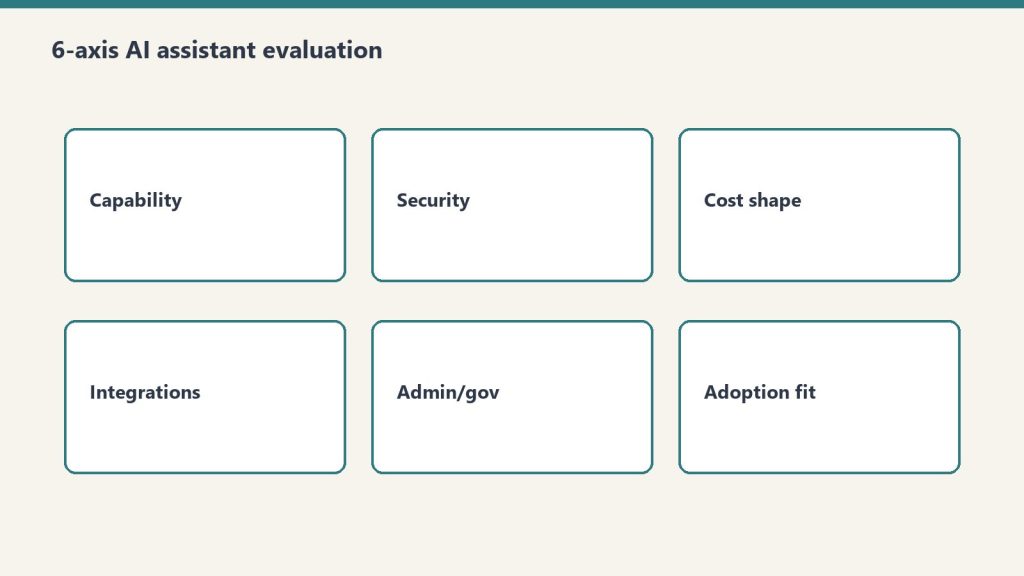
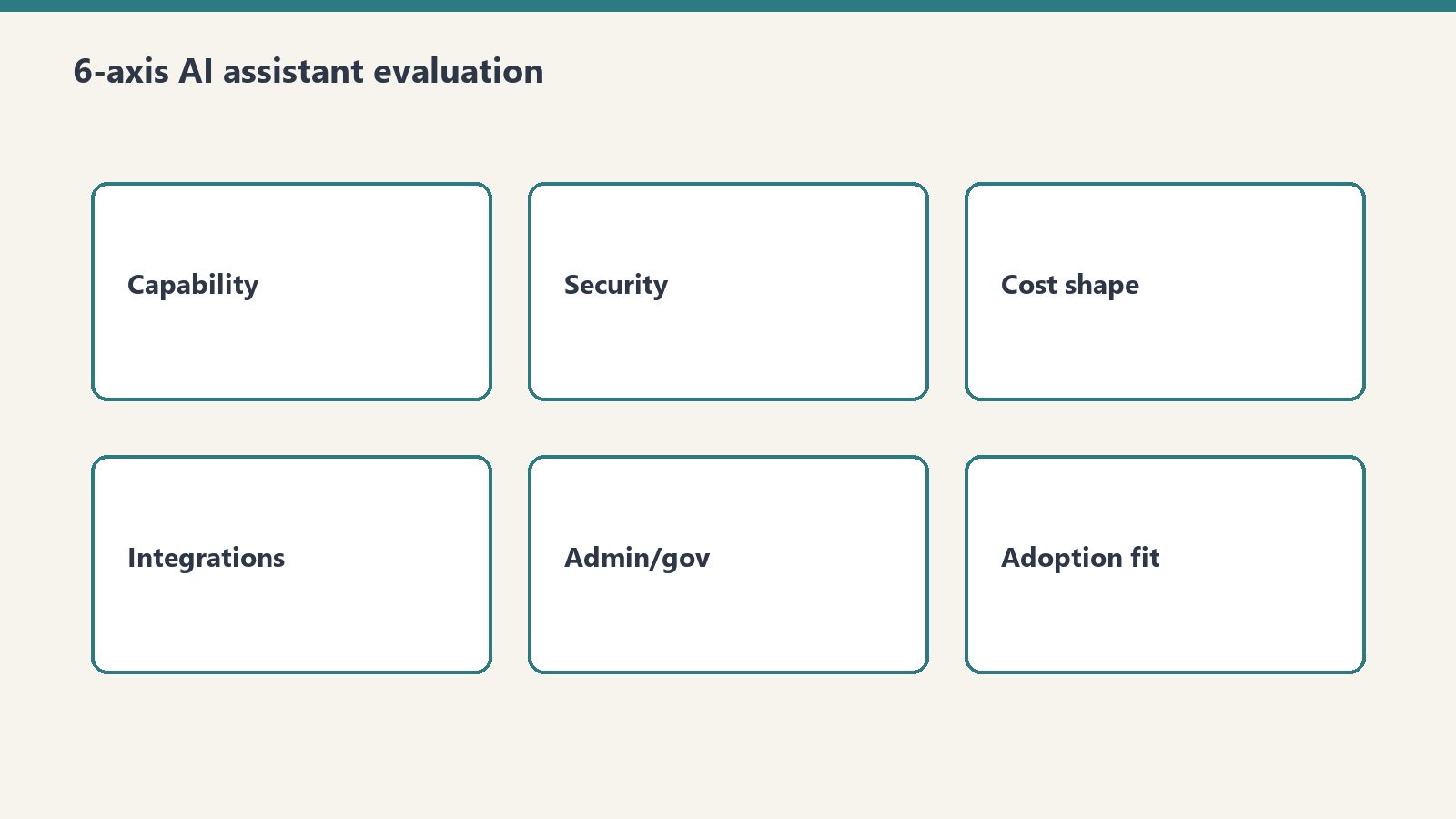
    The framework evaluates AI platforms across six dimensions. Each axis captures a distinct aspect of platform value, and the relative weighting of these axes should reflect your organization’s specific priorities.

    Axis 1: Ecosystem Fit

    Ecosystem fit measures how naturally the AI platform integrates with your existing technology stack. This is the most frequently underweighted axis in AI evaluations, yet it is often the strongest predictor of long-term success.

    What to evaluate: Which productivity suite does your organization use (Microsoft 365, Google Workspace, or hybrid)? Which identity provider manages your users (Azure AD, Google Identity, Okta)? What is your cloud infrastructure (Azure, AWS, GCP, multi-cloud)? Which collaboration tools are standard (Teams, Slack, other)? What is your device management strategy (Intune, Workspace MDM, JAMF)?

    Microsoft Copilot ecosystem score: Highest for organizations running Microsoft 365, Azure AD, and Azure cloud. Copilot’s deep integration across Word, Excel, PowerPoint, Outlook, Teams, and SharePoint creates a seamless experience that no competitor can match within the Microsoft ecosystem. The integration extends to Power Platform, Dynamics 365, and Azure services.

    ChatGPT Enterprise ecosystem score: Platform-agnostic—ChatGPT works equally well regardless of your productivity suite. This neutrality is an advantage for organizations with heterogeneous environments or those not committed to a single ecosystem. API integration allows connection to virtually any system. The tradeoff is that ChatGPT does not deeply integrate with any productivity suite.

    Google Gemini ecosystem score: Highest for Google Workspace organizations. Gemini integrates natively across Gmail, Docs, Sheets, Slides, Meet, and Chat. For organizations running on Google infrastructure (GCP, Chrome OS), the integration extends to development and infrastructure workflows.

    Claude for Work ecosystem score: Claude integrates through API and dedicated interfaces rather than deep productivity suite integration. It connects to organizational data through various integrations and offers strong document analysis capabilities. Best suited for organizations that value reasoning quality over suite integration or that use Claude alongside another platform’s suite integration.

    Axis 2: Workflow Coverage

    Workflow coverage measures how many of your organization’s daily workflows the AI platform can meaningfully augment. This goes beyond feature lists to assess practical utility across departments.

    What to evaluate: Map your top 20 organizational workflows by time investment. For each workflow, assess whether the AI platform can reduce time-to-completion by at least 20%. Coverage across diverse workflows (email, documents, data analysis, meetings, code, customer interaction) matters more than depth in any single workflow.

    Microsoft Copilot workflow coverage: Broadest coverage within the Microsoft ecosystem. Email management (Outlook), document creation (Word), data analysis (Excel), presentations (PowerPoint), meeting management (Teams), knowledge management (SharePoint), automation (Power Platform), and business intelligence (Power BI). The breadth of coverage is unmatched for Microsoft shops.

    ChatGPT Enterprise workflow coverage: Deepest coverage for creative and analytical workflows. Content creation, research, data analysis (through Advanced Data Analysis), brainstorming, and general-purpose problem-solving. ChatGPT excels at open-ended tasks where the user needs to explore ideas, analyze complex scenarios, or generate novel content. Weaker in structured productivity workflows (email, meetings) because it lacks native integration.

    Google Gemini workflow coverage: Strong coverage across Google Workspace workflows: email (Gmail), documents (Docs), spreadsheets (Sheets), presentations (Slides), meetings (Meet), and communication (Chat). Coverage pattern is similar to Copilot’s within the Google ecosystem, though the feature maturity in some areas is still evolving.

    Claude for Work workflow coverage: Strongest in document analysis, research synthesis, technical writing, and complex reasoning tasks. Claude’s strength is depth rather than breadth—it handles nuanced analysis and long-form content exceptionally well. Organizations with heavy document review, research, legal analysis, or technical writing needs find Claude’s coverage particularly valuable.

    Axis 3: Security and Compliance

    Security and compliance evaluates the platform’s data handling practices, certifications, governance controls, and regulatory compliance capabilities.

    What to evaluate: Data residency (where is your data processed and stored?), encryption standards (at rest and in transit), compliance certifications (SOC 2, ISO 27001, HIPAA, FedRAMP, GDPR), data retention policies, model training data usage (is your data used to train models?), audit logging, access controls, and DLP integration.

    Microsoft Copilot: Leverages Microsoft’s enterprise compliance infrastructure. Data stays within the Microsoft 365 compliance boundary. Supports sensitivity labels, DLP policies, eDiscovery, and audit logging through Microsoft Purview. Extensive certifications including SOC 2, ISO 27001, HIPAA, and FedRAMP. Organizational data is not used to train foundation models.

    ChatGPT Enterprise: SOC 2 compliant with data encryption at rest and in transit. Enterprise data is not used for model training. Supports SSO/SAML, data retention controls, and admin analytics. HIPAA compliance available through specific enterprise agreements. Compliance infrastructure is less integrated with productivity suite governance compared to Microsoft and Google.

    Google Gemini: Leverages Google Cloud’s compliance infrastructure. Data processed within Google’s enterprise security boundary. SOC 2, ISO 27001 certified. Workspace data is not used for model training in enterprise tier. Integrates with Google Workspace DLP and security controls.

    Claude for Work: SOC 2 Type II compliant with strong data privacy commitments. Enterprise data is not used for model training. Supports SSO integration and access controls. Anthropic has built its reputation around AI safety and responsible deployment, which resonates with organizations prioritizing ethical AI governance.

    Axis 4: Total Cost of Ownership (TCO)

    TCO goes beyond license costs to include implementation, training, management, and opportunity costs.

    Direct license costs (per user/month):

    • Microsoft Copilot: $30 add-on to existing M365 subscription
    • ChatGPT Enterprise: approximately $60 (varies by contract)
    • Google Gemini for Workspace: included in select tiers or $30 add-on
    • Claude for Work: varies by plan and usage model

    Implementation costs: Microsoft Copilot and Google Gemini have lower implementation costs for organizations already on their respective platforms. ChatGPT Enterprise requires integration work to connect with existing workflows. Claude for Work requires similar integration effort.

    Training costs: All platforms require user training, but platforms integrated into existing tools (Copilot for M365 users, Gemini for Workspace users) typically have lower training requirements because users are already familiar with the host applications.

    Management costs: Ongoing management (license administration, security monitoring, adoption tracking, prompt library maintenance) adds $3-8/user/month in IT labor regardless of platform. Integrated platforms typically cost less to manage than standalone platforms.

    Axis 5: Organizational Readiness

    Organizational readiness evaluates your organization’s capacity to adopt and benefit from an AI platform. This is the most commonly ignored axis and the most common source of deployment failure.

    What to evaluate: Change management capacity (how many organizational changes are currently in flight?), digital literacy levels across the workforce, executive sponsorship strength, IT support capacity, existing AI experience (have users used consumer AI tools?), and organizational culture around technology adoption.

    Organizations with low change management capacity should prefer platforms that integrate into existing tools (reducing the behavioral change required). Organizations with high digital literacy and existing AI experience can benefit from more powerful but less integrated platforms like ChatGPT Enterprise or Claude for Work.

    Axis 6: Scalability and Roadmap

    Scalability and roadmap evaluates the platform’s growth trajectory, vendor investment level, and long-term viability.

    What to evaluate: Vendor R&D investment trajectory, feature release cadence, platform extensibility (APIs, custom agent development), vendor financial stability, partnership ecosystem, and strategic roadmap alignment with your organization’s technology direction.

    All four major platforms are backed by well-resourced organizations with significant AI investment. The differentiation is in platform extensibility and ecosystem growth. Microsoft’s Power Platform integration gives Copilot a uniquely extensible enterprise platform. OpenAI’s rapid innovation pace gives ChatGPT Enterprise access to cutting-edge capabilities quickly. Google’s infrastructure advantages support Gemini’s scalability. Anthropic’s focus on safety and reasoning quality positions Claude for Work in specialized enterprise applications.

    Weighted Scoring Methodology

    The 6-axis model becomes actionable when you assign weights to each axis based on your organization’s priorities. Here is a recommended starting point that you should customize:

    Ecosystem Fit: 25% — The strongest predictor of adoption and long-term success. Reduce this weight only if your organization is actively planning an ecosystem migration.

    Workflow Coverage: 20% — Determines daily productivity impact. Increase this weight if your primary goal is immediate productivity gains.

    Security and Compliance: 20% — Non-negotiable baseline for regulated industries. Increase to 30% for healthcare, financial services, government, or defense organizations.

    Total Cost of Ownership: 15% — Important but should not be the primary driver. AI platform value is measured in productivity gains, not license costs.

    Organizational Readiness: 10% — A reality check that prevents organizations from choosing platforms they cannot successfully adopt.

    Scalability and Roadmap: 10% — Ensures the decision accounts for future needs, not just current requirements.

    Score each platform on each axis using a 1-5 scale based on your organization-specific evaluation. Multiply scores by weights. The highest weighted total score identifies your recommended platform, but use the scores to inform rather than automate the decision.

    Platform Profiles: Strengths in Context

    Microsoft Copilot: The Ecosystem Play

    Ideal for: Organizations with 80%+ Microsoft 365 adoption, Teams-centric collaboration, SharePoint-based knowledge management, and Azure cloud infrastructure. Companies where the primary AI use cases are email management, document creation, meeting management, and data analysis within Office applications.

    Strongest when: AI value comes from augmenting existing Microsoft workflows rather than creating new capabilities. The data grounding advantage—Copilot’s ability to reference organizational content across Microsoft 365—is the killer feature that no competitor can replicate outside the Microsoft ecosystem.

    Weakest when: The organization needs AI for creative exploration, open-ended research, or workflows that exist outside Microsoft 365. Copilot’s application-embedded approach limits flexibility for novel use cases.

    ChatGPT Enterprise: The Flexibility Play

    Ideal for: Organizations with diverse technology stacks, strong AI-savvy user bases, and use cases centered on content creation, research, data analysis, and creative problem-solving. Companies where users need a powerful general-purpose AI that works across any context.

    Strongest when: Users need flexible, open-ended AI capabilities not constrained by a specific productivity suite. ChatGPT’s conversational depth, Custom GPTs, and Advanced Data Analysis provide capabilities that purpose-built suite integrations cannot match.

    Weakest when: The organization wants AI embedded in existing workflows without context-switching. ChatGPT operates as a separate application, which creates adoption friction for users who prefer tools embedded in their daily environment.

    Google Gemini: The Workspace Play

    Ideal for: Organizations committed to Google Workspace with Google-centric infrastructure. Companies where Gmail, Docs, Sheets, and Meet are the daily work environment and where Chrome OS may be part of the endpoint strategy.

    Strongest when: The organization is fully invested in the Google ecosystem and wants AI augmentation across Workspace applications. Gemini’s integration with Google’s AI research provides access to leading-edge capabilities within a familiar environment.

    Weakest when: The organization operates in a Microsoft-dominated industry ecosystem or requires compliance tooling that is more mature in the Microsoft stack.

    Claude for Work: The Reasoning Play

    Ideal for: Organizations with intensive document analysis, research synthesis, technical writing, and complex reasoning needs. Companies in legal, consulting, research, and technical industries where the quality and nuance of AI outputs matters more than breadth of integration.

    Strongest when: Use cases demand sophisticated reasoning, careful analysis of long documents, nuanced content generation, or ethical AI governance. Anthropic’s focus on safety and reasoning quality produces outputs that are notably different in character from competing platforms.

    Weakest when: The primary need is broad workflow automation across a productivity suite. Claude’s integration breadth is narrower than Copilot or Gemini within their respective ecosystems.

    The Decision Tree

    For organizations that want a quick directional answer before conducting the full evaluation:

    Question 1: What is your primary productivity suite?

    If Microsoft 365 with 80%+ adoption: start your evaluation with Microsoft Copilot. If Google Workspace with 80%+ adoption: start with Google Gemini. If mixed or other: proceed to Question 2.

    Question 2: What is your primary AI use case?

    If augmenting existing email, document, and meeting workflows: favor Copilot (Microsoft) or Gemini (Google). If open-ended content creation, research, and analysis: favor ChatGPT Enterprise. If document analysis, reasoning, and technical writing: favor Claude for Work.

    Question 3: What is your compliance environment?

    If highly regulated (healthcare, financial services, government): favor platforms with the deepest compliance integration in your ecosystem—typically Copilot for Microsoft shops, Gemini for Google shops. If moderately regulated: all platforms can meet requirements with appropriate configuration. If minimally regulated: compliance is not a differentiator; weight other axes more heavily.

    Pilot Program Design: 30 Days, 50 Users

    A structured pilot program is the most reliable way to validate your evaluation findings before committing to an organization-wide deployment.

    Pilot Structure

    User selection: 50 users across at least 3 departments. Include a mix of technology enthusiasts (who will push the platform’s capabilities), average users (who represent the majority of your workforce), and technology-resistant users (who will reveal adoption barriers). Include at least 5 executives whose experience will influence the deployment decision.

    Duration: 30 days minimum. The first two weeks capture novelty-driven usage, while weeks three and four reveal sustained adoption patterns. Pilots shorter than 21 days cannot distinguish genuine productivity gains from novelty effects.

    Training: Provide 2 hours of structured training before the pilot begins, plus weekly 30-minute office hours for questions and advanced tips. Give pilot users a prompt library with 20-30 tested prompts organized by use case.

    Measurement Framework

    Quantitative metrics: Daily active usage rate (target: 60%+ by week 3), feature adoption breadth (how many different AI features each user touches), task completion time comparisons for defined benchmark tasks, and user-reported time savings (weekly survey).

    Qualitative metrics: User satisfaction survey (NPS or similar at pilot end), workflow-specific feedback (what works, what does not, what is missing), integration friction points, and training effectiveness assessment.

    Decision criteria: Before the pilot begins, define the success thresholds that would trigger a full deployment recommendation. Example: “If 50%+ of pilot users report meaningful time savings and satisfaction scores exceed 7/10, we recommend proceeding with deployment.”

    The Multi-Platform Reality

    Many organizations will deploy more than one AI platform. This is not a failure of the decision process—it is a pragmatic acknowledgment that different platforms excel at different tasks.

    Common Multi-Platform Configurations

    Microsoft Copilot + GitHub Copilot: The most common enterprise configuration. Copilot handles productivity workflows for all knowledge workers while GitHub Copilot handles developer-specific needs. Both operate under the Microsoft umbrella, simplifying governance.

    Microsoft Copilot + ChatGPT Enterprise (limited): Copilot as the primary platform for all users, with limited ChatGPT Enterprise licenses for power users who need Advanced Data Analysis, Custom GPTs, or creative capabilities beyond Copilot’s scope.

    Google Gemini + Claude for Work: Gemini for daily Workspace workflows, Claude for document-intensive analysis, research, and technical writing tasks.

    Multi-Platform Governance

    If you deploy multiple platforms, establish clear governance: which platform handles which data types, which platform is the system of record for AI-generated content, how user access is managed across platforms, and how compliance requirements are met across the combined platform footprint. Without clear governance, multi-platform deployments create data fragmentation and compliance gaps.

    Stakeholder Alignment: Getting Everyone on Board

    AI platform decisions involve multiple stakeholders with different priorities. Aligning these stakeholders early prevents political paralysis later.

    CIO/CTO Priorities

    Technology strategy alignment, integration architecture, security posture, and vendor relationship management. Speak to these stakeholders in terms of architectural fit, total cost of ownership, and strategic roadmap alignment.

    CFO Priorities

    Cost justification, ROI timeline, and budget predictability. CFOs need clear per-user economics, expected productivity gains quantified in dollars, and a realistic ROI timeline. Avoid vague “productivity improvement” claims—provide specific metrics from pilot data.

    End User Priorities

    Ease of use, daily workflow improvement, and minimal disruption. Users care about whether the tool makes their day better, not about enterprise architecture. Pilot program feedback is the most persuasive evidence for this stakeholder group.

    CISO/Security Team Priorities

    Data protection, compliance coverage, threat surface, and governance controls. Security teams need detailed documentation of data handling, compliance certifications, audit capabilities, and incident response procedures. Engage security early—a late-stage security veto derails months of evaluation work.

    Common Decision Mistakes

    Understanding common mistakes is as valuable as understanding best practices. These are the patterns that consistently produce suboptimal AI platform decisions.

    Mistake 1: Choosing based on demos. Vendor demos showcase best-case scenarios with prepared prompts and curated data. They do not reflect how the tool performs with your organization’s data, your users’ skill levels, and your specific workflows. Always supplement demos with structured pilots using your own data and users.

    Mistake 2: Ignoring ecosystem fit. The most capable AI platform in isolation is not necessarily the best choice for your organization. A platform that integrates seamlessly with your existing tools and workflows at 80% capability will outperform a superior platform at 100% capability that creates adoption friction through poor integration.

    Mistake 3: Underestimating change management. Technology procurement teams often assume that deploying a new AI tool is similar to deploying a new version of existing software. It is not. AI tools require behavioral change—users must learn new interaction patterns, develop prompting skills, and develop judgment about when to use AI and when not to. Budget 15-20% of total deployment cost for change management.

    Mistake 4: Failing to involve security and compliance early. Organizations that complete their evaluation and select a vendor before engaging security and compliance teams frequently discover disqualifying issues late in the process. Engage these teams in week one of the evaluation, not week twelve.

    Mistake 5: Deciding without defined use cases. “We need AI” is not a use case. Before evaluating platforms, define specific workflows where AI will be applied, the expected impact on each workflow, and how success will be measured. Without defined use cases, evaluations become abstract capability comparisons that do not predict real-world value.

    15 Vendor Evaluation Questions

    Use these questions during vendor evaluations to surface information that marketing materials and demos do not reveal.

    1. How is our organizational data handled during processing? Ask for specific data flow documentation, not marketing claims.
    2. Is our data ever used for model training or improvement? Require a contractual guarantee, not a verbal assurance.
    3. What compliance certifications do you hold, and what is the audit schedule? Request current audit reports, not just certification listings.
    4. How do you handle data residency requirements? Specify your requirements and get documented confirmation of capability.
    5. What is your incident response process for data security events? Request the actual incident response plan, not a summary.
    6. What administrative controls are available for managing user access? Get a detailed feature list with screenshots, not a capabilities overview.
    7. What audit logging is available, and how long are logs retained? Define your audit requirements and verify the platform meets them.
    8. What is your product roadmap for the next 12 months? Understand where the platform is heading, not just where it is today.
    9. How do you handle API rate limits and usage caps? Understand the practical constraints that affect heavy users.
    10. What is your IP indemnification policy for AI-generated content? Legal teams increasingly require this protection.
    11. How does pricing change as we scale? Get volume discount structures in writing before committing.
    12. What integration APIs and extensibility options are available? Verify that the platform can connect to your specific systems.
    13. What customer support tiers are available, and what are the SLAs? Enterprise deployments require enterprise support.
    14. Can you provide references from organizations of similar size in our industry? References validate vendor claims against real-world experience.
    15. What is your approach to AI safety and content filtering? Understand how the platform handles sensitive topics, harmful content generation, and output quality controls.

    The 90-Day Decision Timeline

    Days 1-30: Discovery and Requirements

    Week 1: Assemble the evaluation team (IT, security, procurement, representative business users). Define evaluation criteria and axis weights using the 6-axis framework.

    Week 2-3: Conduct vendor briefings. Request documentation packages from each vendor. Begin security and compliance review.

    Week 4: Complete requirements documentation, finalize evaluation criteria, and select 2-3 platforms for pilot evaluation. Eliminating platforms that clearly do not meet requirements saves pilot resources for viable options.

    Days 31-60: Pilot Evaluation

    Week 5: Set up pilot environments. Select and brief pilot users. Conduct baseline measurements for benchmark tasks.

    Week 6-8: Run 30-day pilots for shortlisted platforms (sequentially or in parallel, depending on resources). Collect quantitative and qualitative data weekly.

    Week 8-9: Compile pilot results. Conduct pilot user focus groups. Complete security and compliance assessment.

    Days 61-90: Decision and Planning

    Week 10: Score platforms against the 6-axis model using pilot data and evaluation findings. Identify the recommended platform and any multi-platform scenarios.

    Week 11: Present recommendation to executive stakeholders. Address questions, objections, and budget requests. Obtain deployment approval.

    Week 12-13: Negotiate enterprise agreement. Develop deployment plan. Begin procurement process. This timeline assumes the decision outcome is a single primary platform; multi-platform strategies may require additional negotiation time.

    The Bottom Line

    Choosing the right AI assistant for your organization is a strategic decision that will shape workplace productivity for years. The decision deserves the same rigor you apply to ERP selection, cloud platform decisions, or other foundational technology choices.

    The framework presented in this guide—the 6-axis evaluation model, weighted scoring methodology, structured pilot program, and 90-day decision timeline—provides the structure needed to make a defensible, evidence-based decision. Customize the axis weights to your organization’s priorities, run the pilots with your own users and data, and let the evidence guide the decision rather than vendor enthusiasm or competitive anxiety.

    No AI platform is perfect for every organization. But the right platform for your specific context—your ecosystem, your workflows, your compliance requirements, your users—will deliver transformative productivity gains that justify the investment many times over. The goal of this framework is to help you find that right fit with confidence.

    Frequently Asked Questions

    What is the best AI assistant for enterprise in 2026?

    There is no single best AI assistant for all enterprises. Microsoft Copilot is optimal for organizations deeply embedded in the Microsoft 365 ecosystem. ChatGPT Enterprise excels for teams needing flexible AI across diverse workflows with strong conversational capabilities. Google Gemini is the natural choice for Google Workspace organizations. Claude for Work suits organizations prioritizing nuanced reasoning and document analysis. The right choice depends on your existing ecosystem, specific use cases, compliance requirements, and budget.

    How should an organization evaluate AI assistants?

    Use a 6-axis evaluation model covering ecosystem fit, workflow coverage, security and compliance, total cost of ownership, organizational readiness, and scalability and roadmap. Weight each axis based on your organization’s priorities. Score each platform 1-5 on each axis using data from vendor briefings, documentation review, security assessment, and structured pilot programs with your own users and data.

    How long should an AI assistant pilot program run?

    A well-structured AI pilot should run 30 days with 50 users across at least 3 departments. The first two weeks capture novelty-driven usage patterns, while weeks three and four reveal sustained adoption behaviors and genuine productivity impact. Pilots shorter than 21 days cannot distinguish genuine productivity gains from initial novelty effects and should be avoided for enterprise decision-making.

    Can organizations use multiple AI assistants simultaneously?

    Yes, and many organizations do. A common multi-platform strategy uses Microsoft Copilot as the primary productivity AI for document and email workflows, GitHub Copilot for development teams, and a second platform like ChatGPT Enterprise or Claude for Work for specialized research and analysis tasks. The key is defining clear governance about which platform handles which use cases and data types to avoid data fragmentation and compliance gaps.

    What are the most common mistakes when selecting an enterprise AI platform?

    The five most common mistakes are choosing based on a vendor demo rather than a structured pilot, ignoring ecosystem fit in favor of raw AI capability comparisons, underestimating change management costs by 50% or more, failing to involve security and compliance teams before shortlisting vendors, and beginning the evaluation without defining specific use cases and measurable success metrics. Organizations that systematically avoid these mistakes make better decisions and achieve faster return on their AI investment.

  • Microsoft 365 Copilot Keyboard Shortcuts, Hidden Features, and Power User Tips (2026)

    Most Microsoft 365 Copilot users use 10% of what the tool can do. The keyboard shortcuts that invoke Copilot instantly, the slash commands that bypass the chat interface, the @ syntax that loads organizational context, the hidden features in apps nobody associates with Copilot — these are the capabilities that separate casual users from power users.

    This is the reference guide. Bookmark it. Return to it when Microsoft ships new features.

    Universal Keyboard Shortcuts

    Alt + I (Windows) / Option + I (Mac): This is the single most important shortcut. It invokes Copilot from any M365 app. Memorize it. Stop reaching for the Copilot button with your mouse.

    Additional universal shortcuts:

    • Ctrl + Shift + I (Windows): Open Copilot sidebar in supported apps
    • Esc: Close Copilot panel
    • Ctrl + Enter: Submit prompt in Copilot chat

    App-Specific Shortcuts

    Outlook:

    • New email → Copilot drafting icon in the compose toolbar, or Alt + I to open sidebar
    • Reply/Forward → Copilot suggests a draft based on thread context
    • Reading pane → “Summarize” button appears at the top of long threads

    Teams:

    • In meetings → Copilot icon in the meeting toolbar (requires transcription enabled)
    • In channels → Copilot compose box in the channel header
    • In chat → Alt + I to invoke Copilot within the conversation

    Word:

    • Empty document → Copilot drafting interface appears automatically
    • Existing text → Select text, right-click for Copilot rewrite options
    • Alt + I → Open Copilot chat sidebar for document-level questions and editing

    PowerPoint:

    • Home tab → Copilot button for presentation generation
    • Individual slide → Right-click for Copilot slide-level actions
    • Alt + I → Open Copilot sidebar for presentation-wide commands

    The Slash-Command System

    Slash commands are shortcuts within the Copilot prompt box that trigger specific actions faster than typing full prompts.

    • /summarize: Immediately summarizes the current content (email thread, document, channel conversation)
    • /draft: Enters drafting mode with content suggestions
    • /rewrite: Rewrites selected text (Word, Outlook)
    • /catch up: Summarizes what you missed in a Teams channel or meeting

    Slash commands bypass the conversational interface and execute directly. Use them for recurring actions where you do not need to customize the prompt.

    The @ Context Loading System

    The @ symbol is how you load context into Copilot prompts. Most users do not know this exists, and it transforms Copilot from a generic AI into an organizational knowledge tool.

    @[file name]: References a specific file from SharePoint, OneDrive, or recent documents. Copilot incorporates the file’s content into its response.

    @[person name]: References a colleague. In Teams, this helps Copilot locate that person’s messages and contributions. In Outlook, it scopes to emails involving that person.

    @[meeting name]: References a specific meeting’s transcript and notes.

    Power move: Combine multiple @ references: “Based on @Q2-Report.xlsx and the meeting with @Sarah on Friday, draft the budget adjustment memo.”

    Hidden Features Most Users Miss

    Copilot Pages

    Copilot Pages are persistent, editable documents that live outside of any specific app. When Copilot generates content you want to keep, save it as a Page rather than copying it to a document. Pages are shareable, collaborative, and searchable — they function as a lightweight knowledge base for AI-generated content.

    Copilot in Microsoft Loop

    Loop components with Copilot enable real-time collaborative AI content generation. Multiple people can work with Copilot simultaneously in a Loop workspace — one person prompts, the output appears for everyone, and the team edits collaboratively. This is the underused feature for brainstorming and planning sessions.

    Copilot in Microsoft Forms

    Describe a survey in natural language and Copilot creates the form: “Create a 10-question employee satisfaction survey covering workload, management communication, career development, and work-life balance. Mix of rating scales and open-ended questions.”

    Copilot in Microsoft Whiteboard

    After a brainstorming session on Whiteboard, Copilot organizes the sticky notes into categories, identifies themes, and suggests next steps. It turns visual brainstorming output into structured action plans.

    Copilot in Microsoft Stream

    Upload a video to Stream and Copilot generates: chapter markers based on topic changes, a full transcript, a content summary, and searchable highlights. This turns recorded presentations and training videos into navigable knowledge resources.

    Edge Copilot (The Second Copilot)

    Microsoft Edge includes Copilot features that complement M365 Copilot: page summarization for any web page, PDF analysis and Q&A, web research synthesis, and content comparison across tabs. Many users forget that Edge Copilot exists alongside M365 Copilot — it is the browser-side complement.

    The Copilot Sidebar vs. Inline Copilot

    Understanding the difference prevents confusion:

    Copilot Sidebar (Alt + I): Opens a chat panel on the right side. Maintains conversation context across multiple prompts. Best for complex, multi-step interactions where you need to iterate. The sidebar remembers what you asked previously in the session.

    Inline Copilot: Appears directly in the content area (email compose, document body). Each prompt is standalone — no conversation memory. Best for quick, single-action tasks like drafting or rewriting a specific section.

    Use the sidebar when you are working through a problem. Use inline when you know exactly what you need in one prompt.

    Enterprise Content Scope

    Copilot searches across your organization’s content when answering questions: SharePoint sites, OneDrive files, email, Teams messages, and calendar events that you have permission to access. This is the Microsoft Graph in action.

    Narrowing the scope: Use @ references to direct Copilot to specific sources rather than letting it search everything.

    Expanding the scope: Ask Copilot to search broadly: “What documents across the organization mention [topic]?” This surfaces content you may not know exists.

    Quick-Win Prompts

    Ten prompts that deliver immediate value with zero learning curve:

    1. “Summarize this” — works on emails, documents, channels, meetings
    2. “Draft a reply” — generates a contextual response in email
    3. “Catch me up on this channel” — summarizes what you missed
    4. “List the action items from this meeting” — extracts commitments
    5. “Rewrite this shorter” — condenses selected text
    6. “What questions should I ask in this meeting?” — prep from context
    7. “Create a presentation from this document” — Word to PowerPoint
    8. “What did I miss this week?” — weekly digest across apps
    9. “Draft an agenda for tomorrow’s meeting” — from recent conversations
    10. “Explain this document in simple terms” — accessibility aid

    The Accessibility Angle

    Copilot functions as an accessibility tool that is rarely marketed as one:

    • Dictation to polished text: Speak your thoughts, then prompt Copilot to restructure and polish the dictated text into professional prose
    • Document summarization for screen readers: Long documents become accessible summaries that screen reader users can consume quickly
    • Meeting notes for hearing-impaired participants: Real-time transcription and AI summaries ensure full meeting access
    • Language simplification: Complex documents can be rewritten at lower reading levels for broader accessibility

    Frequently Asked Questions

    What are the keyboard shortcuts for Microsoft Copilot?

    The universal shortcut is Alt + I (Windows) or Option + I (Mac) to invoke Copilot from any M365 app. Additional shortcuts include Ctrl + Shift + I for the sidebar, Esc to close the panel, and Ctrl + Enter to submit prompts. Each app has context-specific access points in the toolbar and right-click menus.

    What hidden features does Microsoft 365 Copilot have?

    Key hidden features include Copilot Pages (persistent shareable AI-generated documents), Copilot in Loop (real-time collaborative AI), Copilot in Forms (natural language survey creation), Copilot in Whiteboard (brainstorm organization), Copilot in Stream (video summarization and chapters), and Edge Copilot (browser-side page analysis and PDF Q&A).

    What is the difference between Copilot sidebar and inline Copilot?

    The sidebar (Alt + I) maintains conversation context across multiple prompts and is best for complex, multi-step interactions. Inline Copilot appears directly in the content area, each prompt is standalone with no conversation memory, and is best for quick single-action tasks like drafting or rewriting.

    How does the @ syntax work in Microsoft Copilot?

    @ references load context into prompts: @[file name] references specific documents, @[person name] scopes to a colleague’s communications, @[meeting name] pulls meeting transcripts. Combine multiple @ references for context-rich prompts grounded in organizational content.

    Can Microsoft Copilot be used as an accessibility tool?

    Yes. Copilot functions as an accessibility aid through dictation-to-polished-text conversion, document summarization for screen reader users, real-time meeting transcription and summaries for hearing-impaired participants, and language simplification for broader reading accessibility.


  • Microsoft Copilot for Project Managers: Meetings, Status Updates, and Stakeholder Communications (2026)

    Project managers spend 60-70% of their time on communication and documentation. Meeting agendas, meeting notes, status reports, stakeholder updates, risk registers, resource requests — the paperwork that surrounds project decisions often takes longer than making the decisions themselves. Microsoft Copilot targets exactly this communication overhead, and project managers are the role where it delivers the most measurable daily time savings.

    This guide maps Copilot into the project manager’s actual daily and weekly rhythm — not generic productivity tips, but PM-specific workflows with prompt examples tied to real project management scenarios.

    The Monday Morning Dashboard

    Start every week with Copilot generating a status digest across all active projects.

    “Summarize what happened across my projects last week. Review the Teams channels for [Project A], [Project B], and [Project C]. For each project, list: completed milestones, new risks or blockers raised, and action items that are past due. Format as a single-page digest I can review in 5 minutes.”

    This replaces the Monday morning routine of scrolling through three Teams channels, 50 emails, and a task management tool. Copilot pulls from Teams conversations, email threads, and shared documents to produce a consolidated view.

    Follow up with: “Based on this digest, which project needs my attention first this week? Rank by urgency considering the past-due items and open risks.”

    Meeting Lifecycle Management

    Pre-meeting: Agenda generation

    “Draft an agenda for tomorrow’s Project Alpha weekly review. Based on the action items from last week’s meeting and the current items in [channel], suggest the topics we need to cover. Allocate estimated time for each topic. 30-minute meeting.”

    During the meeting: Real-time tracking

    Let Copilot handle note-taking while you facilitate. Periodically check: “List the action items assigned so far with owners and deadlines.” Before ending: “What topics were raised but not resolved? These need to be on next week’s agenda.”

    Post-meeting: Summary and distribution

    “Generate a meeting summary with four sections: decisions made (with context), action items (owner, deadline, acceptance criteria for each), deferred topics (for next meeting’s agenda), and key risks or concerns raised. Format for posting in the Teams channel.”

    The complete meeting lifecycle — prep, track, summarize, distribute — takes 10 minutes of PM time instead of 40.

    Status Report Automation

    The weekly status report is the PM’s most time-consuming recurring deliverable. Copilot reduces it from a 45-minute writing exercise to a 15-minute review-and-refine task.

    “Draft a weekly status report for Project Alpha. Reference the Teams conversations from [channel] this week, the email threads with the client, and the task updates in Planner. Structure: executive summary (3 sentences), progress by workstream (completed, in progress, blocked), risks and issues (new and existing with mitigation status), upcoming milestones (next 2 weeks), and resource needs. Professional tone, under 2 pages.”

    After the first draft: “The client milestone in workstream 2 is actually 3 days behind — update the report to reflect this and add it as a medium-risk item with the mitigation plan we discussed on Wednesday.”

    Stakeholder Communications

    Different stakeholders need different versions of the same information. Copilot generates audience-specific drafts from a single source of truth.

    “Based on this week’s status report, draft three versions: (1) A 3-sentence executive summary for the VP — focus on timeline, budget, and decisions needed. (2) A technical update for the engineering lead — focus on blockers, dependencies, and resource allocation. (3) A client-facing update — focus on delivered milestones, upcoming deliverables, and any schedule adjustments. Professional tone for all three.”

    This replaces the mental gymnastics of reframing the same information for three audiences. Each draft takes Copilot 30 seconds to generate and 2 minutes for you to review and personalize.

    Passive Risk Detection

    One of Copilot’s most underused capabilities for PMs: mining conversations for risks that were mentioned but never formally logged.

    “Review the Teams conversations in [channel] from the past two weeks. Identify any mentions of risks, concerns, blockers, delays, or potential problems that have not been formally addressed. List each one with who raised it, when, and the context.”

    This surfaces the risks that live in casual Teams messages — the “I’m a little worried about the vendor timeline” comments that never make it into the risk register but signal real problems. Run this weekly as part of your risk management routine.

    Resource Request Drafting

    When you need additional resources, Copilot builds the business case from project data.

    “Draft a resource request memo for an additional developer on Project Alpha. Reference the current timeline, the scope additions from the change request last month, and the velocity data from the past 3 sprints. Make the case that without the additional resource, the launch date moves by 4 weeks. Format as a 1-page memo for the PMO.”

    Retrospective Facilitation

    After sprint or project retrospectives, use Copilot to synthesize the discussion into actionable improvements.

    “Summarize the retrospective discussion. Organize feedback into three categories: what went well (practices to continue), what needs improvement (specific issues with proposed solutions), and action items for next sprint (owner and deadline for each). Identify the top 3 themes across all feedback.”

    Cross-Project Synthesis

    PMs managing multiple projects face the unique challenge of spotting dependencies and conflicts across workstreams.

    “Review the status updates from Project Alpha, Project Beta, and Project Gamma. Are there any shared resource conflicts in the next 2 weeks? Are there any dependencies between projects where a delay in one affects the others? List any cross-project risks I should raise in the portfolio review.”

    The PM Prompt Library

    Fifteen role-specific prompts for the most common PM tasks:

    1. Monday status digest across all projects
    2. Meeting agenda generation from channel discussions
    3. Real-time action item tracking during meetings
    4. Post-meeting structured summary
    5. Weekly status report first draft
    6. Executive summary version of status update
    7. Technical team version of status update
    8. Client-facing version of status update
    9. Risk detection from channel conversations
    10. Resource request business case memo
    11. Retrospective discussion synthesis
    12. Cross-project dependency check
    13. Decision log compilation from meetings
    14. Stakeholder email for schedule change notification
    15. Project closure summary with lessons learned

    Save these in a OneNote page or Teams message and customize for each project. The templates eliminate the blank-prompt problem and ensure consistent output quality.

    Realistic Limitations

    Copilot accelerates the documentation that surrounds PM decisions. It does not replace PM judgment on prioritization, risk assessment, stakeholder management, or resource allocation. The PM still decides what matters, what to escalate, and how to handle the politics. Copilot handles the writing that communicates those decisions.

    Frequently Asked Questions

    How can project managers use Microsoft Copilot?

    PMs use Copilot across the entire project communication lifecycle: Monday morning status digests, meeting agenda generation, real-time action item tracking, post-meeting summaries, weekly status reports, audience-specific stakeholder communications, risk detection from channel conversations, resource request drafting, and retrospective synthesis.

    How do I automate status reports with Copilot in Microsoft 365?

    Prompt Copilot to draft the status report by referencing your Teams channels, email threads, and task management data. Provide the report structure (executive summary, progress, risks, milestones, resources) and let Copilot generate the first draft from your actual project communications. Review and refine in 15 minutes instead of writing from scratch in 45.

    Can Copilot detect project risks from Teams conversations?

    Yes. Prompt Copilot to review Teams channel conversations and identify mentions of risks, concerns, blockers, delays, or problems. It surfaces the informal risk signals that live in casual messages but never make it into formal risk registers. Run this weekly as part of risk management.

    How does Copilot help with stakeholder communications?

    Copilot generates audience-specific versions of the same information from a single source. One prompt produces an executive summary for the VP, a technical update for the engineering lead, and a client-facing milestone update — each with appropriate tone, detail level, and focus areas.

    Does Copilot replace project managers?

    No. Copilot accelerates the documentation and communication work (60-70% of PM time). It does not replace judgment on prioritization, risk assessment, stakeholder management, or resource decisions. The PM decides; Copilot writes the communication that delivers those decisions.


  • Microsoft Copilot Prompt Engineering for M365: The Power User’s Playbook (2026)

    The gap between a frustrated Microsoft Copilot user and a power user is prompt quality. The same Copilot instance that produces a useless generic summary when prompted with “summarize this” produces an actionable executive brief when prompted with the right structure. This is not a technology problem — it is a skill problem, and like any skill, it follows learnable patterns.

    This is the systematic prompt engineering framework for M365 Copilot — not a list of prompts to copy, but the methodology that teaches you how to write your own.

    The Four-Part Prompt Anatomy

    Microsoft’s own framework breaks effective Copilot prompts into four components. Every high-quality prompt includes most or all of these:

    1. Goal: What you want Copilot to produce. Be specific about the output type and purpose.

    Weak: “Help with email.” Strong: “Draft a follow-up email declining the proposal while keeping the relationship open for future opportunities.”

    2. Context: Background information Copilot needs to produce relevant output. Include the situation, constraints, and relevant history.

    Weak: (no context) Strong: “This is for a client we have worked with for 3 years who submitted a proposal that exceeded our budget by 40%.”

    3. Source: The specific files, emails, meetings, or data Copilot should reference. Use the / command or @ mentions to point to content.

    Weak: “Based on recent discussions.” Strong: “Reference the email thread from Sarah about the Q3 budget and the meeting notes from last Friday’s review.”

    4. Expectations: The format, tone, length, and audience constraints for the output.

    Weak: (no expectations) Strong: “Two paragraphs, professional but warm tone, under 150 words, suitable for a VP-level audience.”

    The Specificity Multiplier

    Every word of specificity you add to a prompt multiplies the quality of the output. This is the single most important concept in Copilot prompting.

    Level 1 (generic): “Summarize this thread.”

    Output: A chronological play-by-play of who said what. Low value.

    Level 2 (targeted): “Summarize this thread focusing on budget decisions.”

    Output: A filtered summary highlighting budget-relevant messages. Moderate value.

    Level 3 (actionable): “Summarize this email thread focusing on budget decisions and unresolved action items. List each decision with who made it and the date. List each unresolved item with who needs to act and the suggested deadline.”

    Output: A structured, actionable brief you can forward directly to your team. High value.

    The Level 3 prompt takes 15 extra seconds to write and saves 10 minutes of post-generation editing. That is the specificity multiplier in practice.

    The Persona Technique

    Starting prompts with a role or persona instruction anchors Copilot’s output style and perspective.

    “Act as a project manager and create a status update from these meeting notes. Focus on milestones, risks, and resource needs.”

    “Act as a financial analyst and summarize this report. Highlight the three most significant variances from forecast and explain the likely causes.”

    “Act as an executive assistant and draft a briefing memo for the CEO based on these five documents. One page, bullet points, focus on decisions needed.”

    The persona does not change Copilot’s underlying capability — it changes the lens through which it interprets your request and formats its output. A “project manager” persona emphasizes milestones and risks. A “financial analyst” persona emphasizes numbers and variances. Choose the persona that matches the output you need.

    Context Loading: The @ and / Syntax

    Most users type prompts as if they are talking to a stranger. Power users load context into every prompt by referencing specific content.

    File references: Use / to reference specific files from SharePoint, OneDrive, or recent documents. Copilot pulls content from the referenced file into its response.

    People references: Use @ to reference colleagues. In Teams, this helps Copilot identify specific people in conversations and attribute comments correctly.

    Meeting references: Reference specific meetings by name to pull in transcripts, summaries, and action items from those meetings.

    The compound reference: “Based on the meeting with @Sarah last Thursday and the document /Project-Plan-v3.docx, draft an email to the steering committee summarizing our revised timeline. Reference the risks Sarah raised and propose the mitigation we discussed.”

    This single prompt loads three sources of context (a person, a meeting, and a document) and produces output grounded in your actual organizational content rather than generic AI text.

    Iteration as a Skill

    The best Copilot users rarely get the perfect output on the first prompt. They iterate — and they iterate by refining, not regenerating.

    Refine, do not start over: If the first output is 70% right, edit the prompt to fix the 30% rather than scrapping everything and trying again. Copilot maintains context within a conversation, so follow-up prompts build on previous output.

    Iterative refinement sequence:

    1. First prompt: Get the content and structure roughly right
    2. Second prompt: Fix tone, adjust length, add missing specifics
    3. Third prompt: Polish specific sections that need work

    Example sequence:

    1. “Draft a project update email covering milestones, risks, and next steps for Project Alpha.”
    2. “Good structure. Make the risks section more specific — mention the vendor delay and the hiring freeze. Shorten the milestones section.”
    3. “Rewrite the opening paragraph to lead with the positive milestone completion before mentioning risks.”

    Three prompts, 2 minutes total, produces a better result than a single perfect prompt that takes 5 minutes to craft.

    App-Specific Prompt Patterns

    Teams:

    • “What decisions were made in [channel] in the last 7 days?”
    • “Summarize what I missed since Monday morning. Focus on action items assigned to me or my team.”
    • “What unresolved questions exist in this channel right now?”

    Outlook:

    • “Draft a reply declining this meeting but suggesting three alternative times next week. Keep it brief and professional.”
    • “Summarize this thread and tell me: what does the sender actually want me to do?”
    • “Draft a follow-up to the client referencing the three deliverables discussed in our call. Set a deadline of next Friday.”

    Word:

    • “Rewrite this section at an 8th-grade reading level while keeping the technical accuracy.”
    • “Draft an executive summary of this document. Three paragraphs: key findings, recommendations, and next steps.”
    • “What questions would a skeptical reader ask about the claims in this document?”

    PowerPoint:

    • “Add a slide comparing Q1 versus Q2 performance using the data from /Q2-Report.xlsx.”
    • “Generate speaker notes for slides 3-8 that anticipate board member questions at each point.”
    • “Reorganize this deck to follow a problem-solution-evidence-action narrative.”

    The Anti-Patterns

    Prompts that consistently produce poor results:

    Too vague: “Help me with this.” Copilot has no goal, context, or expectations to work from.

    Contradictory constraints: “Write a comprehensive and detailed summary in under 50 words.” The constraints conflict — comprehensive detail requires space.

    Asking for what Copilot cannot access: “What did the client say in the phone call yesterday?” If the call was not in Teams and not transcribed, Copilot has no data to work from.

    Over-prompting: A 500-word prompt with 20 constraints produces worse output than a focused 50-word prompt with 3-4 clear constraints. Copilot prioritizes the last instructions, so overloading the prompt buries the important parts.

    Building a Prompt Library

    The highest-ROI Copilot investment after initial training is building a shared prompt library for your team.

    Individual prompt library: Save your best prompts in OneNote or a Teams personal chat with notes on when each works best. When you find a prompt that consistently produces good results, template it.

    Team prompt library: Create a shared Teams channel or SharePoint page where team members post effective prompts. Categorize by task type (email, meetings, documents, analysis) and include notes on prompt context.

    A well-maintained team prompt library eliminates the learning curve for new Copilot users. Instead of starting from scratch, they start from proven templates.

    Frequently Asked Questions

    How do I write better prompts for Microsoft Copilot?

    Use the four-part framework: Goal (what you want), Context (background information), Source (specific files or data to reference), and Expectations (format, tone, length, audience). Add specificity at every step — every word of specificity multiplies output quality. Iterate by refining rather than regenerating.

    What is the best prompt format for Microsoft 365 Copilot?

    Goal + Context + Source + Expectations. Example: “Draft a status update email [goal] for the steering committee about Project Alpha [context], referencing the meeting notes from Friday [source]. Two paragraphs, professional tone, lead with the milestone completion [expectations].”

    Why does Copilot give bad answers to my prompts?

    The most common causes: prompts are too vague (no specific goal or output format), missing context (Copilot cannot infer what you need), no source references (generic output instead of grounded content), or contradictory constraints (asking for detail and brevity simultaneously). Add specificity and iterate.

    How do I reference files in Microsoft Copilot prompts?

    Use the / command to reference specific files from SharePoint, OneDrive, or recent documents. Use @ to reference people or meetings. These references load actual organizational content into Copilot’s context, producing grounded output instead of generic text.

    Should I build a Copilot prompt library for my team?

    Yes. A shared prompt library in Teams or SharePoint eliminates the learning curve for new users, ensures consistent quality across the team, and captures institutional knowledge about what prompts work for your specific workflows. Categorize by task type and update monthly.


  • How to Use Copilot in PowerPoint: Presentation Creation From Scratch to Speaker Notes (2026)

    Building presentations is one of the most time-consuming knowledge work tasks — and one where Copilot in PowerPoint delivers the clearest before-and-after difference. A presentation that takes 2 hours to build from scratch takes 25-30 minutes with Copilot generating the first draft and you refining the content, structure, and design.

    The key is understanding that Copilot’s first generation is a starting point, not a final product. This guide covers the three creation paths, the iterative refinement process, and the specific prompt patterns that produce presentations you would actually deliver.

    The Three Creation Paths

    Path 1: Create from a Word Document

    This is the most powerful path. Write or refine your content in Word first — an outline, a report, meeting notes, or a brief — then have Copilot transform it into a structured presentation.

    “Create a presentation from /Q2-Report.docx. Use a problem-solution-evidence-action narrative structure. Target 12-15 slides. Include an executive summary slide, one slide per key finding, a recommendations slide, and a next steps slide. Add speaker notes for each slide.”

    Why this works best: The Word document provides Copilot with rich, structured content to work from. The output maintains the logical flow of your document while reformatting for visual presentation. This eliminates the blank-slide paralysis that makes presentation creation feel overwhelming.

    Path 2: Create from a Prompt

    When you do not have a source document, create directly from a detailed prompt.

    Prompt that produces a usable deck:

    “Create a 12-slide presentation on [topic] for [audience]. Structure: title slide, problem statement, 3 key findings with supporting data, proposed solution with 3 components, implementation timeline, resource requirements, risk assessment, expected outcomes, next steps, and closing with call to action. Professional tone. Include speaker notes for each slide.”

    Prompt that produces a generic outline:

    “Create a presentation about Q2 sales.”

    The difference is specificity. Include the number of slides, the structure, the audience, and the narrative arc. Copilot fills in the content; you provide the architecture.

    Path 3: Create from an Existing Presentation

    Start from a template or previous presentation and use Copilot to update, expand, or restructure it.

    “Add 3 new slides after slide 5 covering [topic]. Match the style and tone of the existing slides. Include a comparison chart on one of the new slides.”

    “Reorganize this presentation to lead with the customer impact section before the technical methodology. Move slides 7-9 to after slide 3.”

    The Iteration Loop

    The first generation is approximately 60% of the way to a finished presentation. The remaining 40% comes from iterative refinement — and this is where most users stop too early.

    Content refinement prompts:

    • “Add a slide comparing [X] versus [Y] using the data from the report”
    • “Expand the speaker notes on slide 4 with three talking points about the budget impact”
    • “The recommendations slide is too vague — rewrite with three specific, actionable recommendations with timelines”
    • “Add a Q&A slide at the end with the five most likely questions and suggested responses in the speaker notes”

    Structure refinement prompts:

    • “This presentation is 20 slides — condense to 12 by merging related slides and cutting supporting detail”
    • “Reorganize to follow the SCQA framework: Situation, Complication, Question, Answer”
    • “Split slide 6 into two slides — it has too much content for a single visual”

    Speaker Notes Generation

    Speaker notes are where Copilot saves the most hidden time. Most people skip speaker notes because writing them takes as long as building the slides. Copilot generates them as part of the creation process.

    The prompt for useful speaker notes:

    “Generate speaker notes for each slide. For each slide, include: the key message to communicate (1 sentence), 3-4 talking points that expand on the slide content, one transition sentence to the next slide, and any data points or statistics that support the slide but should not be on the slide itself.”

    The prompt for presentation-ready notes:

    “Rewrite the speaker notes for slides 3-8 as if I am presenting to the board of directors. Assume they have read the executive summary but not the full report. Anticipate their likely questions at each slide.”

    Design and Visual Polish

    Copilot generates content-structured slides — it handles text, hierarchy, and layout reasonably well. It does not generate visual design that matches a polished, branded presentation.

    The complementary workflow:

    1. Use Copilot to generate the content and structure (slides, text, speaker notes)
    2. Apply your organization’s PowerPoint template (Copilot respects existing templates when you create within a branded file)
    3. Use PowerPoint Designer for visual polish — it suggests design layouts based on the content Copilot generated
    4. Add images, charts, and icons manually where Copilot left text placeholders

    Copilot handles the 70% of presentation work that is content and structure. Designer and manual editing handle the 30% that is visual design.

    Presentation Types: Where Copilot Excels

    Executive updates and board presentations: Structured, data-driven, formal — Copilot’s sweet spot. The content follows predictable patterns that Copilot handles well.

    Project proposals: Problem-solution structure with supporting evidence. Copilot can draft these from a requirements document or brief.

    Training materials: Content-heavy with structured progression. Copilot generates the learning arc and fills in the detail.

    Quarterly reviews: Data synthesis from multiple sources into a structured narrative. Reference grounding from Word or Excel sources makes this powerful.

    Where Copilot struggles:

    • Sales pitches with emotional arcs: Copilot defaults to informational structure, not persuasive storytelling
    • Creative campaign decks: Visual creativity and brand storytelling are not Copilot’s strength
    • Highly visual presentations: Slide-heavy with minimal text requires design skill, not AI text generation

    The Teams Meeting Integration

    One of the most powerful cross-app workflows: turn a meeting into a presentation.

    1. Run a brainstorming or planning meeting in Teams with Copilot transcription enabled
    2. After the meeting, use Copilot in Teams to generate a structured summary of the discussion
    3. Copy the summary into a Word document and refine the structure
    4. Open PowerPoint and create a presentation from that Word document

    This workflow turns a 45-minute brainstorming session into a 12-slide presentation deck in 15 minutes of post-meeting work.

    Frequently Asked Questions

    How do I create a presentation with Copilot in PowerPoint?

    Three paths: create from a Word document (most powerful — provides rich content for Copilot to structure), create from a prompt (include slide count, structure, audience, and narrative arc), or modify an existing presentation. First generation is a starting point — iterate with refinement prompts for content, structure, and speaker notes.

    Can Copilot in PowerPoint turn a Word document into a presentation?

    Yes, and this is the recommended approach. Write or refine content in Word first, then prompt Copilot in PowerPoint to create a presentation from that document. Copilot maintains the logical flow while reformatting for visual presentation, producing higher quality output than prompt-only creation.

    Does Copilot generate speaker notes in PowerPoint?

    Yes. Include speaker notes in your creation prompt or generate them afterward. For best results, specify what speaker notes should include: key message, talking points, transition sentences, and supporting data not shown on the slide.

    How do I improve Copilot’s PowerPoint output?

    Iterate. The first generation is approximately 60% of the way to finished. Refine content with specific prompts (add slides, expand notes, rewrite vague sections), restructure with organizational prompts (reorganize, merge, split slides), and apply design polish with PowerPoint Designer after content is finalized.

    What types of presentations does Copilot handle best?

    Executive updates, project proposals, training materials, and quarterly reviews — structured, content-driven presentations. Copilot struggles with sales pitches requiring emotional arcs, creative campaign decks, and highly visual presentations with minimal text.


  • How to Use Copilot in Microsoft Word: Document Drafting, Editing, and Rewriting (2026)

    Copilot in Microsoft Word has a fundamental advantage over standalone AI writing tools: it accesses your organizational content through the Microsoft Graph. When you ask Copilot to draft a quarterly report, it can reference your actual sales data from Excel, previous reports from SharePoint, and team communications from Teams and Outlook. This is not generic AI writing — it is context-grounded document generation that uses your organization’s real information.

    This guide covers the five core Copilot actions in Word and the specific prompt patterns that produce usable output for each.

    The Five Copilot Actions in Word

    Draft: Generate new content from a prompt, optionally grounded in reference files. Use for first drafts of reports, proposals, SOPs, and communications.

    Rewrite: Select existing text and ask Copilot to rewrite it with specific instructions — change tone, simplify language, expand detail, or condense. Use for editing and audience adaptation.

    Summarize: Compress long documents into executive summaries, key takeaways, or briefing notes. Use before review meetings or when inheriting someone else’s document.

    Visualize as Table: Convert text content into structured table format. Use for data-heavy paragraphs that would be clearer as tables.

    Chat: Ask questions about the document, get suggestions for improvement, or request specific changes. Use for interactive editing and document analysis.

    Drafting from Reference Files

    The most powerful Copilot feature in Word is reference grounding — drafting content that pulls from other files in your organization. Most users do not know this exists, and it transforms Copilot from a generic text generator into a context-aware assistant.

    How to invoke it: When prompting Copilot to draft, use the “/” command or file reference syntax to point to specific documents. Example:

    “Draft a project status report based on the meeting notes from /Project-Alpha-Notes.docx and the email thread from Sarah about the Phase 2 timeline. Structure it with an executive summary, progress by workstream, risks and issues, and next steps. Keep it under 2 pages.”

    What reference grounding enables:

    • Proposals that incorporate specific client requirements from an RFP document
    • Status reports that synthesize data from multiple project files
    • SOPs that formalize processes described across scattered emails and notes
    • Executive summaries that pull key metrics from financial spreadsheets

    Limitations to know: Copilot can reference files you have access to in SharePoint, OneDrive, and your recent documents. It cannot access files behind additional permission layers that you have not opened recently. If a reference file is not found, Copilot will draft without it and may not tell you it missed the reference.

    Rewriting for Different Audiences

    Copilot’s rewrite function is the fastest way to adapt content for different readers without maintaining multiple document versions.

    Technical to executive: Select the technical section, then prompt: “Rewrite this section for a non-technical executive audience. Replace jargon with business-impact language. Keep the same factual content but focus on outcomes rather than methodology.”

    Formal to conversational: “Rewrite this paragraph in a conversational, direct tone. Shorter sentences. No corporate-speak. As if explaining to a colleague over coffee.”

    Expand for detail: “Expand this paragraph with supporting evidence, examples, and context. Target 300 words from the current 100. Maintain the same argument structure.”

    Condense for brevity: “Condense this 500-word section to 150 words. Keep only the essential facts and the primary recommendation. Cut all supporting examples.”

    Document Type Playbooks

    Proposals:

    “Draft a proposal for [project/service] for [client name]. Reference the RFP requirements from /RFP-ClientName.docx. Structure: executive summary, understanding of requirements, proposed approach, timeline and milestones, team qualifications, pricing overview. Professional tone. Target 8-10 pages.”

    Reports:

    “Draft a quarterly performance report for [department/project]. Reference the data from /Q2-Results.xlsx and the previous quarter report from /Q1-Report.docx. Structure: executive summary, key metrics versus targets, highlights, challenges, outlook for next quarter. Include a recommendation section.”

    Standard Operating Procedures:

    “Convert the notes from /Process-Notes.docx into a formal SOP document. Structure: purpose, scope, responsibilities, step-by-step procedure with numbered steps, quality checks, and exception handling. Use clear, imperative language. Include a revision history table at the top.”

    Communications:

    “Draft an announcement email to the full company about [topic]. Tone: transparent and optimistic but not dismissive of concerns. Structure: what is changing, why, what it means for employees, timeline, who to contact with questions. Under 500 words.”

    Summarizing for Review

    Before any document review meeting, use Copilot to prepare.

    “Summarize this document in 500 words. Highlight the three most important recommendations. Flag any areas where the document contradicts itself or where claims lack supporting data.”

    For inherited documents you did not write: “What are the main arguments in this document? What evidence supports each argument? Where are the gaps?”

    These summaries give you a working understanding of any document in 2 minutes rather than the 30 minutes a full read would require.

    Using Copilot Chat for Document Analysis

    The Chat function lets you have a conversation about the document without modifying it.

    “What are the main risks mentioned in this document?”

    “Does the budget section account for the headcount changes mentioned in section 3?”

    “How should I restructure this document if the primary audience changes from the engineering team to the board?”

    “What questions would a skeptical reader ask about the recommendations in this document?”

    Chat is the underused feature. It turns Copilot from a writing assistant into a document analysis partner.

    Version Control and Track Changes

    When Copilot rewrites or edits content, use Track Changes to maintain a clear record of AI-generated versus human-written content. Enable Track Changes before invoking Copilot edits — this creates a reviewable diff that you or a collaborator can accept or reject on a per-change basis.

    For collaborative documents: one person uses Copilot to generate the first draft, a second person uses Copilot Chat to analyze and critique it, and both use Track Changes to manage the revision cycle. This AI-accelerated review process cuts document cycle time by 40-60%.

    Quality Control

    First-draft Copilot output in Word averages 70-80% accuracy for factual content. Areas requiring mandatory human review:

    • Numbers and statistics: Copilot may approximate, round, or conflate figures from reference files
    • Citations and attributions: Verify that referenced sources actually say what Copilot claims they say
    • Dates and timelines: Copilot may generate plausible but incorrect dates
    • Proper nouns: Names of people, products, and organizations should be verified
    • Legal and compliance language: Never rely on Copilot for contract terms, regulatory citations, or policy language without legal review

    Frequently Asked Questions

    How do I use Copilot to write documents in Word?

    Open a Word document, invoke Copilot, and provide a detailed prompt with topic, audience, tone, format, and length constraints. For best results, reference existing files using the “/” command to ground the output in your actual data. Copilot generates a first draft that you review, refine, and iterate on.

    Can Copilot in Word reference other files when drafting?

    Yes. Copilot can reference files from SharePoint, OneDrive, and your recent documents using the file reference syntax in your prompt. This enables context-grounded drafting where Copilot pulls real data from your organization rather than generating generic content.

    How accurate is Copilot document generation in Word?

    First-draft accuracy averages 70-80% for factual content. Numbers, dates, citations, and proper nouns require human verification. The output is a high-quality starting point that saves significant drafting time but is not a final product without review.

    Can Copilot rewrite documents for different audiences?

    Yes. Select the text to rewrite and prompt with specific audience and tone instructions. Copilot can transform technical content into executive summaries, formal content into conversational language, or detailed content into concise briefings without losing the core information.

    Does Copilot in Word work with Track Changes?

    Yes. Enable Track Changes before invoking Copilot edits to create a reviewable record of AI-generated changes. This is recommended for collaborative documents where multiple reviewers need to see what Copilot changed versus what was written by humans.


  • Microsoft Copilot in Outlook: Email Drafting, Inbox Management, and Time Savings (2026)

    The average knowledge worker spends 28% of the workday on email — roughly 2.5 hours of reading, writing, and managing messages. Copilot in Microsoft Outlook targets the repetitive 60% of that time: the emails that follow predictable patterns, the long threads that need summarizing before you reply, and the drafts that need tone adjustment before you send.

    Microsoft’s data shows 6 minutes saved per complex email interaction when using Copilot. Across 40 emails per day, that compounds into meaningful daily time savings — but only if you use the right prompts for the right scenarios.

    Email Drafting: Beyond “Write an Email About X”

    The number one mistake Copilot users make in Outlook is prompting with “write an email about [topic].” This produces a generic, formal email that sounds like it was written by an AI and requires extensive editing to become sendable.

    The prompt that works:

    “Draft a reply to this thread confirming that we will deliver the Phase 2 milestone by Friday. Acknowledge the budget concern raised in Sarah’s message from yesterday and explain that we are within the approved 10% variance. Professional but conversational tone. Two paragraphs, no bullet points.”

    Why it works: The prompt includes context (the thread), specific content (Phase 2 milestone, budget concern), tone guidance (professional but conversational), and format constraints (two paragraphs, no bullet points). Copilot has everything it needs to generate a draft that is 80-90% ready to send.

    More high-quality prompt patterns:

    • “Draft a follow-up email to [person] referencing our meeting yesterday about [topic]. Ask for the three items they committed to and suggest a deadline of next Wednesday. Keep it brief and friendly.”
    • “Write a meeting request email for a 30-minute budget review with the finance team. Include the agenda: Q2 actuals vs forecast, Q3 budget adjustments, headcount implications. Suggest three time slots next week.”
    • “Draft a polite decline to this meeting invitation. Explain that I have a scheduling conflict but I would like to receive the meeting notes afterward. Suggest that [colleague name] can represent our team.”

    Thread Summarization: Read the Chain in 30 Seconds

    Long email threads are where Copilot saves the most time per interaction. Instead of reading 15 messages to understand the current state, prompt Copilot before replying.

    “Summarize this email thread. What was the original request? What has been agreed to so far? What is still unresolved? Who needs to take action next?”

    This structured summary prevents the costly mistake of replying without full context — the reply that re-raises an issue already resolved three messages down, or contradicts something that was agreed on while you were out.

    For threads with many participants: “Summarize this thread and list each person’s position. Where do people agree and where do they disagree?”

    Tone and Length Controls

    After Copilot generates a draft, refine it with short follow-up commands:

    • “Make it shorter” — Copilot cuts the draft by 30-50%, removing filler and redundancy
    • “Make it more formal” — Adjusts for external or executive audience
    • “Make it friendlier” — Softens language for peer or team communication
    • “Add urgency” — Adds time-sensitive framing without being aggressive
    • “Soften the second paragraph” — Targets a specific section for tone adjustment

    These micro-refinements take 10 seconds each and are the difference between an AI-sounding draft and a natural email that matches your voice.

    Inbox Triage Workflow

    When you face 50 or more emails after a morning of meetings or a day out of office, use Copilot to categorize before you read.

    “Summarize the emails I received since yesterday at 3pm. Categorize them as: urgent (needs response today), action required (needs response this week), informational (no action needed), and delegatable (someone on my team should handle).”

    This gives you a prioritized action list instead of an undifferentiated inbox. Start with the urgent category, delegate the delegatable items, batch the action-required items, and archive the informational ones.

    The Coaching Feature

    Before sending important emails — to clients, executives, or in sensitive situations — use Copilot as a review tool.

    “Review this draft before I send it. Is the tone appropriate for a client-facing communication? Are there any statements that could be misinterpreted or any commitments that are too vague? Suggest specific improvements.”

    This functions as a second pair of eyes. Copilot catches tone mismatches, ambiguous language, and unintentional commitments that you might miss after drafting quickly.

    Email Template Creation

    For recurring email types — weekly updates, meeting requests, project status reports — create prompt templates that you reuse with minor modifications.

    Weekly update template prompt:

    “Draft my weekly update email to the team. Structure: what we accomplished this week (3-4 bullets), what’s planned for next week (3-4 bullets), any blockers or risks (1-2 items), and a call to action for the team. Tone: upbeat but direct. Under 200 words.”

    Save this prompt in a note or Teams message and reuse it every Friday. Copilot generates the structure; you fill in the specific content for that week.

    Security Awareness: The DLP Intersection

    When Copilot drafts an email that references data from a sensitivity-labeled document — a financial report marked Confidential or a customer contract marked Restricted — the Data Loss Prevention policies in your organization still apply. Copilot will generate the draft, but DLP may block you from sending it to external recipients or flag it for review.

    This is a feature, not a bug. Copilot accelerates drafting, but your organization’s data protection controls remain in effect on the send action.

    Realistic Expectations

    Copilot email drafts still require human review. Specific areas where Copilot output needs checking:

    • Numbers, dates, and commitments: Copilot may reference approximate figures or suggest deadlines that do not account for your actual availability
    • Tone calibration: Copilot’s default tone is professional-neutral. Adjust for relationships where you would normally be warmer or more casual
    • Context from outside email: Copilot works from the thread content. If relevant context exists in a Teams chat or phone call, you need to add it manually
    • Recipient sensitivity: Copilot does not know the political dynamics of your organization. Review before sending to stakeholders with complex relationships

    Frequently Asked Questions

    How do I draft emails with Copilot in Outlook?

    Open a new email or reply, invoke Copilot, and provide a specific prompt including context (the thread or situation), content (what you want to say), tone (formal, conversational, urgent), and format (length, bullet points or paragraphs). Refine with follow-up commands like “make it shorter” or “soften the tone.”

    Can Copilot summarize email threads in Outlook?

    Yes. Select the email thread, open Copilot, and prompt “summarize this thread” with specific questions like what was the original request, what has been agreed, and what is unresolved. Copilot produces a structured summary from all messages in the thread.

    How much time does Copilot save on email?

    Microsoft’s data shows 6 minutes saved per complex email interaction. Across a typical 40-email day, this translates to 25-35 minutes saved on email alone. The savings come from faster drafting, thread summarization before replying, and inbox triage prioritization.

    Does Copilot work with Outlook on mobile?

    Copilot features are available in Outlook on the web, desktop, and mobile, though feature parity varies. The desktop and web versions offer the most complete Copilot experience. Mobile Copilot focuses on email summarization and quick draft generation, with some advanced features not yet available.

    Is it safe to use Copilot for confidential emails?

    Copilot operates within your organization’s Microsoft 365 security boundary. Your data is not sent to external AI services. However, Data Loss Prevention policies still apply — Copilot can draft content referencing confidential data, but DLP controls may block sending to unauthorized recipients.


  • How to Use Copilot in Microsoft Teams Meetings: Summaries, Action Items, and Follow-Ups (2026)

    Meeting documentation is the most universally hated task in the modern workplace. Copilot in Microsoft Teams eliminates it — but only if you set it up correctly and use the right prompts at the right moments. Forty percent of users who try Copilot in Teams meetings get poor results because they skip the prerequisites: transcription is not enabled, recording settings are wrong, or they use vague prompts that produce generic summaries.

    This guide covers the complete before, during, and after meeting workflow — including the setup steps most users miss and the specific prompts that produce summaries you would actually send to your team.

    Prerequisites: The Setup 40% of Users Skip

    Transcription must be enabled. Copilot’s meeting intelligence is powered by the real-time transcript. Without transcription, Copilot can only work with the meeting chat, which is a fraction of the conversation. Your IT admin enables transcription at the organization or policy level in the Teams admin center.

    Recording settings matter. While Copilot does not require meeting recording, enabling it ensures the transcript persists after the meeting. Without recording, the transcript is available only during the meeting and for a limited time afterward.

    Audio quality affects output quality. Copilot’s summaries are only as good as the transcript, and the transcript is only as good as the audio. Use a dedicated microphone, mute when not speaking, and identify yourself when speaking in larger meetings. Speaker attribution in the transcript — which person said what — depends on clear audio and Teams recognizing individual voices.

    License requirements: Microsoft 365 Copilot license or Teams Premium. Teams Premium provides intelligent recap features; M365 Copilot provides the full real-time Copilot assistant in meetings.

    Before the Meeting: Context Loading

    Walk into every meeting prepared. Use Copilot before the meeting starts to pull relevant context.

    Summarize previous conversations:

    “Summarize the last 3 conversations in [channel] related to [project/topic]. What decisions were made and what is still unresolved?”

    Review shared documents:

    “What documents were shared in the meeting chat for today’s 2pm meeting? Summarize the key points from each.”

    Prep for recurring meetings:

    “What action items were assigned in last week’s [meeting name]? Which ones were completed and which are still open?”

    This 5-minute pre-meeting prep replaces the 15-minute scroll through Teams channels and email threads that most people do — or skip entirely, walking into meetings cold.

    During the Meeting: The Four Commands That Matter

    Copilot is available in the meeting sidebar once transcription is running. You do not need to take manual notes. Focus on the conversation and let Copilot track the details.

    Command 1: Catch up

    “Summarize the discussion so far.”

    Use this when you join a meeting late, lose focus, or want to verify your understanding of a complex discussion. Copilot produces a real-time summary of what has been said.

    Command 2: Track action items

    “List all action items that have been assigned so far, including who is responsible and any deadlines mentioned.”

    Run this periodically during long meetings to ensure nothing is missed. Copilot captures action items from natural conversation — even when people do not explicitly say “action item.”

    Command 3: Identify open questions

    “What questions have been raised in this meeting that are still unanswered?”

    Run this 5 minutes before the meeting ends. It surfaces the topics that were raised but never resolved — the items that would otherwise fall into the gap between meetings.

    Command 4: Attribute specific comments

    “What did [person’s name] say about [topic]?”

    When you need to reference a specific person’s comment without rewinding or interrupting to ask them to repeat it.

    After the Meeting: The Summary That Gets Read

    The default Copilot meeting recap is useful but generic. A targeted prompt produces a summary that people actually read and act on.

    The structured summary prompt:

    “Generate a meeting summary with four sections: (1) Key decisions made, with context for each decision. (2) Action items with owner name and deadline for each. (3) Topics discussed but deferred to the next meeting. (4) Any disagreements or unresolved debates that need further discussion. Format as a Teams message I can paste directly into the channel.”

    This produces a summary structured around outcomes rather than a chronological play-by-play of who said what. It is the format that busy people scan and respond to.

    Distribution workflow:

    1. Copy the generated summary
    2. Post it in the relevant Teams channel (so the full team sees it, not just attendees)
    3. Email it via Outlook to stakeholders who are not in the Teams channel
    4. Pin the summary in the channel for future reference

    This 3-minute distribution workflow replaces the 20-minute process of writing up notes, formatting them, and sending them to multiple recipients.

    Meeting Types: Where Copilot Excels and Struggles

    Copilot excels at:

    • Status update meetings: Straightforward content, clear action items, predictable structure
    • Project review meetings: Multiple topics, decisions on next steps, risk discussions — the complexity that makes manual notes unreliable
    • Brainstorming sessions: Capturing ideas that would otherwise be lost, organizing freeform discussion into themes
    • All-hands and town halls: Summarizing long presentations for people who could not attend

    Copilot struggles with:

    • Sensitive HR discussions: Transcription may not be appropriate, and AI-generated summaries of sensitive topics carry risk
    • Rapid-fire technical debates: Fast-paced, overlapping dialogue with heavy jargon reduces transcript accuracy
    • Negotiations: Nuance, tone, and subtext that AI cannot reliably capture
    • Small talk heavy meetings: Copilot summarizes everything including social chat, requiring more editing to extract the substantive content

    The Meeting Reduction Effect

    Teams using Copilot meeting summaries consistently report 20% fewer “catch-up” meetings. When a missed attendee can read a comprehensive AI-generated summary instead of scheduling a separate meeting to get brought up to speed, the meeting cascade breaks.

    The intelligent recap feature in Teams chat extends this further. When you return to a busy channel after hours or days away, prompt: “What did I miss in this channel since [date/time]?” Copilot summarizes the messages, decisions, and files shared — no scrolling required.

    Privacy and Consent

    Attendees should know that AI-generated summaries are being created. Best practices:

    • Enable the transcription notification so all attendees see that the meeting is being transcribed
    • Mention at the start of meetings that Copilot will generate a summary
    • Offer attendees the option to request that specific comments be excluded from the summary (handle manually by editing before distribution)
    • Understand your organization’s data retention policy for meeting transcripts and AI-generated content

    Frequently Asked Questions

    How do I get Copilot meeting summaries in Microsoft Teams?

    Enable transcription in Teams admin settings, ensure you have an M365 Copilot or Teams Premium license, and start the meeting with transcription turned on. Copilot appears in the meeting sidebar where you can prompt it for summaries, action items, and specific discussion points during and after the meeting.

    How does Copilot create action items from Teams meetings?

    Copilot analyzes the meeting transcript to identify commitments, assignments, and next steps from natural conversation. Prompt “list all action items with owners and deadlines” during or after the meeting. Copilot captures items even when speakers do not explicitly label them as action items.

    Does Copilot work in Teams meetings without recording?

    Copilot works with transcription, which is separate from recording. Transcription must be enabled, but recording is optional. Without recording, the transcript and Copilot’s summaries are available during the meeting and for a limited time afterward but may not persist long-term.

    How accurate are Copilot meeting summaries?

    Accuracy depends on audio quality, speaker identification, and meeting structure. Clear audio with identified speakers produces summaries that are 85-90% accurate for capturing decisions and action items. Rapid overlapping dialogue, heavy jargon, and poor audio quality reduce accuracy.

    Can Copilot replace meeting note-takers?

    For status updates, project reviews, and structured meetings, Copilot replaces manual note-taking. For sensitive discussions, negotiations, or meetings requiring nuanced interpretation, a human note-taker is still recommended. The best approach: let Copilot generate the first draft, then have a human review and edit before distribution.


  • The Complete Microsoft 365 Copilot Productivity Guide: Daily Workflows for Every M365 App (2026)

    Microsoft reports that active Copilot users save an average of 1.2 hours per day. That number is real but misleading — most users never get there because they try Copilot once or twice with vague prompts, get mediocre results, and go back to doing everything manually. The difference between a frustrated user and a productive one is not the technology. It is knowing what to ask, when to ask it, and how the outputs from one app feed the next.

    This is the complete daily workflow guide for Microsoft 365 Copilot — from the first email you open in the morning to the last meeting recap you send at night.

    The Copilot Morning Routine

    Start the day with Copilot catching you up before you touch a single email manually. This 10-minute routine replaces 30-45 minutes of inbox scanning and channel scrolling.

    Step 1: Outlook inbox digest

    Open Copilot in Outlook and prompt: “Summarize the emails I received overnight. Highlight anything that requires a response before 10am, any meeting changes for today, and any escalations or urgent requests.”

    This produces a prioritized digest that lets you triage immediately instead of reading 50 emails sequentially.

    Step 2: Teams channel catch-up

    In each active Teams channel, prompt: “What happened in this channel since yesterday at 5pm? List any decisions made, questions asked that are still unanswered, and files shared.”

    For channels you monitor but do not actively participate in, this summary is sufficient. You skip the scroll and go straight to what matters.

    Step 3: Calendar prep

    Before your first meeting, prompt Copilot: “For my 10am meeting with [person/team], summarize the last email thread between us and any relevant Teams conversations from the past week.”

    Walk into every meeting with context instead of scrambling to remember what was discussed last time.

    Copilot in Outlook: Email Triage and Drafting

    Email consumes 28% of the average knowledge worker’s day. Copilot targets the repetitive 60% — the emails that follow predictable patterns.

    Summarizing long threads: Before replying to any thread with more than 5 messages, prompt: “Summarize this email thread. What was the original request, what decisions were made, and what is still unresolved?” This prevents the reply-without-reading-the-whole-chain mistake that creates more email.

    Drafting with context: Instead of “write an email about the project update,” prompt: “Draft a reply to this thread confirming that we will deliver the Phase 2 milestone by Friday. Acknowledge the budget concern raised in the third message and explain that we are within the approved variance. Keep the tone professional but not formal. Two paragraphs maximum.”

    Tone and length control: After Copilot generates a draft, refine with commands: “make it shorter,” “make it more formal,” “add urgency,” or “soften the language in the second paragraph.” These micro-refinements take 10 seconds and transform generic drafts into send-ready emails.

    The coaching feature: Before sending important emails, ask Copilot: “Review this draft. Is the tone appropriate for a client-facing communication? Are there any ambiguous statements that could be misinterpreted?”

    Copilot in Teams: Meetings and Channels

    Teams is where Copilot delivers the fastest visible time savings because meeting documentation is universally hated and universally required.

    Before the meeting: “Summarize the last three conversations in [channel] related to [project/topic]. What are the open questions going into today’s meeting?”

    During the meeting (requires transcription enabled):

    • “Summarize the discussion so far” — when you join late or lose track
    • “List the action items that have been assigned” — real-time tracking without manual notes
    • “What questions are still unresolved?” — ensures nothing falls through the cracks before the meeting ends
    • “What did [person] say about [topic]?” — when you need to reference a specific comment without rewinding

    After the meeting: “Generate a meeting summary with three sections: decisions made, action items with owners and deadlines, and topics deferred to the next meeting. Format as a Teams message I can post to the channel.”

    The distribution workflow: copy the summary, post it in the relevant Teams channel, and use Outlook to email it to attendees who are not in the channel. This 2-minute workflow replaces 20 minutes of manual note formatting and distribution.

    Copilot in Word: Document Creation

    Copilot in Word has a unique advantage over standalone AI writing tools: it accesses your organizational content via the Microsoft Graph. When you ask it to draft a quarterly report, it can reference your actual sales data, previous reports, and team communications — not hallucinated numbers.

    Drafting from reference files: “Draft a project status report based on the meeting notes from [file] and the email thread from [person] about the Phase 2 timeline. Structure it with an executive summary, progress by workstream, risks and issues, and next steps. Keep it under 2 pages.”

    Rewriting for audience: Select a technical paragraph and prompt: “Rewrite this section for a non-technical executive audience. Remove jargon, focus on business impact, and keep the same factual content.”

    Summarizing for review: Before a document review meeting, prompt: “Summarize this 30-page document in 500 words. Highlight the three most important recommendations and any areas where the document contradicts itself or lacks supporting data.”

    Copilot in PowerPoint: Presentations

    The most powerful path is creating a presentation from a Word document. Write or refine your content in Word first, then prompt Copilot in PowerPoint: “Create a presentation from [Word document]. Use a problem-solution-evidence-action narrative structure. Target 12-15 slides with speaker notes for each.”

    The first generation is a starting point. Refine with iterative prompts: “Add a slide comparing Q1 versus Q2 results,” “Reorganize slides 3-5 to lead with the customer impact before the technical details,” “Generate speaker notes for slide 7 that explain the methodology behind the numbers.”

    Copilot generates text-heavy slides. After the content structure is solid, use PowerPoint Designer for visual polish — the two tools are complementary, not competing.

    Copilot in OneNote: Knowledge Organization

    OneNote is the overlooked Copilot app. Use it to transform freeform notes into structured knowledge.

    “Clean up my meeting notes from today. Organize them into sections by topic, extract all action items into a bulleted list at the top, and flag any decisions that need follow-up confirmation.”

    “Summarize all notes from this notebook section related to [project]. What are the recurring themes, unresolved questions, and key decisions made over the last month?”

    The Cross-App Workflow Chain

    The real productivity unlock is not using Copilot in one app — it is chaining outputs across apps. The output from Teams feeds Outlook, which feeds Word, which feeds PowerPoint.

    Example chain:

    1. Teams meeting generates a Copilot summary with action items
    2. Copilot in Outlook drafts follow-up emails to each action item owner referencing the meeting summary
    3. Copilot in Word compiles the week’s meeting summaries into a project status report
    4. Copilot in PowerPoint transforms the status report into an executive presentation

    What took a full afternoon — writing notes, drafting emails, compiling a report, building a deck — now takes 45 minutes of Copilot-assisted work plus human review and refinement.

    Realistic Time Savings

    Microsoft’s published data shows 1.2 hours saved per day for active users. Here is where those hours come from:

    • Email triage and drafting: 25-35 minutes saved (6 minutes per complex email interaction across 5-6 emails)
    • Meeting preparation and follow-up: 15-25 minutes saved (eliminating manual note formatting and distribution)
    • Document drafting: 15-20 minutes saved (first-draft generation plus iterative refinement versus blank-page writing)
    • Information retrieval: 10-15 minutes saved (asking Copilot to find and summarize versus manually searching)

    The 10-minute Copilot investment rule: spend 10 minutes with Copilot on any task that would take 30 or more minutes manually. If Copilot’s output saves you at least 15 minutes of manual work after editing, the investment paid off. If it does not, do the task manually and try Copilot on a different task type.

    Common First-Week Mistakes

    Over-relying on Copilot for simple tasks: Do not use Copilot to draft a two-sentence email you could type in 30 seconds. The prompt, generation, and review cycle takes longer than just typing it.

    Under-using it for complex tasks: The more complex the task, the higher Copilot’s return. Summarizing a 40-message email thread, generating a first draft of a 10-page report, preparing for a meeting with 3 weeks of context — these are the high-value targets.

    Not editing outputs: First-draft Copilot output averages 70-80% accuracy and relevance. Treat it as a starting point, not a final product. The users who get the most value are the ones who edit aggressively and iterate on prompts.

    Frequently Asked Questions

    How do I use Microsoft Copilot for daily productivity?

    Start with a 10-minute morning routine: Outlook inbox digest, Teams channel catch-up, calendar prep. Use Copilot for email triage and drafting throughout the day. Summarize meetings automatically in Teams. Draft documents in Word from reference files. Create presentations in PowerPoint from Word documents. Chain outputs across apps for maximum efficiency.

    How much time does Microsoft 365 Copilot save per day?

    Active users save an average of 1.2 hours per day according to Microsoft’s published data. The savings come from email triage and drafting (25-35 minutes), meeting preparation and follow-up (15-25 minutes), document drafting (15-20 minutes), and information retrieval (10-15 minutes).

    What is the best way to use Copilot across Microsoft 365 apps?

    Chain outputs across apps: Teams meeting summaries feed Outlook follow-up emails, which feed Word status reports, which feed PowerPoint executive presentations. Use specific, context-rich prompts instead of generic ones. Apply the 10-minute investment rule: spend 10 minutes with Copilot on any task that would take 30+ minutes manually.

    Which M365 app benefits most from Copilot?

    Teams and Outlook deliver the fastest time-to-value because meeting summaries and email drafting are the most universal and repetitive knowledge worker tasks. Word and PowerPoint deliver the highest value per interaction for document-heavy roles but require more prompting skill to use effectively.

    What are common Microsoft Copilot mistakes to avoid?

    Over-relying on Copilot for simple tasks that are faster to do manually. Under-using it for complex tasks where it saves the most time. Not editing outputs — Copilot’s first drafts average 70-80% accuracy and need human review. Using vague prompts instead of specific, context-rich ones.


  • Microsoft Copilot Training Program Design: From Launch Day to Self-Sustaining Adoption (2026)

    Most Microsoft Copilot training programs fail because they teach features instead of workflows. Users leave training knowing that Copilot can summarize emails but not knowing when to use it, how to prompt it effectively, or how it fits into their specific daily work. The result is a spike of experimentation in week one followed by a return to old habits by week three.

    This guide designs a training program that produces sustained behavior change — from the launch day session through the transition to self-sustaining peer learning that does not require ongoing instructor resources.

    Training Program Architecture

    The program has four phases over 90 days, each with a distinct purpose:

    1. Launch Day (Day 1): Create excitement and establish the first successful interaction
    2. Role-Based Deep Dives (Days 2-14): Connect Copilot to specific job functions
    3. Prompt Engineering Sprint (Days 15-30): Build the skill that separates productive users from frustrated ones
    4. Peer Learning Transition (Days 31-90): Shift from instructor-led to community-driven learning

    Phase 1: Launch Day

    Launch day has one objective: every participant walks out having successfully used Copilot to complete a real task. Not a demo. Not a tutorial. An actual work deliverable they would have done anyway, completed faster or better with Copilot.

    Launch day agenda (90 minutes):

    • Minutes 1-10: Executive sponsor explains why the organization is investing in Copilot and shares their personal experience using it (not a scripted speech — an authentic account of what worked and what they are still learning)
    • Minutes 11-25: Live demonstration of three high-value use cases relevant to the audience. The demonstrator uses their actual work content, not sanitized demo data
    • Minutes 26-70: Guided hands-on session. Each participant completes three tasks using Copilot with their own content: summarize a recent email thread, draft a response, and generate a meeting recap. Facilitators circulate to help anyone who gets stuck
    • Minutes 71-85: Participants share what surprised them — positive or negative. This normalizes both enthusiasm and skepticism
    • Minutes 86-90: Preview the role-based deep dive schedule and the champion support model

    Critical success factor: Copilot must be fully provisioned and working for every participant before they walk into the room. Nothing destroys launch momentum faster than spending the first 30 minutes troubleshooting license activation.

    Phase 2: Role-Based Deep Dives

    Generic Copilot training teaches features. Role-based training teaches workflows. The difference is between “Copilot can summarize documents” and “Here is how a project manager uses Copilot to turn a 45-minute status meeting into a 20-minute check-in with auto-generated action items.”

    Role track examples:

    Sales and Business Development:

    • Using Copilot in Outlook to draft prospect follow-ups from meeting notes
    • Generating proposal first drafts in Word from CRM data and call transcripts
    • Creating competitive comparison decks in PowerPoint
    • Summarizing customer email threads before renewal conversations

    Project Managers:

    • Generating meeting summaries with action items in Teams
    • Drafting status reports from multiple project data sources
    • Creating risk assessment documents from project communications
    • Building stakeholder update presentations from project data

    Finance and Accounting:

    • Analyzing Excel data with natural language queries via Copilot in Excel
    • Drafting variance explanations from financial data
    • Creating board presentation slides from quarterly results
    • Summarizing regulatory updates and extracting action items

    HR and People Operations:

    • Drafting job descriptions and interview questions from role requirements
    • Summarizing employee survey results and extracting themes
    • Creating policy update communications from legal source documents
    • Generating onboarding materials from existing documentation

    Each role track is a 60-minute session with 20 minutes of demonstration and 40 minutes of hands-on practice using real work content. Schedule these within the first two weeks while launch day momentum is still fresh.

    Phase 3: Prompt Engineering Sprint

    Prompt engineering is the skill that separates users who find Copilot occasionally useful from users who find it indispensable. Most users default to vague prompts (“summarize this”) and get mediocre results. Teaching them to write specific, contextual prompts transforms the experience.

    Week 1: Fundamentals

    • The anatomy of an effective prompt: role, context, task, constraints, format
    • Specificity: “Summarize the key decisions from this thread” versus “Summarize this” versus “Summarize the key decisions from this thread in bullet points, highlighting any action items with owner names and deadlines”
    • Iteration: Using Copilot’s output as a starting point and refining through follow-up prompts

    Week 2: Advanced techniques

    • Chain-of-thought prompting: Breaking complex tasks into sequential steps
    • Reference prompting: Directing Copilot to specific documents, emails, or data sources
    • Tone and audience control: Adjusting output for different stakeholders (executive summary versus technical detail)
    • Template creation: Building reusable prompt templates for recurring tasks

    Delivery format: Daily 15-minute “prompt of the day” challenges sent via Teams. Each challenge presents a work scenario, asks participants to write a prompt, and then reveals an expert prompt for comparison. This microlearning approach builds skills without requiring additional meeting time.

    Phase 4: Peer Learning Transition

    The goal of the first 30 days is to make the training program unnecessary. By day 31, learning should shift from instructor-led sessions to peer-to-peer knowledge sharing.

    Peer learning infrastructure:

    • Prompt library: A shared Teams channel or SharePoint site where users post effective prompts organized by task type (email drafting, meeting summaries, data analysis, content creation)
    • Weekly “Copilot wins” thread: A recurring Teams post where users share specific examples of time saved or quality improved
    • Office hours: Champions host weekly 30-minute drop-in sessions for questions (not training — open Q&A with screen sharing)
    • Department-specific channels: Each department maintains its own Copilot tips channel with content relevant to their workflows

    Transition indicators (the training program has succeeded when):

    • Users are posting prompt tips without being prompted to do so
    • New employees are being onboarded to Copilot by their teammates, not by IT
    • Champions report that most questions are now answered by other users before they need to intervene
    • The prompt library is growing organically with contributions from non-champions

    Measuring Training Effectiveness

    Training success is not measured by attendance or satisfaction scores. It is measured by behavior change.

    Leading indicators (track weekly during the 90-day program):

    • Copilot activation rate: percentage of trained users who logged at least one Copilot interaction in the last 7 days
    • Feature breadth: number of M365 apps where trained users are using Copilot
    • Prompt library contributions: number of new prompt templates shared per week

    Lagging indicators (track monthly):

    • Weekly active usage rate: percentage of trained users with 3+ active Copilot days per week
    • Self-reported time savings: survey data on hours saved per week (validated against usage data)
    • IT support ticket volume: Copilot-related tickets should decline as peer learning absorbs basic questions

    Red flags that indicate training is not working:

    • High activation in week 1, declining by week 3 (novelty wore off, no sustained behavior change)
    • Usage concentrated in one app (usually Teams summaries) with no adoption in others
    • Champions reporting the same basic questions repeatedly (training did not stick)

    Budget and Resource Planning

    Training costs are typically $3-8 per user per month during the active program (months 1-3), declining to $1-2 per user per month during the sustain phase.

    Cost components:

    • Facilitator time for launch day and role-based sessions (internal or external)
    • Content development for role-specific training materials
    • Champion program overhead (see the companion article on building a champions network)
    • Platform costs for prompt library and community channels (typically zero if using existing M365 infrastructure)

    The highest-ROI investment is in the prompt engineering sprint. Organizations that skip prompt training see 30-40% lower sustained usage compared to those that include it, because users who cannot prompt effectively conclude that Copilot does not work rather than recognizing that their prompts need improvement.

    Frequently Asked Questions

    How do I design a Microsoft Copilot training program?

    Build a four-phase program over 90 days: Launch Day (create first successful interaction), Role-Based Deep Dives (connect Copilot to specific job workflows in weeks 1-2), Prompt Engineering Sprint (daily 15-minute challenges in weeks 3-4), and Peer Learning Transition (shift to community-driven learning in months 2-3).

    What should Copilot launch day training include?

    A 90-minute session: 10-minute executive sponsor introduction, 15-minute live demo with real work content, 45 minutes of guided hands-on practice where each participant completes three real tasks, 15-minute group share of surprises and learnings, and 5-minute preview of upcoming role-based training.

    How do I teach prompt engineering for Microsoft Copilot?

    Run a two-week sprint: Week 1 covers fundamentals (role, context, task, constraints, format) with daily 15-minute challenges via Teams. Week 2 covers advanced techniques (chain-of-thought, reference prompting, tone control, template creation). Microlearning format avoids additional meeting time.

    How much does Microsoft Copilot training cost?

    Budget $3-8 per user per month during the active 90-day program, declining to $1-2 per user per month during the sustain phase. The highest-ROI component is prompt engineering training — organizations that skip it see 30-40% lower sustained usage.

    How do I measure if Copilot training is working?

    Track behavior change, not attendance. Leading indicators: weekly activation rate, feature breadth (number of M365 apps used), prompt library contributions. Lagging indicators: weekly active usage (3+ days), self-reported time savings, declining IT support tickets. Red flag: high week-1 usage that drops by week 3.